HomeRun 1.1 Enables Creating Custom Watch Complications

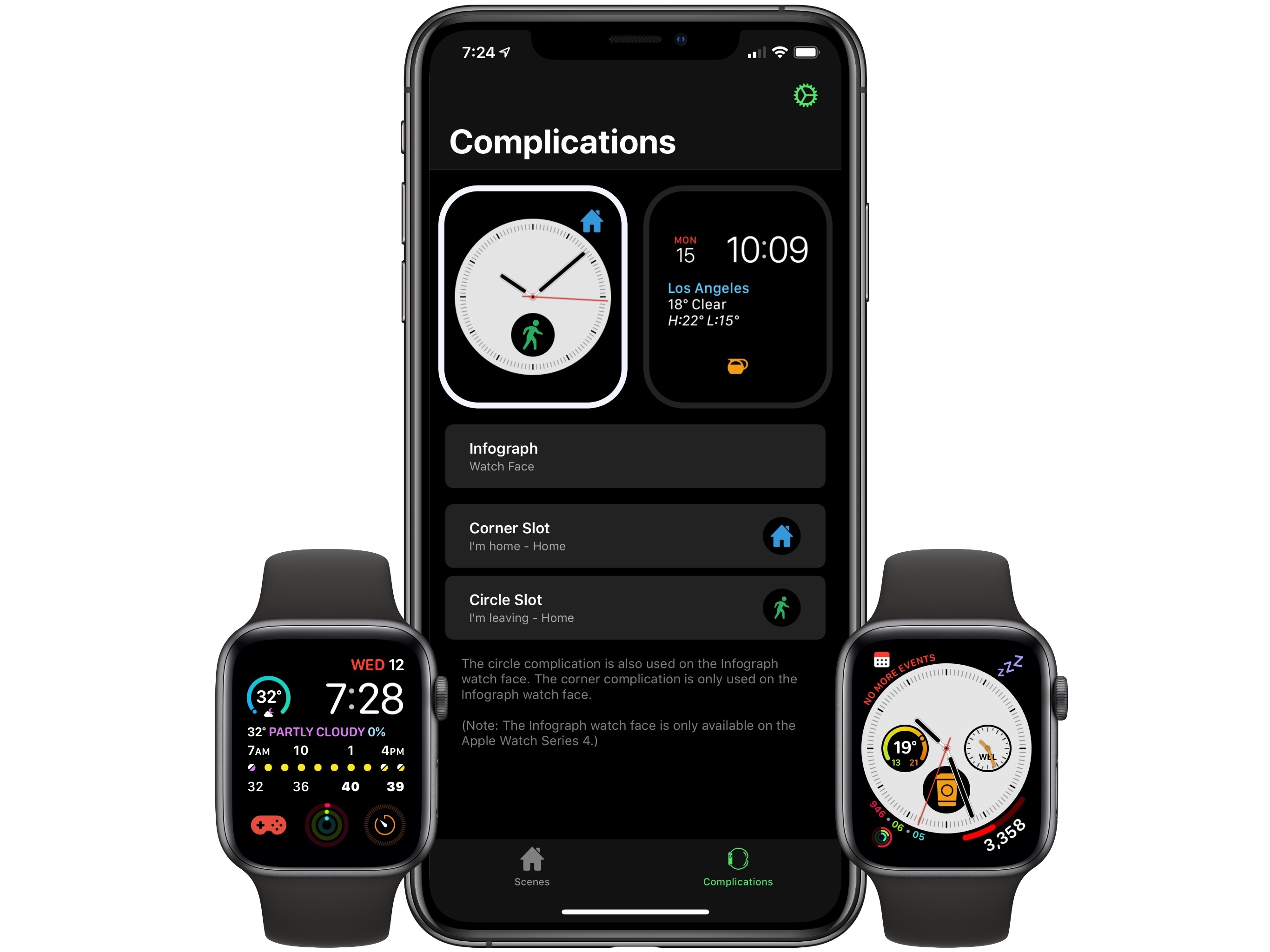
HomeRun is a simple Apple Watch utility for controlling HomeKit scenes from your wrist. Where Apple’s Home app for the Watch can be clunky to navigate, especially if you have more than a couple HomeKit devices set up, HomeRun makes controls easily accessible for all your scenes. And today, with version 1.1, HomeRun has introduced custom complication creation, making it possible to have different launcher complications for each of your configured scenes.

Inside the HomeRun app on iPhone, the Complications screen in version 1.1 appears largely the same at first glance, but once you start tapping around you’ll discover that Watch complications are now fully customizable. Visit the detail view for a specific watch face and you’ll be able to update any and all complications for that face with custom colors and icons to accompany your selected scenes. The Series 4 Watch’s Infograph face, for example, presents options to customize both the corner slot and circle slot complications.

Creating custom complications works just like setting up scenes for the main Watch app itself, with the same set of colors and glyphs available in both places. That means the excellent assortment of glyph options for scenes are all accessible as complication icons as well.

When it launched last month, HomeRun enabled adding scenes as complications to your watch face, but you had to use the app’s icon for each complication. Custom complications were a natural next step for the app, and I’m thankful we didn’t have to wait long for them to arrive.

HomeRun 1.1 is available on the App Store.
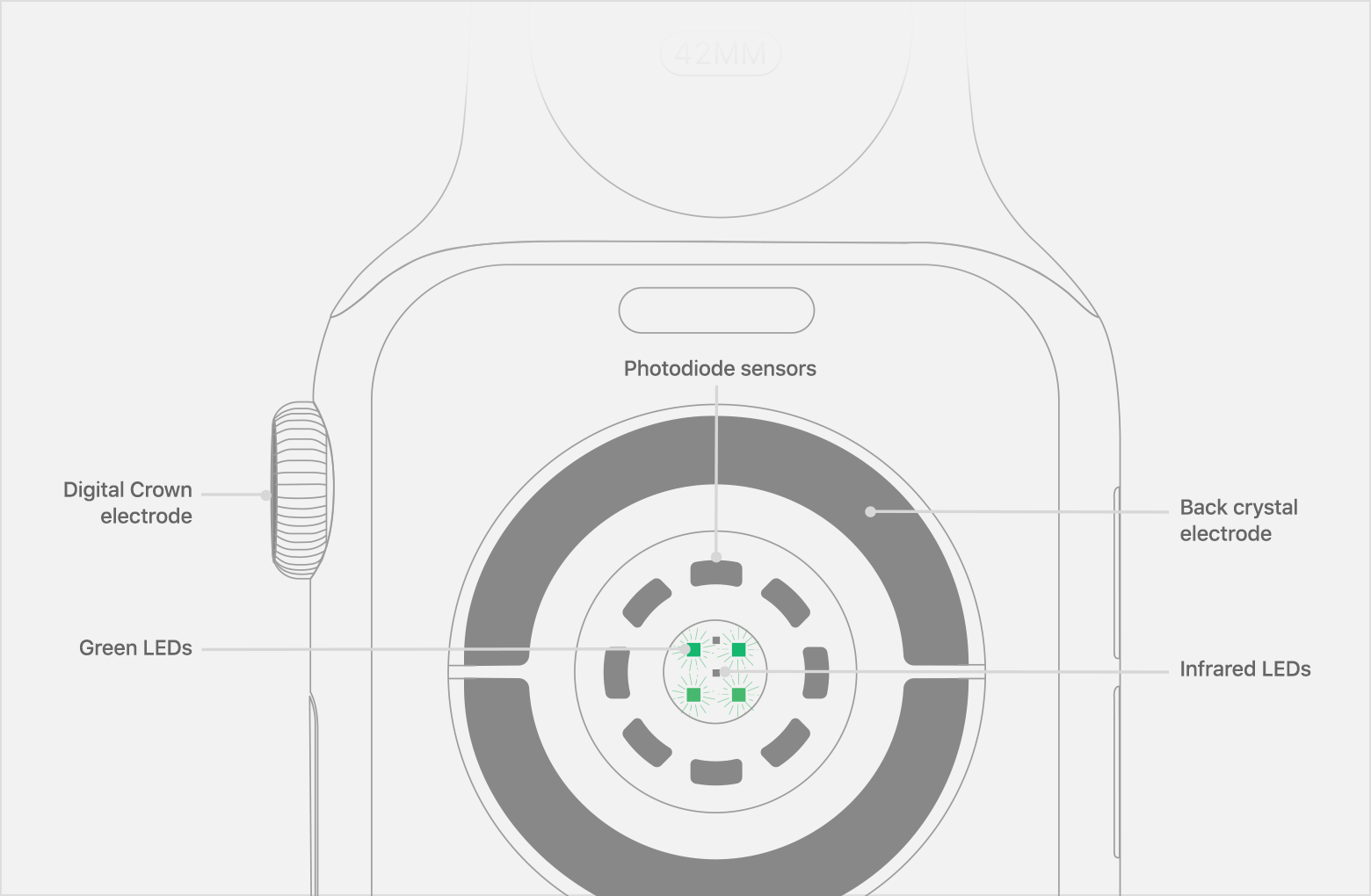

The Electrodes Used by Apple’s ECG Watch App Enable Faster, More Accurate Heart Rate Measurements

On 9to5Mac, Zac Hall breaks down how the new electrodes work in the Apple Watch Series 4 based on details published by Apple when it updated watchOS last week with the new ECG app. For now, the ECG app is only available in the US, but that doesn’t mean that others can’t benefit from the hardware that it uses. As Hall explains:

According to Apple, putting your finger on the Digital Crown to capture a heart rate reading also measures faster and with more accuracy as it updates every second versus every five seconds while the measurement is active.

That’s because placing your finger on the Digital Crown completes a circuit between your heart and arms that allows the Watch to record electrical impulses across your chest.

It will take time for the ECG app to gain the approval of regulators worldwide. However, in the meantime, it’s nice to know that the hardware that makes the ECG app possible is enhancing heart rate capture for everyone.

Permalink

AppStories, Episode 91 – Apps for Planning Projects Big and Small

On this week’s episode of AppStories, we explore the apps we use for planning everything from the upcoming year to the week ahead.

Sponsored by:

  • Affinity – super-fast, powerful, professional apps for modern creative people
  • Luna Display – The only hardware solution that turns your iPad into a wireless display for your Mac. Use promo code APPSTORIES at checkout for 10% off.

AppStories+ Deeper into the world of apps

AppStories Episode 91 - Apps for Planning Projects Big and Small

0:00
39:59

AppStories+ Deeper into the world of apps

Permalink

Drafts 5.5, MultiMarkdown, and CriticMarkup

Tim Nahumck, writing about the latest Drafts update for iOS:

One thing that is included with MultiMarkdown as an option is Critic Markup. Looking through the guide, there are several helpful elements that can be used for editing my writing utilizing Critic Markup. I can highlight some substitutions, additions, and deletions. I can highlight text to show something I might want to work on later. I can also add a basic comment somewhere that won’t be shown in a preview. And with this action, I can easily add any of them with a tap and a text entry, which inserts it in the proper format. This is helpful for creating and previewing the documents in Drafts, and gives users the flexibility to mark up files and save them back to a cloud service. I can see myself using this a lot for longer posts or large reviews. I’ve even modified my own site preview action to render the MultiMarkdown via scripting, as well as updating both my standard and linked post WordPress publishing actions to do the same.

I’ve always been a fan of CriticMarkup but have never been able to get into it as it wasn’t integrated with the text editors I used on iOS. Considering how Drafts is my favorite option when it comes to writing and editing certain annual long-form stories, and given how I came up with my own syntax in previous years to embed comments in Markdown documents, I’m going to give this a try.

Permalink

Connected, Episode 221: Speak the Unspeakable Name

Myke, Federico and Stephen talk about their use of Shortcuts, Apple Music heading to the Amazon Echo and a bit of BREAKING NEWS.

On last week’s episode of Connected, we discussed our ongoing usage of Shortcuts and what it means for Apple to expand their services to other platforms. You can listen here.

Sponsored by:

  • Away: Travel smarter with the suitcase that charges your phone. Get $20 off with the code ‘connected’.
  • Pingdom: Start monitoring your websites and servers today. Use offer code CONNECTED to get 30% off.
  • Luna Display: The only hardware solution that turns your iPad into a wireless display for your Mac. Use promo code CONNECTED at checkout for 10% off.
Permalink

Google Maps Debuts ‘For You’ Recommendations in 40 Countries on iOS

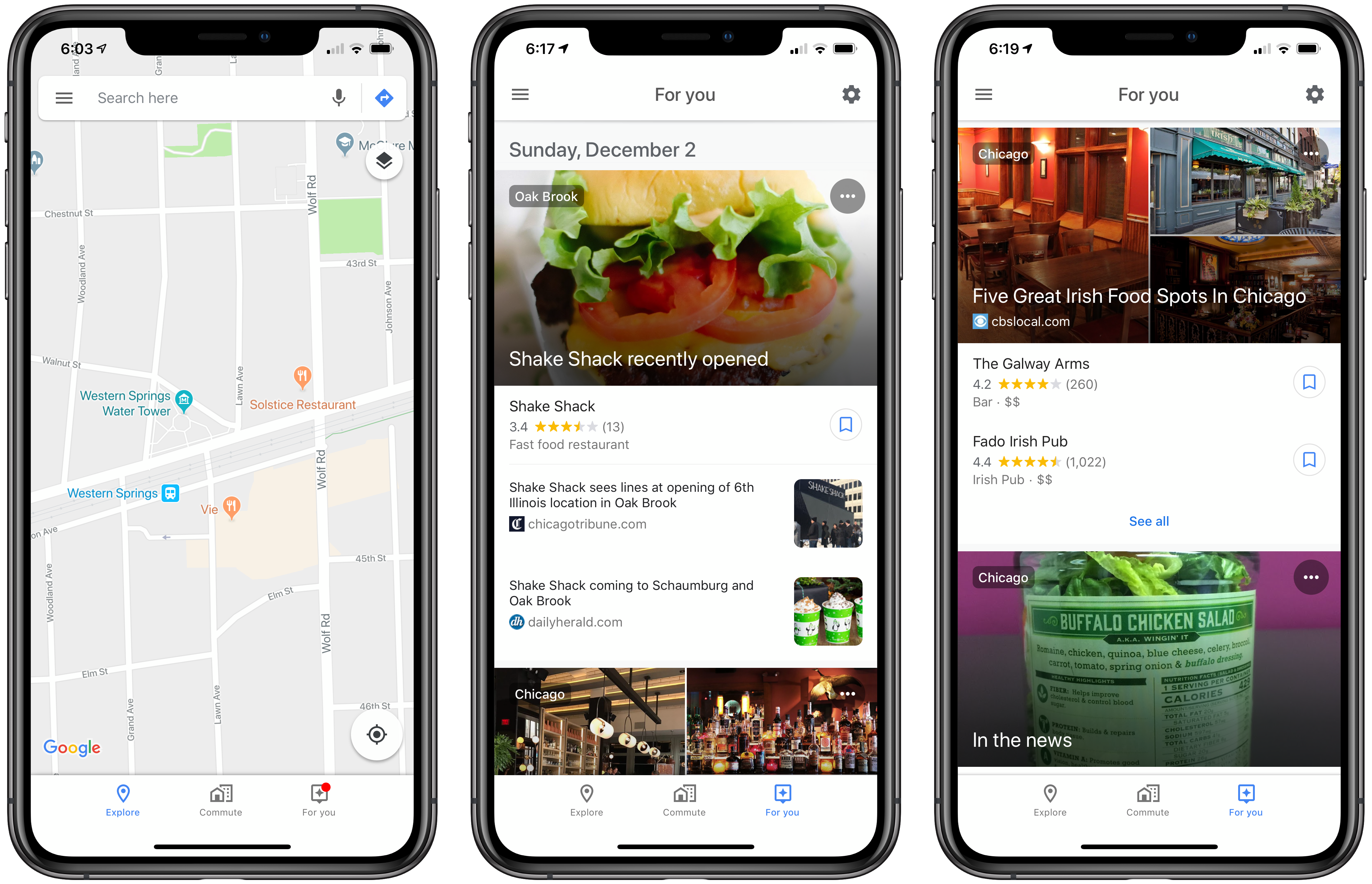
Previewed in May, Google has added a ‘For You’ tab to its Maps iOS app that is rolling out in stages today to users in 40 countries. The Android version of the feature is debuting in 130 countries.

‘For You,’ which appears as a tab on the far right of the app’s toolbar, is a way to follow a restaurant news feed for particular geographic areas. According to Google’s The Keyword blog:

Simply follow neighborhoods or places you’re interested in to get updates and recommendations—everything from recent news about an opening or pop up, a new menu item, and even restaurant suggestions based on what you’re likely to enjoy. If you’re making a trip this holiday season, the For You can help you get a jump start on travel planning even before you take off.

The For You tab includes its own settings that suggest additional areas to follow based on your location history. You can also add regions manually by panning and zooming the map to show the location in which you are interested. Surprisingly, there is no search bar for finding areas to follow.

If the area you pick doesn’t include enough places to track, the app prompts you to zoom out. That’s not an issue in densely populated cities, but in the suburbs where I live, I had to zoom out to roughly a 10x10-mile square that included several towns before I could save the area. Even then, I had to scroll back about a week before I found any local news. Likewise, if the area you pick is too large (for example, the entire New York metropolitan area), you’ll be prompted to zoom in to a smaller area.

The For You tab overlaps with the Explore tab’s listings of area restaurants but focuses on recent reviews and other news aggregated from third-party sources instead of business listings. If you see a place you want to try, there’s tap the bookmark icon next to it to add it to your ‘Want to go’ list, another list you’ve created, or your ‘Short List’ for sharing with others, just as you can from the Explore tab.

In my limited testing, my recommendations were dominated by Chicago. That’s not a surprise, but there were only four nearby entries since the beginning of November, which is a pretty weak showing for suburbs just 25 miles outside of Chicago. It’s worth noting too that the For You tab is limited to restaurants, which I didn’t expect. Not including events feels like a missed opportunity. Despite the overlap with the Explore tab and limited content available, For You should be useful the next time I’m looking for a new restaurant to try in Chicago or visiting an unfamiliar city.

The For You tab is being released in stages and will show up in Google Maps without the need to update the app in the App Store. If you don’t see the feature yet, force quitting Google Maps and reopening it can cause the new tab to appear.


Affinity: Super-Fast, Powerful, Professional Apps for Modern Creative People [Sponsor]

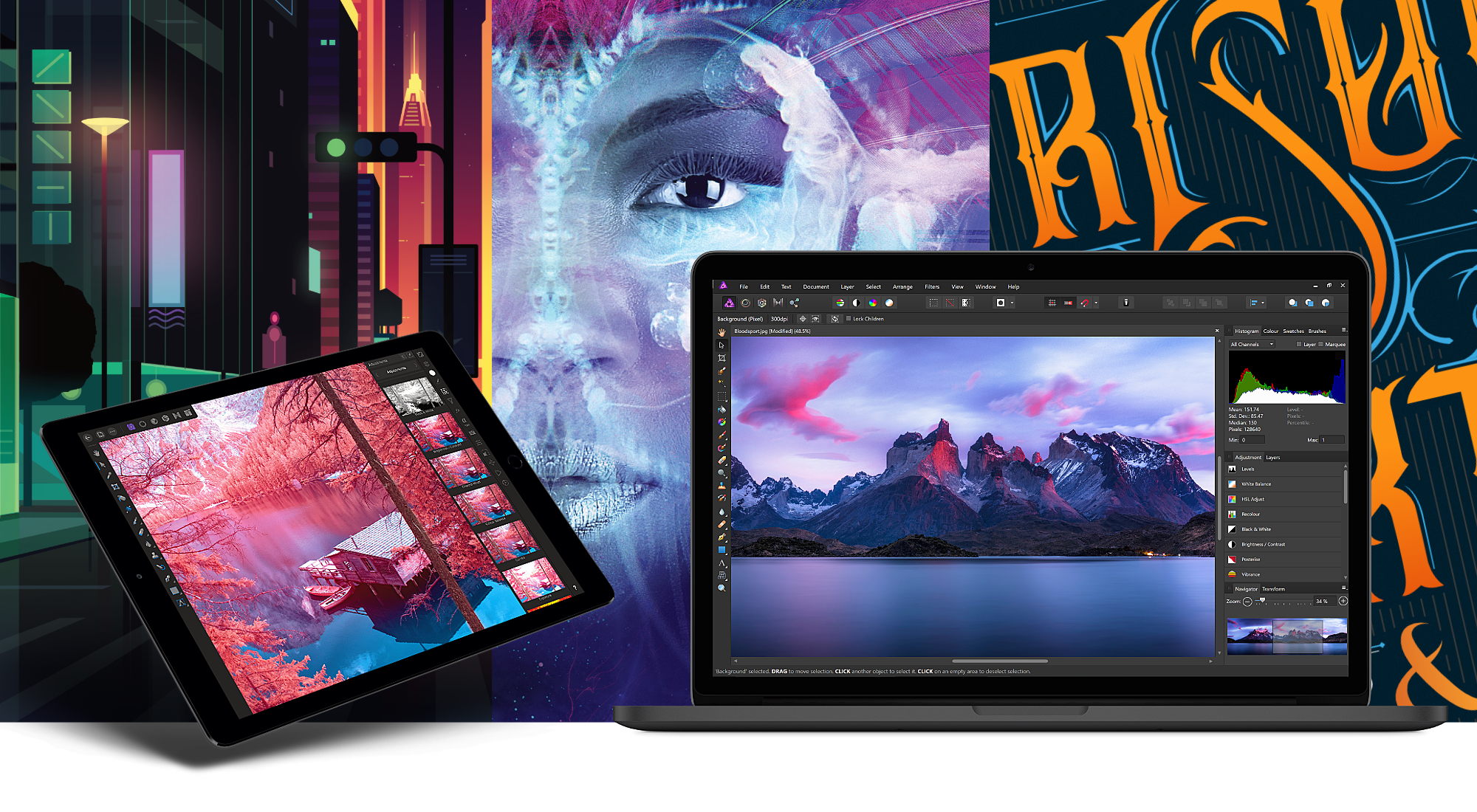
Serif, the maker of Affinity Photo and Affinity Designer, is one step closer to completing its trio of apps for creative professionals with the desktop publishing app Affinity Publisher, now available as a free public beta. From the earliest days, Serif’s vision has been to build the Affinity apps as an unrivaled trio of sleek, super-modern apps that work with the latest technologies, are ultra-fast, and completely stripped of feature-bloat. With the launch of the Affinity Publisher’s public beta, Serif is on the cusp of realizing that vision.

Affinity Publisher is set to revolutionize desktop publishing in the same way Affinity Photo and Affinity Designer have shaken up the worlds of professional photo editing and graphic design. The app will boast full integration with Affinity Designer and Affinity Photo, allowing owners of all three to edit vector designs and images inside one app in a stunning new way. Although not enabled in the current version of the beta, switching to Photo or Designer from within Publisher will be as easy as clicking a button in the app’s toolbar.

Affinity Publisher, which is free to download and try, is the result of thousands of hours of development by Serif’s award-winning team, which also launched the fully-featured vector graphics app Affinity Designer on iPad this year. Publisher includes advanced typography, linked text frames, master pages, facing page spreads, dynamic photo frames, tables, baseline grids, linked resources, end-to-end CMYK support, and much more. The beta is currently available on the Mac and Windows with an iPad version to follow later. This is an excellent opportunity to get an advance look at Publisher and provide Serif with feedback, suggestions, and requests on their dedicated Publisher forum.

If you haven’t tried the Affinity apps yet, see what the future of professional creative work looks like today by visiting the Affinity store where you’ll find the Affinity apps, workbooks, brush packs, and merchandise throughout the holiday season.

Our thanks to Affinity for sponsoring MacStories this week.


Hands-On: Belkin’s USB-C to HDMI Adapter for the 2018 iPad Pro

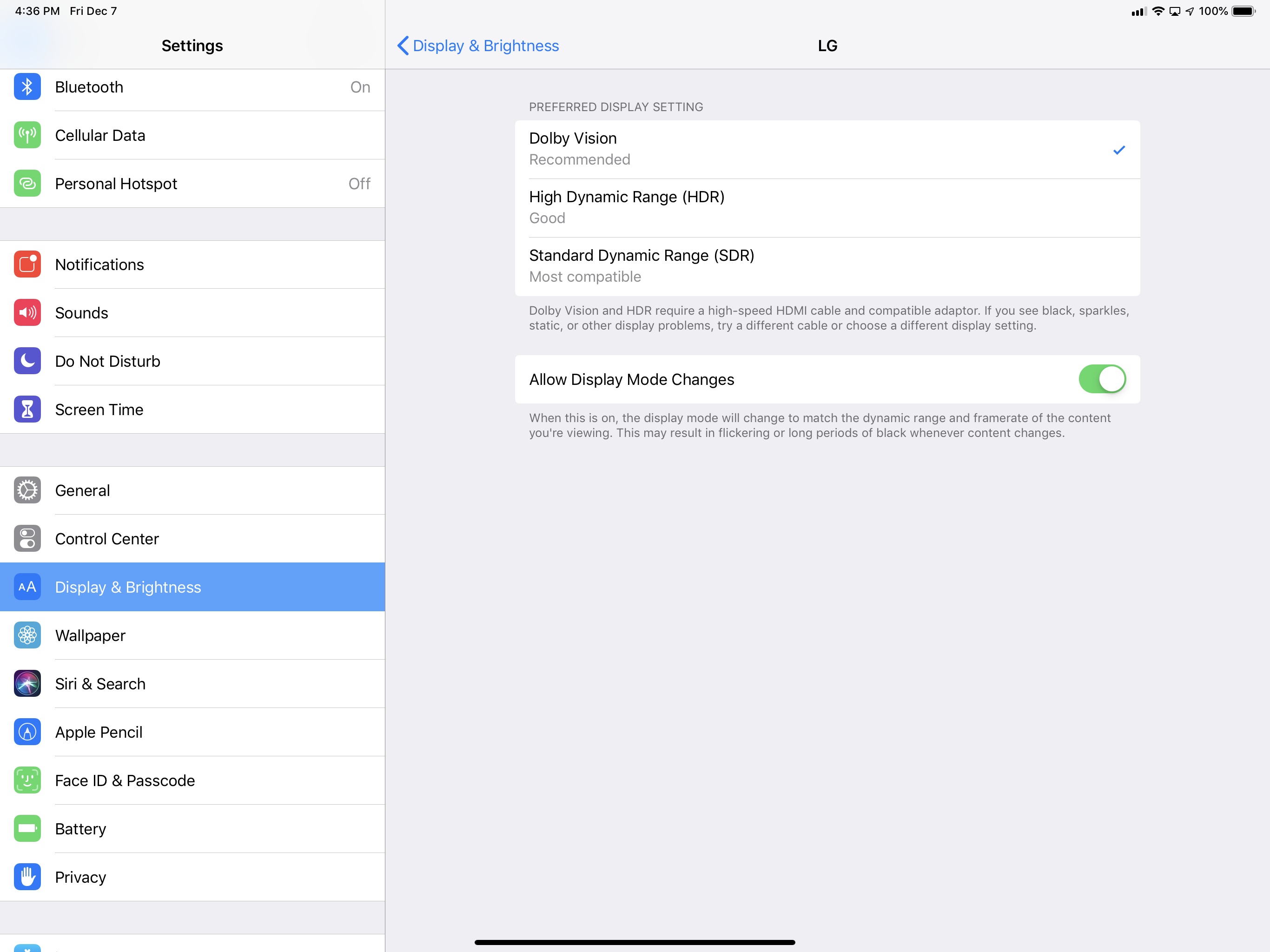
As I mentioned earlier this week, I have been looking forward to Belkin’s USB-C to HDMI adapter for the new iPad Pro since I discovered the accessory was announced on the same day of Apple’s Brooklyn event. The unique proposition of this adapter is support for 4K @ 60Hz video-out with HDR and HDCP 2.2, which, as I noted in yesterday’s iPad Diaries column as well, I haven’t been able to find in other USB-C adapters so far. I just spent 30 minutes playing with the iPad Pro connected to my 4K TV through this adapter, which arrived this morning, and I’m happy with the purchase, even though there is one significant drawback.

Read more