

Today Things, the excellent task manager, was updated with enhanced support for the iPad’s new cursor just in time for the Magic Keyboard’s arrival. While you could use the iPadOS cursor in the app before, now all of the interface elements respond appropriately to it and key additions like context menus and special clicks make the experience complete.
Things for iPad Adds Enhanced Cursor Support with Context Menus and Special Clicks
The Clock: The Best World Clock [Sponsor]
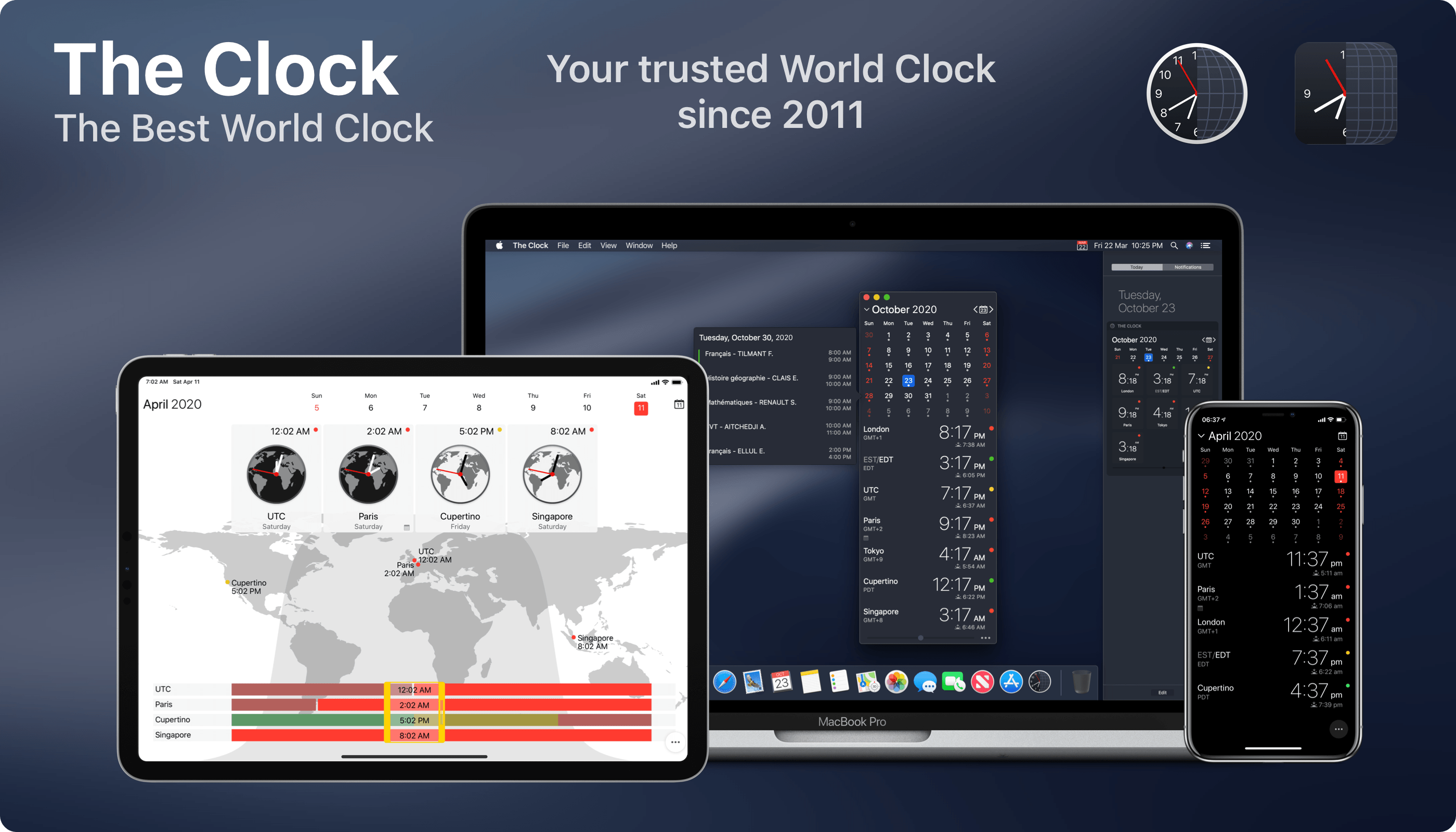
The Clock for iOS and the Mac takes the hassle out of time zones, so you can stay in touch with friends and family and schedule meetings with colleagues scattered across the globe. The app dispenses the confusion caused by time zones, eliminating the worry about when an event is scheduled to begin.
The result of nine years of updates and customer feedback, The Clock 4 is an intuitive and essential utility. Just take a look at the app’s many positive reviews on the Mac and iOS App Stores.
Of course, times and dates can be displayed in a a wide variety of formats, but that’s just the start. The Clock includes four handsome themes and supports eight different complications that display information like sunrise and sunset times, business hours, days off, days of the week, time zone offset, and more.
The Clock is also indispensable for planning meetings. With calendar integration and a unique slider interface, it’s easy to find a time window to chat with colleagues around the world. The app also automatically adjusts for Daylight Savings Time and alerts you as the time change approaches.
The Clock is loaded with lots of other features too:
- Menu bar and dock options
- Notes
- Accessibility support
- Local, iCloud, and Dropbox backups
- An advanced widget
- Keyboard support on the Mac and iPad
- Handoff
- Share sheet and service integration for converting times
- Split Screen and Full Screen
- Shortcuts
The Clock is the best world clock you’ll find anywhere on the Mac or iOS. Learn more about The Clock for macOS and download a trial version from the app’s website. While you’re there, check out the iOS version too. Both the macOS and iOS versions are available on the iOS App Store and the Mac App Store.
We’re giving away 20 copies each of the Mac and iOS versions of The Clock to MacStories readers too. Click here, to learn more and enter the giveaway.
Our thanks to The Clock for sponsoring MacStories this week.
 MacStories Weekly: Issue 220
Catalina Developer Beta Changes How Mac Laptops Charge to Extend Their Batteries’ Lifespans→
The developer beta release of macOS 10.15.5 has a new feature in the Energy Saver section of System Preferences called Battery Health Management that changes the battery charging behavior of Mac laptops with Thunderbolt 3 ports. According to a story by Jason Snell at Six Colors, Apple says:
…the feature is meant to reduce the rate of chemical aging of the MacBook’s battery, thereby extending its long-term lifespan—but without compromising on day-to-day battery life.
The feature works by analyzing the temperature of the battery over time, as well as the charging pattern the laptop has experienced—in other words, does the laptop frequently get drained most of the way and then recharged fully, or is it mostly kept full and plugged in?
Battery Health Management can be turned off by unchecking a box in System Preferences.
As Snell points out, Apple’s approach here is in contrast to what it did with the iPhone’s battery in 2017, which embroiled the company in controversy and ultimately, led it to issue a public apology. It’s good to see Apple take the initiative to explain how the new power management feature works and give users a way to turn it off when it makes sense, though I expect to leave it turned on most of the time myself.
TV Forecast Review: An Elegant Way to Track Your Favorite Shows
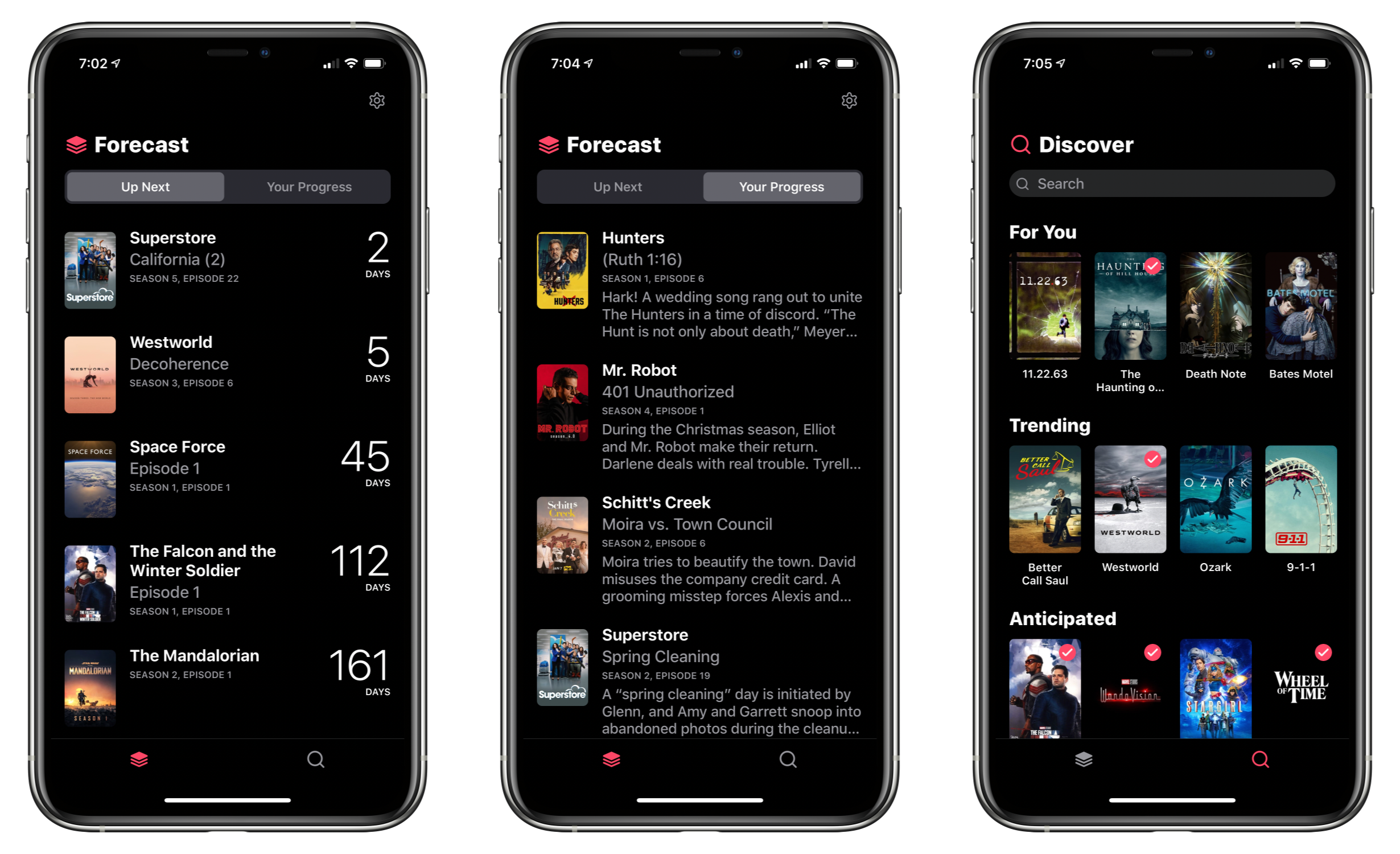
I’ve tried a lot of TV tracking apps and none ever stuck for long, until I tried TV Forecast. Some of the apps I’ve used had busy UIs, were hard to navigate, or just weren’t organized in a way that fits with how I watch TV. In contrast, I’ve been using TV Forecast for the last 11 months and absolutely love it. TV Forecast elegantly combines a simple, modern design aesthetic with smooth, fluid UI that carefully balances the shows you already watch with effortless browsing of new shows.
Halide Team Experiments with iPad Pro’s LiDAR Scanner→
Sebastiaan de With, on the Halide blog, goes deep on the 2020 iPad Pro’s camera module. His examination reveals that the device’s wide camera is virtually identical to that of the 2018 model. And the ultra-wide camera, unfortunately, isn’t quite up to the quality level of what’s found in the iPhone 11 and 11 Pro.
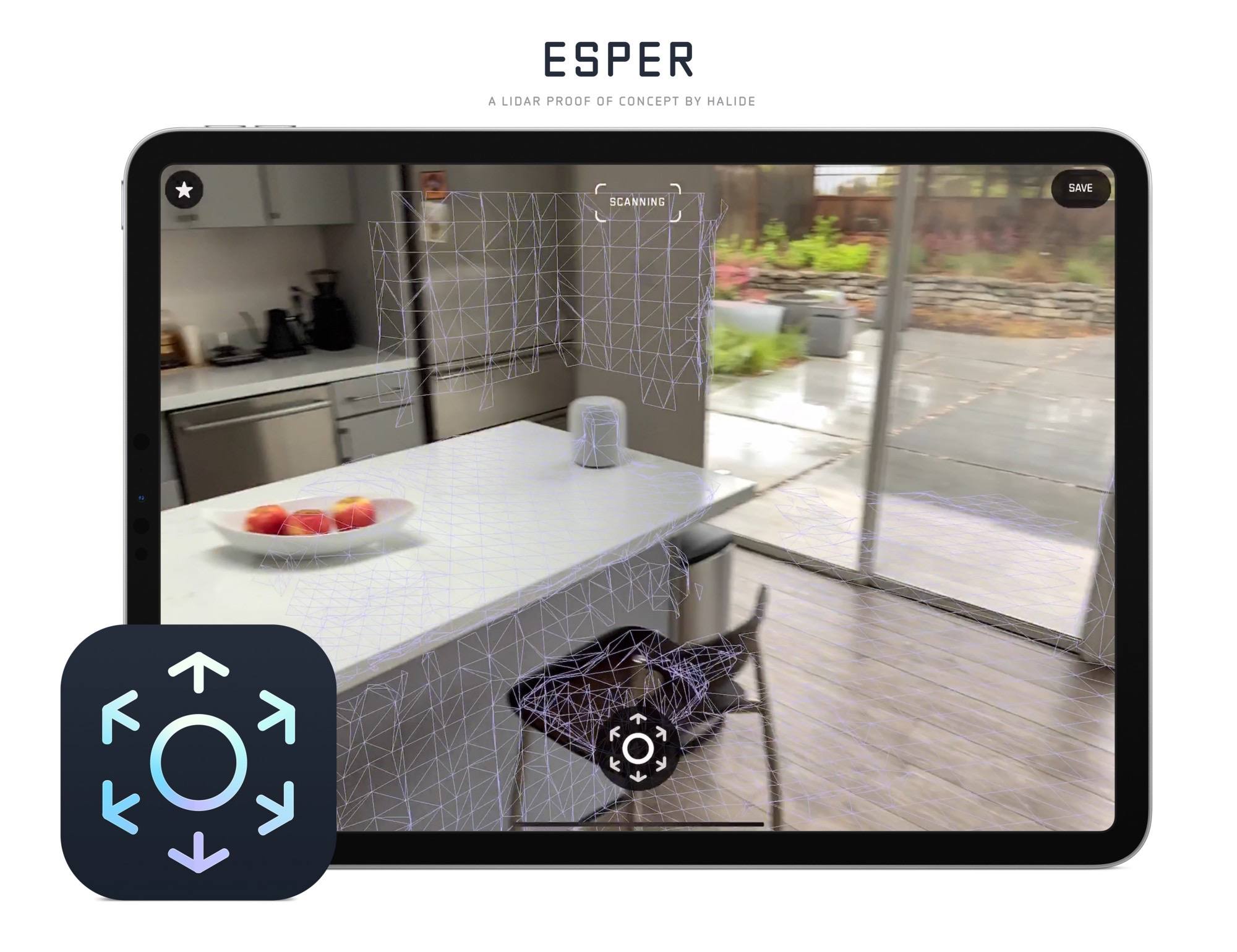
The most exciting and impressive aspect of the camera system is the LiDAR Scanner. The Halide team actually went to the trouble of building an entire proof of concept app that utilizes the LiDAR Scanner to capture your surroundings.
With Halide, we’d love to use the depth data in interesting ways, even if it’s low resolution. There was only one problem: there are no APIs for us as developers to use to get access to the underlying depth data. They only expose the processed 3D surface.
What if we re-thought photographic capture, though? We built a proof-of-concept we’re calling Esper.
Esper experiments with realtime 3D capture using the cameras and LIDAR sensor at room scale. It’s a fun and useful way to capture a space.
I always love reading de With’s in-depth explanations and comparisons of new iPhone or iPad cameras, and this was an especially fun one.
Adapt, Episode 23: Modular Computing and iPad Sizes→
On this week’s episode of Adapt:
Federico and Ryan discuss using the iPad Pro as a modular computer, and the pros and cons of the 12.9-inch and 11-inch models in different setups. Afterwards, a Keynote presentation about, to the surprise of no one, the iPad.
You can listen below (and find the show notes here), and don’t forget to send us questions using #AskAdapt and by tagging our Twitter account.





Sponsored by:
- Pingdom: Start monitoring your website performance and availability today, and get instant alerts when an outage occurs or a site transaction fails. Use offer code ADAPT to get 30% off. Offer expires on January 31, 2021.
Connected, Episode 290: You Strike Me as a Wheel Guy→
On this week’s episode of Connected:
Federico rejects a new iPhone charging solution, Myke opens a new store and Stephen passes a collection basket to add a set of wheels to his Mac Pro. Then, the three talk about the new iPhone SE.
You can listen below (and find the show notes here).
Sponsored by:
- StoryWorth: Record your family stories. Get $10 off your first purchase.
- Ooni: Bring the world’s best pizza to your own backyard. Use the code CONNECTED for 10% off.
- Hover: Make a name for yourself. Get 10% off any domain name.
Service Station Review: A Handy Utility to Customize Your Finder’s Contextual Menu
I wouldn’t be surprised if you’ve never heard of Finder Sync Extensions. I haven’t run across many apps other than Dropbox and HoudahSpot that support the feature. Finder extensions allow third-party developers to customize the Finder on the Mac with buttons in the Finder’s toolbar or changes to the contextual menu that’s displayed when you right-click on a file.
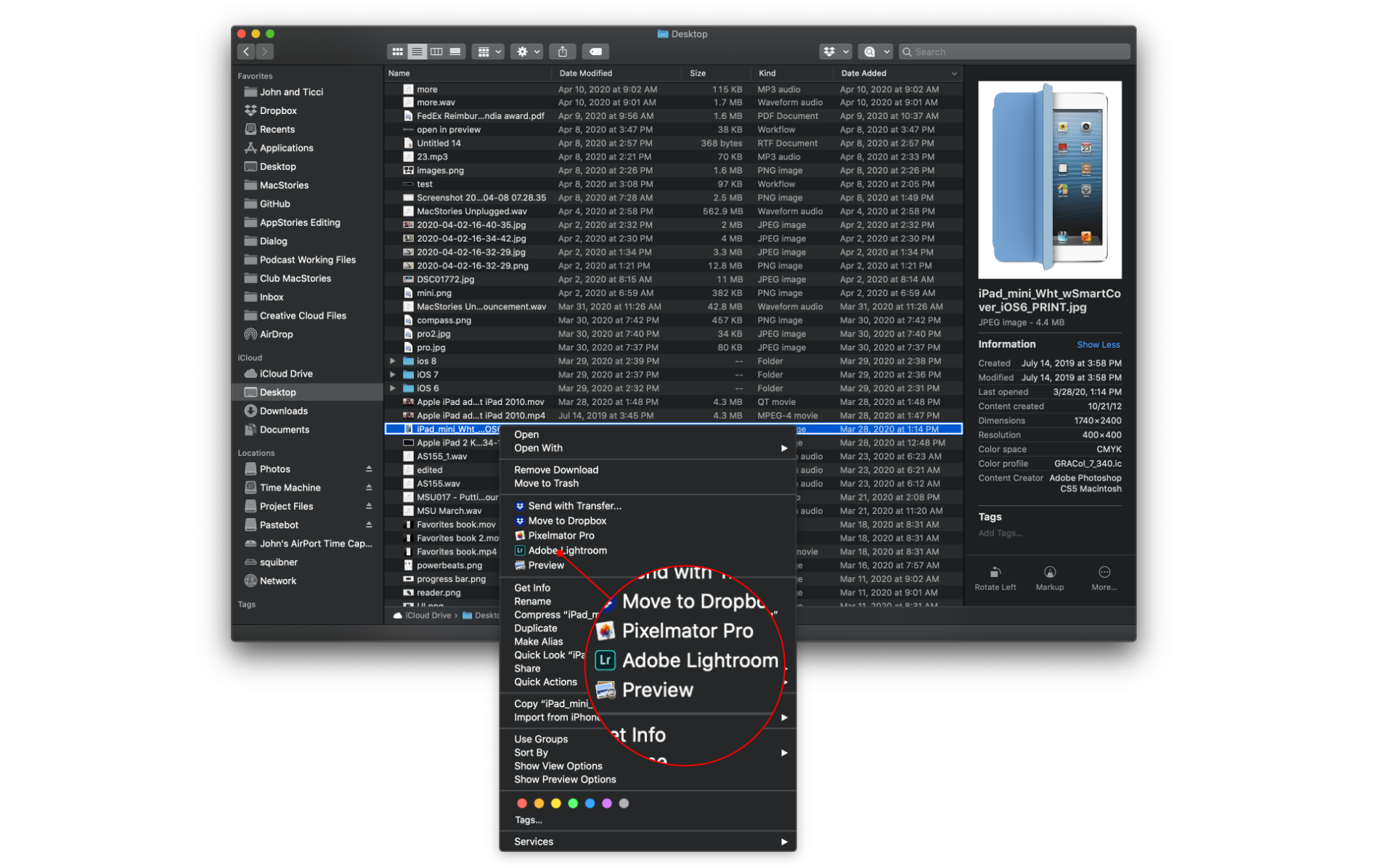
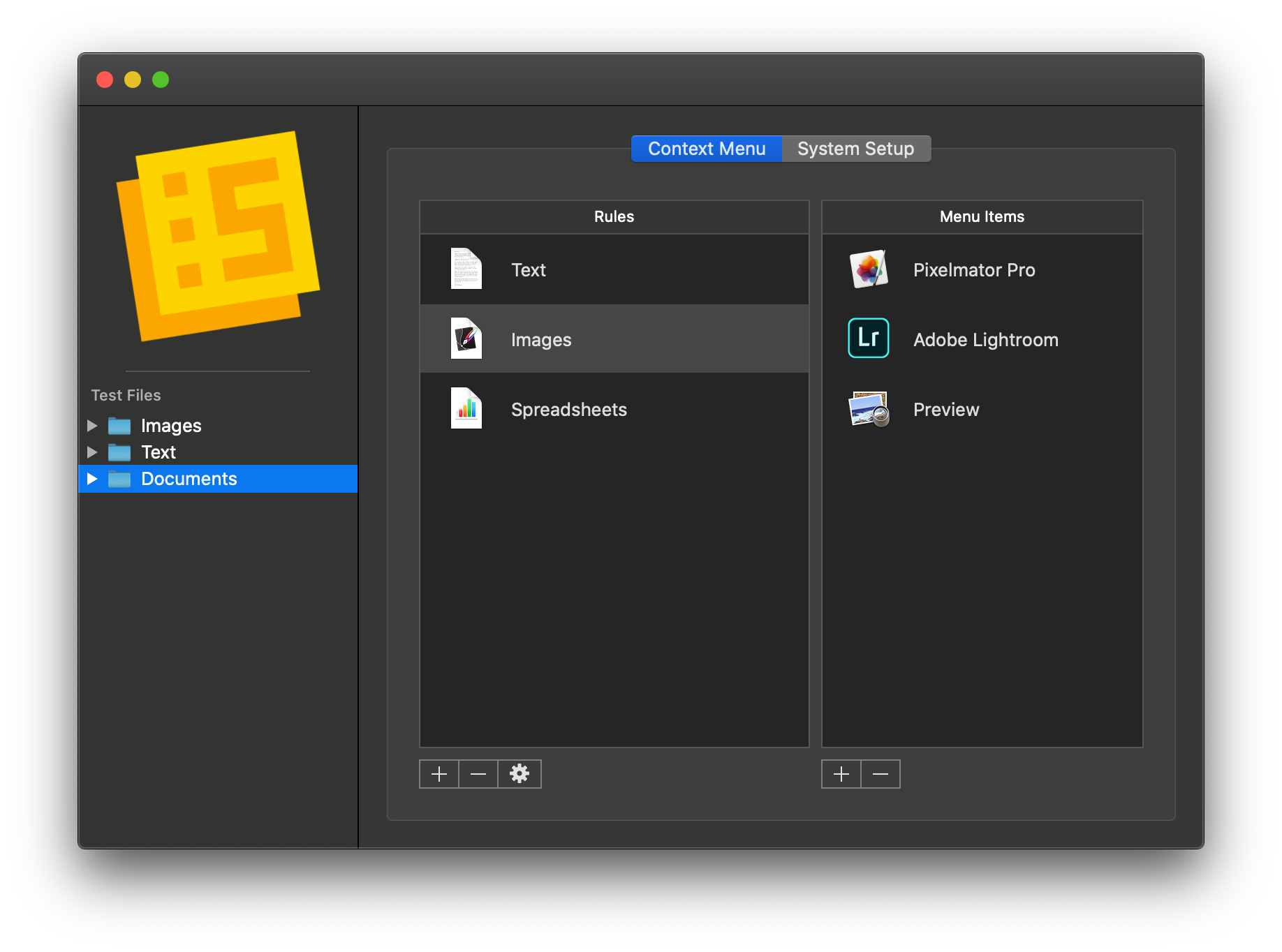
Service Station adds apps and scripts to the top level of your Mac’s contextual menu based on rules you define.
Service Station is a new Mac utility that takes advantage of Finder extensions by letting users create rules to control when and which apps are displayed in the right-click contextual menu. The app can also be used to kick off AppleScript and shell scripts and Automator workflows. These are all tasks that macOS already supports in one way or another, but Service Station surfaces them as top-level contextual menu options and can be customized to suit your individual needs, which makes this a very handy tool.