Rare Video Of Steve Jobs as Franklin Delano Roosevelt Surfaces

Rare Video Of Steve Jobs as Franklin Delano Roosevelt Surfaces

Network World (via MacRumors) managed to obtain a copy of an old internal inspirational video for Apple employees titled “1944”, starring Steve Jobs as U.S. President Franklin Delano Roosevelt. Serving as an in-house alternate version of Apple’s iconic 1984 commercial, “1944” was allegedly aimed at rallying Apple’s sales troops against IBM.

Set as a World War II tale of good vs. IBM, it is a broadcast-quality production (said to have cost $50,000) that was designed to fire up Apple’s international sales force at a 1984 meeting in Hawaii. A copy of “1944” was provided to me by one-time Apple employee Craig Elliott, now CEO of Pertino Networks, a cloud-computing startup located two blocks from Apple in Cupertino.

Make sure to check out the full video, backstory, and transcript of the entire video at Network World.

Permalink

MacStories Interviews: Manton Reece

In our ongoing series of interviews with developers and creators in the Apple community, I recently had the chance to talk with Manton Reece, the founder of Riverfold Software and developer of Wii Transfer, Tweet Library, and Tweet Marker. When he’s not developing new features for his apps, Manton writes at manton.org. You can follow him on Twitter as @manton.

The interview below was conducted between January 18 and May 2, 2012.

MacStories: Hey Manton! Could you introduce yourself to the readers who haven’t heard about you or haven’t tried any of your apps before?

Manton Reece: Sure, my name is Manton Reece and I’m a Mac and iOS developer from Austin, Texas. I build e-textbook software for VitalSource and in 2006 I founded Riverfold Software with my first indie Mac app, Wii Transfer. My two main products are Clipstart, for managing videos on the Mac, and Tweet Library, an iOS app for archiving and collecting tweets. Most recently I launched Tweet Marker, a syncing web service for Twitter apps.

MCSTR: What are the circumstances that led you to start your own company? When, and how, did you decide you wanted to become an independent developer?

MR: It was almost an accident that I started Riverfold. I’ve always worked on side projects, though often it’s just to build something I need for myself, or a small tool released as freeware. But in 2006 the Nintendo Wii had just been released, and over a few weekends I built this app to make it easier to convert movies to a format that could play on the new console. At the last minute, I decided to charge for it, and I reused the domain name from a previous, unfinished web project of mine.

People bought the app, but the most surprising thing to me – and what really opened my eyes about the business of software development – is that sales were fairly consistent over those first few months. I could tell that the Mac had a very healthy software market for independent developers.

And there’s nothing like feedback from paying customers to get you excited about building and improving apps. I don’t think I would have been nearly as inspired to do anything after that if I hadn’t decided to make it a paid app at that initial release. Read more


QuickShot 2.0

QuickShot 2.0

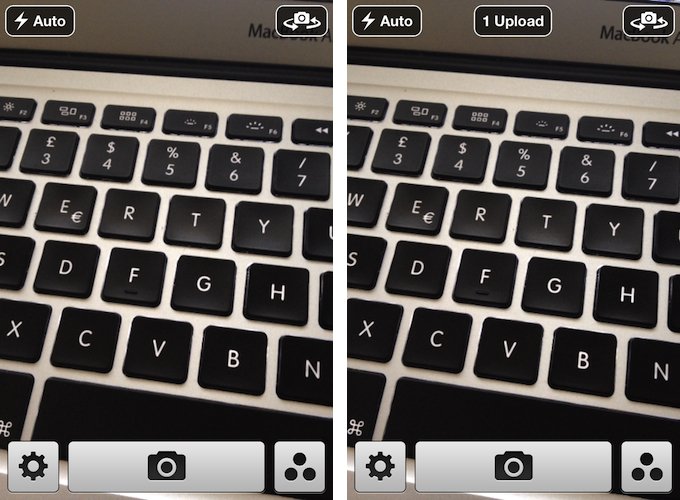
I don’t only store text in Dropbox. Sometimes, I like to quickly send photos or videos shot with my iPhone or iPad to my Dropbox account – either into the standard Photos directory, or to a folder I’m sharing with the MacStories team. Previously covered on MacStories, QuickShot recently got an upgrade to version 2.0, adding a number of new features and optimizations to improve the way the app uploads photos and videos to Dropbox as soon as they are shot.

QuickShot is a standalone camera app that uploads media to any Dropbox folder. In version 2.0, the developer added support for specifying your own Dropbox path from a built-in browser. Similarly, you can now set custom file names for files that get uploaded – with default shortcuts for timestamps – opening the door for some interesting automation possibilities (imagine mixing up filename recognition with Hazel, or custom folders with IFTTT to save, say, receipts into Evernote). Custom path and file names definitely help in personalizing QuickShot even more (the app already allowed you to set custom file sizes for faster uploads).

The most notable feature of version 2.0, however, is “Capture Profiles” – a way to switch between different output settings for multiple scenarios.

The second goal was to transform QuickShot from a single-purpose app to one that could be easily integrated into powerful workflows. A single new feature called “Capture Profiles” you to go from shooting HD video of your kids and sharing it with the world through a shared folder to capturing business receipts and sending to Evernote using if this then that without the need for changing a bunch of settings. The app ships with a few great profiles by default but its really easy to create and customize them to suit your needs.

I am using QuickShot for photos and videos that I want to end up on Dropbox instantly, and I like the improvements of version 2.0. The app is $1.99 on the App Store.

Permalink

Create Multiple Mail Signatures On Your iPhone with Signatures

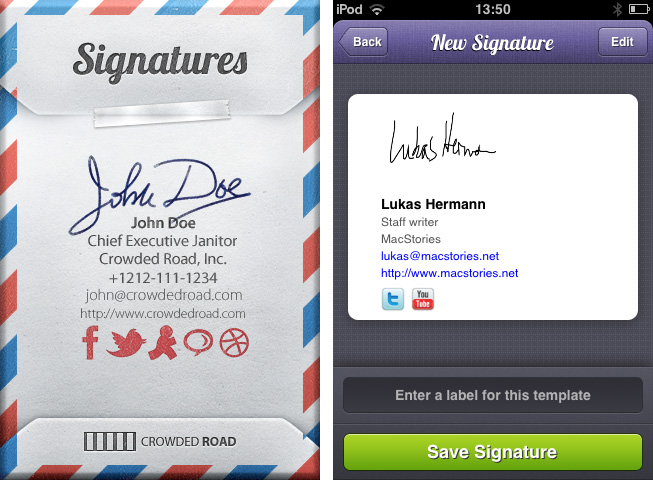
When it comes to mail conversations, it’s often difficult to find the right signature for the mail you’re about to send. You obviously cannot send a mail to your grandma ending up with “Kindest Regards, Lukas Hermann – Staff writer for MacStories.net”. I mean, of course you can, but she may misconceive that a bit. To avoid uncomfortable answers or telephone calls from her, mail apps for the Mac most of the time offer the ability to create several signatures and add them to a mail with a single click. On the iPhone, you can only create one signature, it completely lacks of this ability although it’s Mac companion has this feature. Signatures from Crowded Road fills this gap of functionality with a great UI and many useful features. Read more


Spotify for iPad: A UI Analysis with A Rdio Perspective

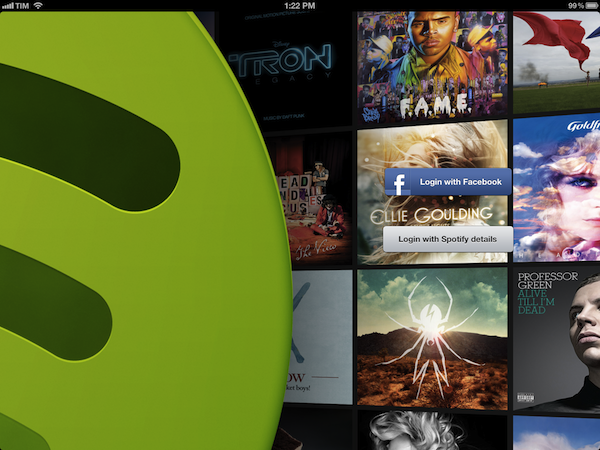
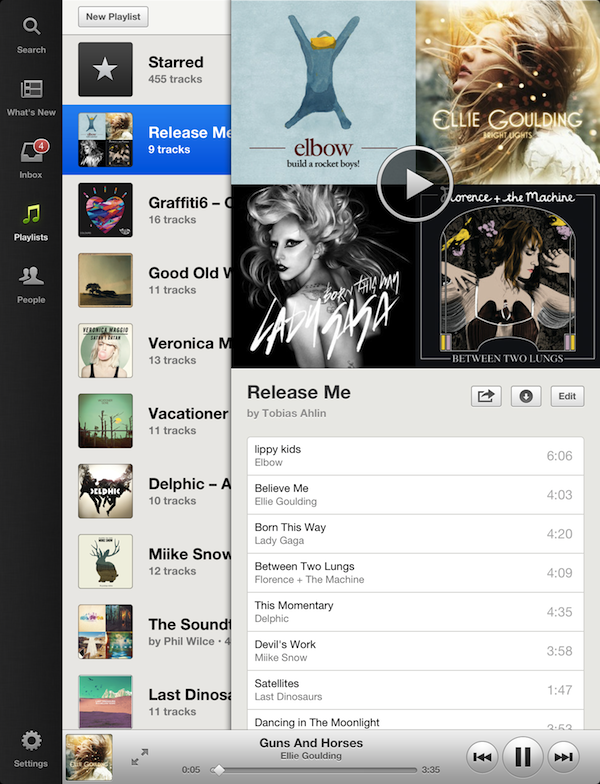
Spotify for iPad, released this morning, is a beautiful app. It’s solid, providing fast and reliable access to Spotify’s huge catalogue of songs and artists, and it presents content inside a great-looking package that, as I’ve already written, reminds me of Reeder’s sepia tones.

What follows is a brief examination of the app’s interface and functionalities. I have been using Rdio to completely fill my music listening needs for the past six months, but I was looking forward to trying Spotify for iPad to give it a fair shot. Read more


Spotify for iPad Now Available

After years of speculations and subtle hints, music streaming service Spotify is today unveiling its official app for the iPad. The Next Web has the first details on the app; you can find Spotify for iPad on the App Store.

Fully optimized for the Retina display and taking advantage of Apple’s AirPlay technology to stream audio to other sources, the official Spotify app has been completely re-imagined to use the device’s larger screen, and give users more space to browse music, access their playlists, and inbox. The app uses a Twitter-like panel navigation to load playlists and artists, with music controls available at the bottom alongside an option to enlarge the album view. Relying on linen and sepia tones reminiscent of apps like Reeder, Spotify for iPad doesn’t simply look like a bigger version of its iPhone version – something the company is even joking about in the promo video. For instance, the larger screen has allowed Spotify to introduce features like instant, unified search for artists, albums, and playlists, or a full-screen cover art view that users can swipe on to change songs.

Spotify for iPad requires a Premium subscription. We will update this post with more information and our first impressions during the day, as the app is propagating now in iTunes. In the meantime, you can find more screenshots and a video after the break.

Update: Here’s our look at Spotify for iPad.

Read more


11.13 and The Dropbox SDK

Apparently, Apple has been rejecting some iOS apps with Dropbox integration lately (at least during the past week) for linking to the Dropbox website through the login/sign up process. The Next Web has a rundown of the “issue”.

Apps that integrate with Dropbox, in fact, can either authenticate through the installed Dropbox app, or, if not installed, open a web view to let users log in with the browser. The alleged problem with Apple is that the Dropbox mobile login page contains a link to go back to Dropbox’s main website/account creation page, and possibly purchase a subscription bypassing Apple’s App Store (and thus 70/30 revenue split).

Of course, this isn’t new. In its App Store Review Guidelines, Apple has been enforcing for years a policy that doesn’t allow developers to visibly link to external websites that contain links to subscriptions sold outside of iTunes

Apps that link to external mechanisms for purchases or subscriptions to be used in the app, such as a “buy” button that goes to a web site to purchase a digital book, will be rejected.

In the past, a number of developers and services that included buttons/links to external websites containing subscription options were forced to update their apps to remove such functionalities. The most notable example to date has probably been the official Kindle app, which removed a button that linked to Amazon’s Kindle Store (where books can be purchased with an Amazon login, and saved into Amazon’s cloud locker). The list goes on, and the core issue at hand seems to be just how visibly developers are linking to external websites featuring ”external mechanisms for purchases or subscriptions”. There doesn’t seem to be a “visible” link to purchase additional Drive storage on Google.com, but you get the possible irony of this scenario. In the past few days, if these forum posters are to be believed, Apple decided to reject some apps that offered “an external link to Safari to create a Dropbox account”.

Before we march to Infinite Loop with our community pitchforks and torches, there are some necessary notes to be made about these rejections. First, the latest public version of the Dropbox iOS SDK is 1.2.1, available here, and I know at least two apps – Ultimate Password Manager and Drafts – that use it, and were approved today. Dropbox integration isn’t a central feature in these two apps, but they do have the Dropbox SDK built-in. On the forums – thus, not on the public developer page – the Dropbox team has already released a “beta” version of the 1.2.2 SDK, which removes the option to create an account on Dropbox.com. The beta SDK was seeded a few hours ago, and there’s the possibility Apple will reverse its decision on those rejections once they see the removal of the incriminated links. Right now, we don’t know.

Perhaps more interestingly, Dustin Curtis notes how some developers had also trouble linking to Rdio content inside their apps. It’s interesting, because Rdio came up with its own way to comply with Apple’s terms without losing money: they are offering subscriptions at a higher price through in-app purchase. But then again, the issue isn’t that Rdio does offer IAPs in its iOS app (the restriction on different prices was relaxed last year): it’s that the Rdio website still displays links to subscriptions users may potentially purchase through Safari (or any iOS web view).

As iOS apps become increasingly connected with third-party services and APIs, it’s going to be difficult for developers to keep track of websites and login pages that may or may not contain purchase mechanisms Apple doesn’t like. Sometimes, these mechanisms go unnoticed for months; other times, Apple decides to take action, such as in the (reportedly few) cases of Dropbox rejections this week.

Does this signal a change in Apple’s stance on Dropbox-enabled apps? We don’t know, though developers are naturally asking for clarifications and expressing their doubts. It may well be that Apple decided to simply start enforcing its old existing rule, and that they will be perfectly fine with the new SDK for newly-submitted apps. More importantly, while these few rejections are being talked about now, it’s important to note how, this week, other apps with the old Dropbox SDK have been approved.

Apple’s 11.13 rule isn’t new, and before we dabble in speculation about Apple wanting to “kill Dropbox”, I suggest we wait.



My New Dropbox “Quick Note-Taking” App: Drafts 1.1

In my review of Drafts 1.0, I wrote:

Drafts is neither a text editor nor a minimal Twitter client. Drafts is a frictionless way to capture and save ideas that also happens to be integrated with system functions and applications you may be already using to elaborate on those ideas. Drafts can be used as an inspirational notepad to store the genius idea you have while you’re brewing coffee, or when you’re busy writing something else (just fire up Drafts, and quickly dictate your text if you have an iPhone 4S). I would like to see an even faster way to email text (like Captio or Note 2 Self do) as well as support for Evernote and more text-based iOS apps in a future update, so here’s to hoping the feedback on this initial version will be strong enough to encourage Greg Pierce, the developer of Drafts and Terminology (which the app also supports for definitions), to consider more functionalities and an iPad counterpart.

And from my Dropbox Writing Workflow, about the service I use to save “quick snippets of text” into Dropbox:

I am not always writing long form content. In fact, most of the time I am simply saving ideas and short sentences in Dropbox. The web service I use to quickly get bits of text as .txt files into Dropbox is Send To Dropbox. Using my “Attachments” folder, Send To Dropbox connects via OAuth to my Dropbox account and gives me a unique email address I can email stuff to.

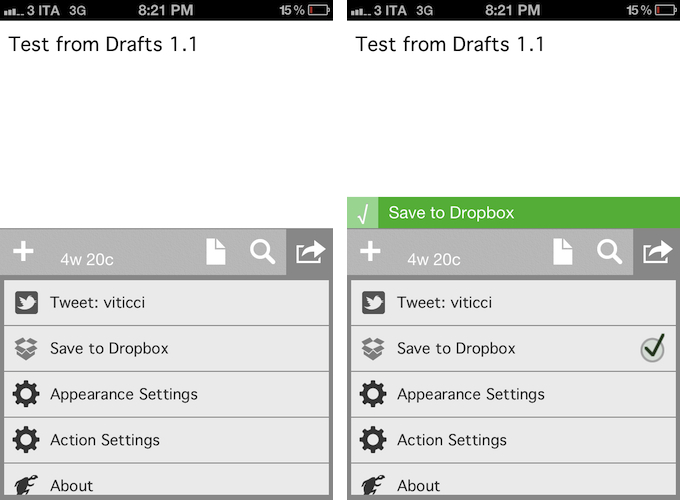
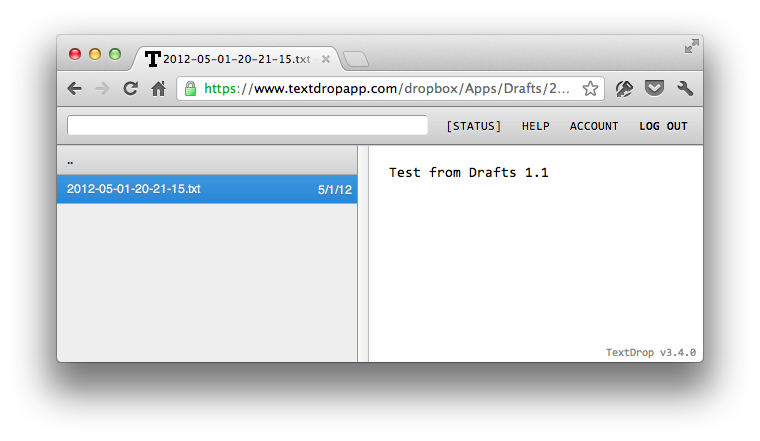
Drafts 1.1, released today, delivers in the two areas I used to find myself dabbling in: quick notes and Dropbox. Aside from a new icon by Wet Frog Studios, some minor UI refinements, and better feedback for executed actions, Drafts 1.1 comes with direct Dropbox integration to let you easily save a draft with one tap into your Dropbox account. Drafts will save notes as timestamped .txt files, meaning that, if you’re clever enough and want to automate your quick note-taking workflow, you could build rules in Hazel to look for specific timestamps and content inside the Apps/Drafts folder in Dropbox.

Personally, Drafts 1.1 fills a particular void in my workflow – a native iPhone app whose sole purpose is to save quick bits of text as single .txt files in Dropbox. With Drafts 1.1 and TextDrop, I can reclaim control of my drafts without being forced to use Send To Dropbox (which still has the obvious advantage of working anywhere). I like how I can type text into Drafts 1.1, hit the Dropbox sharing button, forget about it, and then access my text snippets with TextDrop, iOS file managers like ReaddleDocs and GoodReader (which allow you to directly edit text or “open in” other apps), or my OS X Dropbox folder.

Drafts 1.1, however, doesn’t just bring a few enhancements, bug fixes, and Dropbox support. For instance, third-party app integration has been supercharged with direct support for Sparrow (text will be passed along as email body, and the cursor will be automatically placed in the Subject field), Messages, and Simplenote. Even better, Drafts now lets you configure the apps and actions you want to keep visible in the sharing list with a dedicated menu; installed apps are automatically recognized, whilst supported-but-not-installed ones have a link back to the App Store (the App Store link button could use the same fresh coat of UI paint the icon received). You can enable and disable actions with a double tap.

Typically, 1.1 updates don’t fundamentally change the nature of an app, as they improve on existing features and fix glaring omissions of the first release. For me, Drafts 1.1, with the addition of Dropbox and more stability, feels like an all-new app that now sits in my iPhone dock to quickly save .txt into Dropbox. If you liked the functionalities of Drafts 1.0 and were waiting for more, I highly recommend Drafts 1.1, available on the App Store today at $0.99.


PlaceTagger 2 Releases Universal Build, iCloud Support, Mac App Store Version

PlaceTagger is a veteran iPhone app that has been around for years – originally an app that allows photographers to use their iPhone to geotag the photos taken with a traditional digital camera. Return7, the company behind PlaceTagger and other great apps like Billminder and Debtminder, has a reputation for innovating in every App Store category they take on. This release of PlaceTagger 2.0 including a universal build for iOS devices, a new Mac App Store version, and even iCloud support binding them together, has certainly lived up to their outstanding reputation.

There is no shortage of iOS apps tailored to photographers but PlaceTagger has really excelled in the niche area of providing a quality geotagging product to users of all experience levels. Version 2.0 does a remarkable job at implementing a simplistic user experience for what could have been an extremely complicated outcome. The iOS app is designed to run on iPhones as well as 3G enabled iPads. Although it is possible to run this app on a wifi-only iPad or an iPod touch connected to a wifi network, the results may vary and it is not officially supported. Overall, I found the user interface to be pleasantly minimal while still providing the necessities required to effortlessly start capturing GPS data.

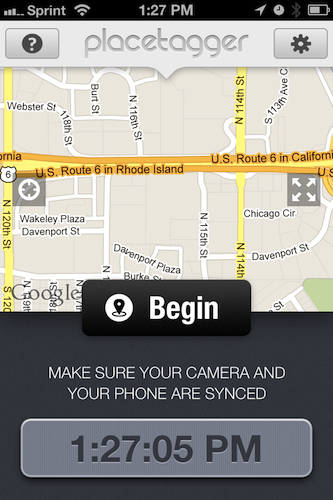
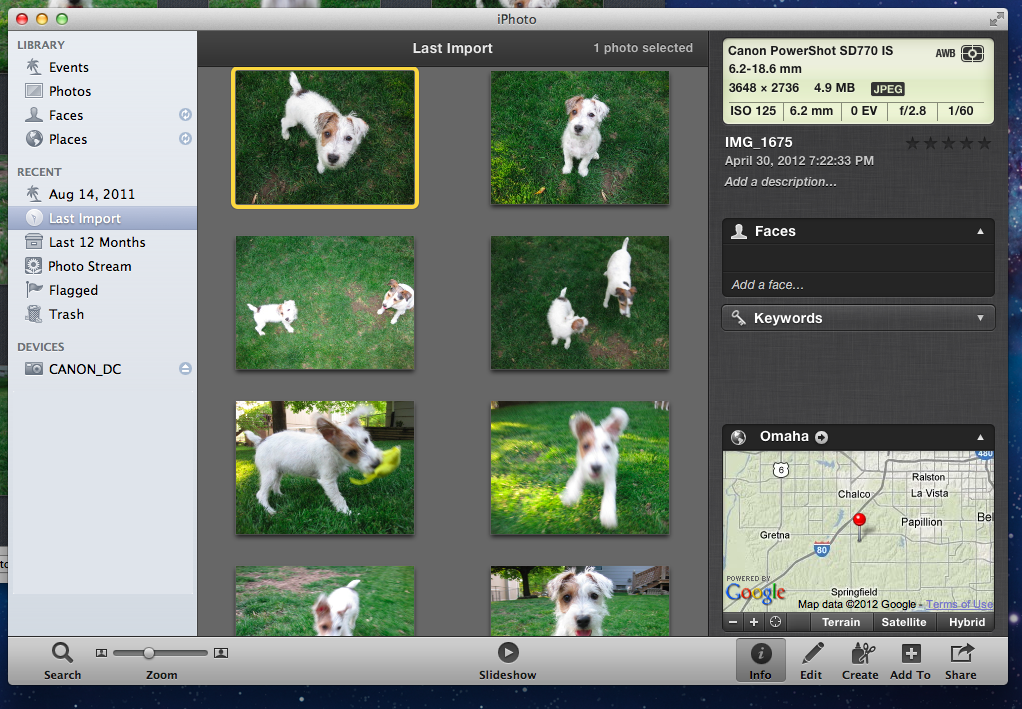
When I first launched the iOS app, my eyes were drawn to a large clock and message reminding me to ensure the time on my camera matched the time on my phone. This was easy to check and was honestly the only thing I had to configure during my entire time using the suite of PlaceTagger apps. Once I had my camera’s clock synced to my iPhone I simply tapped the “Begin” button and stuffed my phone back in to my pocket so I could snap some pictures with my digital camera. I am not a professional photographer or even a decently skilled photographer so I usually rely on my iPhone to take outstanding photos. While I was testing PlaceTagger, I used my point-and-shoot Canon IS770, an iPhone 4S to log GPS data, and PlaceTagger on my MacBook Air to tag the photos. Apart of the new features in version 2 is the ability to tag photos on the iPad with the camera connection kit, however I had neither of these available so I opted for the Mac app. When I was finished taking pictures of my two Jack Russell Terriers, Bob and Daisy, I pulled out my phone and tapped the “Finished” button. That was the only interaction with the iOS app that I had – two taps on one button.

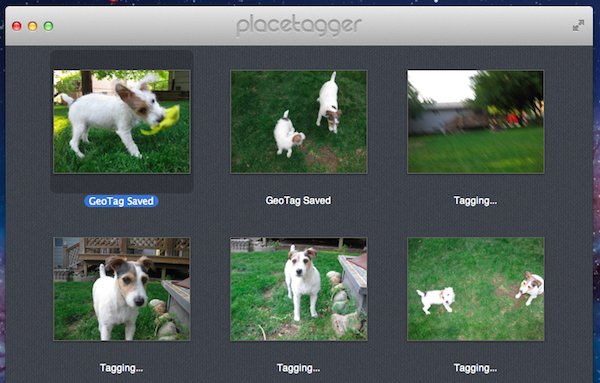
I jumped over to my MacBook Air, popped in my camera’s SD card and pointed the Mac App Store version of PlaceTagger to the pictures on the memory card. Below each picture was a bit of text saying “Location Matched” and all I had to do was select the “Tag Photos” button to complete the process. Right then it clicked, PlaceTagger had magically synced all of the GPS data between my devices with no settings, options, or configuration – it just worked.

PlaceTagger 2 has the most invisible implementation of iCloud I have ever seen.

When the tagging process was complete, I simply imported my photos in to iPhoto just as I normally would and experienced no issues. In iPhoto’s “Info” section for each of these photos is now a little Google Map containing the exact location the photo was taken.

If you are a user of a standard digital camera and have an iOS device then I highly recommend PlaceTagger 2 to add GPS data to all of your future photos. This suite of geotagging apps does not just add functionality to your Apple devices, but it also breathes new life in to older technology like my Canon SD770. You do not have to be a prosumer to enjoy the benefits of PlaceTagger because its polished user interface and refined feature set makes it the ideal companion app to photographers of any skill level.

PlaceTagger 2 is currently available on the iTunes App Store for $4.99 and there is also a version on the Mac App Store priced at $4.99