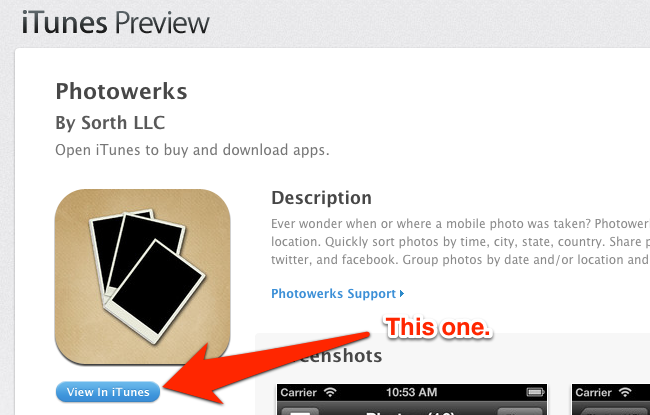
Fix iTunes Links Not Launching iTunes in Google Chrome

Chrome

Chrome

I recently got annoyed by the fact that Google Chrome couldn’t open iTunes links in the iTunes app on my Mac, so I decided to look for a solution.

I haven’t been following Chrome’s (numerous) updates in quite a while, so I don’t remember when the app got a redesigned Settings page. In spite of the cleaner look, though, there’s still an option to manage “protocol handlers”, which are the settings that determine how Chrome should work with webpages that request to open other applications installed on a computer, such as Apple’s iTunes Preview website and iTunes. Read more


Ken Segall On Apple’s New iPhone Ad

Ken Segall, author of Insanely Simple, comments on Apple’s new “Photos Every Day” ad:

What this commercial does so well is capture the human side of technology. It’s a reflection of daily life, and it’s easy to see ourselves in it. The ad shows us how essential our phones have become, enabling us to capture the people, places and images we don’t want to forget.

Apple commercials aren’t new to this kind of theme. But I agree – Photos Every Day is one of the best ever made.

Permalink

How I Resize and Rename Images with Automator, Name Mangler, and TextExpander

Name Mangler

Name Mangler

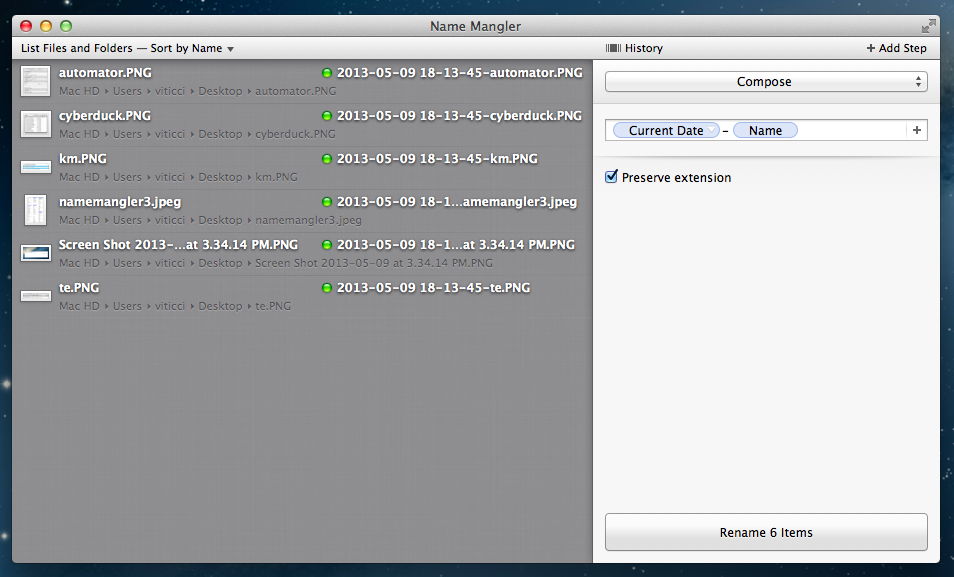
A few weeks ago, while I was preparing my coverage of Apple’s Q2 2013 earnings call, I grew tired of my system to resize and rename images on OS X, so I rebuilt it from scratch using Automator, Name Mangler 3, and TextExpander.

When I create images for MacStories, I either keep them at a single size between 600 and 650 pixels, or use two separate versions: the original larger size, and a smaller one that links to the full version. In either case, images are uploaded to our CDN with Cyberduck, which I have been using for years and that has never failed me. Until last month, the process of duplicating the larger image and saving it to a smaller size was entirely manual – something that, I later realized, was surprising considering I try to automate as many aspects of my daily workflow as possible. I decided to fix this before the Apple earnings call because I knew Excel was going to export our charts as large PNGs – but, mostly, because it really didn’t make sense to keep on manually clicking menus and selecting sizes after all these years of writing for MacStories. Read more


Paper Adds Pinch to Magnify and the Made With Paper Stream

Paper, one of our favorite apps for the iPad, received a nice update yesterday that makes adding detail to your images and finding inspiration just a pinch and a swipe away.

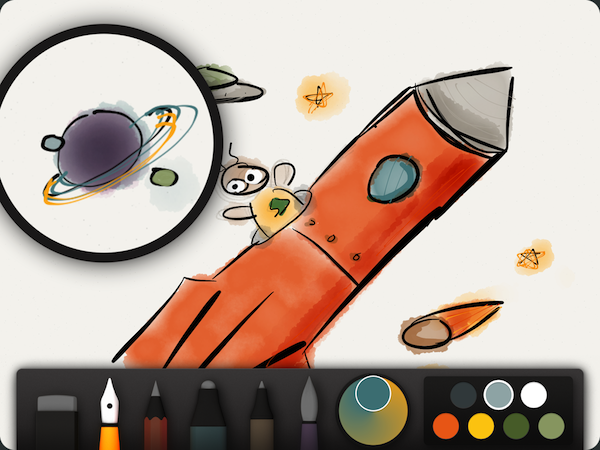
Pinch to magnify doesn’t just zoom the whole page — pinching open reveals a loupe over your drawing that magnifies the section of the image you want to focus on. FiftyThree describes pinch to magnify as “focusing where it matters, without losing sight of the bigger picture.” It’s quite elegant — there’s no need to pan across an image, be concerned with changing the zoom level, or otherwise feel the need to change the granularity of a tool’s brush size.

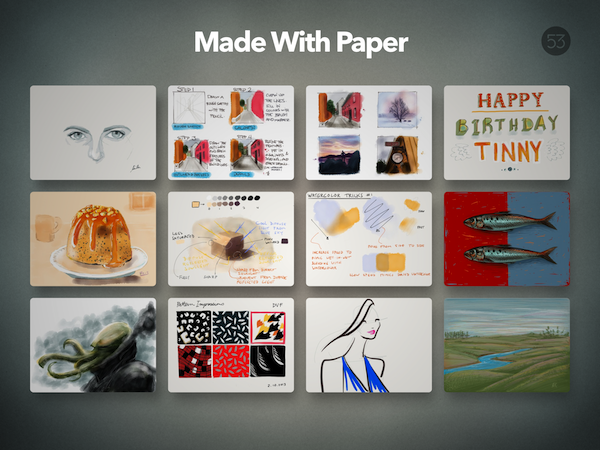
The second feature can be found just after flipping swiping through your journals, placed neatly at the end and appearing as stack of sketches with the most recent inspirational sketch on top. Tapping The Made With Paper stream reveals a grid of curated sketches from the community, with each image linking back to the website where it was discovered. While you can’t reorder the Made With Paper stream within your journals, you can rearrange your journals around it if you’d like it to be the first thing you see as you open Paper. Personally, I find this stream much more convenient to browse than FiftyThree’s own Made With Paper blog.

Paper is one of my must have apps for the iPad — you can download it for free from the App Store, with additional tools available as in-app-purchases when you need them.


Flipboard Launches a Web Editor for Managing Magazines

Alongside an Android update that brings it up to par with the iOS version, Flipboard has made available a web editor for managing your collection of curated magazines in Flipboard. The new site, launched at editor.flipboard.com, lets you change your profile information (such as your bio and name), create magazines, edit details of existing magazines, and delete them. You can also change the cover photo for your magazines if you like and open articles for saved content, but it’s not really designed as an online web browser as much as it’s designed to quickly rearrange articles or delete ones you’re simply no longer interested in. Providing just the basics, Flipboard also reminds you to download their mobile app if you try to browse someone else’s magazine — the editor is just a convenient interface for seeing what you have in your collection and nothing more. With the addition of the editor, what I’d like to see next is an extension for web browsers, letting me save links to my magazine of choice as I’m surfing the web so I can share content with friends and family from anywhere.

Permalink

Jim Dalrymple Launches The Loop Magazine

The Loop Magazine

The Loop Magazine

Marco Arment’s The Magazine showed that a new way of building a profitable magazine with recurring subscriptions was possible. While it seemed “obvious” in hindsight, The Magazine proved that Apple’s Newsstand platform could be used to deliver a simpler, yet engaging magazine experience to the reader, eschewing the typical complexities of magazines that struggled in their shift from paper to digital. With its simplicity, The Magazine set a new standard.

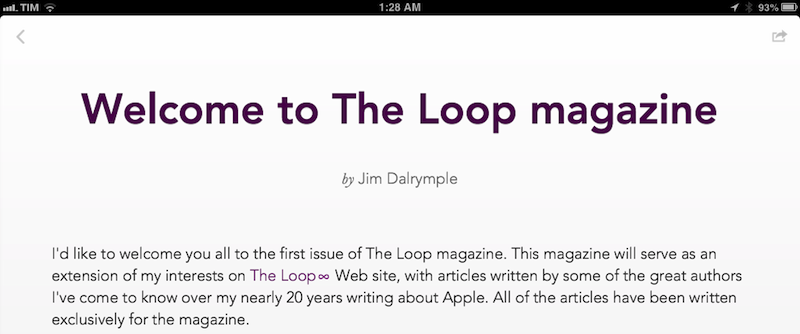
Today, Jim Dalrymple is launching The Loop Magazine, an “extension” of The Loop with a focus on longform content. Available on the iPhone and iPad and built with TypeEngine, The Loop Magazine will publish two issues per month with a $1.99 monthly subscription; thanks to Newsstand, issues will be delivered wirelessly and automatically, with payments handled directly by the iTunes Store.

As a reader of The Loop and listener of Jim’s podcast on the 5by5 network, Amplified, I wanted to ask him about his decision to launch a standalone magazine and, why, after 20 years of writing on the web, he picked Apple’s Newsstand as the only delivery platform.

Federico Viticci: Why did you decide to build a magazine for The Loop?

Jim Dalrymple: I’ve looked at building an app for The Loop for several years, but nothing seemed to fit with my vision. I didn’t want an app that mirrored the Web site, I wanted to add value for the readers, to be able to give them something they couldn’t find on the Web site. When I saw Marco’s magazine, I knew that’s what I wanted to do. Obviously, the content is much different and that’s what will set the publications apart.

A tremendous amount of work has gone into every aspect of The Loop magazine from the fonts and design, to the writers I chose to be part of it. I want readers to enjoy every single article in a clean, ad-free environment. They should look forward to every issue because the experience was so good.

FV: How will The Loop website and magazine complement each other in the future?

JD: The Loop magazine is an extension of my interests on the Web site, so they will always complement one another. On the Web site, I will link to a story that I find interesting. In the magazine, I will go to the writer and ask them to write an exclusive article for The Loop magazine.

FV: What topics do you want to cover in The Loop Magazine going forward?

JD: I’m open to almost anything. That’s what makes The Loop Web site so unique. There could be a story on Apple and the next thing could be a video of Jimi Hendrix or Ozzy Osbourne. It could also be a story about design or user interaction with apps – as long as it’s interesting, it could find its way on The Loop or in the magazine.

FV: Do you see Newsstand as the future of mobile publishing?

JD: I began publishing on the Internet in 1994. At that time traditional media outlets were having a tough time getting their heads around publishing to that new platform, and in some ways they are still struggling. I was convinced that the Internet was a big shift in publishing and it was. There have been a lot of attempts in the intervening years to bring magazines to the digital realm, but I haven’t taken the plunge until now. None of them seemed right to me.

Apple’s Newsstand is the first time since 1994 that I’ve felt another shift in the publishing industry was upon us, so I jumped at it. Apple takes care of distribution, payments and the business side of things, leaving the publisher focus on what they do best – publishing great content.

In some ways, I feel like I’m back in 1994. The traditional magazine outlets are having a hard time wrapping their heads around platforms like Newsstand and the best way to publish content. I’m confident that offering readers exclusive long-form articles in a clean app is the way to go.

I have been able to read the first issue of The Loop Magazine in advance, and the app is exactly what you’d expect in a post-The Magazine world: using The Loop’s existing color scheme, The Loop Magazine has a clean layout, built-in sharing options, embedded author bios, and a sidebar where you can navigate issues and articles. The first issue comes with six articles – I especially liked the ones by Matt Gemmell and Flexibits’ Michael Simmons. Unlike The Magazine, the app has a built-in web browser to open URLs, but I’d like to see an option to send links to Google Chrome. Right now, supported sharing options include Safari, Twitter, Mail, and Messages.

I’m glad to see more writers experimenting with new business models and I’m happy about the fact that Arment’s The Magazine has encouraged others to move away from traditional advertising on the web. I look forward to seeing how Dalrymple’s The Loop Magazine will evolve in the future.


Pixelmator 2.2 Blueberry

Viva la Pixelmator!

Viva la Pixelmator!

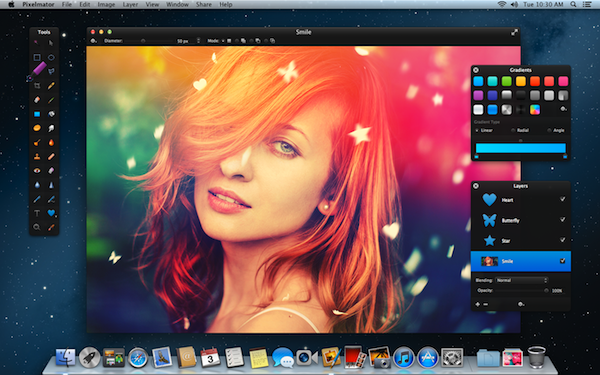
Pixelmator 2.2, codenamed Blueberry, includes more than 100 new features and improvements for quickly creating and shaping shapes, contextually working with images and vectors, and recreating sunny retro-inspired images. Artists will find new Color Popovers for faster access to color swatches, new gradient presets, improved drawing tools, a refined Type Tool, and the ability to copy a shape’s style to other shapes.

The standout features in Pixelmator 2.2 let artists quickly create and edit shapes for logos, web elements, flyers, and more. Smart Shapes provide easy-to-use controls for adjusting a shape’s outline, while Shape Styles make adding gradients, changing stroke styles, and adjusting inner shadow effortless. For those looking for a jumping off point, a brand new Shapes palette comes prepackaged with over 40 custom shapes that can be added to the canvas with a simple drag and drop. New shapes can easily be added to the palette, and new shapes can be quickly shared with friends and coworkers by simply dragging the palette to the Desktop. Text can also be converted into shape layers with the new Convert Text into Shape tool, allowing artists to reshape individual letters to apply separate gradients, shadows, and strokes. As image layers and shapes can intermingle, the Smart Move Tool brings up the appropriate options you need as items on the canvas are selected. And swapping between image and vector editing is as easy as a keyboard shortcut.

For budding photographers, the new Paint Selection Tool lets anyone simply brush the canvas to select objects in their images without having to manually trace an outline or use selection tools. The new Light Leak effect can also add a bit of flair to images for creating retro-artistically illuminated images.

Pixelmator 2.2 is now available for download through the Mac App Store at a promotional price of $14.99, or as a free update to previous customers. A free 30-day trial of Pixelmator can be downloaded from Pixelmator’s homepage. Read more


PDF Expert Adds New Annotation Features

Readdle’s PDF Expert has been my favorite PDF reader for iPad for a long time now. With Dropbox integration and a clean UI full of powerful options, PDF Expert is the app I rely upon when it comes to reading and editing PDF documents. The 4.6 version, released today on the App Store, adds a series of new features that make adding annotations and managing them inside a document even easier.

Annotations can now be copied and pasted inside a document and across different documents in PDF Expert: to do so, you can use a new selection tool available in the top toolbar. This new tool will let you select a single annotation/shape and use iOS’ familiar copy & paste menu – but you can also select multiple annotations at once to move them, copy them, delete them, or change their properties. PDF Expert’s selection is also smart: if you select two shapes, the popup menu will show options for shape thickness and color (also new in version 4.6); if you drag the selection on top of text annotation, the app will show properties for font, colors, and font sizes.

In this update, Readdle also included a new custom date/time keyboard (which reminded me of a similar keyboard from another Readdle app, Calendars+) that makes it easier to fill date fields in PDF forms.

While I prefer Skitch for “quick” annotations that involve shapes and callouts, PDF Expert remains my choice for text annotations and reading long documents. PDF Expert is available at $9.99 on the App Store.


The Verge Interviews Peter Belanger, an Apple Product Photographer

I imagine this has to be one of the coolest jobs in the world. Apple’s product photos are both legendary and seen by millions of people world wide, either in advertisements in magazines, on Apple’s website, or sometimes even on sites like ours. Peter Belanger, a photographer whose clients include Apple, Nike, and Square, was interviewed by The Verge and asked how he recreates the kind of simplicity that Apple portrays in its marketing.

I need to have control over each and every surface so when the client asks for a highlight to be elongated, I can do that. It’s similar to working on a file in Photoshop: you don’t do all your work on one layer. I think of my lights as layers that I can adjust individually to get the desired results.

While Peter shoots with a Canon 5D Mark III, he’s also the same individual who shot the Macworld iPhone 4 cover with an iPhone 4 itself. His process and attention to detail are absolutely amazing.

Permalink