This Week's Sponsor:

SoundSource

New Year, New Audio Setup: SoundSource 6 from Rogue Amoeba


Posts in reviews

RSS Client Lire Arrives on Mac App Store with One of the Best Early Catalyst Implementations

In June I wrote about my hopes for Catalyst, the technology that allows iPadOS developers to bring their iPad apps to the Mac. At the time, I said that RSS clients were one of the categories of apps I wanted to see brought from the iPad to the Mac first. That wasn’t because there are no options on the Mac. For instance, I recently reviewed NetNewsWire, which is excellent. However, there are very few options if you want an app that’s available on the Mac, iOS, and iPadOS, supports a rich set of features, and is actively maintained. That’s why I was pleased to see that lire, one of my favorite RSS readers on iOS and iPadOS, was released this week on the Mac using Catalyst.

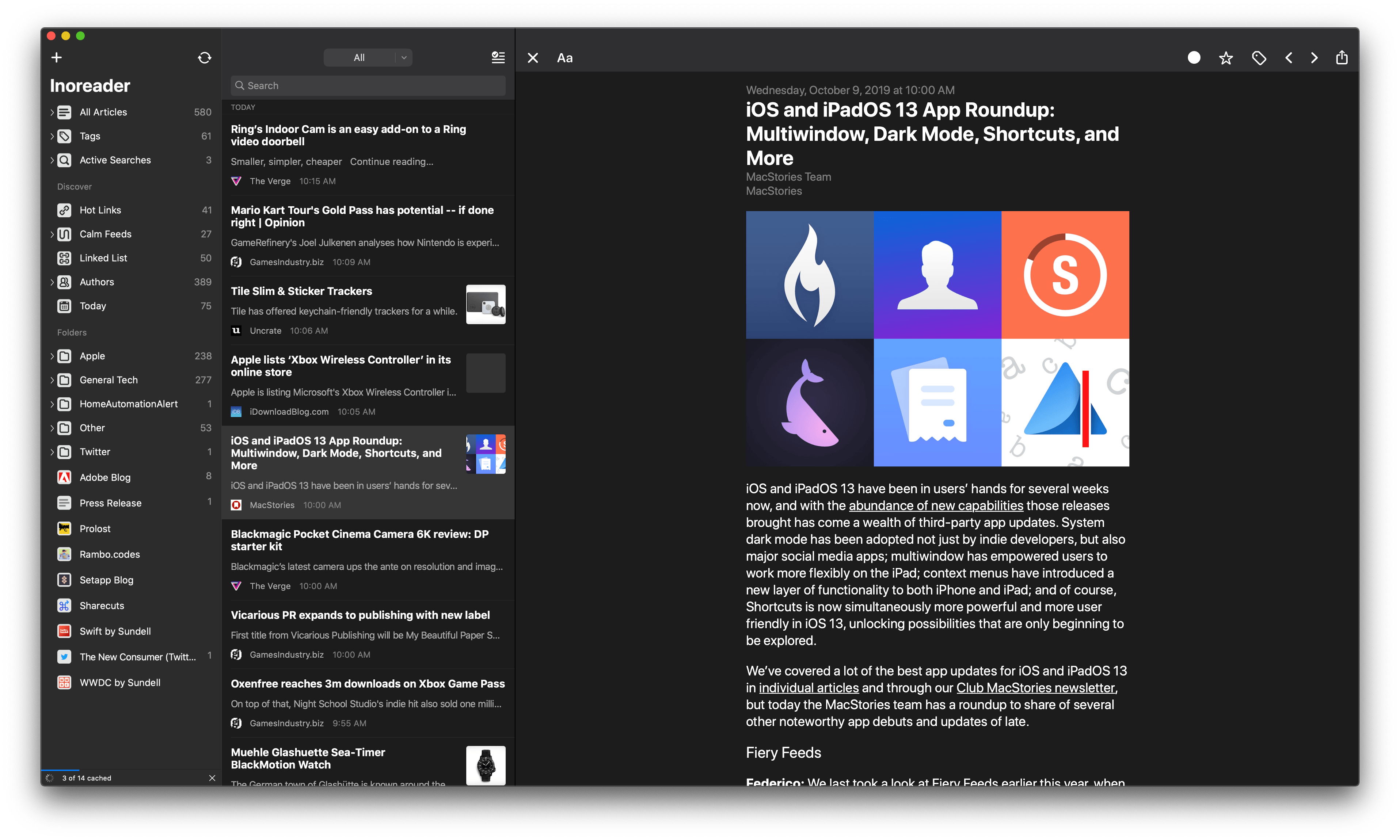
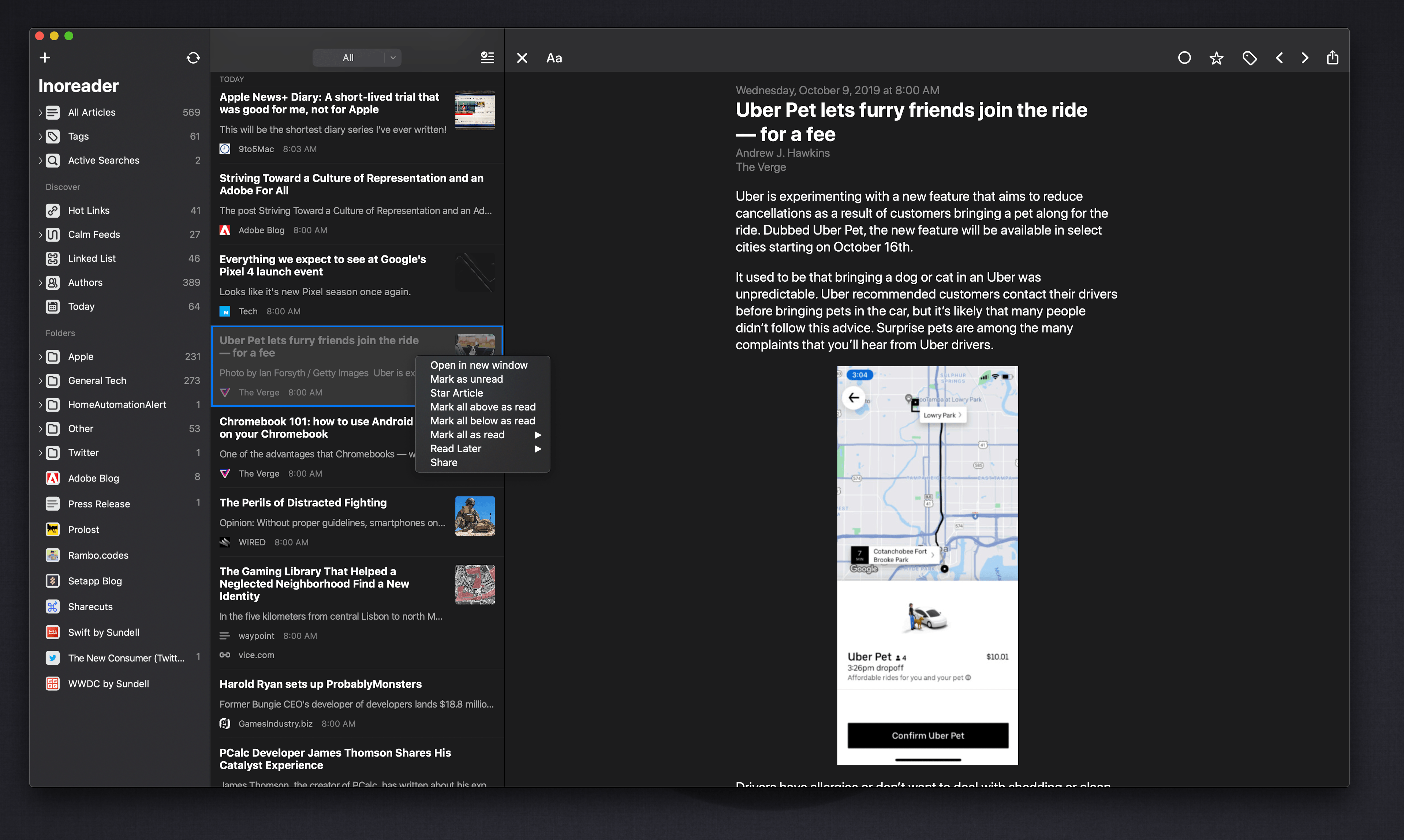
If you’ve used lire on an iPad, you’ll immediately feel at home when you open the app on the Mac for the first time. The layout is similar to the iPad version, with one notable exception: instead of the two columns you see on the iPad, lire displays three columns on the Mac. This means you can view your list of subscriptions, articles, and a selected article simultaneously. On the iPad, the article view is separate from your subscriptions and article list. It’s a small design change that makes a lot of sense on the Mac, where screens are usually larger than the iPad. I would, however, like to have the option of hiding the first two columns, which is not currently possible, though they can be resized.

If you use lire with an RSS syncing service like I do, once you log in you can browse sources in the first column by subscription and tag. Like the iOS and iPadOS versions, the first column also includes Discover and Folders sections. Discover collects Hot Links, which are URLs that frequently appear among your feeds, Calm Feeds for sites that don’t publish often, linked list articles, posts organized by author, and articles published recently, which you can define in the app’s preferences. As you’d expect, folders are user-defined sets of feeds.

Articles and images can be opened in separate windows.

Articles and images can be opened in separate windows.

The article list can be filtered in nine different ways, and there’s a toolbar button to mark everything as read. Right-clicking an article summary provides options to open it in a separate window, mark it as read or unread, star it, mark the articles above or below it as read, mark everything as read, send it to a read-later service, or share it via the system share sheet or lire’s custom share options. The many options make the article list a fantastic way to filter and scan through a large number of articles and manage the ones you want to follow up on and share with other apps.

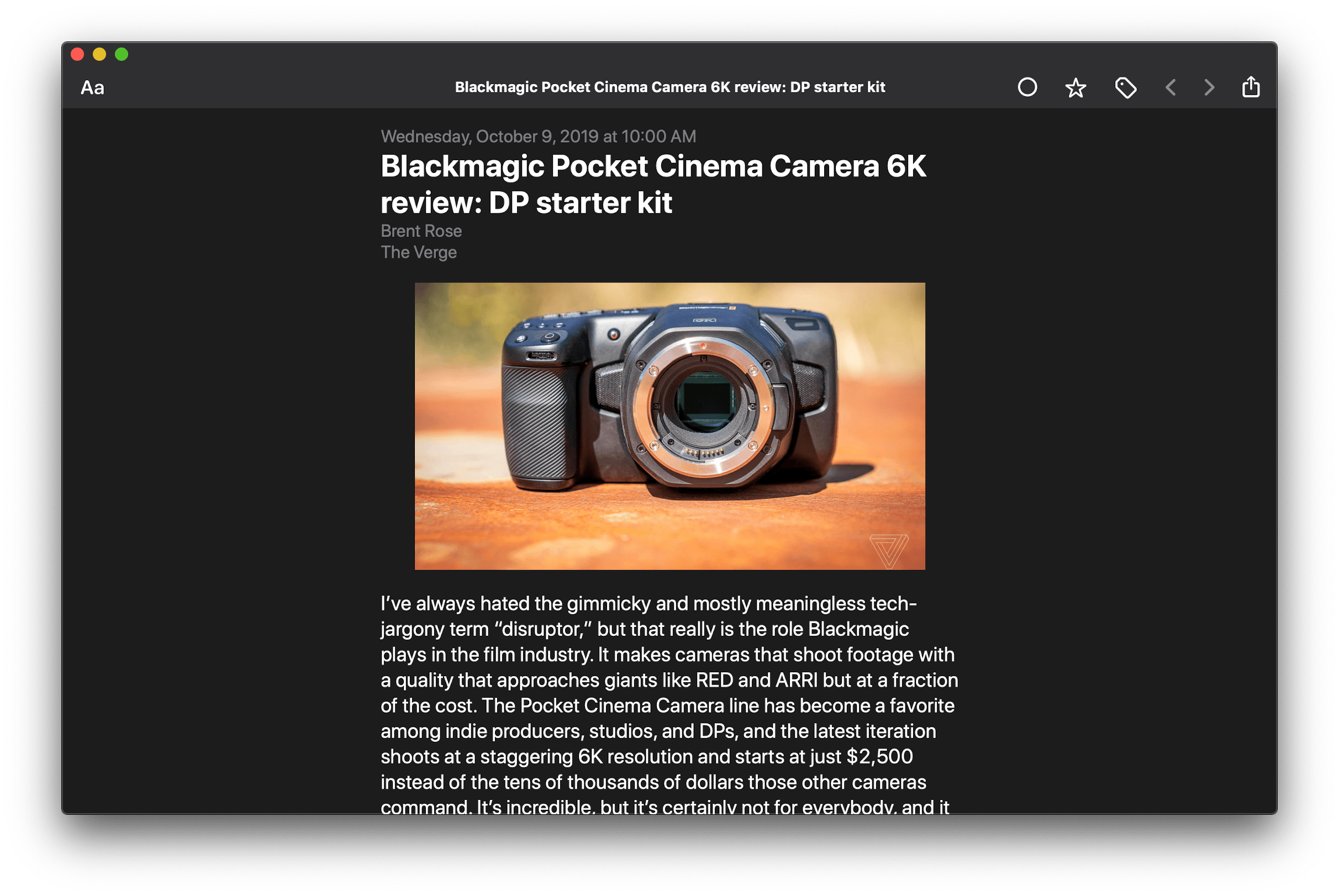
There are separate appearance settings for article view, which is a nice way to manage the amount of information available independently from the subscription and article list. The article view also includes buttons for marking the currently-viewed article as unread, starring and tagging it, navigational arrows, and a share button that includes share options supplied by the macOS share system as well as custom ones like ‘Copy Link,’ ‘Pin Author,’ ‘Download as EPUB,’ and more.

I’ve used a lot of different RSS readers, and lire has always stood out because it can be customized in so many different ways. The app also does a better job than most other RSS clients of pulling the full text of an article from an RSS feed that offers truncated versions of its articles only. Although some features of the iOS and iPadOS apps aren’t available on the Mac yet, such as theming, I’ve been impressed with the level of customization that’s been brought over so far.

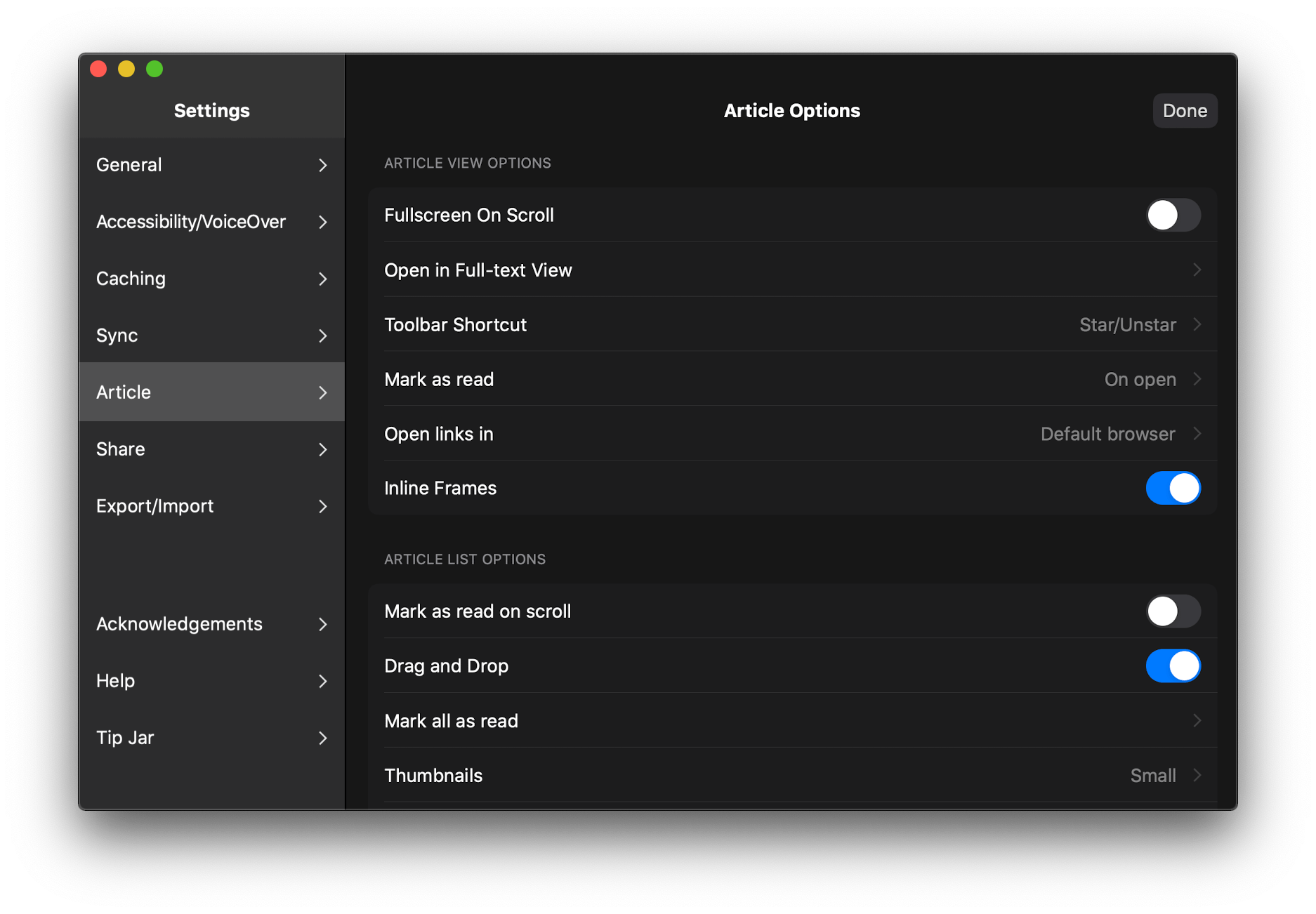
Unlike many other Catalyst apps, lire includes a separate preferences window.

Unlike many other Catalyst apps, lire includes a separate preferences window.

However, what makes lire one of the best Catalyst adaptations of an iPad app that I’ve seen so far is its attention to detail on the Mac. It’s a collection of smaller touches that make the app feel more at home on the Mac than most other Catalyst apps. For example, lire includes tooltips when you hover the pointer over the buttons in its toolbar. That’s something that isn’t automatically available to Catalyst apps, so few apps have adopted it so far. Lire has also implemented custom right-click context menus throughout the app to access share, view, mark as read, and other options. The app also makes extensive use of keyboard shortcuts and allows for links to be opened in your default browser in the background, something that far too few AppKit apps offer. I also appreciate that lire uses a separate Preferences window instead of a popup view that hovers over but is still part of the app’s main window, which many Catalyst apps do.

lire makes extensive use of context menus throughout.

lire makes extensive use of context menus throughout.

RSS feeds have benefitted from the healthy app competition found on iOS and iPadOS, pushing power user features forward at a rapid pace. The Mac’s RSS scene hasn’t been nearly as active in the past, but with the addition of lire and Fiery Feeds, which also launched on the Mac App Store for the first time this week, my hope is that we’ll see a resurgence of RSS readers on the Mac App Store with innovative new features.

Lire is available on the Mac App Store for $19.99.


NapBot: Simple Sleep Tracking Powered by CoreML

Sleep tracking is an area of health that Apple hasn’t yet formally moved into, but all signs point to that changing soon. iOS 13 saw the company build more advanced wellness tracking features into the Health app, Beddit was acquired by Apple a couple years ago, and very recently the App Store leaked evidence of a Sleep app that is (or was) in development for Apple Watch. But for the time being, anyone interested in sleep tracking with a Watch or iPhone needs a third-party app.

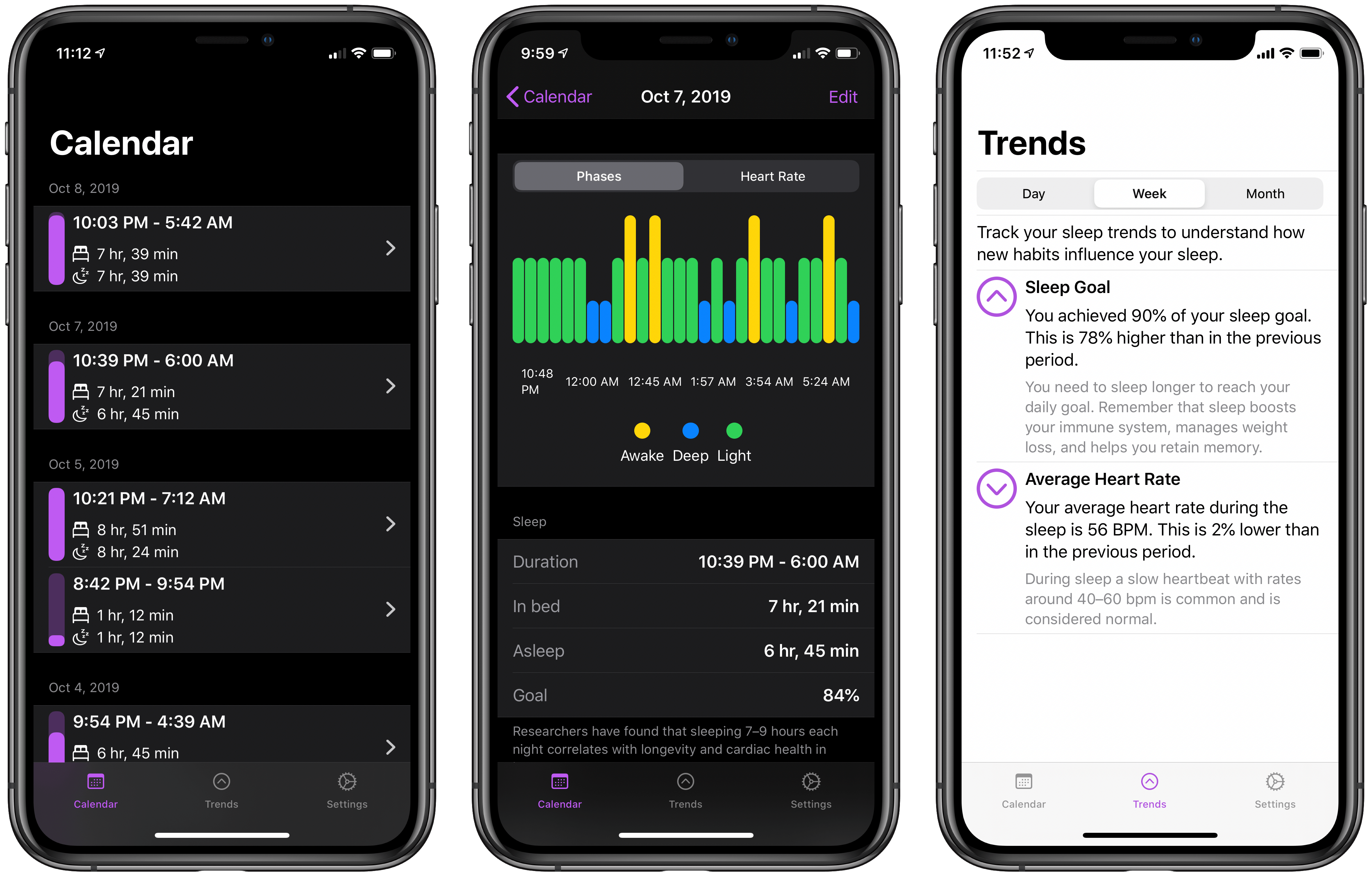
NapBot is one such app, a new debut from the maker of CardioBot that launched in recent weeks. NapBot applies CoreML to perform automatic sleep tracking when you’re wearing an Apple Watch to bed, the results of which you can then view in either the iPhone or Watch apps.

Read more


Tripsy Review: The Ultimate Trip Planner for iPhone and iPad

Summer may be over, but there’s never really an offseason for planning future vacations or business trips. We all have our own methods of trip planning – where we store important documents, how to set an agenda and share that agenda with family or friends – but I’d guess most of us aren’t entirely satisfied with our current planning systems. Important information can be scattered across different apps, services, or analog files, which is fine but not ideal. Tripsy aims to solve that problem.

Tripsy isn’t entirely new to the App Store, having first launched almost a year ago, but it recently received a major 2.0 update alongside iOS 13’s debut. While I never used the previous version, the new Tripsy is exactly the tool I’ve wanted for trip planning for a long time. The app serves as a one-stop shop for organizing all of your trip-related information: you can add Apple Maps points of interest to your agenda, scheduling them to specific times and days, add notes to each saved location, store important travel documents in the app, and share your full trip data with fellow travelers. All of this functionality is enhanced by a strong app experience thanks to system features like multiwindow on iPad, Sign In with Apple, dark mode, and more.

Read more


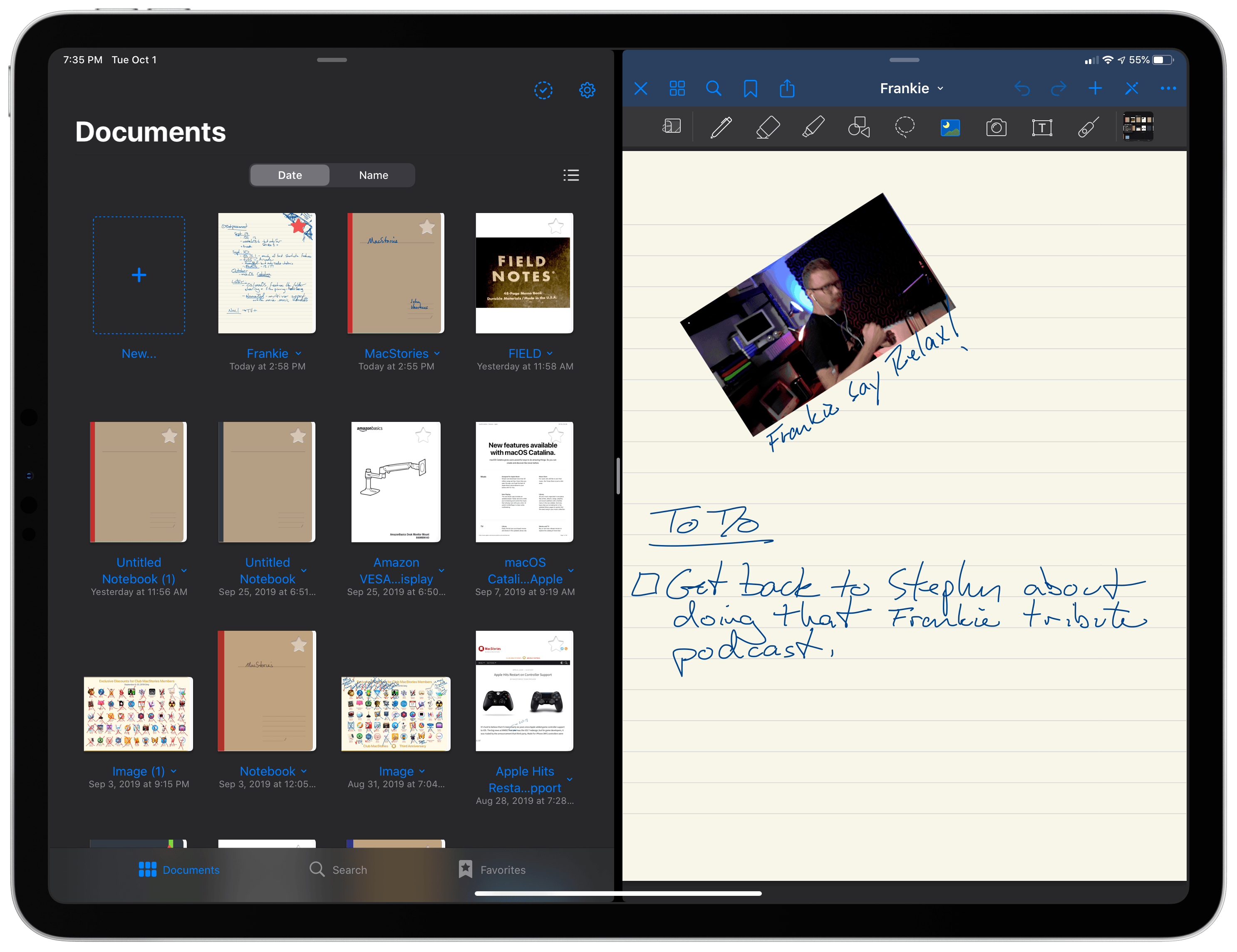
GoodNotes Adds Superior Multiwindowing, Dark Mode, and OCR Scanning

When Apple introduces a fundamental change to how apps interact with iOS (and now iPadOS), it’s always fascinating to see the different ways those changes are adopted by third-party developers. Although Apple sets a baseline for how new frameworks work, it has less control over how they are used, and it’s those implementation details that often have the greatest impact on users.

In the inaugural version of iPadOS, that’s been the case for multiwindowing. Many apps stick to the basic built-in ways to open multiple instances of the same app. However, the real power of multiwindowing is revealed by apps like GoodNotes, which goes the extra mile and provides an experience better than any other multiwindow app I’ve tried.

Dragging a PDF into a new window.Replay

What makes GoodNotes special is not just the sheer number of unique ways to open a second window for the app, though that’s impressive in itself, but the thoughtfulness of its execution. In every corner of the app where you might want to move a folder, document, page, or bit of data into a new window or document, you can. The result is a level of flexibility that even Apple’s own iWork suite doesn’t match, further cementing GoodNotes as my favorite app for taking handwritten notes.

Read more


Pixelmator Photo Adds Direct iCloud Photo Library Access, Batch Editing, and New Export Features

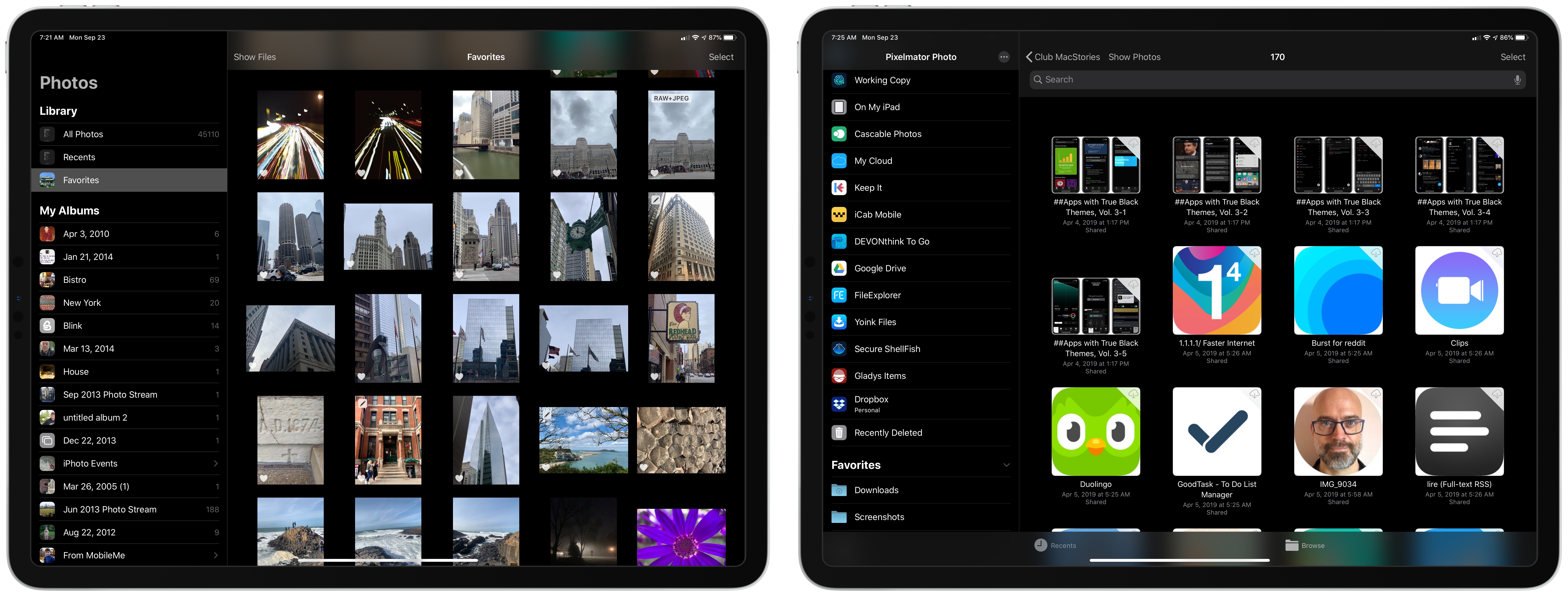
Pixelmator Photo for the iPad has been released with a trio of new features that greatly increase the power of the app. With the update, you can now now edit images in your iCloud Photo Library non-destructively without creating duplicates. There are also new batch-processing workflows and better options for exporting images. It’s an interesting mix of updates that I expect will appeal to a wide audience even though there remain iPadOS features I’d like to see adopted in the future.

Read more


Halide 1.14 Adds New Lens Switching Interface and Guides

Halide 1.14 is out with a new lens switching UI to accommodate the three-camera system of the iPhone 11 Pro and Pro Max. As soon as the update was out, I went for a walk to give it a try.

Halide has introduced a new lens switching button featuring haptic feedback and a dial-like system for moving among the iPhone’s lenses. When you press down on the lens button, you get a tap of haptic feedback to let you know without looking that the lens picker has been engaged.

From there, you can slide your finger among the ultra wide, wide, and telephoto options that radiate out from the button. As you swipe your finger across each option, it enlarges, and you’re met with another little bit of haptic feedback as you swipe over the lenses other than the one already selected. Once you have the lens you want, you simply let go and your iPhone switches to it.

You can also cycle through the lenses in order by tapping the button repeatedly or swipe left for the ultra wide lens or up for the telephoto one. In my brief tests, swiping left or up is the best option if you already know the lens you want, but using the dial-like lens switcher is perfect for considering your options first because Halide has also added lens preview guides.

With the lens button engaged, Halide shows guides for each of your zoom options. That means if you’re using the ultra-wide lens, you’ll see the light gray guidelines for the wide and telephoto lenses. As you swipe over those lenses, the guides change to yellow to highlight the composition you’ll get if you switch to that lens.

If you’re already using the telephoto lens though, Halide will highlight the outer frame of the image to suggest you’ll get a wider shot, though it does not zoom the viewfinder out to show that composition until you lift your finger. You can see how the lens guides work from the screenshots I took at a local high school football field above and in this video:

Switching lenses in Halide.Replay

When you switch to the ultra wide lens, you’ll notice that not all the usual Halide features are available. Manual focus is missing and so is shooting in RAW. That’s because the new iPhone hardware and iOS and iPadOS 13 don’t support those features. Although the ultra wide shots don’t support RAW, Halide has included a ‘MAX’ option in place of the ‘RAW’ option, so you can get the most image data possible from your wide shots, which you can see in the screenshots below.

Ultra wide images are limited to MAX quality (left) instead of RAW, which is supported by the wide and telephoto lenses (right).

Ultra wide images are limited to MAX quality (left) instead of RAW, which is supported by the wide and telephoto lenses (right).

The Halide team says that the latest update also includes noise-reduction adjustments to the RAW images produced by the iPhone 11, but that they are continuing to fine-tune how that app handles RAW photos from the new phones as part of a more significant update that is coming next.

The latest update is relatively small, but I especially like the use of haptic feedback and lens guides, which make it easy to switch lenses when you’re focused on the viewfinder of the camera instead of Halide’s buttons.

Halide is available on the App Store for $5.99.


Agenda Gains Drawing and Handwriting Features, Plus Document Scanning and Dark Mode Enhancements

Once upon a time, in the early days of iOS’ life, note-taking apps on the iPhone and iPad were, strictly speaking, for text-based notes. The original Notes app, pre-iOS 9 makeover, was designed for text alone, and yet despite that limitation it remained the most popular notes app on iOS.

Times have changed. Today Apple Notes is a powerhouse tool for not just typed notes, but also images, document scans, checklists, sketches, rich links, and much more. Apple’s aggressive development of Notes forces third-party contenders to up their games as well, and that’s exactly what Agenda has been doing over the last year.

Agenda is a note-taking client that integrates with your calendar in a way unlike any other app, enabling tying your notes to specific calendar events so they’re easy to keep track of. Recent updates have meaningfully complemented that core purpose, adding Reminders integration, extensive keyboard shortcuts, and file attachments. Over the last couple weeks the app has also launched not one, but two more significant updates, versions 7 and 8, which expand Agenda’s capabilities further with drawing and handwriting features, alongside iOS 13 enhancements such as dark mode integration and document scanning.

Read more