
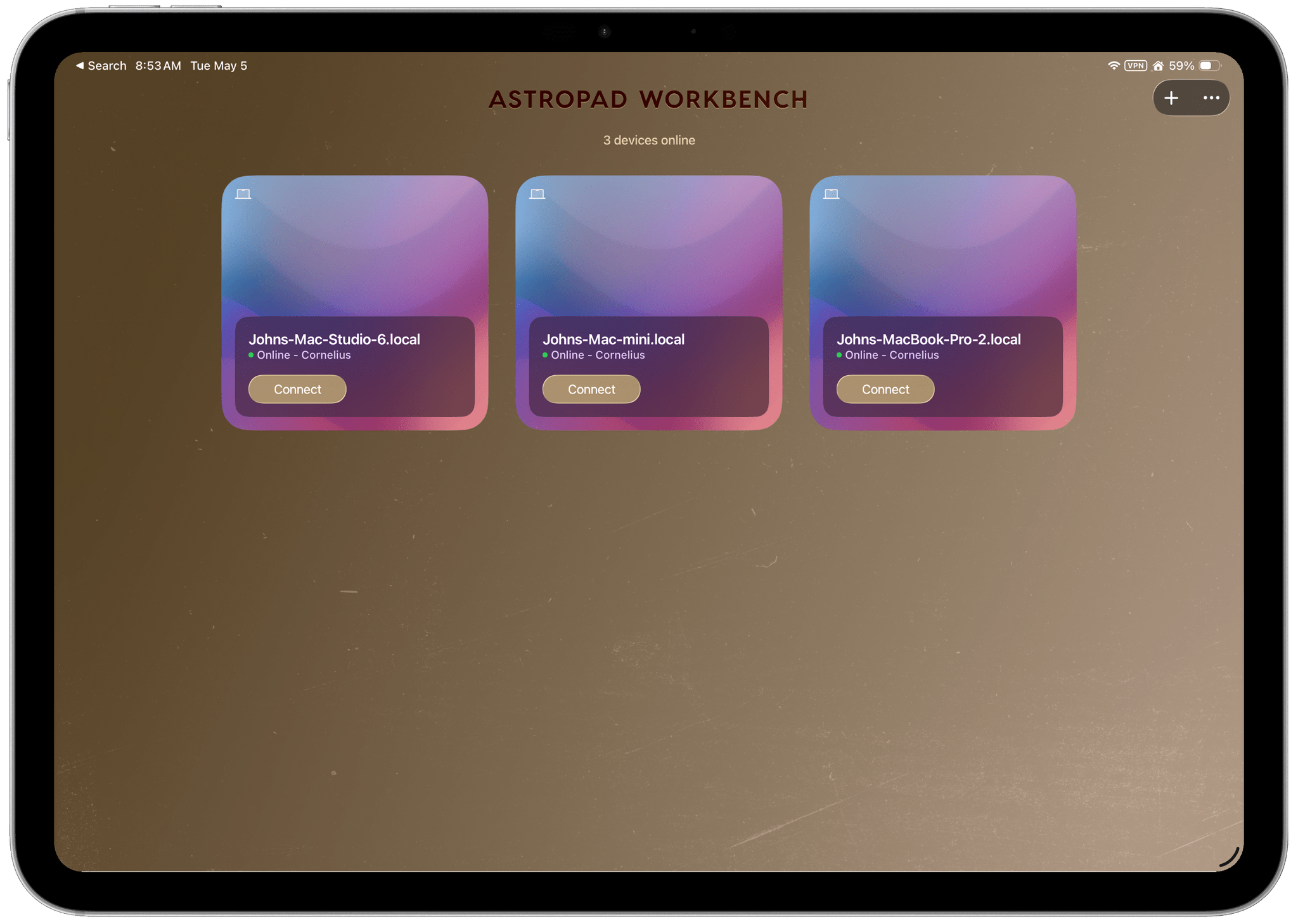
There are a lot of ways to connect remotely to a Mac, and I’ve tried most of them. Today, though, I want to focus on one in particular: Astropad Workbench, an app and service for remotely connecting to your Mac that includes unique features that make it a compelling choice on the iPhone and iPad, but less so when connecting from one Mac to another.
Posts in reviews
Astropad Workbench Rethinks Remote Mac Control for AI Agents
Cronos: The New Dawn Showcases the Mac’s MetalFX and Ray Tracing

Top-tier games continue to roll out on Apple’s platforms at a steady clip. Recently, Crimson Desert landed on the Mac on the same day as other platforms, and then last week, Control: Ultimate Edition added support for the iPhone and iPad, joining the Mac version that was released last year.
Today, Cronos: The New Dawn, a survival horror game by Bloober Team, joins the Mac gaming scene via Steam. In a post-apocalyptic, retro-tech setting, you play as the Traveller, who has been sent on a mysterious mission by a group called The Collective. Not long after you set out on your quest, you realize you aren’t alone. The landscape is littered with corpses that merge into mutant, zombie-like enemies that you have to fight off with a combination of weapons and melee attacks.
Cronos debuted on the Xbox, PlayStation 5, Switch, PC, and Linux last September, but I didn’t play it on any of those platforms. Instead, I dove in fresh when I got the chance to try it on the Mac, thanks to a few days’ early access. I haven’t played very far into the story yet, but despite not being a huge fan of horror games, I was immediately captivated by the game’s incredible sound design, retro tech vibe, and creepy story.
With limited time, I focused on the game’s performance on two Macs: my M1 Mac Studio connected to a 4K ASUS display and an M4 Max MacBook Pro, both on its own and connected to a BenQ 5K display I’ve been testing. As I expected, the difference between the two Macs was noticeable, showing just how far Apple silicon has come in terms of gaming. My Mac Studio may still pull its weight when it comes to productivity tasks, but the M4 Max MacBook Pro operates on an entirely different level.

Bloober Team is no stranger to Apple silicon, having released The Medium with Metal 3 support for Apple silicon in 2023. The experience shows in the studio’s incorporation of both MetalFX upscaling and hardware-accelerated ray tracing in Cronos.
By default, Cronos’ MetalFX and ray tracing settings are turned off, but both are worth trying along with frame generation because they make a big difference. After some experimentation on my M1 Max Mac Studio, I landed on a pretty consistent 70-75 FPS at 1440p with the help of MetalFX and frame generation. Hardware-accelerated ray tracing isn’t supported by Apple’s M1 family of chips, so that wasn’t an option at all.
As you’d expect, performance was much better on the M4 Max MacBook Pro, which does support hardware-accelerated ray tracing. Starting with the default settings and playing on the MacBook Pro’s display, I turned on ray tracing, MetalFX, and frame generation and got a consistent 55-65 FPS, and turning off ray tracing bumped that more consistently into the 60s. The game struggled a little bit when I connected to an external 5K display, but with a few more tweaks, it was running well, too.
What’s clear is that Cronos pushes the Mac’s hardware hard and that Apple’s latest gaming technologies make a big difference in performance. On the MacBook Pro, the fans spin up loudly soon after starting the game; plus, if you don’t have your laptop plugged in, you may be prompted to switch to Low Power Mode pretty quickly. However, the overall experience on Apple’s most recent hardware has come a long way since the M1 chipset, and with every hardware revision, more games like Cronos become viable. And whether you play it on the Mac or not, Cronos: The New Dawn is worth checking out for a creepy futuristic good time.
Cronos: The New Dawn is available on Steam and is 30% off until May 1.
Pedometer++ 8: Glimmers of an Apple Wrist Renaissance
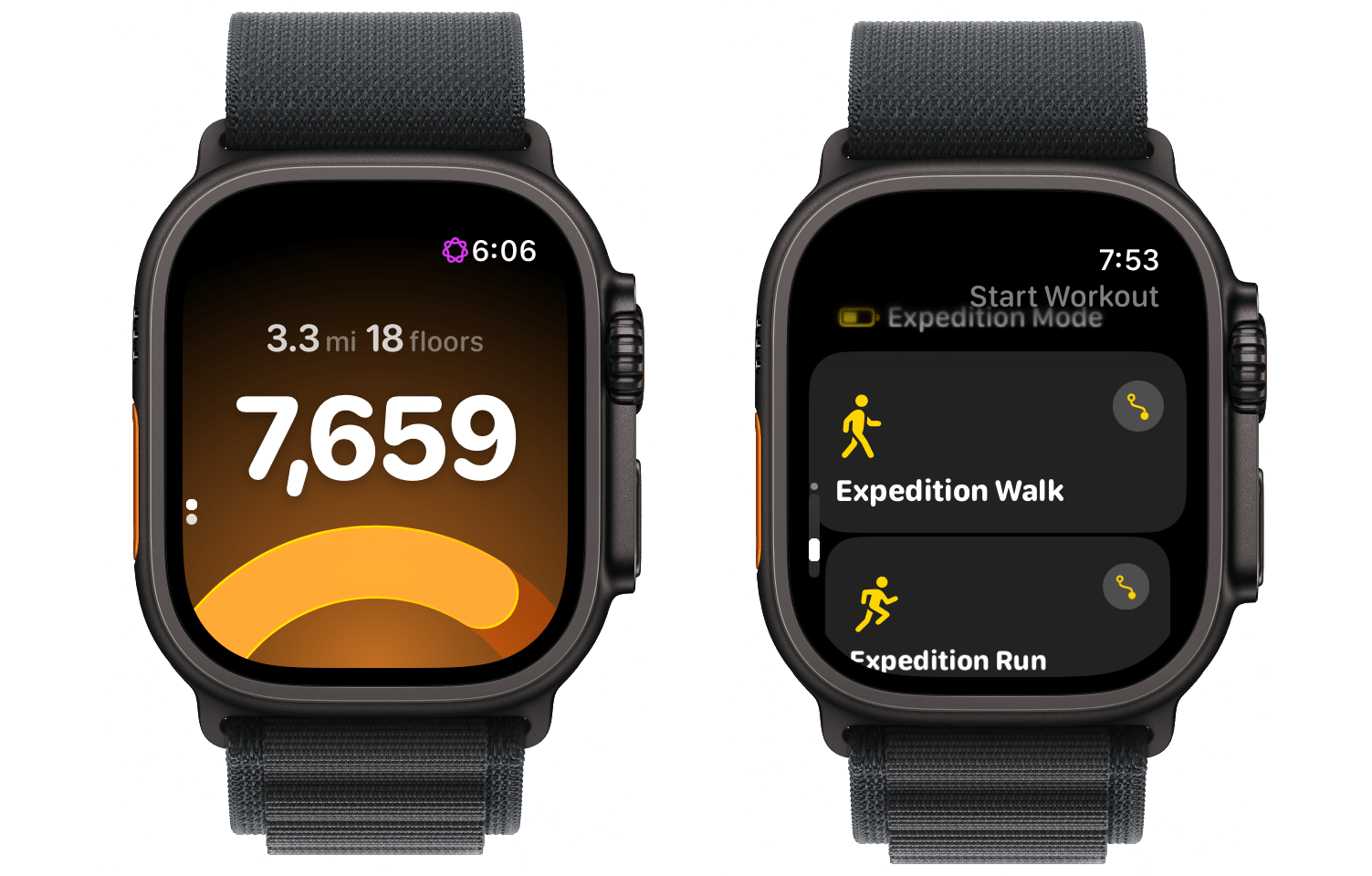
Today, when you mention David Smith’s name, most people probably think of Widgetsmith, his runaway success that caught fire on TikTok and is still going strong today. But for me, Pedometer++ is what comes to mind first. Still a couple of years away from releasing my own apps or writing at MacStories, I was fascinated by the dynamics that made the app a success when it debuted in 2013. Part of that success was how quickly David got it onto the App Store in the wake of the iPhone 5s and its M7 coprocessor that made step counting possible.
It didn’t hurt that Pedometer++’s initial release was also free (and the core features still are), but the app’s elegant, simple design played a big part, too. Pedometer++ appealed to a wide audience who appreciated its focus and frequent updates that systematically took it from basic step counting to badges, confetti, workouts, maps, and more. It’s a great example of a developer who jumped on a new hardware feature quickly with a focused initial release and then relentlessly iterated year after year without sacrificing what made that first version a favorite of so many people.
Today’s 8.0 release is focused first and foremost on the Apple Watch, which is the other aspect of so many of David’s apps that I appreciate. Few people know the ins and outs – and frustrations – of watchOS (née WatchKit) development like David does. But despite the platform’s rudimentary beginnings, David has stuck with it, making the best watch version of Pedometer++ that was possible with each turn of the SDK and, later, OS. That’s as true with version 8.0 of the app as it has ever been.
Remodex Is the Best Codex Remote Client for iOS (Until OpenAI Releases an Official Codex Mobile App)
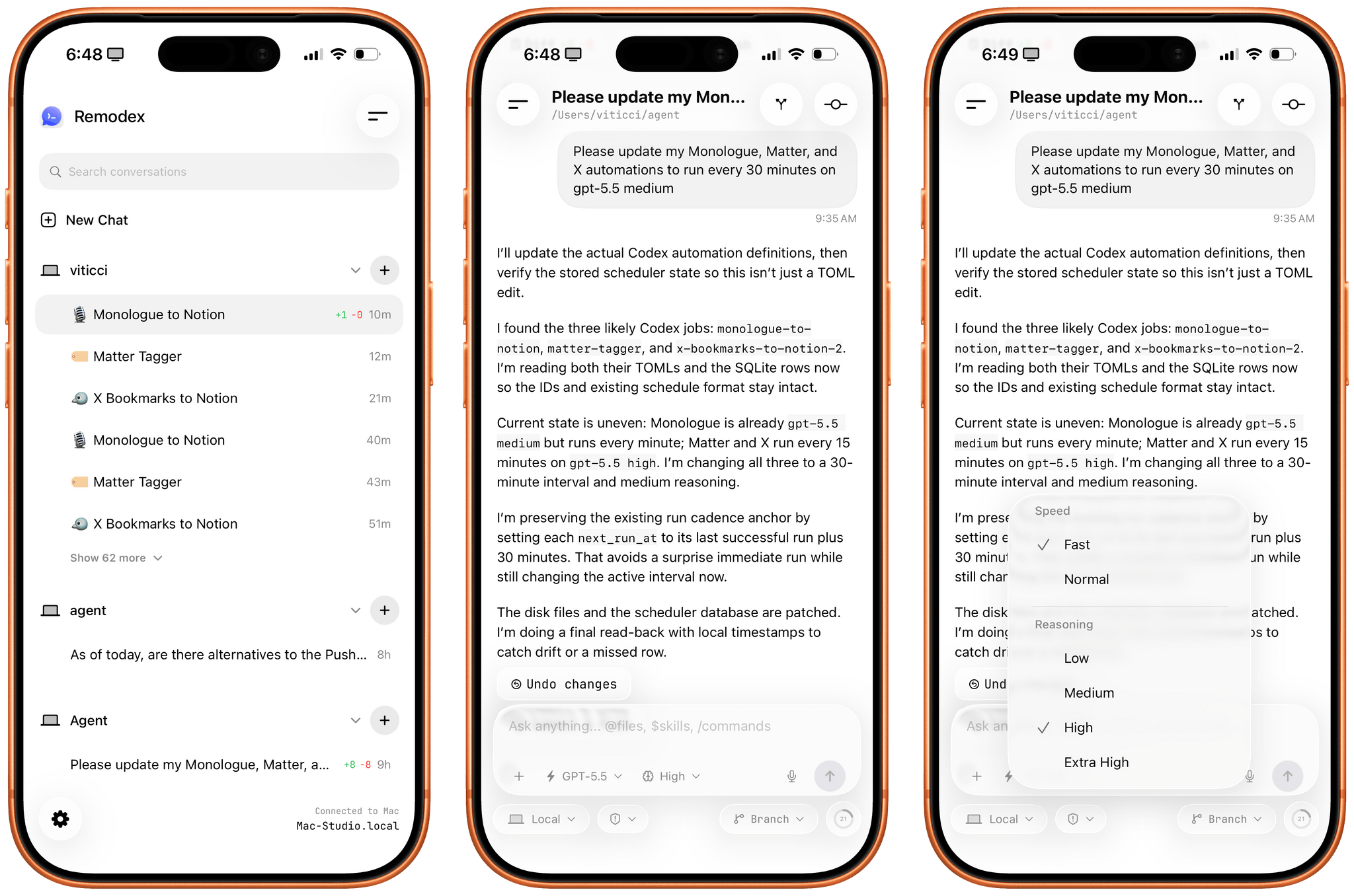
Various OpenAI employees and members of the Codex team have been hinting at a native Codex app for iOS lately. While I very much hope that’s in the cards – especially if the project involves connecting to a remote Mac running the full Codex app – I wanted to highlight an indie utility I’ve been using a lot lately to access my Codex setup on my Mac Studio server from my iPhone.
The app is called Remodex, and it was created by Italian indie developer Emanuele Di Pietro. Remodex, as the name suggests, acts as a remote for the Codex CLI installed on a macOS computer, and it lets you operate your existing projects and chats with a UI that is reminiscent of the official Codex app for Mac. Even better, Remodex is not based on some hack-y workaround: it’s entirely powered by OpenAI’s official (and open-source) Codex App Server.
Hour by Hour: Reverse Engineering Your Schedule
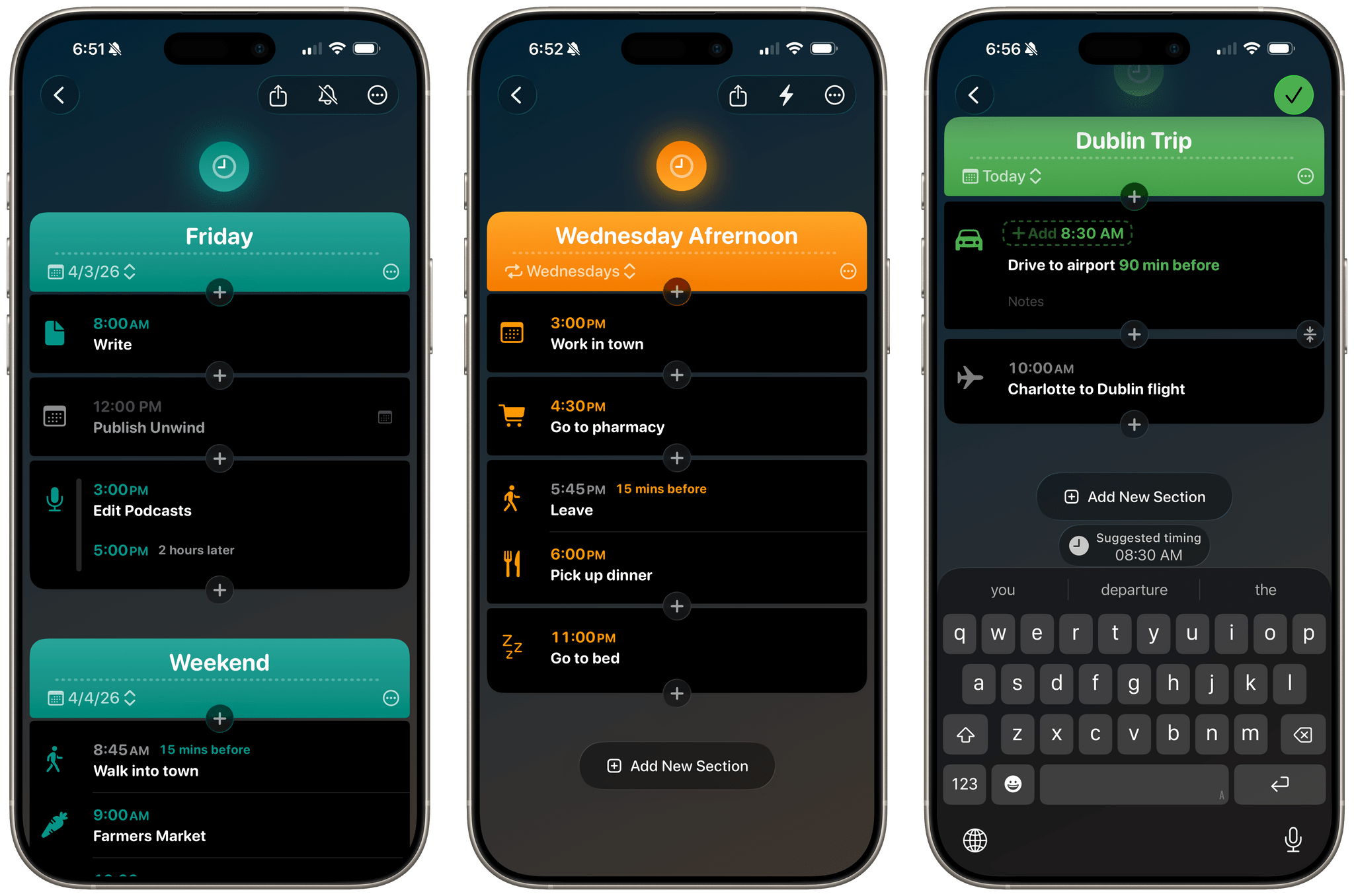
Hour by Hour is a clever new approach to scheduling your time from Joe Humfrey of Selkie Design that took me a little while to get used to, but has really grown on me.
The app was inspired by travel planning and the age-old question, “When should I leave for the airport?” You’ve probably been there before. You have a flight at, say, 2:00 pm, but you need to drive 30 minutes to the airport, add some time to park, take a shuttle to the terminal, get through security, and build in a little extra wiggle room just in case traffic is bad or something else goes sideways. Suddenly, 2:00 pm becomes an exercise in mental gymnastics as you work your way back to when you should walk out the door.
Hour by Hour solves this sort of scheduling, but for every type of event, by using the same kind of reverse planning. At the same time, it’s not really a calendar app so much as a scheduling companion for your calendar. You can pull your calendar events into Hour by Hour, but you don’t have to, and if you dive into the app expecting to use it the same way you use a traditional calendar, the assumptions you bring with you will probably trip you up.
On This Day: My New Favorite Way to Revisit Old Photos
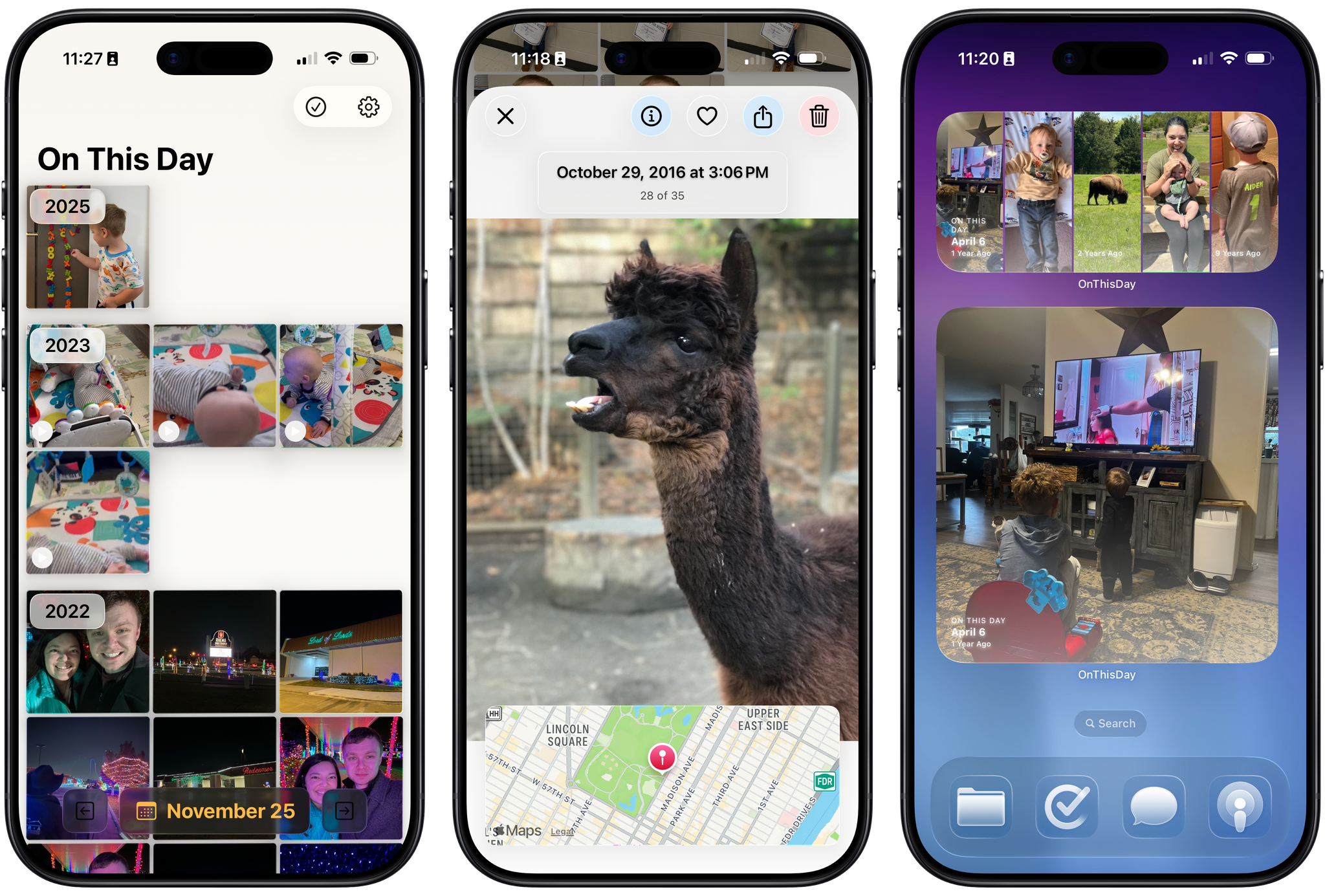
If you’ve followed my work for long, you’ve probably picked up on the fact that I’m a nostalgic person. I love to relive old memories, share old stories, and look at old pictures. It’s just the way I am.
That’s why I’m a big fan of Apple’s Memories feature built into the Photos app. You’re telling me my phone can deliver a slideshow of great pictures from my library anytime I want, and with a cheesy soundtrack to boot? Count me in. Photos is an amazing app for resurfacing pictures that otherwise might have been forgotten.
But there’s always been one feature I felt was missing from Photos: a roundup of every picture you’ve taken on a particular date in past years.1 While automatically-generated memories are great, I don’t want to limit my nostalgic photo viewing to the pictures my phone thinks are the best. I want a way to review all my pictures from the past, and an “on this day” approach is one that works well in other contexts, like journaling. Why not photos?
Enter a new app for the iPhone and iPad from developer Florian Grossmann fittingly called On This Day. It’s a simple, nicely-designed way to revisit photos you took on a particular date in previous years, and it’s quickly become a go-to for me. In fact, On This Day is now a part of my regular morning routine because it enables me to quickly do something I love to do: look at old photos and reminisce about fun moments, amazing trips, and milestones in the lives of myself and my loved ones.
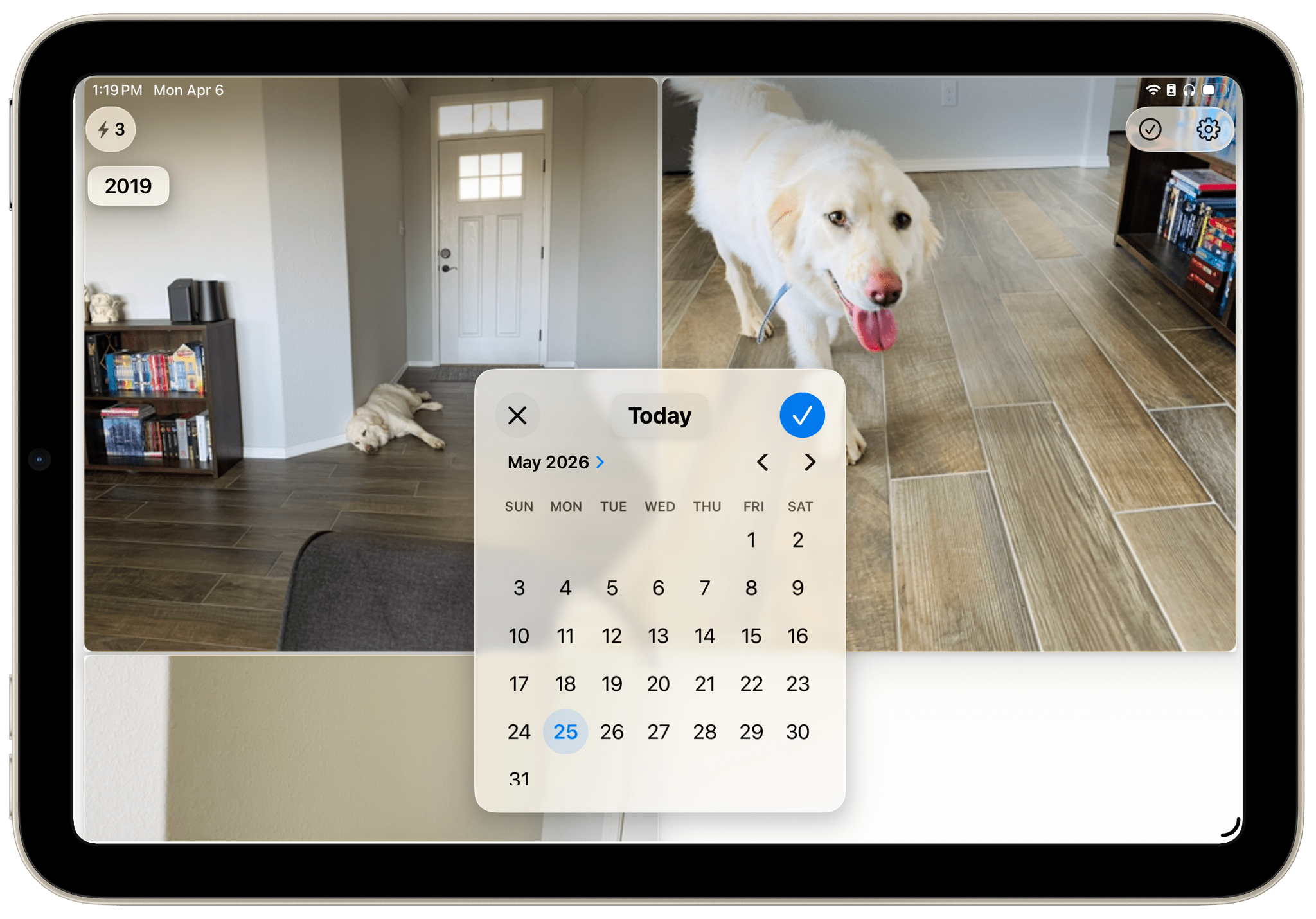
The app’s UI is a simple grid of pictures, much like the one you’re used to seeing in Photos, except instead of showing every picture in your library, the app only includes images and videos from a particular date, which is displayed at the bottom center of the screen. The grid is broken up into years by headings that stick to the top of the screen as you scroll, ensuring you always know which year you’re browsing. By default, scrolling down the screen moves you backwards in time towards older photos, though you can reverse this order in the app’s settings.
Tapping on a picture will open it in a full-screen view that not only allows you to see the photo in finer detail, but also to learn more about it and act on it. I like how much information and functionality is packed into this simple screen. At the top of the screen is the photo’s time and date (as well as a count of how many photos you took on that particular day), and at the bottom of the screen, the app shows the location of where the photo was taken on a map. If you prefer to view your photo without these overlays, a single tap will dismiss them, and you can swipe left and right to move between photos in the full-screen view.
In the upper-right corner of this view, there are four buttons: Info, Favorite, Share, and Delete. Favoriting a picture in On This Day adds it to your Favorites collection in Photos. This can come in handy since the app doesn’t have the ability to actually open an image in Photos; the developer says this is due to technical limitations of the Photos app itself. But at the very least, you can favorite a photo to refer to later in the Photos app as a workaround.
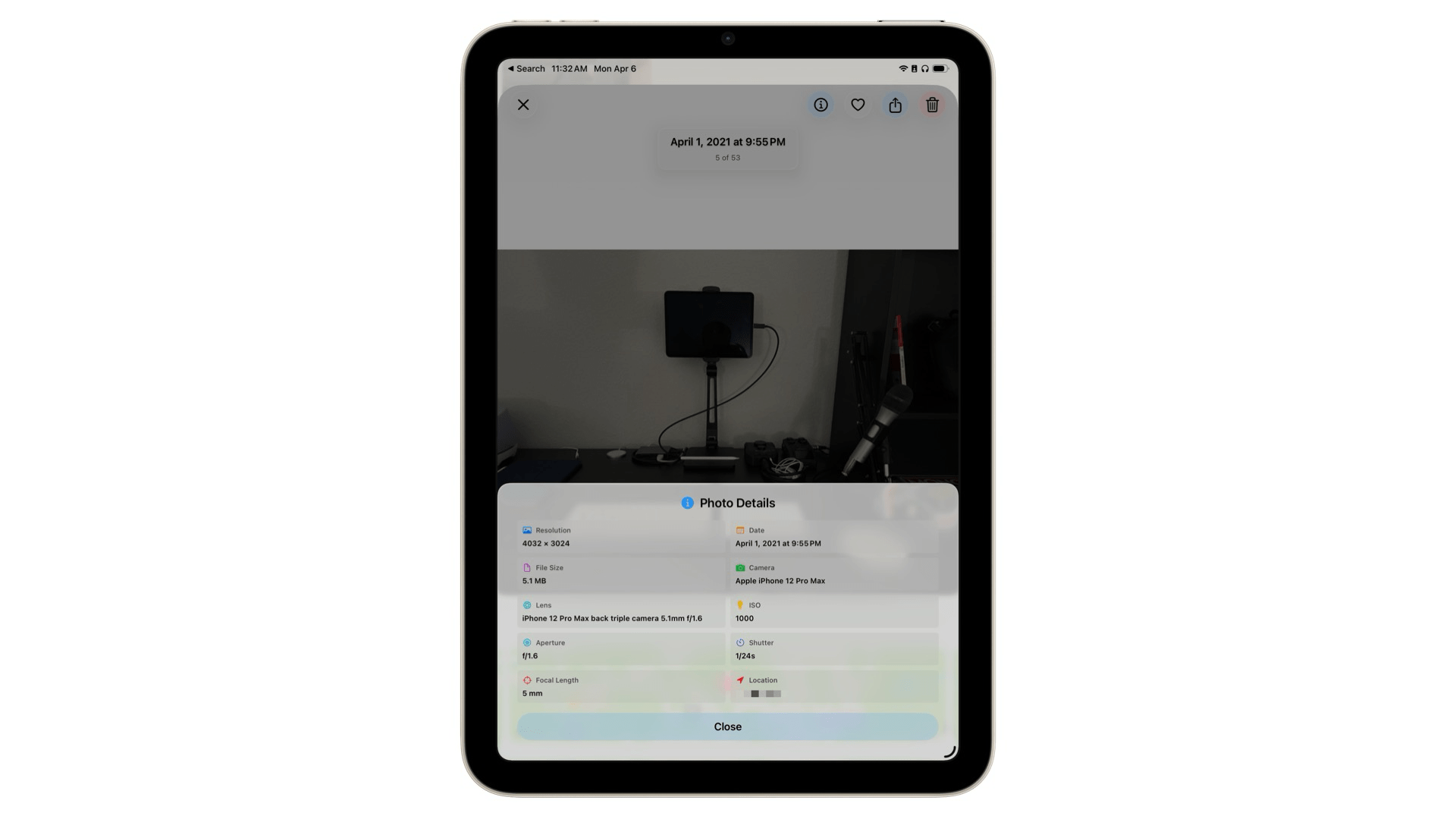
If you want to dig into the technical details of a picture, you can tap the Info button to open the Photo Details pane. There, you’ll find the photo’s resolution, camera and lens information, focal length, and more. It’s great to have this data close at hand when reviewing photos, especially if you want to see which iPhone you were using at a particular time in the past.
This core functionality is all I’ve ever wanted out of this kind of tool. It’s fast, it’s easy to use, and it’s designed well to help me find the photos I want and then get out of the way so I can fully enjoy them. It fits right in with current iOS aesthetics, as well, with Liquid Glass headings and buttons that blend naturally with your photos and adapt to the varying content behind them. The experience of reviewing pictures in On This Day is simply great, and I enjoy opening the app every day to see what memories it has to offer.
If you want to review photos from other days, you can do so by tapping the arrow buttons on either side of the date at the bottom of the screen or by tapping the date itself to open up a calendar to select from. Once you’ve navigated away from the current date, the app will offer a Today button above the calendar to quickly get you back to your starting point.
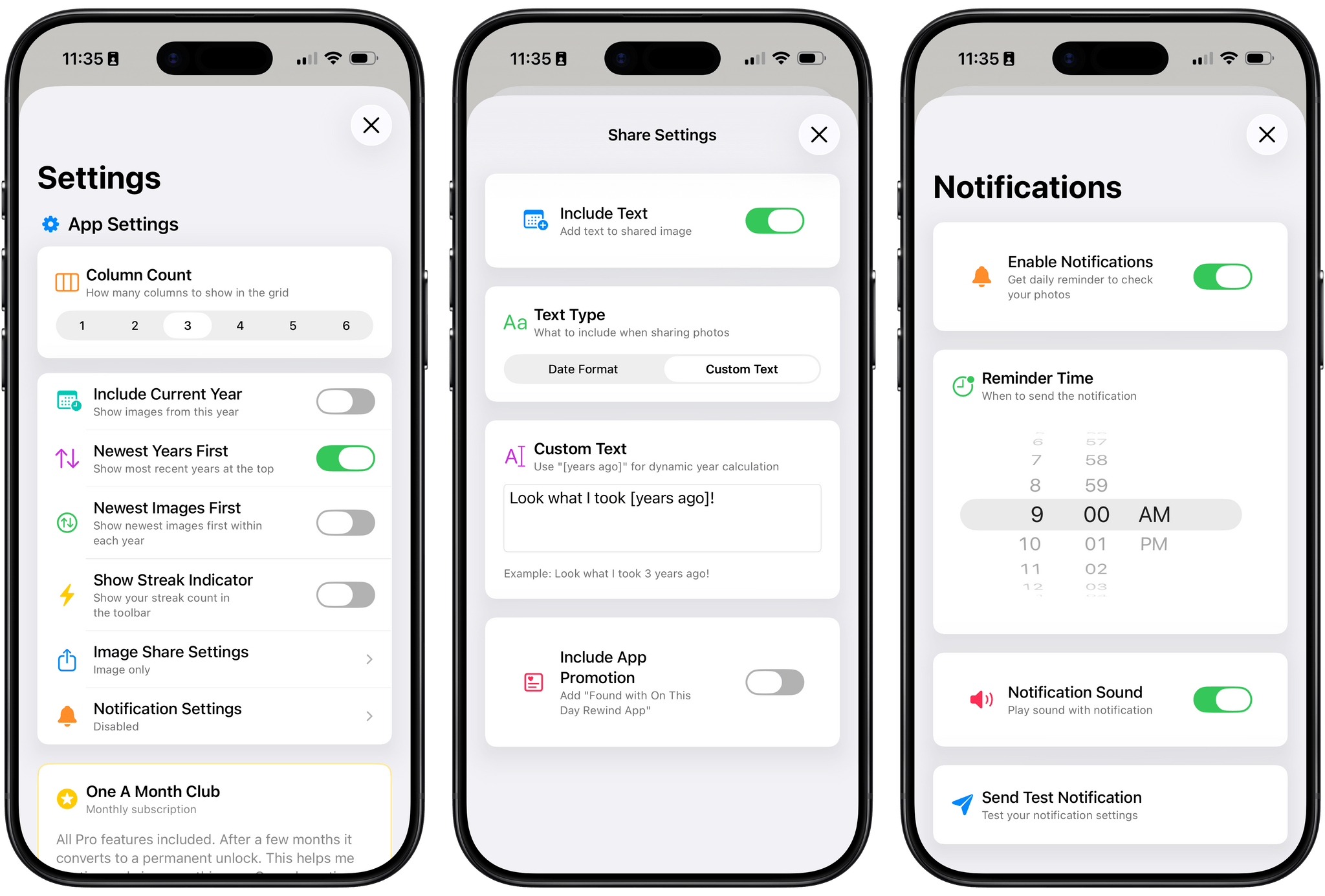
The app’s settings include a number of customization options, too. There, you can adjust the density of the photo grid, change how images are ordered, disable the optional streak count, and schedule notifications to remind you to review your photos each day. On This Day also offers the unique ability to decide what content the app sends when you share a photo; you can include the date in various formats, customized text, or no text at all. For me, part of the fun of looking at old photos is sending them to other people, so I appreciate the option to customize what gets shared.
Finally, On This Day also offers widgets in small, medium, large, and extra-large sizes so you can see photos from past years right on your Home Screen. You can adjust how many pictures appear within a widget, and photos can be displayed in full color even if, like me, you’re a user of the Clear or Tinted appearance for app icons.
This is the sort of app that I’ve been wanting on my devices for a long time, and the fact that it’s been made with such care and attention to detail just makes the experience of using it that much sweeter. I love revisiting old photos in the app every day, and if you’re the type of person who’s built up years of pictures in your library and delights in having them resurfaced for you, I think you’ll enjoy it, too. I recommend giving it a try.
On This Day is available on the App Store for iPhone and iPad as a free download, and the iPad version can also be run on the Vision Pro. The app displays photos from the past three years for free. You can unlock all past years and the app’s full range of customization options with a one-time payment of $4.99 or a $0.99/month subscription.
- You can technically achieve this by entering the current date (e.g., “April 7”) in the search bar and even automate this search with Shortcuts, as cleverly demonstrated to me recently by reader Miles Jefford. Personally, though, I think Photos should just include an On This Day collection. ↩
Moods Faster: Effortless Mood Tracking
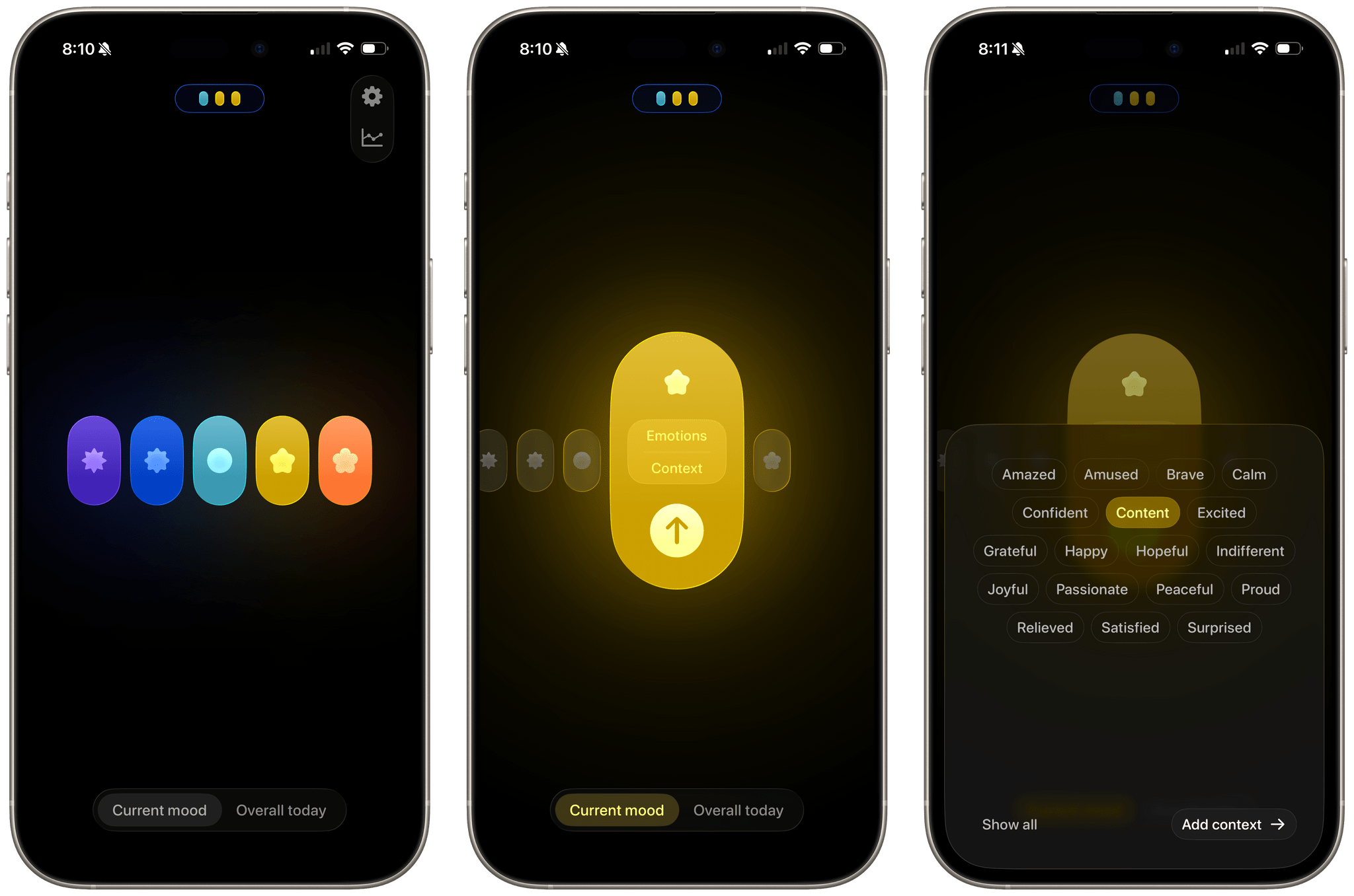
I’ve said over and over that the most important feature of any habit tracker is being able to get in and out of the app quickly. For some developers, that doesn’t always come naturally. After all, doesn’t every developer want their customers to use their app more than others? Sure they do, but it’s not always the right instinct.
That’s something Nick Leith has understood for a long time. Leith is the developer of Remind Me Faster, a companion app for Apple Reminders that accelerates task entry. I’ve moved in and out of Reminders annually for my macOS reviews and every time, the first app I download after the move-in is Remind Me Faster because it makes using Reminders much easier.
Leith has been thinking about how to make data entry simple and fast for years thanks to that app, and it shows with his brand new app, Moods Faster (Get it? Moods Faster -> Move Faster). Okay, you probably didn’t need that nudge, but I like the name. It’s fun.
Acme Weather: A Fresh Take on Forecast Uncertainty
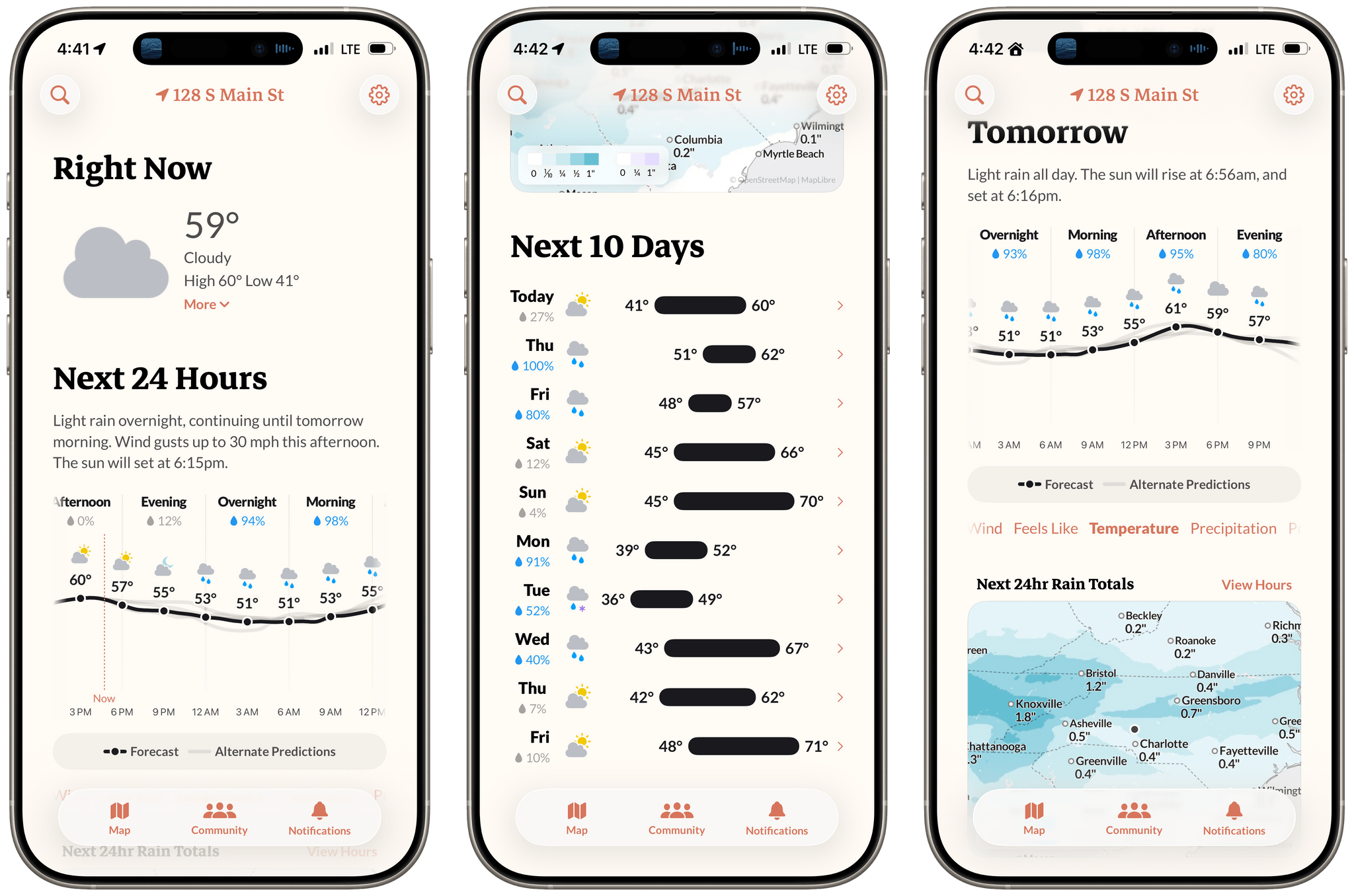
Earlier this week, the founders of Dark Sky made their post-Apple debut with a new weather app for the iPhone and Apple Watch: Acme Weather. It’s a terrific 1.0 with all the details you’d expect, plus a few interesting features that set it apart from other apps in its category.
Dot: The Menu Bar Calendar That’s Become My Main Calendar
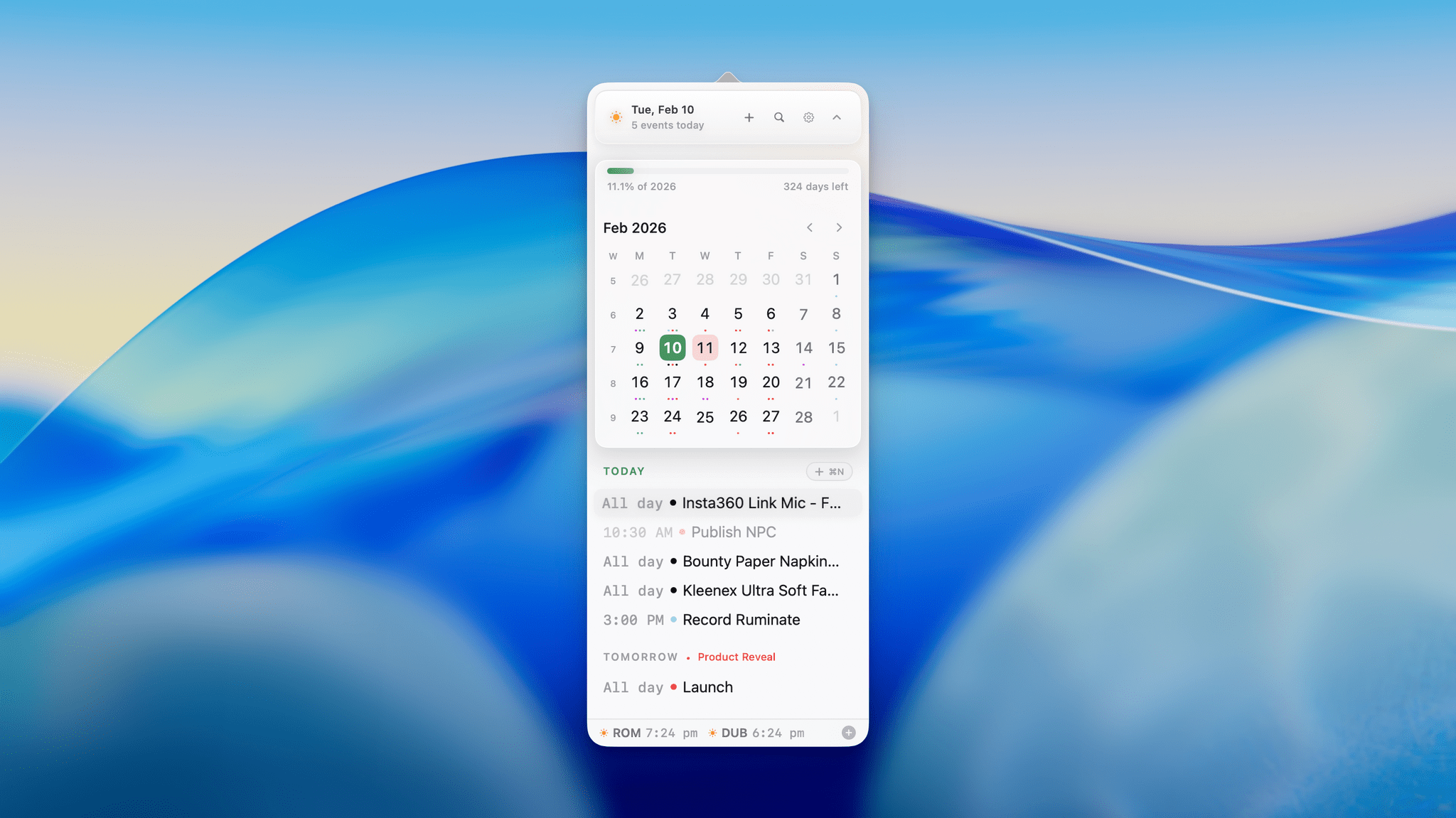
Over time, I’ve gravitated towards a two-calendar system on my Mac because I’ve never found an app where both the desktop app and the menu bar version meet all my needs. That’s probably because my calendar use is a little backwards. I don’t have a lot of meetings each week; instead, my calendar is a mix of reminders, package deliveries, and a handful of work and family events. With just two or three entries each day, I’ve found myself managing events more and more often from a simple menu bar app, reserving my full calendar app for more involved event entry and planning.
On the desktop side, I’ve used Apple Calendar the most, but I’ve also used Fantastical and BusyCal for extended periods, ultimately landing on Notion Calendar. It isn’t perfect, but its Notion integration can be handy at times. On the menu bar side of the equation, I used Dato for many years. It’s an excellent app, but even it is a little more than I need, which is why I was excited to recently discover Dot.