Posts in reviews

Sticker Drop Lets You Use iOS 16’s Subject Isolation Feature to Make iMessage Stickers

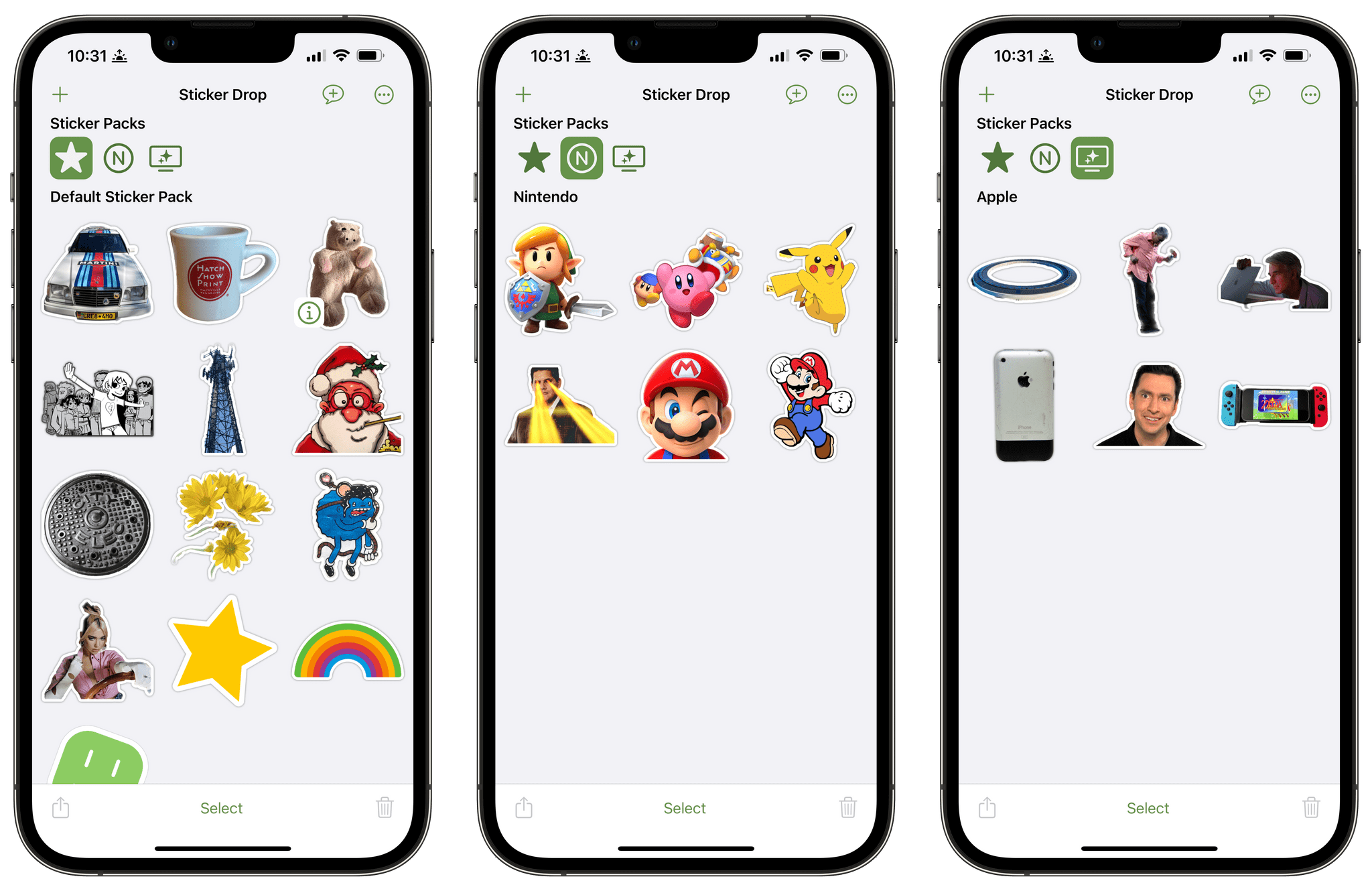
Years ago, when the iMessage Store first debuted, I covered the best sticker packs every week in MacStories Weekly, our Club MacStories newsletter. It wasn’t long before I had more sticker packs than Messages could manage. Finding individual sticker packs became a chore, so I gradually stopped using them, except on rare occasions.

One of my favorite categories of sticker apps from those early days was apps that allowed me to make my own stickers from photos. However, the process was too laborious and fiddly to justify making more than a handful of my own stickers.

That’s changed with the release of Sticker Drop, a DIY sticker creation utility for the iPhone that leverages iOS 16’s new subject isolation technology for images. What sets Sticker Drop apart is how easy it is to make and manage your own stickers.

Read more


Widgetsmith Is Coming for Your iOS 16 Lock Screen Too

It’s been two years since Widgetsmith took the App Store by storm. The app, which was created by long-time indie developer David Smith, lets users create custom Home Screen widgets. Then, shortly after the app’s release, it went viral when TikTokers discovered it and dropped Dave and his app squarely in the center of the Home Screen aesthetic phenomenon.

Two years later, it’s fair to say that few people know widgets like Dave knows widgets. He’s spent the past two years refining Widgetsmith. Also, Widgetsmith is just one of many apps Dave has released over the years, many of which included some of the best Apple Watch apps available. That unique combination of experience uniquely positioned Dave to take advantage of iOS 16’s Lock Screen widgets.

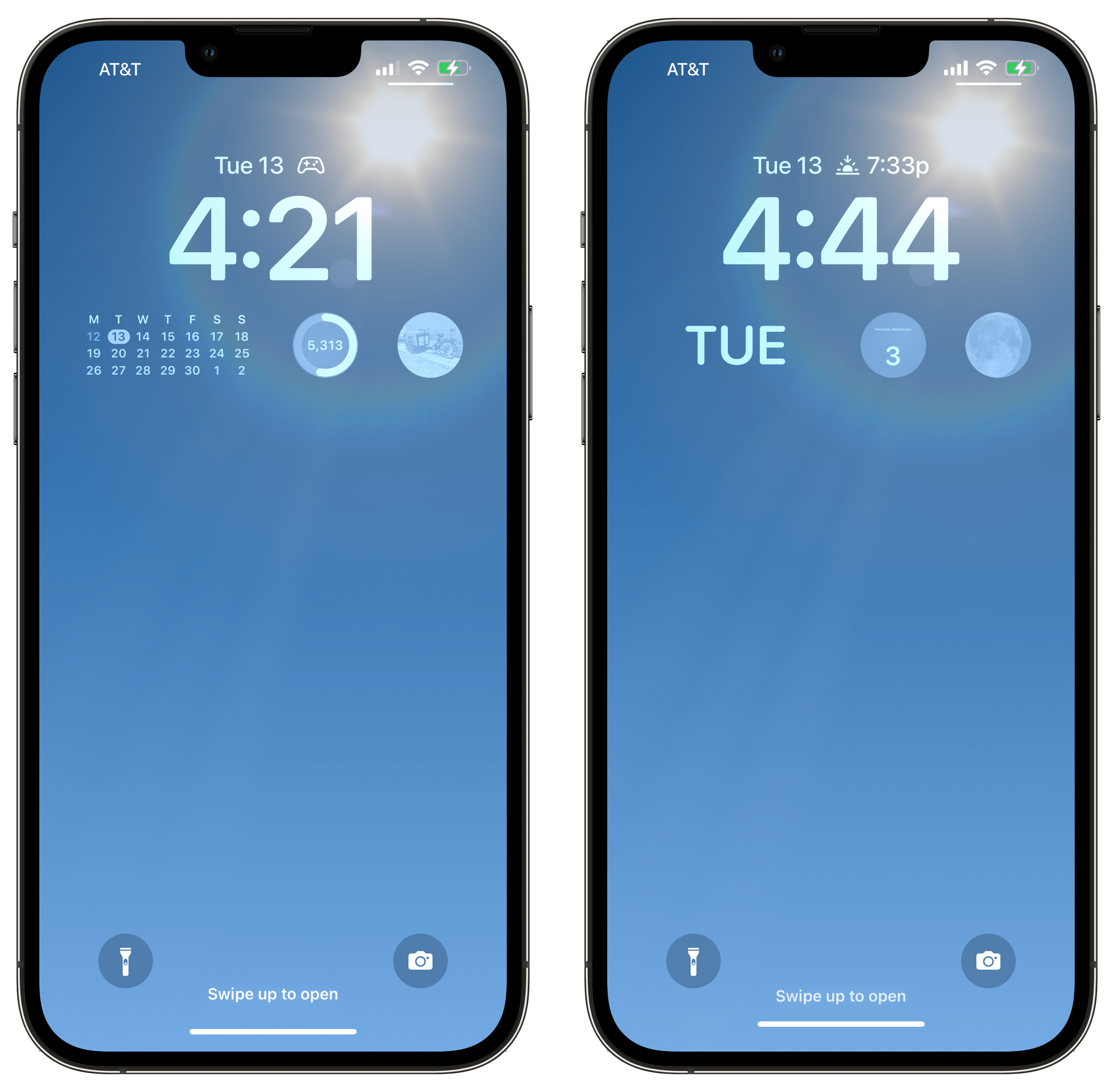
If you’ve used Widgetsmith to create Home Screen widgets, you’ll hit the ground running with Lock Screen widgets. There’s a new segmented control near the top of the iPhone app’s Widgets tab that toggles between Home Screen and Lock Screen widget creation. The Lock Screen view is divided between the inline text widgets that fit above the time on the Lock Screen and circular and rectangular widgets that sit below the time.

It's true, read the Messages section of his iOS 16 review.

It’s true, read the Messages section of his iOS 16 review.

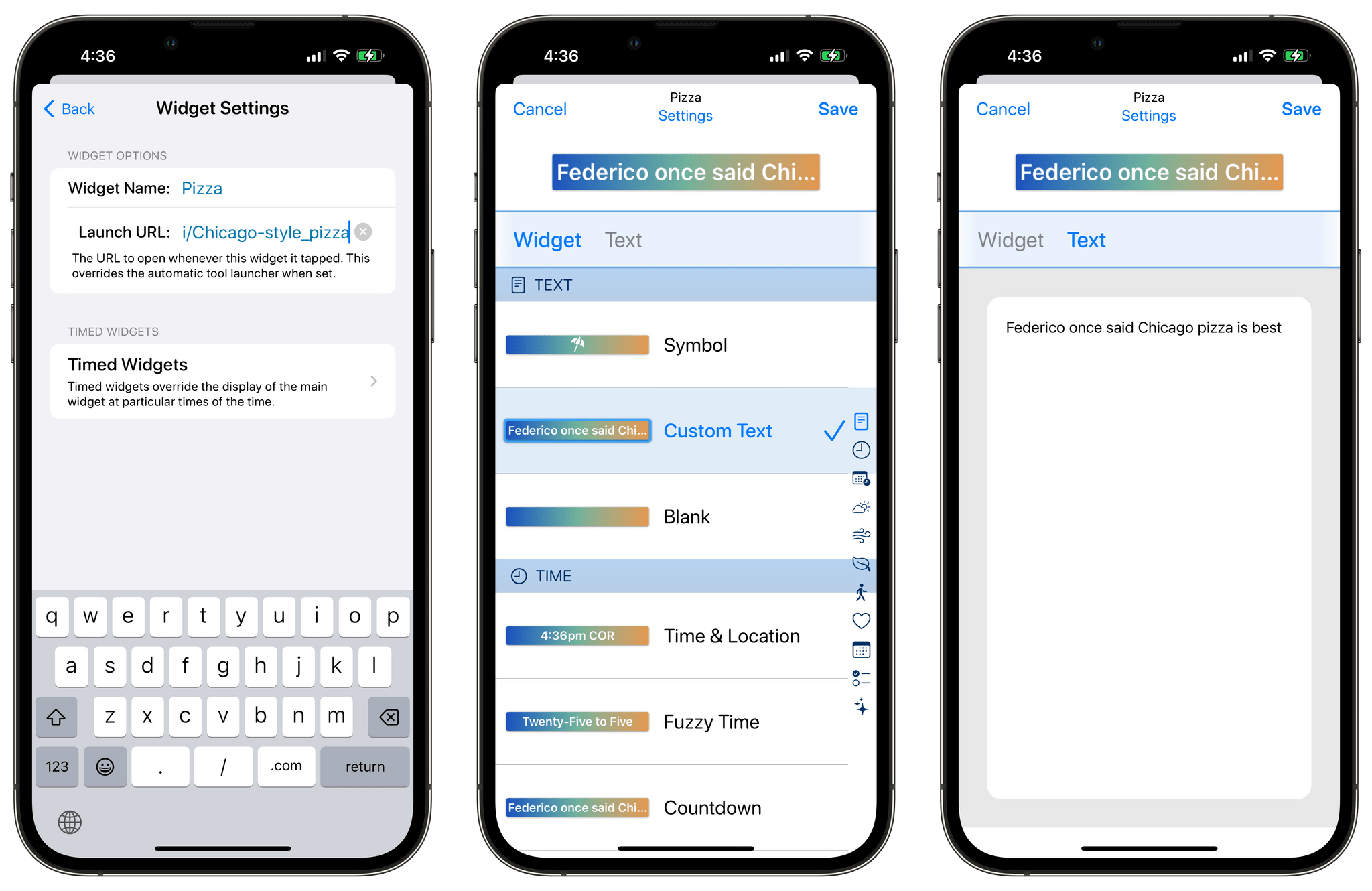
When you tap to add an inline text widget, Widgetsmith opens its editor, which offers 11 categories of widgets, each which has its own set of options. The inline text widget can be used display whatever text you want that fits. Other options include multiple time, date, weather, calendar, fitness, and reminder widgets.

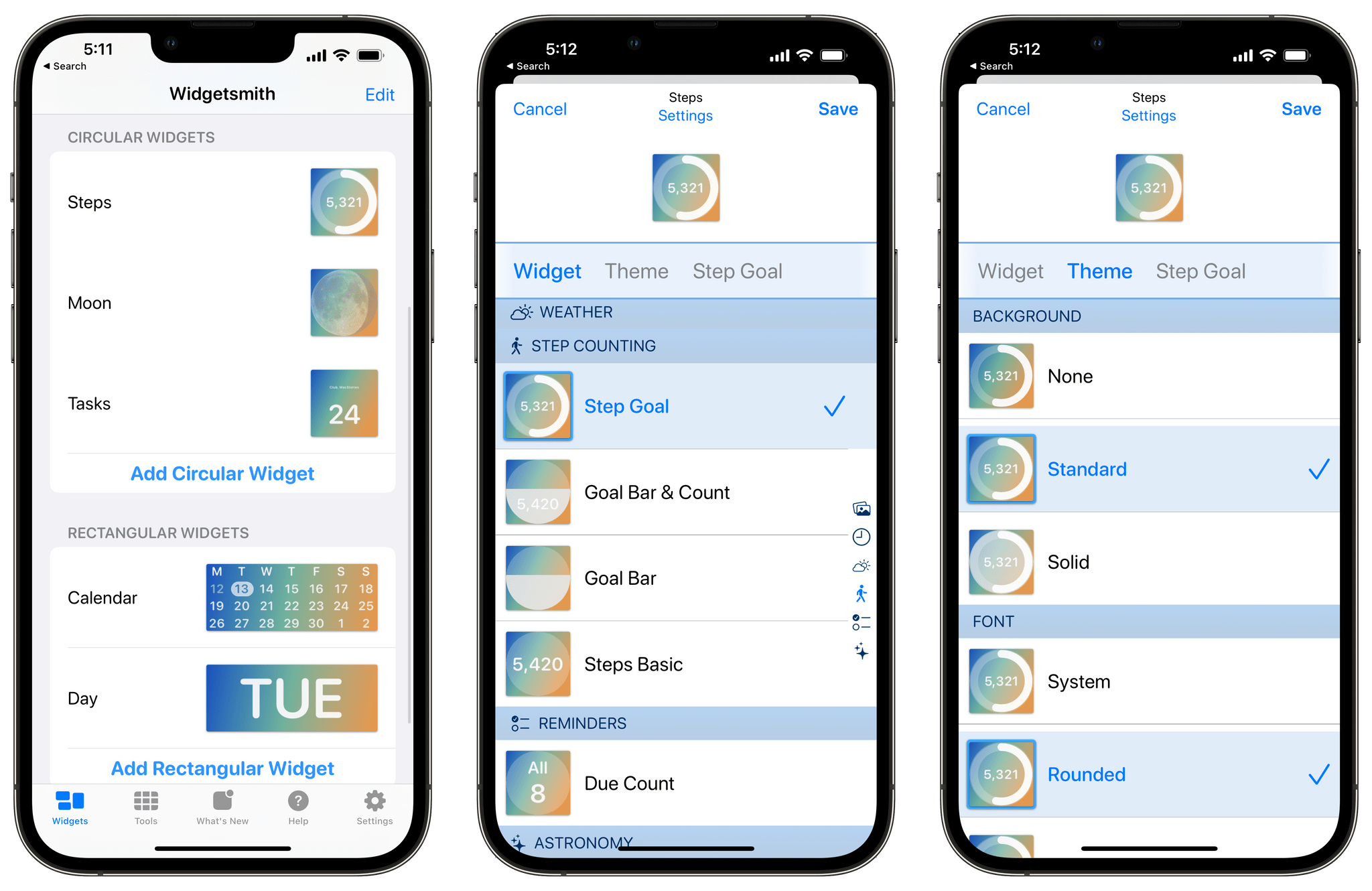
Setting up a circular widget.

Setting up a circular widget.

The circular widget offers six categories: photo, time, weather, step counting, reminders, and astronomy, each with multiple styles and available themes. Photos, which is also available to use with rectangular widgets, is interesting. It allows you to add a photo to the widget itself. Of course, the photo is rendered as a monochrome image when added to a widget, which can make images that aren’t high-contrast hard to see, but there’s also an option to isolate people from their backgrounds, which can help. The photo widget isn’t for me, but I can imagine situations where someone might want to add one. The rectangular widget category includes even more categories from which to choose. Between the overlap with other widget types, plus the Battery and Tides widgets, there are a total of 13 widget types that can be added to a rectangular widget and themed.

One of the best parts of Widgetsmith is browsing through its extensive catalog of widget types and then tweaking your favorites to make them fit with your own style. There are so many possibilities that I’d wager that the app has something to offer for everyone. If you want to dive deep in iOS 16 Lock Screen customization, Widgetsmith is a great place to start.

Widgetsmith is a free update on the App Store. The app offers a time-limited free trial after which it requires a $1.99/month or $19.99/year subscription.


LockFlow: A Simple Way to Add Shortcuts to the iOS 16 Lock Screen

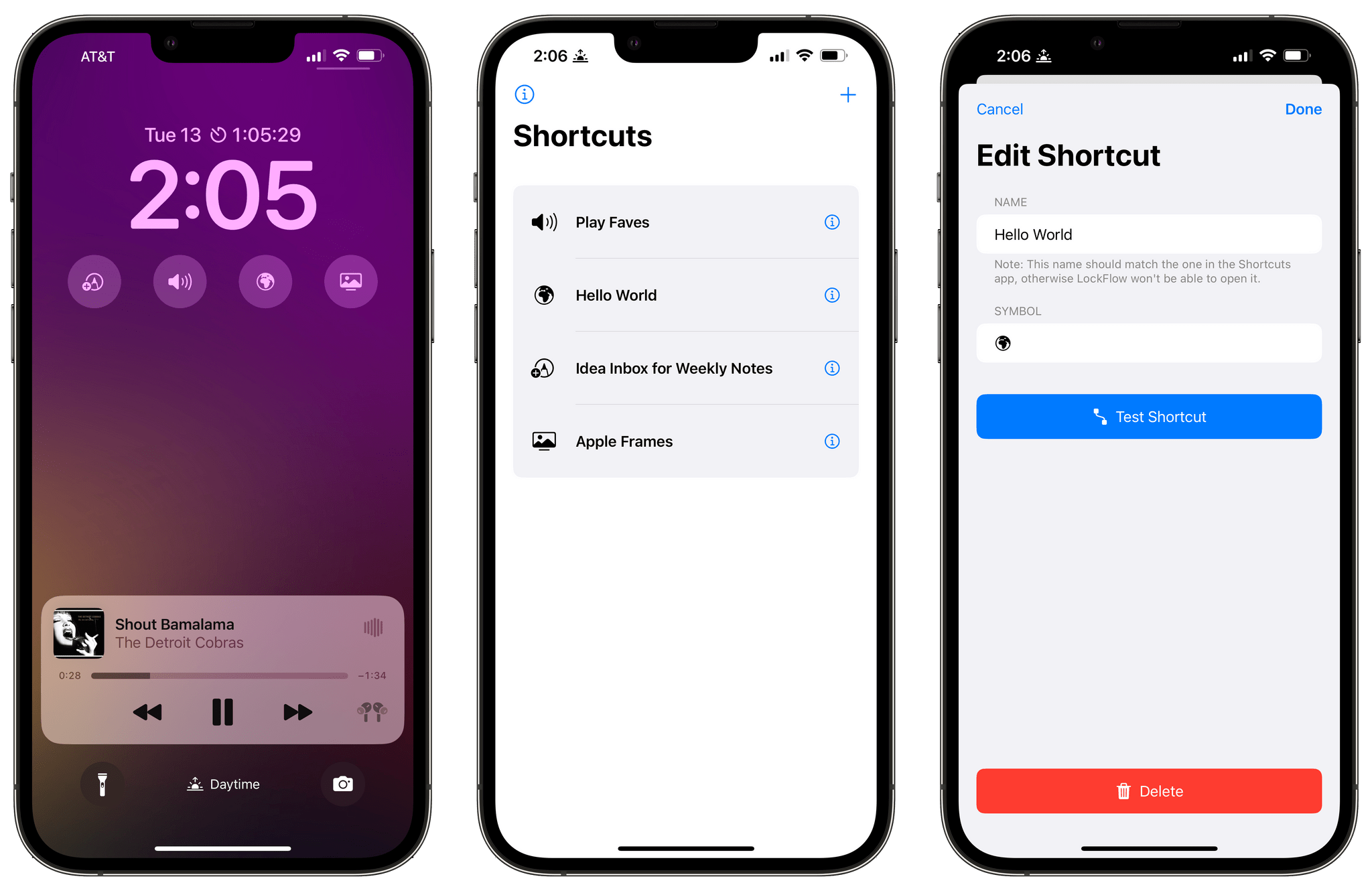
A shortcut isn’t worth building if invoking it is more trouble than doing the same thing another way. Fortunately, that’s rarely the case because shortcuts can be triggered in so many ways. Still, you can never have too many options because more options mean more contexts where running the shortcut saves time. That’s why I was glad to see a brand new app called LockFlow released alongside the iOS 16 release. The app makes it incredibly simple to add shortcut widgets to your iPhone Lock Screen.

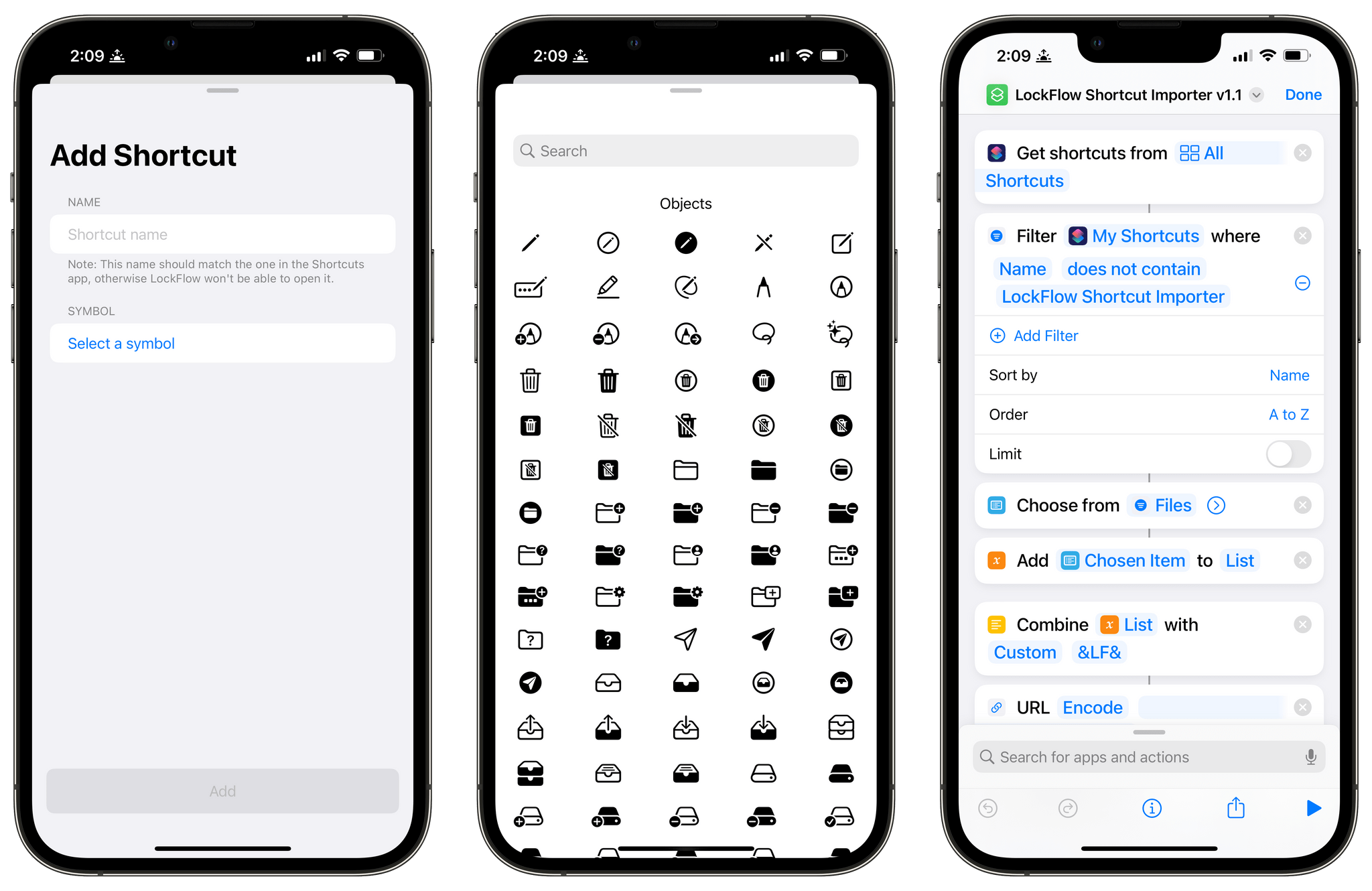
There are a couple of ways to set up your shortcuts to work with LockFlow. The first option is to use a special helper shortcut that’s bundled with the app. When you run it, the shortcut prompts you to pick the shortcuts for which you’d like to make Lock Screen widgets. The shortcuts you pick will then be listed in the LockFlow app for turning into widgets.

One word of warning, though. If you have hundreds of shortcuts, the scrolling performance of the helper shortcut isn’t great. However, because Lock Screen widget space is limited, I expect that most people won’t need to use the helper shortcut often. You also have the option of adding shortcuts by hand inside LockFlow, but you need to be careful to enter the exact name of the shortcut for the widget to work.

Adding a shortcut to LockFlow can be accomplished in the app or with a helper shortcut.

Adding a shortcut to LockFlow can be accomplished in the app or with a helper shortcut.

When you’re finished adding shortcuts to LockFlow, tap on one to give it an icon and test it if you’d like. That’s it. There’s nothing else to do other than head to your Lock Screen and add one of your new widgets.

When you add a LockFlow widget to your Lock Screen, it will be a generic circle with the word Edit in the middle. Tap it and pick the shortcut you want the widget to launch, which will replace the generic graphic with the icon you picked in LockFlow. Now, whenever you tap that widget, it will run your shortcut. My only quibble with this part of the app is that I think the widget’s iconography should be a little bigger than it is.

There are a lot of interesting use cases for LockFlow. You can use the widget as an app launcher with a single-action shortcut using the Open App action. Other options include controlling HomeKit scenes, switching Focus modes, starting a favorite playlist, and a lot more.

Personally, I’ve been using LockFlow with a shortcut that I adapted from one Federico made for Club MacStories members that appends text to a dedicated section of a Markdown note in Obsidian. I’ve also used it to shuffle a playlist of every song I’ve ever marked as ‘Loved’ in Apple Music. Both are the kind of actions I want to get to as quickly as possible with little effort, which is precisely where LockFlow excels.

LockFlow is available on the App Store as a free download.


CARROT Weather 5.8: A Beautiful New iPad Layout, Lots of Lock Screen Widgets, and More

If you use CARROT Weather and have an iPad, stop. Go update CARROT, dig into its Layout settings, and pick the Multi-Column Layout Style before you read any further. I’ll wait.

It’s good, right? Even if you don’t customize it at all, CARROT’s new three-column layout will excite your inner weather geek. The layout is a natural extension of the card-like interface of CARROT’s iOS app, expanded to multiple columns. It’s a terrific update that makes much better use of the iPad’s bigger screen.

Picking Multi-Column from CARROT Weather's Layout settings.

Picking Multi-Column from CARROT Weather’s Layout settings.

The app’s signature card-like customization scheme is the perfect fit with the iPad, allowing users to pick and choose the data that’s most important to them, adjusting each component to fit nicely onscreen. In narrower Split View configurations, CARROT Weather falls back to the single-column, Plain style layout.

CARROT Weather's columns are completely customizable.

CARROT Weather’s columns are completely customizable.

The update also adds another 10 sections of weather data that can be displayed in a variety of ways, including as line and bar charts. With the existing sections, which we’ve covered before, there are more than enough data points and display choices to fill three-columns to your personal tastes.

Apple itself has headed in a similar direction, designing the new Weather app for iPadOS and macOS as a grid of tiles that offer more details when tapped. However, I prefer CARROT Weather because it lets me choose what to display and where. CARROT also lets me save multiple layouts, which opens up the option to customize layouts for each season or for different activities.

Examples of CARROT Weather's rectangular Lock Screen widgets.

Examples of CARROT Weather’s rectangular Lock Screen widgets.

A few of CARROT Weather's circular Lock Screen widgets.

A few of CARROT Weather’s circular Lock Screen widgets.

In addition to the new iPad design and new sections available in the iPhone and iPad versions of the app, CARROT Weather now comes with a whopping 20 Lock Screen widgets for the iPhone. Four of those widgets, Snark, Custom Conditions, Hourly Forecast, and Daily Forecast, are the larger rectangular variety. The remainder of the widgets are circular ones that offer a long list of data points like the current conditions, the current temperature along with the forecast high and low, the change of precipitation, wind speed, UV Index, Air Quality, and more. Whatever is most important to you, there’s bound to be a widget for it in CARROT Weather.

Finally, CARROT Weather has added another weather data provider: Apple’s own WeatherKit service. All weather data providers seem to be strong in some parts of the world and weaker in others, including WeatherKit, but it’s good to have another choice, especially since Dark Sky will no longer offer forecasts beginning next year.

I’ve been spending a lot of time pairing Lock Screens with Focus modes, and CARROT’s weather widgets have been a staple when I head out for a long walk or bike ride. Along with the redesign of the iPad app, version 5.8 is another excellent update from CARROT that I encourage everyone to check out.

CARROT Weather 5.8 is available for download now on the App Store. Some of the app’s features require a subscription, the details of which you can learn about on the App Store.


Captionista: Simple, Flexible Video Subtitling for the iPhone and iPad

One of the tradeoffs I see a lot in the apps we cover is between simplicity and flexibility. Simplicity has its virtues, but often apps designed to make things as easy as possible for users end up being inflexible, resulting in cookie-cutter output. The flip side is that maximum flexibility can get out of hand fast, leading to a steep learning curve. Striking the right balance is hard, but the apps that do are always among my favorites because they work so well for a wide audience. That’s exactly how I feel about Captionista, an iPhone and iPad app for adding text to video. It’s simple to understand but includes the kind of depth that epitomizes what it means to do one thing well.

I don’t work with video a lot, and when I do, my needs are pretty simple. Often, I want to demonstrate something with a screen recording, which isn’t always easy to follow without some sort of explanation. That’s where Captionista comes in.

Read more


Safari Extension Noir Adds Theming and Deeper Keyboard Shortcut Support

Last year, we awarded Noir Best New App of 2021 as part of the MacStories Selects Awards. Jeffrey Kuiken’s Safari extension for the iPhone, iPad, and Mac, which can apply a custom dark mode to websites that don’t offer their own, is a fantastic example of an app that implements a new technology – the native Safari extensions introduced with iOS and iPadOS 15 and earlier on the Mac – in a way that is simple to use but also provides advanced customization for users who want that. Noir immediately became a MacStories favorite on launch, and it remains an app that I rely on every day.

The latest update to Noir takes the app’s original concept a step further with new theming options, theme sharing, and extensive keyboard shortcut support. It’s an excellent update that anyone who likes to tweak the colors used in their apps will appreciate. Let’s take a closer look.

Read more


HiRise 3: Twelve South’s Space-Saving, Three-in-One Charging Solution

Source: Twelve South.

Source: Twelve South.

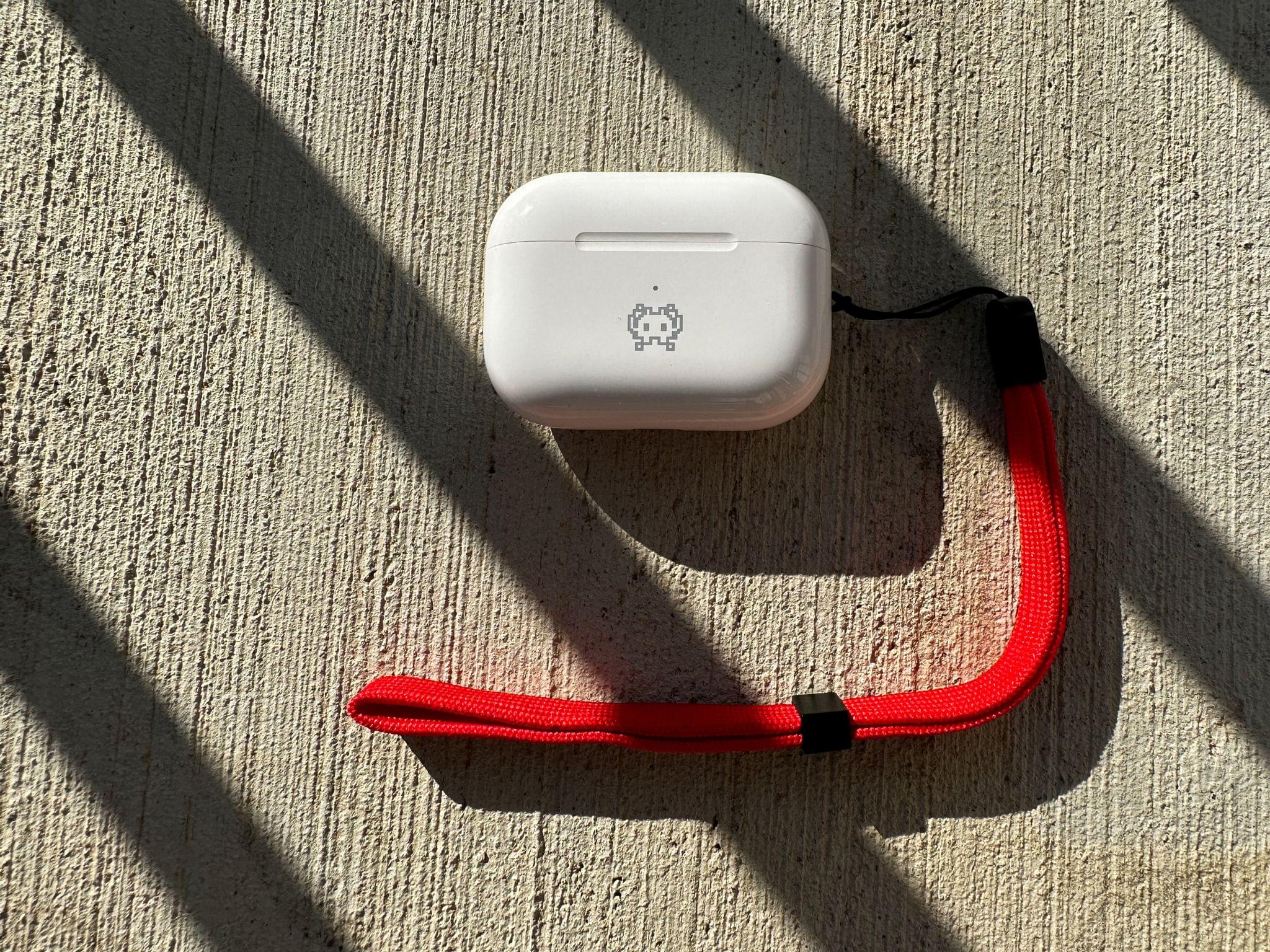
Not long ago, Twelve South introduced a new 3-in-1 charger for the iPhone, Apple Watch, and AirPods Pro called the HiRise 3. I’ve used a Belkin 3-in-1 charger on my desk for a few years and love it, but it takes up quite a bit of space. So, when Twelve South recently offered to send me the HiRise 3 to test, I jumped at the chance to check out its more compact design. After using the HiRise 3 for the past few weeks, I’m happy with it overall and think it’s a great choice for most users, but it comes with a couple of limitations that you’ll want to consider before buying one yourself.

Read more


Pixelmator 2.7 Introduces a New Design, A Faster Editing Engine, and Limited Support for Pixelmator Pro Files

Before there was Pixelmator Pro on the Mac or Pixelmator Photo on the iPhone and iPad, there was just plain Pixelmator, the layer-based image editor that started on the Mac, added iPad support in 2014, and then made its way to the iPhone a year later. It’s been a long, successful story, but Pixelmator was supplanted by Pixelmator Pro on the Mac, and although it has remained available ever since on the iPad and iPhone, its development slowed significantly with the introduction of Pixelmator Photo. Still, Pixelmator survived, at least in part, because it’s a simple touch and layer-based editor, which has had few competitors on the iPhone and iPad until recently.

Today’s update to version 2.7 is a modest but important update that sets Pixelmator up for the future. The first thing you’ll notice is that the design has been updated, making it feel more at home with other apps on the iPhone and iPad. Day-to-day, though, the biggest change is a new Metal-based editing engine that results in better performance than ever before. Pixelmator was already fast enough for the basic image compositing I do, but for more complex operations with lots of layers and machine learning tasks, the transition to Metal will make a bigger difference.

Editing an image in Pixelmator.

Editing an image in Pixelmator.

Pixelmator has also added initial support for Pixelmator Pro’s file format. In my limited testing, I’ve found that images touched up in Pixelmator Pro work fine in Pixelmator. However, Pixelmator doesn’t support all of Pro’s tools such as Effects. When I opened an image that had a small area blurred out with a Gaussian Blur effect, I got a warning that proceeding would merge changes into my image. When I clicked through, the effect was applied to the entire image instead of a small part of it. Fortunately, though, Pixelmator makes a copy of your original file, so you can always roll back to your original image.

Notwithstanding Pixelmator 2.7’s limited support for Pro’s file format, it’s good to see the app get a substantial update to its design and editing engine. There are other options for layer-based image editing, but most are overkill for a lot of people. Pixelmator has always struck a nice balance by offering the power inherent in using layers without the complexity of an app like Photoshop.

Pixelmator 2.7 is available on the App Store as a free update for existing users and $4.99 for new users.


Pestle 1.2: The MacStories Review

One of the greatest strengths of the App Store is its abundance of choice. For every app category, there are always multiple excellent options from which to pick. That’s never been more true for the recipe app category. Paprika was my long-time personal favorite until Mela came along, but there are other great options like Grocery and Crouton too. Another app that belongs on that list is Pestle, an iPhone and iPad app by Will Bishop.

At its core, Pestle is a recipe manager, but it also integrates with Reminders to create shopping lists, offers a way to discover new dishes, and integrates meal planning, making it a well-rounded solution. The app also features a modern design that works well in the kitchen and some clever details like hands-free voice control for moving between recipe steps while cooking, making it worth a closer look.

Read more