This Week's Sponsor:

Copilot Money

Copilot Money, The Best Money Tracker, Launches on the Web – Limited-Time: Get 26% Off + 2 Months Free


Posts in reviews

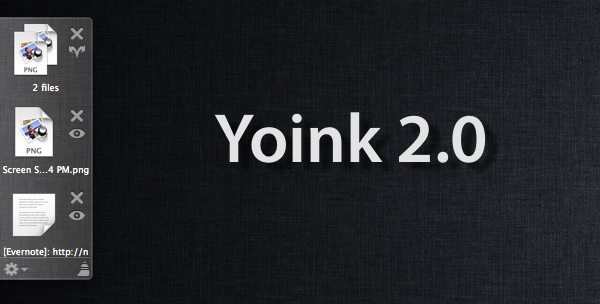
Yoink 2.0 Brings Smarter Drag & Drop To Lion

Back in September I reviewed the first version of Yoink, a utility by Eternal Storms Software that greatly enhanced Lion’s drag & drop support by adding a virtual “shelf” to the side of your screen to store temporary files you needed to move elsewhere. From my review:

Yoink is a drag & drop assistant for Lion, in that it provides you with a virtual “safe zone” to temporarily store files — or rather, links to them — you want to move from one location (say your desktop) to another space or full-screen app. Yoink doesn’t “copy” a file, or multiple ones, to its shelf: it only acts as a bridge between the original file, and the destination of the drop.

In its first version, Yoink was primarily meant to provide a better way to move files from the Finder to full-screen apps – that is the reason the app was built with Lion APIs from the ground up. Yoink 1.0 undoubtedly offered a quick and elegant way to move files around apps and desktops in an intuitive manner; Yoink 2.0, released today, is a huge step forward that now allows the app to accept almost any kind of input from OS X, from text to images and web clippings from any app.

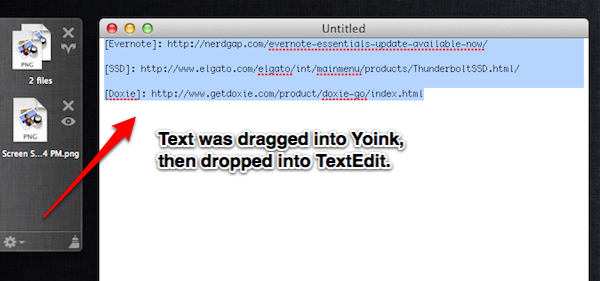
In accessing content from apps, Yoink has become more than a simple tool to temporarily store files that need to be moved around full-screen apps – think of  Yoink 2.0 as a secondary, visual clipboard that can accept almost any kind of file you throw at it. In my tests, besides dropping content from apps into Yoink’s shelf, I’ve copied links, text and images from Safari and Chrome, and successfully watched Yoink create text clippings and full copies of the images ready to be pasted anywhere on my Mac, both in the Finder and other apps. Rich text from a web browser is converted to .textclipping once imported in Yoink, and you can easily re-export everything to the Finder, or into another app that accepts text, such as TextEdit or Twitter’s compose window. Want to tweet a famous quote by The Beatles? Drag text into Yoink’s shelf, open your client of choice, and drop your previously copied text. How about quoting someone else’s words on your blog (and this is something I’ve been looking forward to)? Drag text into Yoink, fire up your blog’s editor window, drop text.

Yoink’s new drag & drop system works with almost any app  and any kind of content – you won’t be able to preserve the exact formatting of a rich text document when copying, but it surely works very well as a lightweight solution to quickly save plain text files.

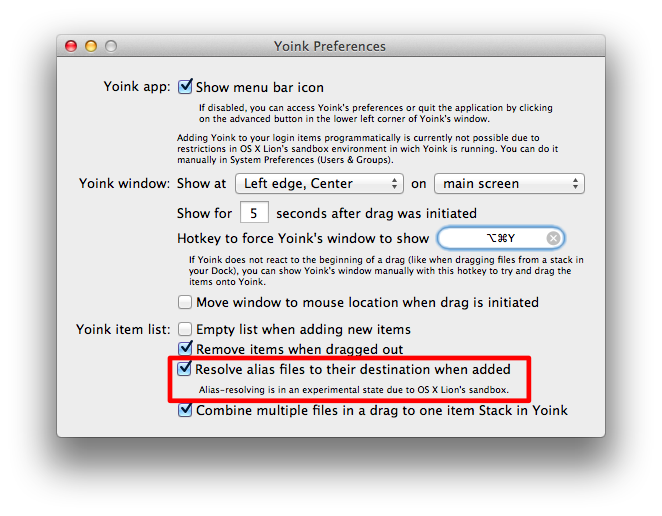
Yoink 2.0 brings a couple more interesting additions besides improved drag & drop. The interface has been redesigned to have more linen and the app can be assigned a keyboard shortcut; more positions for Yoink’s window have been added and files shouldn’t be lost anymore if they’re moved from their original location. One issue I had (and already reported to the developer) was with an alias I moved from Dropbox to my Desktop, which didn’t resolve correctly in Yoink and displayed a permission error. The error is likely happening because of some restrictions from Apple’s sandboxing technology or the fact that the alias came from Dropbox – Yoink 2.0 is capable of resolving aliases and, in fact, it worked fine with a file that was originally stored on my Desktop.

Last, Yoink now comes with File Stacks, a neat way to drag and drop multiple files into Yoink’s window and have the app combine them into one item in the shelf. This can be very handy if you’re dealing with multiple images and PDFs and you want to get them quickly out of the way.

At $2.99 on the Mac App Store, Yoink remains a fantastic way to enhance Lion’s drag & drop with an app that acts as a temporary scratchpad/visual clipboard for content that you want to copy, move elsewhere, or simple save for later. Highly recommended, you can get Yoink here.


Quick Review: Wikibot

Aside from jokes about a name that sounds like a Tapbots app, I’ve been using Wikibot, a Wikipedia client by Avocado Hills, on my iPhone, iPad and Mac regularly, earning a spot on my Mac’s dock as well. Whilst Wikipedia’s website is mostly fine to quickly check on something you don’t know (albeit I’d refrain from lacking particular amounts of knowledge on January 18) and desktop launchers like Alfred made it extremely easy to query the service for anything you need, Wikibot stood out to me because of its clean interface and integrated approach to languages, history and bookmarks.

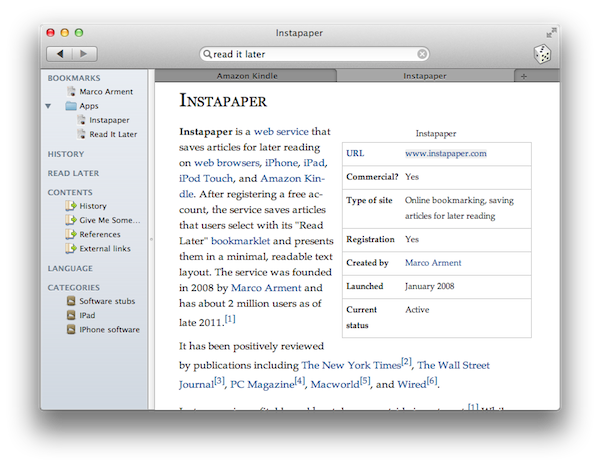
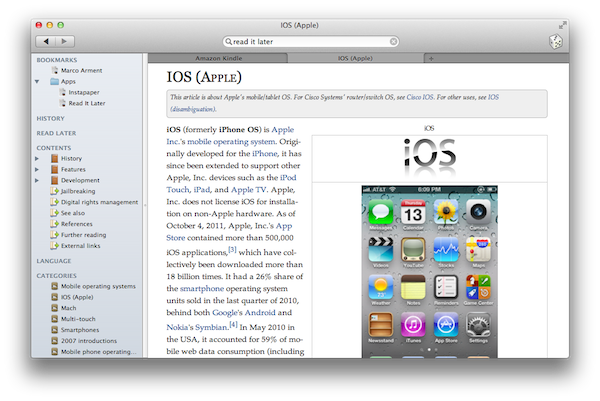
On the Mac, Wikibot starts up as a minimal window onto Wikipedia’s database with a button in the upper toolbar to display the app through Lion’s full-screen mode, one to load a random article, and a search bar. Search is where you’ll be entering your keywords and there is an option to visualize results as text (title + preview) or just title. You can open multiple tabs (CMD+T), change your preferred language from the menubar item, and “copy link” or “open in browser” via a keyboard shortcut.

The nicest features of Wikibot on the Mac, however, are Favorites, History, Read Later and the overall page design, which as I mentioned above is very uncluttered and clean. Not Articles-clean, but still very readable. As for the other functionalities, you can tell Wikibot to add a page to your favorite items, or access your entire history for all the things you looked up. These options are located in a sidebar, which can also display contents of an article (such as sections and references) and categories (as you can see in Instapaper’s case, “iPad” and “iPhone software”). Favorites can be organized in folders, and it’s easy to add a page to your bookmarks using a keyboard shortcut or drag & drop. If you, however, don’t feel like building a permanent database of bookmarks while you’re using Wikibot, but just want to quickly save a link for later inside the app, you can use the local queue functionality.

At $2.99, Wikibot for Mac is a fine desktop app for Wikipedia meant for those who don’t want to keep lots of tabs open in their default web browsers.

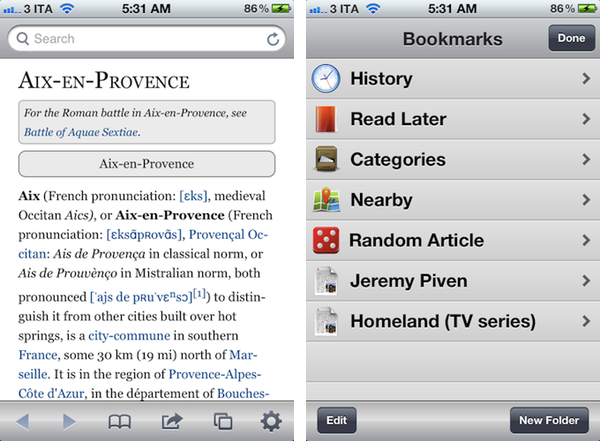
I, however, very much prefer the iOS versions of Wikibot, which work like their Mac counterpart but add iCloud sync for History, Favorites and Settings across devices, intuitive font size controls, visual history, gallery for images, sharing options for Twitter and Facebook and offline caching. Wikibot for iOS is a powerful Wikipedia client with a simple interface, and I’m told iCloud sync will soon come to the desktop as well. I especially like the app on my iPad, where visual search and image galleries have more room to shine and “it just feels right” to spend hours augmenting your knowledge.

Plus, Wikibot for iOS is $0.99 right now, which is a great price. Get it here.


Phraseology for iPad: Write, Remix, and Markdown

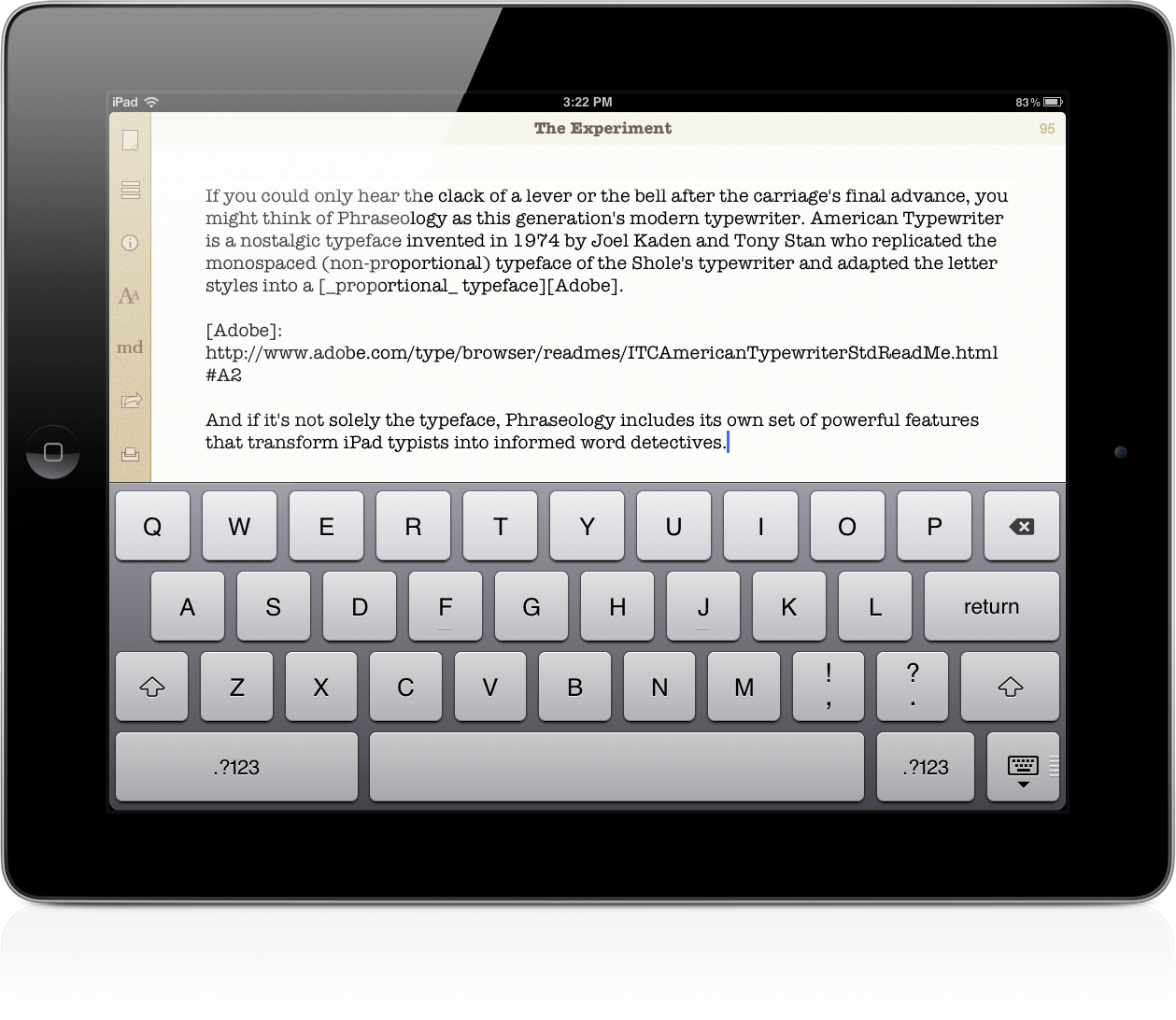
You could choose to write in Helvetica Neue, Marker Felt, or Georgia, but Phraseology has a personality all its own that’s best reflected in American Typewriter or Courier. Plenty of text editors on the iPad offer one or both of these font types, but there’s something about Agile Tortoise’s sandy colors and subtle paper-like textures that make Phraseology feel more tangible. It’s the modern equivalent of a typewriter explained through a text editor.

Read more


iPad Handwriting Apps: Penultimate and Noteshelf Receive Major Updates

We often cover Dropbox-enabled text editors and word processors here at MacStories, but we’ve been keeping an eye on handwriting apps as well, a category of software that has seen a huge rise in popularity and user adoption since the release of the iPad. Two personal favorites of mine in this space (and admittedly the biggest players on the App Store, too), Penultimate and Noteshelf, have been recently updated with major new functionalities that dramatically improve the usability and performances of these apps.

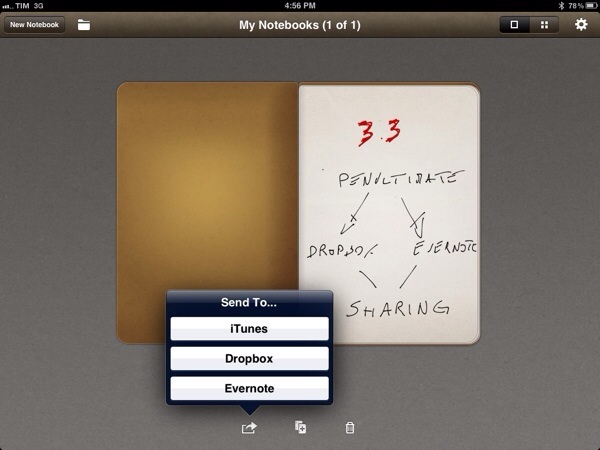
Penultimate, which we have covered quite a few times in the past, reached version 3.3 adding direct Dropbox and Evernote integration, Dropbox backups and an “Open In” menu to send notebooks to other installed iOS applications. Penultimate can now send notebooks or individual pages to Dropbox or Evernote; in Evernote, the service’s OCR capabilities for images will make sure your notes will also be fully searchable (that is, unless you really have bad handwriting that OCR can’t analyze). The Dropbox backup option, available in Settings, allows you to always keep the most recent versions of your notes backed up the cloud.

Other improvements in Penultimate 3.3 include bug fixes and possibility of pasting ink copied from other apps (I couldn’t get this to work with either Noteshelf or Bamboo Paper). Overall, Penultimate remains a fantastic iPad handwriting app with one of the finest inks I’ve seen on the platform and now proper cloud-based features to get your notes out of your device. Penultimate is just $0.99 on the App Store.

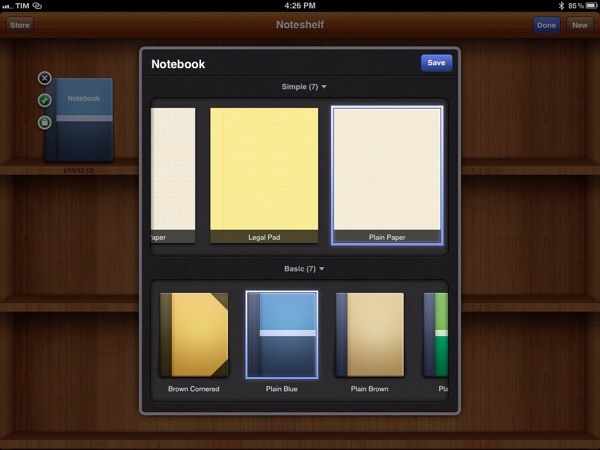
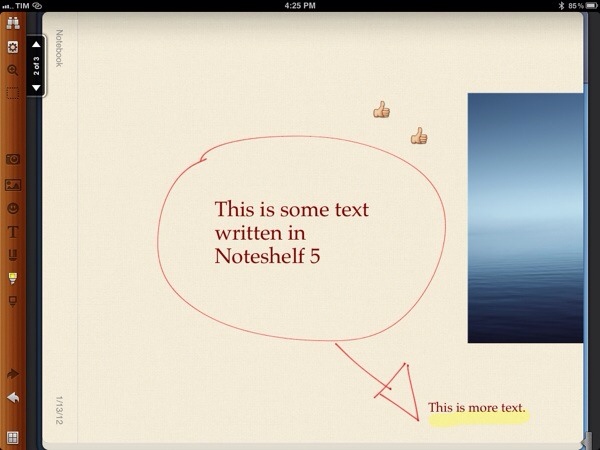
Noteshelf, another app we’ve covered on MacStories before, has been updated to version 5.0 adding the most requested functionality: text. You can now tap anywhere on the screen, and bring up the iPad’s touch keyboard to start typing text alongside your handwritten notes and sketches. Unlike Penultimate, Noteshelf is jam-packed with features: aside from notebook themes and several page designs (also available in the in-app store), Noteshelf comes with highlighters and smiley faces that can be embedded in a document, page search (limited to typed text) and tagging (new in version 5.0). Starting from the interface, Noteshelf seems to appeal to a different kind of iPad user than Penultimate, one that is looking for many powerful functionality rather than the focused simplicity of Penultimate. Noteshelf undoubtedly comes with many functionalities, and the page toolbar UI can be a little disorienting at first. However, the new features introduced in 5.0 make up for the slightly more cluttered UI, which just needs some time to get used to.

Noteshelf is a very powerful piece of software, available at $4.99 on the App Store.


Quick Review: Consume As An Online Usage Monitor

Consume, a beautiful app by Bjango (iStat Menus, Sideways Racing) is a “versatile usage monitor” that allows you to check on stats for your mobile phone, broadband, and rewards cards, as well as check on package deliveries and various “clubs” supported worldwide. Consume is a beautiful app and from what I hear it works amazingly well in tracking usage for iPhones and iPads; however, I can’t use the app as intended because the carriers I’m subscribed to (3 on my iPhone, TIM on my iPad) aren’t supported by Consume. I’ve always wanted to use Consume, but couldn’t.

Fortunately, with version 2.0 of the app (released a few weeks ago), Bjango has given me a reason to start using the app that I bought last year, hoping that someday 3 and TIM would show up in the list of supported providers. Besides getting a universal version with iPad support and iCloud sync for settings (it’s great), Consume 2 adds better support for package tracking, better handling of multiple accounts, and background provider updating. This means that, combined with the online services already supported in Consume, I’ve found a way to not only simply enjoy the app, but actually make it useful for me.

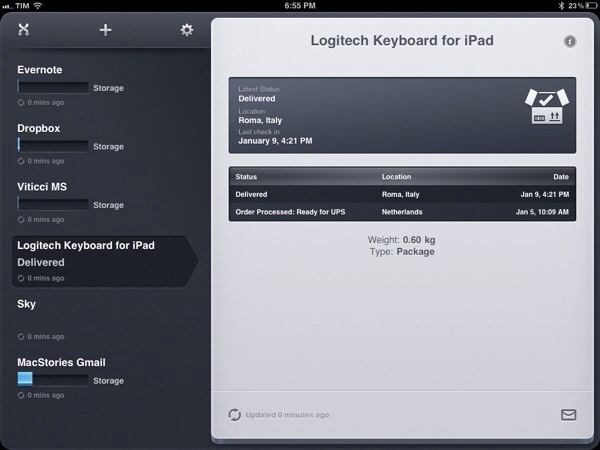
I use Consume to track shipments, check on my SKY account and available space across all my Gmail accounts, Evernote, and Dropbox. The interface is elegant, simple, and makes it a pleasure to see how much space I’m consuming on Evernote this month (I’m a Premium subscriber). Shipments are laid out with nicely designed icons and menus and, overall, the whole interface of Consume features pretty pixels all over.

Do I wish Consume 2 worked with more Italian carriers? Sure. Maybe someday it will. Right now, I’m just happy I can use this beautiful app with a few functionalities that have a certain usefulness to me.

Consume 2 is $2.99 on the App Store.


Day One for Mac 1.5: iCloud Sync, Markdown, Full-Screen

Following the 1.5 update that brought iCloud sync to iOS earlier this week, journaling application Day One (my review) has been updated on the Mac as well, adding sync with Apple’s iCloud just like its iPhone and iPad counterparts, but also bringing several additional functionalities, especially in the text editing and exporting areas.

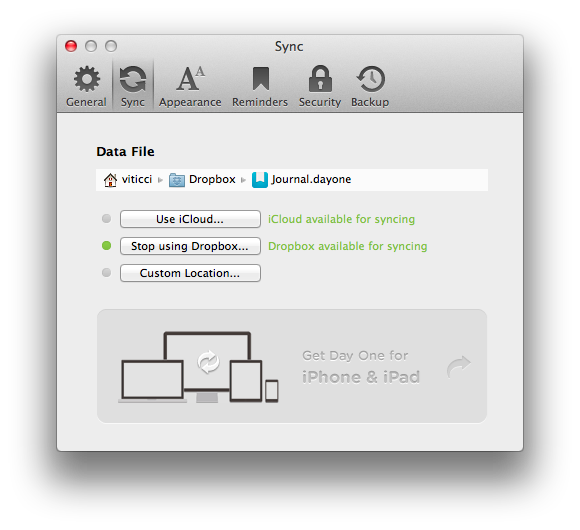
Day One 1.5 can read and save files to iCloud automatically, in the background, all the time. As on iOS, existing entries from Dropbox will be merged with iCloud if you decide to use Apple’s service, but you can’t use iCloud and Dropbox simultaneously. Sync is blazing fast in Day One, with iCloud constantly pushing changes across devices as you type. This is true on the Mac as well, as journal items are pushed almost in-real to and from OS X.

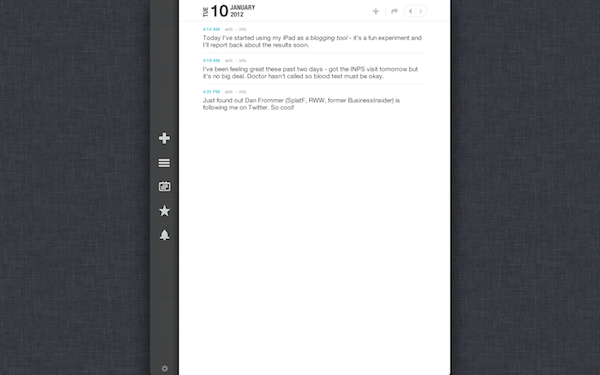
The core features of Day One for Mac remain intact in this update. The menubar quick entry menu is still there, as is the Tweetie-like navigation in the main journal with access to days, calendar, favorite items, and reminders. You can set a passcode for the entire app while keeping the menubar’s quick entry panel (possibly with a keyboard shortcut) working and fully functional; you can also navigate between months and years easily through the journal’s main interface.

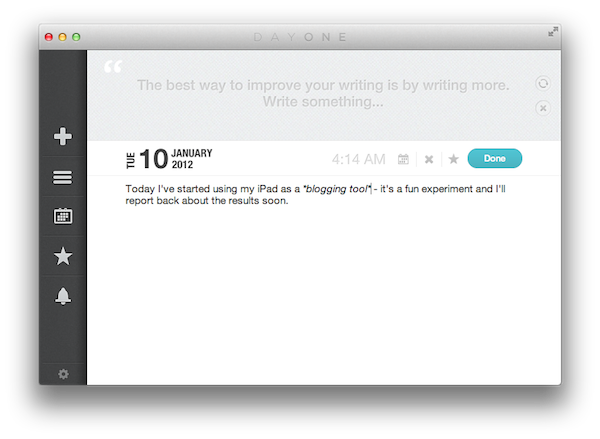
Among Day One’s new features the most notable one is undoubtedly Markdown and MultiMarkdown support. Folks accustomed to John Gruber’s popular plain text formatting tool will be up and running with Day One in no time; Markdown support has been enabled in Write and Read modes, meaning you’ll see visual live previews of Markdown formatting (*italic* will be displayed as *italic*) as you type. The layout of Read and Day modes has been improved, and there are other new cool additions such as font size controls and Sans/Serif /Monospaced fonts waiting for you to be activated in the Preferences, which are now accessible from a new cog icon in the bottom left corner of the app. Also new in 1.5 is hover preview in Days and Starred views, which will give you a nice-looking popover to get a quick peek  at single entries in your journal.

With Markdown formatting for easier writing, live previews, new font options, popovers and an overall refined UI (transitions and various refinements, including a full-screen mode for Lion), Day One 1.5 sure looks like a winner.

It’s not just sync and the good looks. Day One 1.5 comes with more options to get your data out of the application, too. Auto Backup has been enabled, allowing you to sync with iCloud, but back up the database to another location on your Mac (such as Dropbox). Furthermore, entries (or entire days) can now be exported to Markdown format (.md) besides plain text.

Other minor features from 1.5 include:

  • Auto Bold First Lines (Titles)
  • Live sync UI updates
  • Command S to Save
  • Printing
  • On Startup Preference
  • Journal Merging
  • Spelling and Grammar Preferences
  • Keyboard Navigation and Controls

With better export options and auto-backup to any folder, Day One 1.5 offers the same strong foundation of the iOS version, but delivers more in terms of quantity of functionalities and quality of writing environment. Day One still is the best app to archive your thoughts and keep a daily journal, period.

Day One 1.5 is available on the Mac App Store.

Review: Shazam Player Brings Lyrics, Discovery To Your iOS Music Library

Shazam, a popular music recognition software with free and paid apps for the iPhone and iPad, launched today a new application called Shazam Player to provide an alternative to Apple’s own Music app for iOS devices.

Available for free on the App Store, Shazam Player is built atop Apple’s music API for iOS, which enables third-party developers to plug directly into a user’s music library synced with iTunes or iCloud. Shazam Player borrows several functionalities from the standalone Shazam app – such as LyricPlay, artists’ bio and related YouTube videos – and blends them together with songs from the native Music app. Whereas Shazam (free, Encore) forces users to tag songs beforehand and then try the LyricPlay functionality, Shazam Player is meant to serve as a full replacement for Music.app, only with more features that existing Shazam users are likely already accustomed to.

Upon first launch, Shazam Player will ask you to scan the Music library synced on your device. This is required for the app to match your songs with available LyricPlay tracks, whose information is stored on Shazam’s servers. You can read more about Shazam’s support for lyrics in my overview from last week. Once the scanning process is complete (it might take several minutes depending on how many tracks you have synced on your device), you’ll be brought to Player’s main UI, which is heavily resembling of Shazam’s typical interface (that is, it could use some polish here and there) but adds a couple of new design elements and interaction patterns. Read more


Quick Review: Werdsmith for iOS

In the past couple of weeks, I’ve seen an increasing number of developers implement iCloud’s documents & data storage in iOS and Mac apps. From preference syncing (Consume, Instacast) to actual library storage (Day One), it appears developers are now fully realizing the potential of iCloud as an automatic syncing solution across Apple’s devices (iCloud isn’t without its flaws, many developers say, and I hope the upcoming release of iOS 5.1 will also bring this kind of fixes).

An area that’s been strangely absent from my App Store watch list of iCloud-enabled apps is that of text editors. Wildly popular when it comes to Dropbox sync (just to name a few: Elements, Notesy, Notely, Nebulous Notes), there hasn’t been a full-featured text editor to show up with iCloud sync yet. Instead, what I’m seeing is a trend towards simpler note-taking applications that allow you to jot down quick notes and have them synced on iOS and, sometimes, Mac clients with iCloud support. Such app is Werdsmith from Australian developer Nathan Tesler, free with in-app purchase to unlock more space and available as a universal app for iPhone and iPad (no Mac version yet).

Werdsmith features a very peculiar interface with a wooden tab bar and a creepily awesome ‘mustache banner’ at the top. This banner slides down when your list of ideas and projects is empty, but otherwise it’s got no specific use in the app. Overall, the design of the app is very clean, and reminds me of Wunderlist. There is an annoying bug with scrolling long lists on the iPhone that sometimes requires a complete restart of the app; I hope it’ll be fixed with an update.

In Werdsmith you can save ‘ideas’ and turn the most complex ones into ‘projects’. Werdsmith is aimed at writers, so a project will basically consist of a single note with a title and a goal – the latter being a minimum word count for your next essay, journal entry or blog post. You can save ideas as quick notes and leave them in your inbox, or you can make one a project and start writing against that word count. A percentage will indicate how far you’ve gone into completing your project, and when you’re done you can tap on ‘Finish’ to archive it.

Werdsmith is really simple, perhaps a little too simple for my tastes. You can’t export notes in any format (only email sharing, and that’s it), there is no support for Markdown formatting (a must-have these days) and you can’t tag, search, or move notes around. Keep in mind, though, that Werdsmith isn’t meant to be a text editor – rather, I see it as an iCloud-based scratchpad for writers, and it’s pretty decent at that. Werdsmith works fairly well if you’re up to accept its nature of simple utility; I’d like to see, however, the iCloud syncing engine rewritten to be more like Day One, as it’s not really immediate in this 1.1 version.

Even if you’re accustomed to more powerful solutions, you should take Werdsmith for a spin – it’s free and it works with iCloud. You can download Werdsmith here.


Day One 1.5 for iOS: Now With iCloud Sync

Earlier this year, I started using Day One. Not just another text editor with Mac and iOS versions and support for Markdown formatting, Day One is at the same time a flexible and focused solution to archive your thoughts, memories, experiences into a well-built interface that keeps everything in sync across Macs and iOS devices. A fresh take on the old paper journal, Day One takes advantage of modern technologies such as local reminders to tell you when it’s time to write your journal; on the iPhone and iPad, the app supports different font sizes and Markdown, so you’ll be able to write nicely formatted documents that you can easily export to HTML. On the Mac, Day One comes with a standalone menubar application that makes it incredibly fun and quick to jot down thoughts whenever you want.

Day One’s 1.5 update for iOS, released today on the App Store, brings a more powerful Dropbox sync for iPhones and iPads (Day One can store its database in Dropbox, and it allows you to export notes on the Mac via File>Export) and the long-awaited iCloud sync, which I’ve been able to test on my iPhone 4S and iPad 2 (Day One 1.5 for Mac isn’t live yet, but it’s been submitted to the Mac App Store).

I came from an old installation of Day One with a Dropbox database synced to my iPhone and iPad. As I upgraded to version 1.5 and launched the app on both devices, I was asked to disable Dropbox sync if I wanted to use iCloud. I disabled Dropbox, and waited a few minutes for the initial iCloud background sync to finish (it had to pull at least 50 entries to begin with).

Once iCloud is up and running in Day One, it is extremely reliable, fast, and invisible. Unlike Dropbox, it’s not manual sync you have to initiate or automatically perform upon launch and quit – it’s push technology that constantly sends changes back and forth between devices. As an example, I started writing a new entry on my iPhone and it showed up after a few seconds on my iPad, which was running Day One. The main list of notes on the left basically refreshes to accomodate a new note – no manual sync needed. For the same reason, notes are pushed with iCloud as you write them – typos included.

Day One 1.5 clearly fits in a much bigger picture with the Mac client constantly receiving changes from the cloud, but this doesn’t mean you can’t enjoy Day One 1.5 for iOS now. In fact, I often find myself writing my journal on iOS devices rather than the Mac, so iCloud support (with this kind of invisible push technology) is more than welcome.

Day One for iOS is $1.99 on the App Store.