This Week's Sponsor:

Copilot Money

Copilot Money, The Best Money Tracker, Launches on the Web – Limited-Time: Get 26% Off + 2 Months Free


Posts in reviews

Loren Brichter’s Comeback: Letterpress

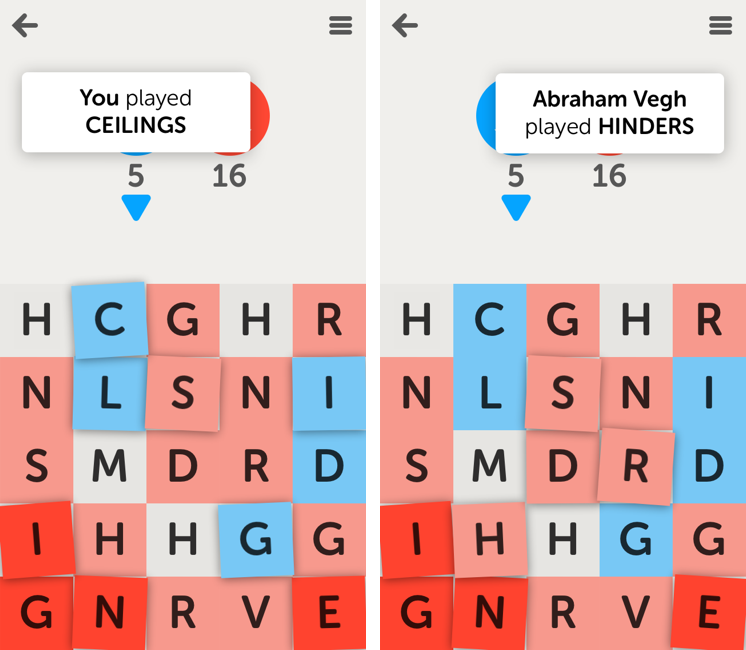
Loren Brichter’s comeback app isn’t a Twitter client, something that works with Tent.io, or a revolutionary implementation of multitouch on the iPad.

It’s a word game. It’s called Letterpress, and it’s available for free on the App Store. I’ve been able to beta test it for a while, and it’s quickly become one of my favorite games on iOS. One I instantly reach out to whenever I have 5 minutes to kill.

Letterpress is similar to SpellTower, but it’s focused on multiplayer and has deeply different rules when it comes to assembling words. Read more


Tweetbot for Mac Review

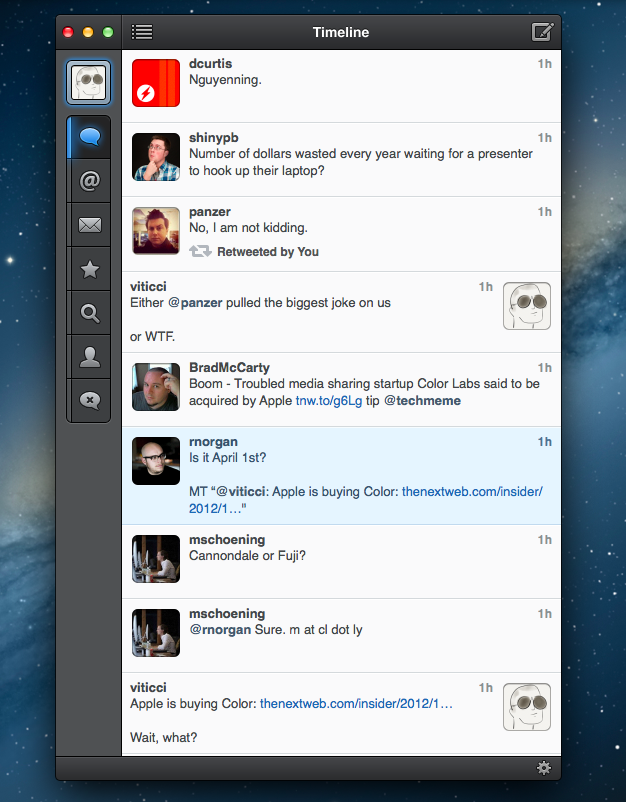
When the first alpha of Tweetbot for Mac came out in July, I said I would take a look at the app again. Here we are, three months later, with the final version of Tweetbot for Mac available on the App Store.

I concluded my review of the public alpha version with:

Right now, Tweetbot for Mac is, in my opinion, already superior to any other client for OS X — and it still can be improved. More importantly, Tweetbot makes better use of Twitter features than Twitter’s own Mac app, and that says a lot about the importance of third-party clients in this ecosystem.

In calling the alpha version of Tweetbot a “superior” product, I took quite a stance. I had been using the alpha for weeks before the public release, and I had the perspective and context to make a conscious and reasonable decision about my statement. I knew I was going to like Tweetbot and use it on a daily basis. Three months later, that’s still the case.

I’ll get to the point right away. Tweetbot is, in my opinion, the best Twitter client for Mac. From my perspective, no other app gets closer to the amount of polish and functionality that Tapbots poured into their latest creation, making it the most powerful, fast, and elegant Twitter app I’ve seen on OS X to date. In hindsight, it’s also a superior product than Twitter for Mac, which, as you may recall, used to be my go-to client. Three months ago I reviewed an app that I knew was going to be great.

In thinking about how I should approach this new review, I came to the conclusion that you don’t need me to go through the backstory of Twitter clients on the Mac. Here’s what I wrote, again, for context:

Ever since Loren Brichter (creator of the original Tweetie, who sold his app to Twitter and went on to work there) left the company, Twitter for Mac — what I had deemed as the best Twitter client for OS X — fell into an unexplainable state of abandon and lack of updates. You would think it’s in Twitter’s best interest to keep a native client up to date with the latest features of the service; and yet, after a solid first version — which came after years of speculation on Tweetie 2 — Twitter started ignoring the app, failing to bring several of Twitter’s new features (such as inline media and updated search) to the desktop. It only got worse recently: after many updates to Lion, Twitter for Mac has started showing new bugs and glitches that haven’t been fixed by Twitter, alongside the ones that have always been there and were never corrected. And then with the release of the Retina MacBook Pro, Twitter’s lack of support for high-res text and graphics became the proverbial final nail in the coffin of what used to be a great app.

Twitter for Mac still hasn’t received an update since last year. Some say it’s no longer in development.

In my review of Tweetbot Alpha, I briefly touched upon features that were missing from the app:

For instance, there is limited support for keyboard shortcuts, there are some rough edges around the interface, and one of my favorite features of Twitter for Mac — being able to navigate and switch sections with gestures — isn’t yet available. Indeed, Tapbots say that features like better management of multiple windows will be coming in the future, and they confirmed in a blog post that they are planning “ on making everything as beautiful and pixel perfect” as they can. Don’t be surprised if, in this version, some pixels will look misaligned or out of place. Eventually, it will all be fixed.

It is with this standpoint that I want to look at Tweetbot again: you don’t need me to know what Tweetbot is or what it looks like. Between the Mac and iOS, we’ve covered Tweetbot extensively here at MacStories.

What follows is my review of Tweetbot 1.0 based on how I use the final version of the app. The little features and the details I’ve come to rely upon, and the overall functionality that makes Tweetbot the best Twitter client for Mac. Read more


Check the Weather

I’m not obsessed with weather apps as much as I am with text editors. Throughout 2012, several developers came out with their own takes on presenting weather data in beautiful interfaces with custom designs; however, when it comes to weather, in spite of my non-obsession, I demand efficiency. Most of the time, many of the “great-looking” weather apps only focus on capturing the user’s attention with pixels, whereas weather software should, in my opinion, pay attention to data quality and information density more than anything else.

For the past week I’ve been using Check the Weather by David Smith, and, interestingly enough, I haven’t gone back to Apple’s Weather app yet. Like I said, I’m not obsessed with weather apps for iOS, but I like to try a new one every once in a while. In the past months I’ve always ended up going back to Apple’s app after a few hours – so there must be something Check the Weather is doing well.

I don’t want advanced data that I don’t understand from a weather app. To grasp the reason why I’m liking Check the Weather, I made a list of the features I need from a weather app:

  • What’s the weather like today
  • What’s the weather going to be like later today
  • What’s the temperature going to be like today
  • When is the sun rising (I live in Italy, work on a US timezone, so I see the sunrise every morning)
  • What’s the weather going to be like tomorrow
  • What’s the weather going to be like this week

With these few “requirements”, I can get a pretty clear overview of weather conditions and temperatures. Check the Weather is remarkably good at this because it presents many data points without cluttering the interface.

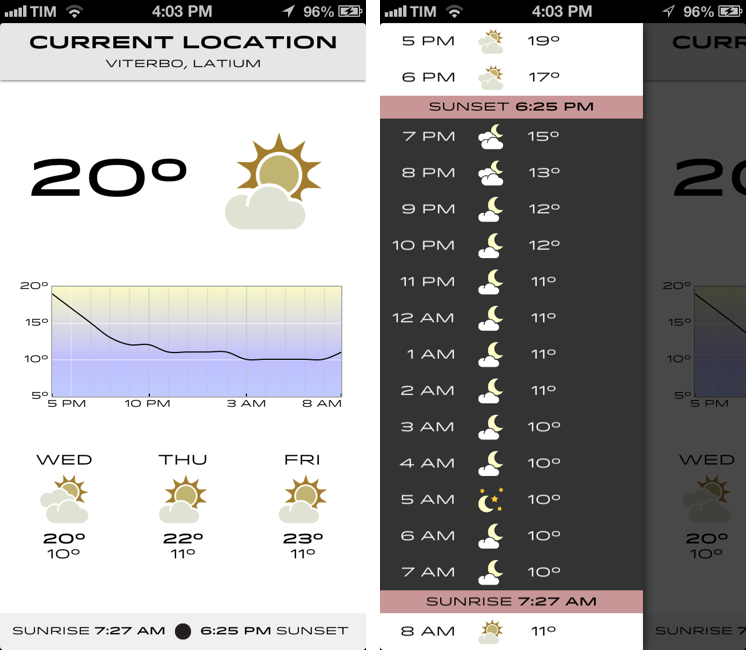
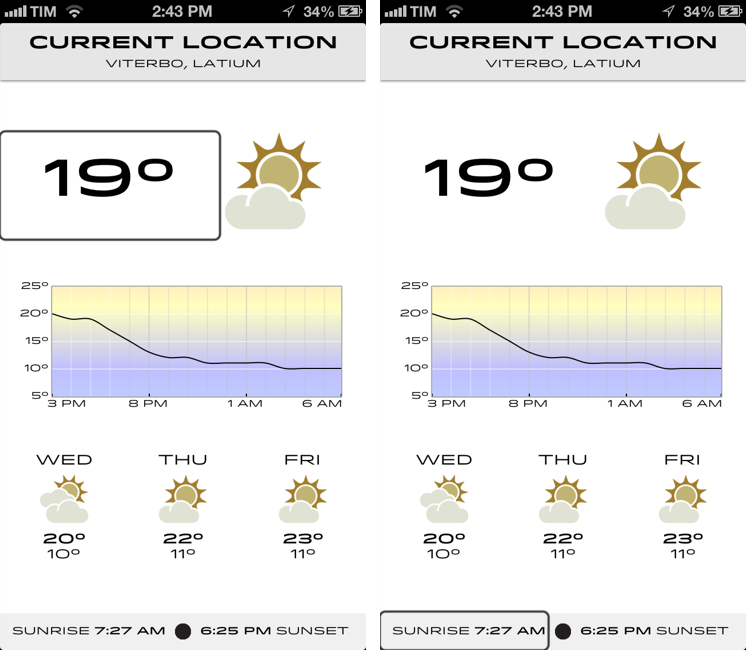
Check the Weather is a dashboard for weather conditions. At the top, there’s a bar that indicates your current location and, through a subtle animation, when the app is checking for updated data. Immediately below this bar, you’ll find the current temperature and weather conditions for your location. And then, underneath conditions, one my favorite features of the app: a graph of temperature for the next 12/15 hours. It’s a simple and effective way to visualize temperature changes (like how it dramatically drops between 6 and 8 PM).

Continuing with the main screen, the bottom part is dedicated to showing weather conditions and low/high temperature forecasts for the next three days and sunrise/sunset times. I particularly appreciate the sunrise functionality, as I mentioned above, and I find it somewhat curious that several developers decide not to include it. I also found it accurate for my location (Viterbo, Italy), and I only noticed a few days ago that moon phase is included in this section as well.

One thing that’s immediately distinctive about Check the Weather is its design. Different from any other weather app I’ve tried, Check the Weather makes extensive use of Hoefler & Frere-Jones’ font Idlewild for all its weather forecasts. While I wasn’t sure about this choice at first, within a few days I’ve come to appreciate the unique look of Check the Weather – this app is not yet another Clear clone. Check the Weather is different (a weather app with a very specific font and focused on data rather than prettiness isn’t something you see every day), and I like it. I can see, though, why this is also a very bold (no pun intended) move on Smith’s side: sometimes, people just want pretty pixels heavy on graphics and animations.

Check the Weather is unique in how it approaches the trend of placing additional information in a panel on the side. The app, in fact, uses two panels to display hourly forecasts and extended forecasts for the next 12 days. Hourly forecasts are nicely implemented, as “dark hours” are embedded between sunset and sunrise – as they should be. I don’t typically use extended forecasts (I think predicting 10 days in advance is a bit too much), but I like how they’re presented nevertheless.

As an Italian who reviews weather apps, the typical dreaded moment arrives when it’s time to talk about data. Simply put: if you live in the US you’ll have more features. While Check the Weather tries to be “global” with accurate data by HAMweather, there are several functionalities that are US-only, such as hazardous weather alerts from the National Weather Service, a doppler radar precipitation map, and integration with Dark Sky for minute-by-minute precipitation forecasts. I haven’t been able to test this, but David told me that Dark Sky API data is available in the precipitation view (swipe up from main screen). I believe Check the Weather is the first app to integrate with the recently announced Dark Sky API, and, even though it doesn’t support push notifications yet, it is a huge plus for US customers. As an Italian, all I can say is that weather data and forecasts were accurate and in line with Yahoo weather (the provider Apple uses).

One thing I’ve noticed about Check the Weather: it is localized in 7 languages (including Italian), and it is fully VoiceOver-enabled.

Check the Weather accessibility

Check the Weather accessibility

Check the Weather’s support for VoiceOver allows users to listen to forecasts.

Check the Weather is refreshingly different. It doesn’t look like any other weather app I’ve tried, and it leverages its uniqueness to provide weather data in a variety of ways that I find useful and intuitive. What I like most about Check the Weather is that it brings me the information I need without confusing me with custom menus or complicated interface designs. At this point, I only hope David will find a way to add more international weather providers and release an iPad version of the app.

Check the Weather is available at $2.99 on the App Store.


Tracking Stolen Macs with Undercover 5

I’m a big fan of Orbicule products. Aimed at making your Mac more secure, I’ve previously taken a look at Witness, a background application that, once activated, “blocks” your Mac’s screen and activates the built-in camera to snap pictures to see who’s using your computer. It can also do fancy things like running AppleScripts and recording sounds using the Mac’s internal microphone.

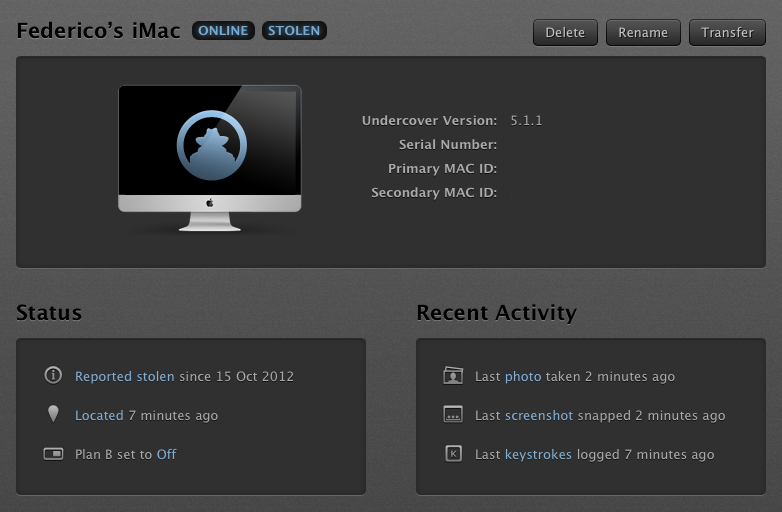
I recently installed Undercover 5, the latest version of Orbicule’s OS X tracking solution for stolen Macs, and I’m very impressed by it. Think of Undercover 5 as Find My Mac on steroids.

In my coverage of the new iCloud web apps launched in September, I mentioned the improvements made to Find My iPhone, which included a new UI and more iOS-related functionalities, but nothing new on the OS X side. With Find My Mac, you can visualize computers on a map, lock them, and erase them, but there isn’t much you can do to identify the person using your computer or to gather information about his/her habits and identity. This is were Undercover comes in. Read more


Pinbook: A Fast Pinboard Client for iPhone

For all its popularity, there’s always been a shortage of great Pinboard clients for iOS. Pinboard, a bookmarking service I use on a daily basis, has a very clean and fast website that works fine on the iPhone and iPad, but I’ve always been looking forward to having a client with all the perks of native code: clipboard integration, support for URL schemes, and caching are just a few options that come to mind. However, in spite of the service’s growing userbase, I haven’t been able, in four years of App Store, to find a Pinboard app I could rely on.

Pinbook by Collin Donnel finally provides a (partial, for now) solution to this problem. Released a few days ago on the App Store, Pinbook for iPhone is the best Pinboard client to date, in spite of the lack of numerous Pinboard-related functionalities in the app.

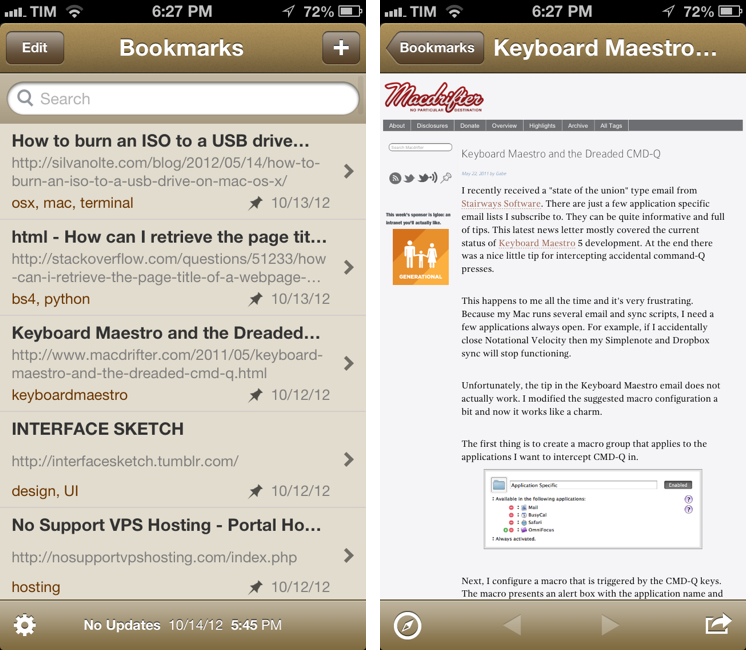
Pinbook is fast. Using Apple’s own pull to refresh mechanism, the app takes a second to refresh your Pinboard account and fetch the latest bookmarks. From my tests, the initial sync (I have 388 bookmarks) took just a few seconds. Pinbook is snappy, and scrolling through hundreds of bookmarks is butter-smooth, as you’d expect from any great iOS app. You can tap on a bookmark to open it in the in-app browser, which features a button to open the link in Safari, and another one to bring up the native iOS 6 share sheet (which includes an Instapaper button). As far as browsing bookmark is concerned, Pinbook’s workflow is extremely simple and effective.

In the main screen, you can swipe on a bookmark to delete it, or tap & hold to open the share sheet. However, as you’ll notice, you won’t be able to tap on the tags underneath a bookmark’s title: one of Pinbook’s current limitations is the inability to explore the various sections offered by Pinboard. In Pinbook 1.0, you can’t browse the global feed of a specific tag, open a user’s profile, or view the Popular page (something I do every day on my Mac); you can only view your bookmarks and search amongst them. For search, you can refine your query by title, tags, or notes; unfortunately, there’s no auto-complete for existing tags.

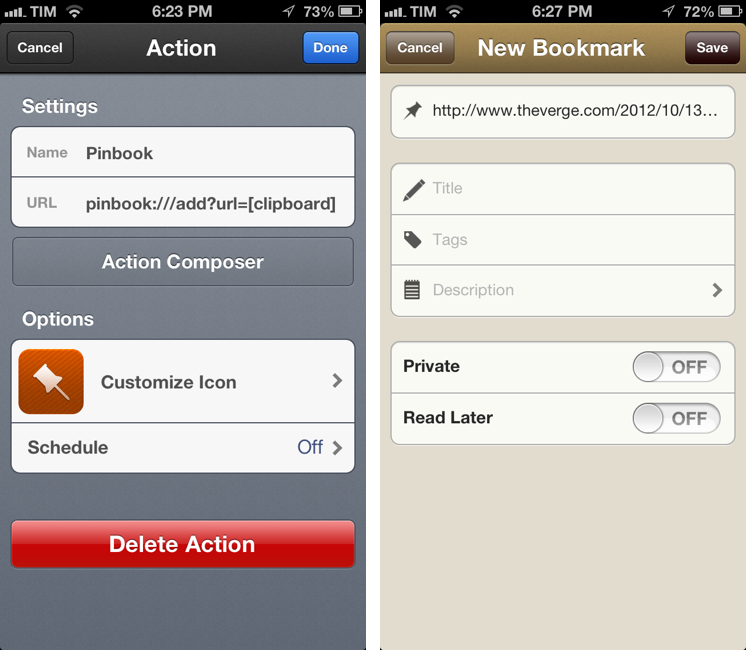
Pinbook lets you add new bookmarks directly from the app. The New Bookmark screen allows you to add a URL, title, tags, a description, and to choose whether you want a bookmark to be “private” or set to “read later”. The app comes with clipboard detection: it recognizes when a URL has been copied, but just like lack of tag auto-complete (which is absent from this screen as well), Pinbook can’t automatically fetch a webpage’s title. So when you add a URL, unless you type a title manually you’ll end up with the URL itself being the bookmark’s title.

Pinbook comes with a URL scheme. Documented here, it has arguments for URL, titles, tags, and description; if you’re thinking about setting up Pinbook with Launch Center Pro, be aware the arguments will have to be properly encoded.

I think there are several additions the developer could make to Pinbook to make it a more complete app with a faster workflow. Firstly, I’d like to have a bookmarklet that sends a page’s URL and title to Pinbook; for as much as Launch Center support is handy, it doesn’t allow me to copy two arguments simultaneously to the iOS clipboard. The great thing about the Pinboard bookmarklet is that it grabs a link’s URL and title automatically, and then offers suggested tags with auto-completion: Pinbook should do the same.

An iPad version and more navigation options would also be welcome. Like I said, I don’t just use Pinboard to add new bookmarks, but also to discover new ones added by someone else. Access to Popular page and user profiles would be a start.

In spite of the features it lacks, Pinbook is still the best Pinboard client for iPhone to date. Not simply because of the shortage of competition – the app really is fast, easy to use, and responsive. Here’s to hoping more functionalities will come relatively soon without hampering the app’s focus on simplicity and speed.

Pinbook is available at $4.99 on the App Store.


Drafts 2.2 Adds Custom Email Actions

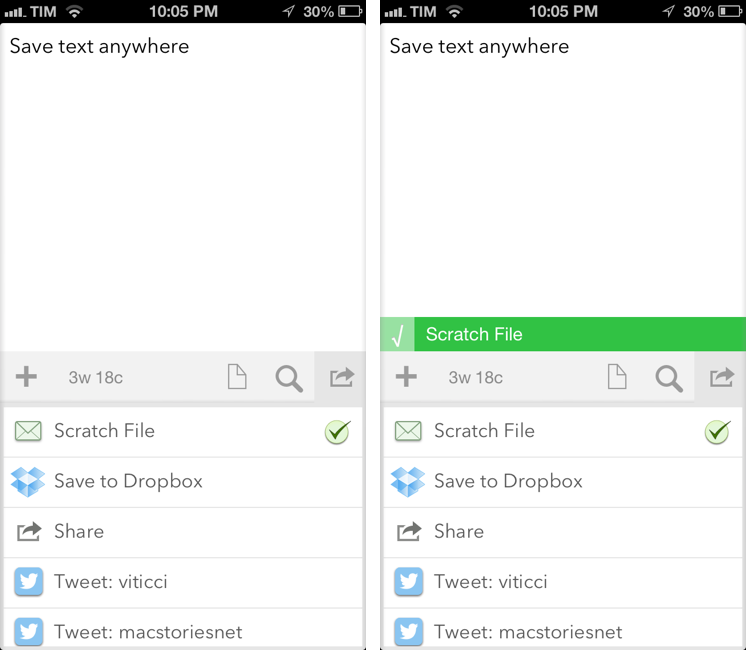
Agile Tortoise’s Drafts for iPhone and iPad is one of my most-used apps for iOS. It sits on the Home screen of both my devices, and I rely on it to send text to a variety of apps and services. With a combination of support for URL schemes and external APIs, Drafts has become a fantastic way to get text saved somewhere else quickly. Plus, we’ve been following Drafts here at MacStories for a while now, and the app underwent quite the evolution recently.

After the major 2.0 update (our review here), I have been looking forward to version 2.2. Released today (app is version 1.2 on the iPad), Drafts now includes new actions for Nebulous Notes (a personal favorite of mine), Netbot, Notefile, and Pastebot. It’s also got a new “Use First Line as Title” setting and advanced options for actions.

More importantly, Drafts 2.2 comes with support for custom email actions, which is the reason I’ve been using Captio for the past two years. It’s with a bit of sadness that I drop Captio, but the app hasn’t even been updated for the iPhone 5 yet, and Drafts does so much more. Custom email actions allow you to send emails to predefined addresses using either your own email accounts, or a background service provided by Agile Tortoise. Read more


Gain Magical Control Over Your Music Player With Flutter

It’s a bit like Minority report. Just raise your hand and your computer responds with an action. Motion-based controls with your hands, now more common with modern gaming consoles (PlayStation Move and XBOX Kinect), still feels a bit futuristic.

On personal computers and modern tablets, peripheral input and touch-based gestures won the race against camera-based gesture recognition. Still, some developers are in love with the idea of controlling devices without any actual hands-on. In small doses, this can be fun and useful. This is the case with Flutter, developed by a large team of developers at BotSquare.

Flutter is a small tool for recognizing motion gestures on OS X, which recognizes you via a webcam (iSight or external) to control your favorite music player. After downloading it, you have work through a tutorial to get to become familiar with the hand gestures. Flutter then sits in the background, with your Mac’s iSight camera on (obviously required for running Flutter) and awaits your actions.

The current version of Flutter (0.1.237 — don’t be afraid, it’s not a beta version, the developers just want to add more features before calling the app 1.0) supports three gestures: a flat open hand, and a fist with your thumb either pointing to the right or the left. Do those gestures in front of your webcam, and Flutter will recognize them and do the action associated with them. To make sure the app recognizes your hand’s action, you have to keep it one to four feet away from the camera.

With the open hand gesture, you can play and pause your music. Using the thumb either pointing to the right or left you go to the next or previous track. The Flutter team is working hard to implement more gestures such as volume control (I suggest a single index finger pointing upwards or downwards respectively for this one).

All three gestures work well in the current version — you just have to get used to the fact that you often need to move your hand a bit to make the camera notice it. Knowing where to position yourself at first so that your hand is inside the viewing area of your camera can be tricky at first. But after a while you also get used to it; when Flutter recognizes you it’s easy to use, looks like magic, and can be a very intuitive way of controlling your music player (the app currently supports iTunes, Spotify, VLC, and QuickTime; no Rdio support unfortunately).

Through the app’s drop-down menu, you can turn the camera on and off (for privacy and energy saving reasons), set Flutter to automatically launch at login, as well as report bugs and re-watch the aforementioned (very interactive and easy to understand) tutorial. The app also sends notifications to the Notification Center when you change apps to let you know that you’re still able to control the newly activated player with Flutter.

Flutter is a small app, although it’s not something I would recommend because not everybody needs it. However, I can imagine that lots of people would want to try it for the novelty of it. It’s a magic little piece of software that can be fun to use.

Flutter is available for free on the Mac App Store.


iTunes and App Store Reminders with Recall

I don’t like some of the changes of the new App Store in iOS 6. That’s not a secret. But there is a single annoyance that goes way back before the iOS 6 days, all the way to when the App Store was relatively new in late 2008 and I got my first iPhone: the lack of a wish list.

I use the Wish List feature of iTunes a lot on my computer. Because I use iTunes mainly for buying apps and checking for updates, I rely on the Wish List to save interesting apps and games to check out later. However, I’ve dropped the occasional song or movie in the Wish List too.

The iTunes Wish List is simple and effective.

Too bad it doesn’t work on iOS devices.

While there have been some rumors on dedicated wish list features coming with an iOS update, in its current state the App Store (and iTunes Store) can’t use your iCloud account to sync items you’ve added to your wish list.

Recall by Overcommitted is not a wish list replacement in the sense that it’ll provide you with a list that syncs across devices. For that, I still use (and recommend) AppShopper, which is just phenomenal when it comes to tracking app updates and price drops with push notifications. Instead, Recall is about “never forgetting iTunes recommendations again”. It provides an alternative interface for the iTunes and App Stores, allowing you to save recommendations and create reminders for them. Read more


Best MultiMarkdown Previews On iOS

As a quick follow-up to my Nebulous Notes post on MultiMarkdown macros, I decided to put together a quick representation of how various apps I have tested handle MultiMarkdown previews on iOS.

For reference, this is the text I previewed in each editor:

It’s a mix of regular Markdown (reference, inline links, bold and italics, section headers), MultiMarkdown (footnotes) and regular HTML (the centered image). I always write with this combination of syntaxes because that’s how articles end up on MacStories. The mix is also a good stress test to see how an app can handle various implementations of Markdown and HTML simultaneously.

Read more