This Week's Sponsor:

Copilot Money

Copilot Money, The Best Money Tracker, Launches on the Web – Limited-Time: Get 26% Off + 2 Months Free


Posts in news


Documents 5 Brings iOS 7 Update, New “Add-On” Features for Inter-App Communication

With Documents 5, released today on the App Store as a free update, Readdle is seeking to build its own ecosystem of interconnected apps on iOS. By leveraging inter-app communication features currently available on iOS but mostly ignored by Apple’s apps, Readdle is turning Documents into a centralized location for files, which can be sent to other Readdle apps and modified without creating duplicate entries.

Read more


This Week Adds Night Mode, URL Scheme Support

This Week is a lightweight and elegant Reminders client that I covered on MacStories when it came out for the iPhone, and when it was later updated to run on the iPad as well. Over a couple of updates, This Week has turned into an efficient utility to browse and manage reminders using a variety of views and filters.

With today’s 1.4 update, This Week gets a night mode, a larger font option, and a plethora of URL schemes with support for x-callback-url (documented in the app). If you use apps like Launch Center Pro, Drafts, or Editorial, This Week can now be easily integrated to launch views and create reminders with or without alerts. The Night Mode is also well implemented, with settings to automatically activate it during a specific time of the day, every day.

If you’re only interested in a having a different visualization of reminders (not calendar events) without natural language support, This Week is a fine app and a solid alternative to Apple’s Reminders app. This Week is Universal and $4.99 on the App Store.


Screens 3.2 Adds Trackpad Mode For VNC Control

Edovia’s Screens, my favorite VNC app for iOS, has been updated to version 3.2, which, among other minor additions and improvements, brings a new mode to control a computer’s screen using an iOS device like a regular trackpad. As people who have been using Screens since the first version may know, this is a big change for the app, and I’m glad that Edovia integrated it perfectly with Screens.

It used to be that Screens could only control a computer not by letting you drag the cursor around as other VNC apps do, but by letting you tap to click and move the cursor. In version 3.2, there’s an optional Trackpad Mode in the app’s settings that allows you to activate the traditional behavior of VNC clients: your finger becomes the cursor as you move it on the screen and taps still trigger mouse clicks. You can control the cursor on any area of the screen (including the gray background), and, in my tests, cursor movements have been quick and smooth both on a local WiFi network and when connected to a remote Mac mini.

While I’m a fan of Screens’ gestures, I’ve always wished for an option to enable trackpad mode for precision controls. Before today’s update, I would find myself constantly zooming in and out in Screens to tap small buttons or menu items, whereas trackpad mode enables better precision controls that work well in the app – all while retaining gestures.

Screens 3 remains a fantastic VNC client for iOS 7 – the best in my opinion. The app is Universal, syncs with iCloud (now comes with iCloud Keychain support too), has full hardware keyboard support, and it can send/receive pasteboards and grab a screenshot of a remote computer. Most VNC apps for iOS tend to be poorly designed and difficult to master or navigate in their Preferences; Screens is easy to use, it’s packed with features (it even has URL schemes), and it puts the focus on – as the app’s name implies – your computers’ screens.

Screens 3.2 is available on the App Store.


Realmac To Migrate Clear+ Customers Back To Original Clear App

Realmac Software, makers of Clear and Ember, today announced they will revert to a single, Universal version of Clear after the heavily criticized launch of Clear+ in September. Clear+ was a paid, separate version of Clear that added iPad support, but several existing Clear customers responded negatively to the launch as the original Clear app would no longer receive updates. Following feedback, Realmac then tried to keep two versions of Clear on the App Store – the original Clear app as an iPhone-only version, and Clear+ as a Universal app – but that only generated further confusion.

In a letter to customers published today, Realmac’s Dan Counsell explains the company’s new strategy for Clear:

We’re going to be returning to just one, universal version of Clear for iOS, with the original version of Clear gaining iPad support. If you already own a copy of Clear, you don’t need to do anything as we’ve just launched an updated version of Clear with iPad support.

As Apple doesn’t offer a way to migrate users between copies of an app, we’re going to make Clear free for 24 hours so owners of Clear+ can move to the correct version free of charge.

To make sure as many people as possible can move to Clear, we’re going to do this twice in the next few weeks. We know this is risky - we rely on the income from Clear to run our small, independent company - and so whilst this was by no means an easy decision for us to make, we simply want to do the right thing for you, our customers.

Realmac has also posted a FAQ page with details on how to migrate lists from Clear+ to Clear – the migration is handled locally on iOS upon launching the original Clear app, which was updated today.

As part of the transition from Clear+, Clear will be available for free on the App Store for a limited time as a Universal app for iOS 7; Realmac will communicate details of the 24-hour sale through the company’s newsletter.


ListBook 4.0 Brings iOS 7 Redesign, iCloud Sync

I first covered ListBook, a simple list-making app for iOS, when it came out on the iPhone in 2011 and, a year later, when an iPad version was released, making the app Universal. Since then, I’ve switched to Apple Reminders as my todo management system of choice, primarily because I can use Reminders with Fantastical, which I love both on the iPhone and Mac. I like the convenience of having my reminders synced with iCloud and available on iOS, OS X, and the web (with iCloud.com), and I like that I can move between different clients knowing that my todos will be handled by Apple in a central location. This is the reason why I’ve eschewed third-party, list-based todo apps like ListBook and Silo in the past two years – I prefer the flexibility given me by iCloud’s Reminders.

Read more


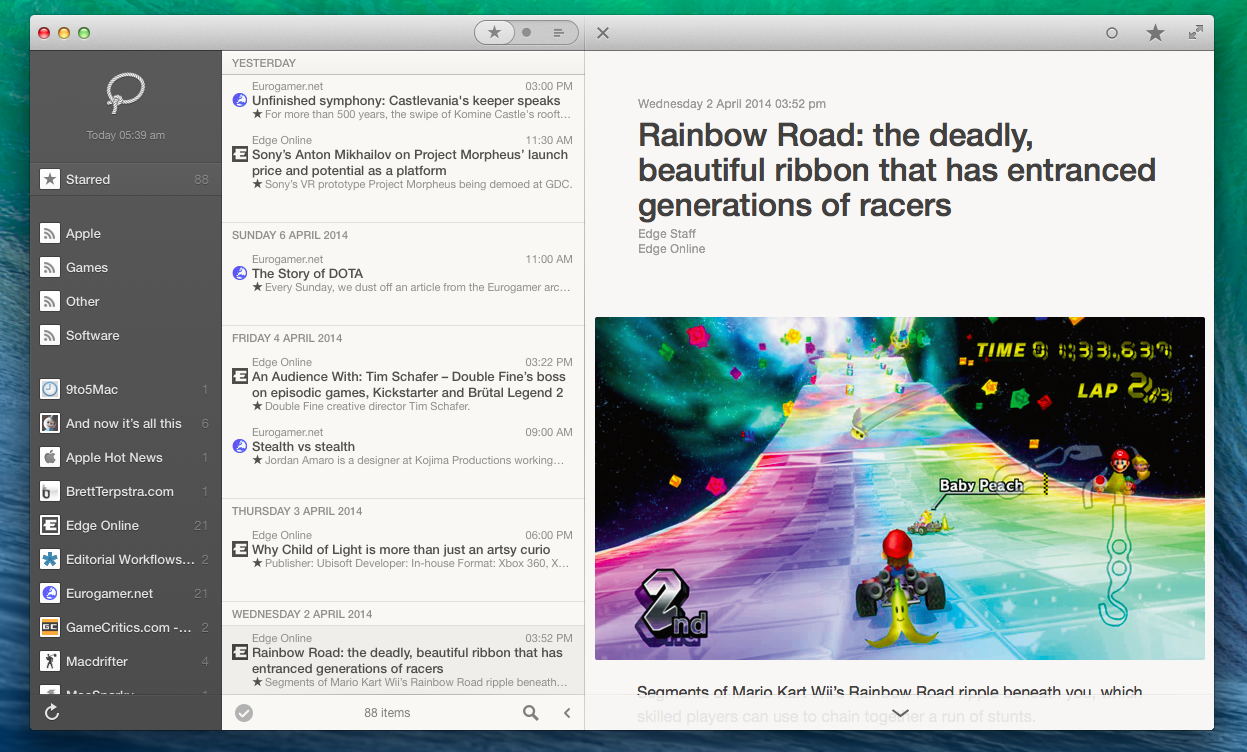
ReadKit 2.4 Brings Keyboard Shortcut and Navigation Improvements, Rewritten Sidebar, And More

ReadKit

ReadKit

ReadKit 2.4 with syntax highlighting for code blocks.

ReadKit, my favorite RSS reader for OS X, has today been updated to version 2.4, which brings bug fixes and improvements, a rewritten sidebar, revamped keyboard navigation, and several other additions to sharing, sync, and more. ReadKit, which packs support for different RSS and bookmarking services such as Feedly, Feed Wrangler, and Pocket, has always been affected by a series of annoying bugs and animation issues, and, in my tests, ReadKit 2.4 has performed smoothly with snappier transitions and navigation than old versions.

For users who rely on ReadKit to sync with multiple services, the app can now keep separate sets of preferences for each account. These settings include refresh times, grouping, sorting, and dock badge, and they can be configured in the Account section of the app’s Preferences. While I tend to use ReadKit just as a desktop client for Feed Wrangler, this is a welcome change.

For sharing services, ReadKit can now assign custom keyboard shortcuts to each service as well as put icons in the top toolbar for easy access when reading. The feature is reminiscent of Reeder for Mac, and it’s just as useful: in my toolbar, I added icons to save to Evernote (the Mac app will be used to create a note if installed), send to Reading List, save to Pinboard, and open in the browser; each of these services has also a custom keyboard shortcut (mine are ⌘⌥B for Browser, ⌘⌥L for Reading List, etc) so you can share links without ever lifting your fingers from the keyboard.

The new keyboard shortcut options work well with the app’s new keyboard navigation. From the ReadKit blog:

There are several new shortcuts, and you can also navigate with the left, right, up and down arrow keys, so it is worth a little explanation. Left and right arrow keys allow you to jump between the sidebar and the article list, while up and down keys select the previous/next item in the actual list. ⌘+right expands, and ⌘+left collapses the selected folder on the sidebar. There is an option in shortcut preferences called “Right key behavior”. This option controls the behavior of the right arrow key when an article is actually selected.

These are convenient new features for users who like to move across feeds and articles without using the trackpad. In the Preferences, there’s also a new setting to change the default behavior of the → key – however, this can be ignored when using the key as a shortcut for a sharing service (in my case, → is associated to View In Browser).

ReadKit 2.4 is a solid update and ReadKit remains the best RSS reader for Mac. The app is $6.99 on the Mac App Store.