Posts in news

Shazam Launches Redesigned, Faster Apple Watch App

iOS 11 apps have been receiving the most attention in recent weeks, and for good reason – drag and drop, ARKit, and more make it an exciting time for the platform. But watchOS is also seeing significant improvement of late. With watchOS 4 and the Apple Watch Series 3, the Watch feels like it’s beginning to truly mature in several key ways. There’s still a long way to go, but developers are now able to build the most capable, refined Watch apps ever seen. Shazam is a great example of that.

Shazam’s new Watch app is extremely simple, and as I like to say, that’s the way all good Watch apps should be. Launching it presents the familiar blue Shazam button, which upon a tap will begin listening to whatever music is currently playing. After you hit the button, you can turn your wrist away and the app will notify you through a haptic tap when the song’s been identified. In testing on a Series 3 Watch, songs were identified very quickly, taking only 2-3 seconds on every try.

After songs have been identified, they’re stored below the Shazam button in the main app interface. By scrolling with the Digital Crown, you’ll see the last five songs presented in a style similar to watchOS’s revamped Music app: large album covers resembling cards that slide in over each other as you keep scrolling. Tapping an album cover plays a short preview of the song using the Watch’s built-in speaker.

One final thing worth noting is that unlike many other third-party watchOS apps, Shazam is built to take full advantage of the iPhone independence made possible by the new Series 3 LTE Watch. According to an official support document:

Do I need my phone to use Apple Watch Shazam features?

If you have the Watch Series 3 LTE, you can shazam phone-free! If you have an older Apple Watch device you’ll need to have your iPhone connected in order to name that song.

It will likely be a while before we see a significant number of third-party apps updated to support independence from the iPhone, but Shazam is a good start.


iStat Menus 6 Released

Just ahead of the macOS High Sierra update, Bjango released iStats Menus 6, an update to its comprehensive suite of tools that sit in your Mac’s menu bar and monitor its systems and now, even the weather. With highly customizable notifications, iStat Menus is an excellent way to know what’s going on with your Mac and to be alerted if a problem is on the horizon. I’ve only been trying iStat Menus 6 for a short time, but like what I’ve seen.

Adding a weather widget to iStat Menus is a departure for Bjango, which has previously stuck to system measurements, but I like it a lot. iStat Menus puts the temperature and an icon of current conditions in your menu bar. Clicking on the temperature reveals a wealth of additional information that will warm any weather geek’s heart and help everyone else plan their week.

Notifications are highly customizable too. If there’s a statistic reported by iStat Menus, you can bet there’s a way to be notified of it. Already this morning it warned me of an air quality advisory issued for the unseasonably warm fall day we’re having in Chicago. I’ve also set it up to alert me if I run low on available storage and RAM.

iStat Menus has added a wide variety of additional features too including,

  • Additional theme and color options with light and dark menu options.
  • Hotkey support for opening and closing menus from the keyboard.
  • A new dual line clock option.
  • New ways to customize the menu items and their dropdowns.
  • A new Notification Center widget with the most popular statistics in one place.
  • Improved accessibility and localization.

People familiar with iStat Menus will be right at home with this new version. There are dozens of refinements and new features, but the mission of the app remains the same: to provide a wealth of information in a compact, cleanly-designed interface that keeps users informed. I’ve enjoyed tweaking iStats Menus’ settings today to suit my current setup as I test its new features. I’ve used the app on and off since version 2 or 3, but it’s been at least a couple of years since I last used it. I’m impressed with how far it’s come over the past couple of versions and plan to keep it up and running going forward.

iStat Menus 6 is available from Bjango’s website.


Balance Is a Wallet For the World’s Currencies [Sponsor]

The world is on the cusp of a financial revolution fueled by crypto-currencies and Balance makes it easy for anyone to get involved. You’ve probably heard of Bitcoin, one of the earliest crypto-currencies, but there are others including Ethereum. Balance connects to the most popular crypto-currency exchanges like Coinbase along with traditional financial institutions bridging the legacy financial world with the future.

Balance is a macOS app that sits in your menu bar and is available on the Mac App Store that connects with crypto-currency exchanges as well as traditional bank accounts, investment accounts, credit cards, and online services like PayPal. It does this using Plaid, a super-secure platform that interfaces with financial institutions around the world.

Once you set up accounts in Balance, the app automatically updates them periodically with new transactions, so you’re always up to date. You can click through its tabs to view balances, transactions, notifications and gain insights about your spending. Soon, Balance will release an iOS version of their app too.

Balance is ready for the future too. The current financial system is based on outdated, legacy software. Blockchains are the bedrock of a more secure and open financial system based on cryptocurrencies, but not many people are using them yet. Balance is poised to change that by becoming a single destination for traditional financial accounts and crypto-currency exchanges.

Balance has a great offer for MacStories readers who want to see what crypto-currencies are all about. Just go to bal.money/macstories and you’ll get $2 worth of Ether in a Coinbase account that you can link to Balance and track with its menu bar app. It’s a great way to see for yourself what the financial world’s future looks like.

Our thanks to Balance for sponsoring MacStories this week.


Dropbox Integrates with iOS 11’s Files App in Latest Update

Fulfilling its recent promise of integrating with iOS 11’s Files app during the OS’s launch week, Dropbox today released an updated iOS app that does just that. It is now a full-fledged file provider in Files, allowing you to access and manage all of your Dropbox files directly from the Files app.

Adding Files support means Dropbox files can now live alongside files from iCloud Drive and other file providers. This enables things like copying files between cloud services with ease, organizing files from different providers with the same tags, and of course, using drag and drop to rearrange files (on either iPhone or iPad), or to move files to other apps (iPad only). Not all functionality from the main Dropbox app has made its way to Files, but there’s surprisingly little missing here. You can still download files on demand, and you can even share files without needing to open the Dropbox app – simply long-press the file you’d like to share and hit the Copy Link button. For me personally at least, I don’t see any reason I would need to open Dropbox anymore.

Several major cloud services pledged to support Files back in June following WWDC, and it’s great to see that, at least for one of them, that support came swiftly. Here’s hoping the rest will follow soon.


iWork Apps Updated with iOS 11 Features

Apple has released updates to its iWork suite of apps, Pages, Numbers, and Keynote, with support for iOS 11’s headlining features. There’s a commonality among the features added to each app that serves to tie them together more tightly than ever before while simultaneously making them easier to use with third-party apps. Numbers and Pages also feature a few additional revisions tailored to their specific functionality.

All three iWork apps support the new document browser, a file picker view that looks and feels just like the new Files app. Instead of being constrained to iCloud Drive or pushed into an app-specific folder, you can open Pages, Numbers, and Keynote files from any cloud service that is a file provider. All three apps were also updated to support drag and drop of text, tables, links, images, and other content between the iWork apps and to and from other apps on the iPad.

Apple also added more powerful shape manipulation features to the iWork apps. New Unite, Intersect, Subtract, and Exclude commands were added to make it easier to create custom shapes. Shapes can be broken apart into component pieces now. Apple’s support documents use the example of breaking the state of California apart from a map of the United States to use it by itself in an app. Shapes and other objects can also be arranged using new Align, Distribute, Flip Vertical, and Flip Horizontal commands.

Numbers's new date, time, and duration keyboards.

Numbers’s new date, time, and duration keyboards.


Among the unique additions to the iWork apps, Numbers gained new keyboards for more efficient input including date, time, and duration keyboards and ‘smart steppers’ for making minor adjustments to those types of values. Pages also added a modest but handy gesture. Triple tapping a paragraph now selects an entire paragraph, something I wish more third-party apps supported.

I’m glad to see Apple adding iOS 11 features to the iWork suite on launch day. Adopting the latest technologies of its operating system encourages third-party adoption and serves as an example of how Apple expects those features to be implemented by third parties. It also brings new power and flexibility to each app for users, making them useful alternatives to apps like Microsoft’s Office suite.

The Pages, Numbers, and Keynote updates are available on the App Store.


iOS 11 Review Extras: Audiobook, eBook, Making Of, and More

Federico’s annual iOS review has blossomed into something much bigger than just another review on MacStories. In fact, there is more happening around the release of the iOS 11 review this year than ever before. In addition to the review itself, we have lots of fantastic extras that extend beyond MacStories to Club MacStories, AppStories, and Relay FM’s Connected, only some of which were announced yesterday.

The Audiobook

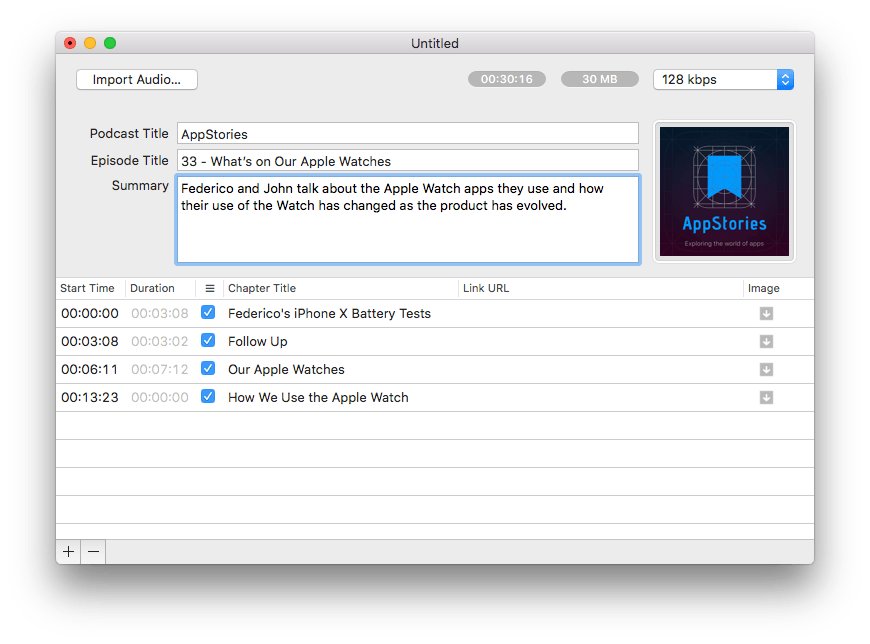
For the first time this year, Federico’s iOS review is available as an audiobook narrated by Relay FM co-founder Myke Hurley. Myke’s narration brings Federico’s review to life in a way that you’ve never experienced a MacStories review before. It’s perfect for commuters or to take with you to the gym or on a long flight. The audiobook, which is over 5 hours long, features a single MP3 file with chapter markers for easy navigation.

Overcast, Bound, and VLC are all good choices for enjoying the iOS 11 review audiobook.

Overcast, Bound, and VLC are all good choices for enjoying the iOS 11 review audiobook.

Overcast Premium subscribers can upload the audiobook, which I’ve found is an excellent way to listen. Another great option on iOS is Bound, an audiobook player that supports Dropbox, Google Drive, and OneDrive. You can also use a more general-purpose media player like VLC.

The audiobook version of the iOS 11 review is available for $9.99 (plus VAT for EU customers), but Club MacStories members can get it for 60% off the regular price – just $3.99. Instructions on how to use the exclusive Club promo code are available in the member Downloads area.

Now is a great time to join Club MacStories, especially if you are interested in the audiobook. By joining and taking advantage of the audiobook discount, you can enjoy your first month of Club MacStories, which costs $5/month or $50/year, and the audiobook for less than the price of the audiobook to non-members. That’s a bargain by itself, but by joining, you also have access to the free review eBook, past eBooks, the full archive of back issues and new issues of our weekly and monthly newsletters, plus hundreds of dollars of discounts on apps and services being announced through the end of the month, and other perks. We’d love you to be part of our growing community, so please consider joining the Club.

The eBook

This is a special time of year for all of us at MacStories because Club MacStories just passed its second anniversary, which we are celebrating through the end of the month with discounts on apps, services, and other surprises. One of the perks members of the Club enjoy is complementary eBooks of Federico’s iOS reviews and other longform articles. The eBook looks great in iBooks and features all the media and layout options you’ll find on the MacStories version, including interactive footnotes and video players.

The eBook version is available for free exclusively to our Club MacStories members, and can be downloaded in the members-only Downloads area.

The Making Of

More than ever before, Federico’s iOS 11 review is a collaboration with a team of talented people who helped bring it and the extras to life. In this week’s edition of the Club MacStories Weekly newsletter, the people who contributed to the review will tell the story behind their roles. Among the stories Club members can look forward to is Myke Hurley’s tale of transatlantic narration as he recorded sections of the audiobook in New York and London throughout August and into September.

The Podcasts

In keeping with tradition, this week Federico, Stephen Hackett and Myke Hurley have released a special episode of Relay FM’s Connected dedicated to the review. Among other things, expect to hear Federico’s thoughts on iOS 11 now that it has launched and an inside look at the process of creating the audiobook from Myke.

This is the first iOS review released since Federico and I launched AppStories, and we’ve got two episodes for listeners this week. The first is Episode 23, the regular weekly episode of AppStories, that we released alongside Federico’s review. This week, we focus on the apps Federico used to create the review from the day he landed in San Jose for WWDC to today when he hit the publish button. We also discuss some of the third-party apps featured in the review that highlight iOS 11’s marquee features.

The second episode is something entirely new for AppStories that we’re calling AppStories Unplugged. It’s a casual, more free-form, and longer version of AppStories that we plan to release periodically as an exclusive perk to Club MacStories members. In the inaugural episode, Federico and I discuss some of our favorite iOS 11 apps and what writing at MacStories during the summertime review season is like.

Club members can download AppStories Unplugged from the members-only Download area now.


This is the most exciting time of the year for all of us at MacStories. We’re a small team that grows a little each summer to accomplish all that the iOS review adds to the day-to-day of running MacStories, Club MacStories, and AppStories. We make it through propelled by Federico’s enthusiasm and inspired by his dedication to creating the very best for our readers and listeners.

Now, after many long months, it’s nice to take a moment to catch our breath and share it all with you. I hope you enjoy it as much as Federico and we did making it.


Apple Posts How-To Videos Featuring Third-Party Apps

Last month, Apple posted a series of short how-to videos to prepare customers for iOS 11. The videos each featured one new aspect of iOS 11 delivered in a light-hearted humorous style. Apple has added three new videos in the same style that feature third-party apps.

The first spot, ‘How to retouch a photo,’ features Pixelmator and demonstrates how to erase a stranger from a photo. The video concludes on a light note with ’You did great! The guy never knew what hit him.’

The second video, ‘How to copy and paste across devices with iOS 11’ features Curator, but highlights the Universal Clipboard, an iOS system feature. Curator is a mood-board and presentation app for creating collections of photos. The spot shows how to copy an image on an iPhone and paste into the Curator app on an iPad, explaining ‘the ice cream cone is now going to fly through the air’ and showing a time-lapse video of copying and pasting images over and over commenting ‘Really nice time-lapse everybody.’

The final video features GoodNotes and is called ‘How to magically convert notes to text and share them with iOS.’ The video shows how to use the lasso tool in GoodNotes to select handwritten notes and convert them into text that you can share via the system share sheet.

Like the videos posted by Apple in August, these spots strike a good balance between being informative and humorous. I’m glad to see Apple calling out third-party apps too because the ‘Pro’ in iPad Pro is as much about the third-party tools that are available as it is about the device’s hardware features.

You can watch each of the videos after the break.

Read more


Make the Most of iOS 11 With Omni’s Apps [Sponsor]

It’s almost iOS 11 time and The Omni Group is ready to go. Right from the start, three of Omni’s apps will take advantage of iOS 11’s advanced productivity features.

Getting things done on iOS has never been easier than with OmniFocus and iOS 11. Now you can drag and drop content to and from OmniFocus and even internally within the app. It’s the best way to share information between OmniFocus and your other apps, or move tasks among your projects or to change due dates by simply dragging tasks to different days in Forecast.

OmniFocus is also adding extensive Siri support. Just ask Siri to ‘add buy milk to my shopping list’ and Siri will drop the task straight into OmniFocus. Siri integration goes even deeper though. It also supports dates and times, location-based tasks, list creation, list display, and task completion.

OmniGraffle and OmniPlan will be ready for iOS 11 too. Both support the Files app so you can open files created with each wherever you have them stored. They support drag and drop too, so you can do things like drag objects to new positions in an OmniGraffle hierarchy and drag content into your Gaant charts in OmniPlan such as calendars and lists.

iOS 11 is full of power user features, especially for the iPad. OmniFocus, OmniGraffle, and OmniPlan were already among the most powerful productivity apps available on the App Store, but by leveraging the new system features of iOS 11, Omni’s apps are unrivaled.

OmniFocus, OmniGraffle, and OmniPlan each feature a 2-week free trial so there’s no reason to wait. Head over to Omni’s website to learn more about how its apps can make you more productive today.

Our thanks to The Omni Group for sponsoring MacStories this week.