Posts in Featured

Dropzone 1.0 Released On The Mac App Store

Way back in 2009 I first reviewed Dropzone, a dock-based utility by Aptonic that, through a grid interface allowed users to quickly perform common but tedious actions like uploading images or sharing text with a single drag & drop. Later, I took another look at Dropzone as a way to effortlessly download Mac apps as .DMG files, and have the app automatically extract the contents of a disk image and install an application for me.

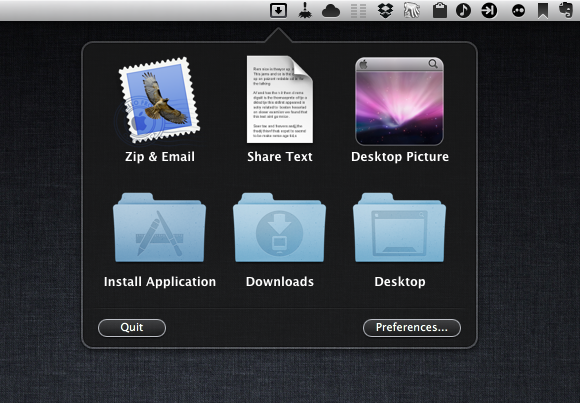
With the 1.0 release on the Mac App Store today, Aptonic had to make a few changes to Dropzone in order to be approved by Apple and sell its app on the Mac’s native digital storefront: Dropzone is now a menubar app – which you can still decide to launch on login – and gone is the dock access that was also made popular by Dropzone’s own icon and Stacks-like appearance. However, in spite of the technical changes, Dropzone 1.0 still shares the same user interface and set of actions of the previous version: for those not familiar with the concept of the app, Dropzone offers a series of built-in actions (and others that you can manually download and install) to perform tasks automatically and save precious seconds and clicks when working with your Mac. So, for instance, you can drop pictures onto Dropzone’s window and have them uploaded to Flickr, or compressed in a .zip archive and emailed to someone. You can drop files and move them to a specific destination on your Mac, or configure FTP servers and directories if you find yourself constantly uploading files via FTP every day. Dropzone aims at letting you save time with boring tasks and, at the same time, quickly share items with your friends or coworkers without going through separate clients and web upload tools.

Dropzone is very lightweight, and it’ll ultimately make your life easier through drag & drop. Version 1.0 is available at $13.99 on the Mac App Store.

Access Extra Content and Perks

Founded in 2015, Club MacStories has delivered exclusive content every week for nearly a decade.

What started with weekly and monthly email newsletters has blossomed into a family of memberships designed for every MacStories fan.

Learn more here and from our Club FAQs.

Club MacStories: Weekly and monthly newsletters via email and the web that are brimming with apps, tips, automation workflows, longform writing, early access to the MacStories Unwind podcast, periodic giveaways, and more;

Club MacStories+: Everything that Club MacStories offers, plus an active Discord community, advanced search and custom RSS features for exploring the Club’s entire back catalog, bonus columns, and dozens of app discounts;

Club Premier: All of the above and AppStories+, an extended version of our flagship podcast that’s delivered early, ad-free, and in high-bitrate audio.

Learn more here and from our Club FAQs.


Ecoute 3.0 Brings New UI, Queue, Lion Features

Back in January I reviewed Ecoute 2.0, a major update to a standalone iTunes music player that was made quite popular by its support for “themes” to be used in a desktop music controller. Today, developers PixiApps have released Ecoute 3.0, which represents a big shift in terms of user interface and underlying engine, but builds on the feature set offered by Ecoute 2.0.

For those unfamiliar with standalone music players, Ecoute belongs to this family of apps that are capable of playing iTunes’ media library without actually using iTunes. By fetching the required files to make iTunes’ library available outside of the iTunes environment automatically, Ecoute offers an alternative view for music, videos and podcasts, while at the same time giving the user additional tools to share songs online, create keyboard shortcuts, and more. Unfortunately, it appears Ecoute 3.0 still can’t automatically identify an iTunes library stored somewhere else than the default location, as I noted for version 2.0 in January. The app does have, however, an option to manually open iTunes libraries stored on your Mac or external drive.

From a feature standpoint, Ecoute 3.0 is fairly similar to its predecessor. You can share tracks on Last.fm, Twitter and Facebook, assign keyboard shortcuts to various playback controls, install themes, navigate with gesture swipes and control the artwork widget on your desktop. These are features that were implemented in version 2.0, and have been improved for 3.0. Still, there are some important additions in this update: for one, the app is fully compatible with OS X Lion (natural scrolling, full-screen mode) and 64-bit. These optimizations have brought along a faster UI and more responsive search results when filtering your media library.

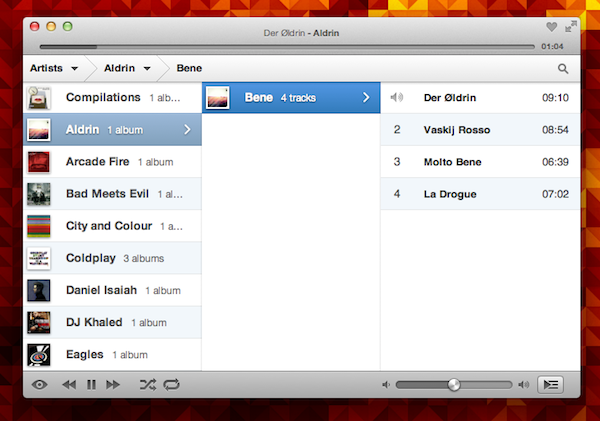
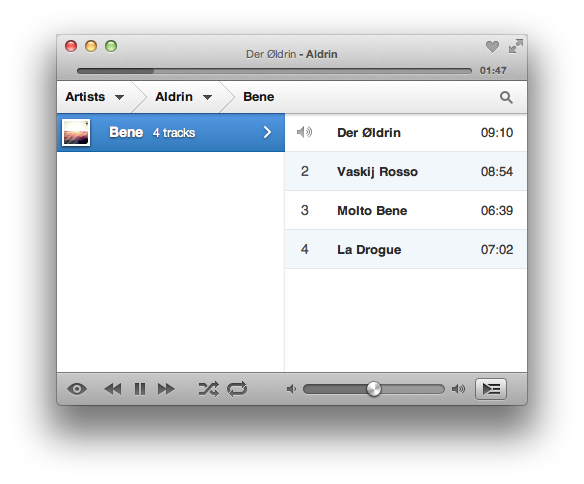
Speaking of user interface, the biggest change in Ecoute is the application’s design, which has completely changed from Ecoute 2.0. The app now uses a multi-column layout that adapts on screen depending on what you’re browsing and works with three-finger swipe navigation. Say what you will about Lion’s gestures, but I find this method incredibly more intuitive than Ecoute’s old interface. Now playing information has been merged with the title bar, where you’ll also find buttons to love a track, enter full-screen, and the duration of a song. Gone is the huge bottom bar from Ecoute 2.0, which leaves room for more compact music controls and, overall, provides a more elegant look to the entire app. Ecoute 3.0 feels a lot cleaner and it’s been simplified to make browsing music fast and lightweight.

There are other new features in Ecoute 3.0. Artwork view has been given its own section and you can now automatically display it after a period of inactivity; minimal mode and gapless playback have been implemented, giving a reason to those who can’t stand iTunes’ bloated interface to go even more minimal with Ecoute; you can also “shuffle by albums” and have multiple selections.

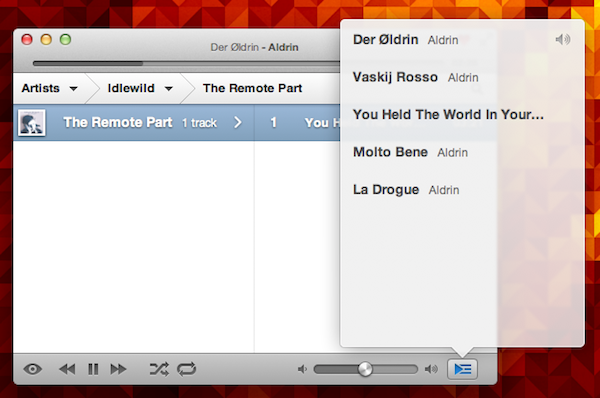
More importantly, at least for me, Ecoute 3.0 comes with a queue feature (accessible through Lion’s typical popover control) that lets you re-organize the songs you’re about to listen to. You can drag & reorder songs as well as add more to the queue from Ecoute’s main list.

If you’ve been looking for a fresh new way to access your media library in a standalone, easy-to-use app while leaving iTunes to perform heavier tasks such as TV show and movie management, I recommend Ecoute 3.0 today just as I did with Ecoute 2.0 in January. The app is elegant, responsive, fully updated for Lion, and you’ll be able to customize it with themes. Ecoute 3.0 is available at $8.99 on the Mac App Store.

Access Extra Content and Perks

Founded in 2015, Club MacStories has delivered exclusive content every week for nearly a decade.

What started with weekly and monthly email newsletters has blossomed into a family of memberships designed for every MacStories fan.

Learn more here and from our Club FAQs.

Club MacStories: Weekly and monthly newsletters via email and the web that are brimming with apps, tips, automation workflows, longform writing, early access to the MacStories Unwind podcast, periodic giveaways, and more;

Club MacStories+: Everything that Club MacStories offers, plus an active Discord community, advanced search and custom RSS features for exploring the Club’s entire back catalog, bonus columns, and dozens of app discounts;

Club Premier: All of the above and AppStories+, an extended version of our flagship podcast that’s delivered early, ad-free, and in high-bitrate audio.

Learn more here and from our Club FAQs.


App Journal, Episode 7: Muon, Flint, Sociable, CoinKeeper

App Journal is a new series aimed at showcasing apps we have enjoyed using on our iPhones, iPads, and Macs, but decided not to feature in a standalone, lengthy review here on MacStories. App Journal is a mix of classic reviews, weekly app recommendations, and a diary of our experiences with apps that still deserve a proper mention.

After the release of iOS 5, iCloud and the first wave of new apps that take advantage of Apple’s new OS and sync services, the App Store is quickly marching towards a holiday season that will be huge, both for hardware sales as well as app and game releases, software deals, and new retail features at Apple’s physical stores. While we wait for the craziness to begin later this month, we take a look at a cool music visualizer for the iPad, a finance app for the iPhone, a Campfire client and a utility to update your status on multiple social networks at once.

Sounds cool? Follow us for this week’s app collection after the break, and stay tuned for more App Journals in the next weeks.

Muon

I found out about Muon when I first saw an ad in our site’s sidebar. I don’t manage advertising on MacStories anymore, so the encounter was completely random, and the fact that the developers are advertising on our site didn’t influence my decision to mention their iPad app on the Journal. Just making things clear.

That said, Muon is a nice music visualizer for the iPad, kind of like iTunes’ own visualizer but with more effects and touch controls. The app can fetch songs from your existing Music library, and displays AirPlay-compatible controls as a translucent bar at the bottom. You can tap on a song’s name at any time to change artist or album or pick a playlist, but I don’t like the blue design of the music picker menu. Visual effects are obviously Muon’s main feature, and interestingly enough the app comes with settings to control the Audio, Drag and Mutate reactions of the Visualizer. You can tweak things like Orbital Speed, Life Span, Color Entropy and Zoom & Blur, and you’ll notice that modifying these parameters really changes what’s displayed on screen.

The developers claim Muon can move up to 500,000 particles on the iPad 2, with a complex visualization engine that makes effects evolve with the beat of you music and gradually form different shapes and patterns that you can capture as presets, or screenshots with the dedicated camera button. The app supports video-out and AirPlay Mirroring, as well as dual monitor setups and full-screen view on the iPad.

Overall, Muon comes with some fairly advanced control options but I simply prefer to keep it running and let it decide which effects to use according to the song that’s playing. Muon is $0.99 on the App Store for a limited time.

Flint

For our communication needs here at MacStories, we use 37signals’ Campfire. For those who are not familiar with the service, it’s a fantastic chat tool for teams that, among other things, allows you to upload files, manage chat transcripts for multiple rooms, and visualize media such as pictures and videos with inline previews. We use Campfire every day to quickly put out news, casually hang out, and assign articles to each other. There’s no doubt Campfire has become an essential tool for getting things done over here.

In the past months I’ve been testing Flint, a native Mac client for Campfire that’s available on the Mac App Store. It’s been hard for me to switch from the browser-based, pinned tab for Campfire, but Flint is simply fantastic. The interface is elegant, gets out of the way and nicely highlights conversations in a Campfire room. There are profile pictures for users, and a popover at the bottom lets you see all participants in a conversation. The app supports most of Campfire’s web functionalities (image previews, sounds, but no emoji), and more importantly it’s perfectly integrated with Growl on OS X.

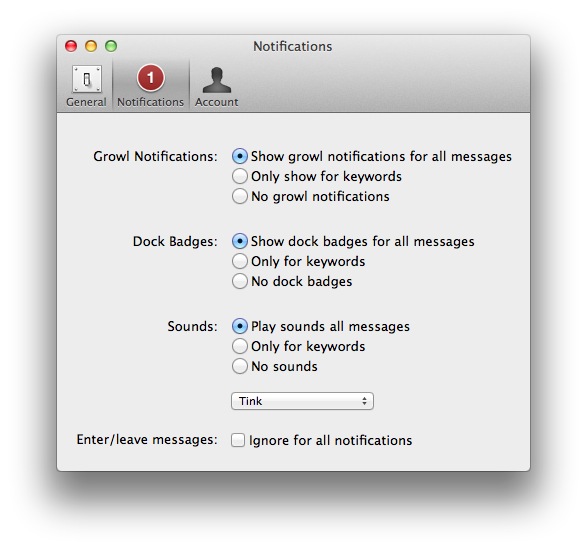
This is the main reason I use Flint – with Growl integration, I can take a look at what’s being said without opening the app and, from the Preferences, control the behavior of sounds, dock badges, keywords and enter/leave messages. In the past weeks, the developers have also released an update that improves the reliability and speed of the app from the first version – so if you gave it a try initially and went back to Campfire on the web, now it’s time to fire up the app again and see if things have improved for you.

I, for one, will keep using Flint to catch up with my team and get work done. If you’re serious about Campfire and have a Mac, Flint is $9.99 on the App Store. Read more

Access Extra Content and Perks

Founded in 2015, Club MacStories has delivered exclusive content every week for nearly a decade.

What started with weekly and monthly email newsletters has blossomed into a family of memberships designed for every MacStories fan.

Learn more here and from our Club FAQs.

Club MacStories: Weekly and monthly newsletters via email and the web that are brimming with apps, tips, automation workflows, longform writing, early access to the MacStories Unwind podcast, periodic giveaways, and more;

Club MacStories+: Everything that Club MacStories offers, plus an active Discord community, advanced search and custom RSS features for exploring the Club’s entire back catalog, bonus columns, and dozens of app discounts;

Club Premier: All of the above and AppStories+, an extended version of our flagship podcast that’s delivered early, ad-free, and in high-bitrate audio.

Learn more here and from our Club FAQs.


Apple’s Fifth Avenue Store Re-Opens Today With Its Redesigned Glass Cube

In just a short few hours, at 10 AM local time, Apple’s flagship retail store at 5th Avenue in New York City will have a grand re-opening after its glass cube was renovated and re-created. As you can see above though, Apple has spent the night removing all the barriers and plastic wrapping and the new design is bare for all to see. The new design has just three tall glass panes on all sides of the cube, coming to a total of just 15 panes — compare that number to the old design which had 90 panes.

Jump the break to view a picture before the plastic wrapping came off, to have a look at renderings of what the store was designed to look like and what the old cube (with its 90 panes) looked like.

We will update this post as more pictures come in and the grand re-opening begins.

[Image via 9to5 Mac]

Update: MacRumors shares more pictures of the redesigned cube, showing the new “seamless” design that eliminates most of the hardware that kept the old 90 glass panels together.

Update #2: View of the redesigned cube via @andinieffendi.

Read more

Access Extra Content and Perks

Founded in 2015, Club MacStories has delivered exclusive content every week for nearly a decade.

What started with weekly and monthly email newsletters has blossomed into a family of memberships designed for every MacStories fan.

Learn more here and from our Club FAQs.

Club MacStories: Weekly and monthly newsletters via email and the web that are brimming with apps, tips, automation workflows, longform writing, early access to the MacStories Unwind podcast, periodic giveaways, and more;

Club MacStories+: Everything that Club MacStories offers, plus an active Discord community, advanced search and custom RSS features for exploring the Club’s entire back catalog, bonus columns, and dozens of app discounts;

Club Premier: All of the above and AppStories+, an extended version of our flagship podcast that’s delivered early, ad-free, and in high-bitrate audio.

Learn more here and from our Club FAQs.


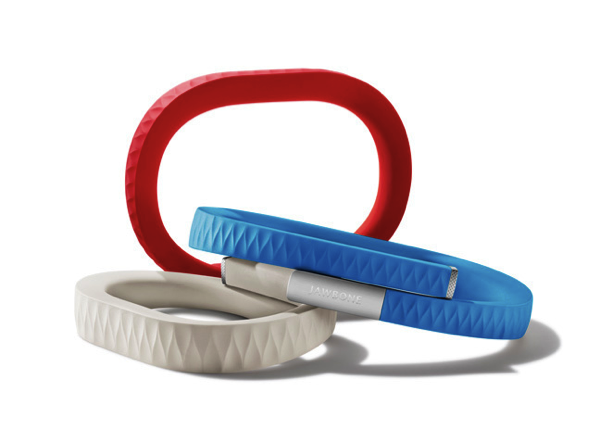
UP by Jawbone: The Health Band that’s Not Just Another Fitness Gadget

UP by Jawbone

UP by Jawbone

If you haven’t heard of it, you’ll want to familiarize yourself with the Quantified Self, a growing trend that seeks to utilize technology to give us better insight into our health, mood, and state of mind. The purpose of technologies like this isn’t to dictate how you live, but to better make you aware of your unique characteristics and nutritional needs. No two persons are built the same, and technology always finds ways to highlight facets we tend to overlook.

The UP launched late last night with much fanfare from an excited Twitter fan-base, an excellent introductory post from The Verge, and shortly after Kara Swisher, whom published an interview with its creators. Shaky cam! The UP certainly isn’t the newest contestant in the field; The Fitbit is a trick pedometer that nudges wearers to be more active, while Basis is a customizable watch module that tracks everything from body temperature to perspiration. Practical for many, Withings Wi-Fi Body Scale and Blood Pressure Monitor quantify and automate data metrics we’re already used to looking at. Websites like Fitocracy aim to gamify our health, creating social challenges that open up avenues of online collaboration and motivation with peers. Being healthy is a big avenue of interest for new startups and consumer alike.

Read more
Access Extra Content and Perks

Founded in 2015, Club MacStories has delivered exclusive content every week for nearly a decade.

What started with weekly and monthly email newsletters has blossomed into a family of memberships designed for every MacStories fan.

Learn more here and from our Club FAQs.

Club MacStories: Weekly and monthly newsletters via email and the web that are brimming with apps, tips, automation workflows, longform writing, early access to the MacStories Unwind podcast, periodic giveaways, and more;

Club MacStories+: Everything that Club MacStories offers, plus an active Discord community, advanced search and custom RSS features for exploring the Club’s entire back catalog, bonus columns, and dozens of app discounts;

Club Premier: All of the above and AppStories+, an extended version of our flagship podcast that’s delivered early, ad-free, and in high-bitrate audio.

Learn more here and from our Club FAQs.


iCloud, Mobile Documents Sync and GoodReader

Last night we detailed how it’s possible to sync documents across multiple Macs configured with the same iCloud account through a hidden folder in Lion’s Library called Mobile Documents. As I explained in the article, this folder is actually the destination and sync location for iCloud-enabled apps, such as Instacast and iWork, that have been updated by developers to officially take advantage of iCloud’s Documents & Data. But as it turns out, Mobile Documents can be used for syncing files across Macs “manually” – just drop a file or folder in there, and it’ll show up on another Mac running the same iCloud account. So whilst Mobile Documents is “officially” used for App Store apps that work with iCloud, it can also come in handy as a native “drop box” powered by iCloud.

As many were quick to point out, syncing files between Macs is nice, but “real” syncing solutions like Dropbox come with mobile apps to make sure your documents and folders aren’t simply synced between desktop machines. Since Apple isn’t offering a new version of iDisk based on iCloud – and seems to be moving away from the concept of filesystem altogether – the method I described in the article was obviously meant for owners of multiple Macs – the Mobile Documents “hack” is cool, but it’s not supported by Apple.

On the App Store, however, that are several apps that over the years have tried to re-implement the filesystem on iOS by offering access to a plethora of online sources for your files, such as FTP servers, Google Docs, Dropbox and SugarSync. These “file management” apps like iFiles and iStorage aren’t integrated on a system level, but they work as “aggregators” for documents you may have already saved in the cloud, only they bring them together in a single location.

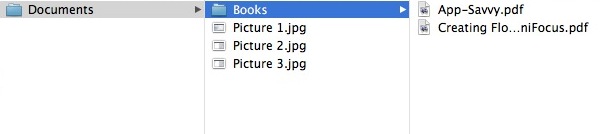
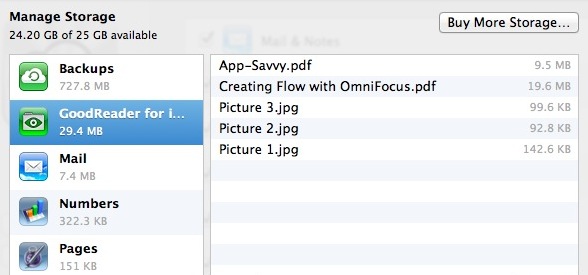
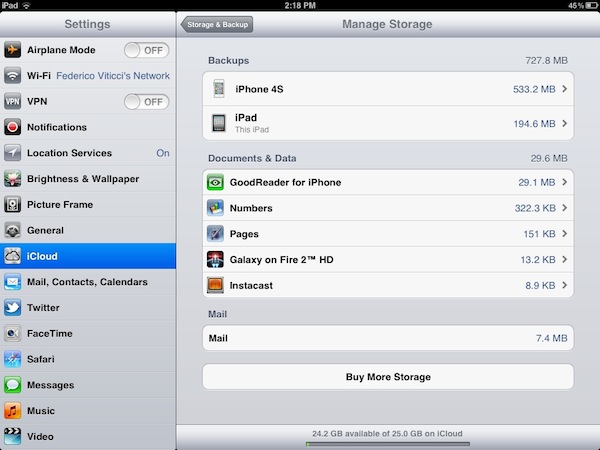
One of such apps is GoodReader, perhaps the most popular document reader & file manager ever landed on the App Store’s virtual shelves – GoodReader comes with hundreds of features and support for multiple online services, plus it’s also a decent PDF reader with annotation functionalities and an overall good preview engine. As I was playing around with the idea of having Mobile Documents work with an iOS app, I realized one of the latest GoodReader updates introduced full iOS 5 and iCloud compatibility, meaning the app can store its documents and data in iCloud, and will show up as iCloud-enabled app in your account (to check this, open Settings->iCloud->Storage & Backup->Manage Storage on iOS, or System Preferences->iCloud->Manage… on OS X Lion). And if an iCloud-enabled app with Documents & Data shows its contents on OS X under Mobile Documents, it means GoodReader should be capable of syncing its own filesystem back to the Mac.

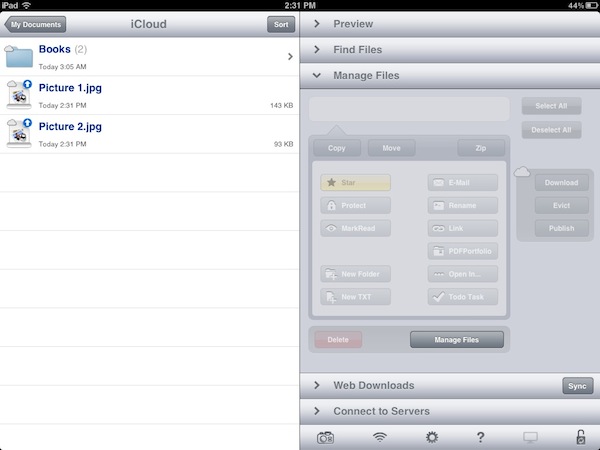
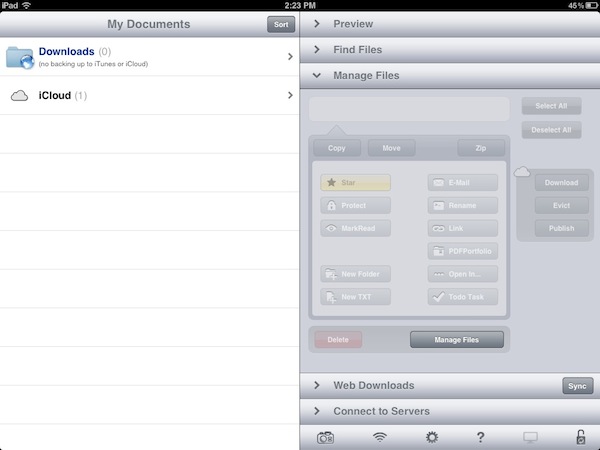
Indeed, you can use GoodReader to manage files and folders on iOS, and have them available on the Mac as well through iCloud and Mobile Documents. GoodReader will create its own folder inside Mobile Documents, and every change (new file, new folder) you’ll make on the iOS app will appear inside GoodReader’s “Documents” directory. Of course, you’ll have to use GoodReader’s “iCloud” folder to enjoy these syncing features; thanks to GoodReader’s file management features, you’ll be able to create folders and sub-folders, move documents around and delete them, create new text files, rename documents, and more. GoodReader has some pretty powerful features, and it’s nice to see the developers are supporting iCloud out of the box with a dedicated folder on the main “My Documents” page.

Thanks to GoodReader’s support for multiple online services, you’ll be able to, say, move files from Dropbox or Google Docs to iCloud directly from the iOS app.

In my tests, iCloud sync with GoodReader has been extremely fast and reliable. Documents imported on iOS would show up in seconds on the Mac’s Mobile Documents, and vice versa. I was able to move screenshots between my Mac, iPhone and iPad using Mobile Documents and GoodReader, but I also created folders, compressed files, imported PDFs and MP3 files. Because iCloud is based on push technology, files are pushed immediately to the cloud and downloaded on all configured clients, but I noticed that GoodReader for iOS, unlike the Mac’s Mobile Documents folder, doesn’t download a full document as soon as the data is “pushed” from iCloud. Try this: on your Mac, drag a medium-sized PDF into GoodReader’s iCloud folder. Notice how the PDF’s icon and name show up on GoodReader after your Mac has pushed the document to iCloud. But try to open the PDF from GoodReader, and you’ll see the app will require additional download time, as only the main information about the file has been pushed to iOS – if you want to read it, you’ll have to wait for the full download. I actually found this method pretty clever, as it gives me up-to-date file information in seconds, and allows me to download files when I need them. Overall, I’m impressed by iCloud and GoodReader working together to sync files across different iCloud clients.

Why should you care to have GoodReader syncing files that also happen to show up on your Mac? First off, it’s a cool trick. More importantly, iCloud’s push technology works well, and users (like me) may find it convenient to have an easy way to, say, import iOS screenshots on the desktop without using Photo Stream, while still relying on iCloud. Thanks to GoodReader’s support for audio and video, iWork and Office files, HTML archives and text files, you’ll be able to copy a variety of documents from your desktop onto iCloud, and have them synced back to iOS in seconds.

Check out how to sync files with Mobile Documents and iCloud here. GoodReader is available on the App Store for iPhone and iPad.

Access Extra Content and Perks

Founded in 2015, Club MacStories has delivered exclusive content every week for nearly a decade.

What started with weekly and monthly email newsletters has blossomed into a family of memberships designed for every MacStories fan.

Learn more here and from our Club FAQs.

Club MacStories: Weekly and monthly newsletters via email and the web that are brimming with apps, tips, automation workflows, longform writing, early access to the MacStories Unwind podcast, periodic giveaways, and more;

Club MacStories+: Everything that Club MacStories offers, plus an active Discord community, advanced search and custom RSS features for exploring the Club’s entire back catalog, bonus columns, and dozens of app discounts;

Club Premier: All of the above and AppStories+, an extended version of our flagship podcast that’s delivered early, ad-free, and in high-bitrate audio.

Learn more here and from our Club FAQs.


Yahoo Releases Livestand, IntoNow, Updated Mail for iPad

At Product Runway today, Yahoo released a series of new apps and updates for iOS and Android, particularly targeting the iPad with an updated version of its Mail web app, a universal version of “media check-in” tool IntoNow, and Livestand, a new take on social magazines that we first covered earlier this year. According to Yahoo, these “new mobile, tablet, and PC experiences” will help the company deliver a “personal Web” to its users.

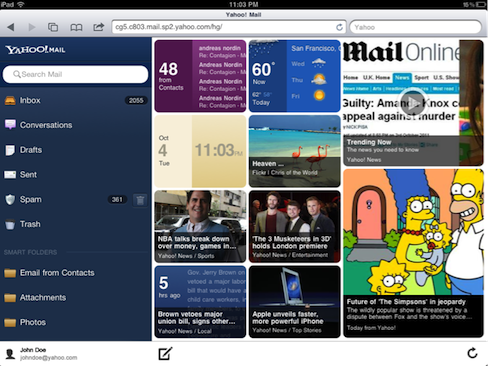
Yahoo already had an HTML5-based web email client specifically optimized for the iPad, and the update released today introduces some interface tweaks to quickly skim through weather information and local headlines from the Mail homepage, check out new items from Flickr contacts, and watch video from the Trending Now section. Yahoo says the new Mail homepage is touch-optimized to scroll through tiles, and users will be able to tap on a new items to open the associated Yahoo website in a new browser tab.

More information is available in Yahoo’s blog post.

IntoNow, acquired earlier this year by Yahoo, is also part of today’s updates. The “Shazam for TV” that enables the app to instantly recognize what’s playing on TV through audio recognition is now available on the iPad with a brand new interface as a universal update. IntoNow impressed us months ago with their audio matching technology that was capable of recognizing TV shows and movies, displaying content recommendations and letting users share and comment on what they were watching at the same time.

Picture this - press the green button while you’re watching TV and stats from that football game, tweets from that show’s actors, or related news headlines emerge on the topic your newscaster is talking about …. all in real time as you’re watching.

The new IntoNow app (version 2.0) is available on the App Store.

Livestand

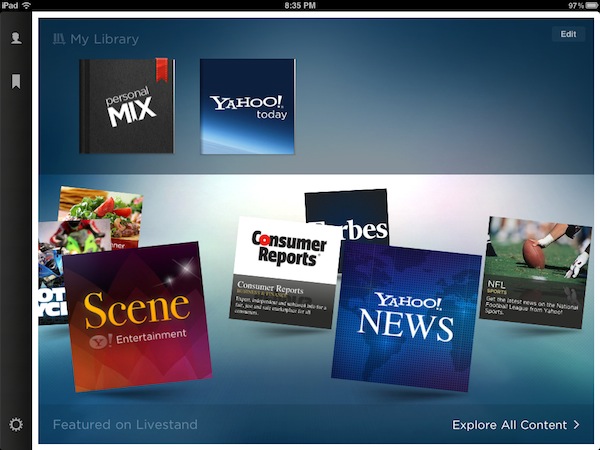
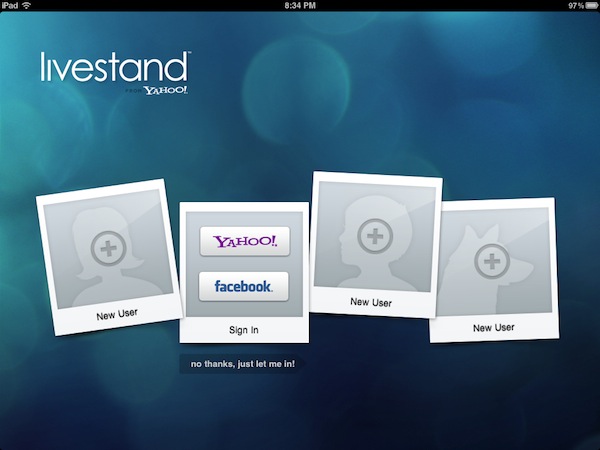
Last is Livestand, a new app that Yahoo started teasing months ago and promised would provide a better magazine-like experience for web articles thanks to direct partnerships with content providers and websites, as well the properties Yahoo already owns, such as News, Finance and Entertainment. After having tried the app for the past hour, I have to say Livestand is actually a very nice app – perhaps not as revolutionary as many thought it would be, but certainly a well-done piece of software with a good selection of content, good-looking UI, and nice animations for the iPad. To start using Livestand, Yahoo offers you the choice to manage up to 4 user accounts – great for iPads in the family – that can be associated to a Yahoo account or Facebook profile. I chose my Yahoo account, as I’ve already got one in place and figured I might give it a shot after a long time with Livestand.

Upon launch, Livestand greets you immediately with Featured content on the bottom (there are thumbnail images for publications like Forbes, Consumer Reports and several other Yahoo properties) and “Personal Mix” at the top. Read more
Access Extra Content and Perks

Founded in 2015, Club MacStories has delivered exclusive content every week for nearly a decade.

What started with weekly and monthly email newsletters has blossomed into a family of memberships designed for every MacStories fan.

Learn more here and from our Club FAQs.

Club MacStories: Weekly and monthly newsletters via email and the web that are brimming with apps, tips, automation workflows, longform writing, early access to the MacStories Unwind podcast, periodic giveaways, and more;

Club MacStories+: Everything that Club MacStories offers, plus an active Discord community, advanced search and custom RSS features for exploring the Club’s entire back catalog, bonus columns, and dozens of app discounts;

Club Premier: All of the above and AppStories+, an extended version of our flagship podcast that’s delivered early, ad-free, and in high-bitrate audio.

Learn more here and from our Club FAQs.


Google Releases Gmail for iOS

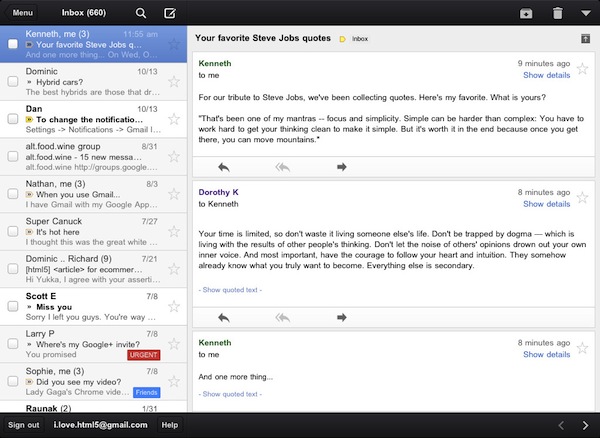
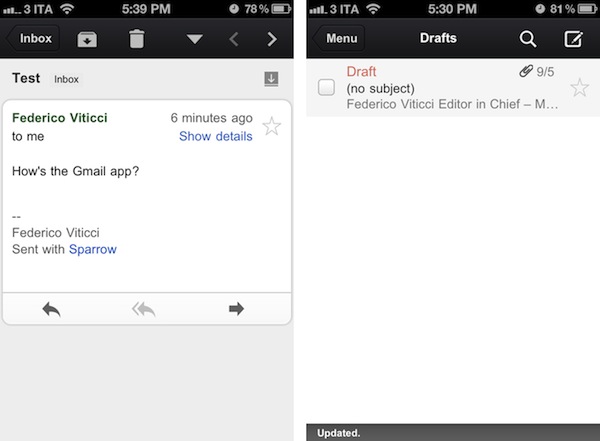
Google has just released its first official Gmail app for iOS, available on the App Store here. The app runs natively on the iPhone and iPad, features notifications, messages threads, Priority Inbox and many other Gmail features from the web interface. In developing Gmail for iOS, Google says they have tried to bring the best features of Gmail for the web – which is also optimized for iOS devices – to the iPhone and iPad while taking advantage of the native capabilities of these devices.

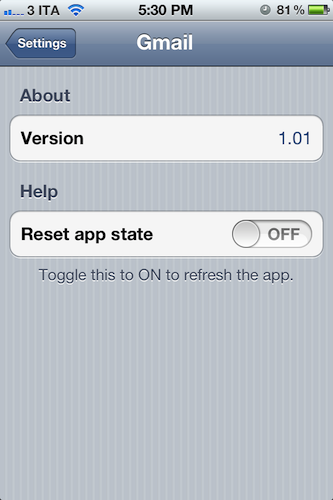
The company has indeed implemented name auto-completion and Camera Roll integration for image attachments, but we couldn’t find support for multiple email accounts in this first version. Also, we were unable to receive “badge notifications” for new messages, although this may be related to the just-launched nature of the app and an error that several users are reporting on Twitter. The lack of multiple account support is disappointing, frankly, as the app simply loads up a web view upon first launch, asking you to log in with a Google account, and that’s it. There are no settings, no account options – there is a “reset app state” button in the iOS Settings app, which will simply reset the app’s state (logging you out of your account) as the name suggests.

As many have already noticed, the interface of the app seems to consist mainly of a web view inside a native environment that guarantees some of the aforementioned features such as attachments from the Camera Roll. Some animations are smoother than Gmail’s web counterpart – such as the swipe-to-reveal Inbox action – and this should be an advantage of the “native” nature of some elements of the app. Other animations and menu, however, are clearly web-based, and not as smooth and responsive as you would expect from, say, Apple’s Mail app. Overall, it appears Google took Gmail’s existing web app for Mobile Safari, added some new features and graphical elements in the inbox and message list, and released it as a free app on the App Store. This app clearly can’t be compared to Android’s native Gmail experience, or Apple’s Mail app for iOS, which still remains a fine and powerful client. If you’re a fan of Gmail’s web app for iOS devices, I believe you’re going to like some improvements of this “native” version, but I can’t imagine any Gmail power-user – people who regularly switch between two or more accounts every day – doing any serious email work with this app.

There are some nice improvements over the Gmail web app for iOS devices, but this is far from the “pretty fantastic” native app many were expecting.

From the feature list:

  • Get alerted to new messages with push notifications and sounds
  • Find an email in seconds with search across your entire inbox
  • Autocomplete email addresses from your Gmail contacts or select from your device’s address book
  • Upload photos with a click using the new attachment button in compose view
  • On iPad, navigate your inbox and read your mail simultaneously with split view

You can find Gmail for iOS on the App Store.

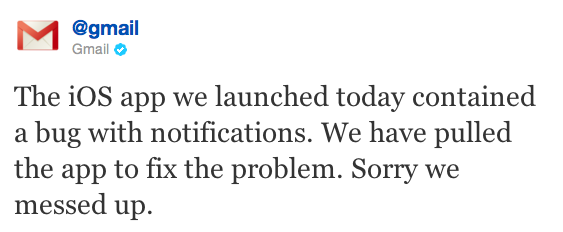
Update: Google had to pull Gmail from the App Store to fix the notification bug mentioned above.

Access Extra Content and Perks

Founded in 2015, Club MacStories has delivered exclusive content every week for nearly a decade.

What started with weekly and monthly email newsletters has blossomed into a family of memberships designed for every MacStories fan.

Learn more here and from our Club FAQs.

Club MacStories: Weekly and monthly newsletters via email and the web that are brimming with apps, tips, automation workflows, longform writing, early access to the MacStories Unwind podcast, periodic giveaways, and more;

Club MacStories+: Everything that Club MacStories offers, plus an active Discord community, advanced search and custom RSS features for exploring the Club’s entire back catalog, bonus columns, and dozens of app discounts;

Club Premier: All of the above and AppStories+, an extended version of our flagship podcast that’s delivered early, ad-free, and in high-bitrate audio.

Learn more here and from our Club FAQs.


iPhone 4S Launches In 15 Additional Countries On November 11

With a press release, Apple has just announced that the iPhone 4S will be launching in 15 additional countries on November 11, including Hong Kong and South Korea. The iPhone 4S launched in seven initial countries on October 14th, followed by 22 other countries on October 28th. The full list of November 11 launch countries includes Albania, Armenia, Bulgaria, El Salvador, Greece, Guatemala, Hong Kong, Malta, Montenegro, New Zealand, Panama, Poland, Portugal, Romania and South Korea, and Apple has once again confirmed that the device will be available in 70 countries by the end of 2011.

Apple today announced that iPhone® 4S, the most amazing iPhone yet, will be available in Hong Kong, South Korea and 13 additional countries on Friday, November 11. Customers will be able to pre-order iPhone 4S beginning on Friday, November 4.*

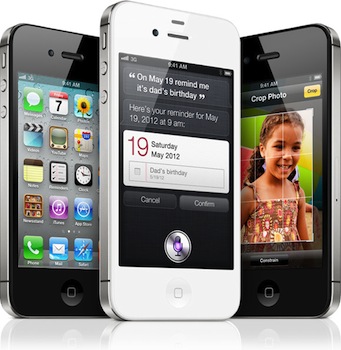
iPhone 4S is packed with incredible new features including Apple’s dual-core A5 chip for blazing fast performance and stunning graphics; an all new camera with advanced optics; full 1080p HD resolution video recording; and Siri™, an intelligent assistant that helps you get things done just by asking.

Beginning Friday, November 11, iPhone 4S will be available in Albania, Armenia, Bulgaria, El Salvador, Greece, Guatemala, Hong Kong, Malta, Montenegro, New Zealand, Panama, Poland, Portugal, Romania and South Korea. iPhone 4S is available today in 29 countries around the world and will be available in more than 70 countries by the end of the year.

iPhone 4S comes in either black or white for a suggested retail price of $199 (US) for the 16GB model, $299 (US) for the 32GB model and $399 (US) for the new 64GB model.** iPhone 4S is sold through the Apple Online Store, Apple’s retail stores and select Apple Authorized Resellers. iPhone 4 is available for just $99 (US) and iPhone 3GS is available for free with a two year contract from participating carriers.

*Pre-orders not available in Albania, El Salvador, Guatemala, Malta, Montenegro and Panama.

The iPhone 4S has been a sales success for Apple so far, generating over 4 million sales in the first three days of availability with several Apple Stores sold out of units both in the United States and Europe. At the Q4 2011 earnings call, Apple’s CEO Tim Cook said they were extremely pleased with the initial reaction of the iPhone 4S, noting that the company has enough supply to meet demand for the holiday quarter, which Apple expects to be its biggest quarter ever.

Access Extra Content and Perks

Founded in 2015, Club MacStories has delivered exclusive content every week for nearly a decade.

What started with weekly and monthly email newsletters has blossomed into a family of memberships designed for every MacStories fan.

Learn more here and from our Club FAQs.

Club MacStories: Weekly and monthly newsletters via email and the web that are brimming with apps, tips, automation workflows, longform writing, early access to the MacStories Unwind podcast, periodic giveaways, and more;

Club MacStories+: Everything that Club MacStories offers, plus an active Discord community, advanced search and custom RSS features for exploring the Club’s entire back catalog, bonus columns, and dozens of app discounts;

Club Premier: All of the above and AppStories+, an extended version of our flagship podcast that’s delivered early, ad-free, and in high-bitrate audio.

Learn more here and from our Club FAQs.