

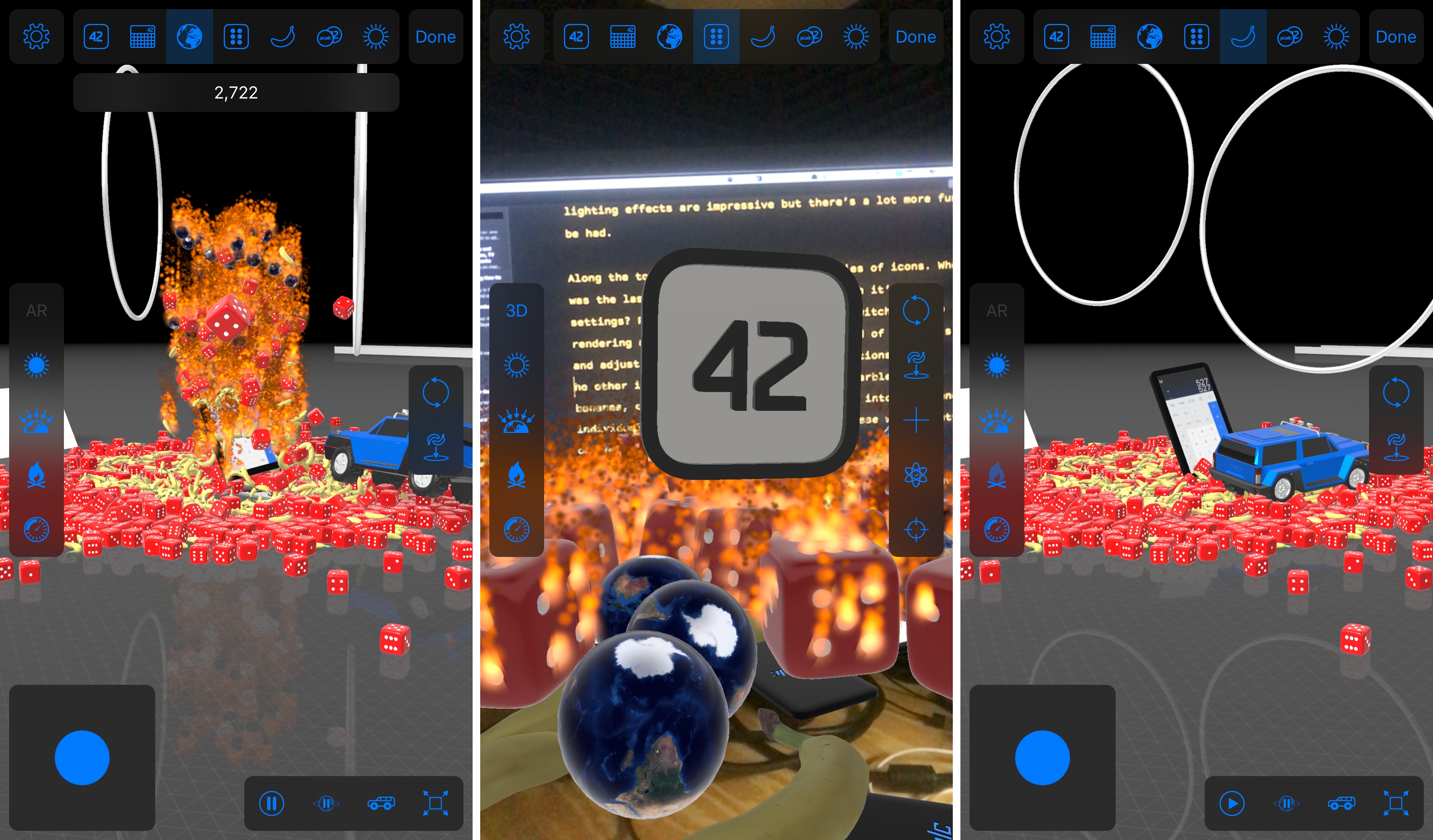
As apps updated for iOS 11 begin to trickle out onto the App Store, it’s fitting that the first of what will be many reviews on MacStories in the coming days features ARKit, which from all indications is a big hit with developers. Even more fitting though, is that the app reviewed is PCalc by James Thomson. PCalc is an excellent calculator app that was one of Federico’s ‘Must Have’ apps of 2016. It’s available on iOS devices, the Apple Watch, and even the Apple TV. Still, you wouldn’t expect it to incorporate 3D animation or augmented reality, but that is exactly what the latest version of PCalc has tucked away in its settings.
Posts in reviews
PCalc’s Delightfully Insane About Screen
Whink Review: Taking Beautiful Notes
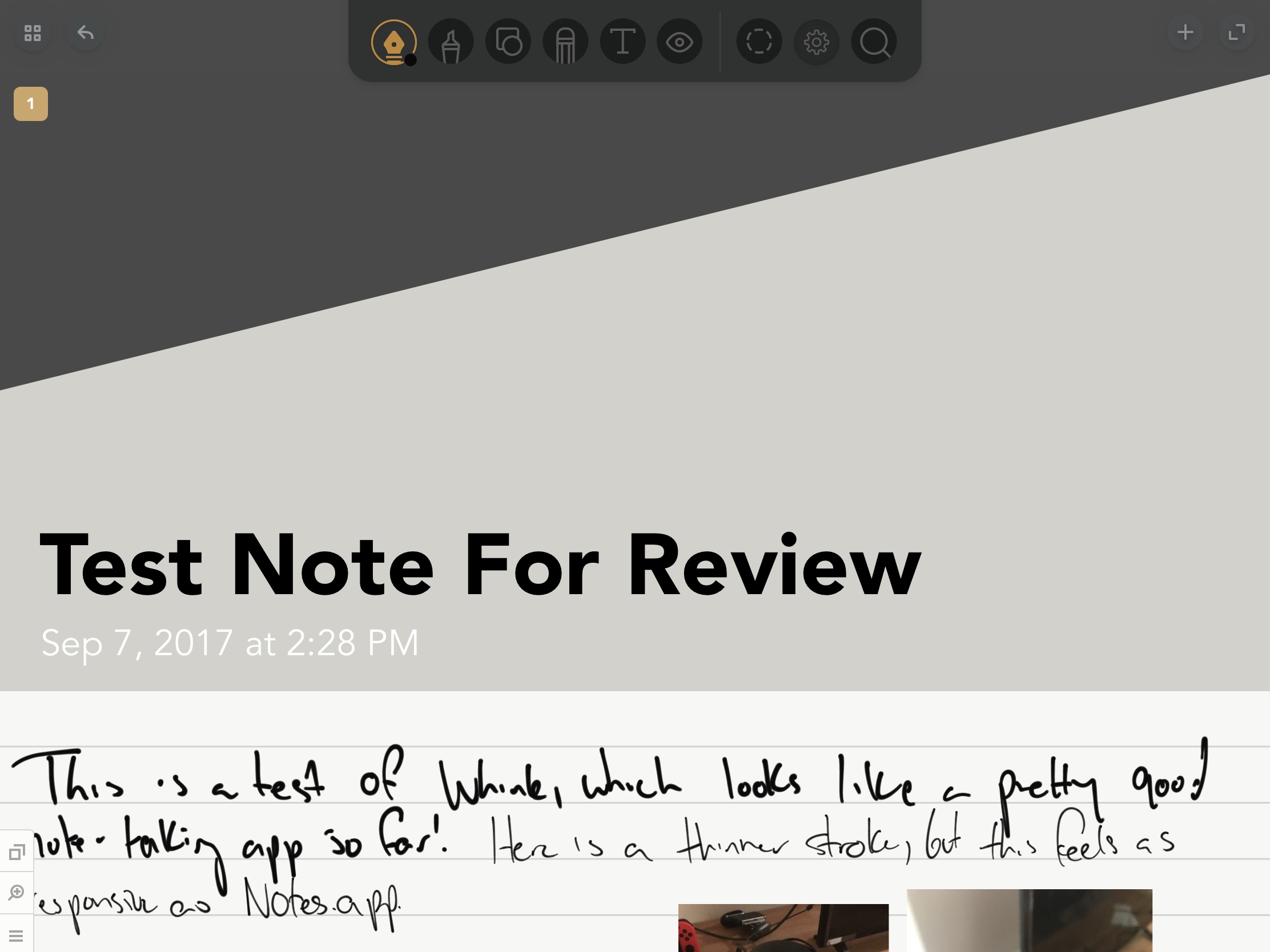
I take extraordinarily ugly notes, a combination of terrible handwriting and the inability to organize my notes properly. Even as I’ve moved primarily to digital notes, I still struggle putting attractive and useful documents together.
Whink is almost everything we’ve come to expect from a modern note-taking app – Apple Pencil support, multimedia integration, document exporting, and more – assembled in one of the most aesthetically pleasing packages I’ve seen in its genre. By adding minor design flourishes around content, Whink transforms your notes into beautiful resources.
Elk Adds Lock Screen Currency Conversion
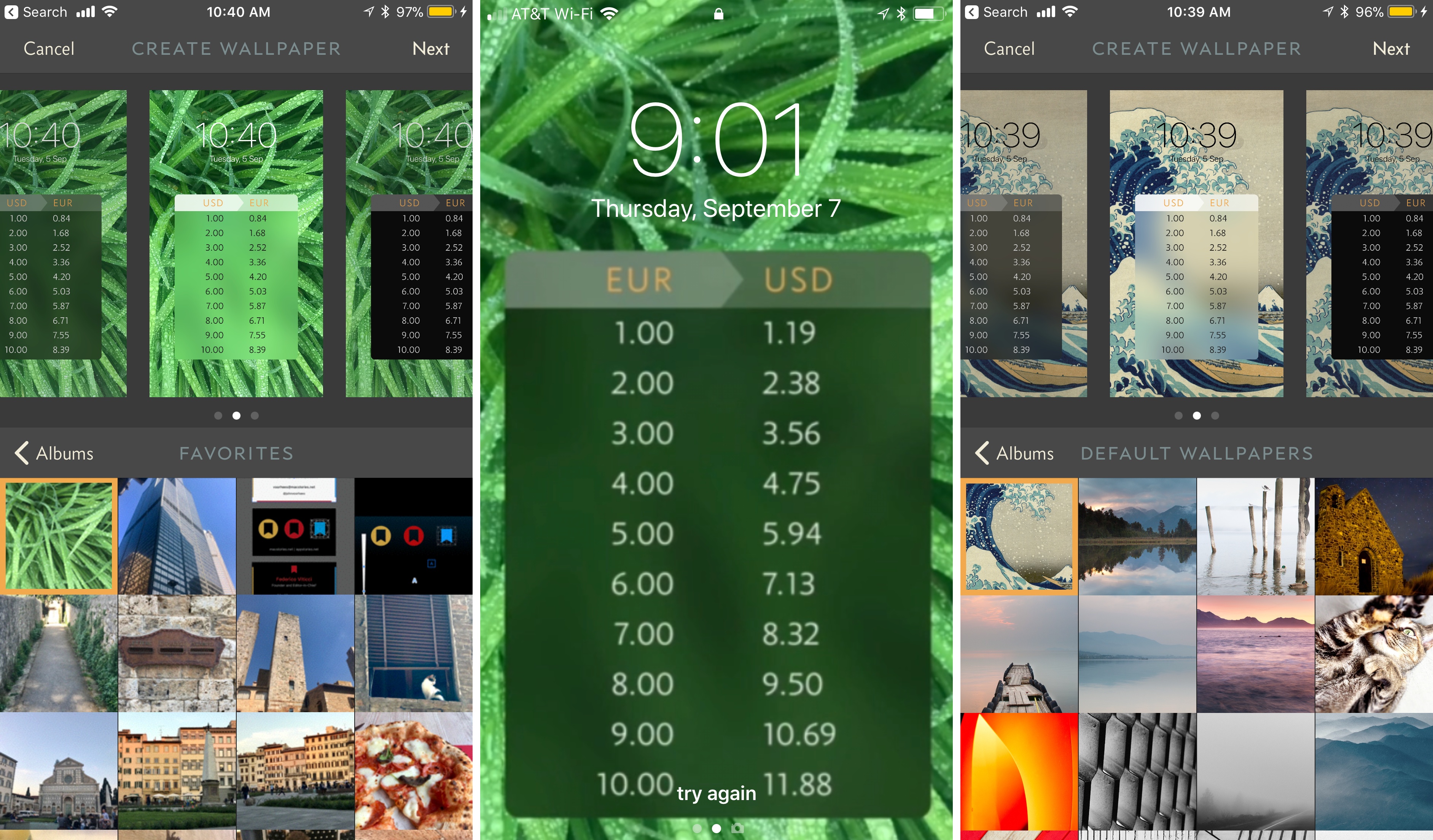
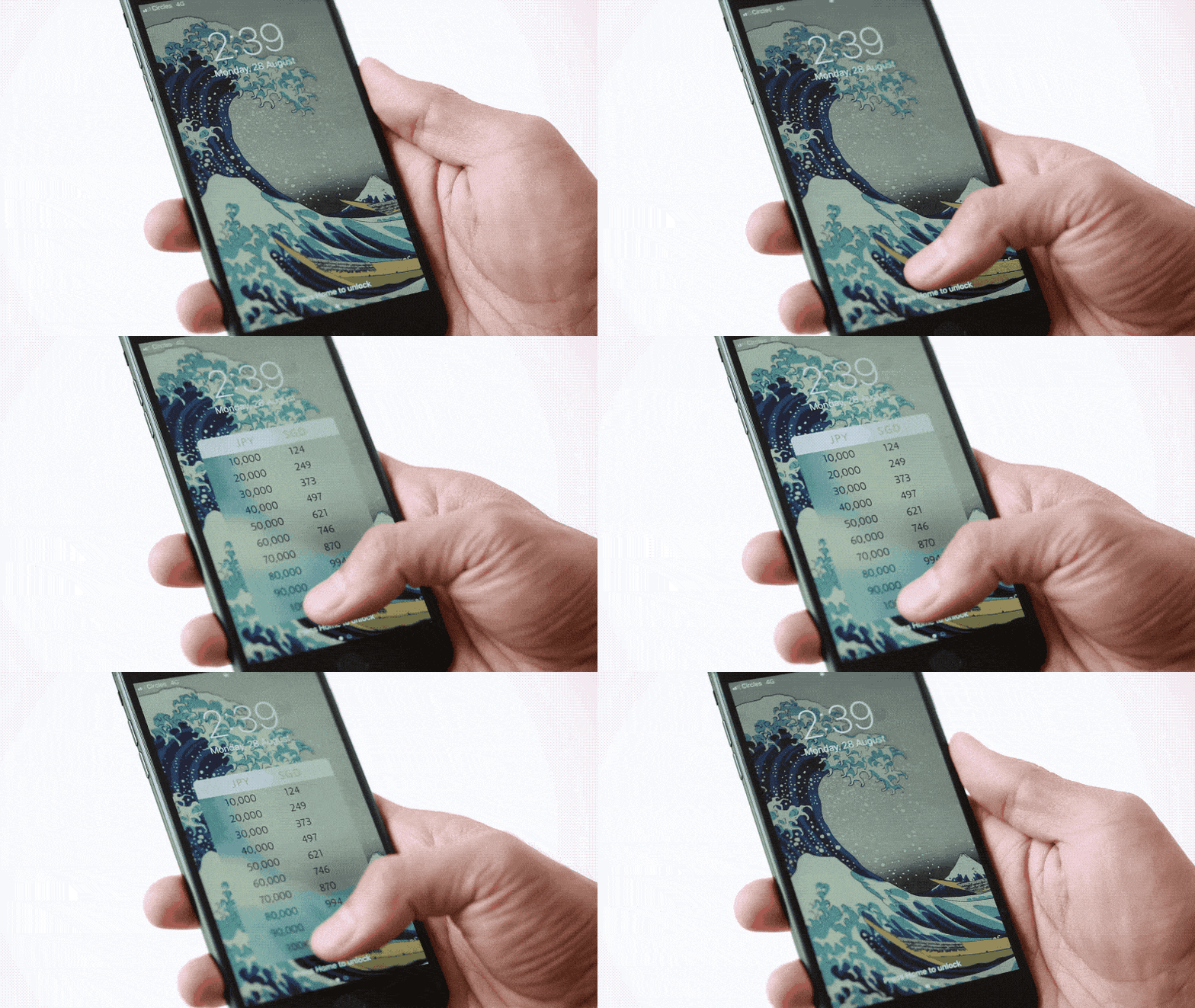
Elk, the currency converter app that we reviewed earlier this year has been updated with a smart feature that allows you to access a currency conversion table from the Lock screen of your iPhone. The feature is a hack in the best sense of the word. By leveraging your iPhone’s Lock screen wallpaper, Elk allows you to quickly get a ballpark sense of what something costs in another currency without unlocking your phone and navigating to the app.
The simple feature grew out of the developers’ practice of manually creating a currency conversion table and setting it as their Lock screen wallpapers. Like many tedious tasks though, there was a better solution through software that eliminated typing a conversion table before every trip.
To create a currency conversion wallpaper, open the currency table you want to show on your Lock screen in Elk and tap the share icon. By default, the app will show you the system wallpapers available on your iPhone along with previews of three different currency tables overlaid on the selected wallpaper. You can also navigate to the photos on your iPhone and pick one of those for your wallpaper. After you select an image, you can save it to your photo library with the currency conversion overlay as a still or Live Photo wallpaper. Finally, open up the Settings app and set your newly created image as the lock screen wallpaper.
That’s all there is to the feature, but it’s extraordinarily handy when you want to get a rough idea of a conversion on the go. I particularly like the Live Photo version of the wallpaper because I can enjoy the image on my Lock screen, but still get to the currency table with a short press on the screen.
Of course, the data overlaid on the wallpaper cannot be updated, but it’s close enough for short trips, and you can always regenerate the wallpaper periodically with the latest rates.
Game Day: Swim Out
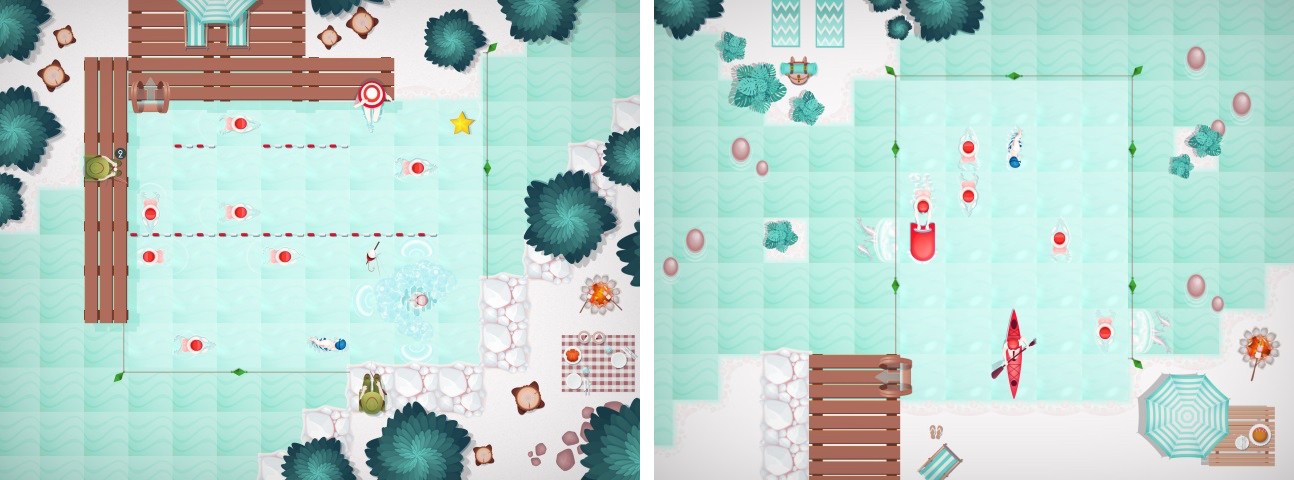
As the summer draws to a close, take one last dip into the pool with Swim Out, a stylish and challenging puzzle game from Lozange Lab that’s available on the iPhone, iPad, and Apple TV.
Swim Out is a turn-based puzzle game that requires you to make your way across a swimming pool to a ladder that takes you to the next puzzle. The playing area is a traditional grid viewed from a top-down perspective, dressed up like a swimming pool, which is a clever touch that gives Swim Out a unique personality. The other design choice I noticed immediately and like a lot is the sounds of people at the pool and the water. The artwork is also excellent with summery blues and reds dominating the puzzles.
The game starts off simply to ease you into the mechanics. Your goal is to maneuver your blue swimmer to the exit ladder without colliding with the red swimmers and other obstacles. As you progress, the obstacles become more complex. Multiple swimmers, people sitting at the edge of the pool, and other hazards appear and get in your way. Run into an obstacle, and you have to start the puzzle over.
As you progress through Swim Out’s 100 levels, objects that help you along the way also appear. For instance, if you grab a beach ball, you can throw it at a red swimmer and freeze them in place for a certain number of turns to allow you to pass by.
Swim Out is a perfect summertime game. It’s easy to learn, you can play for short periods of time, and it’s relaxing to play, while also being challenging. The game does a fantastic job of staying engaging throughout by throwing lots of different obstacles and tools at you, which makes Swim Out an excellent companion for your last few trips to the local pool or beach.
Swim Out is available on the App Store.
Taps Review: A Game of Numbers
Lately, I’ve been on a puzzle kick, and I recently found my next game to play too much: Taps.
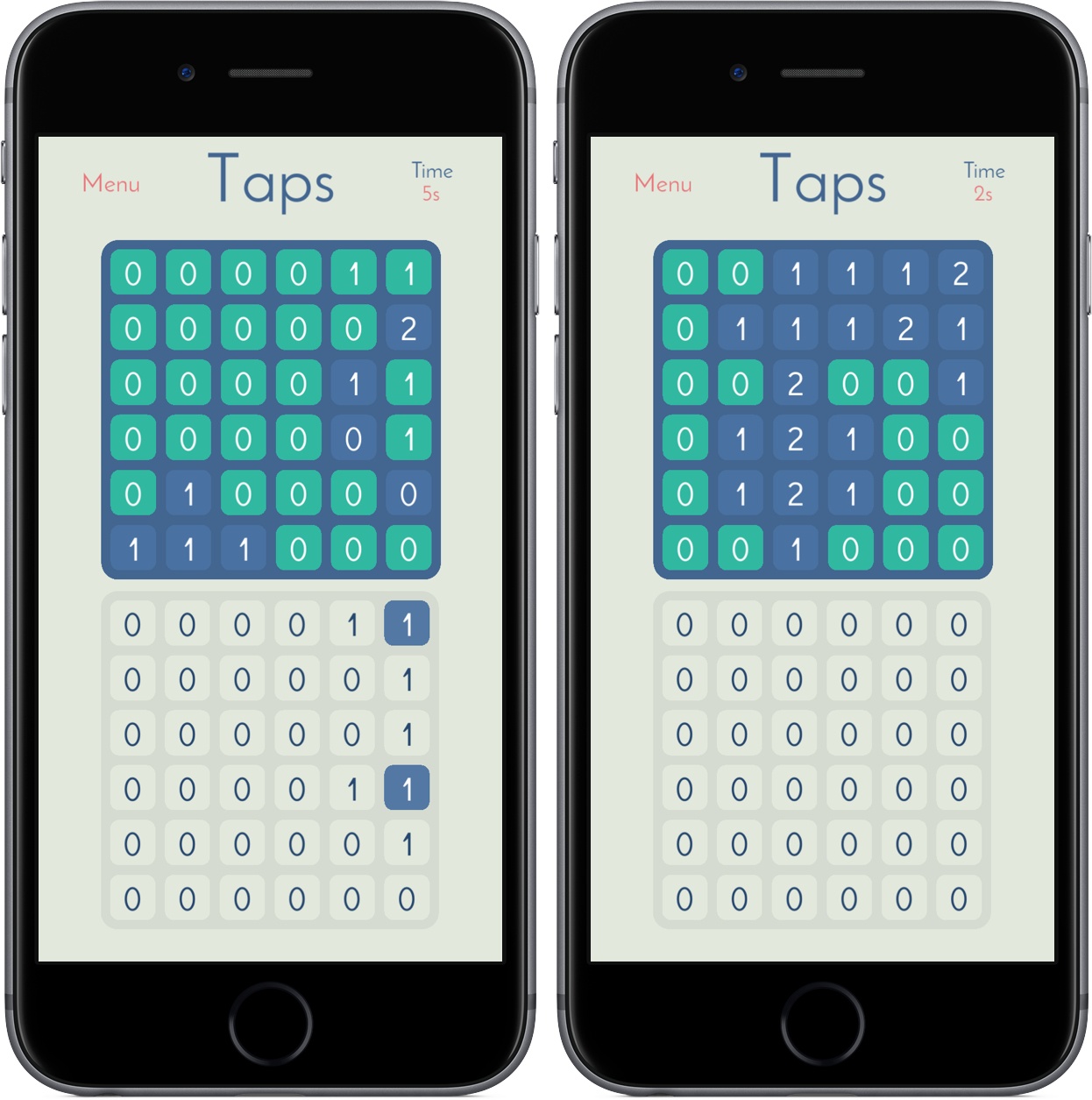
In Taps you’re tasked with transforming a grid of 0s into 1s, 2s, 3s, and so on. Of course, you’ll do so through taps, changing tiles in your 6x6 grid to match the one placed above you. Every tile you tap increases its value by one while also increasing the number of the tiles adjacent to it – if you tap a tile in the bottom right corner, it’ll change from 0 to 1, as will the ones above and to the left of it. Below is a demonstration of what this looks like in practice:

Early in the game, you’ll be matching 0s and 1s, but Taps gets tougher as you work your way through its 200 levels. I’ve found that the longer I play, the more time I’ve needed to build out a meaningful strategy before I start attacking my board; too often during the levels, I’ve had to walk back almost all my decisions to make sure I get a 2 in the right place.
Taps is reminiscent of a modern-day Minesweeper, and it’s just as addicting – watching the top board change color as you match its patterns is so satisfying, and the gameplay makes it easy to work through a couple of levels in no time. With standard, advanced, and custom levels to explore, Taps won’t feel completed for many, many hours. And with a timer tracking how long it takes you to complete levels, you can always race yourself to find a faster solution.
Taps came out just a month ago, but I’m surprised it slipped by me for this long. I’ve had a lot of fun playing it in the couple days I’ve had it on both iPad and iPhone, and I’m looking forward to investing more hours over the long weekend.
You can pick up Taps in the App Store for iPad and iPhone for $1.99.
Weather Atlas: Weather Mapping for a Modern Day
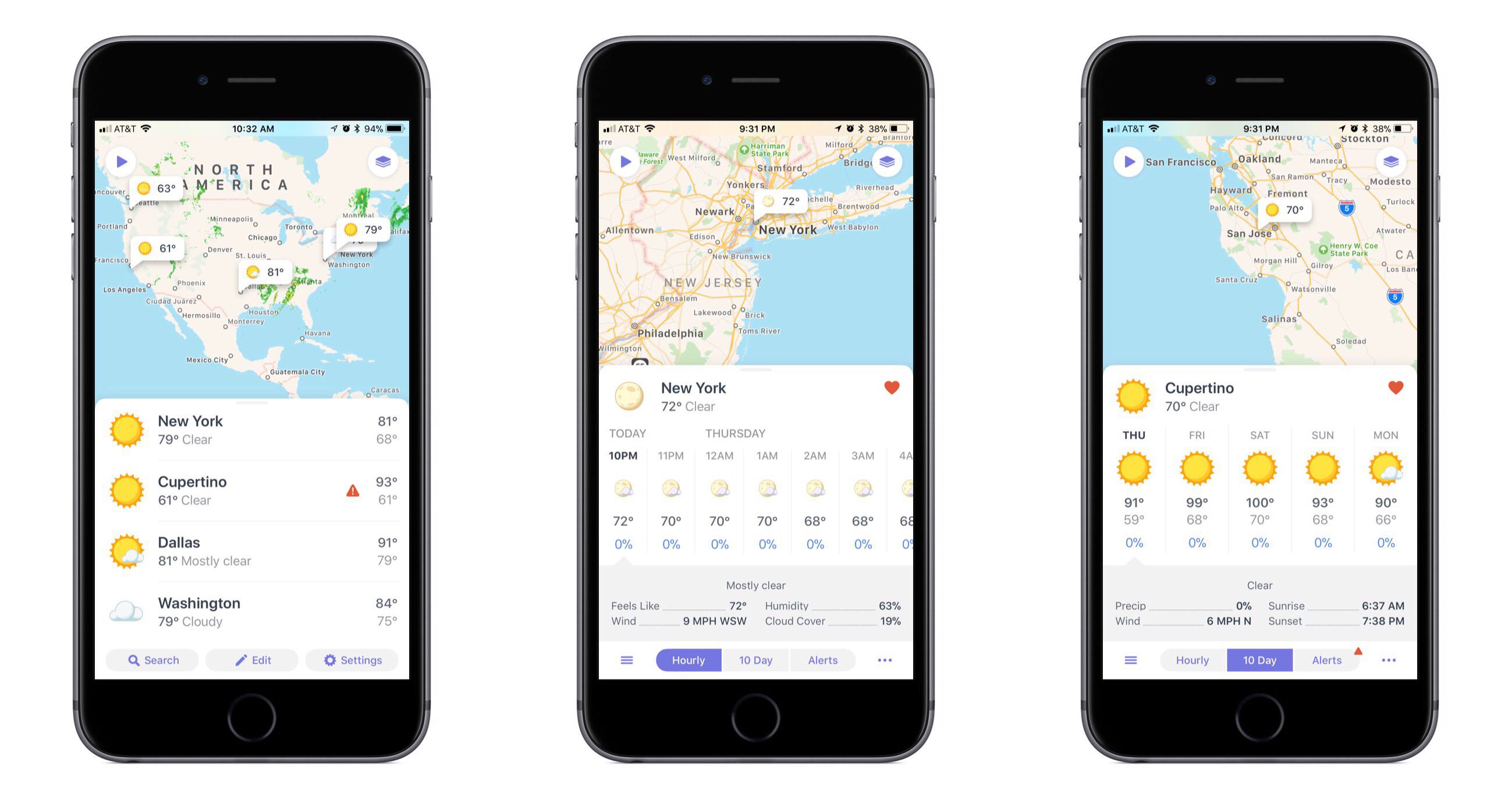
One of the app categories that’s always receiving new entries – and that I’m always pleased to try a new take on – is weather. Often weather apps share the same data sources, but their design and customization options make them stand out. The developers at Contrast are no strangers to the crowded weather app market, as creators of the now-retired Perfect Weather. But with the help of developer Greg Pierce, Contrast is introducing a fresh take on the modern weather app with Weather Atlas.
ETA Update Automatically Calculates Calendar Event Travel Times
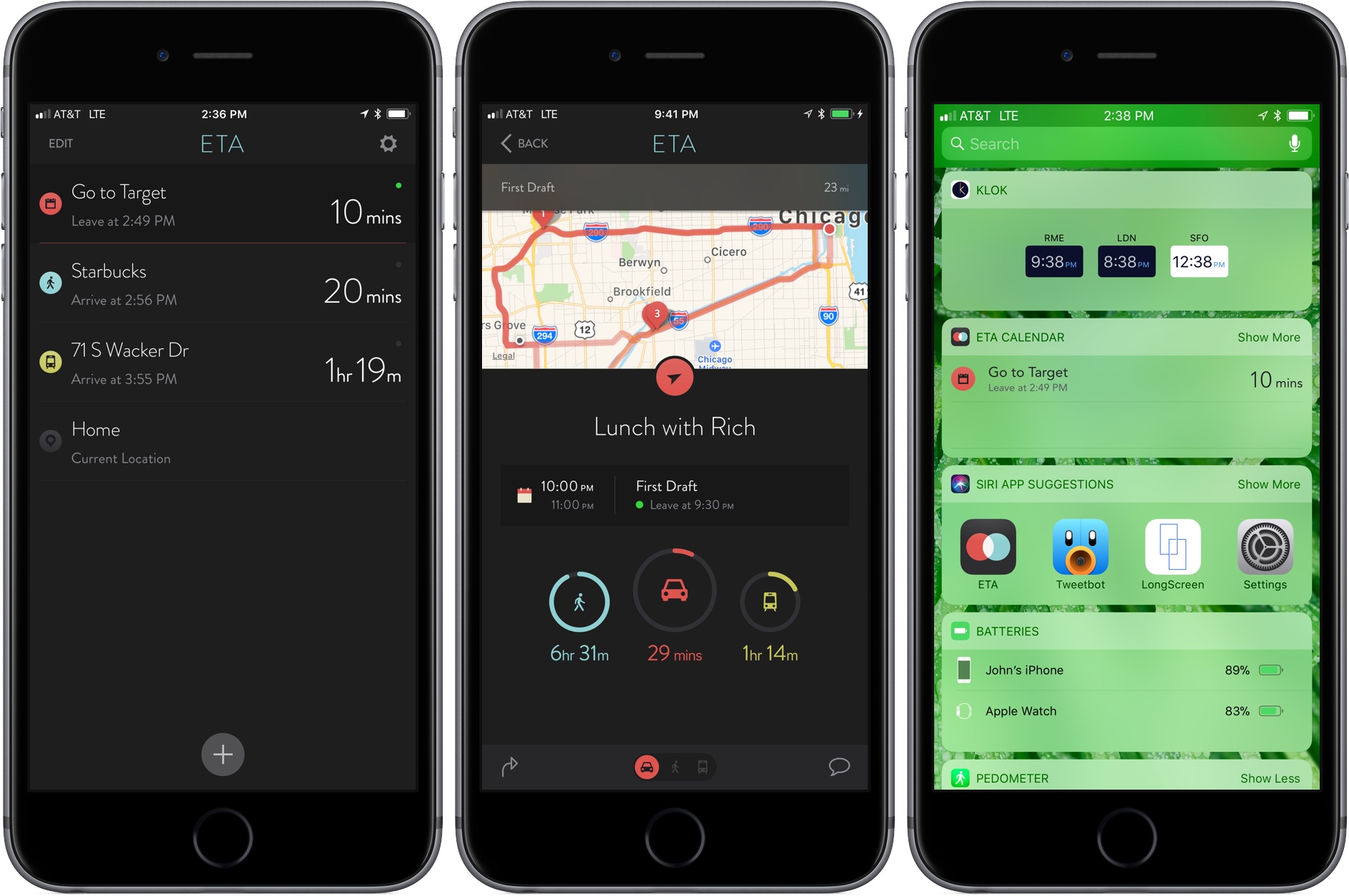
In the past, I rarely added locations to my calendar events unless I was going someplace I’d never been, but that’s changed since I started testing the update to ETA that was released today. The reason for the switch is a powerful new feature available as an In-App Purchase in ETA, which uses locations associated with events in your calendar to tell you when to leave for an appointment and how long it will take to get there.
Pedometer++ Updated With Achievements and a Redesigned Widget
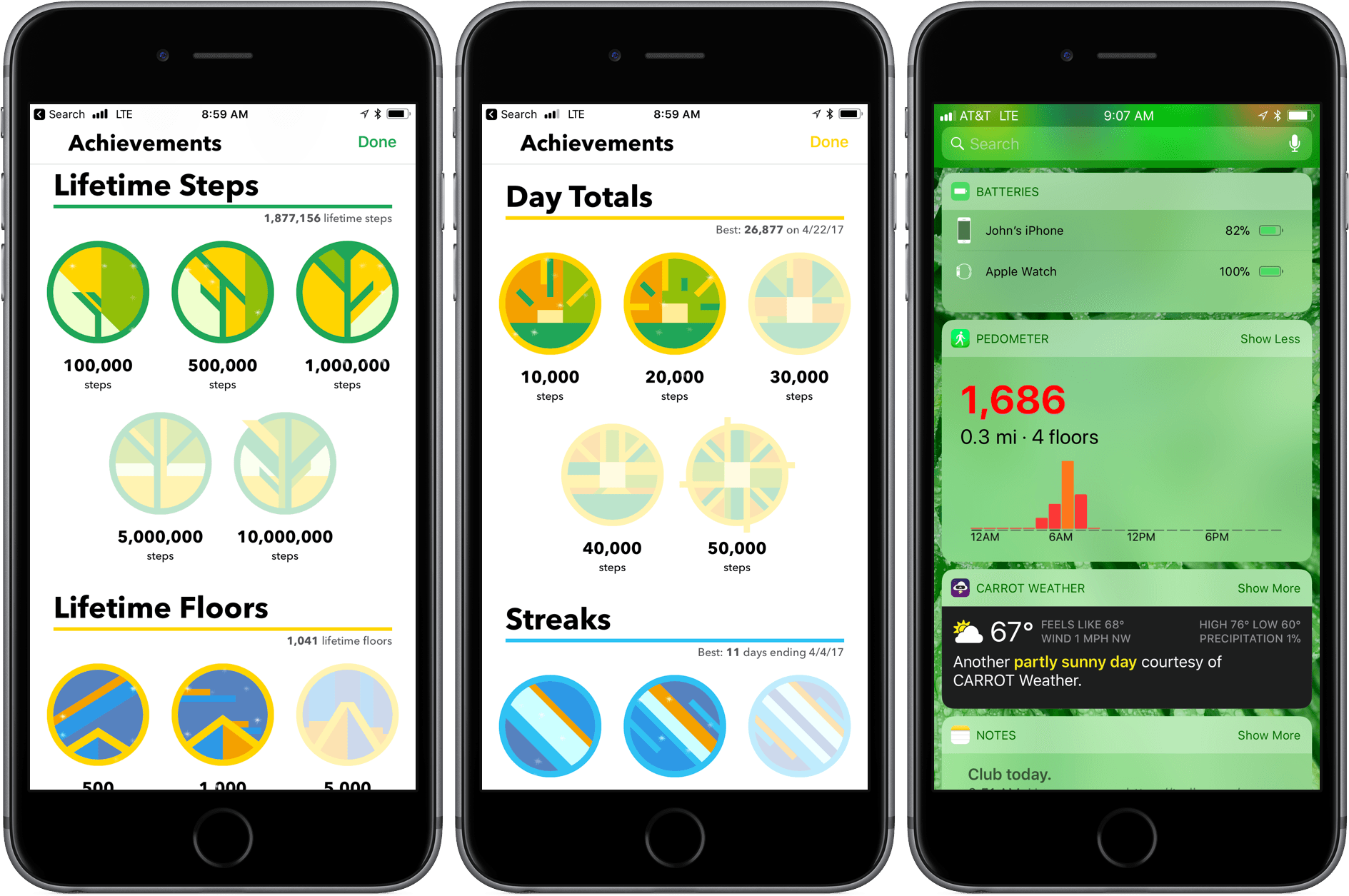
Pedometer++ 3.0 is here with new ways to motivate you to get moving and view your step counts. David Smith’s step counting app has been on the App Store since the introduction in 2013 of the iPhone’s M7 chip that collects motion data. Since then, Smith has continuously refined the app by enhancing visualizations of your step counts, adopting new technologies like the Apple Watch, and adding ways to motivate users like the delightful confetti that’s launched when you reach your step goal.
Run Jump Die Review: A Better One-Handed Platformer
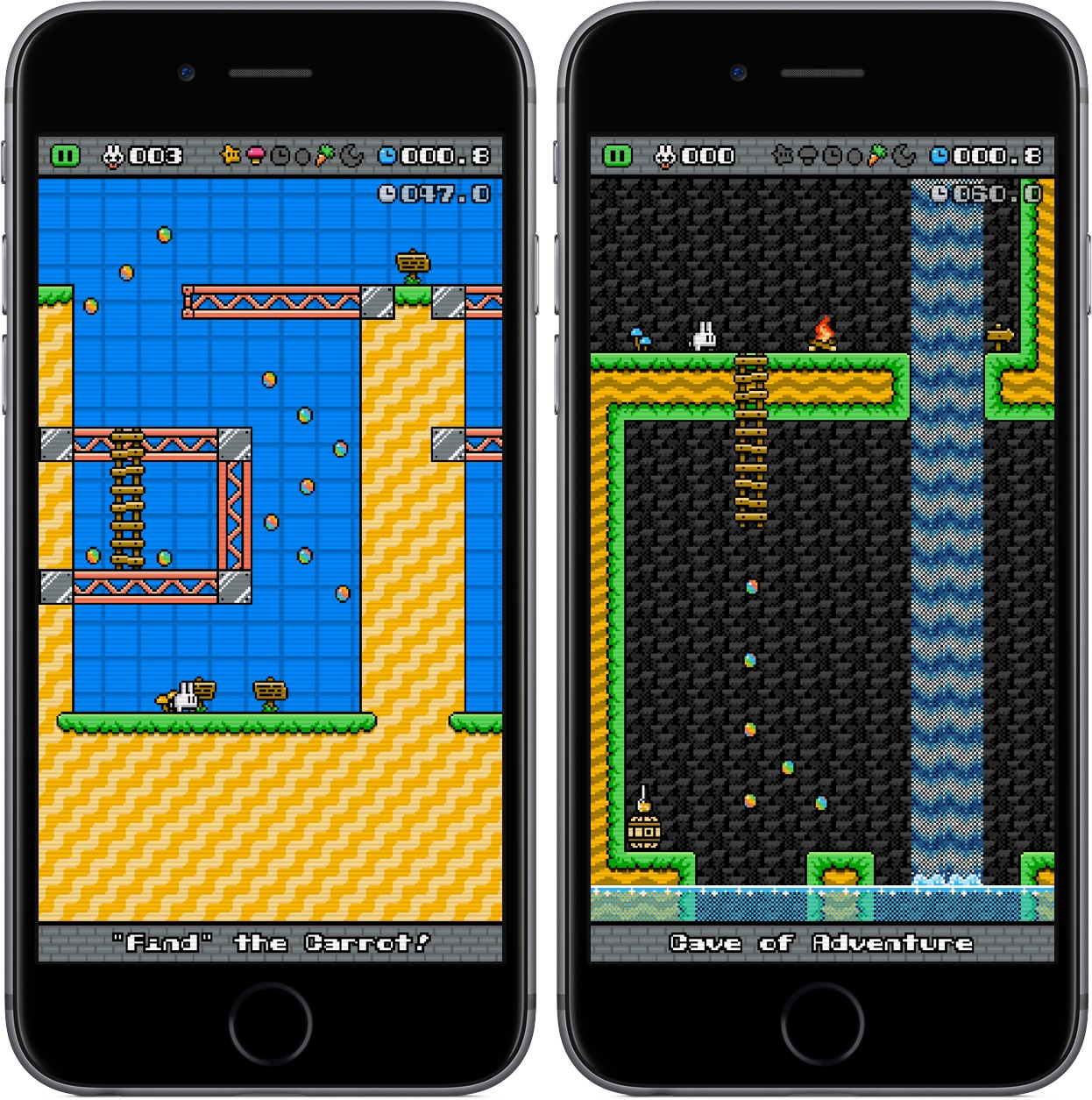
When platformers make their way to the App Store, they have a big question to answer: how will the user control the character? Some titles, like Nintendo’s Super Mario Run, offer tap-and-hold controls that assign a single task to the user; others, including the popular port Downwell, elect for software buttons simulating a console-type experience. The vast majority of platformers fall into one of these two categories, either limiting the control of the user or giving up simplicity in favor of pressing the screen in just the right place.
Run Jump Die is the best of both worlds, featuring one-touch controls that are intuitive and smart. It’s a platformer in the vein of retro classics, but with mobile and modern updates that make it feel like it belongs in 2017. The overall game, anchored by the unique control scheme, is a joy to play, showcasing just the right combination of challenge, exploration, and satisfaction.