Posts in reviews

iPhone 4S Review

iPhone 4S: MacStories Review

iPhone 4S: MacStories Review

It’s been over a year since Apple launched the iPhone 4, and in the meantime Apple has been busy preparing iOS 5, iCloud, getting deals for iTunes Match, and integrating voice technology into their next generation smartphone. iOS 5 has already captured 25 million users in less than a week as iPhone, iPad, and iPod touch owners update their devices to take advantage of free syncing technologies and a revamped notification system. Apple’s iCloud recently went live, syncing data, contacts, and other information between Macs, iOS devices, and Apple’s servers. Hardware remained in Apple’s sights as well — the iPhone 4S launched with brand new guts and was available in white from day one. It’s been a very busy year for Apple, but you’re all here for one reason:

What’s the iPhone 4S like?

Read more


Instacast 1.4: This Is What iCloud Can Do

Instacast with iCloud

Instacast with iCloud

If you have a day job and had just started upgrading your iOS devices when you got home yesterday evening, it’s likely haven’t even spent a few hours with iCloud yet. The premise is pretty amazing, even if the initial majority of it is between iOS devices. If you think automatically syncing spreadsheets and documents across iCloud from your iPad to iPhone is cool, that’s just the tip of the iceberg. Beyond document syncing, iCloud opens up a world of added convenience that wasn’t available previously. Just think about being able to sync your Angry Birds progress between devices. But we can take that even further. What if we could sync something like RSS feeds between devices? Now you’re thinkin’.

Instacast goes beyond simply syncing your lists of podcasts. It remembers to update which episodes you’ve marked as played, it remembers to add new podcasts you’ve subscribed to across devices, and it even remembers what episode you were listening to. The last item is the magical part: it syncs track position and loads that episode you were listening to in the now playing window if you pause the podcast and want to pick up from another device later. Resuming a podcast is as simple as tapping the up arrow after a refresh. Now this? This is amazinger.

This is one of the best use cases for iCloud. Instacast syncs lots of data to keep everything in sync. While there’s not much I can add beyond Martin’s blog post on Vemedio, the wow-factor can’t be emphasized enough.

With the amount of data being synced, there are some things to remember about Instacast’s iCloud sync. Geeks will immediately try, two devices in hand, to see how instant syncing is. If you don’t allow Instacast to get its data in the cloud, you may run into conflicts where your impatience could overwrite the changes you wanted to save. I imagine this is more true for big podcast libraries. You treat it like you treat Tweet Marker — it’s all designed to be very casual. With that said, syncing shouldn’t take five minutes, but I wouldn’t expect it to be split-second instant. A pull-to-refresh will sync changes down from iCloud while uploading takes place automatically.

Instacast 1.4 has a new audio engine inside for iOS 5 compatibility, bringing back scrolling titles on the lock screen (a bigger deal if you were an early iOS 5 adopter) and adding Apple TV support for AirPlay. If you want to get caught up on what Instacast does and how great it really is, check out our previous reviews.

You can read more about the 1.4 update on Vemedio, and download the update for free from the App Store (it’s only $1.99 for new customers).


Safari 5.1.1: iCloud Ready, Performance Heavy

For persistent fans, it’s the features you likely already know about that make Safari a keeper. While I could blabber on about how Safari’s design far outpaces Google Chrome or Firefox in terms of both good looks and usability, Safari’s main assets are simply iCloud related.

The Reading List, revealed as a hidden side pane coated with a fresh paint of white linen, syncs saved websites to your iOS devices almost instantly over iCloud. Added to Safari earlier this year, Reading List is a sort of quasi-replacement for bookmarks. Bookmarks are useful for certain things: recipes, websites with code snippets, or perhaps a photography tutorial you came across online. References. But for things like articles and news you intend to read later, saving those pages as bookmarks often means they’ll be forgotten about and get lost in the clutter. Reading List attempts to alleviate this problem. If you’re reading an article in Safari on the iPad on the train and need to jump off at the next stop, you can save the page to the Reading List and it’ll be available on your iMac once you reach the office. I’ve always said it wasn’t an Instapaper killer — it’s a temporary container for items I want to read now, but am expecting some sort interruption during. Instapaper items are of course read in the evening, either on the iPad or Kindle. Talking about bookmarks, those get synced over too.

One feature I do want to see in the future is the ability to sync open tabs across OS X and your iOS devices. This seems like a no brainer to me, especially if Apple can work their magic in remembering what tab you had open and your page position.

Outside of iCloud, it’s the same ol’ Safari you’re used to. Safari 5.1.1 includes a slew of stability fixes and improved javascript performance, alleviating a lot of the bugs introduced with Lion and 5.1. Still, there’s room for improvement. More importantly, Apple needs to kill automatic tab refreshing. There’s just no need for it on a desktop OS.

Safari has a warm place in our hearts as Mac users, but the recent iOS-ificiation of the browser is turning away once loyal fans. The animations are fluid, page sliding is unique and thoughtful, and iCloud integrations carry over bookmarks and ‘read later’ items for consumption on any device of your choice, but it’s the automatic tab reloading and poor performance that overshadows great features for fear of lost productivity. I was hoping that Safari, improved in 5.1.1 with several bug fixes, performance enhancements, and iCloud integration, would be worth returning to to take advantage of everything Apple has to offer between iOS and the desktop. Unfortunately, the basic problems (or perhaps principle) of Safari’s mirroring with iOS features remain.


Apple’s Cards Makes Sending Memories Simple and Easy

Send beautiful letterpress cards to your friends and family with your iPhone or iPod touch via Apple’s Cards, the surprise app unveiled last week during the iPhone 4S keynote. Cards, now available on the iTunes App Store, features a series of thankful, seasonal, celebrational, and  travel templates which you can browse via a carousel. New cards slide into view as you navigate the app with your finger, with incomplete cards being saved to a drafts area which can be accessed through the navigation bar.

Presented cards are customizable, enabling users to change the title information, the inside of the card, and the envelope before sending their card for $2.99 within the United States, and $4.99 internationally. Unique edit views make the customization process feel on par with the editing techniques seen in iWork. Pictures can be taken on the fly or chosen from your photo library, then cropped and resized on the card face. Text can be completely rewritten for a personal touch on the inside of the card you’ve chosen, allowing you to personalize messages for a truley unique card.

Cards is a free download in the iTunes App Store.


AirServer 3.0 Brings AirPlay to the Mac With Full iOS 5, Lion Support

When I first reviewed AirServer for Mac back in May, what I saw was a very simple and fairly stable utility that allowed users to transmit audio, photos and videos from an iOS device to a Mac’s screen on a local network. Since the launch of AirPlay in November 2010, a number of unofficial apps and hacks have surfaced enabling users to enjoy Apple’s streaming technology on otherwise unsupported devices: AirServer aside, we’ve seen other apps to turn iOS devices into AirPlay receivers and even popular apps for the Mac adopt AirPlay’s streaming for music.

AirServer, initially released as a simple menubar app, has always been the app that aimed at bringing “AirPlay for everything” to the Mac since its first version. Whereas similar hacks from other developers focused on turning the Mac into a receiver for photos or video, AirServer has been improving on the concept of a standalone solution for sending anything via AirPlay from iOS to OS X. The app eventually made the leap to iOS for jailbroken devices, and gained initial iOS 5 and Lion support earlier this year.

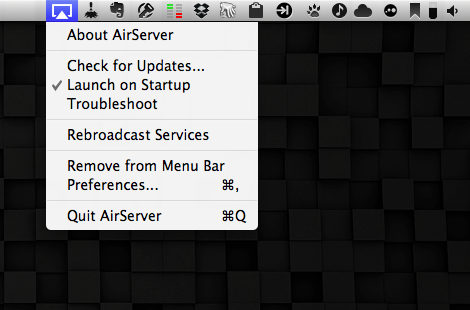
With AirServer 3.0, released yesterday, the developers have completely re-engineered AirServer to fully take advantage of iOS 5’s AirPlay and Lion compatibility. I’ve tested the app last night, and it’s already working fine on the Golden Master releases of iOS 5 and OS X 10.7.2. Once you’ve installed AirServer 3.0 as a preference pane (it’s also got a new iCloud-like icon) and assigned a name to your Mac (the one that will show up in the list of AirPlay devices on iOS), you’ll be able to send music, photos and videos to your Mac. Unlike the previous versions of the app, however, support for AirPlay streaming has been dramatically improved: music never dropped on my connection, not even once, and it’s possible to send photos and music at the same time. Thanks to iOS 5, AirServer has integrated seamless streaming transitions between photos, slideshows and videos – the app supports AirPlay slideshows from the Photos app on iOS, including animations that will be displayed on your Mac’s screen as AirPlay switches between photos. The transition between songs, photos and slideshows is smooth and much more natural than AirServer 2.

The big change in AirServer 3.0 is video streaming. With the new version the developers have replaced QuickTime Player with their own video player based off Perian, which is optimized for network streaming and multiple displays. I have tried the new AirPlay video streaming with several videos from my Camera Roll, YouTube and Safari, and it’s incredibly better than the old QuickTime-based streaming. The player looks nice, but more importantly it’s fast and loads videos coming from an iPhone or iPad much quicker than before. You can use the video player in full-screen mode, or resize its window to fill a portion of the screen.

At $7.99, AirServer is a complete solution to turn your Mac into an AirPlay receiver for music, photos and videos. Get it here.


Verbs IM Client Gets Native iPad Version

Since the original iPad came out last year, we’ve seen the device’s app platform mature and evolve into a rich marketplace for desktop-class apps like OmniFocus, 1Password, Reeder and Twitterrific. However, for as much as there are hundreds of thousands of apps for the iPad and many of them are fantastic pieces of software, users have always felt the lack of a beautiful, functional IM client for the iPad. There’s a number of apps in the Store to access AIM, Facebook Chat and Google Talk from a unified interface, but none of them have sported the typical attention to detail, simplicity and intuitive interface that you would expect from a native Apple app, in our case the iChat for iOS that was never released.

Verbs, the IM app that we’ve covered several times in the past here on MacStories, gained a universal iPad update earlier today, adding a new, great-looking iPad UI that will feel instantly familiar if you’ve used Verbs for iPhone.

Verbs for iPad retains the same interaction schemes, color palette and features of its iPhone counterpart. You can log in with Google Talk, AIM, MobileMe and Facebook, and set up multiple accounts; you can configure file sharing through CloudApp or Droplr so you’ll be able to upload images from a chat, and have them available elsewhere as well. You can browse your buddy list in a sidebar or inside a popover menu (Verbs for iPad supports both landscape and portrait orientations) and tap on a contact to start chatting. You can pinch on the chat window to open the Chats view, which lets you swipe between multiple open conversations so you can stay on top of everything. And just like the iPhone app, Verbs for iPad sells you a $4.99 in-app “Pro” purchase to unlock notifications and idle times up to 7 days. With the upcoming iOS 5 and Notification Center, receiving push notifications from an IM app like Verbs doesn’t sound annoying at all – Notification Center will help you keep track of all your missed chats. And if you’ve already purchased Verbs Pro on the iPhone, you can unlock it for free on your iPad too.

All the other features of Verbs for iPhone have been ported to the iPad: you can email conversations, send links to Instapaper, and view iWork documents right within the app.

Verbs is the only IM client I use on my iPhone, and starting today I’ll be keeping the app on my iPad’s home screen. Verbs looks great, it’s easy to use and doesn’t overwhelm you with information; it also lets me share files with my coworkers on the go thanks to CloudApp integration. I have no doubts many have been looking forward to today to start using an IM client on their iPad. Verbs is only $0.99 on the App Store.


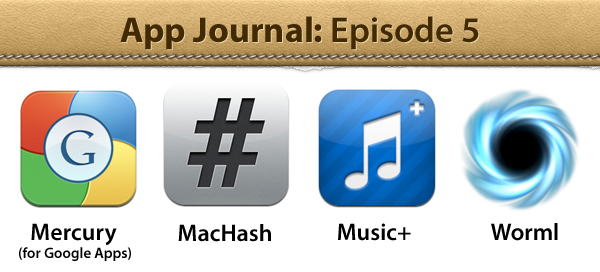
App Journal, Episode 5: Mercury, MacHash, Music+, Worml

App Journal is a weekly series aimed at showcasing apps we have enjoyed using on our iPhones, iPads, and Macs, but decided not to feature in a standalone, lengthy review here on MacStories. App Journal is a mix of classic reviews, weekly app recommendations, and a diary of our experiences with apps that still deserve a proper mention.

Amidst iPhone 4S and Siri announcements, the sad news of Steve Jobs’ passing and iPhone pre-orders, App Journal took a break last week and is back this week with quick episode in preparation of the app releases that will follow after the launch of iOS 5 and iCloud on October 12th. You can expect a whole new category of apps for iPhone, iPad and Mac once iOS 5 and iCloud will be available to all users – developers have been spending all summer studying the new APIs, which include pretty neat things like Twitter integration, Newsstand, and iCloud Storage.

In the meantime, I’ve collected four simple apps that I’ve been trying in between Apple keynotes and iPhone 4S news. Check them out after the break, and stay tuned for more App Journal episodes in the next weeks. Read more


Tweet Speaker: Listen To Your Twitter Timeline

At the “Let’s talk iPhone” media event earlier this week, Apple officially previewed Siri, a voice assistant that will be integrated with several functionalities and apps of iOS 5 on the new iPhone 4S: Siri is a new way to get things done and obtain information just by asking. In the Siri demo, Senior VP of iOS Software Scott Forstall showed that it’ll be possible to get word definitions, look up anything on the Internet, do basic currency conversion, create reminders, and more. In fact, the list of Siri commands seems quite impressive, and the fact that the system is integrated with online services like Yelp and Wolfram Alpha should allow for always up-to-date, reliable and real-time data that lives outside the iPhone itself, but it’s immediately accessible.

What Apple didn’t preview during the Siri demo, and which I’m not sure will ship with the final version of the app next week, is Twitter integration. In iOS 5, Twitter is integrated systemwide to let you tweet photos and webpages, update your Address Book contacts and sign in with any Twitter enabled app. But will Siri be able to read your Twitter timeline? Or send a mention to a specific user? Or, again, will Siri eventually get these capabilities, if not next week perhaps in a few months?

I don’t know, but right now, there’s this sweet new app by App Cubby out in the App Store, it’s called Tweet Speaker and it lets listen to your Twitter timeline for $2.99.

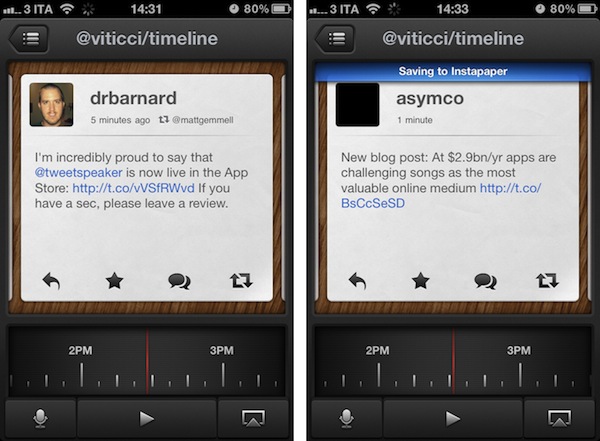
Both App Cubby’s website and iPhone app share a beautiful design and attention to detail. Tweet Speaker offers an interesting mix of dark UI elements, clean and simple tweets and 3D buttons that provide a nice contrast again the wood texture in the background. Tweet Speaker looks great, and its interface is functional to the app’s main feature. Once authenticated with your Twitter account, Tweet Speaker will begin loading tweets from your timeline; alternatively, you can switch to mentions or a specific Twitter list. In the timeline view, a bar at the bottom lets you move between hours of the day and jump to, say, tweets from the afternoon or early in the morning. Tweet Speaker is fast at loading tweets and it’s even got support for Tweet Marker, if you’re already using the service in apps like Twitterrific or Tweetbot. A nice touch in Tweet Speaker’s UI are the small notification popups that will appear on screen as tweets are loaded or items sent to Instapaper (natively supported), and I also like the app’s horizontal pull-to-refresh that appears as you reach the most recent tweet in your timeline.

As you hit the play button, Twitter Speaker will start reading your tweets. There’s only one male voice available now (more will be coming soon), and it sounds pretty natural. I like how this voice treats retweets and mentions differently, saying “Mark retweeted  from Chris” or “Tim said in reply to Sofia” – it even goes as far as trying to fetch the title of an http:// link when available (like the title of an article on this site). Perhaps the touch functionality of Tweet Speaker won’t be used much when jogging or driving, but the app enables you to reply to tweets, retweet them, mark them as favorites, and load conversations between users. You can follow/unfollow users directly from Tweet Speaker, configure a tap&hold action for Safari or Instapaper – you can also send your iPhone’s audio to AirPlay to listen to tweets on the big screen or through your favorite speakers.

Tweet Speaker isn’t your regular Twitter client, it’s a Twitter companion that you might find useful if you’ve ever wanted to be able to listen to your Twitter stream while looking at a beautifully designed app. Get it here.



Sparrow 1.4 Gets CloudApp Integration, Pull to Refresh

Sparrow, the minimal email client for the Mac that recently gained with full Lion compatibility, received a new update in the Mac App Store, this time adding native integration with file sharing service CloudApp, a “pull to refresh” gesture to check for new messages, and a number of fixes and improvements aimed at enhancing the email experience and make it faster and more stable.

With CloudApp support, users are now able to drag & drop files into Sparrow’s compose window, and have the app automatically upload them to CloudApp and insert a clickable link in the message. Once authenticated with your CloudApp account in Sparrow’s preferences, every time you’d like to send an attachment through CloudApp, you won’t need to have CloudApp installed on your Mac: Sparrow will directly communicate with CloudApp’s servers and upload the file for you. The UI for this action is very simple – the top section of the message is a CloudApp “drop zone”, while the lower part at the bottom is for classic email attachments as explained by the developers in this article. There is a new cloud indicator in the top toolbar of the compose window to show the status of an upload, which will turn blue after it’s complete. Overall, CloudApp integration is well done, simple and useful if you share with CloudApp on a daily basis.

Sparrow 1.4 also comes with the “pull to refresh” gesture made popular by Loren Brichter’s Tweetie on the iPhone years ago, and later implemented by thousands of other App Store apps. In Sparrow, you can pull the inbox to check for new messages, and whilst I don’t think I’ll ever use this functionality as I like my email client to stay in the background and refresh every few minutes automatically, I assume some people who want to manually check for new messages will like this option.

As usual with every Sparrow update, there’s a series of bug fixes and improvements under the hood. Sparrow now syncs and sends emails faster than before, and Gmail-like reverse threads have been implemented in the conversation view. Sparrow is now compatible with Zoho and Lotus Domino, it’s got a new draft management system and the mail database has been improved, too.

Sparrow 1.4 can be considered a minor update, but it’ll make those who rely on CloudApp for their file sharing needs more efficient when dealing with email. You can get Sparrow 1.4 on the Mac App Store.