Posts in reviews

Exploring MoneyWiz: Complete Personal Finance Control On Your iPad

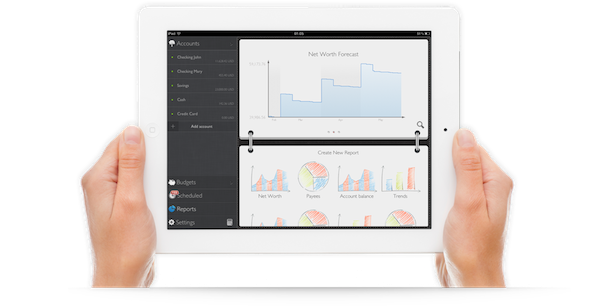
It wasn’t originally a New Year’s resolution to keep better track of my spending, but by the way things have turned out, it almost seems as if it was one. Early in January I began looking for a good Mac app for exactly this task. Originally I had hoped that Saver, an app I reviewed last year had since released an iPad app that I had not heard about – I really liked the app but wanted it on the iPad or Mac. Unfortunately Saver is still iPhone only, so I looked around a bit longer, asked around and tried a few apps on the Mac. I wasn’t thrilled with what I found. They all seemed a little to complex for what I wanted, so I kept looking. I forget how, but I eventually stumbled upon MoneyWiz which is available on the iPad and iPhone (at the time it was called SilverWiz). The developers haven’t yet released a Mac version (they’re working on it and expect to launch it in Spring this year), but they did give me an early look at the recent update to MoneyWiz for iPad (version 1.3), which launched late last week.

MoneyWiz for iPad does a couple of things: it keeps track of your expenses, allows you to set budgets (and track your progress), and provides you with the ability to create reports on various aspects of your financial situation. More importantly, I found MoneyWiz to be very flexible, not overly complex like some of the Mac apps I tried, and, at the same time, full of a wealth of features that should be sufficient for most individuals. Read more


Adobe Photoshop Touch Review

When I first heard that Adobe was bringing Photoshop to the iPad sometime last year, I was sceptical. I presumed it would be a very limited app compared to the powerful desktop app, or maybe just a slightly improved version of Photoshop Express. At best I thought it might give you some good editing tools to fix and correct photographs, perhaps with some layer support and effects. I didn’t think Adobe could pull off creating a great tablet version of Photoshop, and I wasn’t sure the iPad would be a good fit for the tasks in Photoshop.

So when I finally got to try out Adobe Photoshop Touch, I was intrigued to see what Adobe had accomplished. After a couple of hours playing around in the app (it accidentally went live yesterday, then Adobe pulled it) I’ve come away very impressed with what Adobe has accomplished. Photoshop Touch is a powerful and capable version of Photoshop for the iPad, without a doubt. To me, it is the latest iPad app that has demonstrated that the iPad is for more than “content consumption” — that’s just an old myth now.

It’s the apps that make the iPad great and Photoshop Touch is perhaps the prime example of the potential of the device and how flexible it is at becoming a great machine for a whole slew of different tasks, from reading, to writing, to viewing to editing and now, to using Photoshop for more than just basic photo edits. Sure, Photoshop Touch is still not as powerful as the desktop version, in fact it’s quite a distance away from reaching such parity — but it all comes down to the car Vs. truck analogy that Steve Jobs rather famously explained. Photoshop on your Mac or PC is still available for when you need to do complicated and advanced tasks, but for a lot of other tasks, you could probably migrate to the iPad and Photoshop Touch.

Enough with the introduction, let’s dive into our review of Photoshop Touch.

Read more


Buzz: My New Phone App Replacement and Contact Hub

I’m not typically one that likes to replace Apple’s core iOS apps with third-party alternatives, but Savvy Apps’ latest iPhone app, Buzz, allows me to access my contacts faster than Apple’s own Phone software, and I had to leave a spot for it in my Dock.

For the past two weeks, I’ve been testing Buzz, the latest production by iOS design and development firm Savvy Apps by Ken Yarmosh. Similarly to Agenda, also by Savvy Apps, Buzz comes with its own clean, custom UI focused on presenting text against a light background that contributes to increasing readability and finding things in seconds. Whilst I believe Agenda benefits more from this design aesthetic because of how it handles information density (a calendar app can get pretty busy), the same focus on clarity and simplicity works equally well for Buzz, which is a quick dialer/contact management app that emulates many of Apple’s Phone functionalities in a completely new interface.

Think of Buzz as a minimalist take on Apple’s Phone app, aimed at enhancing a few important functionalities, leaving out many others that are (at least in my workflow) rarely used. Whilst Phone.app obviously offers control over recently missed phone calls, the voicemail, and your system favorites, Buzz takes the “quick shortcut” aspect of apps like Launch Center and Matt Gemmell’s Favorites, combines it with group management and native integration with the Address Book, and comes up with a rather unique implementation that allows for a very lightweight usage, or deeper full-blown contact interaction. I believe many out there will find it hard to completely give up on the native Phone app – especially for the Recents view – but I found Buzz to be enough for me and, if anything, a better solution for my daily Address Book needs. Read more


Storify for iPad Review

Since its release in April 2010, the iPad has been widely regarded as a “consumption device” not really suited for “content creation”. Whilst we have already examined the issue with dismissing the iPad as a device that’s not capable of doing the same things a computer can – and my friend Shawn has a good take on why “content” generally is an awful marketing umbrella – the Storify iPad app, coming today for free on the App Store, is yet another example of how the iPad is changing the way we create through unique interfaces built around touch and the strengths of iOS.

Storify is an interesting service. Per se, Storify isn’t strictly focused on allowing you to create original content (images, text, or a combination of both) that you can share with your friends; rather, Storify is a curation tool that, among other services, leverages Twitter and the openness of the web to let you create “social stories” based off elements shared by people you follow, or just about anyone else on the Internet. Storify wants to tell stories by “curating social media”. I have covered the topic of curation – especially Twitter curation – several times on MacStories, and I recently mentioned Storify in my review of Tweet Library, an iOS app by Manton Reece that enables you to create collections of tweets for future reference. As I detailed in the article, Storify integration in Tweet Library means you can easily collect tweets from a variety of sources (people you follow, Twitter lists, favorite tweets – Tweet Library does a great job at breaking up Twitter sections in neatly organized “sources” panels) and publish them online as a bundle on Storify. The first official Storify iPad app, however, brings the full feature set of Storify (or at least the majority of its online functionalities) to the tablet, mirroring the web counterpart available at storify.com to allow you to create visually rich social stories that go beyond collecting data from Twitter.

I have been able to test Storify for iPad in the past weeks, using it to create and edit stories that I’ve embedded on MacStories such as this one, or this one. When I first talked to Storify CEO Xavier Damman about their upcoming iPad client, I wondered how well the team had managed to port the desktop user interface and experience of Storify, which is largely based on drag & drop, to the iPad. Furthermore, the Storify web app benefits from the desktop nature of the web browser, which makes it easy to switch between dozens of tabs, collect links, snippets of text, and images, or simply open links from other applications without having to worry about “switching back” using a multitasking tray, such as the one we have on iOS. These are all problems a native iPad app should somehow address, I thought, as it’s not just as easy and quick to switch between the browser and multiple sources on an iPad, and I wouldn’t want the Storify creation process to become slow or, worse, cumbersome. It turns out, the Storify team solved the problem with converting mouse interaction to multitouch, and quite beautifully. Read more


Screens 2.0 Review

I’ve always been a huge fan of Edovia’s take on VNC, Screens. Originally released in late 2010 for the iPad, Screens was also ported to the iPhone and later the Mac, allowing iOS and OS X users to connect to remote machines using standard VNC protocols (Lion logins are also supported by Screens), as well as Edovia’s own ScreensConnect utility to assign a unique hostname to computers behind networks that allow for outside access. To get an overview of Screens, you can take a look at some of your previous coverage.

Today Edovia is releasing a series of major updates to Screens for iOS and Mac, as well as ScreensConnect, which is now available at screensconnect.com to create a unique Screens ID for your Mac or Windows machine. I have been able to test the new Screens suite prior to its App Store release, and it’s still my favorite utility to quickly access my remote Mac mini, iMac, or MacBooks (Air and Pro) on my local office network. With its touch-driven UI, ease of use, and wide availability across devices (Mac, iPhone, and iPad for the Screens client; Windows and OS X for the desktop ScreensConnect utility), Screens is one of the most accessible VNC apps available on the App Store.

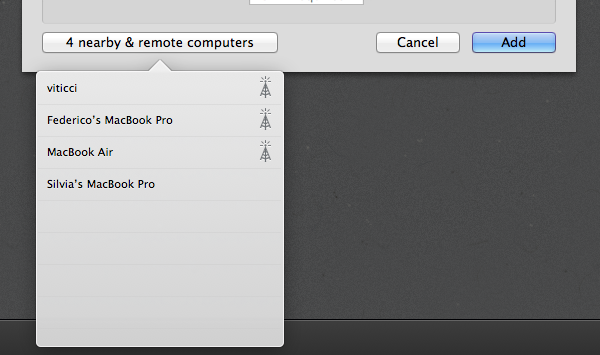
Since its release, I’ve always liked two things about Screens: touch controls and zero configuration. Once you download Screens, you’ll be able to search for computers that are advertising their screen sharing capabilities on a local network (on a Mac, make sure Screen Sharing is active under System Preferences -> Sharing), or add a machine that’s been configured to be reached using ScreensConnect. In the “Nearby & remote computers” window (a popover on the Mac), you’ll see computers from your local network, as well as those with an antenna icon next to them, indicating that they accept remote connections through ScreensConnect. The beauty of ScreensConnect, which is a free utility, is that it should make your computer accessible from outside your local network with literally no configuration, as the software takes care of (most) router settings and establishes a secure connection between a remote computer and Screens. As explained from the app’s Help section:

We could bore you with technical mumbo-jumbo but in a nutshell, Screens Connect monitors network changes, configures your router and sends this information on our server through a SSL encrypted connection so that Screens knows were your computer is and connect to it.

A note on ScreensConnect: whilst most modern routers support UPnP and NAT-PMP (required by Screens’ remote connection), some do not, so make sure you have a compatible model before considering Edovia’s Screens for its ScreensConnect functionality alone. I, for one, got ScreensConnect working just fine with my Fastweb connection in Italy (through Apple’s AirPort Extreme), as well as Telecom’s Alice (through an AirPort Express). Performance, as usual, depends on your Internet connection, so don’t expect ScreensConnect to magically improve speeds – there’s only so much smart connection scaling (from millions of colors to hundreds) can do.

Screens 2.0 comes with a new UI. Gone is the wooden texture of the previous versions, leaving room for a darker, more elegant background that will surely make your computer’s desktops pop. Whilst the change in visual presentation is welcome, much more functional is iCloud integration in version 2.0, which now allows you to keep your stored screens in sync across devices – and it’s just not “sync”, I was able to create a new screen on the Mac app, wait a few seconds, and see it coming up automatically on the iPhone and iPad, which were running Screens 2.0. Support for iCloud is fairly impressive and a godsend, because, honestly, adding the same screens over and over on multiple devices wasn’t really a great experience.

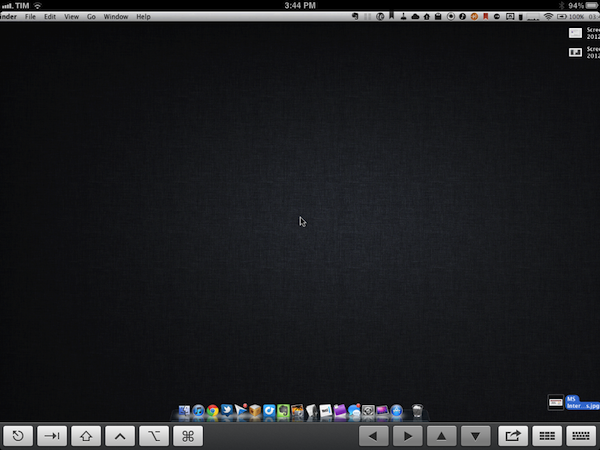
Alongside bug fixes, improved security and performances, and better support for wake-on-lan, Screens 2.0 comes with some additional new features. When controlling a computer, for example, Screens now displays a unified bottom toolbar that collects a series of shortcuts – including two types of keyboards, and an action button to grab a screenshot of the remote desktop (a new feature), disconnect, and open the Settings. On the iPad, this toolbar can be configured to become a swipe gesture area whilst in landscape mode, allowing you to associate a variety of commands to left or right swipes. The same app/Mac/window shortcuts can be configured with three and four finger gestures to perform directly on screen, and the selection here is very rich – for instance, you’ll be able to set up shortcuts to send the contents of your clipboard, or launch Mission Control.

Also new in Screens 2.0: you can reorganize screens in grid mode on the iPad, you can send the remote screen to an Apple TV using AirPlay Mirroring, and SSH Keys are now supported for SSH Tunneling. On the Mac, you won’t obviously get the iOS version’s custom keyboards and gesture support, but Screens 2.0 will support iCloud and auto-resume for ongoing connections.

With a new UI, better handling of remote connections, gestures, iCloud support, and a very intuitive touch-based VNC control system, Screens 2.0 is a fantastic update. ScreensConnect works as advertised, the iPad app benefits from the screen real-estate, and, overall, the app is very easy to use and configure. Screens, however, doesn’t come cheap, as the iOS app (universal) and Mac app will set you back $50 when combined. If you’re willing to pay for quality software and believe Screens’ feature set is right for you (make sure your router can work with ScreensConnect!), I’d personally recommend starting with Screens 2.0 for iOS today. Read more


Review: Osfoora for Mac

Osfoora Default Timeline.png

Osfoora Default Timeline.png

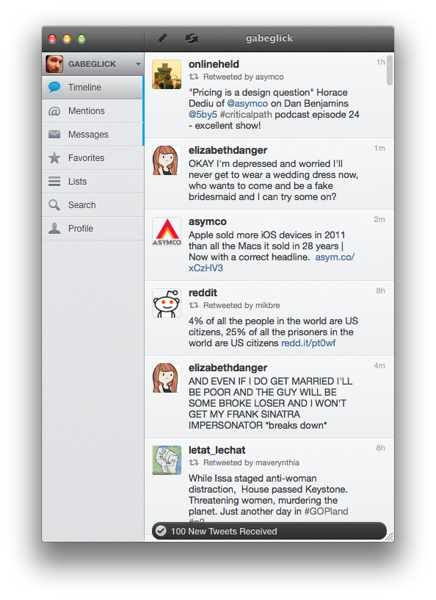
I have been a heavy user of Twitter for Mac since it was first released over a year ago. While certainly not perfect, for me, it is the gold standard of desktop Twitter apps. As such, it is impossible for me to be objective when reviewing a new client, as I will inevitably end up comparing it to Twitter for Mac (hereafter Twitter.app), so I’m telling you here and now that I didn’t even try to do otherwise. As a result, much of this review consists of comparisons between Osfoora and Twitter.app, and the best I can hope for is that other long-time Twitter.app users find it useful. So let’s get into it. Read more


Clear: A Delightful and Clever Todo App

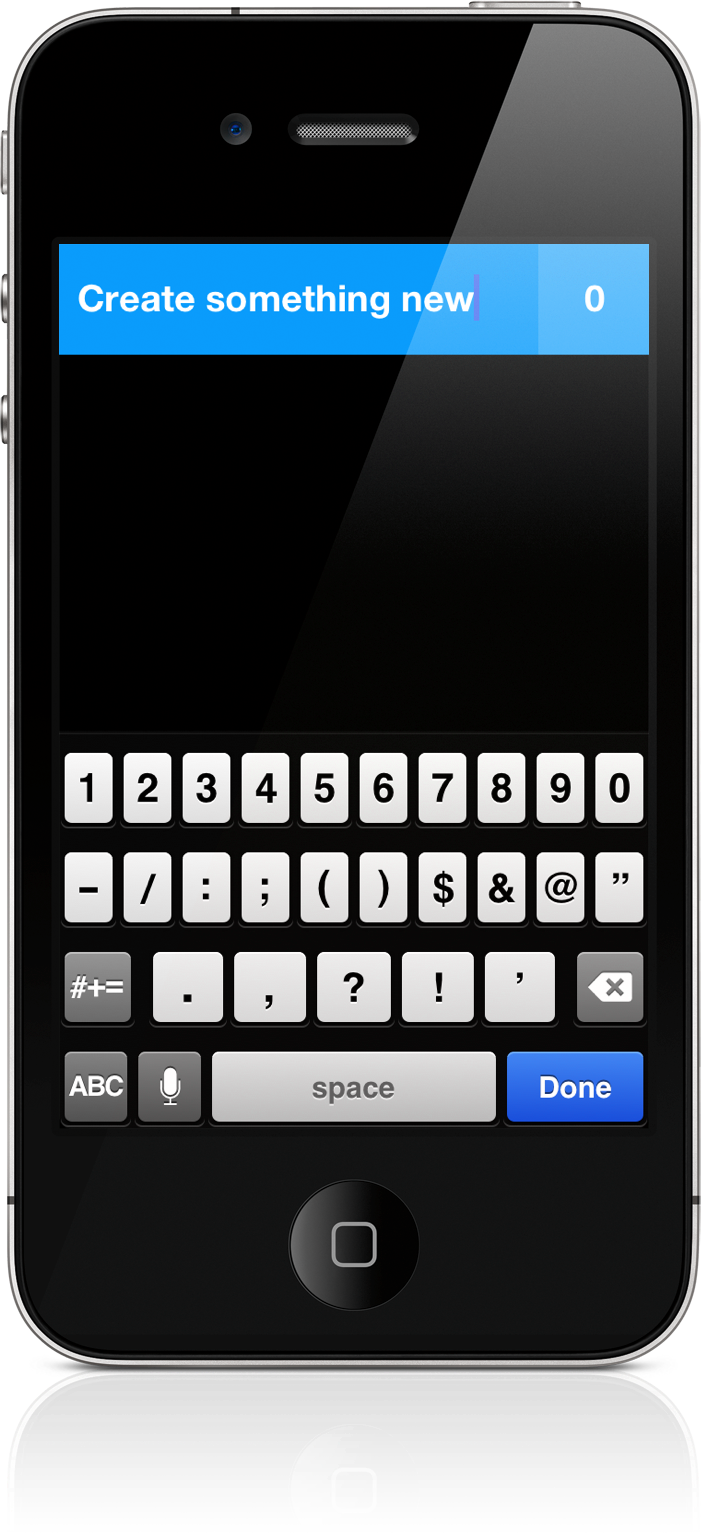
Some apps deliver a certain joy that simply comes from swiping and swooshing through the interface, poking at various elements, and pinching things onscreen. Clear is delightful — it will make you smile. It makes you reconsider the necessity of navigation bars and tool bars and tab bars. We’re used to switching views by tapping at back buttons or icons, but what happens when you take away these common navigational tools? You end up relying on your own honesty and the customer’s intuition. And an honest interface can bring about some terrific ideas.

Read more


App Journal, Episode 10: Daedalus Touch, Lovely Charts, Inside the World of Dinosaurs, Skip Tunes

App Journal is a series aimed at showcasing apps we have enjoyed using on our iPhones, iPads, and Macs, but decided not to feature in a standalone, lengthy review here on MacStories. App Journal is a mix of classic reviews, app recommendations, and a diary of our experiences with apps that still deserve a proper mention.

After a two month period of inactivity, the App Journal is back and we’ve got some cool apps to share. From text editing to beautiful diagrams and (gasp) dinosaurs, make sure you don’t miss Episode 10 of App Journal, brought to you directly from the MacStories Team, good coffee, and, why not, Italy’s snow.

If you’ve got apps to recommend, our Tips inbox is just a click away up in the site’s toolbar. Enjoy!

Federico Viticci - Daedalus Touch

When Cody reviewed the first version of The Soulmen’s Daedalus Touch for iPad back in May, I was intrigued by the app’s unique take on portable text editing and document management, but ultimately didn’t pull the trigger on a purchase as I didn’t believe I needed yet another take on Dropbox and text editors. Cody wrote:

Daedalus is interesting. Everything you create in Daedalus becomes a sheet, which exists under a topic sheet that creates a stack. It reminds me of writing a screenplay or developing a report with a cover sheet, but what’s more interesting is how you navigate between these sheets. A majority of the interactions in Daedalus involve pinch-to-zoom actions, which is a bold navigation choice that’s almost pulled off perfectly. You zoom in and out of stacks, and are able to browse between multiple sheets with simple flicks.

After seeing The Soulmen release a couple of updates to bring new functionalities and improve support for things like external hardware keyboards and system clipboard, I thought I could give the app a shot, especially considering it’s on sale at $2.99 on the App Store. In our review, Cody detailed how Daedalus Touch is different from the majority of text editors available on iOS as it allows you to navigate multiple stacks of documents through touch-based interactions based off gestures such as swipes and pinches to navigate in and out of sheets and paper stacks. Having used Daedalus, I think what’s really cool is that – attention to detail and elegant design/typography aside – Daedalus allows you to sync different Dropbox folders independently, meaning you’ll be able to, say, keep your standard notes in a first stack and your book writing project (with additional notes, chapters, and maybe drafts) in another stack. What I’d like to see in a future version of Daedalus Touch is support for more file formats (.md would be a good choice) and automatic sync to avoid the need of hitting “Save” every time.

If you’re looking for a different take on Dropbox-powered text editing, Daedalus Touch is an interesting option at $2.99 for a limited time. Read more


Smartr Contacts

Sometime in the past five years, the Address Book got social. Our contact cards suddenly gained Twitter handles and Facebook links, whilst users more oriented towards business relationships decided to add their LinkedIn pages alongside standard phone numbers and email addresses. More importantly, the Address Book became mobile: adding a new entry to the Contacts app on our iPhones pretty much equals to exchanging business cards now and, unsurprisingly, a new category of apps has arisen from the need of turning old cards into digital reinterpretations of that paper stack full of contacts we’d keep on our desk, but never properly organize.

From this premise, Xobni (that’s Inbox spelled backwards), makers of a popular email plugin for Outlook and Gmail, released Smartr for iPhone a few weeks ago on the App Store. Developed as a mobile companion to Xobni on the desktop, Smartr leverages all the features made possible by a digital interface (search, social integration, slick design, APIs) to provide you with a social address book that’s always up to date and keeps tracks of your communication with friends, family, and work contacts over time. It is very smart indeed.

Smartr basically creates rich profiles for all your contacts, aggregating data from Twitter, Facebook, LinkedIn, and email to form a complete overview of someone you might have communicated with in the past. In pulling this data from various social networks, Smartr uses its proprietary matching technology (the “Xobni Cloud”) to analyze and compare your contacts (from your Address Book, an interesting subject following Path’s recent PR fiasco) against conversation history from email (Gmail is fully supported), usernames from Twitter and Facebook, status updates, and so forth. Once a contact is matched, a rich profile view is created featuring name, photo, phone number, and email addresses. Smartr even allows you to swipe across the top section of a profile view to switch between a person’s various social profiles, which upon tap will correctly launch the official Twitter and Facebook apps (if installed).

But what to do with these rich, automatic and integrated profiles? Well, Smartr is largely focused on search, unlike, say, a tool like Friends that’s more geared towards interacting with people from your Address Book found on other social networks. Smartr’s prominent interface element is, in fact, a search box that lets you look up contacts by name, company, title, or email. I wish the app supported @username-based look-ups, as I might remember exchanging a message or two with @hrbrt, but I can’t recall his full name from further email communications. Smartr is fast: Searching more than 6,000 contacts on my iPhone takes seconds and the information is always up to date, as Smartr is also web-based in that Xobni’s servers are constantly analyzing and matching your contacts to provide the best results. You can read more about Xobni’s privacy policy here.

Once you’ve found a contact (I managed to retrieve contact information and conversation history from messages dating back to 2008), you can interact with the profile view to compose new emails, call a phone number, or send a new message. The History tab in the top toolbar will give you access to a nicely designed graph showing how many times you’ve appeared in a conversation with a contact, with the actual messages listed below and available for inline viewing if the associated email address is also configured in Smartr (the app will use the standard iOS mail view to enable this). The third tab, Common, shows a list of common contacts between you and the contact you previously looked up.

Smartr is very fast, reliably accurate, and has proven to be a nice addition to my workflow, especially for those times I want to look up an old contact (typically developers) that I want to get in touch with again. I wouldn’t mind paying for Smartr, but the app is free, and available on the App Store. If mail integration is your thing, make sure to check out Xobni’s popular Gmail plugin as well.