Federico Viticci

10766 posts on MacStories since April 2009

Federico is the founder and Editor-in-Chief of MacStories, where he writes about Apple with a focus on apps, developers, iPad, and iOS productivity. He founded MacStories in April 2009 and has been writing about Apple since. Federico is also the co-host of AppStories, a weekly podcast exploring the world of apps, Unwind, a fun exploration of media and more, and NPC: Next Portable Console, a show about portable gaming and the handheld revolution.

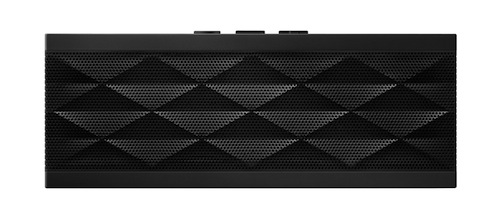
JAMBOX 2.1 Software Update

JAMBOX 2.1 Software Update

When Jawbone shipped the 2.0 software update for the JAMBOX (my review), I was very disappointed. Not only I couldn’t experience the three-dimensional binaural recordings (in spite of listening multiple times to the dedicated Spotify playlist) – the update itself made overall audio quality considerably worse, even with LiveAudio turned off. I’ve heard mixed responses about the 2.0 update (some people seemed to love it, others couldn’t stand it at all), and whilst it didn’t stop me from using the JAMBOX every day, I was definitely looking forward to the “fix” that Jawbone promptly promised. On 2.0, sound was distorted, “cold”, fuzzy – it wasn’t the same JAMBOX I bought.

With the 2.1 update released this week, Jawbone seems to have fixed most of the annoyances that creeped into version 2.0. I still can’t fully understand (or, for that matter, hear) LiveAudio, but the JAMBOX engineers have restored the device’s original audio and introduced a new Sound Clarity option that delivers distortion-free audio at high volume levels when LiveAudio is off. From Jawbone’s email about the update:

You can also enjoy a clearer, distortion-free sound when LiveAudio is OFF by turning Sound Clarity ON. When Sound Clarity is ON, the software uses an audio tuning algorithm that cleans up distortion at high volume levels. Sound Clarity is OFF by default - to turn it on, go to Advanced Settings in MyTALK and set “Sound Clarity” ON.

After a full day of testing, I can say I like this latest software update. A lot. I’ve listened to Pink Floyd, Biffy Clyro, Kasabian, Blink-182, Bon Iver and Noel Gallagher this afternoon, and sound quality was at the same level of my original JAMBOX review. With Sound Clarity on, the JAMBOX perhaps loses a bit of detail and bass deepness, but there’s a sensible gain in loudness with clearer sound.

Go update your JAMBOX right now. You can visit mytalk.jawbone.com to download the latest Jawbone Updater for Mac, and then configure LiveAudio and Sound Clarity directly in your browser. Highly recommended.

Permalink

Reuters: Brazil’s $12 Billion iPad Deal Is “In Doubt”

Reuters: Brazil’s $12 Billion iPad Deal Is “In Doubt”

According to Reuters, Brazilian officials are claiming the $12 billion deal between Brazil and Foxconn, maker of the iPad, is “in doubt” because of a lack of an agreement on tax breaks, work conditions, and other “crazy demands” by Foxconn. It appears the talks between the local government and Foxconn have been difficult, mainly due to Brazil’s high taxes and non-skilled workers that don’t meet Foxconn’s expectations. These demands may also include priority treatment at Brazilian customs, Reuters reports.

We’re dealing with a lot of issues, like the (Taiwanese) trying to figure out how to do business in Brazil … and Brazil figuring out how to produce these complicated products,” a second government official told Reuters.

Maybe we will end up starting with something smaller.

The deal between Foxconn and Brazil was announced back in April by Brazilian’s President Dilma Roussef, with production set to begin in July. The date was then pushed back to November, and more recently Brazilian Minister of Science and Technology, Aloízio Mercadante, said that the new factory was “ready” and making iPads that would start shipping in December.

Permalink

Apple To Stop Shipping Boxed Software to Educational Resellers

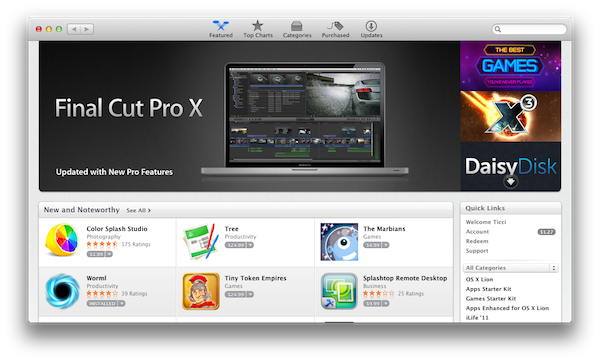
According to a report by ZDNet’s Jason O’Grady, Apple has informed educational resellers and customers of academic institutions that they will no longer receive boxed copies of Apple software like Snow Leopard, iLife, and iWork. With the exception of Snow Leopard, required to upgrade to OS X Lion and still available on Apple’s website, all the apps mentioned in the letter have been released on the Mac App Store, including Apple Remote Desktop and Aperture, the latter with a heavily discounted price compared to its physical counterpart.

Apple confirmed today that, with limited exception, they will cease to ship boxed software to campus resellers. This includes Mac OS X Snow Leopard , iLife, iWork, Apple Remote Desktop, and Aperture, among others.

We have a limited supply of copies of each in stock in the store, so consider this a “last call” for anyone who would like a hard copy before they are gone. Particularly anyone who would like to get Snow Leopard, as we just received our final shipment of that version of the OS.

The only products that will remain as boxed software offerings are Logic Express and Logic Studio.

The obvious move towards digital downloads falls in line with Apple’s recent Mac App Store-only strategy: the discontinuation of MobileMe boxes and less space for boxed software in Apple retail stores; the popularity of the Mac App Store as a digital distribution platform; the release of new major upgrades (Lion, Final Cut Pro X) exclusively on the Mac App Store. Clearly, Apple is putting all the pieces together to eliminate boxed software completely from its future offerings. There are a few exceptions of course – Apple had to release a physical copy of Lion for users unable to download the 4 GB installer, and recently made the old Final Cut Studio (boxed copy) available again through tele-sales. But as this “last call” to educational resellers confirms, Apple’s future software distribution won’t include boxed copies, not even for academic institutions.


Quora Releases iPhone App

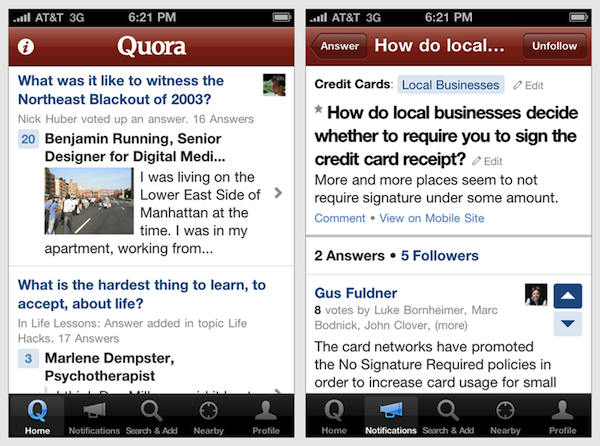
Quora, the question-and-answer website publicly launched in summer 2010, has released its first official iPhone app today, free on the App Store. For those not familiar with Quora, it’s a community-driven resource for answers on a variety of topics including technology, science, sports, media, health, and more. Quora aggregates topics and questions, allowing users to collaborate on them and vote the best answer to a specific question. Each “author” has a profile with detailed stats for recent posts and answers, activity and “related answers”. Quora has been widely regarded as a revolutionary knowledge platform comparable to Wikipedia.

The iPhone app brings many of the features that made Quora popular on mobile devices (the app also runs on the iPod touch) and adds a “nearby feature” to browse topics on a map, add or answer questions about a place near you, or simply explore questions on a map overlay. You can view your profile, ask and answer questions, or read your feed for interesting questions and topics you might want to follow.

The developers of the Quora app write:

When Neeraj Agrawal and I started working on the app earlier this year, we spent a lot of time thinking about how to translate both the experience and the technology of Quora to a mobile platform. We rethought the design from the ground up and worked hard to make it fast and native while strengthening the core product. Now, just like on the Quora web site, you can read your feed, search and add questions, check your notifications and add answers and posts.

We’ve also made existing features like Shuffle even better. You can find Shuffle at the bottom of your feed. It’s perfect for surfacing even more great content when you’re stuck at a bus stop and looking for something to read.

Quora for iPhone is available for free on the App Store.


“Universal Save” for iOS Apps

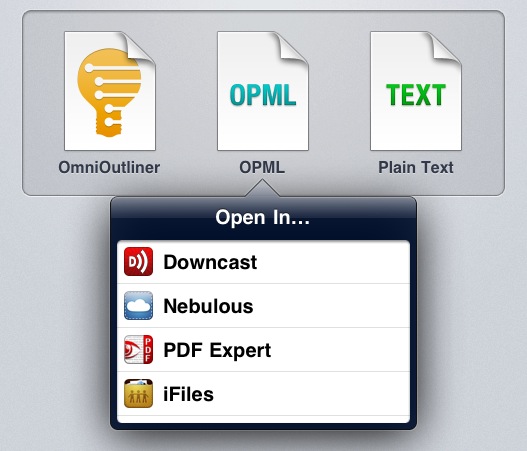
Ted Landau at The Mac Observer covers an issue I’ve mentioned several times in the past, which Apple has partially fixed with the last releases of iOS: saving documents and moving them across apps. Specifically, Landau notes that the lack of a “universal save” option for documents that can be read by third-party apps (PDFs, text files, images) leads to an annoying and pretty much useless duplication of content. Apple has implemented an “Open In…” menu to send files to other apps, but the file that’s being sent is a copy. iOS apps can’t read and modify a source file from a single location.

Currently, iOS does not come close to matching the advantages of Mac OS X here. There is no way to have a unifying folder in iOS that contains related documents from different apps. There is no way to have a document easily opened in different apps, where any changes you make in one app are instantly accessible by all the compatible apps. You can come closer with Dropbox, but closer is not good enough here.

That’s annoying for me, too, as I constantly switch between apps to get my work done, and it’s not like I don’t enjoy trying new ones. This typically leads to some sort of geek frustration – why can’t Apple build an invisible layer that lets Elements edit a text document from Evernote and Pages access the same file?

For Ted and me, yes, being able to avoid file duplication and tedious exporting processes would be nice. But I do wonder how much does Apple care about such functionalities considering the underlying paradigms of iOS and the upcoming iCloud functionalities of iOS 5. For one, Apple really cares about application sandboxing: each app has its own controlled data environment and only a few items can be shared between multiple apps. Apple cares about sandboxing so much that they’re bringing it to the Mac App Store. Would iOS sandboxing allow for a source file to be edited and “saved” by multiple apps? Where does that file belong to, technically? Would iOS apps be able to write specific metadata to it? And what happens if, hypothetically, this “shared” file needs to be pushed back and forth with iCloud?

I’m no iOS developer, but I can see this proposed “universal save” model becoming an issue when on iOS, unlike the Mac, there’s no visible, centralized Finder location to write and read files from. In fact, Ted is right when he says that the convenience of a Mac is being able to create “a folder that will contain all the assorted files needed to put his column together”. That’s made easy by the Finder – but on iOS? Apple allows third-party developers to plug into the Music library or Camera Roll, yet there’s no Apple app to “create text file here” or “save webpage from Safari here”. Again, the lack of an iOS Finder would require “universal save” to work inside any app. iDisk could have been a centralized location for files – it could have even been Apple’s “answer to Dropbox” – but it’s not going to be supported by iCloud.

And then there’s the conceptual issue of an iOS device being the app that you’re using. When you use Pages on an iPad, the iPad is a word processor. When you browse the web with Safari, you’re holding the web in your hands. On a technical level, this app console model is represented by sandboxing and one-way “Open In” menus, and soon iCloud-based documents that allow multiple versions of the same app to access files. Would a “universal save” option somehow break the illusion that you’re holding an app, reminding us that we’re using a device with multiple layers of abstractions including a filesystem?

I don’t know. I believe I’d like this feature in theory, but I wonder if there would also be a considerable trade-off to accept.


On Amazon, Ecosystems, And “iPad Killers”

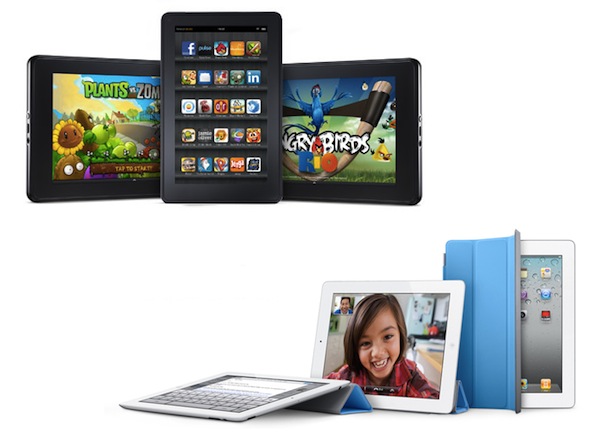
Earlier today Amazon announced a completely revamped Kindle family, which includes the standard $79 Kindle, the $99 Kindle touch, and the much-anticipated $199 Kindle Fire tablet. Ad-supported options and hands-on coverage aside, I’d like to quickly touch upon a common mistake in today’s tech headlines – that the Kindle Fire will “kill” the iPad.

First off, Amazon gets it: they know an ecosystem has to scale to different devices and operating systems, so they diversified their approach to ebook reading and media consumption with three different sets of Kindle (Keyboard/$79 Kindle, Touch, Fire) all tied to a single defining feature: your Amazon.com account.

In discussing Microsoft’s approach to the concept of ecosystem when compared to Apple’s, I wrote:

In Apple’s vision, separate operating systems can live inside the same ecosystem. The single defining aspect of this vision is the Apple ID, which on iOS devices, Macs, PCs, and web browsers gives you access to:

- Songs, Movies, TV Shows, Books, Podcasts;

- Apps;

- The Apple Online Store;

- Your iOS device’s location (still free with MobileMe);

- Email, Calendar, Contact and data sync with MobileMe;

- Your desktop operating system (with Lion’s Apple ID support).

Compare this to Amazon, which is doing the following:

  • Amazon Prime: faster shipping times and Instant Video;
  • Amazon MP3;
  • Amazon Kindle;
  • Amazon Appstore;
  • Amazon Web Services.

Amazon is building an ecosystem, and all you need to access these services is a single Amazon.com account, possibly connected to a credit card. Like Apple, it may be difficult to keep everything in one account, but it’s not like the average consumer needs all the functionalities of Web Services anyway. Furthermore, Amazon controls its platforms with the web infrastructure they’ve created, and the newly announced Silk browser is the perfect example of how Amazon should also be able to somehow control and optimize web traffic operated by its devices.

There’s more. Amazon gets it because they’re offering a limited choice of devices to use with their ecosystem. Many often cite Apple’s product line-up as an example of simplicity and “just one model” philosophy, but if you think about it, there are multiple ways to get started with iOS:

  • iPhone (two colors, different storage options, carrier variations);
  • iPod touch (different storage options);
  • iPad (two colors, different storage options, carrier variations).

and the Mac (all with multiple configuration options available):

  • MacBook Air;
  • MacBook Pro;
  • iMac;
  • Mac mini;
  • Mac Pro.

Amazon may kill off some members of the Kindle family soon (DX perhaps?), but here’s what they offer today to access the Amazon.com ecosystem:

  • Kindle;
  • Kindle Keyboard;
  • Kindle DX;
  • Kindle Touch;
  • Kindle Fire.

The similarities in the underlying concepts of “ecosystem” and “uniqueness” between Apple and Amazon are clear, but there are some key difference that many people don’t seem to properly consider when referring to the latest Kindle Fire as an “iPad killer”. Assuming that by “killer” they actually imagine a scenario where people will stop buying iPads altogether and start seeing the Fire as the only option, Amazon would still need Apple’s retail power at an international level. These people that write “iPad killer” seem to forget that the iPad is available in 64 countries today. Amazon’s Kindle Fire will ship November 15th in the US. So let’s put the “killer” argument behind us once and for all.

Amazon is about to launch a product that may end up being a feasible alternative to the iPad for some people, a product shares several similarities with Apple’s approach to the digital ecosystem. I have no doubt Amazon will sell millions of these new Kindles, and I think the Fire in particular will prove popular with families, readers, movie watchers, gamers – average consumers that may prefer a cheaper device integrated with the Amazon.com account they already have and use daily.

It’s hard to form a complete thought on Amazon’s new strategy because they’re just getting started. The unification process of Amazon’s ecosystem and diversification of unique devices begins today, and the Kindle Fire will ship in less than two months. It’s hard to imagine whether Amazon’s long-term plan is “trying to be like Apple” with international releases, rich App Store, deals with music labels, partnerships with carriers, and so forth. It’s also worth considering that Amazon isn’t completely independent from others yet, as the Kindle Fire runs on a modified version of Android 2.x with possible legal implications in patent fees. And more importantly, it doesn’t even make sense to “judge” the Kindle Fire right now as a winner or PlayBook when we even haven’t tried one. But two months from now, right ahead of the holiday season, let’s picture the following situation: assuming an average consumer interested in reading, listening to music, playing games, watching movies and browsing the web has $500 to spend, will he pick an iPad or a Kindle Fire? And is there a reason to pick both?

That’s where ecosystems prove their strengths.


Control Multiple Macs with Teleport

I don’t always use two Macs simultaneously, but when I do, either there’s an Apple keynote or I’m trying new apps.

That’s how I stumbled upon Teleport, a free OS X utility, last year when I needed to switch back and forth between MacBooks during an Apple keynote, and why I decided to take the app for a spin again now that’s been updated for Lion. Teleport isn’t new to Mac users – in fact, it’s been around since Tiger and it’s probably the most popular app to control two Macs on the same local network. Now that version 1.1 is out with support for Lion and multi-touch gestures, I thought a fresh mention would be appropriate.

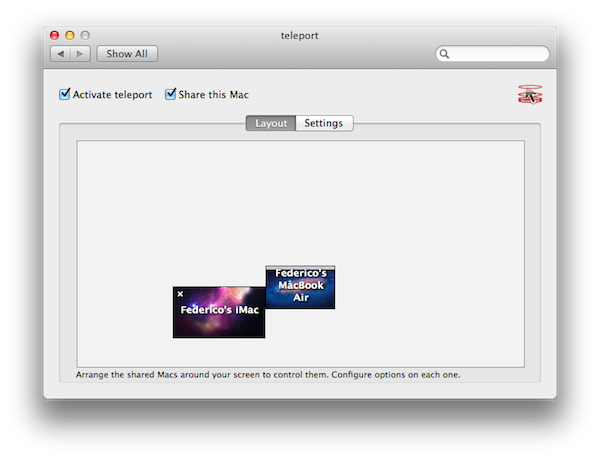
Teleport is extremely simple in what it does, although it uses some advanced technology to accomplish it: once installed in System Preferences, Teleport allows you to move your cursor (and keyboard) between multiple Macs. Teleport recognizes Macs “shared” on the same network, and through a system similar to Apple’s “hot corners” and based on Bonjour, it lets you “teleport” the mouse across screens.

Shared Macs that have Teleport activated in the settings will show up with their respective desktops in the app’s panel; you can arrange Macs placing them next to a main computer’s screen so you’ll remember how to switch displays, and configure options in a dedicated sub-menu. These options include handy things like “switch only if key is pressed” or “share pasteboard”. In this latest version of Teleport you can assign a keyboard shortcut to switch to another Mac, and Lion’s gestures are fully supported so you’ll be able to perform three-finger swipes and other Mission Control trickery on a Mac running Lion.

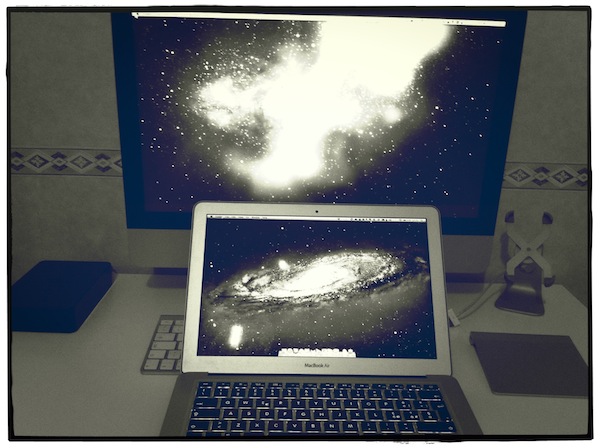
When controlling my iMac through my MacBook Air’s trackpad and keyboard, I was able to drag & drop files using Teleport, and have the contents of the pasteboard from my MacBook Air automatically synced on my iMac. There are several utilities to control how the pasteboard is shared and synced across local Macs, but Teleport manages to make the whole process “invisible” in a package that also happens to do much more.

For instance, Teleport supports encryption for file transfers, and you can read more about it on Abyssoft’s website and the ReadMe file included in the download. Long story short: you can generate your own certificate to activate encryption and it’s even easier if you already have a .Mac account. Also in Teleport’s settings, you can enable a menubar item, bezel, and sound notifications. The sound effect is particularly neat when you switch between Macs, as it really gives you the sense of something “travelling” between two spaces (Teleport also displays a quick animation at the side of your screen). Control requests are also handled well between shared Macs, with options to “ask me if host can be trusted”, “reject if host not already trusted” and “automatically accept”. If you leave Teleport always running, when a shared Mac comes back online a red indicator will flash on the previously configured side of the screen.

Version 1.1 includes a few more features like:

  • Host specific options: you can define the switching and sharing options per host, to have different settings.
  • Propagated options: the options you set for a host also apply when coming back from it.
  • Full multi-screens support: all screens of shared Macs are now visible, so pairing a secondary screen is much easier than before.

Teleport isn’t new, but it’s nice to see the app working well on Lion with gestures and multiple displays. If you happen to control multiple Macs every once in a while, give Teleport a try. It’s a free download (and make sure to donate if you really like it).


Apple Second “Coolest Brand” In The UK

Apple Second “Coolest Brand” In The UK

According to the latest CoolBrands survey, Apple’s gadgets and computers aren’t the coolest brand among UK consumers, leaving the #1 spot to British manufacturer of luxury cars Aston Martin. The BBC reports this morning:

Stephen Cheliotis, chairman of the CoolBrands Expert Council, said: “Cool is subjective and personal. But being identified as a Cool Brand by the British public and a panel of influential opinion formers implies it is a brand that most Brits wish to own.

“Votes are based on a wide criteria of factors but these brands are clearly delivering cool in the eyes of consumers and influencers alike,” he said.

Apple’s devices are often described as elegant and “cool”, but there’s no denying Aston Martin’s James Bond cars have their very own historic charm, too. In this year’s CoolBrands index – which is voted by consumers as well as a group of “experts” in brand recognition and popularity –  BlackBerry and Google came at 6th and 7th place, respectively, with Harley-Davidson behind Apple at the 2nd spot. The full list can be viewed on CoolBrands’ website.

Permalink

Realmac’s Analog: Apply Filters & Share Your Photos

Released today on the Mac App Store after months of teaser videos and private betas, Analog is the latest creation by Realmac Software, makers of great apps for the Mac like Courier and LittleSnapper. As the early preview videos suggested, Analog is an application to quickly edit and “beautify” your photos in a way that has been made popular recently by iOS apps like Instagram and Camera+ or, on the Mac, Flare by The Iconfactory. Whilst Analog undoubtedly shares some similarities in the main concept with these applications (pick a photo, apply a filter, share it), the execution and attention to detail of the Realmac team makes sure Analog can stand out from the crowd of post-processing utilities.

I’ve been playing with Analog, and I like it because it is extremely simple, focused, and elegant. Everything from choosing a filter to cropping an image has been made intuitive and fast, with some graphical elements (like the sharing menu) inspired by recent iOS interface guidelines brought over to OS X by Apple. Most of all, Analog is fast: I tried the app on my 13-inch MacBook Air (entry model), and filters were applied in less than a second – Analog is very snappy and responsive.

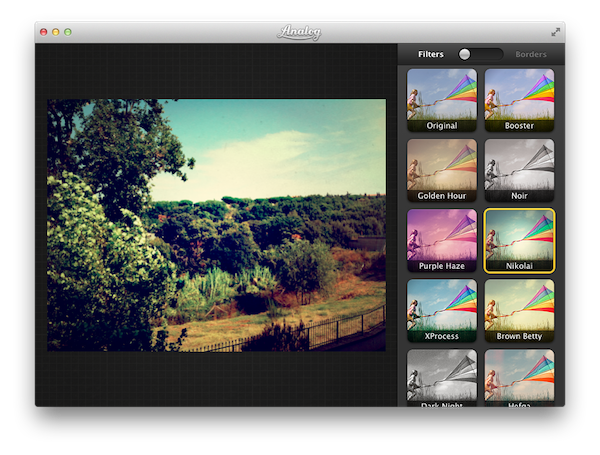
When you fire up Analog for the first time, you’re presented with a large “drop” area on the left, and a sidebar for filters and borders on the right. To start editing an image, you have to drop it into Analog’s main window; once an image is in there, you can start choosing filters and borders to “give your photo some soul”, and share it with your friends. The typical navigation and usage pattern of Analog is fairly simple: import photo, process, share.

Analog offers 20 filters, which have been carefully researched by Realmac over the past months to make sure each one of them has its own personality (something we know that matters in this kind of apps) and will make your photos look great. Now I’m no photography expert, but I can recognize a nice filter when I see it. Analog’s filters range from washed out (Hefga, Golden Hour) to black & white (Noir, Dark Knight, Bromide – three B&W variations with different grey scales and contrast) to contrasty (Memory, XProcess) and other interesting options that I can’t quite classify (Kyoto, Hawkeye). Analog’s filters look good, and I definitely like the choice of 20 different filters offered by Realmac. You might argue some of them look similar to each other, but the developers have also implemented a system that ensures scratches, noise and other effects are always randomized on each processing session.

A photo processed and exported using Analog

To switch between effects you simply have to click on them; a switch button at the top of the sidebar enables you to choose borders, which will look instantly familiar if you’ve used other apps like Instagram and Flare. Read more