Federico Viticci

10935 posts on MacStories since April 2009

Federico is the founder and Editor-in-Chief of MacStories, where he writes about Apple with a focus on apps, developers, iPad, and iOS productivity. He founded MacStories in April 2009 and has been writing about Apple since. Federico is also the co-host of AppStories, a weekly podcast exploring the world of apps, Unwind, a fun exploration of media and more, and NPC: Next Portable Console, a show about portable gaming and the handheld revolution.

This Week's Sponsor:

SaneBox

Clear the Clutter, Keep What Matters.


Organizing Everything With Plain Text Notes→

Organizing Everything With Plain Text Notes
nvALT

nvALT

In a guest post for Macworld, Macdrifter’s Gabe Weatherhead shares some tips about his note-taking workflow, based on plain text files.

Like everyone else, I need to keep track of lots of bits of information. Some of those bits are as simple as the brand of salad dressing my wife likes; others are as complex as an outline for a multi-year project at work. Whatever the size, origin, and purpose of these bits, I keep track of them all by saving them in a reliable system of plain-text notes—a system that enables me to find any bit of information whenever I need it, in a form that makes sense to me when I do.

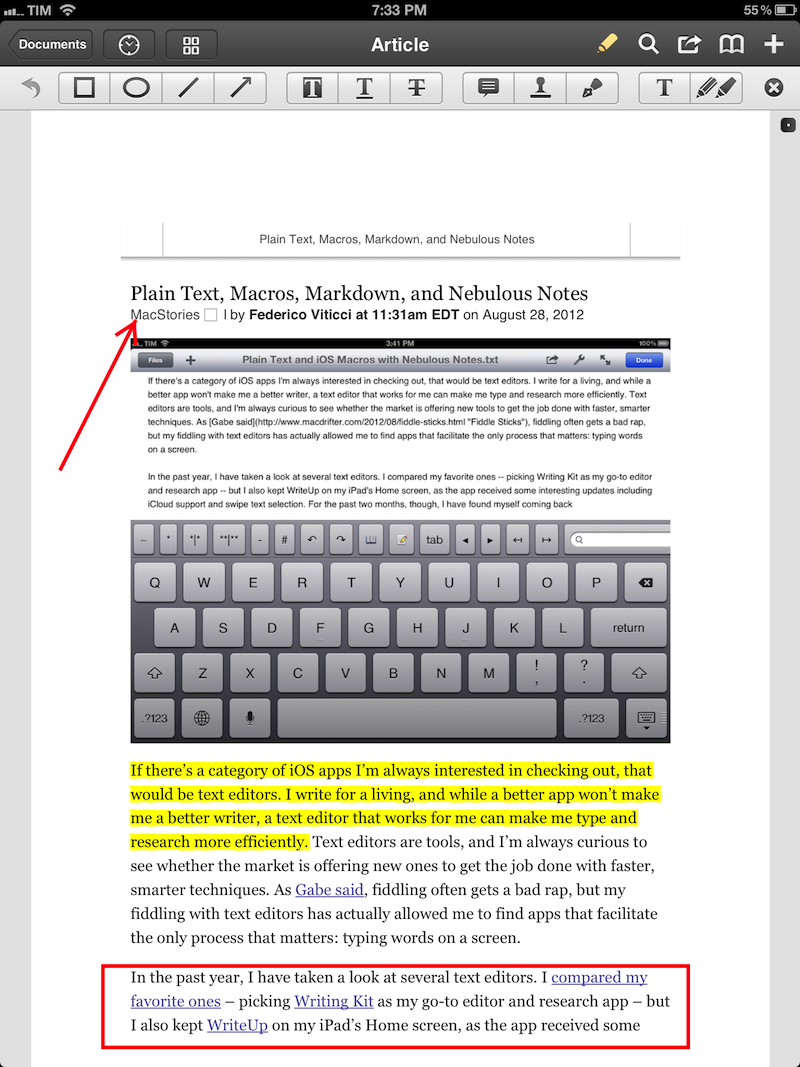
My workflow is similar to Gabe’s one. I store all my notes – rigorously in plain text format for data portability – in a single Dropbox folder, and I use a variety of apps and hacks to work with these files on the device at hand. The advantage of working in plain text is that I never have to worry about file conversion and corrupted databases – and when combined with Dropbox, it really all just works. Plus, I can stay assured that, twenty years from now, an archive of my notes will still be there, as plain text – like PDF – will likely be around.

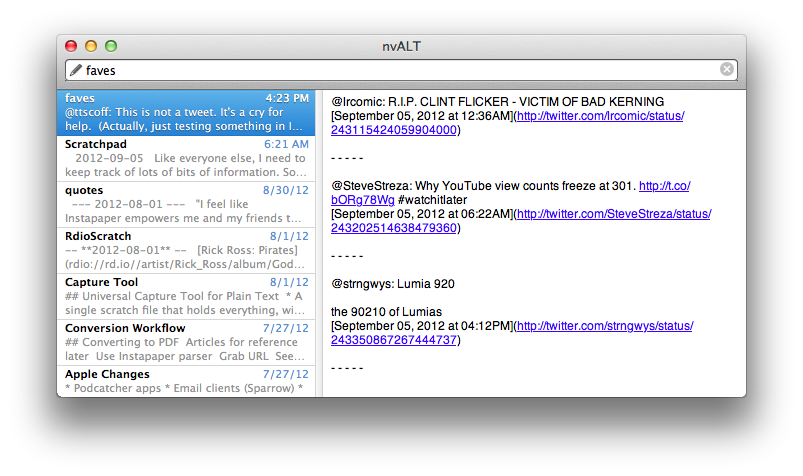
On the Mac, like Gabe, I use Brett Terpstra’s excellent nvALT to switch between all my notes. I don’t use tagging, but I do use Alfred to peek inside the contents of my plain text files to find links or bits of text I had previously saved (like favorite tweets). Occasionally, I might write in TextEdit or Byword, but generally – no matter the app I’m using – Markdown previews are handled by Terpstra’s other insanely useful app, Marked. On iOS, as I recently explained, I tend to access my notes with a combination of Nebulous Notes, Writing Kit, and WriteUp depending on what I need. To quickly save notes into Dropbox, I rely on Drafts, which was recently updated to version 2.0.

I like plain text because it lets me write and access my notes the way I want to. As David Sparks once wrote, it’s timeless. Make sure to read Gabe’s post here for some great tips.
Permalink

Quick, Effective Reminders with Sticky Notifications

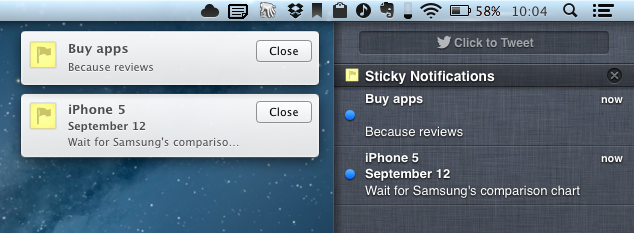
Sticky Notifications by Matt Gemmell is a utility to create “sticky” reminders on the OS X desktop using Mountain Lion’s Notification Center (Growl is also supported, and the app runs on 10.7 as well).

OS X comes with Stickies, but, admittedly, Apple’s own app feels outdated and out of shape. By integrating with a system-wide feature users are already accustomed to, and adding neat integrations like Automator and hotkey support, Sticky Notifications greatly simplifies the process of putting information on the desktop for later. And it has a lot of clever touches that, in spite of the app’s simplicity, show a profound attention to detail and care for optimal experience.

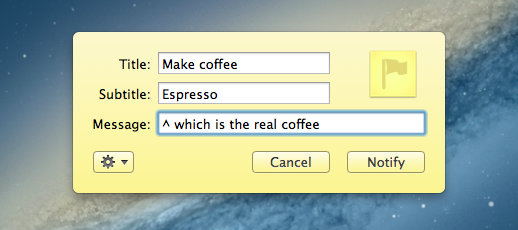
By default, Sticky Notifications sits in the menubar. Upon clicking its icon, a post-it, sharing sheet-like menu pops up, allowing you to write down your reminder. You can write down a title, hit Enter, and the reminder will be created on the desktop using Notification Center’s “alert” style, which is sticky and is displayed until manually dismissed.

Obviously, because it’s based on a native functionality, you can head over Notification Center’s preferences to set the app’s style to banner, but that would defeat the purpose of Sticky Notifications, at least partially (banners will be dismissed after a few seconds, but they’ll still be saved in Notification Center). You can also attach a subtitle and a message, and create multiple stickies to sit on your Desktop.

That would be it as long as the main functionality goes. But developer Matt Gemmell was clever enough to bake in some sweet integrations with system and third-party utilities to extend the capabilities of Sticky Notifications.

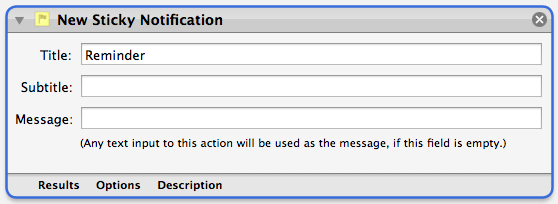
There is an Automator service to create workflows that trigger new reminders using the app. I would love to see AppleScript support in a future version of the app in order to further improve scriptability.

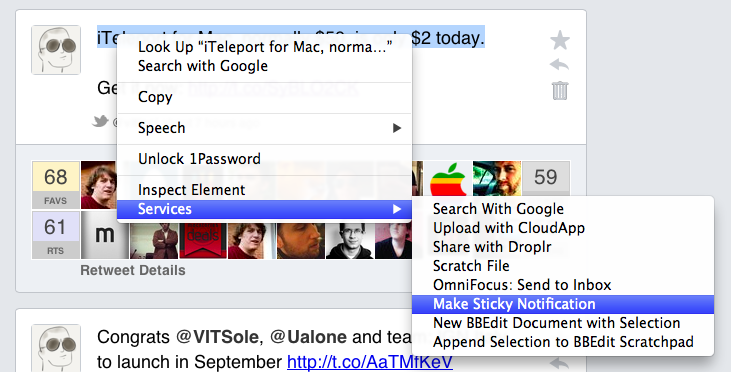
You can select any text on your Mac, and use a system Service (optionally paired with a keyboard shortcut) to save it as a message in a reminder.

Too, the app is smart enough to recognize URLs saved in a reminder’s message, so when clicking on one, the URL will automatically open in the default browser. I find this to be an excellent solution to save links for later without bookmarking them.

Speaking of URLs, Sticky Notification has a URL scheme. By URL-encoding parameters in a single string (just concatenate them using &), you can create new reminders outside of Sticky Notifications in the background, or bring up the app’s menu by using the prepare option in the URL. Because of this URL scheme, you can combine Sticky Notifications with Alfred (or LaunchBar) to set up custom searches. I really like having custom URL schemes in the apps I use daily, as they allow me to fiddle and build custom workflows tailored to my needs.

Sticky Notifications is the perfect example of a fairly complex piece of software presented as a simple and intuitive app. This doesn’t come as a surprise, considering, again, the amount of thought and work that Gemmell put into this app. As Matt wrote, it’s the little things.

Sticky Notifications is only $2.99, either from the Mac App Store or the developer’s website. If you’re looking for a modern, easy to use, and powerful Stickies replacement, you can’t go wrong with Sticky Notifications. Recommended.


Apple Confirms: Media Event on September 12


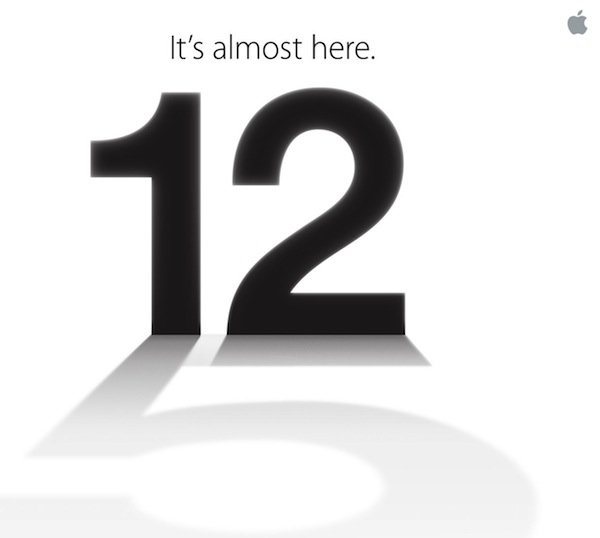
As first reported by The Loop’s Jim Dalrymple, Apple just sent out invitations to the press for a media event taking place on September 12 in San Francisco. The event will take place at the Yerba Buena Center for the Arts at 10:00 AM.

Apple is widely rumored to be introducing the next-generation iPhone at the event. As it can be seen in the invitation’s graphic, the shadow of the number “12” is a actually a “5”, suggesting the new iPhone will, indeed, be called “iPhone 5”. In recent months, there has been a lot of speculation as to whether Apple would call the new device simply “the new iPhone” (following “the new iPad” earlier this year), although some suggested “iPhone 5” would make more sense in terms of marketing considering the previous 4/4S monickers. However, others noted that, because the new iPhone would be the sixth generation model, the “iPhone 6” name would be more appropriate.

Obviously, the invite’s image is only a hint of a possible product name, but a strong one nevertheless. If previous invites are of any indication (see “let’s talk” as related to Siri last year), there’s a good chance the device will be called “iPhone 5”.

Lately, a lot of purportedly “leaked” parts of the new device have also pointed to a major redesign featuring a taller screen, thinner and lighter design, new speaker and dock connector, and more powerful A6 processor. iMore was first to report weeks ago about the future redesigned dock connector and September event. According to the website, the new iPhone should go on sale on September 21.

The next major version of iOS, iOS 6, is also currently being tested by developers, and it’s expected to become publicly available a few days before the launch of the next iPhone.


Denominations: A Simple Currency Converter

Developed by Abraham Vegh, Denominations is a simple currency converter that focuses on the concept of converting money to another currency, rather than the functionality alone.

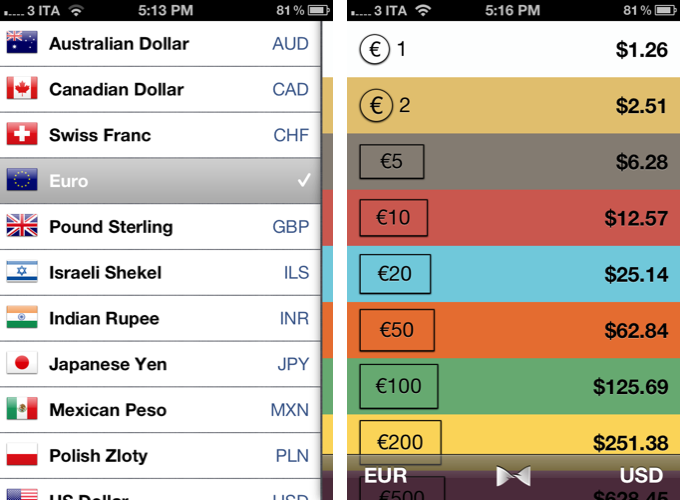
Most currency converters on the App Store feature a number pad for entering values – like a calculator – and a menu to choose currencies to compare. Denominations is different: instead of letting you enter your own numbers, it comes with a predefined set of amounts to compare. You can set two currencies, and quickly switch between them with the tap of a button. Denominations’ focus is on the idea of understanding conversions in another currency without having to think too much.

I don’t think Denominations can replace currency converters like Currencies – after all, I still need to convert the amounts I want – but I believe it has some neat possible usage scenarios worth considering. For instance, as a tourist I might just want to know “how many pounds are 10 Euros”, instead of doing my own manual conversion at the coffee shop. Or I might need to know that, approximately, my dinner will cost around 50 Euros, which Denominations says are worth 62 dollars today (rates are updated server-side every 15 minutes). Quick, at-a-glance information that doesn’t require me to think and manually enter numbers.

Denominations’ design is concise, with a flat color scheme that’s reminiscent of the simplicity of Clear, again signifying a trend in recent App Store releases to focus on information rather than ornamental menus. Developer Vegh is already working on adding more currencies, bug fixes, and tweaks for an upcoming version.

Denominations is available at $1.99 on the App Store.


Rovio Announces New “Bad Piggies” Game To Launch This Month

Finnish videogame maker Rovio has announced “Bad Piggies”, a spin-off of the popular Angry Birds franchise that will let users play from the pigs’ perspective. Titled “Bad Piggies” and set to launch later this month, the game will shift the focus from the birds – typically, the main characters – to the pigs. It is unclear how this will translate in terms of game mechanics, but Rovio promises “never-before-seen gameplay” without slingshots, Angry Birds’ tools to complete levels and clear them of pigs, the enemies.

There’s a lot of empathy towards the lovable enemies from the Angry Birds games, and we’ve been constantly asked: what about the pigs’ side of the story?” said Mikael Hed, CEO of Rovio. “Bad Piggies gives you the chance to play as the second-most-loved characters in the Angry Birds universe, and explore this rich world through their green eyes.

After the modest success of Amazing Alex – a new IP from Rovio based on the acquisition of a game previously called “Casey’s Contraptions” – Rovio kept on releasing updates to Angry Birds, adding new levels and options for free. Earlier this year, Rovio launched a new version of Angry Birds called “Space”, which was downloaded over 100 million times in just 76 days. Also earlier this year, back in May, Rovio announced the billionth download for the Angry Birds franchise, and reported revenue of over $100 million for the fiscal year 2011.

As a side note, an Angry Birds version featuring the pigs’ point of view was rumored all the way back in November 2010.

Bad Piggies will launch on Thursday, September 27, on iOS, Mac, and Android. A teaser website is available here.


Send Favorite Tweets To OmniFocus’ Inbox

In my daily “social networking workflow”, I use the “favorite” feature of Twitter as a todo list of sorts. I couldn’t find a way to add favorites to OmniFocus without leveraging email as a bridge, so I built a solution myself.

Using IFTTT, a single line of bash, Hazel, and AppleScript, I created a simple way to turn a favorite tweet into an OmniFocus task in the application’s inbox, ready for future processing. As an extra, I have also created a more “advanced” version that adds Automator to the mix to only extract URLs from favorite tweets. Read more


Tweetbot Mute Filters For U.S. Elections→

Tweetbot Mute Filters For U.S. Elections

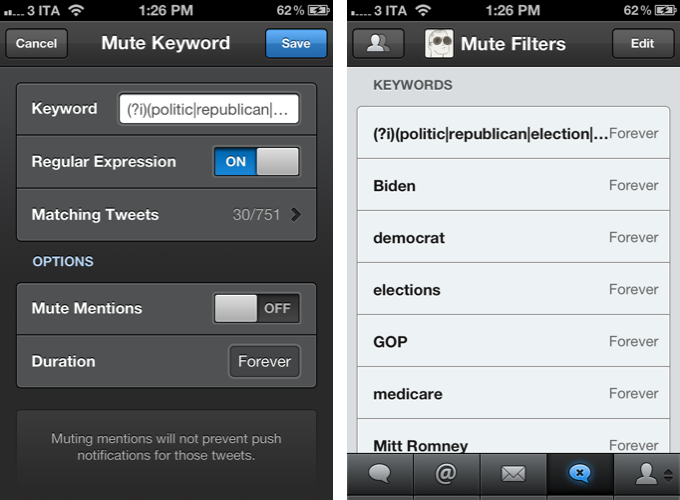
I’ve recently become annoyed with the amount of tweets in my timeline about the upcoming United States elections, so I set out to find a way to mute those tweets without necessarily unfollowing people. In case you missed it, Tweetbot 2.4 introduced support for keyword mute filtering, allowing you to mute (read: make invisible in the timeline) any keyword, with support for regular expression. I manually added hashtags and keywords to the list of filters on my iPhone, iPad, and Mac, but it turns out someone already made a set of filters you can easily install on your devices.

Thanks to Jono Hunt, you can head over this GitHub page and check out the 2012 U.S. elections regular expression he built for Tweetbot. You can add keywords in the middle if you feel like you should be blocking more from your timeline. To install the filter, open the Mute Filters view in Tweetbot, hit the Edit button, then the + button in the upper left corner and select Mute Keyword. Paste the filter, and turn on  Regular Expression. You can set a duration (I chose “forever”) and mute mentions for the filter as well. To make sure you’re entering the expression correctly, Tweetbot will also display matching tweets already in your timeline.

Jono has built other mute filters for recurring tweets besides the elections, so check them out here.

Permalink

Kindle for iOS Updated To 3.2 with Adjustable Margins

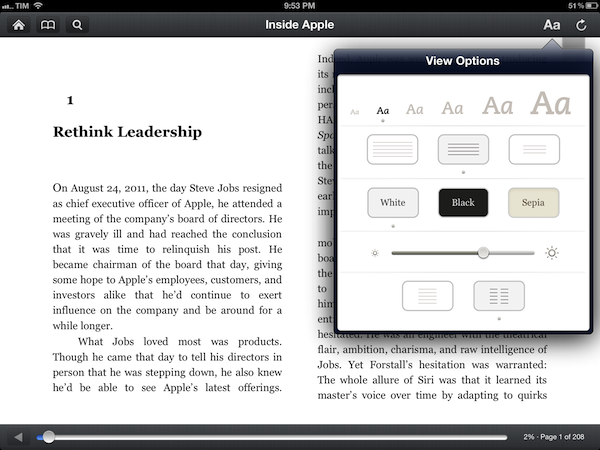
The official Kindle app for iOS has been updated to version 3.2. Following the redesign introduced with version 3.0 last March, the app was heavily criticized for its implementation of wide margins, which was eventually fixed with an update earlier this summer. Now, the app has been updated with a new setting to control “adjustable margins”. You can choose between three different layout options, as pictured above. The option is available on the iPad from the View Options menu, which also includes settings for font size, brightness, and background color.

Speaking of brightness, Amazon says the control slider has been updated to be more responsive and optimized for “better viewing”. The app’s changelog also focuses on “rapid highlights”, a way to mark important passages of a book for future reference that had been implemented by almost any other eBook reader or PDF viewer on the App Store. This option is available under “My Notes & Marks” in the Go To menu.

Among other changes for Print Replica Textbooks, Kindle 3.2 looks like a solid update that addresses a common annoyance of the app. You can find the update on the App Store.


Turn URLs and Webpages Into PDFs In Your Dropbox

I stumble across a lot of interesting webpages on a daily basis. Sometimes it’s a video I want to watch later; sometimes it’s an article I don’t have time to read right away. Other times, I find a webpage that I want to keep around for future reference. For me, there’s a difference between articles to read later and reference material: whereas a new item added to Instapaper has a short life span in terms of attention (read, share, archive), a webpage I want to keep around forever needs to be turned into a document I can read anywhere, highlight, annotate, and carry around between platforms and devices. For that, I like PDFs.

I keep a “PDFs” folder in my Dropbox that contains all the documents I check upon regularly for work and personal purposes. They can be eBooks, tutorials, or guidelines from Apple that are essential to my writing online. Thanks to the increasing support for cloud services in apps like PDF Expert, GoodReader, and iAnnotate, I can keep a single copy of a PDF in my Dropbox, use the app I want to annotate the document with, and forget about duplicates thanks to sync. Furthermore, I’m fairly sure that, due to their popularity, PDFs will still be readable and supported 20 years from now, so I don’t have to worry about data preservation and file formats.

Lately, I have become obsessed with turning longer articles I find on the Internet also into PDFs for long-term archival. For as much as I like Instapaper, I can’t be sure that the service will be around in the next decades, and I don’t want my archive of longform and quality content to be lost in the cloud. So I have come up with a way to combine Instapaper with the benefit of PDFs, Dropbox, and automation to generate documents off any link or webpage, from any device, within seconds.

(Disclaimer: what follows is an explanation of a hack I created for personal use. It uses publicly available tools and apps to fill a personal need. You shouldn’t create PDFs off websites and redistribute them – you should support the sites you read instead).

In short, I use the Instapaper Text bookmarklet to fetch a webpage’s text and images (while preserving hyperlinks and great typography) and I convert the resulting page to PDF using wkpdf. Created by Christian Plessl, wkpdf is a command line tool that uses WebKit and RubyCocoa for rendering HTML content to PDF. Since wkpdf uses WebKit’s HTML rendering, it can generate good-looking PDFs that maintain most CSS2 and CSS3 stylings and properties. I have tried another command line tool for file conversion, Pandoc, but I like wkpdf better for straight HTML to PDF conversion. Read more