Federico Viticci

10762 posts on MacStories since April 2009

Federico is the founder and Editor-in-Chief of MacStories, where he writes about Apple with a focus on apps, developers, iPad, and iOS productivity. He founded MacStories in April 2009 and has been writing about Apple since. Federico is also the co-host of AppStories, a weekly podcast exploring the world of apps, Unwind, a fun exploration of media and more, and NPC: Next Portable Console, a show about portable gaming and the handheld revolution.

New Apps & Tools For More Efficient Writing

For the past week, the entire MacStories team and I have been focusing on finalizing our coverage of Mountain Lion, which, according to recent speculation, may be coming out next Wednesday, July 25th. As you may have noticed, we have been posting less frequently on the site, but we wanted to get our coverage just right, and I think we’ve managed to come up with a good plan. More details soon.

In the meantime, I’d like to share some links of apps and tools I have been using to research, write, and edit my review of Mountain Lion. As a general tip, make sure to check out our Reviews section, as several of the apps we have reviewed recently have a spot on my iPhone or iPad Springboard. But I’ve also discovered some new gems that, while working on the review, have helped me organize all my material more efficiently.

Scrivener. Per Dave Caolo’s recommendation, I decided to give Scrivener a try as a desktop app for writing and researching articles, and I’m glad I did. I’m still a novice – Scrivener is very complex and feature-rich – but here’s a few things that immediately enhanced my workflow: possibility to organize ideas and drafts as outlines, text, or visual notes; support for file attachments and OPML; document references for webpages; split-mode for comparing “snapshots” of document copies without creating duplicates of a file. I have been using Scrivener to compare various edits of my review, and I love it. An iPad app is coming, and I also got this book to learn my ropes around the app. Even better: Scrivener can sync to Dropbox, so I can make additions using the app I prefer. For iOS integration, I’ve been testing an app called Index Card, though I’m still not entirely sold on its implementation of the cork board.

Marked. To preview Scrivener’s contents (written in Markdown), I use Marked. Its exporting features are fantastic, and I have been using the outline navigator to get a better sense of my review’s structure. If you write on a Mac, you need Marked.

Keyboard Maestro Markdown Library. I only found out about this collection of macros this week, when I was looking for ways to automate link insertion in my article with Markdown. It turns out, the Keyboard Maestro Markdown Library contains macros for links, formatting, lists, and even images. I have tweaked them to better suit our site’s requirements (for instance, I have added captions to my image macro, and article titles to the link one using this tip), and, in total, I’m pretty sure they have already helped me save minutes I would have spent copying & pasting HTML instead. Amazingly useful. More on why I love Keyboard Maestro here.

OmniOutliner and CarbonFin Outliner. I have recommended these two apps in the past, but they’re worth a second mention. For my review, I created an outline on my iPhone months ago and started adding new ideas and notes from there. On iOS, I like Outliner because it supports Dropbox and has a simpler interface than OmniOutliner for adding notes and indenting elements. But on the Mac, I rely on The Omni Group’s app because it’s got the best support for keyboard shortcuts and notes – which are both essential to my workflow.

NoMoreiTunes. I had to look up several iTunes applications in the past week, and this Safari extension did the trick (read: it doesn’t launch iTunes when Safari opens an iTunes link).

Markdown Service Tools. Because sometimes I want to use my Mac’s contextual menu to quickly generate HTML off some Markdown.

Macdrifter’s Dictionary Macro. Mountain Lion features a new three-finger single-tap action for Dictionary lookups and file previews, but some apps don’t recognize this gesture. If you use Keyboard Maestro, this is a nice way to forward any selected word to Dictionary.

Evernote. While my writing happened in Scrivener, all other research material that didn’t strictly belong to the article went into Evernote. With it, I use a combination of other apps and hacks that make it easy to save URLs, images, and just about anything. I use EverWebClipper to quickly beam URLs into Evernote from Mobile Safari; lately, I’ve also been playing with EverClip, which doesn’t feature a bookmarklet but can run in the background (“listening” for every new copied file) for 10 minutes. It’s sort of like Pastebot, but for Evernote, which is nice. To automate the process of saving links while on my Mac, I use a couple of AppleScripts put together by our Don Southard, which are obviously configured to work with Keyboard Maestro.

Captio. Indispensable utility to quickly save new tasks into my OmniFocus database.

iFiles. Following GoodReader’s somewhat unexpected removal of its iCloud-based file storage, iFiles came out with a similar functionality, and it works pretty well. iFiles hasn’t received a major update in months – apparently, the developer is working on a 2.0 version – but this iCloud integration is interesting, and works as you’d expect from an iOS file manager.

Last, IFTTT. If I’m not writing, I’m typically distracted by Internet while I browse around looking for interesting stuff. To make sure I can focus on writing without missing out on cool links, I have set up IFTTT to backup favorite tweets and starred Google Reader items to my Evernote and as a text file in my Dropbox. This way, if these services go down or will someday cease to support these functionalities, I’ll still have a complete archive of everything I had saved.


Tweetbot for Mac: Public Alpha Review

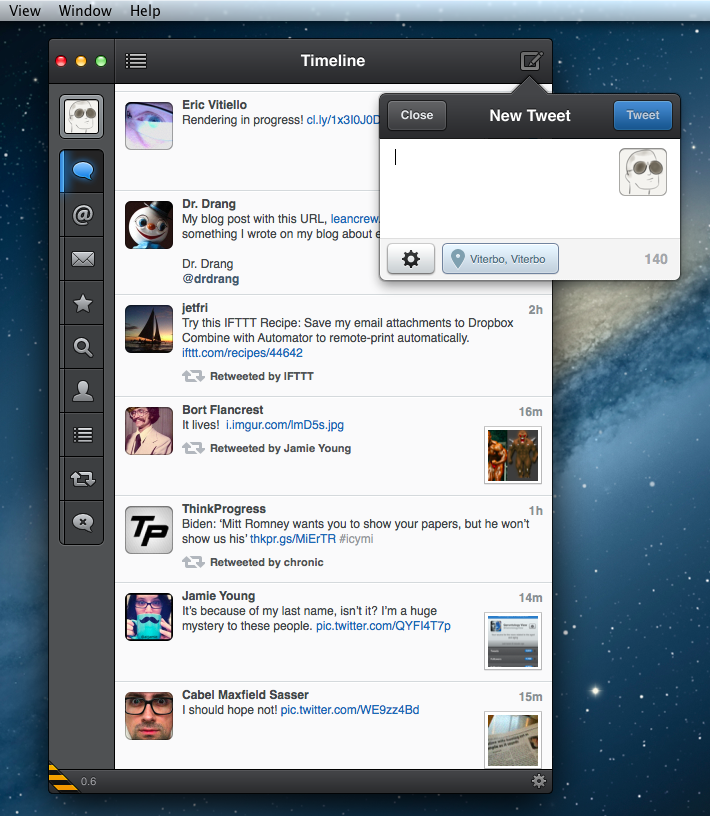
Today, Tapbots released the first public alpha of Tweetbot for Mac. This is not a final review of the app: being in the development stage – albeit ready to be tested by the public – Tweetbot for Mac is still lacking several features that will be available in the final Mac App Store version (such as iCloud sync and Notification Center support), and for this reason I’ll save my full analysis of the app for the future.

However, I have been testing Tweetbot for the past week, and I can say that it already is the best Twitter client available on the Mac. Read more


FoxTube: A Great YouTube App Replacement for iOS

FoxTube: A Great YouTube App Replacement for iOS

I don’t typically discover new apps thanks to word of mouth or by checking out my friends’ Home screeens, and yet I have my friend Andrea to thank for letting me know about FoxTube.

I’m not the biggest fan of the native YouTube app for iOS. In fact, I think it’s actually one of the worst experiences offered to iPhone and iPad users: several YouTube videos aren’t “available on mobile”, search is too simplistic, you can’t copy direct URLs for videos to share them elsewhere, and, generally speaking, it has remained unchanged for the most part since its original launch. Anyone who spends a decent amount of time on YouTube knows that the iPhone app is just a surrogate of the desktop service. I can’t tell you how many times I’ve heard my friends saying “You can’t watch that on YouTube for the iPhone” (quite possibly as many times as “I’m using Facebook through Safari because the app won’t load”).

FoxTube doesn’t look pretty and its icon doesn’t look good, but it is by far the best way to access YouTube I have found on iOS. Firstly, it loads any kind of video – even the ones that the YouTube app won’t open. Especially music videos from “VEVO” channels – FoxTube can display those just fine. And whilst the YouTube mobile website can open them as well, FoxTube has settings to choose between 360, 720p, and 1080p video quality. And it loads fast, unlike the mobile website.

Secondly, FoxTube comes with a plethora of other options including caching, background video player, and background audio. By default, the app caches any video you start playing while it’s also buffering, but there are some settings to adjust its behavior. Videos can be dismissed (with a button or gestures, which the app supports for many other controls) and left playing in a “mini player” at the top that runs while you’re browsing something else in the app. Search is “real” search, with suggested results, history, and sorting options. You can share a video (and also copy its URL), and easily jump to an uploader’s video page, the web video page, or the Related Videos page.

And there’s more: a popup menu on the custom video player lets you toggle mirror mode, pinch to zoom, frame-by-frame navigation, and it even enables you to create bookmarks. If you want to use the app as a music player, FoxTube does background audio (with its icon appearing in the multitasking tray).

Like I said, FoxTube doesn’t look particularly nice, and I don’t like the fact that the iPad version is a separate $4.99 purchase. Yet FoxTube is highly functional, and it brings many of the functionalities I’ve always wanted from the native YouTube app (which is not getting any better).

FoxTube is my new YouTube app on iOS, and I recommend it to anyone who’s been frustrated with the stock app. $2.99 on the App Store.

Permalink

Apple Cracking Down On Sites Selling Access To iOS Betas

Last month, Andy Baio wrote a story for Wired detailing the world of selling access to Apple beta software to non-developers. Specifically, Baio’s piece focused on sites that, for a price, allowed regular people to have their UDID (unique device identifier) activated for installation of iOS betas, which Apple makes available for developers only. To install an iOS beta, a developer has to register his/her account with Apple, which costs $99 per year and allows for the configuration of 100 devices in the so-called “Provisioning Portal” through the aforementioned UDID.

While becoming a registered developer costs $99, sites selling UDID activation did so for a low price, usually within the range of $10. Baio wrote:

For a small developer, unauthorized activations are a lucrative business that’s likely worth the risks. UDID Activation publishes their order queue on their official site, which shows more than 2,300 devices activated in the last week alone. At $8.99 for each activation, that’s more than $20,600 in revenue, with $2,277 paid to Apple for the 23 developer accounts. Their homepage claims that more than 19,000 devices were activated so far, and that’s only one of several services. And since device activations only last for a year, each service can reuse their expired slots with no additional cost.

After noticing several of the sites mentioned in Baio’s article had become unavailable in recent weeks (activatemyios.com, iosudidregistrations.com, activatemyudid.com, udidregistration.com, instantudidactivation.com), we reached out to some of them asking whether Apple was behind the takedown of their “services”, which infringed on Apple’s developer agreement. While most of our emails bounced, we heard back from one of the site owners (who asked to remain anonymous), who confirmed his hosting provider took down the site after a complaint for copyright infringement by Apple. Similarly, the CEO of Fused tweeted in a reply to Andy Baio that Apple had been “fairly heavy-handed” with DMCA requests to UDID-selling sites hosted on their network.

In the email, the site owner said that their website made $75,000 since last June, when Apple released the first beta of iOS 6 to developers. “We do not believe our service was infringing and our services did not violate their guidelines for iOS 6”, the site owner commented, adding that they will soon launch another similar site, “with better and more secure data lines to handle Apple”.

The owner of another site replied to our emails with a “no comment”. According to him, “the Wired article has caused all these sites to go down”.

Indeed, it appears Apple has started taking action against these sites recently, and more precisely after Wired ran the story on UDID activation. Last year, Apple reportedly closed developer accounts of people who sold their available UDID slots to other users; this year, it appears Apple has chosen the more direct path of shutting down websites and their services by filing DMCA requests to their hosting providers.

When Wired published its story, Apple added that “unauthorized distribution is prohibited, and may be subject to both civil and criminal liability”. It is unclear whether Apple terminated memberships to the Developer Program this year as well.

Surprisingly, one of the most popular sites selling access to iOS betas, udidactivation.com, is still online. However, their “UDID order queue” – a webpage displaying the amount of total sales – fails to load, and the same page on their “backup site”, udidactivation.us, displays the latest sales as being from June 28.

Apple seems to have taken action against sites selling access to OS X beta downloads, as well. A popular one, iMZDL.com, put a notice on their website saying “we will no longer be putting up downloads on iMZDL.com for Apple Betas”. Their website is still up, and rather than hosting the download links themselves, they have now switched to torrents for sharing links to iOS and OS X betas.

As we previously wrote, access to Apple beta software should be restricted to developers, as they know how to provide meaningful feedback and report bugs to Apple.


Scanner Pro Gets iCloud Support For Scans

Scanner Pro Gets iCloud Support For Scans

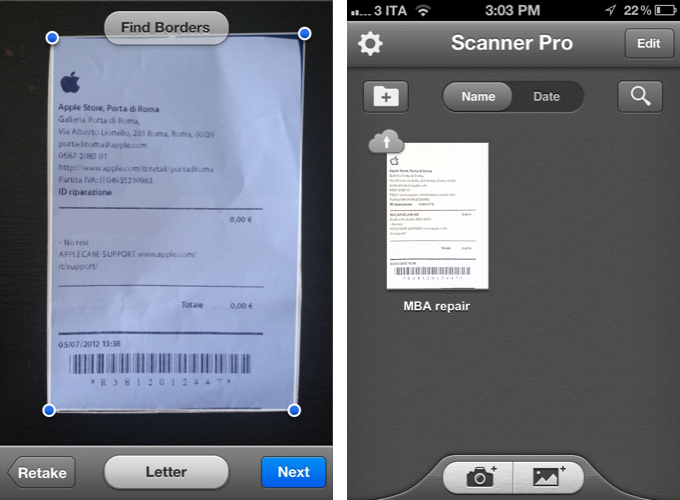
Scanner Pro by Readdle is a powerful application to use your device’s camera to scan receipts or just about any document on the go. When version 4.0 was released, I was positively impressed by the iPad version, which sported an elegant interface and a terrific set of functionalities to turn photos into documents while adjusting borders and colors through multitouch. The app also came with Evernote and Dropbox integration, making it easier to, say, automatically upload scanned items into the same Dropbox folder also used by Readdle’s PDF Expert.

Last night, Readdle released a major 4.1 update to the app that brings the new UI design to the iPhone version, and adds iCloud sync for scans. Readdle writes:

Having introduced Scanner Pro 4 two months ago, we released an iPad version of Scanner Pro (making it universal) with a revamped interface and applied a bunch of new things we’ve learned from Scanner Pro users during the last 3 years. The latest version of Scanner Pro (4.1), brings a completely new interface to the iPhone, focusing on the most important things to make the scanning process easier and more intuitive. With Scanner Pro 4.1 users will enjoy the new design and experience, which are consistent on both iPhone and iPad.

In my tests, I installed Scanner Pro on my iPhone, and scanned a receipt from the Apple Store. After some basic cropping, I went back to the app’s main screen, and noticed an iCloud indicator that made it clear the app was uploading that scan to the cloud. I then updated the iPad app, and, after confirming I wanted to use iCloud, seconds later the scan was there. While it was downloading the item, the thumbnail preview was slightly dimmed and the iCloud indicator progressively filling in blue. This is a good iCloud workflow and seamless presentation to the user.

Scanner Pro was already a solid app, and this latest update adds the convenience of using the iPhone’s camera – particularly with the 4S, you’ll undoubtedly be producing better results than the images returned by the iPad’s camera. All of the features I mentioned in my review of version 4.0 are still there; as a bonus tip, iCloud integration means you’ll find PDF documents on your Mac as well by visiting the Mobile Documents folder inside Library (and perhaps you could set up a Hazel rule to automatically rename those scans or mirror them to Dropbox).

Scanner Pro is $6.99 on the App Store.

Permalink

Launch Center Pro and OmniFocus

 Launch Center Pro and OmniFocus

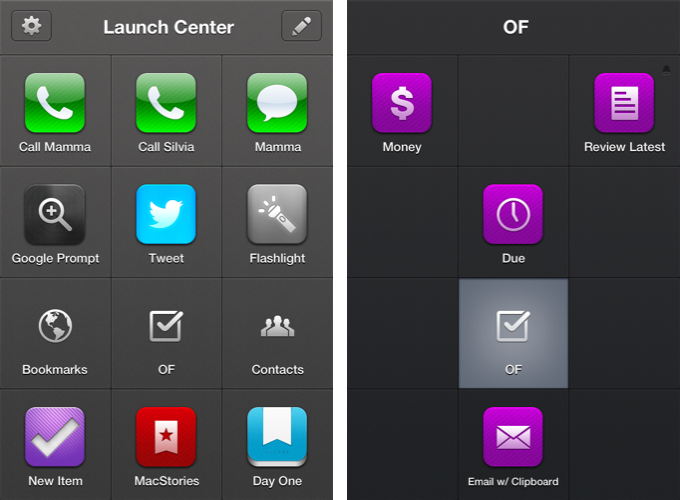
Michael Schechter has created a series of Launch Center Pro templates to speed up the creation process of repetitive tasks in OmniFocus for iPhone, inspired by David Sparks’ snippets for TextExpander and OmniFocus for Mac. With actions to easily attach the contents of the clipboard to a new task or setting up a reminder to follow up on something with a colleague, Michael’s snippets can be huge timesavers if you’ve been looking for a way to automate certain aspects of OmniFocus on the iPhone.

All I’ve done here is create a new group in Launch Center Pro called OF Actions. This allows me to have 11 rapid-fire actions for my most commonly created tasks. Rather than 11 unique actions, I’ve actually created duplicates for most that include whatever I have on the clipboard. This way I have a version that duplicates the Quick Entry field and another that emulates some aspects of the Clipper.

Based on OmniFocus’ new URL scheme and Launch Center Pro’s support for prompts (more details in our review of the app), these snippets won’t offer the same degree of customization found in desktop solutions like the aforementioned TextExpander or Keyboard Maestro, but they surely are the best way to automate OmniFocus on the iPhone for now. Because of the nature of iOS, you won’t be able to set up scripts that, for instance, let OmniFocus communicate with other apps automatically, but at least you’ll be saving some typing and navigation inside the app.

Inspired by Michael’s work, I have set up actions to access my most used perspectives and a new one called “Review Latest” that makes up for the lack of an Inbox perspective on iOS (as it’s project based rather than context based) and displays the latest tasks I may have added without a context or due date using Captio. Furthermore, I have assigned a scheduled reminder to the action, so that every day after dinner I’ll be reminded by Launch Center Pro to process my newest tasks created throughout the day.

The Omni Group’s Ken Case also chimed in on Twitter explaining how OmniFocus URLs work, and Justin Lancy collected the tweets in a Storify bundle. Nick Winja took a look at how it’s possible to access contexts via URL, as well.

You can see the full text for Michael’s Launch Center Pro snippets here.

Permalink

Apple Removes Negative Reviews From Apps Affected By DRM Bug [Updated]

Earlier this week, an error in Apple’s DRM code generation for App Store apps caused a number of app updates to crash on launch. The issue, initially reported by Instapaper developer Marco Arment, began spreading to more than 100 iOS and Mac app updates including GoodReader, Angry Birds HD Free, and The Early Edition. As the bug was causing updated apps to crash immediately after launch without even displaying an error message, several users became upset with the developers of the apps – as they didn’t know the issue was on Apple’s servers – and began leaving negative reviews on the App Store. Developers, on the other hand, had to deal with a issue that they couldn’t fix, while explaining to customers how they should back up their data and wait for a solution.

Last night, Apple officially acknowledged the issue and explained it was associated with DRM code generation on the App Store. Apple said they had fixed the issue, and Macworld reported that, according to their sources, Apple would also remove all negative reviews that had been left during the hours the bug was spreading on various international App Stores.

As of this morning, it appears Apple has indeed removed negative reviews from apps affected by the bug. Apps like Instapaper, GoodReader, and The Early Edition are showing no reviews for the latest versions available, which are the ones that were crashing earlier in the week. We haven’t checked on every single app that was affected, but it is safe to assume at this point Apple will remove all reviews (not just negative ones) from any app that received a corrupted update.

Apple hasn’t issued a public apology to developers, but the removal of reviews will definitely help in leaving this issue behind without having to deal with the aftereffects on the App Store as well.

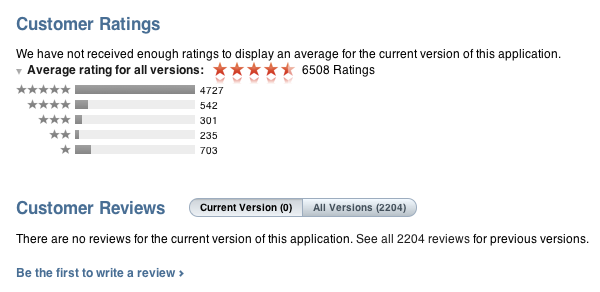
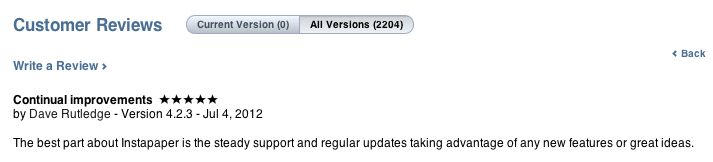
Update: As noted by several readers on Twitter, it appears Apple didn’t completely wipe the old reviews left during the DRM outage – it re-issued app updates for the same version of the app, and moved the “Current Version” reviews to “All Versions”.

In spite of the version being the same – for Instapaper, the affected version was 4.2.3 – the old reviews are not showing up in the Current Version section of the App Store. This helps hiding possible negative reviews from the section that it loaded by default in iTunes.

By re-issuing the old version as an update again, Apple is making sure customers can re-install the fixed version of an app without having to delete it first, as noted by Marco Arment. It is unclear whether the old reviews will still affect overall ranking of an app.


MacStories Interviews: Brett Terpstra

In our ongoing series of interviews with developers and creators in the Apple community, I recently had the chance to talk with Brett Terpstra, developer of Marked, Senior Developer at AOL Tech, TUAW blogger, and “mad scientist” with a knack for finding great solutions through code. When he’s not making awesome things or writing at his personal blog, Brett tweets as @ttscoff.

The interview below was conducted between January 17 and July 4, 2012.

MacStories: Hey Brett! Could you introduce yourself to the readers who haven’t heard about you or haven’t tried any of your apps & scripts before?

Brett Terpstra: Hey Federico,

I’m the original author (now working with Elastic Threads) of a Notational Velocity fork called nvALT, which seems to be what I’m best known for. I also sell an app in the Mac App store called Marked; a MultiMarkdown previewer that watches your text file for changes and updates the preview every time you save it. I’m a bit of a plain text nerd, and a lot of my work focuses on working with and manipulating plain text, as well as keeping data portable and application agnostic. Most of what I do is pure experimentation, coding for the joy of problem solving. Mad science, if you will. Read more


MacStories Interviews: Brett Kelly

In our ongoing series of interviews with developers and creators in the Apple community, I recently had the chance to talk with Brett Kelly, Evernote extraordinaire, founder of NerdGap, and creator of Evernote Essentials. When he’s not making things with words and computers, Brett tweets as @inkedmn.

The interview below was conducted between February 3 and July 3, 2012.

MacStories: Hey Brett! Could you introduce yourself to the readers who haven’t heard about you before?

Brett Kelly: Ahoy Federico! I sure can…

My name is Brett Kelly. I’m a writer, podcaster and software developer from Southern California. By day, I’m the Technical Communications Manager for Evernote where I write user documentation and build cool software tools. I write a blog at nerdgap.com and I’m probably best known as the author of the popular getting started guide for Evernote, Evernote Essentials. I’m happily married to my first wife and we have two crazily wonderful children who are crazy.

MS: I’m a proud Evernote customer myself – I use the service every day – and I have read your Evernote Essentials guide. How did you get started with Evernote in the first place? Getting to work for the company you’re already passionate about sounds like a dream job.

BK: Always nice to meet a fellow Evernote user.

Back in early 2008, a friend of mine send me an invite to the private beta for this thing called “Evernote”. I gave it a brief spin and, as soon as I realized that I could stick stuff in there and it would sync between my work and home computers, I was hooked. Remember this was before the iPhone app, as well as the App Store!

I immediately started using the crap out of it; work stuff, personal stuff, it all ended up in Evernote. Almost four years and over 10,000 notes later, I’m a bigger fan of the product than I was last week and I’m both proud and humbled that I get to work with such a ridiculously smart group of people. Read more