Federico Viticci

10759 posts on MacStories since April 2009

Federico is the founder and Editor-in-Chief of MacStories, where he writes about Apple with a focus on apps, developers, iPad, and iOS productivity. He founded MacStories in April 2009 and has been writing about Apple since. Federico is also the co-host of AppStories, a weekly podcast exploring the world of apps, Unwind, a fun exploration of media and more, and NPC: Next Portable Console, a show about portable gaming and the handheld revolution.

Empty States

Empty States

Craig Dennis on area of app design that gets often overlooked:

Empty states are places in apps that have no content or data. They are empty. A blank page. Traditionally empty states are overlooked as most designers focus on how best to display lots of content or data. It’s common for empty states to be dealt with by developers as they are often caused by exceptions (such as no internet connection). They often write the copy and as a result it can be a little difficult to understand or it is left with the basic styles. Not the best combination. It should be logged as something that needs designing but that doesn’t always happen.

It gets even worse with apps that deal with errors through text that isn’t localized. In fact, I’d argue that proper localization is another aspect of the app economy that shouldn’t be underestimated anymore (as if it ever could be): with apps available in more than 150 countries, designing for the US market alone is a foolish assumption (unless, of course, an app’s only market is in the US – which is the case with many online services these days).

Empty states can be useful and provide context. Whether it’s a way to instruct users on how to get articles into a read-later app or a cute illustration with a link to How-To pages, empty states should find a balance between their lack of content and presenting on-screen guides.

Permalink

Pushpin for Pinboard

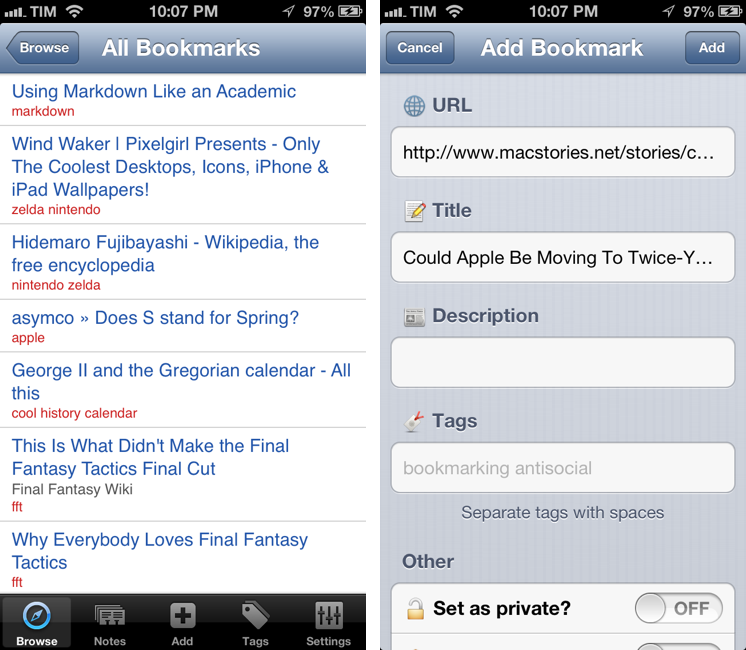
MacStories readers know that I’m a fan of Pinbook, a Pinboard client for iPhone and iPad. For the past two days, I’ve also been trying Pushpin, developed by Aurora Software, and I’m quite impressed with the feature set the app has reached at version 1.3. Pinbook and Pushpin are, ultimately, very different, and I believe their current versions can coexist on a Pinboard nerd’s iOS Home screen. Read more


Launch Chrome Bookmarklets With Keyboard Shortcuts

A few weeks ago I switched back from Safari to Google Chrome. I wanted to give Safari a fair chance, especially after the introduction of iCloud Tabs, but, alas, the browser never “clicked” for me the way Chrome did. Worse, using Safari on a daily basis for work-related tasks became an unsafe bet, as it was crashing too often, taking several minutes to sync my iCloud Tabs, or generally hanging for no apparent reason. I’m still figuring out the ins and outs of Chrome – particularly how to handle the lack of a “default browser” option on iOS – but, so far, Chrome is working better for me.

One thing I miss from Safari is the ability to launch bookmarks in the Bookmarks Bar with a simple CMD+1…9 keyboard shortcut. I use a lot of bookmarklets (which, by the way, Chrome syncs faster than Safari across devices), and I’m too used to hitting CMD+2 for OmniFocus and CMD+4 for Pinboard to give up the convenience of quick bookmarklet activation. Unfortunately, Chrome uses Safari’s CMD-based shortcuts for switching between open tabs.

The solution was laying in my dock the whole time. As cleverly shown by Patrick Welker, you can use a Keyboard Maestro macro to assign a keyboard shortcut to what is, essentially, Keyboard Maestro’s own GUI scripting, only done with a visual workflow. Make sure to read Patrick’s post to see how you can create a simple macro to “click” a bookmark in Google Chrome.

For the non-Keyboard Maestro users, a solution is to actually use AppleScript GUI scripting to simulate clicking a bookmark’s name. Using something like the script below, you can use any launcher that supports assigning a keyboard shortcut to an AppleScript to quickly launch a Google Chrome bookmark.

tell application "System Events"
    tell process "Google Chrome"
        click menu item "pin" of menu "Bookmarks" of menu bar 1
    end tell
end tell

The script could use an error-checking system to see if Chrome is the frontmost application, but I avoided adding it because I know I won’t use the shortcut anywhere else.

As for Chrome on iOS: because the browser forces you to type out bookmarklet names to launch them, my suggestion is to use a standard prefix so you’ll be able to launch them easily from the iOS keyboard. For instance, I prepend “xx” to my most used bookmarklets, so Chrome for iOS will filter the names right away.


Igor Cheban’s iPhone Paintings

Igor Cheban’s iPhone Paintings

Self-taught, 21 year-old artist Igor Cheban has posted on Reddit a gallery of his collection of iPhone paintings. Igor’s impressive work, available here, is the result of hours of work done primarily on an iPhone, with a few “paintings” created on the iPad (such as the “Wabbit” one in the link above). In the Reddit thread, which received hundreds of comments thanks to the exposure granted by Reddit’s homepage, Igor explains how he used award-winning iOS app Brushes to create the paintings (finger-painting with Brushes isn’t new to the Internet).

In particular, two comments stood out to me, as they epitomize the advantages and drawbacks of digital painting:

Very similar to digital painting on the computer. Although computer and real life painting allow you to control the flow of the lines by adding pressure which the phone is not capable of doing. So that’s something to consider. I do like the unlimited undos that digital painting offers so I would say that is the easier one.

when I’m working on a digital painting and I love the idea (for example “bird slayer”) then I feel just as excited as I would working on a physical painting… However, something wonderful about possessing a physical piece of artwork once finished. Unlike a digital file which could easily be reproduced, only one true original piece can exist.

Preservation of digital media, either in the form of text or images, is something I, and others, have been advocating for a long time. The topic resonates with iOS users: with apps that enable the most variegate kinds of creations, how do we ensure they can be stored and archived for future memory?

Make sure to check out the original Reddit thread and Igor’s profile on Instagram, where he uploaded more iPhone paintings and other sketches. He also posted a video on YouTube showing the techniques he uses with Brushes, mainly zooming in/out of the canvas to draw details and get the full picture. Brushes is Universal and free on the App Store.

Permalink

Favs for iPad

Favs for iPad

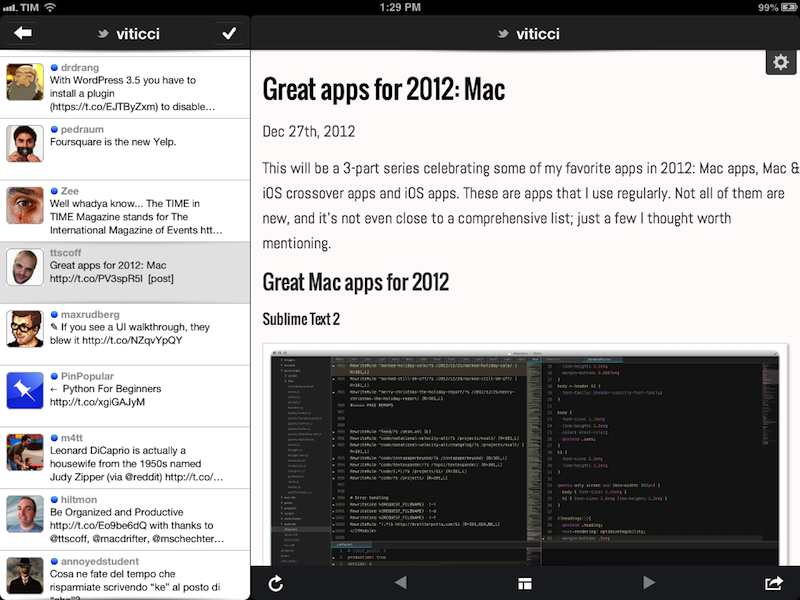
After months of silence, Dirk Holtwick is back with a Favs update (version 1.2) that brings iPhone 5 support and a native iPad version. For those unaware of Favs, it’s a Mac/iOS app that collects your Internet favorites (“starred” or “liked” items) from sources like Twitter, Google Reader, Instagram, and more. From my review of the iPhone app:

Released yesterday, Favs for iPhone is a $2.99 mobile companion that serves the same purpose of Favs for Mac — it offers a unified interface to browse favorite items from multiple sources. The main screen features three general tabs for All items, Inbox, and Archive. However, I never use Favs’ own read/unread indicators, because I don’t want to “feel the guilt” of having too many favorites in my accounts. For this reason, I am glad Favs for iPhone lets me hide unread counts from the Settings, which also reveal iCloud sync will be coming soon to keep account information synced across Mac and iOS devices. I very much prefer to browse favorites by their original source.

The iPad app is an addition to the existing app, which is now Universal. It’s not revolutionary in that it takes the iPhone app and puts a list of accounts and favorite items in a sidebar on the left, with a larger panel on the right to view content. There are options to turn on Readability, and an action button to email, tweet, or copy a URL, or open a webpage in Safari. iCloud sync worked on first launch for me – it pulled some of the accounts I had configured on the iPhone – but I would like to see more options added in a future version (hopefully not in six months) such as Google Chrome support or a URL scheme to launch specific accounts directly.

Favs is available at $2.99 on the App Store.

Permalink

Sponsor: Orbicule

My thanks to Orbicule for sponsoring MacStories this week.

Undercover is Find My Mac done right. After a very simple installation, Undercover will run in the background, constantly monitoring the location of your Mac. If your Mac gets stolen, in addition to tracking location Undercover will also snap mugshots through the computer’s built-in camera and capture keystrokes.

I personally use Undercover 5 because I like its web-based interface better than Apple’s Find My Mac. If you’re looking for a more powerful Find My Mac, I highly recommend Undercover 5.

Find out more about Undercover here.


Quick Unit Conversions With Measures and Launch Center Pro

Quick Unit Conversions With Measures and Launch Center Pro

Measures by Michael Neuwert is one of the iPhone apps I’ve been following here on MacStories since I started the site in 2009. I’ve later reviewed (and became a fan) of the iPad version of the app, Measures HD. The latest update to Measures for iPhone, version 2.3, adds more units, iPhone 5 support, and a URL scheme. As you know, automation and URL schemes for iOS apps is something I’ve been focusing on lately, so I was curious to try out the Measures implementation.

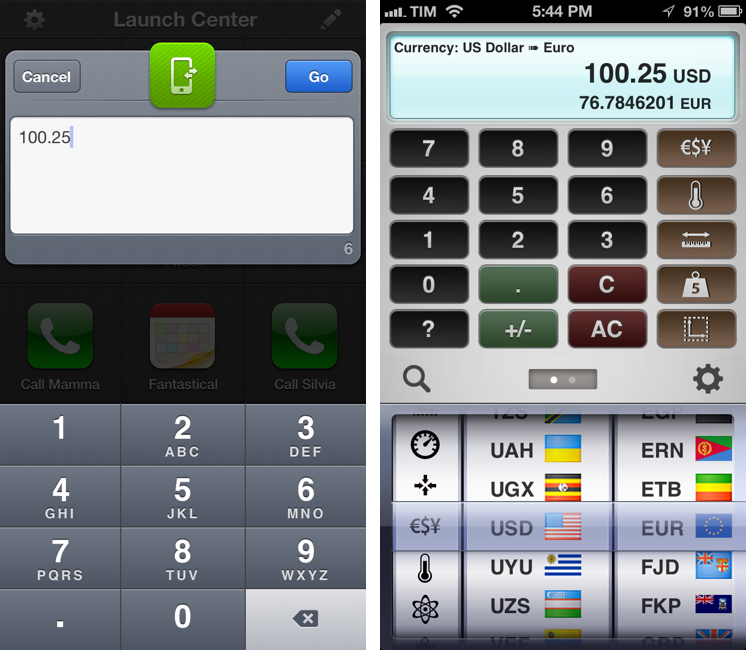
A basic Measures URL looks like this: x-measures://convert?from=USD&to=EUR&value=100 – but it’s also possible to simply launch a specific category without starting a conversion by using something like: x-measures://convert?category=Mass. The convert action may also contain a category parameter to avoid ambiguities, and it’s possible to search as well using: x-measures://search?q=Watt.

Being based in Italy but working (remotely) in a US environment, I do a lot of conversions on a daily basis. Primarily currency (EUR to USD and vice versa) and temperature conversions to understand what my colleagues are talking about when they say “it’s cold over here”.

It was very easy to set up a Launch Center Pro action (Measures isn’t listed in the officially supported apps in App Cubby’s launcher yet) to start a Dollar to Euro conversion in Measures using input from Launch Center Pro. Using the first example URL I showed above, replace the numeric value parameter with [prompt-num] in Launch Center Pro. This will ensure that a URL-encoded numeric string will be sent from Launch Center Pro’s number pad to Measures, directly displaying the conversion. In this way, I can keep Measures inside a folder, and create shortcuts for my most-used unit conversions that I’ll launch with a single tap from Launch Center Pro. Thanks to URL schemes, the conversion process will take two seconds and I’ll be shown the final result without having to tap or select anything else.

Currently, there’s no official documentation for Measures’ URL scheme and I’m not sure Michael is using the x-callback-url protocol (though it certainly looks like it). If you’re looking for a quick unit converter you can launch from Launch Center Pro (I was looking for a way to send a browser selection as well, but alas), check out Measures 2.3.

Permalink

ReadKit: Instapaper, Pocket, and Readability Client For OS X

After Michael Schneider, creator of Read Later, joined the Pocket team to release the official Pocket app for Mac, I wondered if there was a real need for a “read later” (lowercase) application for the desktop:

I’m still not completely sold on the overall concept of a desktop read-later app. I’ve got used to thinking of “read later” as a inherently mobile state of mind. I “catch up” on articles and videos with my iPhone and iPad. The Mac is were I discover stuff. I guess a desktop app can be seen as an add-on, a companion to the main experience.

Looking around for alternatives that would work with the service I use on a daily basis for text articles, Marco Arment’s Instapaper, I was not impressed with Words:

Unfortunately, while promising, Words isn’t there yet. Words looks decent when it’s focused on text (generated by the Instapaper parser) in full-screen mode, but everything else is pretty buggy, unstable, and unfinished.

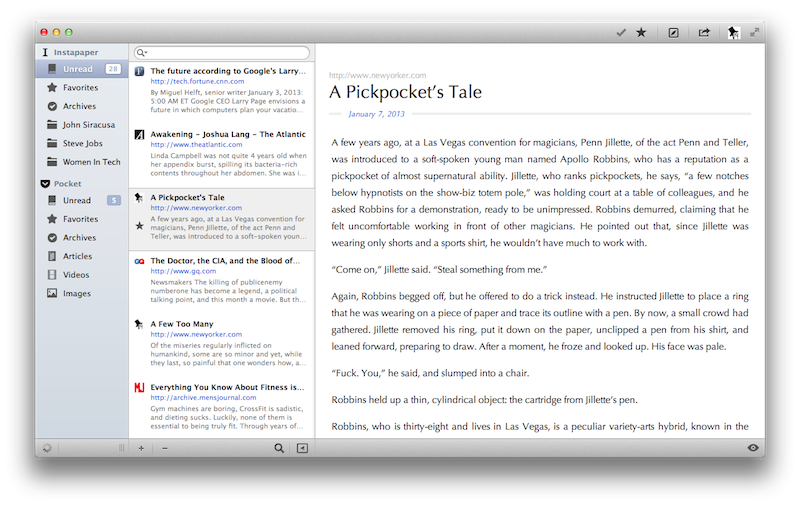
ReadKit, a new app by Webin released today, is – finally – a solid piece of software for those who have been looking for a desktop version of their favorite read later service. ReadKit, in fact, works with Instapaper, Pocket, and Readability, therefore covering the most popular third-party read later services. The app costs $1.99, and if you want to use it with Instapaper, you’ll need the $1 monthly subscription. Read more


Apple Announces 40 Billion App Store Downloads, Almost 20 Billion In 2012 Alone

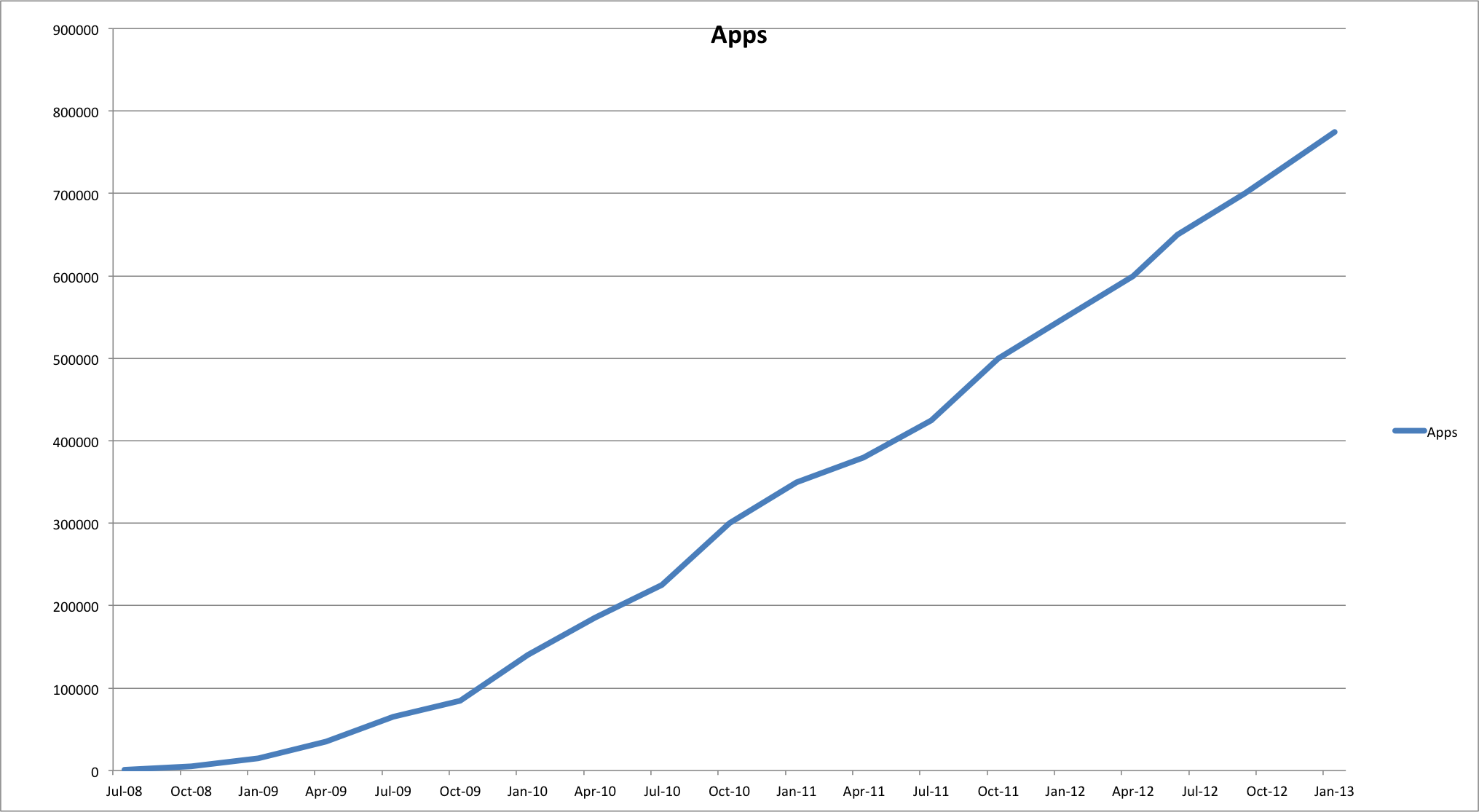
With a press release published today, Apple announced the App Store has reached 40 billion unique App Store downloads (excluding re-downloads and updates), with almost 20 billion of them happened in 2012. Apple says the App Store has now 500 million accounts, with 2 billion downloads happened during December 2012. The App Store has also reached the number of 775,000 apps available for iPhone, iPad, and iPod touch, with seven billion dollars paid to developers so far.

It has been an incredible year for the iOS developer community,” said Eddy Cue, Apple’s senior vice president of Internet Software and Services. “Developers have made over seven billion dollars on the App Store, and we continue to invest in providing them with the best ecosystem so they can create the most innovative apps in the world.

The press release includes additional facts, numbers, and quotes from third-party iOS developers who were successful in 2012. For instance, Temple Run, a game developed by “husband and wife team” at Imangi Studios, saw over 75 million downloads; development studios Backflip and Supercell “brought in over $100 million combined” for freemium games DragonVale and Cash of Clans; and Autodesk is now offering 20 apps to iOS users, with over 50 million downloads thanks to the App Store. You can read all the third-party experiences and numbers in Apple’s press release here.

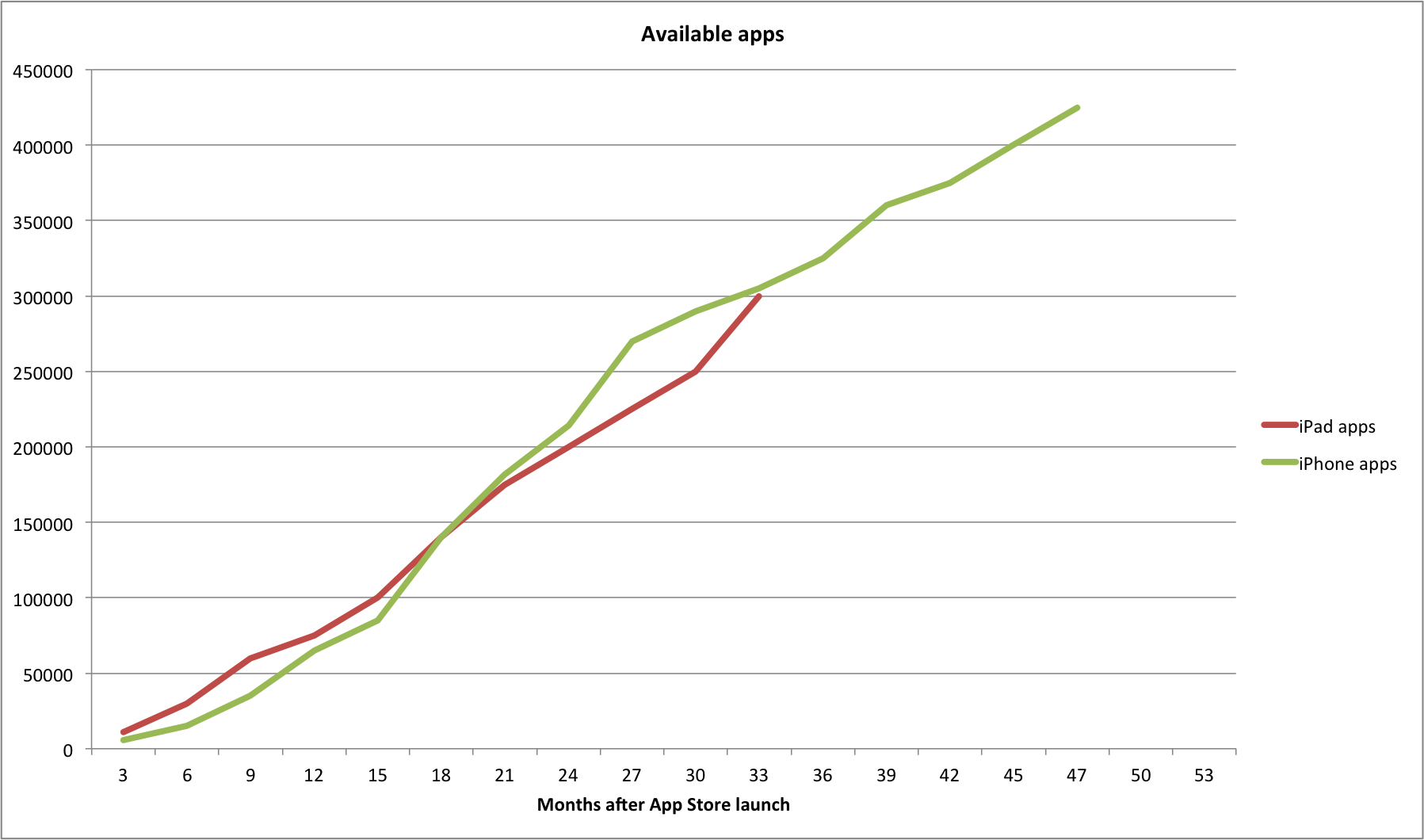
The revolutionary App Store offers more than 775,000 apps to iPhone, iPad and iPod touch users in 155 countries around the world, with more than 300,000 native iPad apps available. App Store customers can choose from an incredible range of apps in 23 categories, including newspapers and magazines offered in Newsstand, games, business, news, sports, health & fitness and travel.

In the press release, Apple also stressed the importance of the tools they make available to developers to release and promote their apps on the App Store. Apple specifically mentioned “great ways to monetize apps” including in-app purchase, subscriptions, and advertising.

For context, Apple announced 10 billion App Store downloads in January 2011; 15 billion downloads in July 2011; and 25 billion downloads in March 2012. It took the App Store 1642 days to go from 0 downloads on July 10, 2008 to 40 billion today, with an average of 24 million downloads per day; however, it took 310 days to go from 25 billion downloads to 40 billion, with an average of 80 million downloads per day in the past 310 days.

To give a graphical visualization of the App Store’s growth, here’s a chart by Horace Dediu showing iTunes total downloads by medium (Horace also notes average revenue per app download is 25c).

And above, our charts showing the growth of the total number of apps, and the apps availability per platform (iPhone, iPad) months after the App Store’s launch, based on Apple’s official data (click images for full size).