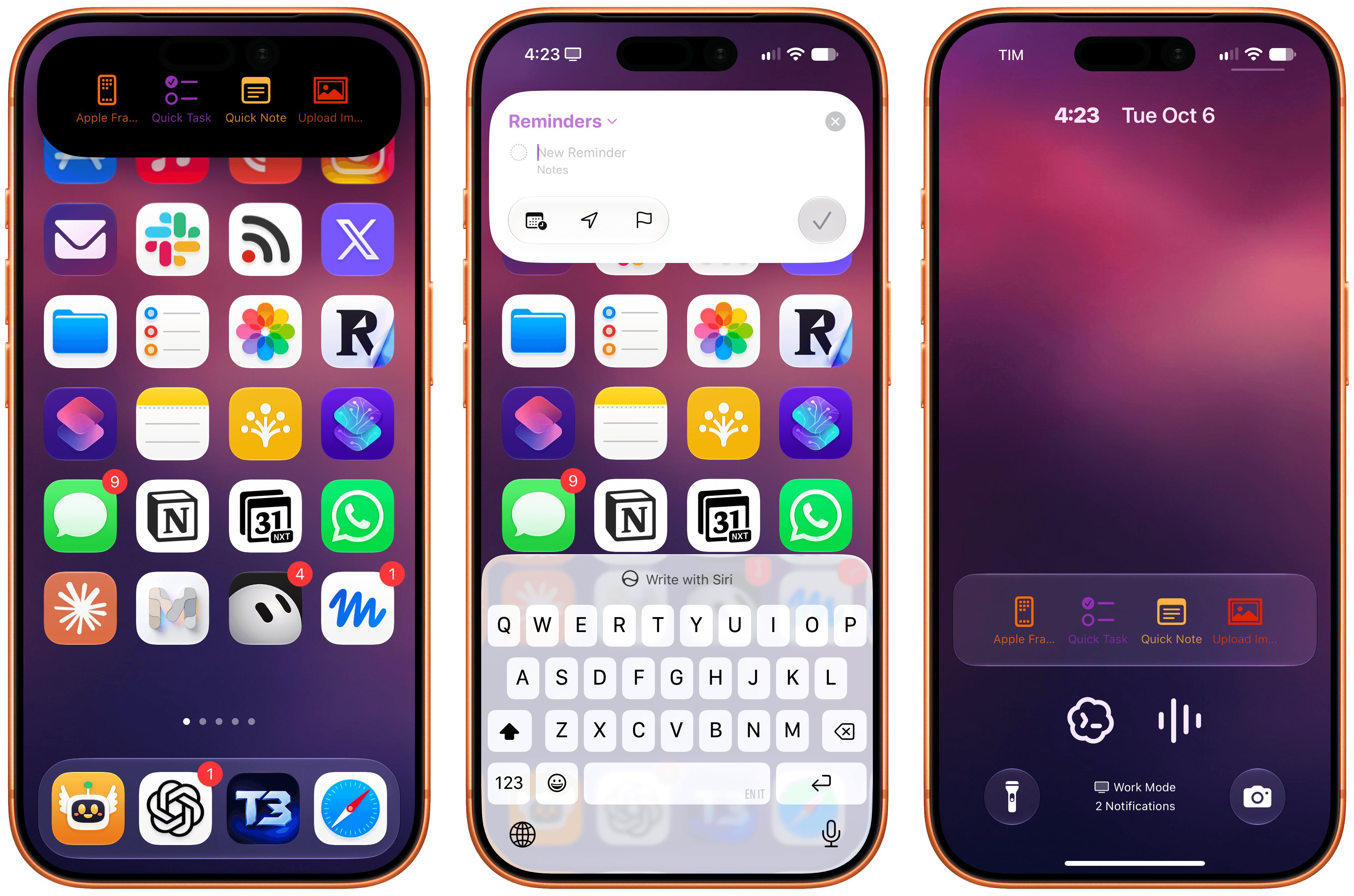
In my iOS and iPadOS 27 review, I wrote about one of the more interesting additions to the Shortcuts app for power users: automation triggers based on the contents of push notifications received on your device. As I explained, with this new trigger, you can create automations that run certain actions whenever a notification from a specific app, ideally containing a specific title or body text, arrives on your iPhone and iPad.
Posts tagged with "automation"
Deflector Turns iOS 27 Notification Triggers into a Shortcut Launcher
iPadOS Lets You Automate Window Placement with Shortcuts
Update: An earlier version of this article referred to this feature as having been introduced in iPadOS 27, but it was actually introduced in the iPadOS 26 cycle. I missed it. My apologies.
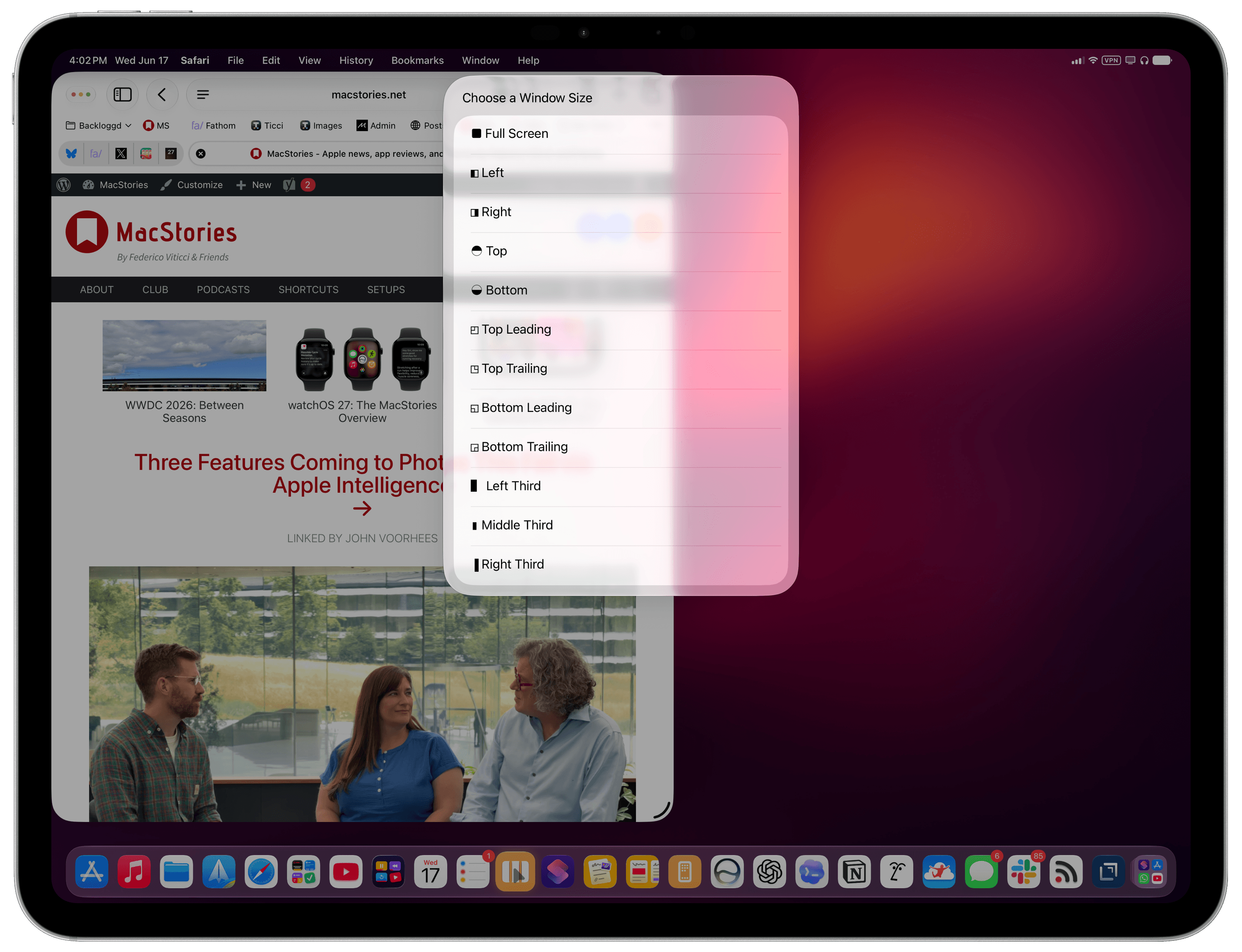
In iPadOS’ Shortcuts app, the existing ‘Open App’ action was recently updated with the ability to launch an app with a specific window placement parameter. This means you can now automate window positions on iPad by opening a bunch of apps and programmatically selecting where their windows be placed.
Introducing RemCTL: The Power-User Reminders CLI for macOS and AI Agents
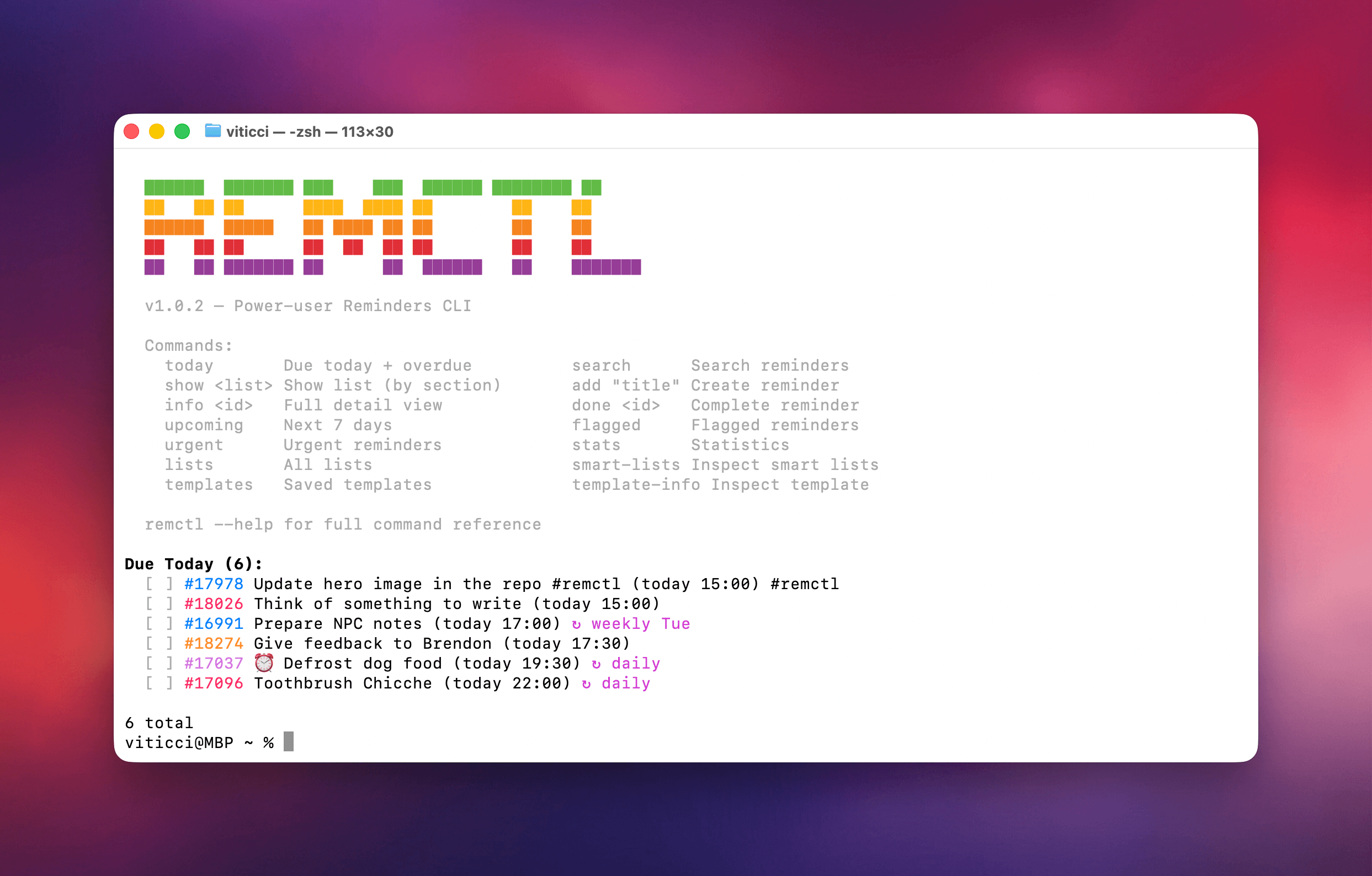
Today, I’m pleased to release my latest free and open source project: RemCTL, a power-user Reminders CLI that, unlike others, exposes all the latest Reminders features as of iOS and macOS 26. RemCTL supports reading and writing subtasks, tags, sections, rich links, image attachments, grocery lists, and even templates.
It’s available on GitHub here, and it comes bundled with a skill for desktop agents.
OpenAI’s New Codex App Has the Best ‘Computer Use’ Feature I’ve Ever Tested
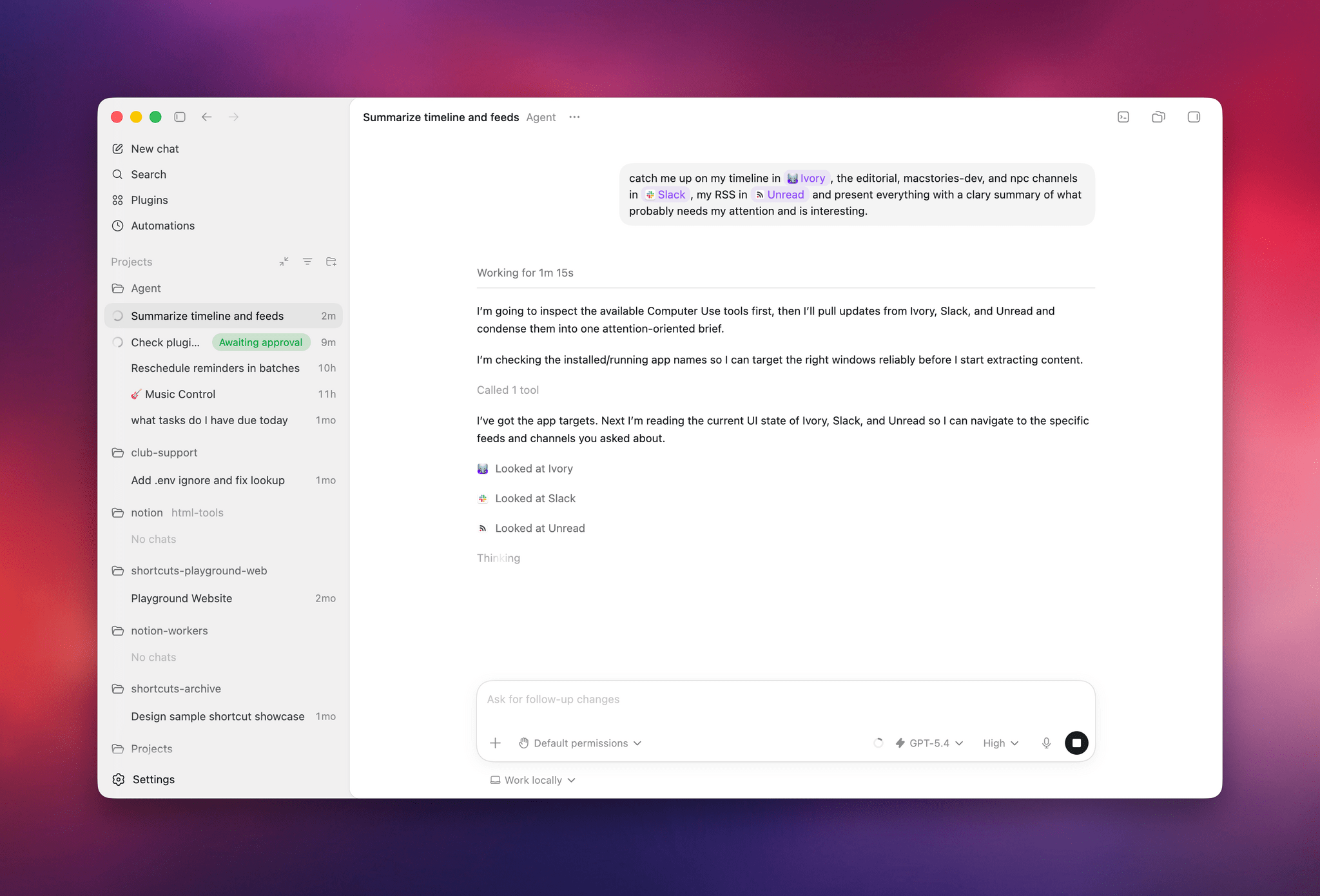
OpenAI rolled out their updated Codex app for Mac yesterday and, among other things, they shipped a native computer use tool for macOS that lets Codex interact with multiple Mac apps in the background using parallel cursors that do not bring apps to the foreground when agents are interacting with them. The feature that OpenAI rolled out in Codex is literally based on the Sky app that I exclusively previewed last year, and which was later acquired by OpenAI along with the team that built it.1
I feel like I’m in a pretty unique position to comment on all this since, as MacStories readers will recall, I was able to test Sky for several months last year before the team went radio-silent and joined OpenAI. Here’s the thing: I’m not exaggerating when I say that Codex now features the best computer use feature I have ever tested in any LLM or desktop agent. In fact, it’s even better than the computer use feature I used in Sky last year: Sky’s computer use was great, but it was considerably slower than Codex’s current one because it was running on Anthropic’s Claude models. With Codex for Mac today, even the (kind of slow) GPT 5.4 is faster than Sky ever was. But, using Codex with fast mode or – for simpler tasks – the Cerebras-hosted GPT-5.3-Codex-Spark model yields dramatically faster performance than Sky for Mac delivered in 2025.
But why is that? Allow me to explain. Most computer use models (such as the one in the Claude app, or even the just-released Personal Computer by Perplexity) rely on a combination of screen-recording capabilities and some AppleScript to either simulate virtual clicks on-screen and perform basic actions inside apps by calling osascript in a virtual shell. Sky was different, and Codex is different, and I can share more details today that I did not elaborate on when I wrote about Sky last year.
We all have Apple’s Accessibility team to thank for the technology that allows Codex’s computer use tool to exist. To build it, the Codex team took advantage of an advanced accessibility feature that allows third-party apps to read the “accessibility hierarchy” (also known as “AX Tree”) of any app open on macOS. My understanding is that this technology was primarily created to allow screen-readers and other assistive tools to work with Mac apps regardless of their automation/scripting features. In this case, it’s been repurposed as a way for Codex to ingest the full contents and hierarchy of any window and, essentially, load it as context for the LLM.
When I was told last year that this was how Sky worked behind the scenes, I instantly knew it reminded me of something, and I was right. We’ve seen the same technology being used before in UI Browser, the excellent (and sadly discontinued) app to inspect the visual hierarchy of any app that’s also powered by screen-reader APIs on macOS. All of this still applies to Codex’s computer use plugin today: pay attention to any chat where you’re using the plugin, and you’ll see 5.4 reason about the “accessibility tree” it wants to parse from any given application.
As someone who’s played around with GUI scripting and UI Browser many times over the years, let me tell you: this is not easy, and these frameworks were not meant for automation. For starters, they return a lot of text about any possible UI element, text field, or button inside a window. That text can be formatted in a variety of ways; it can be so deeply nested inside the XML-like structure returned by the AX framework, you often need to navigate 20 levels deep into a structure to find what you want. But this is what makes Codex’s computer use model different, why the Sky acquisition was a very clever move from OpenAI, and also why the reactions online seem overwhelmingly positive: Codex can “see” more inside apps and can control them more precisely than other models based solely on capturing screenshots, simulating clicks on certain coordinates, and running the occasional AppleScript. Codex can also do those things as fallback measures, but they’re not the primary drivers of its computer use plugin.
It also helps that computer use in Codex is exquisitely designed – not a surprise given OpenAI’s design team and the pedigree of the team behind this feature. The flow for granting permissions to the plugin is the best I’ve ever seen in a third-party Mac app – and it comes directly from Sky, which had the same onboarding experience. What Sky didn’t have is the new virtual cursor: the Codex team designed an entire system for it where the cursor can wiggle to show when the model is thinking, takes playful paths, and derives its color from the system’s wallpaper. I can only think of another company that sweats these kinds of UI details as much as the Codex team did here…and I’ll let you guess where several of Codex’s engineers and designers are, in fact, coming from.
I’ve been working with computer use in Codex all day, and while it is not as fast as a skilled human who knows a particular macOS interface well, it is very good at understanding and controlling any Mac app in the background a bit more slowly, with greater precision than competing features from Anthropic and Perplexity. That makes it ideal to automate busywork in Mac apps that do not offer an API or CLI, or which can’t be fully controlled with AppleScript. Let me give you some practical examples.
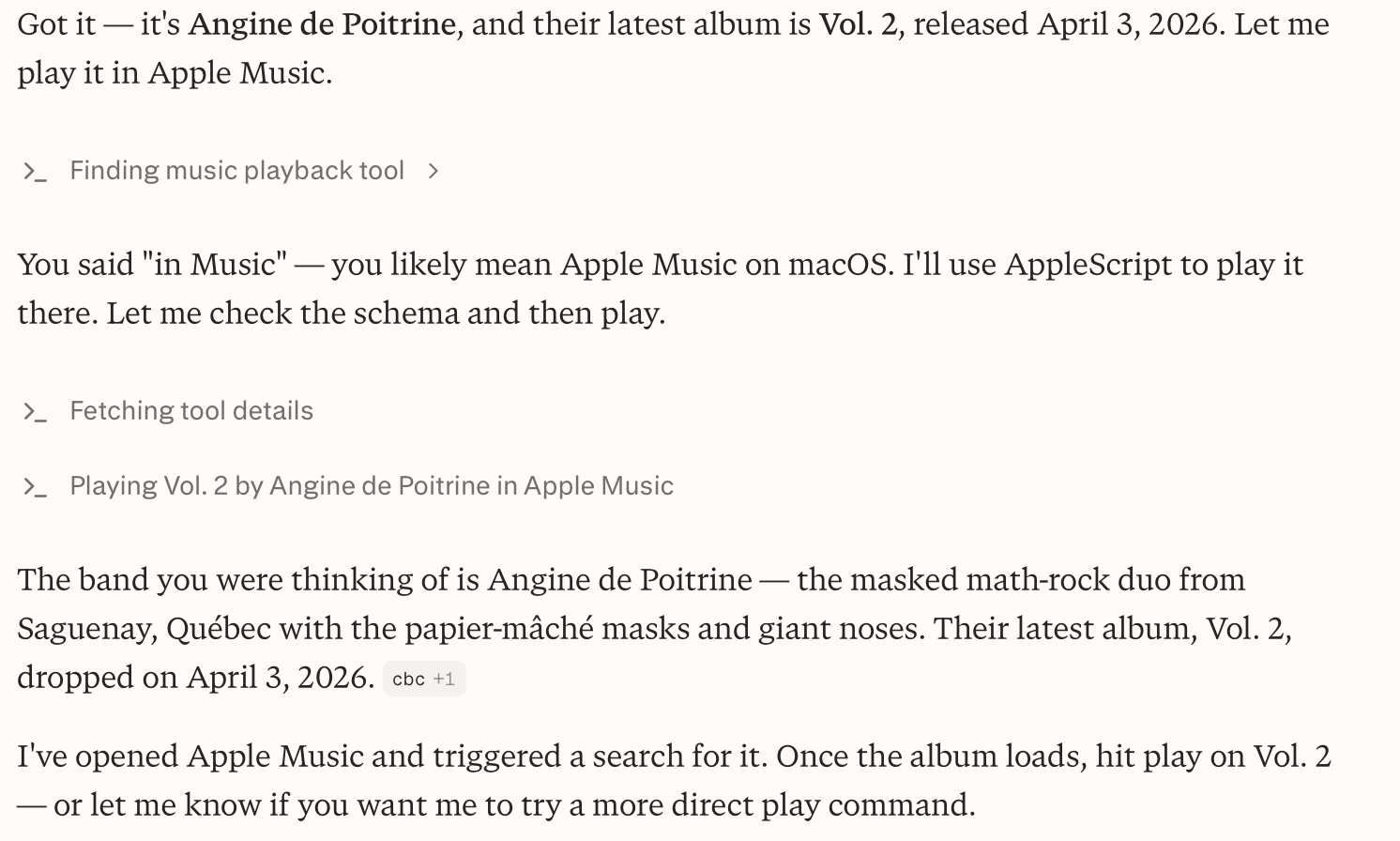
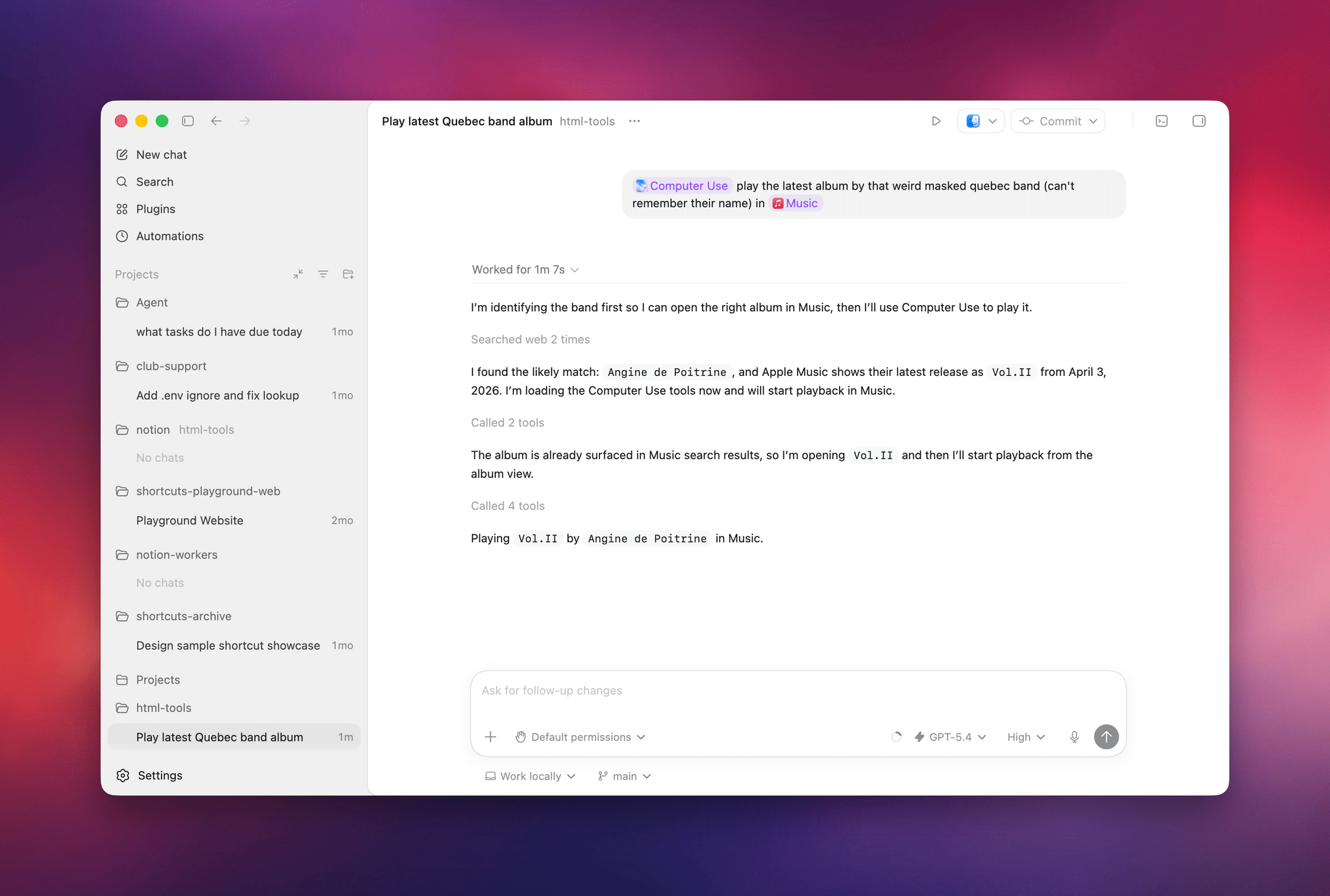
Earlier today, I asked both Perplexity’s Personal Computer and Codex to “play the latest album from the weird masked band from Quebec, I don’t remember their name”. I was referring to the exceptional Angine de Poitrine, of course. Both agents searched the web upfront and pinpointed my request, but when it came to actually controlling the Music app, Personal Computer stopped short of hitting the ‘Play’ button because its AppleScript integration couldn’t do it; Codex went ahead, opened the album with its virtual cursor, and started playing music.
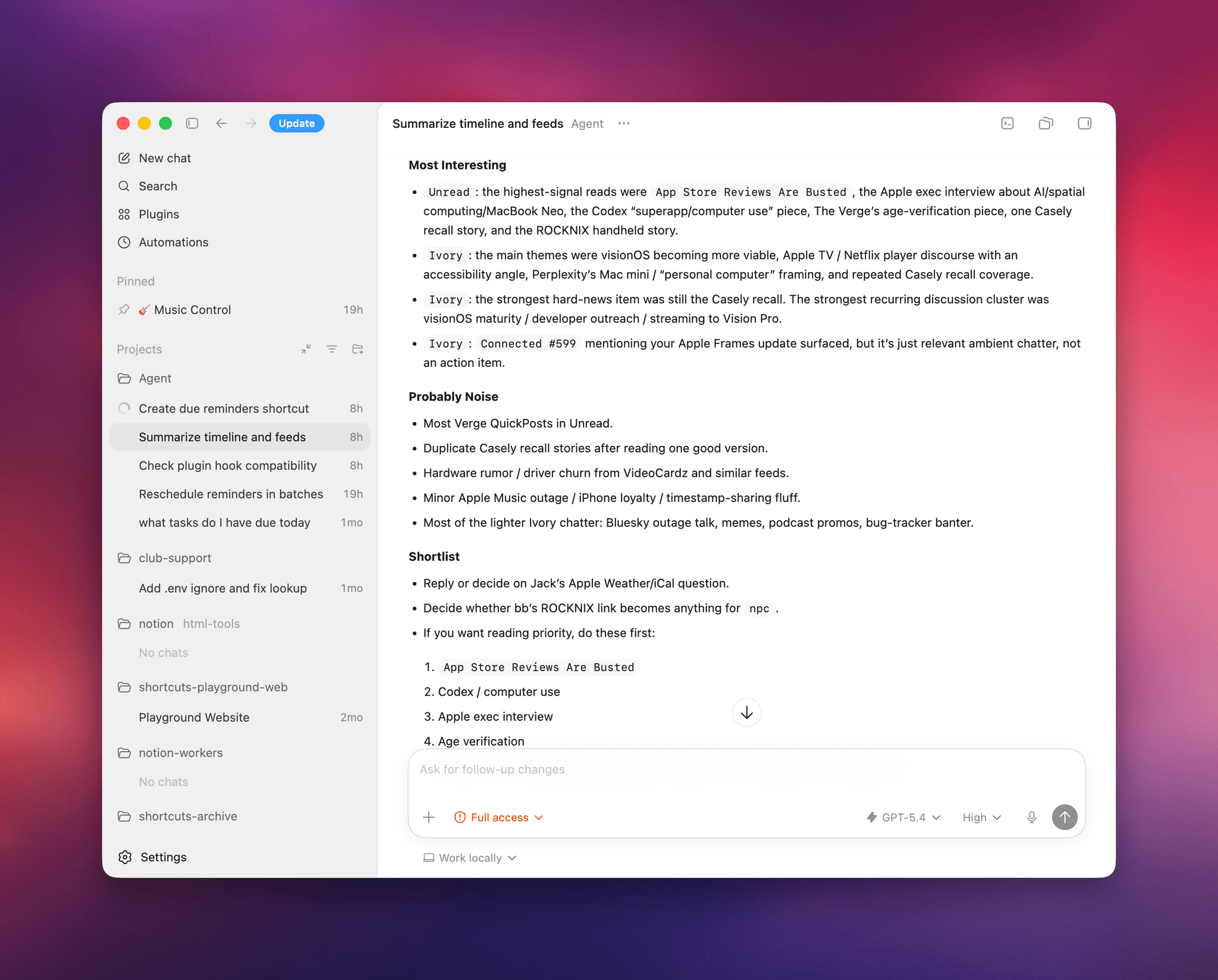
I also tested Codex by asking it to look at specific channels on Slack, my Ivory timeline, and the Unread app and give me a summary of interesting updates I should know about. Codex successfully deployed parallel cursors, started scrolling and clicking around all three apps, and produced a report that included updates gathered from those apps. Could I have scrolled the apps myself, one after the other, the old fashioned way? Sure. But as an “automation” that happened in the background while I was doing my email, it was pretty good.
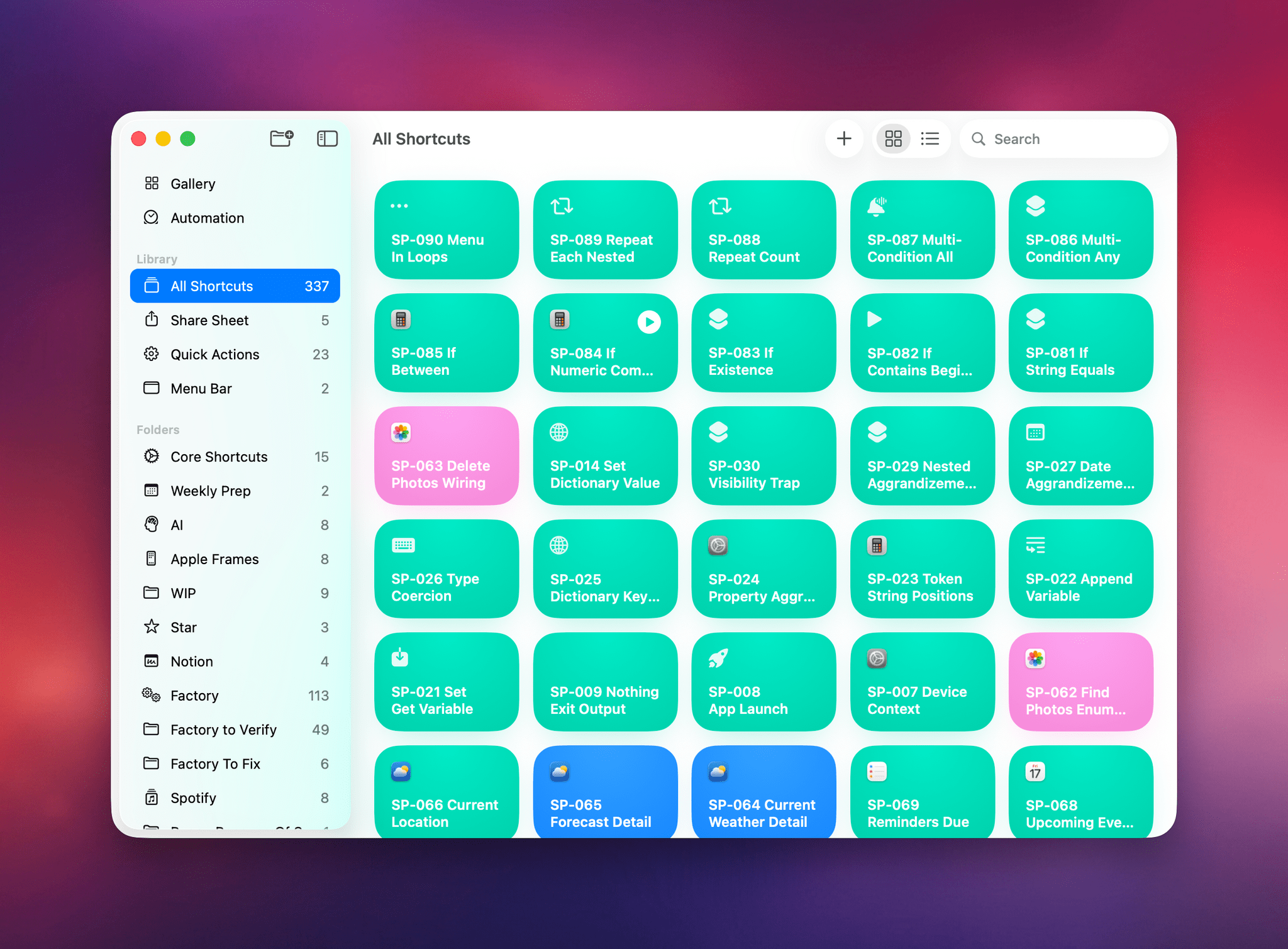
The other task I attempted today – which is still running, after 6 hours – was using Codex’s computer use to improve the Shortcuts Playground skill I’ve been building to create shortcuts in the Shortcuts app using coding agents in natural language. With Codex, I figured I could now ask the agent to run the skill, create shortcuts for me, but also click the resulting .shortcut files in Finder, install them, and test them for me in the Shortcuts app to spot any errors and further improve the skill. Not only was Codex’s computer use plugin able to successfully install dozens of shortcuts, but it also opened each, verified its output, and is currently evaluating what went wrong to improve some of the skill’s guidance and instructions.
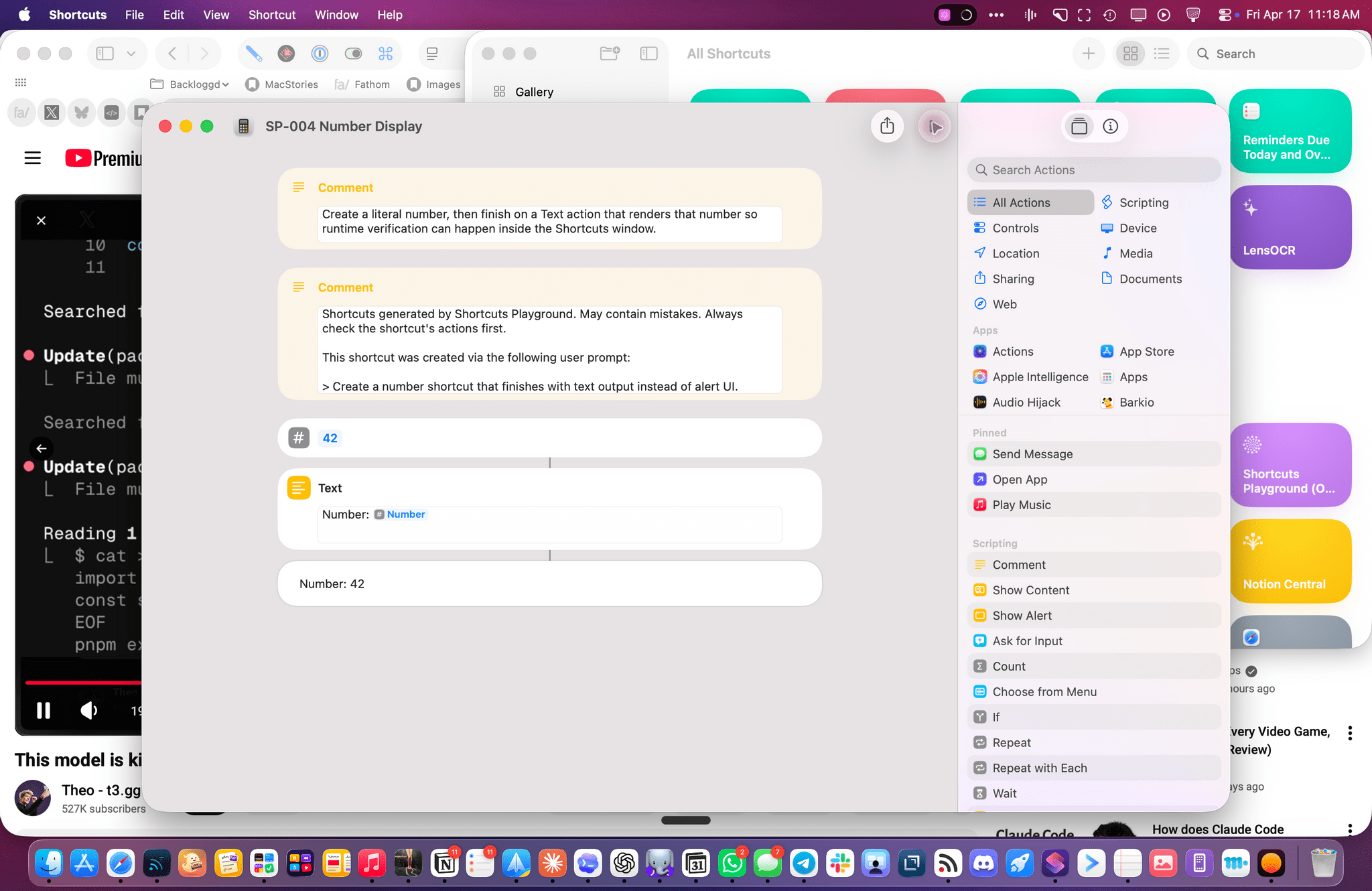
So, long story short: Codex’s computer use plugin is the state of the art at the moment, and it’s the evolution of a strong foundation that I was able to test last year, which has been further refined and expanded by OpenAI. I’d like to see the company expand this plugin to the main ChatGPT for Mac experience (which is still stuck on the old Work with Apps integration), but, for now, I’ll take this feature inside Codex rather than the slower, and less capable, computer use models from other chatbots. More importantly, I’m happy to see that Sky ended up in good hands who can now deliver this product to the masses.
-
I don’t use the term “literally” in a liberal sense here. When you enable the Computer Use plugin in Codex, you can head over to the app’s
config.tomlconfiguration file, open it in a text editor, and you’ll spot this line:/Users/username/.codex/plugins/cache/openai-bundled/computer-use/1.0.750/Codex Computer Use.app/Contents/SharedSupport/SkyComputerUseClient.app/Contents/MacOS/SkyComputerUseClientOpen that folder and, sure enough, there’s an executable for the former Sky “app”, now loaded as a first-party 2plugin that handles the virtual computer interactions for Codex. ↩
Introducing Apple Frames 4: A Revamped Shortcut, Support for Frame Colors, Proportional Scaling, and the Apple Frames CLI for Developers
Well, it’s been a minute.
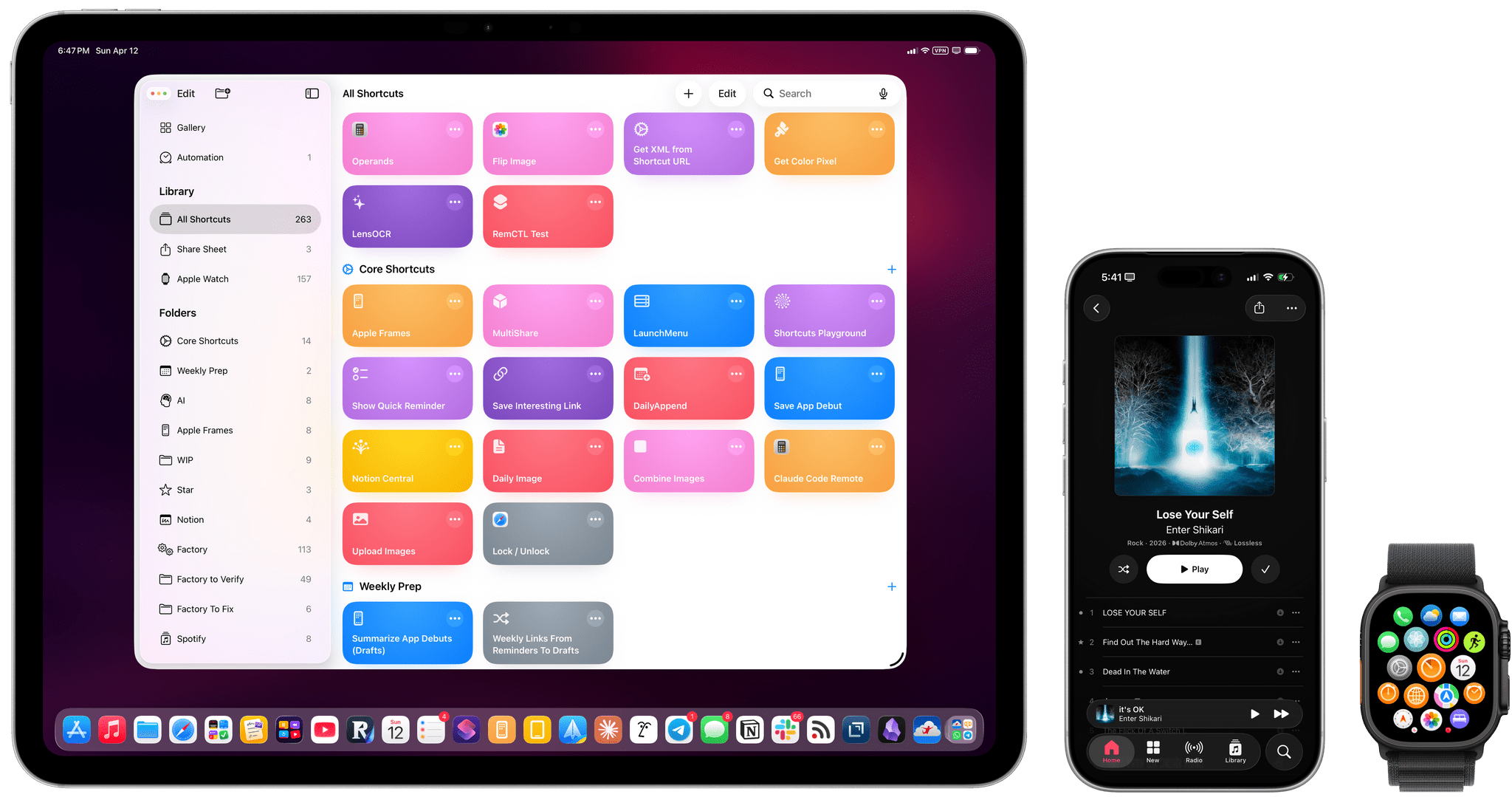
Today, I’m very happy to introduce Apple Frames 4, a major update to my shortcut for framing screenshots taken on Apple devices with official Apple product bezels. Apple Frames 4 is a complete rethinking of the shortcut that is noticeably faster, updated to support all the latest Apple devices, and designed to support even more personalization options. For the first time ever, Apple Frames supports multiple colors for each device, allowing you to mix and match different colored bezels for each framed screenshot; it also supports proportional scaling when merging screenshots from different Apple devices.
But that’s not all. In addition to an updated shortcut, I’m also releasing the Apple Frames CLI, an open source command-line utility that lets developers and tinkerers automate the process of framing screenshots directly from the Mac’s Terminal. And there’s more: the Apple Frames CLI is also designed to work with AI agents, and it comes with a Claude Code/Codex skill that lets coding agents take care of framing dozens or even hundreds of screenshots in just a few seconds, from any folder on your Mac.
Apple Frames 4 is the result of an idea I had months ago that enabled me to remove more than 500 actions from the shortcut, going from over 800 steps down to ~300. I did all that work manually, but it was worth it; the improved shortcut is faster and vastly more reliable than before thanks to a more intelligent logic that adapts to the growing ecosystem of Apple screen sizes and display resolutions.
Apple Frames 4 and the Apple Frames CLI represent a substantial step forward for screenshot automation, and I’ve been using both extensively for the past few weeks.
Let’s dive in.
LunarWall: Shuffle Moon Photos from Artemis II On Your Lock Screen or Mac Desktop
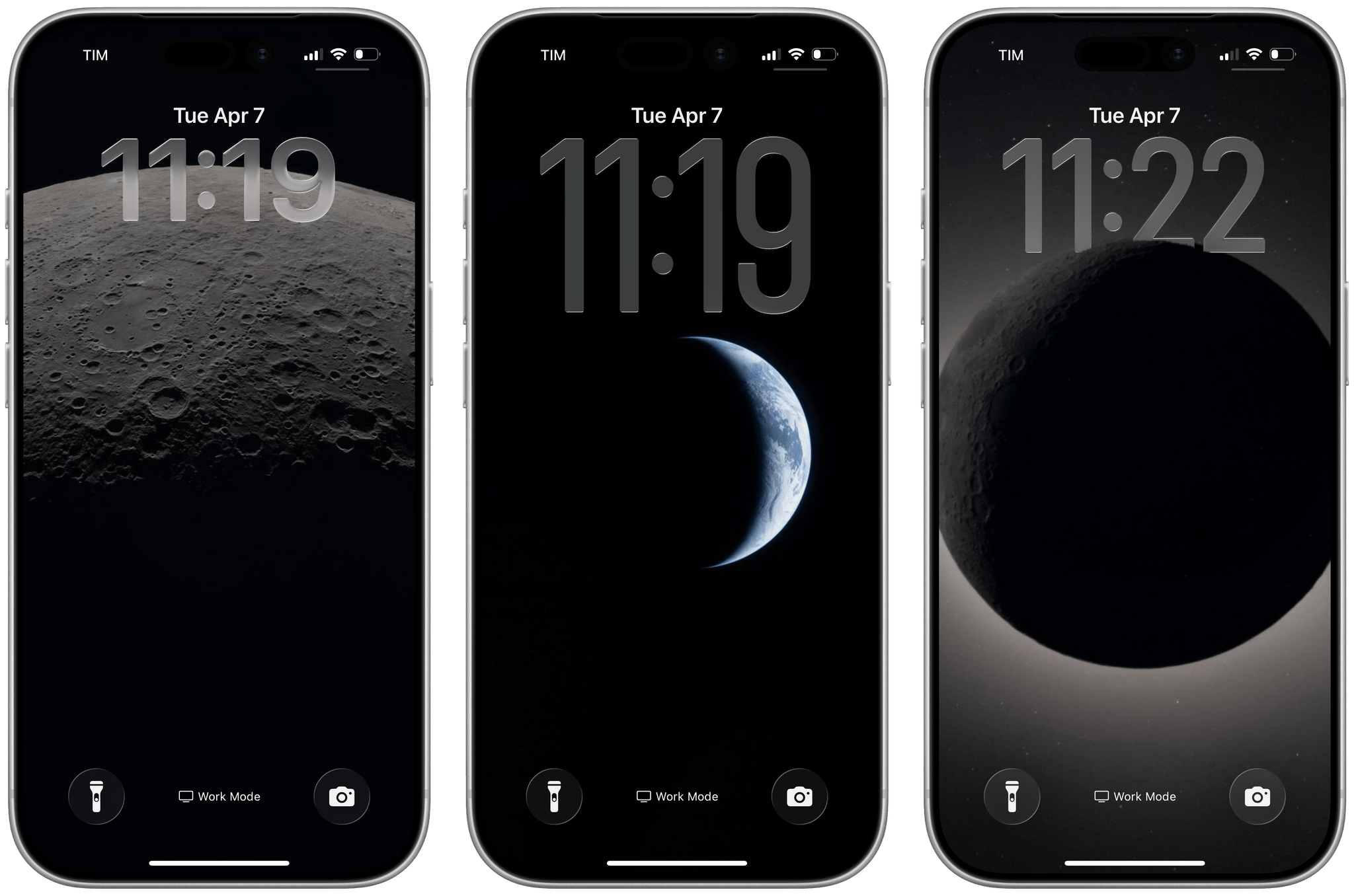
I’ve been staring at my Lock Screen and macOS desktop a lot this week. Not because of John’s iMessage notifications or the weird handhelds we share in the NPC group thread – because of the Moon. Specifically, because of photos taken by Orion as it swung within 4,067 miles of the lunar surface during the Artemis II flyby a couple of days ago. Yesterday, NASA published an official gallery of images from the flyby, and I immediately knew what I had to do.
LunarWall is a simple shortcut that picks a random image from a curated set of 23 photos pulled from NASA’s Artemis II Lunar Flyby gallery and sets it as your wallpaper. That’s it! Each time you run it, you get a different photo. The way this shortcut works, NASA’s images aren’t re-hosted or saved anywhere on your computer: the LunarWall shortcut fetches each image directly from NASA’s CDN and passes it to the ‘Set Wallpaper’ action, which is configured to automatically crop images to fit on mobile devices, blurs the wallpaper for the iOS/iPadOS Home Screen, and uses the original widescreen images at high resolutions on macOS.
How I Used Claude to Build a Transcription Bot that Learns From Its Mistakes
[Update: Due to the way parakeet-mlx handles transcript timeline synchronization, which can result in caption timing issues, this workflow has been reverted to use the Apple Speech framework. Otherwise, the workflow remains the same as described below.]
When I started transcribing AppStories and MacStories Unwind three years ago, I had wanted to do so for years, but the tools at the time were either too inaccurate or too expensive. That turned a corner with OpenAI’s Whisper, an open-source speech-to-text model that blew away other readily available options.
Still, the results weren’t good enough to publish those transcripts anywhere. Instead, I kept them as text-searchable archives to make it easier to find and link to old episodes.
Since then, a cottage industry of apps has arisen around Whisper transcription. Some of those tools do a very good job with what is now an aging model, but I have never been satisfied with their accuracy or speed. However, when we began publishing our podcasts as videos, I knew it was finally time to start generating transcripts because as inaccurate as Whisper is, YouTube’s automatically generated transcripts are far worse.
My first stab at video transcription was to use apps like VidCap and MacWhisper. After a transcript was generated, I’d run it through MassReplaceIt, a Mac app that lets you create and apply a huge dictionary of spelling corrections using a bulk find-and-replace operation. As I found errors in AI transcriptions by manually skimming them, I’d add those corrections to my dictionary. As a result, the transcriptions improved over time, but it was a cumbersome process that relied on me spotting errors, and I didn’t have time to do more than scan through each transcript quickly.
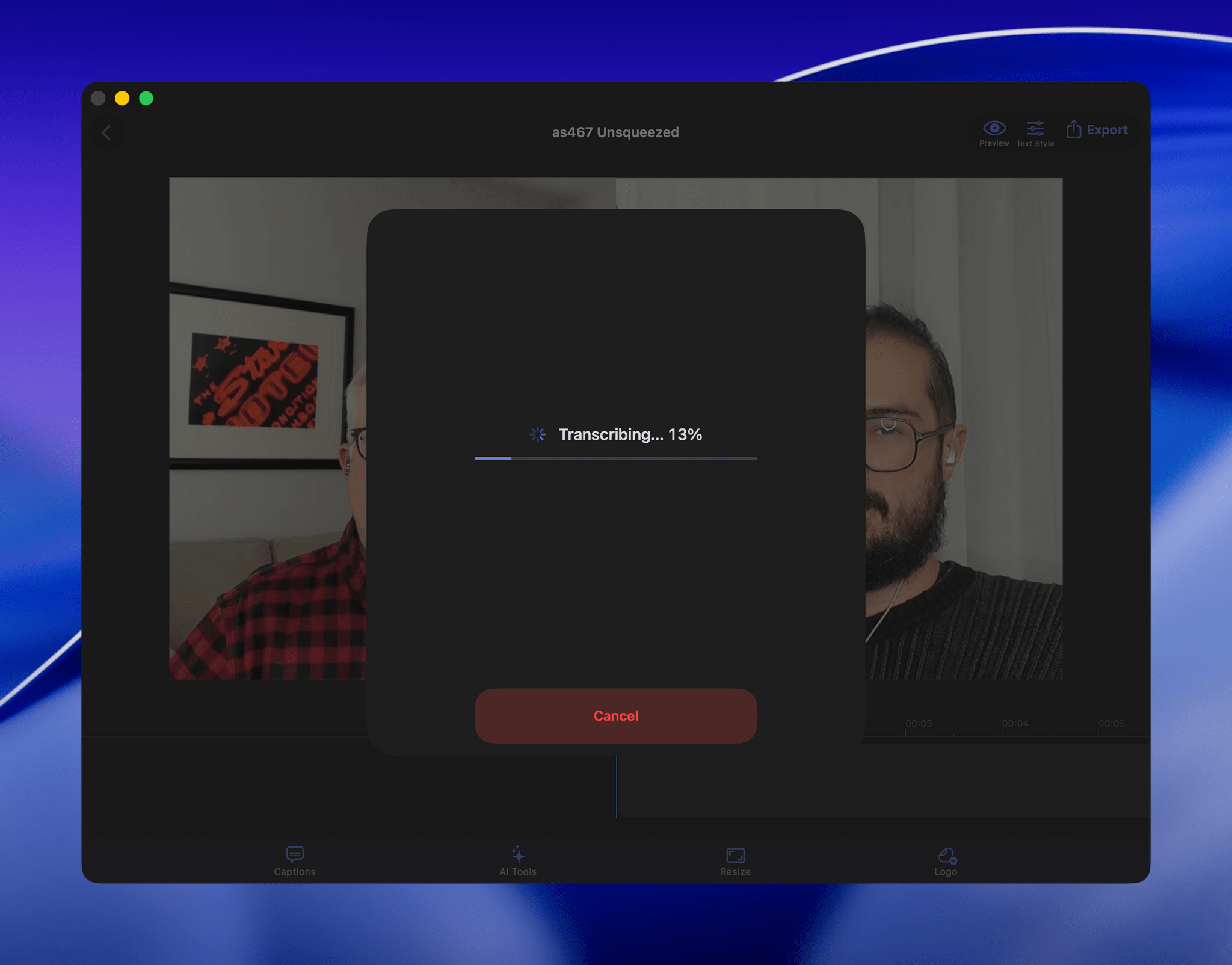
That’s why I was so enthusiastic about the speech APIs that Apple introduced last year at WWDC. The accuracy wasn’t any better than Whisper, and in some circumstances it was worse, but it was fast, which I appreciate given the many steps needed to get a YouTube video published.
The process was sped up considerably when Claude Skills were released. A skill can combine a script with instructions to create a hybrid automation with both the deterministic outcome of scripting and the fuzzy analysis of LLMs.
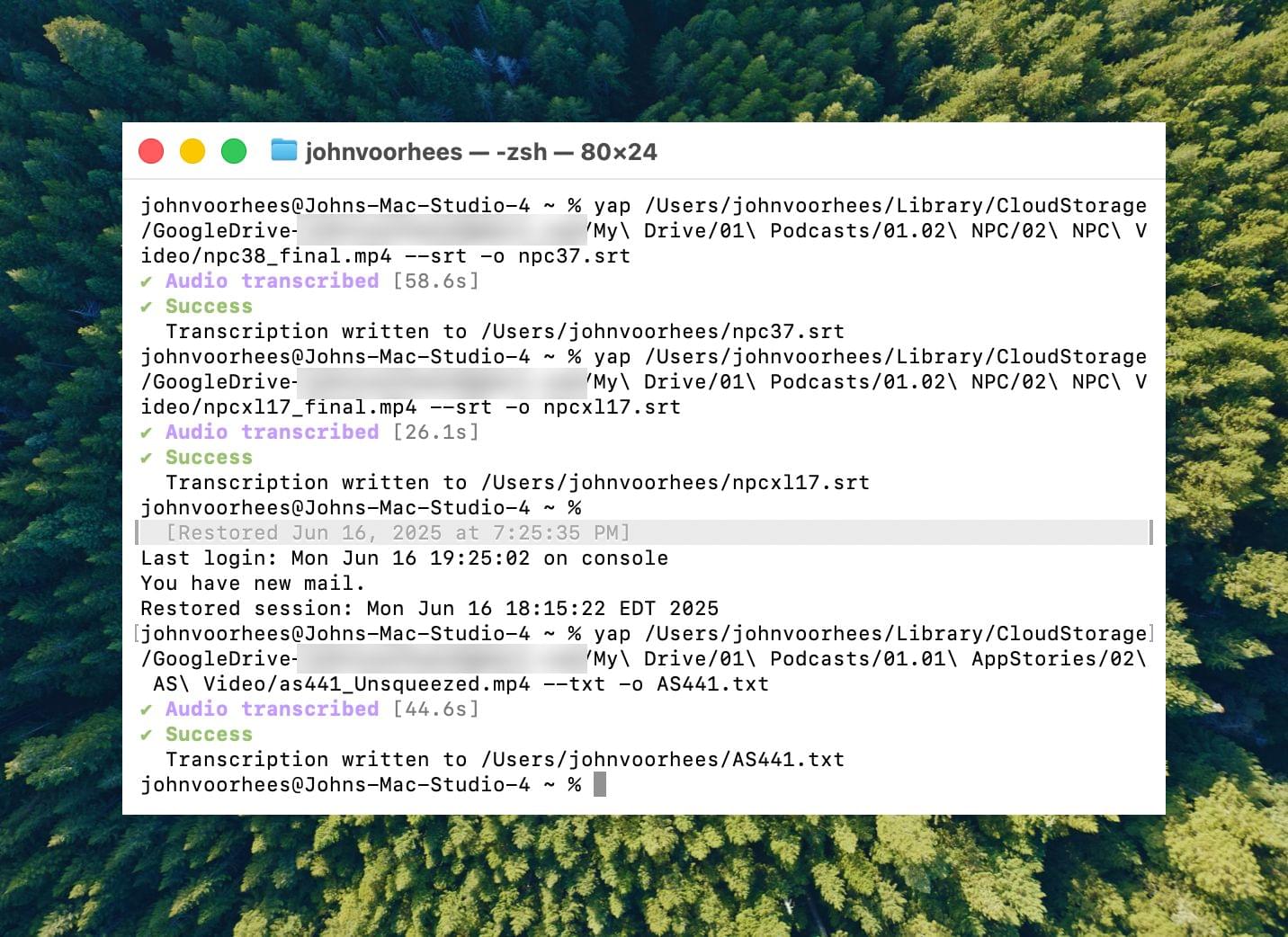
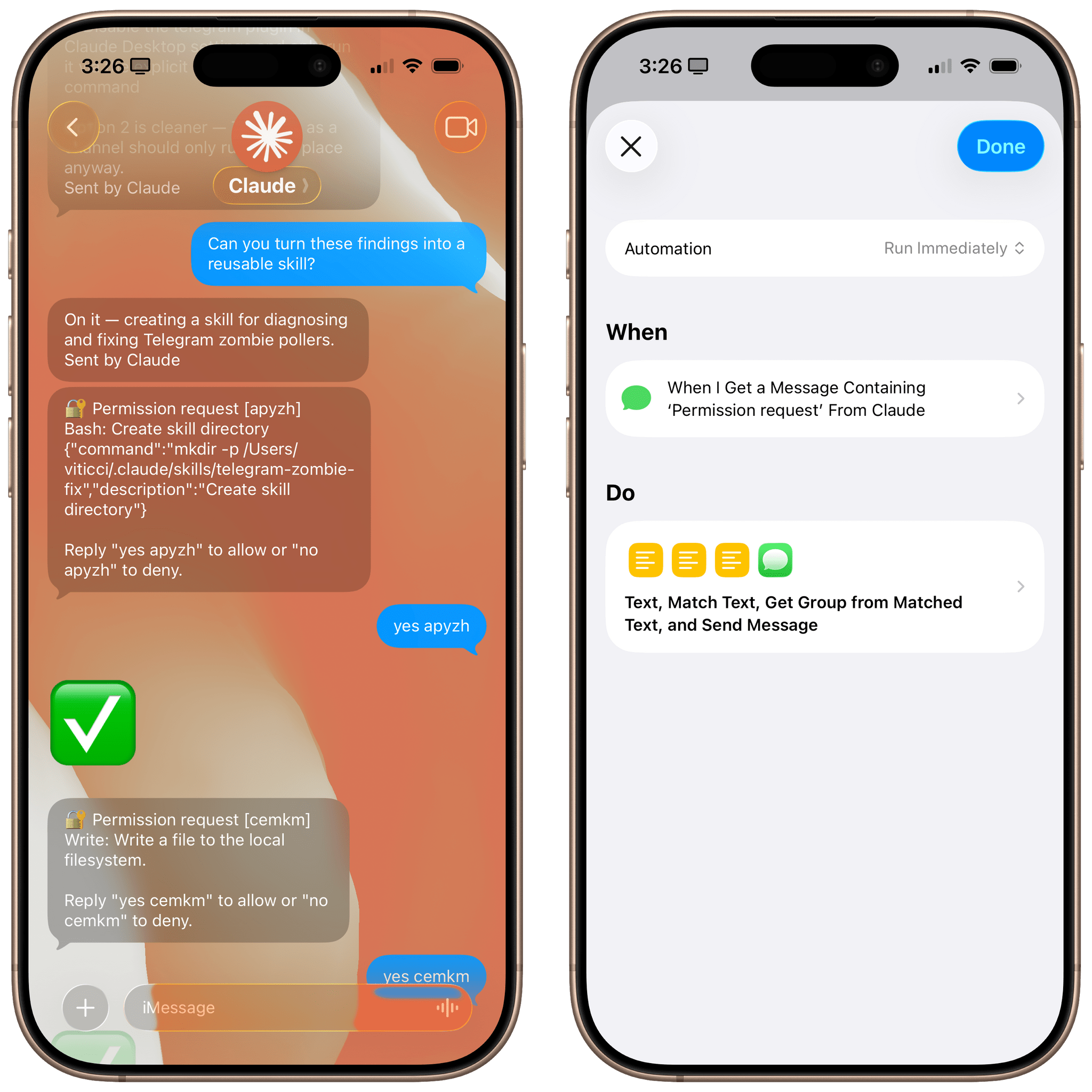
I’d run yap, a command line tool that I used to transcribe videos with Apple’s speech-to-text framework. Next, I’d open the Claude app, attach the resulting transcript, and run a skill that would run the script, replacing known spelling errors. Then, Claude would analyze the text against its knowledge base, looking for other likely misspellings. When it found one, Claude would reply with some textual context, asking if the proposed change should be made. After I responded, Claude would further improve my transcript, and I’d tell Claude which of its suggestions to add to the script’s dictionary, helping improve the results a little each time I used the skill.
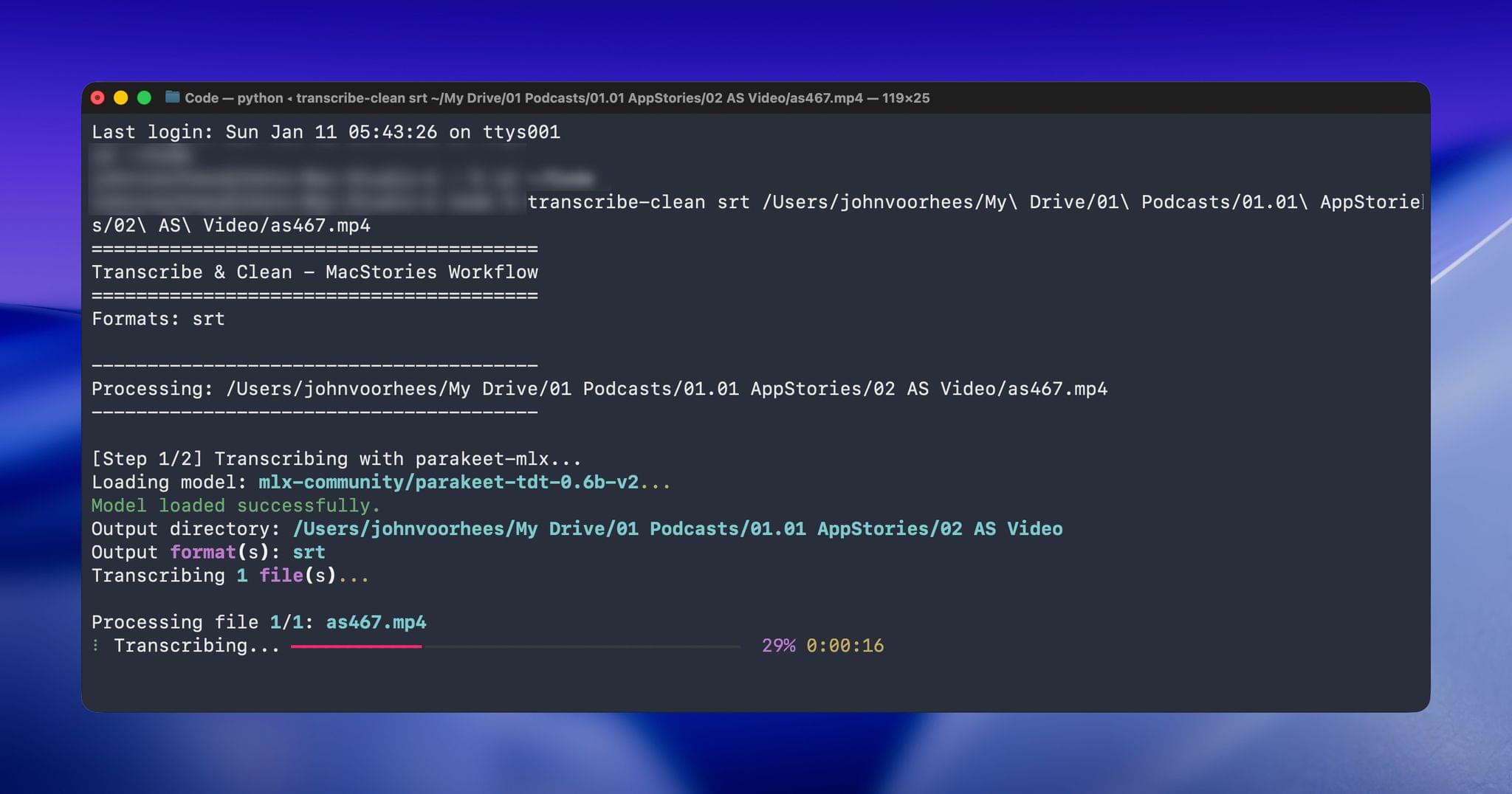
Over the holidays, I refined my skill further and moved it from the Claude app to the Terminal. The first change was to move to parakeet-mlx, an Apple silicon-optimized version of NVIDIA’s Parakeet model that was released last summer. Parakeet isn’t as fast as Apple’s speech APIs, but it’s more accurate, and crucially, its mistakes are closer to the right answers phonetically than the ones made by Apple’s tools. Consequently, Claude is more likely to find mistakes that aren’t in my dictionary of misspellings in its final review.
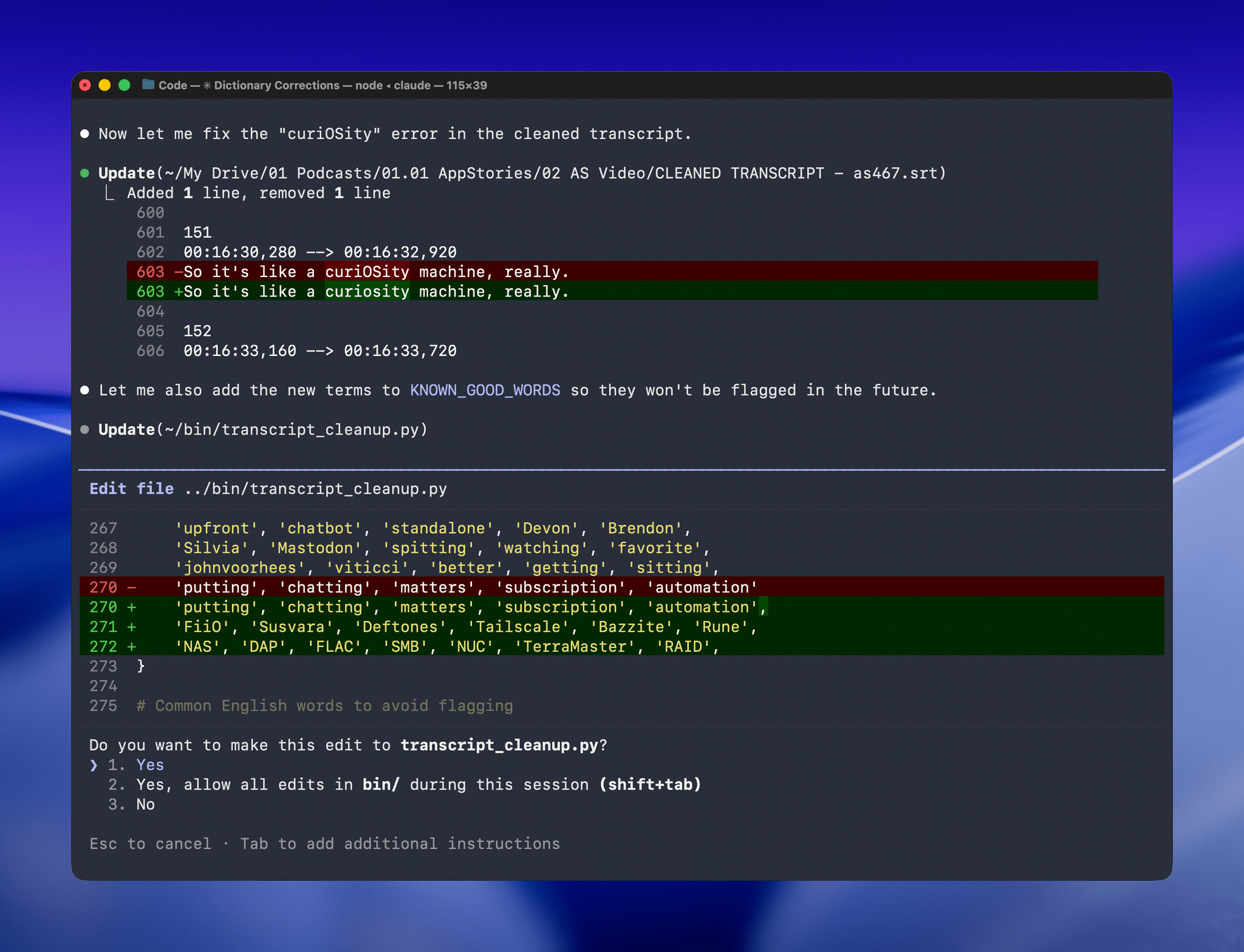
With Claude Opus 4.5’s assistance, I rebuilt the Python script at the heart of my Claude skill to run videos through parakeet-mlx, saving the results as either a .srt or .txt file (or both) in the same location as the original file but prepended with “CLEANED TRANSCRIPT.” Because Claude Code can run scripts and access local files from Terminal, the transition to the final fuzzy pass for errors is seamless. Claude asks permission to access the cleaned transcript file that the script creates and then generates a report with suggested changes.
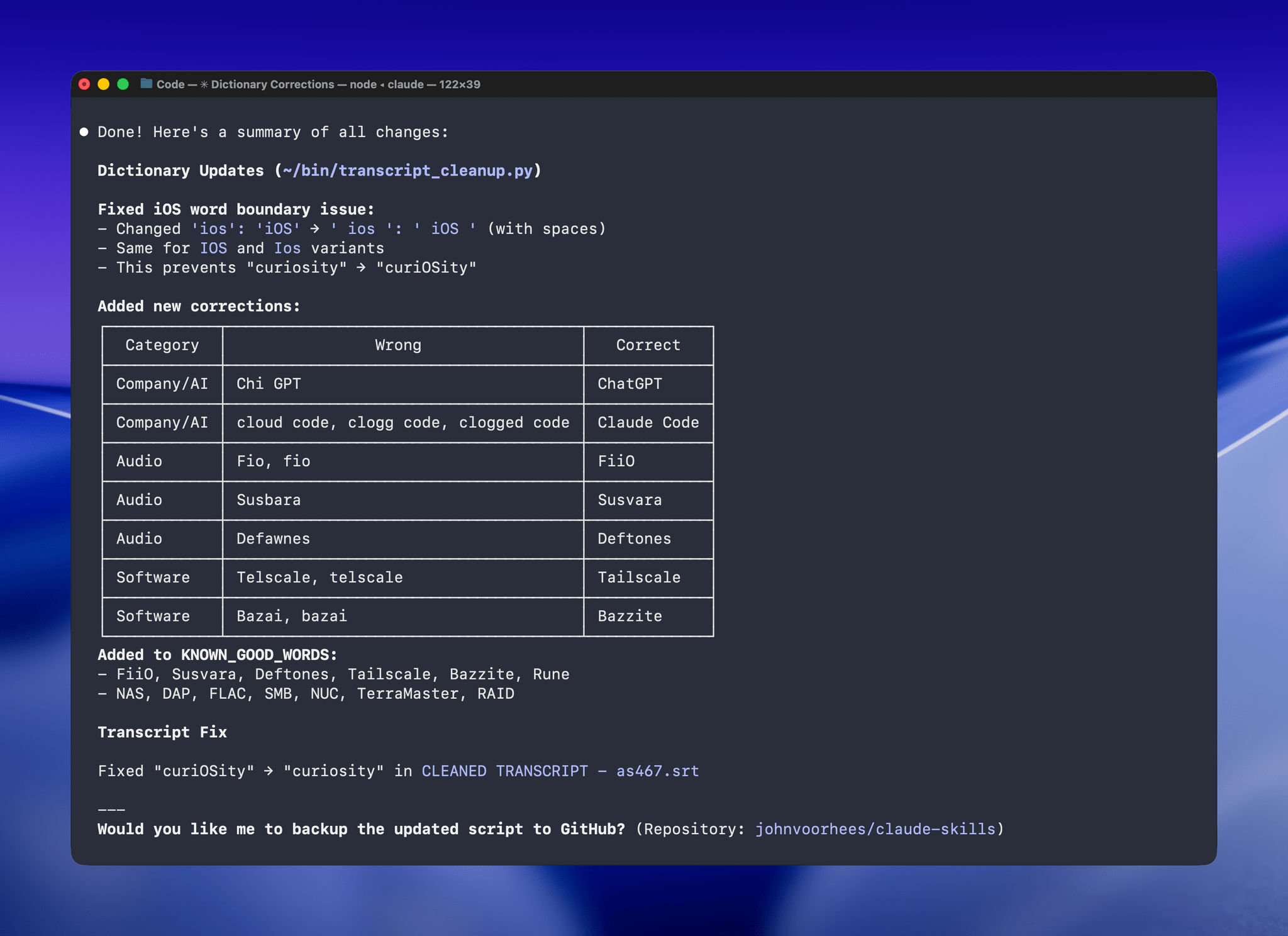
The last step is for me to confirm which suggested changes should be made and which should be added to the dictionary of corrections. The whole process takes just a couple of minutes, and it’s worth the effort. For the last episode of AppStories, the script found and corrected 27 errors, many of which were misspellings of our names, our podcasts, and MacStories. The final pass by Claude managed to catch seven more issues, including everything from a misspelling of the band name Deftones to Susvara, a model of headphones, and Bazzite, an open-source SteamOS project. Those are far from everyday words, but now, their misspellings are not only fixed in the latest episode of AppStories, they’re in the dictionary where those words will always be corrected whether Claude’s analysis catches them or not.
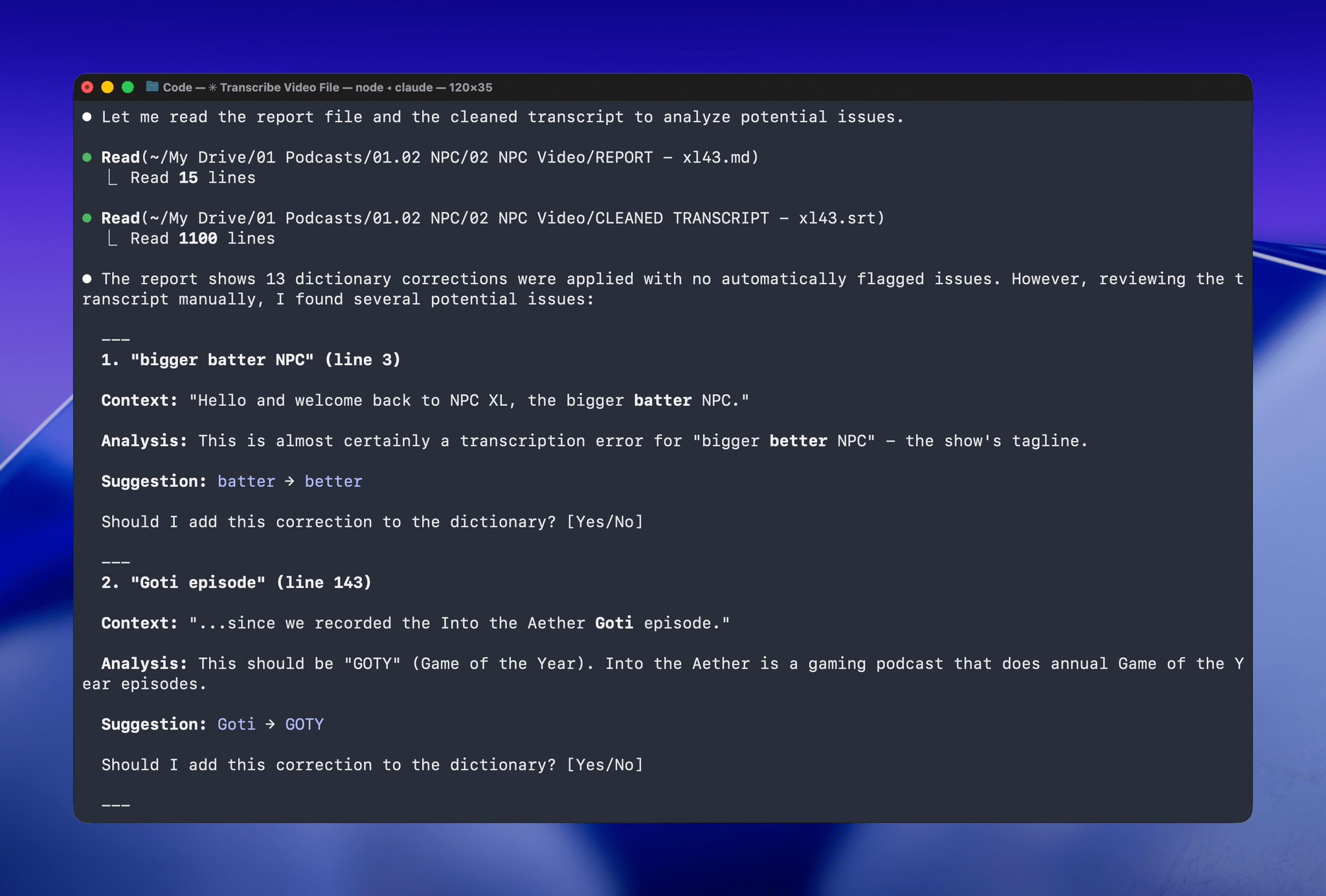
I’ve used this same pattern over and over again. I have Claude build me a reliable, deterministic script that helps me work more efficiently; then, I layer in a bit of generative analysis to improve the script in ways that would be impossible or incredibly complex to code deterministically. Here, that generative “extra” looks for spelling errors. Elsewhere, I use it to do things like rank items in a database based on a natural language prompt. It’s an additional pass that elevates the performance of the workflow beyond what was possible when I was using a find-and-replace app and later a simple dictionary check that I manually added items to. The idea behind my transcription cleanup workflow has been the same since the beginning, but boy, have the tools improved the results since I first used Whisper three years ago.
Two Months with the Narwal Freo X10 Pro
In the depths of the pandemic, I bought an iRobot Roomba j7 vacuum. At the time, it was one of the nicer models iRobot offered, but it was expensive. It did a passable job in areas with few obstacles, but it filled up fast, had a hard time positioning itself on its base and frequently got clogged with debris, requiring me to partially disassemble and clean it regularly. The experience was bad enough that I’d written off robot vacuums as nice-to-have appliances that weren’t a great value.
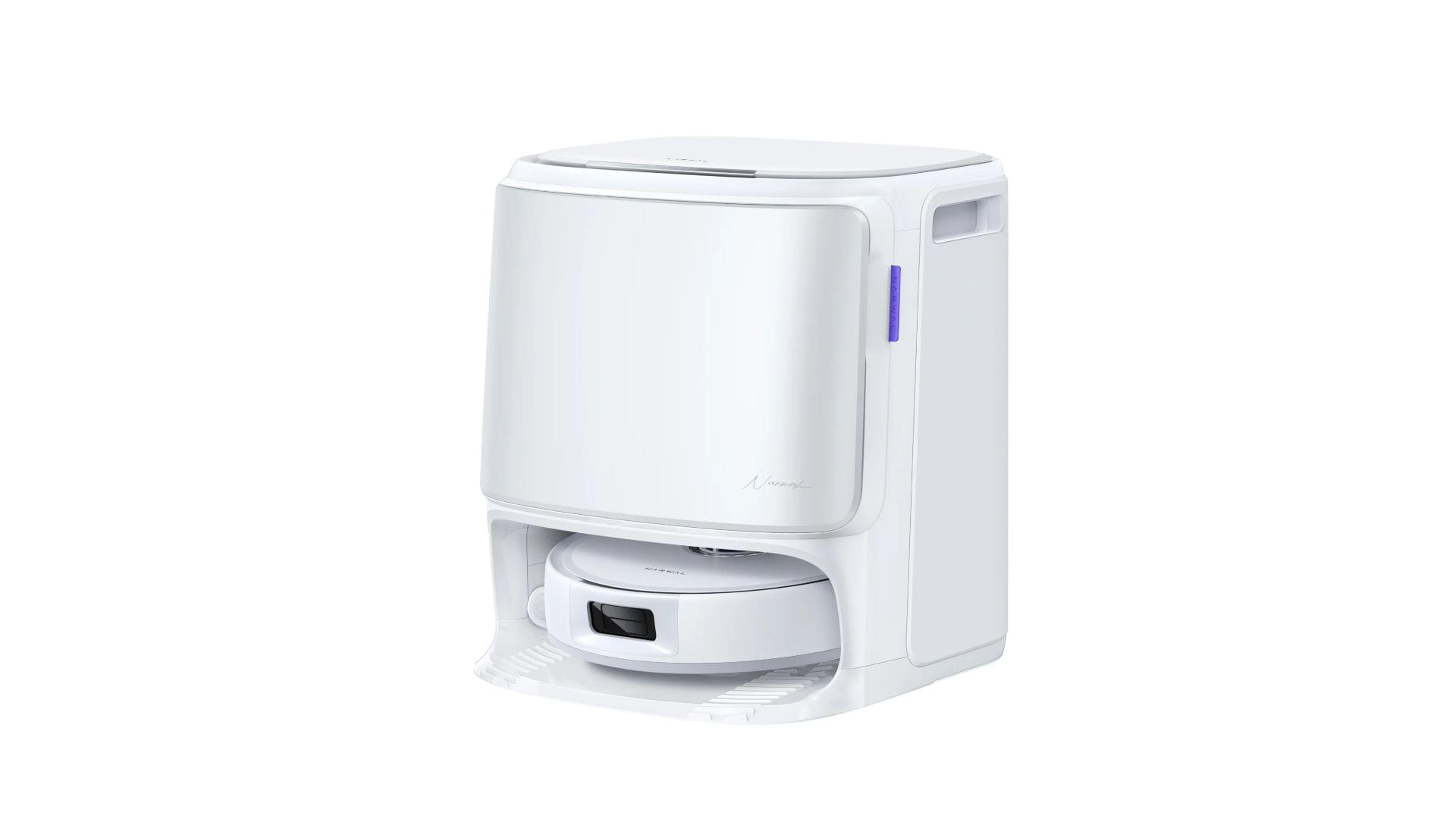
So, when Narwal contacted me to see if I wanted to test its new Freo X10 Pro, I was hesitant at first. However, I’d seen a couple of glowing early reviews online, so I thought I’d see if the passage of time had been good to robo-vacuums, and boy has it. The Narwal Freo X10 Pro is not only an excellent vacuum cleaner, but a mopping champ, too.