Federico Viticci

10758 posts on MacStories since April 2009

Federico is the founder and Editor-in-Chief of MacStories, where he writes about Apple with a focus on apps, developers, iPad, and iOS productivity. He founded MacStories in April 2009 and has been writing about Apple since. Federico is also the co-host of AppStories, a weekly podcast exploring the world of apps, Unwind, a fun exploration of media and more, and NPC: Next Portable Console, a show about portable gaming and the handheld revolution.

Batch Resize Images On iOS with Reduce

Reduce

Reduce

I deal with two types of images on my iOS devices: photos and screenshots.

For photos, I’ve long settled on a Dropbox-based workflow that takes care of automatically archiving and sorting photos for me. For screenshots, the story is a bit more complicated.

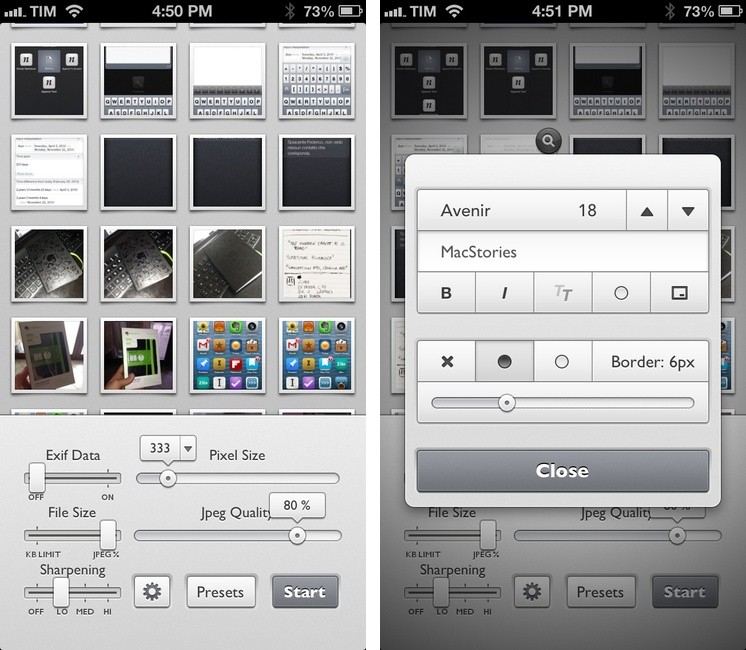
For months, I used OneEdit, an iPhone/iPad app to batch resize images from the Camera Roll; OneEdit comes with a lot of features, including presets, Dropbox sharing, and FTP uploads. The downside is that the app’s interface is clunky and convoluted, with seemingly no intention from the developer to update it. In spite of that, however, I kept using OneEdit to resize multiple screenshots at once, save them to the Camera Roll, fire up Diet Coda, and move them to our FTP server. When we decided to move 4 years of image uploads off the FTP and onto a CDN (alongside new uploads on a daily basis), I asked our Don Southard to create a Hazel script that would monitor Dropbox for screenshots and upload them to the CDN. This is what I’ve been using in combination with some Pythonista scripts that would resize screenshots for me.

My iOS screenshot workflow is faster thanks to Pythonista and the Hazel script running on the Mac mini, but I miss the possibility of having a single app capable of batch resizing and uploading images to Rackspace Cloud Files.1 The latest Pythonista update made things dramatically better with the Photos module, but I still can’t pick multiple photos at once (and, obviously, I still have to deal with Python).

My “ideal” batch resizing photo app for iOS would excel in two different aspects: it would be Universal and have an elegant interface to pick multiple photos at once to batch resize them with presets; it would come with a plethora of sharing options built-in, including Cloud Files and SFTP support. Reduce is close to excellence when it comes to the first one.

Read more


Simple Japanese Emoticons with Kaomoji

At MacStories, we use iMessage on a daily basis as our team chat. Alongside the occasional meme, Twitter link, or article we need to check out, the Japanese emoticon is a common occurrence in our group thread. I’ve always wondered whether my fellow teammates learned to manually type out flipping tables and other emoticons – also known as kaomojis – while I was stuck using the good-looking, but obvious Apple default emoji. If you happen to live in a team chat of remote workers every day you know how much more successful an original GIF or meme can be.

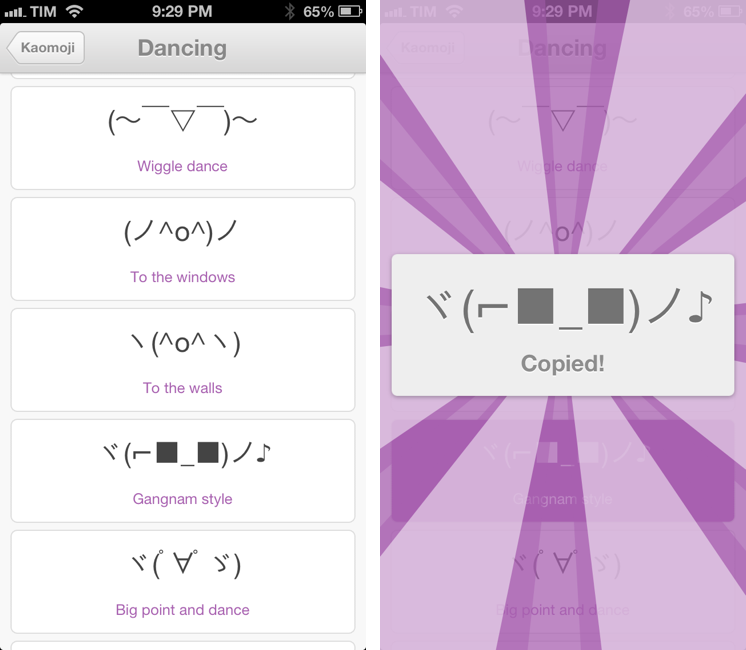
My quest towards iMessage emoticon domination is over with Kaomoji. A simple $0.99 iPhone app made by Richard Henry (product designer at Quora), Kaomoji contains 1,000 Japanese-style emoticons organized in 28 categories such as Happy, Sad, Evil, Love, Cats, Dogs, Dancing, and the game-changing Table Flip.

Kaomoji’s UI is clean and focused on the actual emoticons. Categories are color-coded, and tapping on one will open a dedicated page with properly colored highlights and fonts. It’s a nice touch. The app has only one feature: copy. Tapping on a kaomoji will bring up a manga-like success message showing a bigger version of the emoticon with the text “Copied”. Once copied, you can paste the text anywhere – be it iMessage, Twitter, Facebook, or any other app.

Kaomoji does one thing extremely well. I like the selection of emoticons, and if I had to nitpick I’d say it’d be nice to have built-in Twitter and Messages/Facebook actions to send text without leaving the app. I would also like to see an iPad version in the future.

Kaomoji is only $0.99 on the App Store.

Let’s also put the table back. ┬──┬◡ノ(° -°ノ)


Create and Share Evernote Notes With Pythonista On iOS

I use Evernote on a daily basis, but there’s no easy and quick way to create new notes and receive their shared URLs on iOS. While I tend to prefer plain text files, Evernote notes are quite useful when I need to share rich text (containing formatting and inline images) with someone else. Sharing via the official Evernote app takes too long[1], and I don’t like the UI of other Evernote clients.

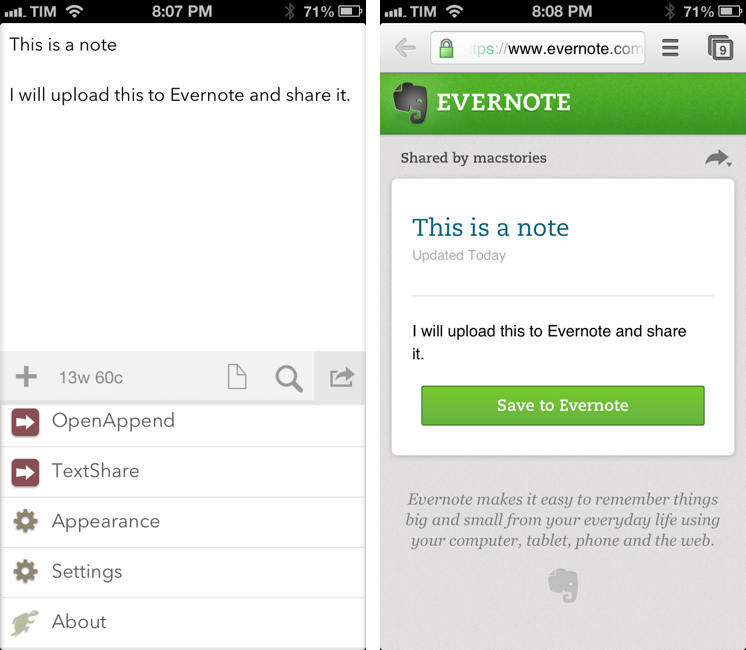
Yesterday, Pythonista developer Ole Zorn posted an installer script for the Python Evernote SDK. By putting together all the necessary dependencies, he created an installer script that will create an “evernote-sdk” sub-folder in Pythonista 1.3; with that, you’ll be able to access the entire Evernote API to create and manage notes – all while taking advantage of the uniqe iOS-related features of Pythonista.

Inspired by Ole’s demoes and the snippets posted by Brett Kelly in the past weeks, I created a script that does exactly what I need: it lets me enter text to save it in an Evernote note that will be shared publicly. If triggered by an app like Drafts or Launch Center Pro, the script will take the text sent by those apps. If formatted in Markdown, the text will be converted to HTML before saving it to Evernote. Read more


Evernote 5.2 Gets New Snippet View, PDF Viewer

Evernote52

Evernote52

Evernote for iOS has been updated today to version 5.2. I have been testing the update for the past weeks, and I believe it brings a number of very welcome improvements, especially for iPad owners.

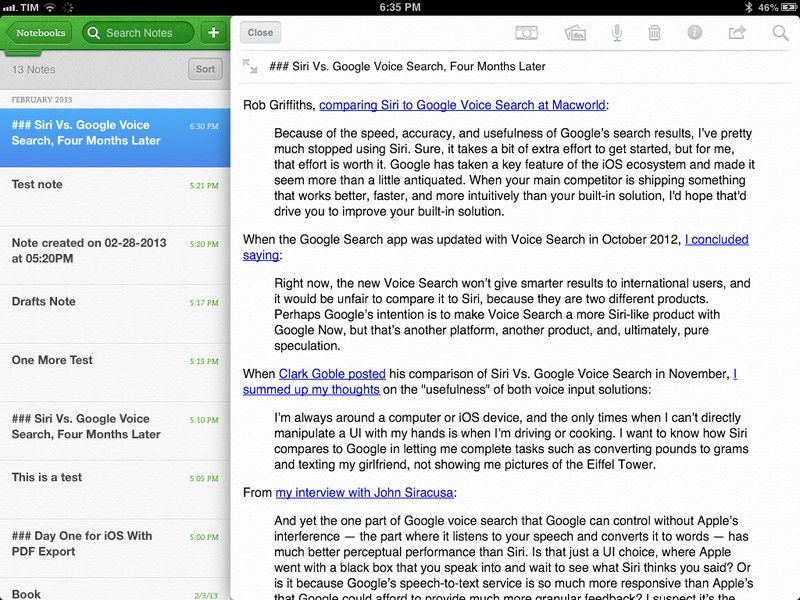
In my original review of Evernote 5, I noted how the new app’s interface felt clunky to navigate in notebooks with a large number of notes, causing related slowdowns when scrolling a note list and, worse, crashes. Version 5.2 brings an all-new snippet view for iPad, which speeds up navigation considerably and works better than the old thumbnail-based navigation when dealing with multiple notes.

Read more


Day One for iOS With PDF Export

Day One for iOS With PDF Export

DayOne

DayOne

Day One is my favorite journaling app for iOS and OS X. The app <a href=”https://www.macstories.net/news/apple-posts-mac-app-store-best-of-2012-list-day-one-is-app-of-the-year/” title=”Apple Posts “Best Of App Store 2012″ Lists”>was chosen as Mac app of the year by Apple, and for good reason: both on Macs and iOS devices, Day One is a finely crafted piece of software based on an even more powerful idea – archiving your memories. From my review:

Day One stands out because it’s not a tool, it’s a personal experience. I can tell you what Day One does, and I can write about the things I do with it. But I can’t tell you how you should use it.

In November 2012, the app was updated with tags, search, and support for MultiMarkdown footnotes. Version 1.10, released today, brings a new option to export your entries as PDF. The update also contains fixes and other improvements such as a new reminder sound, historical weather data increased from 3 to 30 days (useful when adding old entries), and a new font option.

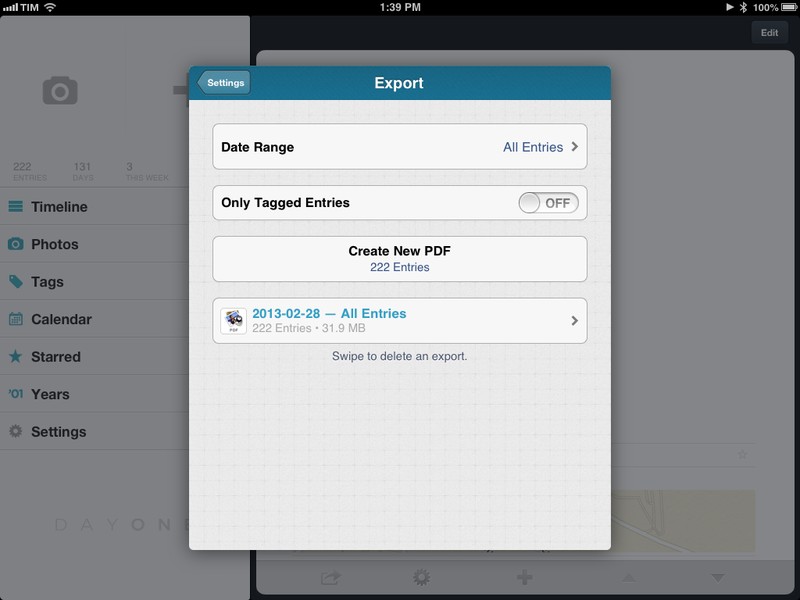
PDF export is interesting because it enables Day One users to get their journal entries out of the app and save them in a format that is more future-proof than Bloom’s own file format. Available in the Settings, you can export all entries at once, or filter specific ones by date range or tag. In my case, I filtered entries tagged with my dog’s name and emailed a beautifully formatted PDF full of photos to my friends. Exports are listed in the same menu and they can be deleted with a single swipe. Email exports can contain attachments up to 25 MB in size, but the app also comes with an “Open In…” menu to send PDFs to other apps like Dropbox and Google Drive (if installed).

I like the changes in Day One 1.10 and I keep recommending the app as, by far, the best journaling experience on iOS and OS X. Day One is available on the App Store.

Permalink


Siri Date Calculations and WolframAlpha

Siri Date Calculations and WolframAlpha

SiriLOL

SiriLOL

Speaking of Siri, David Sparks posted a great overview of how you can perform date calculations with Siri. I didn’t know any of those tips, and I was surprised to find out they are based on WolframAlpha. I have been doing date calculations in WolframAlpha for years, and I didn’t even think about using Siri for that purpose.

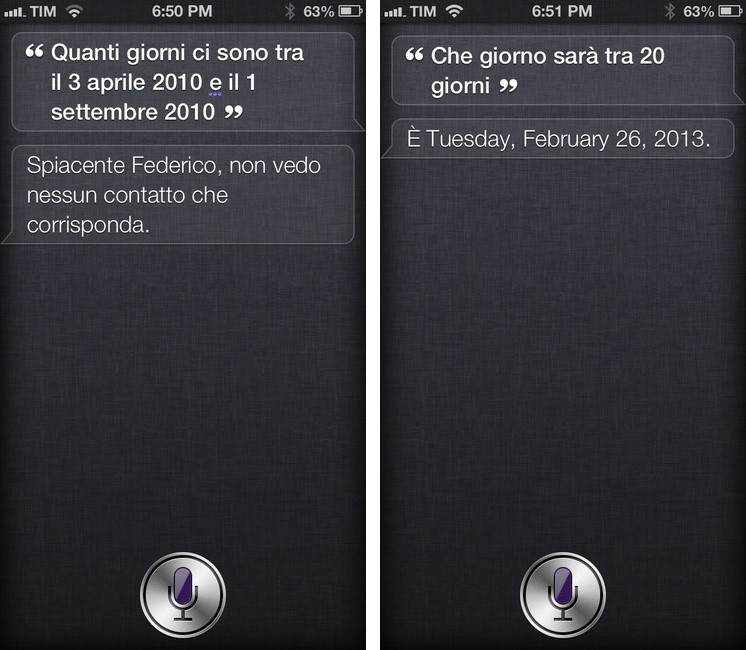
David’s post convinced me to do the same with Siri’s Italian sister. Unfortunately, but unsurprisingly, the results were disappointing. First, I asked Siri to calculate the days between April 3, 2010 and September 1, 2010. The query was parsed correctly, but Siri said she couldn’t find a contact in my Address Book.

For the second test, I asked which day it’ll be in 20 days from now, and Siri replied with the following mix of Italian and English:

E’ Tuesday, February 26, 2013

It basically told me that today is (“E’” in Italian) February 26th, completely ignoring my date query. Last, I asked which day it was 17 days ago, and this time Siri didn’t combine languages, but it replied with 17 days from now – March 15th, 2013.

I believe part of the culprit is that iOS 6 can still get confused if you use Siri in Italian but keep your device’s settings to English. Another example is how, with a device set to English and Siri in Italian, Maps navigation in iOS 6 still speaks Italian directions…in English. You can imagine how that sounds. But generally, it’s Siri’s own parsing engine that’s inferior to the “real” English Siri.

Like I said many times in the past, Siri has still a long way to go with the Italian language, and the software hasn’t improved much since I last checked in November 2012.

WolframYAY

WolframYAY

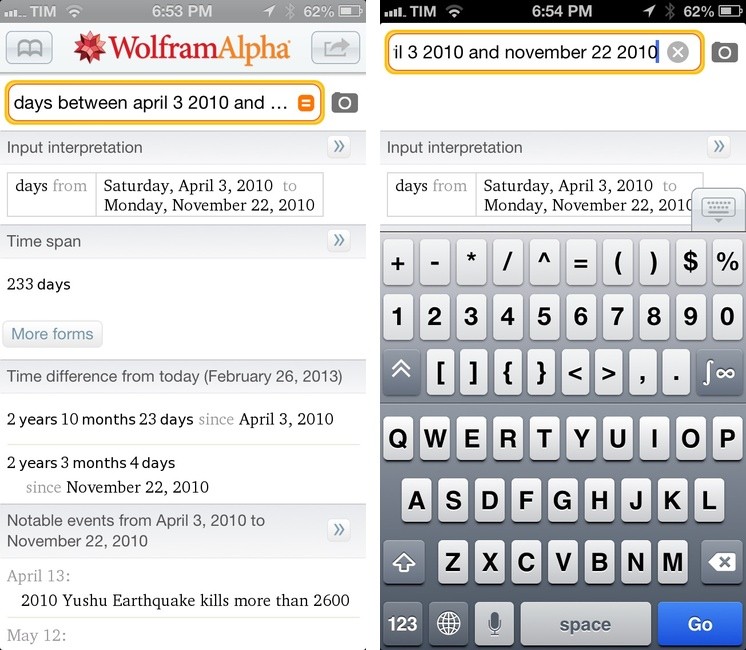
What I have been using for quick and reliable date calculations is WolframAlpha. On iOS, the company has a native Universal app that understands my queries just fine 99% of the time and that allows me to type characters faster with series of extra keyboard rows. It’s not pretty, but it is efficient and it also displays additional information related to your date query – such as date formats, events on a specific day, and time difference from today. I may not have the same date calculation skills of Dr. Drang, but WolframAlpha never disappointed me.

The WolframAlpha app is $2.99 on the App Store.

Permalink

Siri Vs. Google Voice Search, Four Months Later

Siri Vs. Google Voice Search, Four Months Later

Rob Griffiths, comparing Siri to Google Voice Search at Macworld:

Because of the speed, accuracy, and usefulness of Google’s search results, I’ve pretty much stopped using Siri. Sure, it takes a bit of extra effort to get started, but for me, that effort is worth it. Google has taken a key feature of the iOS ecosystem and made it seem more than a little antiquated. When your main competitor is shipping something that works better, faster, and more intuitively than your built-in solution, I’d hope that’d drive you to improve your built-in solution.

When the Google Search app was updated with Voice Search in October 2012, I concluded saying:

Right now, the new Voice Search won’t give smarter results to international users, and it would be unfair to compare it to Siri, because they are two different products. Perhaps Google’s intention is to make Voice Search a more Siri-like product with Google Now, but that’s another platform, another product, and, ultimately, pure speculation.

When Clark Goble posted his comparison of Siri Vs. Google Voice Search in November, I summed up my thoughts on the “usefulness” of both voice input solutions:

I’m always around a computer or iOS device, and the only times when I can’t directly manipulate a UI with my hands is when I’m driving or cooking. I want to know how Siri compares to Google in letting me complete tasks such as converting pounds to grams and texting my girlfriend, not showing me pictures of the Eiffel Tower.

From my interview with John Siracusa:

And yet the one part of Google voice search that Google can control without Apple’s interference — the part where it listens to your speech and converts it to words — has much better perceptual performance than Siri. Is that just a UI choice, where Apple went with a black box that you speak into and wait to see what Siri thinks you said? Or is it because Google’s speech-to-text service is so much more responsive than Apple’s that Google could afford to provide much more granular feedback? I suspect it’s the latter, and that’s bad for Apple. (And, honestly, if it’s the former, then Apple made a bad call there too.)

Now, four months after Google Voice Search launched, I still think Google’s implementation is, from a user experience standpoint, superior. While it’s nice that Siri says things like “Ok, here you go”, I just want to get results faster. I don’t care if my virtual assistant has manners: I want it to be neutral and efficient. Is Siri’s distinct personality a key element to its success? Does the way Siri is built justify the fact that Google Voice Search is almost twice as fast as Siri? Or are Siri’s manners just a way to give some feedback while the software is working on a process that, in practice, takes more seconds than Google’s?

I still believe that Siri’s biggest advantage remains its deep connection with the operating system. Siri is faster to invoke and it can directly plug into apps like Reminders, Calendar, Mail, or Clock. Google can’t parse your upcoming schedule or create new calendar events for you. It’s safe to assume Apple’s policy will always preclude Google from having that kind of automatic, invisible, seamless integration with iOS.

But I have been wondering whether Google could ever take the midway approach and offer a voice-based “assistant” that also plays by Apple’s rules.

Example: users can’t set a default browser on iOS but Google shipped Chrome as an app; the Gmail app has push notifications; Google Maps was pulled from iOS 6 and Google released it as a standalone app. What’s stopping Google from applying the same concept to a Google Now app? Of course, such app would be a “watered down” version of Google Now for Android, but it could still request access to your local Calendar and Reminders like other apps can; it would be able to look into your Contacts and location; it would obviously push Google+ as an additional sharing service (alongside the built-in Twitter and Facebook). It would use the Google Maps SDK and offer users to open web links in Google Chrome. Search commands would be based on Voice Search technology, but results wouldn’t appear in a web view under a search box – it would be a native app. The app would be able to create new events with or without showing Apple’s UI; for Mail.app and Messages integration, it would work just like Google Chrome’s Mail sharing: it’d bring up a Mail panel with the transcribed version of your voice command.

Technically, I believe this is possible – not because I am assuming it, but because other apps are doing the exact same thing, only with regular text input. See: Drafts. What I don’t know is whether this would be in Google’s interest, or if Apple would ever approve it (although, if based on publicly-available APIs and considering Voice Search was approved, I don’t see why not).

If such an app ever comes out, how many people would, like Rob, “pretty much stop using Siri”? How many would accept the trade-off of a less integrated solution in return of speed and more reliability?

An earlier version of this post stated that calendar events can’t be created programmatically on iOS. That is possible without having to show Apple’s UI, like apps such as Agenda and Fantastical have shown .

Permalink

Sponsor: CrashPlan

My thanks to CrashPlan for sponsoring MacStories this week.

CrashPlan lets you backup your data to your own computers and hard drives or friends & family with no storage limits. CrashPlan gives you the peace-of-mind that only comes with continuous, minute-to-minute backup. CrashPlan has been a favorite of the Mac community for years because of its “set it and forget it” ease of use and ability to provide continuous, minute-by-minute backup without interfering with normal Mac operations. Using sophisticated byte pattern analysis and data de-duplication to detect file changes, CrashPlan preserves multiple versions of files; if you don’t want to always use your Mac, the files you were just working on minutes ago can be accessed from our phone or tablet using CrashPlan’s free mobile apps.

This week only, MacStories readers can get 33% off CrashPlan by using this special link.

Find out more about CrashPlan here.