Federico Viticci

10865 posts on MacStories since April 2009

Federico is the founder and Editor-in-Chief of MacStories, where he writes about Apple with a focus on apps, developers, iPad, and iOS productivity. He founded MacStories in April 2009 and has been writing about Apple since. Federico is also the co-host of AppStories, a weekly podcast exploring the world of apps, Unwind, a fun exploration of media and more, and NPC: Next Portable Console, a show about portable gaming and the handheld revolution.

Great Coffee App

As listeners of Directional may have guessed at this point, espresso is my favorite coffee drink. Living in Italy and being extremely conservative with my espresso choices, I’ve never got into coffee-related iPhone apps (I don’t have a fancy coffee-making ritual; it’s just an espresso machine), but Great Coffee App is, as the rather bland name implies, actually pretty great.

Great Coffee App provides an introduction to 16 popular espresso-based drinks. The app is delightfully skeuomorphic in its presentation of espressos and coffee cups; there’s some nice background music when you browse the main screen, but it can be disabled. In the app, you’ll find descriptions and interesting facts for the classic espresso, the espresso lungo, the macchiato, as well as the more peculiar Irish Coffee and Cafeccino; you can tap on each drink and see zoomed-in view of its ingredients and layers. For each drink, the app comes with good localized descriptions (at least based on what I saw for the English and Italian versions), and a downloadable video showing the preparation process.

I found Great Coffee App to be beautifully done, informative, and a great visual introduction to popular espresso-based drinks. It’s only $2.99 on the App Store.

Permalink

Symbolay Combines Unicode Symbols with Power User Features

Whether you want to add a little personality to your tweets or include special characters in your notes, there’s no easy way to copy Unicode symbols on iOS. While I’ve covered my fair share of iOS apps for the task in the past, Symbolay stands out for the amount of options it gives you when copying symbols and launching searches from other apps.

Symbolay’s main screen offers the usual section-based organization with categories for pictograms, arrows, shapes, alphabets, and more. There is a search bar to look for specific items by name, and the interface is clean and obvious on iOS 7. The app’s real strength lies in the output options: symbols can be copied directly in the clipboard, or you can copy them as Python code, HTML entities, or pure code names – these help if, for instance, you’re writing code on the iPad and don’t want to rely on an online converter to turn symbols into code using Safari. You can save favorites and browse your recently viewed symbols, collect them in a scratchpad, and, if you’re on a keyboard, use shortcuts to speed up the entire process.

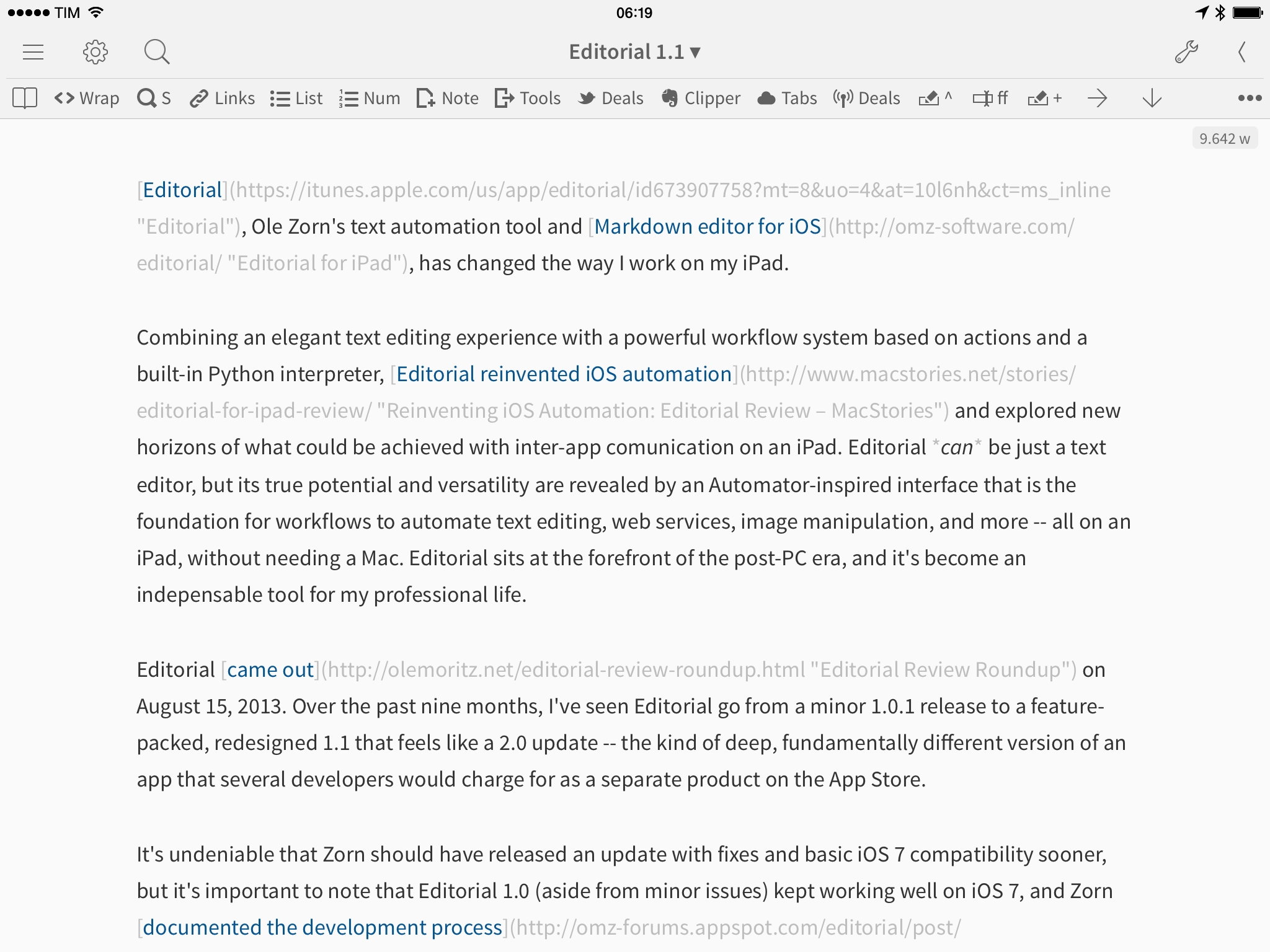
Furthermore, the app supports a URL scheme that allows you to trigger searches from Launch Center Pro or Drafts; on the website, there’s even a workflow to integrate Symbolay with Editorial for text editing.

Symbolay is a nice reference tool for Unicode symbols with handy features aimed at power users and programmers. It’s Universal and $4.99 on the App Store.


Instapaper Highlights

Instapaper received a series of major updates today, including a new Highlights feature and a redesigned website based on feedback gathered by Betaworks in the past few months.

From the Instapaper blog:

In true Instapaper fashion, your highlights are seamlessly synced across all of your devices. We’ve also added the option for you to post automatically your highlights to your linked accounts. It’s disabled by default, but if you turn it on, you can do nifty things like automatically Tweet your highlights, or post them to a Tumblr blog, or drop them into Evernote.

And about the website:

Along with highlights, we’ve completely revamped the Instapaper website, incorporating the feedback you’ve provided us over the last few months. At long last, the Instapaper website is a fully-functional file system for managing, organizing, and acting on the articles and videos you see and save online.

I stopped using Instapaper shortly after their iOS 7 update when I switched to Safari and realized that Reading List could be enough for my needs. But with today’s update, I’m going to give Instapaper another try.

Reading List is a fine read-later solution that’s nicely integrated with Safari and iCloud. I enjoy the ability to save from anywhere on iOS and I like that I don’t have to think about sync problems because iCloud has been surprisingly reliable in Reading List. However, after a few months of daily reading in Safari, I can say that I often miss search, I miss a proper archive of items I’ve read, and I wish I could easily find articles I’ve liked. Safari’s Reading List is extremely convenient because it comes with no configuration or third-party limitations, but it’s not meant for permanent article archival or user interactions besides “Delete”.

Highlights is one of the features that I’ve always wanted from Instapaper, and the implementation looks good enough for what I need. Highlights are available to premium subscribers (free accounts get only 5), and they can be shared with one tap to connected services. Furthermore, you can activate automatic saving of Highlights to Evernote, which works well for me as I keep my research material for The Prompt and Directional in Evernote. Highlights remove a lot of friction – I used to rely on Drafts workflows to share quotes from articles – and, more importantly, they are differentiated visually in the article text (which I couldn’t get with the aforementioned quote sharing). Highlights are synced across devices and they get their own section in the Instapaper apps and website, which helps when I’m on my Mac.

I’m going to subscribe to Instapaper again and try out the Highlights feature for my daily reading and research. While I could simulate highlights with workflows before, they weren’t integrated with Instapaper in any way, and it seems like Betaworks really nailed the experience in the app.

Permalink

Yahoo News Digest Goes International

Yahoo’s News Digest, an app that provides daily news summaries collected from multiple sources, has been updated today to include an International edition and better support for local time zones when sending daily reminders.

I’ve been keeping an eye on News Digest since our initial review:

Contrary to the previous example, Yahoo excels at disseminating information around people and locations. Summaries on politicians, celebrities, and athletes are rounded out with Wikipedia links, maps showing where the event took place, photos, and videos that consist of panels, analysis, or interviews from various news outlets. Where traditional news articles might have a single image and caption, Yahoo’s digest throws complete image galleries, videos, and a list of sources at the end of each summary.

In previous versions, I found News Digest to be a clever idea with an attractive interface, but the app was obviously US-centric and, after a few days, I had to uninstall it because I simply didn’t care about news that weren’t relevant to me. With the latest update, however, I’m already seeing a good diversification of global news for politics and entertainment, and I think I’m going to stick with the app this time around.

While News Digest launched to some criticism, I am a fan of the idea (unfortunately, I don’t have time to stay on top of in-depth news every day) and I believe the realization is solid. Yahoo is making nice apps for iOS 7, and News Digest is a good example of a focus on content with clean text, large photos, and pleasant transitions. I’ve already received a news digest for my time zone, and I enjoy the break that the app gives me from tech news. I like it, and I’m looking forward to an Italian version at some point.

Yahoo News Digest is free on the App Store.


The Markdown Payoff

Hilton Lipschitz, writing about switching to Markdown and whether it paid off:

The key to Markdown writing is that you focus on the content. Structure, format, look and feel are all secondary. It’s pure distraction-free writing. Which means that you have no choice but to write and think about writing and focus on the content. Which encourages you to become a better writer.

For me, Markdown has singlehandedly revolutionized the way I can put together articles for MacStories without wasting hours over HTML and RTF issues.

I used to write in the WYSIWYG editor of WordPress, which meant that I often ended up with strange formatting in my posts and I didn’t have any local copies of my files because there were no files. If the browser tab crashed and I hadn’t saved a draft, the post was gone and I had to start over from scratch. I didn’t want to use Word for Mac and pasting from Pages created even more issues with formatting in WordPress (we are talking about 2009-2010 WordPress), so I stuck with writing in the browser. And it was terrible.

Since I switched to Markdown in late 2012, I have generated an archive of over 600 plain text files that are fully searchable, indexed by Spotlight and Dropbox, and readable by any operating system. Thanks to plain text, my articles and notes are portable and I can switch text editors whenever I want. When I convert to HTML and I see that everything looks good, I get a geeky serotonin kick that reminds why I will never write in the WordPress editor again.

Markdown and related services1 make it easy to add links, formatting, tables, footnotes and to generate HTML with a wide array of settings and options; because of that simplicity I have written more, fixed more typos, and generally dealt with more readable files. Markdown didn’t merely pay off – I don’t know how I’d go back to any other format at this point. It’s just natural.

Tools may not make me a better writer, but Markdown allowed me to ignore the bureaucracy of web publishing, enabling me to write complete articles from anywhere. I’m thankful that it exists.

Permalink

Google Brings Lane Guidance, Uber Integration, New Filters and Offline Mode To Maps for iOS

In a major update released today and detailed on the official Maps blog, Google has announced a variety of new features for Google Maps for iOS, available for iPhone and iPad.

For users in the United States and “parts of Canada and Japan”, Google has added lane guidance, a turn-by-turn navigation feature that allows the app to show the lane to stay in or move to; lane guidance is often found on dedicated GPS devices, and it should enable Google Maps to provide drivers with more precise directions.

Previously available only through a hidden command, Google has added a new offline mode to Maps that lets users easily store multiple areas as offline maps for usage in areas with no cellular or WiFi coverage. In the new version of the app, a new “Save map to use offline” is featured in the detail screen of a location (or dropped pin); offline maps can be given a unique name, and they can be viewed in a new list of the Profile view in the app. When offline, Google Maps will allow to zoom and pan on saved maps, but search and directions won’t be available.

Alongside improvements to public transit directions (which now include total walking time and next scheduled bus or train), Google has also revamped the filter functionality of nearby search results:

With new filters, you can browse through restaurants, bars and hotels by opening hours, rating, price, and more—where available—to find just what you’re looking for, right when you need it.

The other big addition is Uber integration inside the Google Maps app. For users who have the Uber app installed on their devices, Maps will allow to compare their ride with other directions and, through a “Get an Uber” button embedded in the app, it’ll be possible to switch directly to the Uber app with one tap. Notably, Google’s investment arm Google Ventures is an investor in Uber.

Google added other functionalities for iOS users in version 3.0 of the app as well. iPhone and iPad contacts can be accessed directly from the app, and Voice Search (a feature previously available in the Chrome and Search apps for iOS) has been integrated in the app’s search box to look for locations without typing. A scale bar to estimate distances is now visualized on the map, and the process of saving and sharing locations has been refined; recently saved places and searches will be available in a “Places to review” list (requires sign-in).

Version 3.0 of Google Maps for iOS is available on the App Store.