

I’ve been using various read-it-later services and apps for years. I started with Instapaper, which held a spot on my Home screen longer than just about any other app has. I dabbled with Pocket too, but in recent years, I abandoned them all in favor of Safari Reading List, starred RSS feed items, and...
Apple Shares Preview of Upcoming Emoji with Emojipedia→
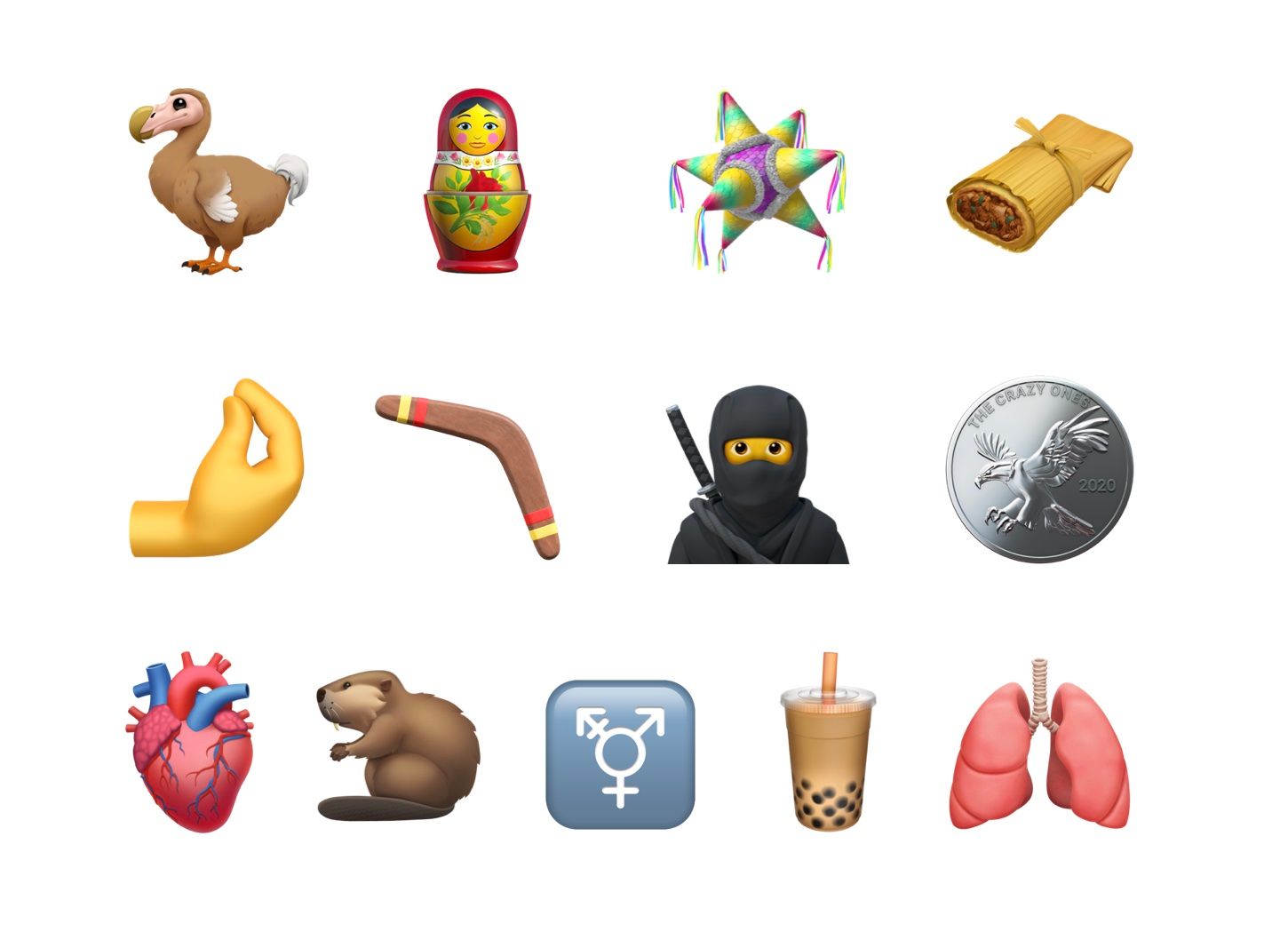
Back in January, the Unicode Consortium approved Emoji 13.0, which is used by companies like Apple to create new emoji designs. In Apple’s case, new emoji are expected to ship in a point update to the company’s OSes in the fall. In the meantime, though, Apple has shared a preview of its upcoming designs with Emojipedia.
The new designs include a wide variety of images including a ninja, a dodo bird, a boomerang, nesting dolls, pinched fingers, a tamale, bubble tea, and others. If past years are any indication, the new emoji will we released with iOS and iPadOS 14.1 or 14.2 and with a macOS update sometime in October.
For a run-down on all of the upcoming emoji, be sure to visit Emojipedia.
Pixelmator Pro 1.7 Adds Type to Path, Canvas Rotation, and More
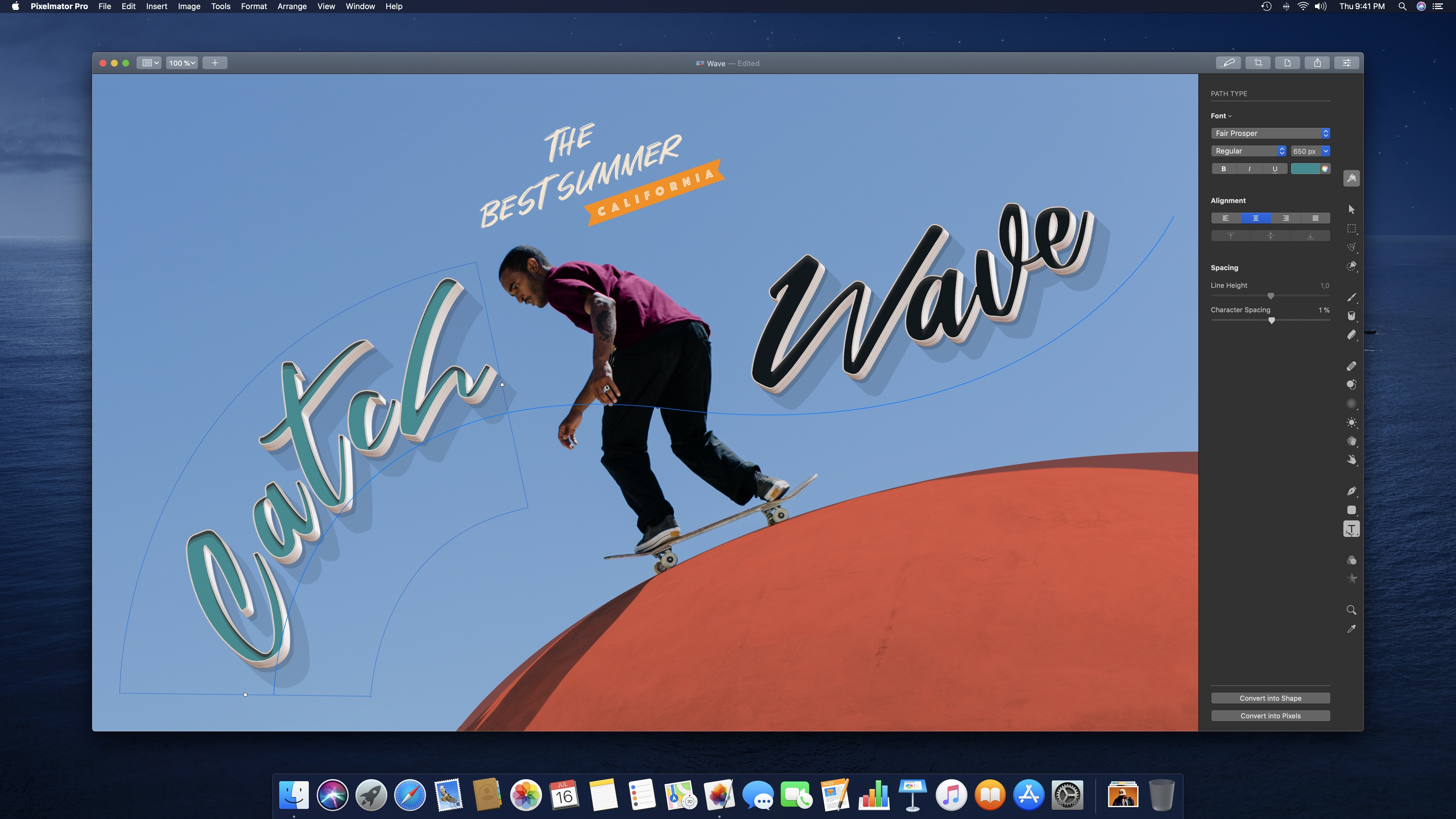
Version 1.7 of Pixelmator Pro was released today with support for placing text along a path, rotating the app’s canvas, a refinement of ML Super Resolution, and a new quick-start welcome screen.
The update, dubbed Sequoia, adds three type tools: Circular Type, Path Type, and Freeform Type. You can pick one of those tools to create a path for your text or click on an existing path in a project to type along it. With the text tool selected, your pointer switches as you approach the border of a shape in your project to the text path tool, indicating that you can begin typing along the shape with a click. The tool supports emoji and SVG fonts and can be converted to shapes too.
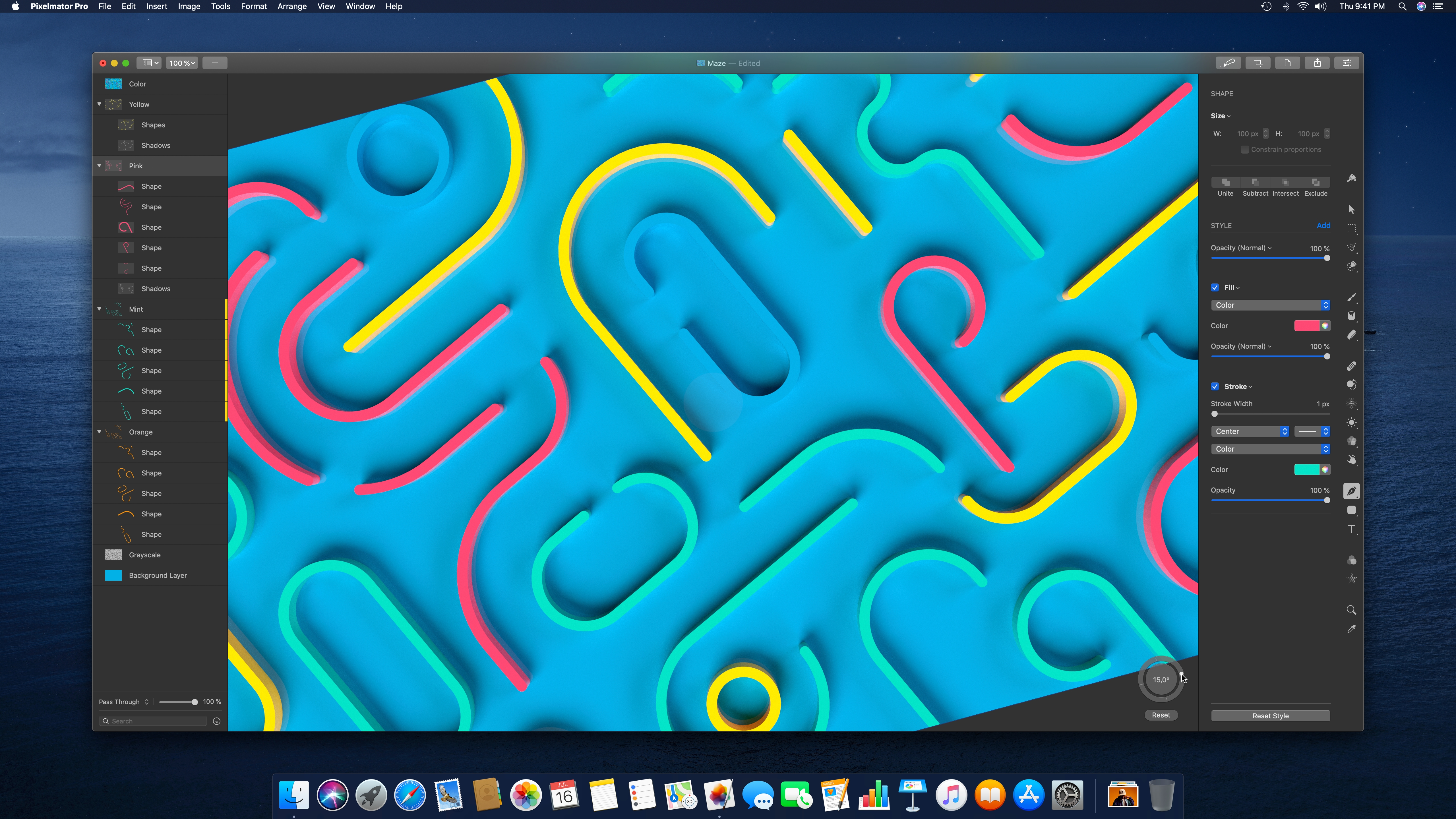
Canvas rotation is handled by a circular puck in the lower-right corner of Pixelmator Pro’s image viewer. You can enter a precise number of degrees to rotate the canvas, drag the dot along the circle’s perimeter, or use multi-touch on a trackpad to dial in the exact rotation you want. When using the trackpad to rotate, Pixelmator Pro provides haptic feedback in 90-degree increments, which is a nice touch. By default, the rotation tool appears when you begin a trackpad rotation, but you can set it to always or never be visible from the View menu too. Canvas rotation is a fantastic addition for anyone using Pixelmator Pro with Sidecar on an iPad.
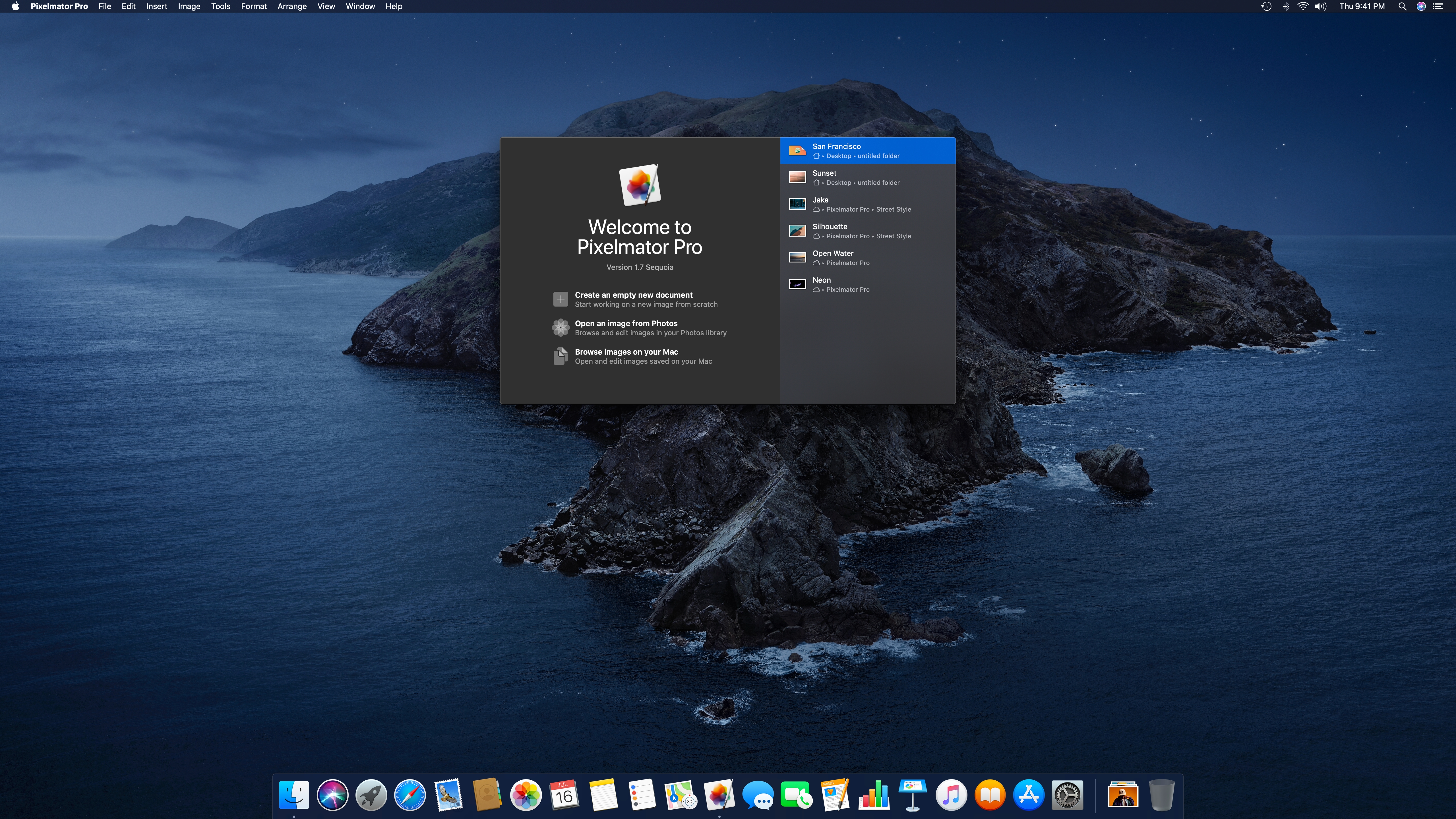
There have always been several entry points into Pixelmator Pro, but it’s easier to pick the one you want with the new welcome screen. The screen includes recent documents, the option to create a new empty document from one of the app’s many templates, and the ability to pick an image from Photos or anywhere in your Mac’s file system.
Finally, today’s update also adds improvements to ML Super Resolution. This feature refines images’ resolution to allow them to be displayed at bigger sizes with a minimum amount of blurring. It’s a handy feature that I’ve used in the past to upscale screenshots of standard definition video. In addition to working better than before with the latest update, MS Super Resolution has added support for RAW images and a progress bar.
Pixelmator Pro has long been one of my favorite image editors on the Mac. With each release, the app has gained additional functionality that makes it more than just a photo editor. With tools like typing along a path and canvas rotation, Pixelmator Pro should be far more capable than ever before in a designer’s hands.
Eve Cam: An Excellent Addition to a HomeKit Secure Video Setup
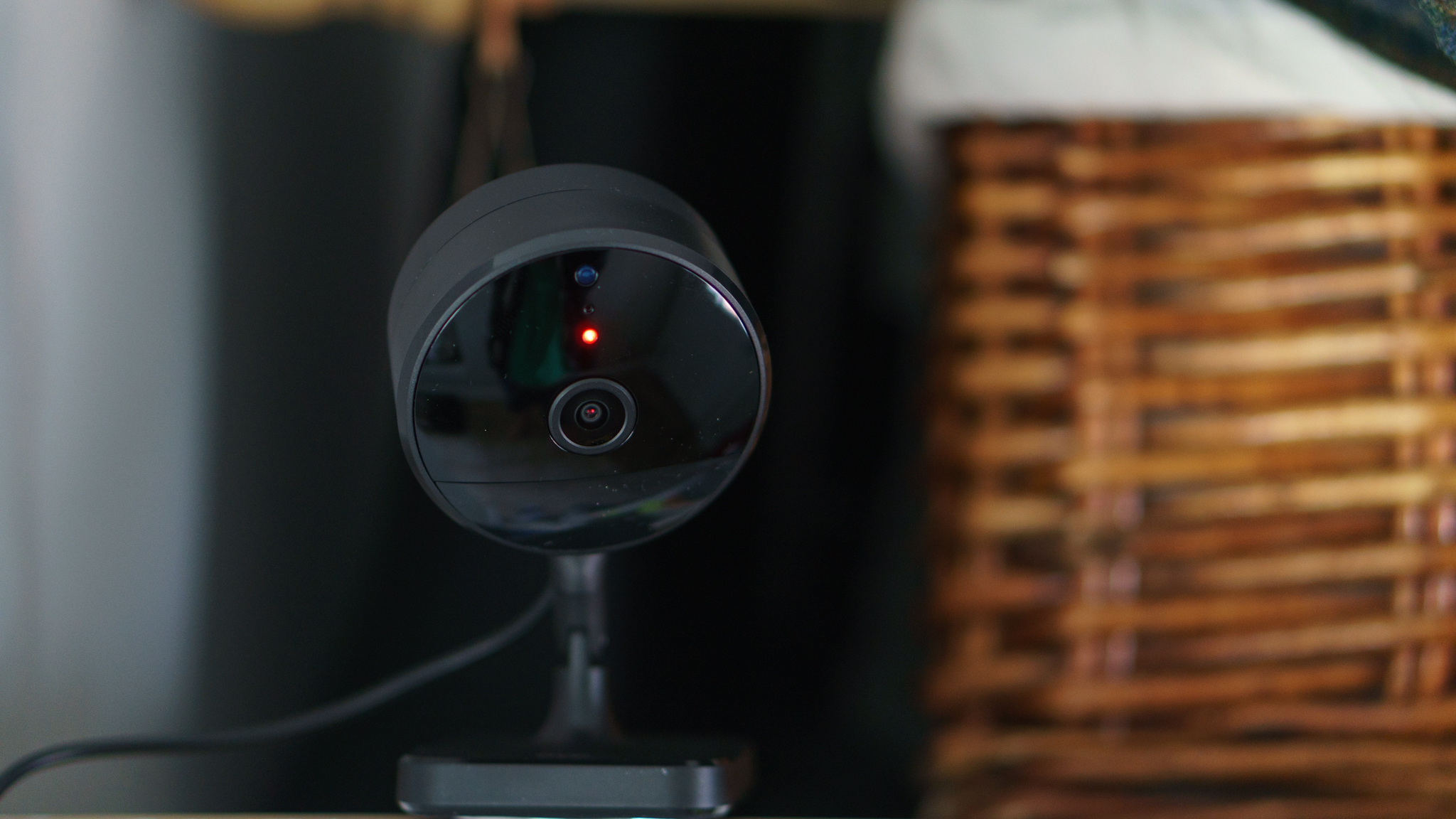
Last week I added a new camera to my HomeKit Secure Video setup: the Eve Cam. Announced at CES this year, what drew me to the camera was its slim profile and HomeKit Secure Video support. I’ve used other Eve home automation products in the past and had high hopes that the Eve Cam would be just as easy to install, and as reliable as the electrical outlets and door sensors I’ve tried. So far, I haven’t been disappointed.
AppStories, Episode 175 – Relay FM’s Approach to Apps with Myke Hurley→
This week on AppStories, John is joined by Relay FM co-founder Myke Hurley to talk about the apps he uses to stay in touch with the hosts of the network’s shows and manage sponsorship sales, show research, episode production, and more.

AppStories Episode 175 - Relay FM’s Approach to Apps with Myke Hurley
0:00
51:42
51:42






Apple Highlights Hardware and Apps in ‘The Whole Work-From-Home Thing’→
In April 2019, Apple published a video called The Underdogs that followed the story of a team of co-workers designing a round pizza box. Today, the quartet is back in a sequel of sorts called The Whole Work-From-Home Thing.
The new video follows the same group of colleagues as they attempt to design an all-new box while working from home. The story follows the quartet as they work around the clock on a tight deadline while juggling personal obligations and coping with working remotely.
The pace is frenetic. Over the course of the multi-day ordeal, the group turns to their Macs, iPads, and iPhones to come up with ideas and design the box. They also rely on a wide array of apps, including third-party apps like MindNode and Adobe InDesign.
Like its predecessor, ‘The Whole Work-From-Home Thing’ is funny but succeeds at demonstrating ways that Apple hardware and apps can solve some of the problems facing many people these days. This video may hit a little too close to home and stress some people out a bit, but I enjoyed the lighthearted fun poked at working from home and think it’s well worth watching.
 Relay FM’s Approach to Apps with Myke Hurley
 Federico
AppStories Episode 175 - Relay FM’s Approach to Apps with Myke Hurley
0:00
51:42
51:42
This week John is joined by Relay FM co-founder Myke Hurley to talk about the apps he uses to stay in touch with the hosts of the network’s shows and manage sponsorship sales, show research, episode production, and more.
MacStories Unwind: The Evolution of iPadOS, Widgets, ADA Interviews, and a New Use for ARKit
Sponsored by OffScreen – Leave Your Phone, and Focus on Real Life
This week on MacStories Unwind:
MacStories
- Widgets and the App Library: A First Look at Bringing Personality and Customization to Your Home Screens
- Two Weeks with iPadOS 14: Redefining the Modern iPad Experience
- Apple Opens First Public Betas for iOS, iPadOS, and tvOS 14
- Epic Games Releases iPhone App That Captures Facial Expressions to Unreal Engine
- Apple Updates Coding Resources for Students, Teachers, and Families
- Omni’s Revised 2020 Roadmap
- 2020 Apple Design Award Winners: The AppStories Interviews
- Majd Taby, Darkroom
- Sam Rosenthal, Where Cards Fall
- Jenova Chen, Sky: Children of the Light
Club MacStories
- MacStories Weekly
- MacStories and Privacy
- Book Track
- A collection of quick and easy iOS video editing apps
- First Impressions: HyperDrive Gen 2 12-port USB-C Hub
- Straw Poll results
AppStories
Unwind Picks
- John’s Pick:
- Hanna available on Amazon Prime Video
 First Impressions: HyperDrive Gen 2 12-port USB-C Hub
The search for the perfect USB-C hub continues. Every one I’ve tried has had a different, somewhat unsatisfying set of trade-offs. As a result, I can’t say that I have a favorite. Instead, I’ve settled on a combination of different hubs for different circumstances, which isn’t ideal but meets my needs reasonably well. I...