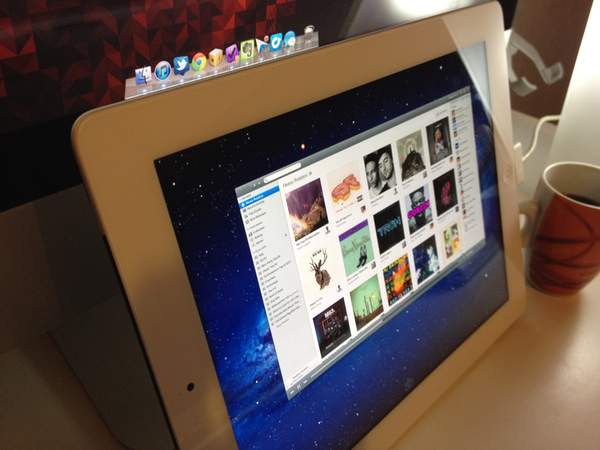
Announced last week, Avatron’s popular utility Air Display, a $9.99 app that can turn any iOS device into an external display for a Mac or PC, has been updated today to include support for two major new features and technical achievements: HiDPI mode and Retina graphics. Meant to be enjoyed on the new iPad’s Retina display, Air Display 1.6 requires the installation of a desktop application that will handle the wireless connection between Lion and the iOS app.

Once installed, Air Display Connect on the Mac will allow you to easily select the device you want to turn into an external monitor. For the new iPad’s display (and Retina iOS devices in general, but of course the app gives its best results on the iPad), Avatron has enabled support for high resolutions, although an option is present to render items at non-Retina resolutions as well. The Retina display’s tightly packed pixels have also allowed Avatron to use HiDPI mode — a hidden feature of Lion which draws element on screen at double the size – in a meaningful and gorgeous-looking way. (more…)

Apple just released a “supplemental update” to OS X 10.7.3, resolving ”an issue when restoring a Mac from a Time Machine backup.” Apple also adds in the release notes: ”This update is recommended for users running 10.7.3 with Time Machine backups.” OS X 10.7.3 was originally released on February 1, adding a number of fixes and improvements to Lion.

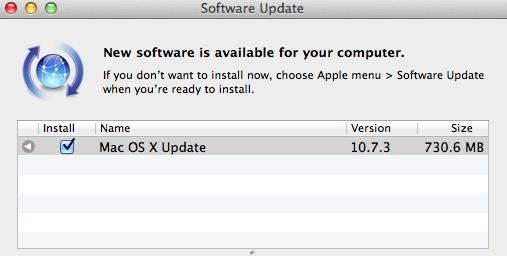
The update is now available on Apple’s website, and through Software Update as a 38 KB Delta update for users running 10.7.3.

A few weeks ago, I tweeted I’d like to see some sort of Twitter client with its only focus being on Favorites — I keep Twitter open all day, and I save a lot of links. Prior to ending up in my Evernote or Pinboard accounts, the tweets I want to “save for later” are marked as favorites, which, I believe, provide an easy way to use a built-in Twitter functionality for general-purpose “bookmarks” that I may or may not consider for a post or more serious bookmarking in a second service. As you can see, I have a lot of favorites. The same is true for other services I use on a daily basis, such as Google Reader, Vimeo, YouTube, or Instagram: I like to be able to “star”, “like” and mark things as favorite so a) the service knows the stuff I’m interested in and perhaps will leverage this data sometimes in the future or b) perhaps other apps will. And while I’m still waiting for the ultimate app that looks at your Internet favorites and delivers content intelligently to you every day (albeit Zite is on the right path), it turns out someone has built a functional and nice-looking desktop aggregator called Favs.

Favs for Mac is in beta, so don’t expect a full review now — the developers are still polishing the interface and adding features, and it wouldn’t make sense to give a final verdict whilst the app is still being worked on. But the underlying concept is there, and it’s one of those things I’ve been looking for: a single app that collects favorites from a variety of services.

Currently, Favs lets you fetch favorite items from:

  • Delicious
  • Dribbble
  • Facebook
  • Flattr
  • Flickr
  • Github
  • Google Reader
  • Instagram
  • Pinboard
  • Stackoverflow
  • Twitter
  • Vimeo
  • YouTube
  • Zootool

The list is pretty impressive already, and I assume it can only grow before the final release. I don’t know what else I’d add to that list (multiple accounts are already supported) as most of the services I use are already covered — perhaps some kind of Evernote and Instapaper integration, though I honestly can’t imagine how Evernote could work with Favs. Right now, I’m just happy Favs is shipping with a solid selection of services, and I like how the developers also implemented a unified inbox for all your favorites.

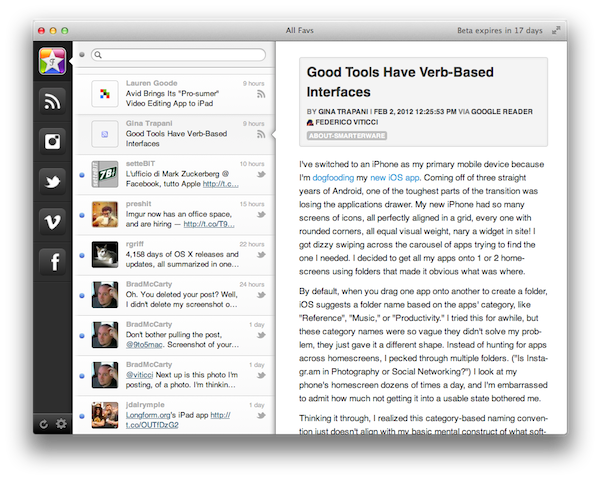
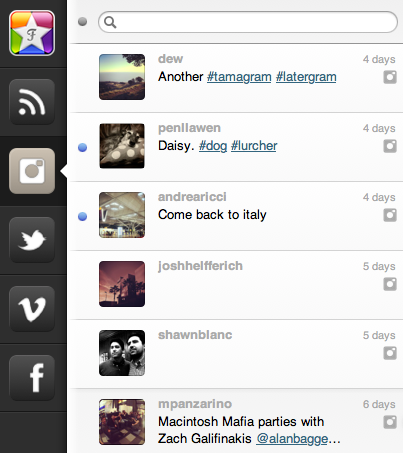
Favs, in fact, uses the old Tweetie-like interface with narrow sidebar + right panels (the one we’ve already seen in a multitude of Mac apps such as Sparrow and Reeder) to lay out service icons, unified inbox, and controls to manage settings and refresh all services. The app supports Lion’s full-screen mode, which is probably a good choice considering you’ll want to run Favs as a standalone app that is not your main Twitter or Google Reader client, as it’s focused on letting you view items that you wanted to save for later. Obviously one could easily dismiss this interface approach as “easy” or not innovative, but I believe this design can work for an application like Favs where you’re supposed to quickly switch between sections (sidebar), take a peek at headlines (mid panel) and read the actual content (right panel). As I’ve said this is a first public beta, which means features like keyboard navigation, sharing and contextual menus haven’t been implemented or refined yet. I was able to test Favs with my huge collection of Twitter favorites and it reliably loaded items from 500+ days ago without a single slowdown. I can only imagine things will get even better come the final release.

To me, Favs is a web nerd’s dream come true already. It’s got my Twitter favorites, my Google Reader stars, the stuff I like on Instagram, and it even lets me add multiple accounts if I really want to keep tabs on everything I save online. I look forward to reviewing a final version in the future, and I hope the developers are at least considering an iPad version for this.

For now, you can download the Favs public beta for free here.


A few minutes ago Apple released an update to OS X Lion, which reaches version 10.7.3 and brings a number of bug fixes and improvements. This new version of Lion includes “general operating system fixes” and support for more languages; 10.7.3 also addresses compatibility issues with Windows file sharing and directory services.

The 10.7.3 update is recommended for all OS X Lion users and includes general operating system fixes that improve the stability, compatibility, and security of your Mac including fixes that:

Add Catalan, Croatian, Greek, Hebrew, Romanian, Slovak, Thai, and Ukrainian language support

Address issues when using smart cards to log into OS X

Resolve issues authenticating with directory services

Address compatibility issues with Windows file sharing

Extended release notes from Apple’s website note that Safari 5.1.3 is included with the update and mention more fixes in detail:

  • Add Catalan, Croatian, Greek, Hebrew, Romanian, Slovak, Thai, and Ukrainian language support
  • Address issues when using smart cards to log into OS X
  • Address compatibility issues with Microsoft Windows file sharing
  • Address an issue printing Microsoft Word documents that use markup
  • Address a graphics performance issue after sleep on some earlier iMacs that use ATI graphics
  • Resolve a Wi-Fi connection issue when waking from sleep
  • Address an issue that may prevent Safari from opening before joining a wireless network
  • Fix a potential issue authenticating to an SMB DFS share
  • Include RAW image compatibility for additional digital cameras
  • Improve binding to read-only Active Directory Domain Controllers
  • Improve binding and login speed for Active Directory users in a domain whose name ends in “.local”
  • Improve reliability of Dynamic DNS (DDNS) updates by Active Directory clients
  • Allow login with an Active Directory username that contains a space
  • Improve compatibility with Active Directory schemas that have been extended with the “apple-user-homeDirectory” and “apple-user-homeurl” attributes
  • Fix home directory Dock item for Active Directory users with mobile accounts
  • Allow NIS users with MD5-hashed passwords to log in

Direct links to the 10.7.3 update below:

Other software updates released today:

One of the next versions of Firefox, Firefox 12, may feature a series of new interface elements and functionalities that should both appeal to OS X Lion users and introduce new navigation options for those who dont’ want to save their-most accessed websites in a bookmarks bar anymore. As first noted by ExtremeTech, an early version of a proposed new tab page design snuck into a nightly version of Firefox; per Mozilla’s multiple channel releases, users of Firefox can test different versions of the browser, which range from Nightly to Aurora, Beta, Stable, and those uploaded directly to Mozilla’s FTP servers.

ExtremeTech wrote about the new tab page:

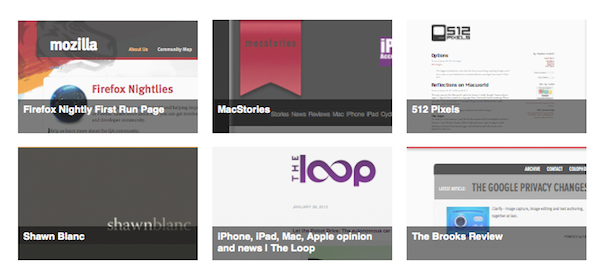
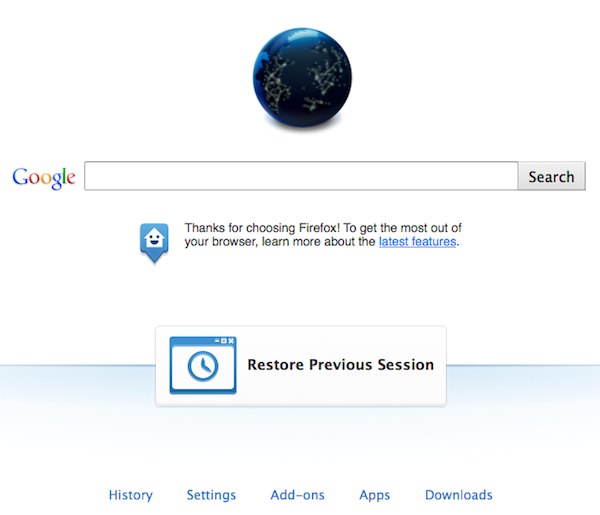
The Firefox home tab is a lot more exciting. Basically there are two phases: The first phase will add “launchers” at the bottom — one-click links to your downloads, settings, apps, and so on (pictured right). Phase two is a complete reworking of the home page paradigm, weaving in favorite apps, recent websites, and even instant messaging (pictured below). Phase one is expected to roll out with Firefox 12, but at the time of writing the code still hasn’t been committed.

However, as also noted in an update to the original post, it appears Mozilla has pulled the functionality from the Nightly release of Firefox, leaving it in the “UX version” available for download on Mozilla’s servers. Upon comparing the standard Nightly build to the UX one, I noticed the latter already contains the grid design for top websites pictured above, and full-screen support for Lion.

I wasn’t able to activate ExtremeTech’s home tab page design with search, Top Apps, Top Sites and Chat in a single window; the current Firefox UX Nightly build features shortcuts along the bottom of the window to open History, Settings, Add-ons, Apps, and Downloads. A new “Restore Previous Session” button is also provided in case you haven’t set Firefox to automatically re-open previously open tabs on launch.

Changes that appear in Firefox Nightly builds typically carry over to the other stages of development and are further tweaked with refinements and bug fixes, but there could be changes in the features that Mozilla decides to implement once version 12 hits the beta channel. As for Lion support, Mozilla failed to deliver any significant optimization since the OS’ release back in July, unlike competitor Chrome which added new scrolling, full-screen support and gesture navigation (among other things) fairly quickly. A designer at Mozilla mocked up some ideas that the company could deliver in a future version of Firefox for Lion, but as of version 12 nightly (Firefox stable is currently at version 9) it seems those ideas haven’t been taken into consideration yet.

Back in September I reviewed the first version of Yoink, a utility by Eternal Storms Software that greatly enhanced Lion’s drag & drop support by adding a virtual “shelf” to the side of your screen to store temporary files you needed to move elsewhere. From my review:

Yoink is a drag & drop assistant for Lion, in that it provides you with a virtual “safe zone” to temporarily store files — or rather, links to them — you want to move from one location (say your desktop) to another space or full-screen app. Yoink doesn’t “copy” a file, or multiple ones, to its shelf: it only acts as a bridge between the original file, and the destination of the drop.

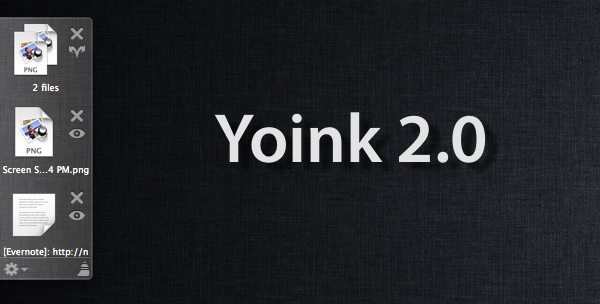
In its first version, Yoink was primarily meant to provide a better way to move files from the Finder to full-screen apps — that is the reason the app was built with Lion APIs from the ground up. Yoink 1.0 undoubtedly offered a quick and elegant way to move files around apps and desktops in an intuitive manner; Yoink 2.0, released today, is a huge step forward that now allows the app to accept almost any kind of input from OS X, from text to images and web clippings from any app.

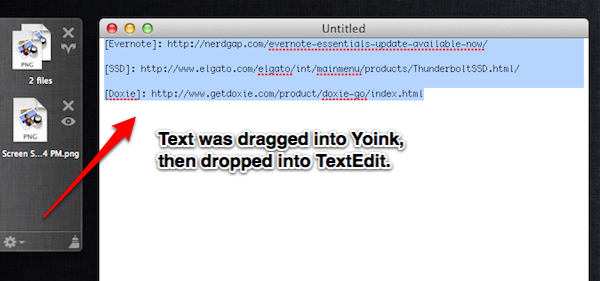
In accessing content from apps, Yoink has become more than a simple tool to temporarily store files that need to be moved around full-screen apps — think of  Yoink 2.0 as a secondary, visual clipboard that can accept almost any kind of file you throw at it. In my tests, besides dropping content from apps into Yoink’s shelf, I’ve copied links, text and images from Safari and Chrome, and successfully watched Yoink create text clippings and full copies of the images ready to be pasted anywhere on my Mac, both in the Finder and other apps. Rich text from a web browser is converted to .textclipping once imported in Yoink, and you can easily re-export everything to the Finder, or into another app that accepts text, such as TextEdit or Twitter’s compose window. Want to tweet a famous quote by The Beatles? Drag text into Yoink’s shelf, open your client of choice, and drop your previously copied text. How about quoting someone else’s words on your blog (and this is something I’ve been looking forward to)? Drag text into Yoink, fire up your blog’s editor window, drop text.

Yoink’s new drag & drop system works with almost any app  and any kind of content — you won’t be able to preserve the exact formatting of a rich text document when copying, but it surely works very well as a lightweight solution to quickly save plain text files.

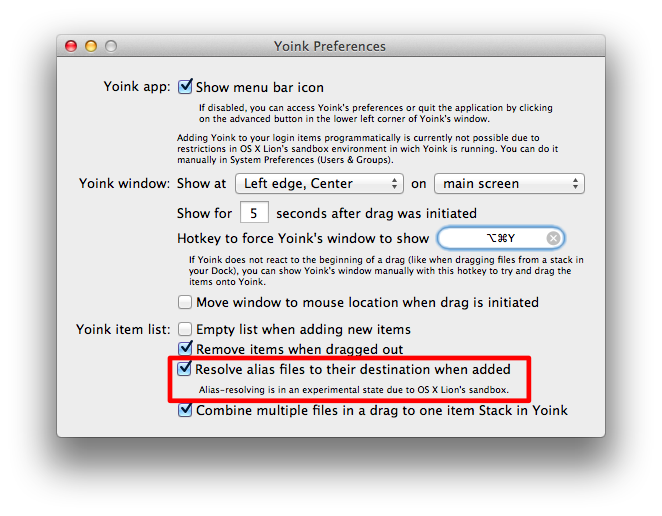
Yoink 2.0 brings a couple more interesting additions besides improved drag & drop. The interface has been redesigned to have more linen and the app can be assigned a keyboard shortcut; more positions for Yoink’s window have been added and files shouldn’t be lost anymore if they’re moved from their original location. One issue I had (and already reported to the developer) was with an alias I moved from Dropbox to my Desktop, which didn’t resolve correctly in Yoink and displayed a permission error. The error is likely happening because of some restrictions from Apple’s sandboxing technology or the fact that the alias came from Dropbox — Yoink 2.0 is capable of resolving aliases and, in fact, it worked fine with a file that was originally stored on my Desktop.

Last, Yoink now comes with File Stacks, a neat way to drag and drop multiple files into Yoink’s window and have the app combine them into one item in the shelf. This can be very handy if you’re dealing with multiple images and PDFs and you want to get them quickly out of the way.

At $2.99 on the Mac App Store, Yoink remains a fantastic way to enhance Lion’s drag & drop with an app that acts as a temporary scratchpad/visual clipboard for content that you want to copy, move elsewhere, or simple save for later. Highly recommended, you can get Yoink here.

Jan
11

The Omni Group’s Lion Update Stats

The Omni Group has updated its software update statistics document with Lion data:

Because we’re nice folks who want to help the development community, we’ve decided to make the information we gather public (in aggregate form) so that you can also benefit from this knowledge.

Below you’ll find statistical information about all collected configurations to date. The information is provided as-is. We’re not going to tell you exactly how many individual users have submitted the information, nor can we place any guarantee on the accuracy of this information. Remember, this is not a poll of the Mac OS X community at large, just a subset of our customer base.

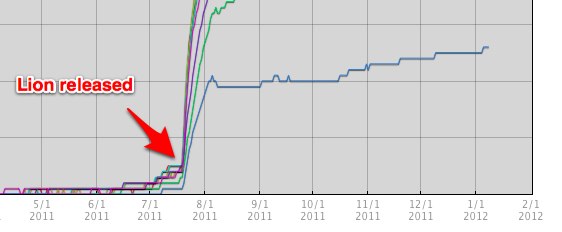
Looking at the data, you can see how OmniFocus (by far Omni Group’s most popular app) shows a steep Lion usage increase in July (obviously), and a gradual growth throughout January 2012, whereas lesser known apps like OmniWeb have shown an initial decline in user adoption of the latest OS, then stable updates. Surprisingly, OmniOutliner users don’t seem to upgrade to Lion much.

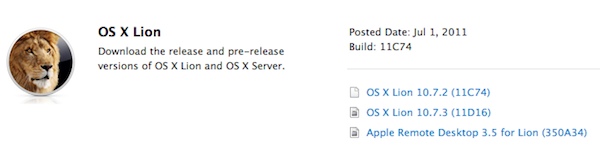
As noted by AppleInsider, earlier today Apple seeded the first version of Lion’s next update — 10.7.3 — to registered Mac developers. The build, labelled 11D16, is available both for Lion and Lion Server configurations.

According to developers familiar with the release, the focus areas for 10.7.3 testing are iCloud document storage, Address Book, iCal and Mail. Apple warns developers that by installing the 10.7.3 seed, they will be unable to revert back to older versions.

The latest version of OS X Lion, 10.7.2, was released on October 12th and delivered support for iCloud on the desktop, alongside other new features, fixes and optimizations. As with 10.7.1 before, 10.7.2 was released both through Software Update and the Mac App Store. If Apple’s testing period for 10.7.2 (the OS was first seeded in late July) and 10.7.1 release are of any indication, 10.7.3 testing should require at least one month before it goes public.

Two days after the release of Firefox 8, Mozilla has made available a first public beta of the next major Firefox update, Firefox 9. As expected due to the company’s fast release cycle, Firefox 9 will follow Firefox 8 in a few weeks, with Firefox 10 likely entering initial alpha testing soon.

For the first time since the release of OS X Lion in July, Mozilla says they have included ”a new look that matches the Mac OS X Lion application toolbar and icon styles”. In the release notes, Mozilla refers to these changes as “improved theme integration for Mac OS X Lion”. For comparison, we have grabbed a series of screenshots to show the differences the “new look” brings between Firefox 8 and Firefox 9 beta. It is, however, possible that haven’t spotted all the differences between the two versions yet — MacStories readers are welcome to leave us a comment if they find more visual cues to the “new look” in Firefox 9 for Lion.

Mozilla mocked up some big Lion changes a few months back, and notably Firefox still hasn’t implemented several native Lion functionalities, like natural scrolling and full-screen mode.

Firefox 9 comes with other improvements for developers:

  • Type Inference: Firefox Beta adds Type Inference to make JavaScript significantly faster. To learn more about how rich websites and Web apps with lots of pictures, videos and 3D graphics will load faster in Firefox, check out this blog post.
  • Do Not Track JavaScript Detection: Firefox Beta enables JavaScript to show developers when users choose to opt-out of behavioral tracking with the Do Not Track privacy feature.
  • Chunked XHR Support: Firefox Beta supports chunking for XHR requests so websites can receive data that’s part of a large XHR download in progress. This helps developers make websites and Web apps faster, especially those that download large sets of data or via AJAX.

You can download Firefox 9 beta over at Mozilla’s website.

Since Lion launched we’ve covered a few hacks that describe how you can change Mission Control’s and Dashboard’s background, as well as how to change the background of folders in Launchpad – but most of them have required some level of manual file editing and replacement. Fortunately, developer Moritz Wette has made it a whole lot simpler to customize the look of Lion with his app, Lion Designer.

Lion Designer lets you customize the Mission Control, Dashboard, Launchpad folder and the login screen background as well as the Launchpad folder icon. The developer suggests using PNG images that are at the resolution of your screen or are images that can tile – otherwise you’ll end up with something that looks messy. Though if you don’t like how something looks after you’ve changed it, or something has gone wrong, you can easily click the reset button and Lion Designer will return it to the stock look. I gave the app a quick spin and found it worked fine, with my Dashboard now displaying the familiar and soothing linen pattern. Lion Designer is available for free, but be sure to send over a small donation to Wette if you find the app useful to you.

If you’re looking for some other apps to tweak and customise OS X Lion, have a look at these apps that we have covered in the past:

  • Lion Tweaks – Lets you turn various features in Lion on or off, examples include removing the system Window animation, disable spelling correction, enable permanent scrollbars and many more.
  • Launchpad-Control – Hide any app you want from being displayed in Launchpad
  • LaunchpadCleaner 2 – Also allows you to hide apps from Launchpad as well as some more in-depth features.

[Via TUAW]

In an email to developers today obtained by iClarified, Apple has informed them that all apps submitted to the Mac App Store must implement sandboxing by March 1st, 2012. Originally Apple had told developers that the sandboxing requirement would take place this month. It isn’t entirely clear why Apple has delayed the introduction of this requirement but it does give developers a few more precious months to implement the restriction and resolve all issues that it might cause for their app.

In the email Apple notes; “Sandboxing your app is a great way to protect systems and users by limiting the resources apps can access and making it more difficult for malicious software to compromise users’ systems”. For those who aren’t familiar with the technical ‘feature’, John Siracusa has a great (and in-depth) discussion of the feature in his Mac OS X 10.7 Lion review on Ars Technica. In short, sandboxing restricts the number of actions that an app can do so that if the software is compromised, the amount of damage it can do is greatly minimised.

In Lion, the sandbox security model has been greatly enhanced, and Apple is finally promoting it for use by third-party applications. A sandboxed application must now include a list of “entitlements” describing exactly what resources it needs in order to do its job. Lion supports about 30 different entitlements which range from basic things like the ability to create a network connection or to listen for incoming network connections (two separate entitlements) to sophisticated tasks like capturing video or still images from a built-in camera.

In its email to developers, Apple also notes that if an app requires access to “sandboxed system resources”, the developer must also include justification for why it needs those entitlements when submitting the app to the Mac App Store. Finally, Apple notes that it is willing to offer developers additional, temporary, entitlements if the app is being re-engineered for sandboxing – but only on a short-term basis.

[Via iClarified, Image via Apple]

As part of this week’s iOS 5 and iCloud rollout, Apple has released OS X 10.7.2, an update for OS X Lion users that brings full iCloud compatibility to the Mac, as well as various new features and bug fixes.

From the changelog:

The 10.7.2 update is recommended for all OS X Lion users and includes general operating system fixes that improve the stability, compatibility, and security of your Mac. It also includes support for iCloud, a breakthrough set of free cloud services that automatically and wirelessly store your content on iCloud and push it to all of your devices.

Getting started with iCloud is easy. After installing the update, OS X will automatically present an iCloud setup panel. Simply enter an existing Apple ID or create a new one and then follow the on screen instructions. To learn more about iCloud visit http://www.apple.com/icloud.

With 10.7.2, Apple is now allowing Lion machines to integrate with iCloud for email, calendars, contacts, Safari bookmarks and Reading List; these items will automatically be stored in the cloud, and pushed across all your devices. As Apple previous detailed in the iCloud transition Q&A, some features of the old MobileMe service have been maintained in iCloud, such as Back to My Mac (remote access to a Mac from another Mac on the Internet) and Find My Mac, a new feature integrated with Find My iPhone that will allow Mac users to find a missing Mac by locating it on a map through iCloud.com or the Find My iPhone app. Find My Mac works similarly to its iOS counterpart in that owners of a stolen or missing Mac can locate it, track it, and send messages to the Mac’s screen remotely. It’s also possible to lock a Mac and remotely wipe it. (more…)