Posts tagged with "automation"

My iOS Screenshot Generation Workflow

Screenshots

Screenshots

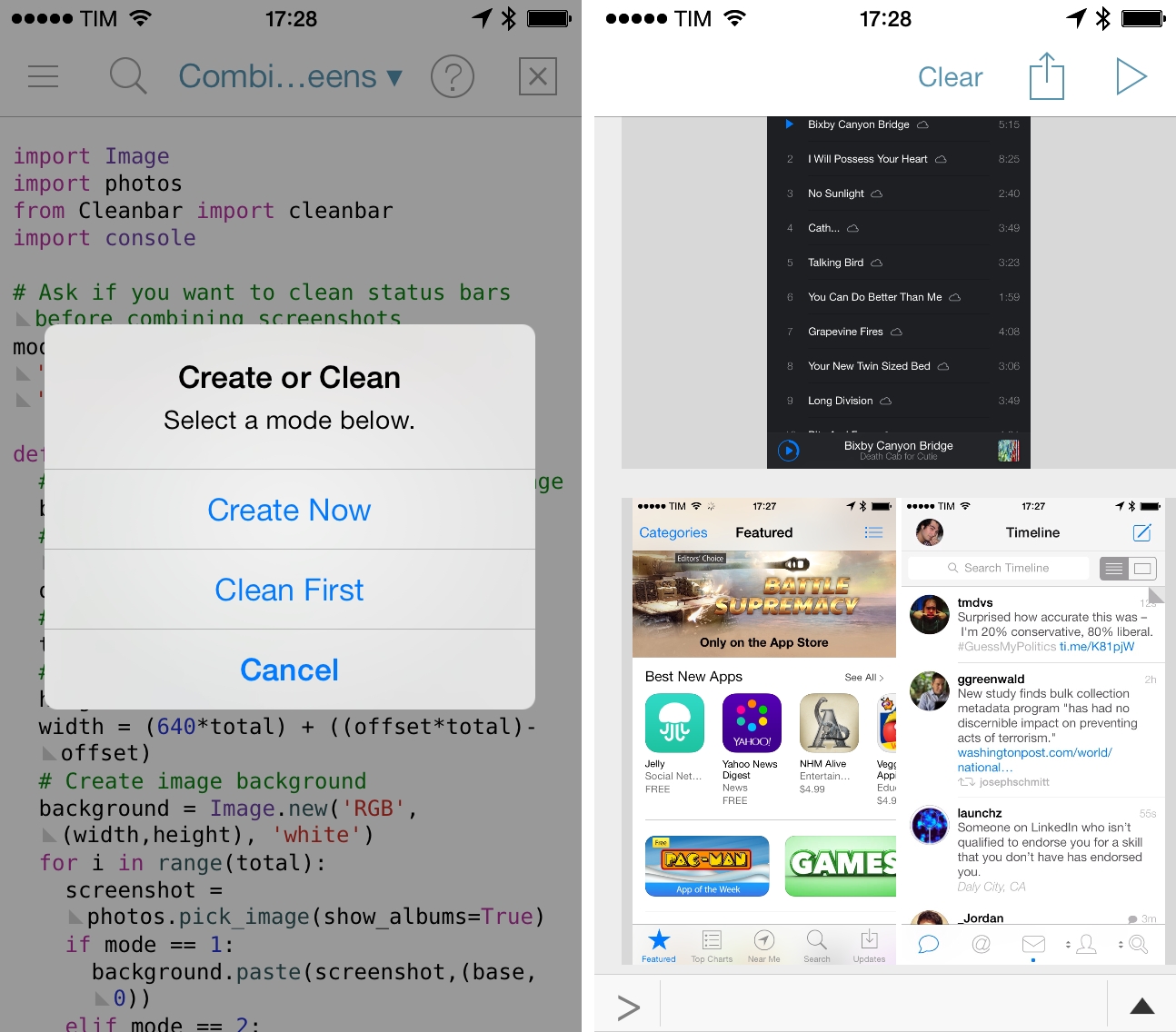
I didn’t think that complaining about iOS status bars on The Prompt would result in Dr. Drang going on a vision quest to produce better screenshots with Python. But I’m glad that I took the time to point out my dislike for messy status bars, because it led the good Doctor to work on some great scripts to automate the entire process with Python, which are compatible with Pythonista for iOS.

I waited to share my workflow for automated screenshot cleaning/generation because I wanted to see where Dr. Drang would end up with his script, Cleanbar. Now that he appears to have settled on a solution that requires standalone image files to act as partial status bar replacements, I think it’s the right time for me to share how I produce iPhone and iPad screenshots for MacStories.

The first step is to set up Cleanbar. I don’t need to repeat what Dr. Drang already explained, but to sum up: grab a black status bar, crop it to get two files similar to Drang’s, then run a script to pack those images as strings. Once set up, you’ll be able to a) use Cleanbar to clean single images picked from the Camera Roll with Pythonista and b) integrate it as cleanbar in other scripts to clean status bars programmatically.

As for my needs:

  • I usually need to combine two iPhone screenshots side-by-side in a single image as you can see in most reviews on this site;
  • I may or may not need to clean their status bars;
  • I don’t have to combine iPad screenshots. I only need to resize them and I may or may not have to clean their status bars;
  • Occasionally, I want to produce a banner with three screenshots (like this one), which can have original or cleaned status bars;
  • Sometimes, I only need to clean one screenshot out of two;
  • I always need to upload the final image to a Dropbox folder, which is monitored by Hazel.

And, because I’m not an animal, I wanted to automate all of this. The scripts that you’ll find below are the result of late night tweaking and lots of tests; they probably aren’t the most elegant or “Pythonic” way to handle this kind of image generation, but they work for me and they make me save several minutes every day. I haven’t been generating review screenshots manually in months, and they’re more flexible than my old workflow based on Keyboard Maestro.
Read more


Save Photos As Reminders with Fantastical and Launch Center Pro

Fantastical and LCP

Fantastical and LCP

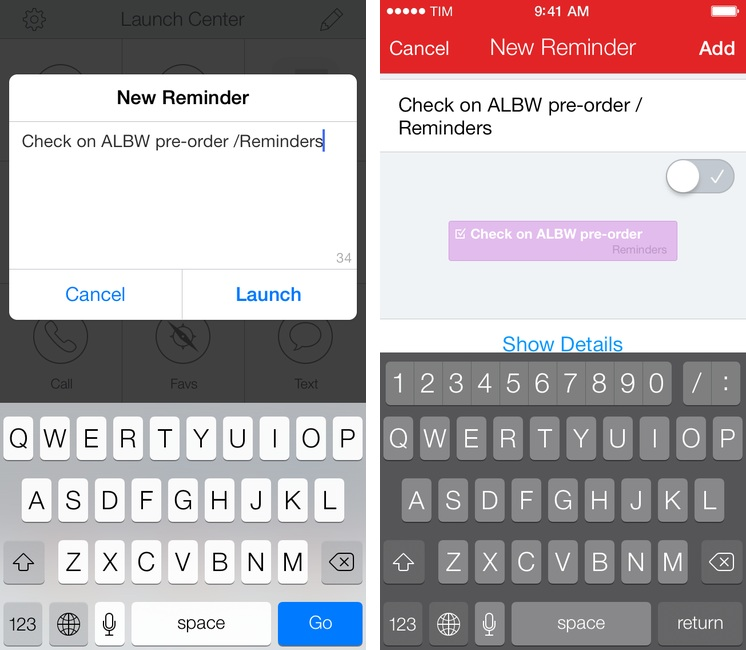
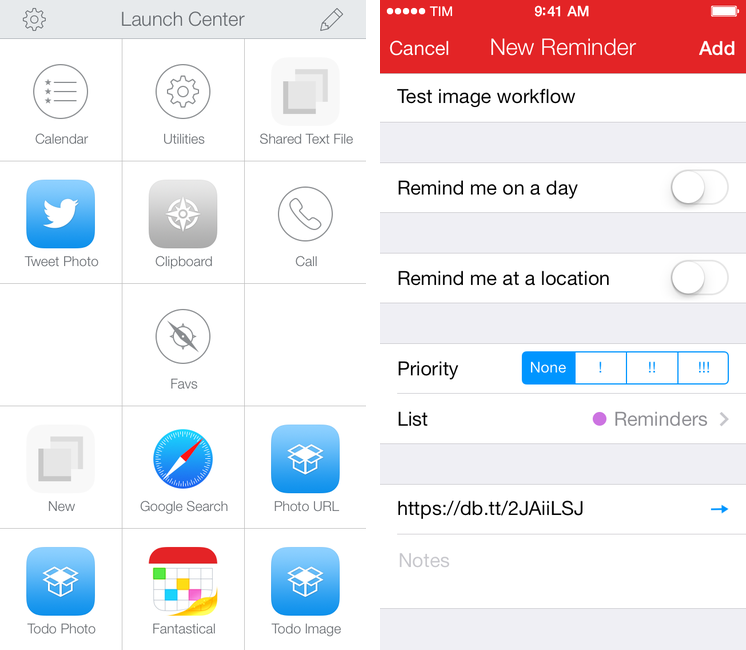
I recently realized that I wanted a way to quickly save photos or screenshots as todos, and being Fantastical 2 my todo manager (with Reminders) and Launch Center Pro the fastest way to take pictures and upload them to Dropbox, I combined them in two workflows.

I made two simple actions that mix the Launch Center Pro and Fantastical URL schemes to save a Dropbox image link as a reminder in Fantastical. You retain the ability to type natural language in a Launch Center Pro prompt, and Fantastical will also automatically recognize the URL and put it in the URL field of a reminder.

Some details worth noting about the actions:

  • The first one lets you take a new photo; the second one grabs any image from the Camera Roll;
  • Both actions will upload an image to Dropbox in the Photos/LCP/ folder; you can change this once you install the action;
  • Fantastical is set to create a reminder for the received text through the reminder=1 flag in the URL scheme.

Getting all the encoding right was a bit tricky at first, but the actions should work without any further configuration on your end. Feel free to modify them: with my basic structure in mind, you can replace Fantastical 2 with Drafts, Dispatch, or any other app that can receive text via URL scheme. I just find it handy to be able to quickly save photos in Fantastical as tappable links, but the workflow is really up to your imagination.

You can download the actions here:


Terminology Workflows For Editorial

Greg Pierce:

Terminology has always had great direct integration with our own apps, Drafts and Phraseology that allows you to easily lookup and select replacement words and have them directly replaced inline with your editing. You can see that integration in action.

In the latest version (3.0.6) of Terminology, I added a tweak to its URL schemes to allow it to integrate more easily with certain other apps, particularly Editorial, Ole Moritz’s excellent iPad text editor.

Terminology is my favorite dictionary app and I wish Editorial had a popover to replace Apple’s default dictionary, like Instapaper did. The workflows are the best alternative to that for now, and they work well.

It would be nice to have selectable synonyms and antonyms built into the system dictionary in iOS 8.

Permalink

Insert Markdown Image Links Interactively with Editorial

Stefan Wolfrum:

Because the markdown documents I write contain usually a few images from web sites I research (not from my iPad image library) and because Editorial includes its own web browser I asked myself: why can’t I just somehow insert a markdown image link in my document to an image that’s on the web page I see in Editorial’s browser? Either I’m missing something or it just isn’t there (yet). Well, because I’m always eager to learn I started to implement exactly that.

One of the most clever workflows I’ve seen in a while. I’m using a similar trick in my Feed Wrangler workflows, and Stefan’s idea can be easily repurposed for other scenarios. Well done.

Permalink

Simulating Multiple Cursors in Editorial

Editorial

Editorial

When I’m writing with Editorial or Byword, I miss the multiple cursors feature of Sublime Text. Seemingly an extra geeky addition with no practical utility, multiple cursors had become part of my editing workflow as they allowed me to select multiple positions in a document and act on them at once. For example, I could select multiple lines and prefix them with an asterisk to turn them into a Markdown list, or select multiple instances of a word and modify them with a single keystroke without using Find/Replace or other hacks. The feature was built into Sublime and it was great. So of course I made a workflow for Editorial.

Because it’s the end of the year and I’m feeling festive and thankful, I’m posting two workflows to simulate multiple cursors in Editorial. The first one allows you to save selections for multiple bits of non-contiguous text at once and, when you’re done, wrap them inside any character(s); it’s useful if you want to make multiple words bold/italic, or if you want to enclose them inside parentheses. The second workflow lets you add inline Markdown links for each selection, fetching a webpage URL from the Editorial browser. Read more


Launch Center Pro 2.1: Fleksy Keyboard, Lists, Photo Attachments, and Share Sheets

Launch Center Pro 2.1

Launch Center Pro 2.1

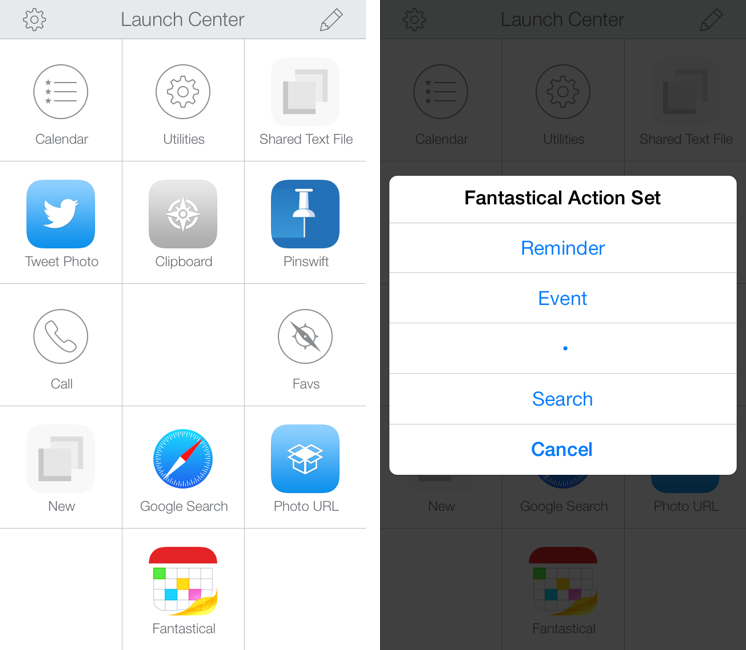
In October, Contrast released Launch Center Pro 2.0, a free update to their shortcut launcher and automation tool for iOS that brought a new interface for iOS 7 and, among other minor additions, Dropbox integration. Launch Center Pro is one of the three apps I keep in my dock[1], and I use it several times a day to create new tasks in Fantastical, launch Google searches, open my favorite websites, and more.

Today, Contrast is launching Launch Center Pro 2.1, a seemingly not-so-major update that, however, brings important changes to the app, including a new way to build visual actions and support for the new third-party Fleksy keyboard. I don’t think it’s an exaggeration to say that version 2.1 is just as important as 2.0 for heavy users of Launch Center Pro. Read more


Automate iOS Contacts, Location Services, and Open In Menu with Pythonista 1.4

Pythonista 1.4

Pythonista 1.4

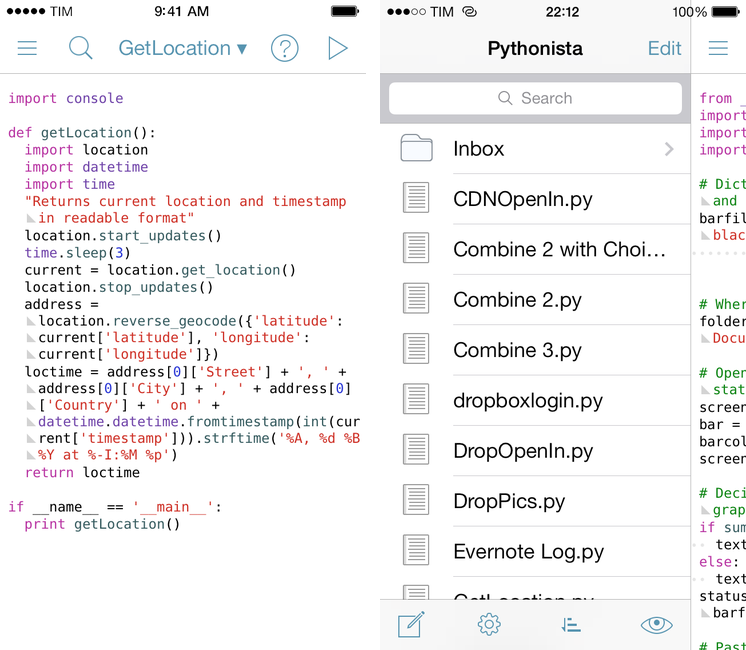
Pythonista is the app that changed my iOS workflow a year ago. A Python interpreter with native access to iOS system features like photos, URLs, and interface elements, Pythonista allowed me to convert the scripts and macros that I was using on OS X to the iPad, automating iOS in better and sometimes unexpected ways. Pythonista eventually led to Editorial, also developed by Ole Zorn, which changed the way I write and work on my iPad every day.

Pythonista 1.4, available today on the App Store, is the biggest update to Zorn’s app to date. It includes a new UI for iOS 7 (the app is also iOS 7-only starting today), new modules and enhancements to existing ones, and, more importantly, it doubles down on iOS integration by bringing native support for contacts, location, and Open In. Read more


IFTTT 1.2

Released earlier this week, IFTTT for iOS 1.2 improves on native Reminders and Photos integration by allowing users to create recipes that save new items into the Reminders and Photos apps. Previously, IFTTT could only read data from Reminders and Photos and use that as a trigger for other actions.

I wanted to wait a couple of days before posting about this update to test how frequently the new background refresh API in iOS 7 would let IFTTT check for triggers and launch recipes. Unfortunately, I haven’t seen notable changes in execution times – for instance, bookmarks that I add on Pinboard sometimes take about an hour to be added to Reminders. My understanding is that IFTTT isn’t using silent push notifications to instantly trigger recipes in your account, therefore iOS 7 background app refresh can make the app check for updates more often in the long term, but that will require several weeks of testing. Thus, I’m happy to keep testing the feature and report back.

The improved Reminders and Photos integration is very nice. You can add new photos from URLs, create reminders into a specific list, and even set a priority for them. I wouldn’t rely on Reminders integration to save work-related tasks, but I find it very useful to let IFTTT check on, say, Instagram or Facebook from time to time and save the photos I want locally on my device.

I’m still impressed by what IFTTT is doing with their iOS app, and I’m looking forward to seeing what’s next for iOS 7 background sync.

Permalink