

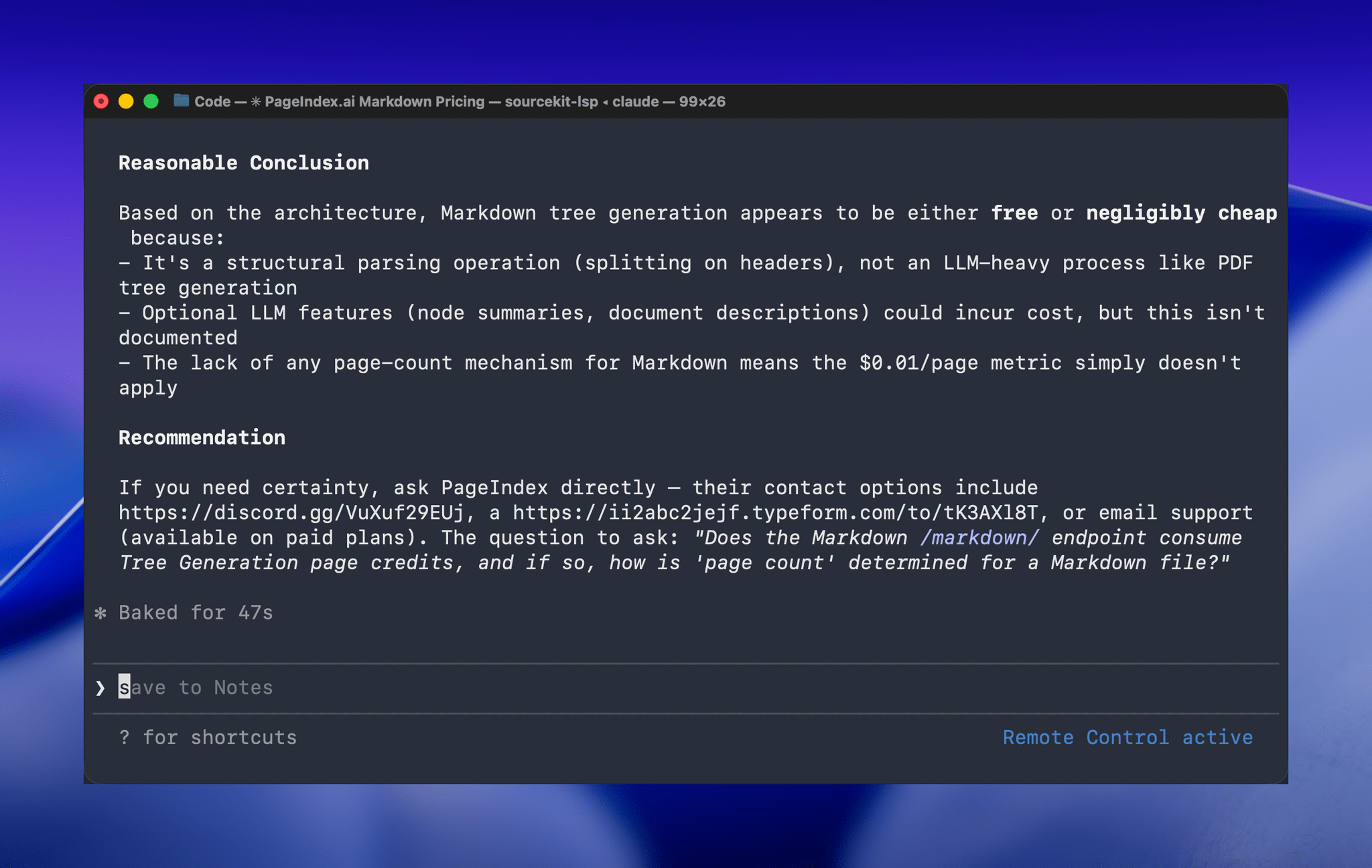
One of the greatest frustrations I’ve had with Claude Code is feeling tied to my desk or being stuck in a macOS Screen Sharing window. Claude Code’s new Remote Control feature, which was introduced late yesterday, promises to eliminate that frustration entirely. Here’s how it works.
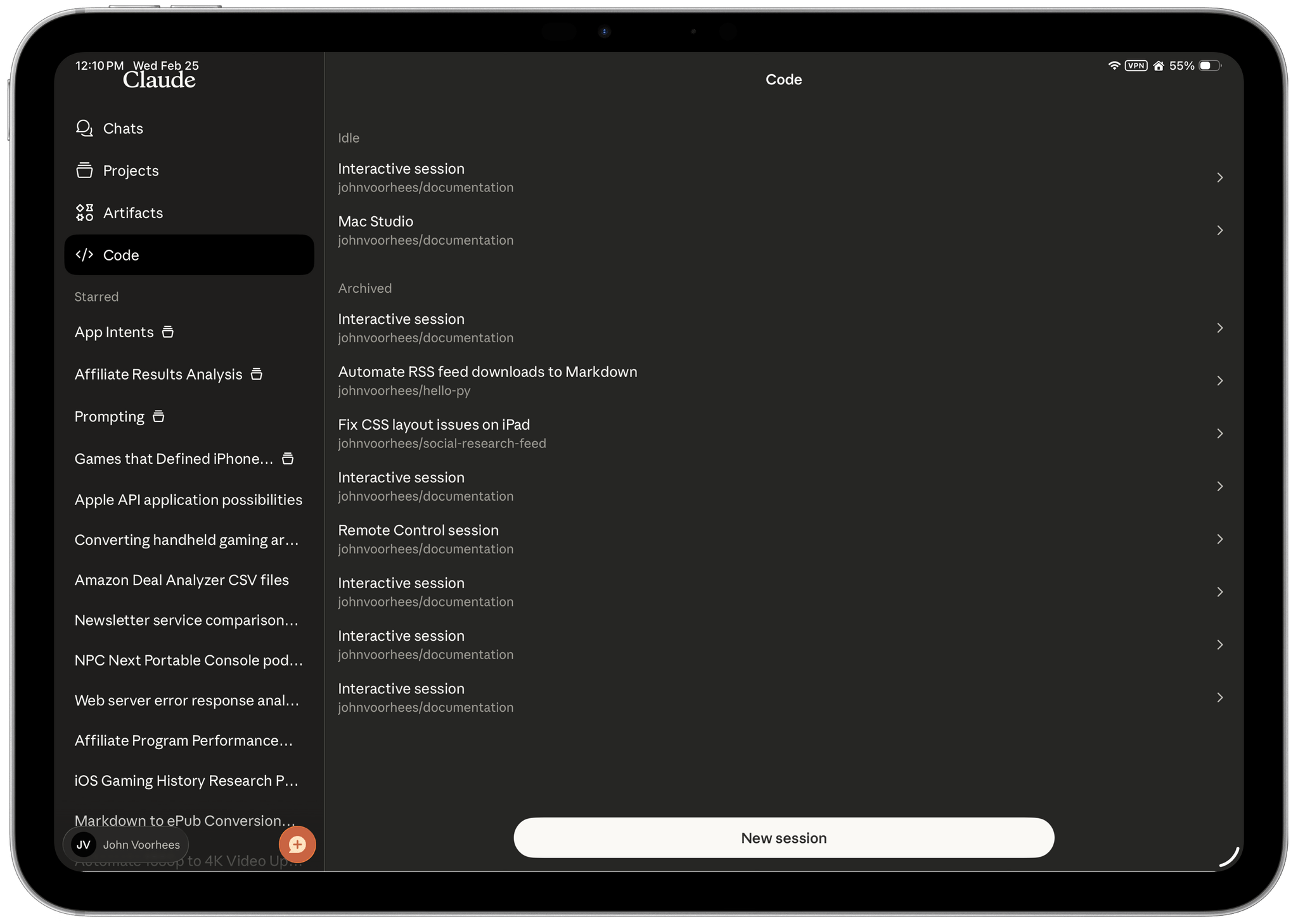
I use Claude Code in the Terminal on two Macs, my desktop Mac Studio, where I use it with Xcode projects, and a headless Mac mini that runs more than a dozen web apps that support internal MacStories projects. I use Claude Code in the Terminal on both Macs for the simple reason that it has access to the local file systems, skills, and tools on both machines. The trouble with the setup is that it leaves me feeling tethered to my desk or stuck in a battery-draining Screen Sharing session on my laptop.
To untether, I’ve experimented with a variety of terminal emulator apps and using solutions like tmux and MOSH via SSH or Tailscale to continue sessions away from my Mac. However, the experience hasn’t been great, especially on the iPhone and iPad, which aren’t designed for terminal work. There are apps that do a respectable job despite the OS limitations, but I still feel like I have one hand tied behind my back, and juggling remote configurations can be a headache, which is why I was excited to see Claude’s new Remote Control feature.
Remote Control brings the Terminal right inside Anthropic’s Claude app on every platform, with all the skills, tools, and MCP servers available on your Mac. That’s a big advantage over the existing Code tab available in Claude’s web and native apps. Those implementations, which are still available, run in a virtual Linux environment that’s sandboxed in the cloud. By connecting directly to an existing Terminal session on your Mac, Remote Control unlocks access to your local file environment, along with your MCP servers, skills, and local-only configurations.
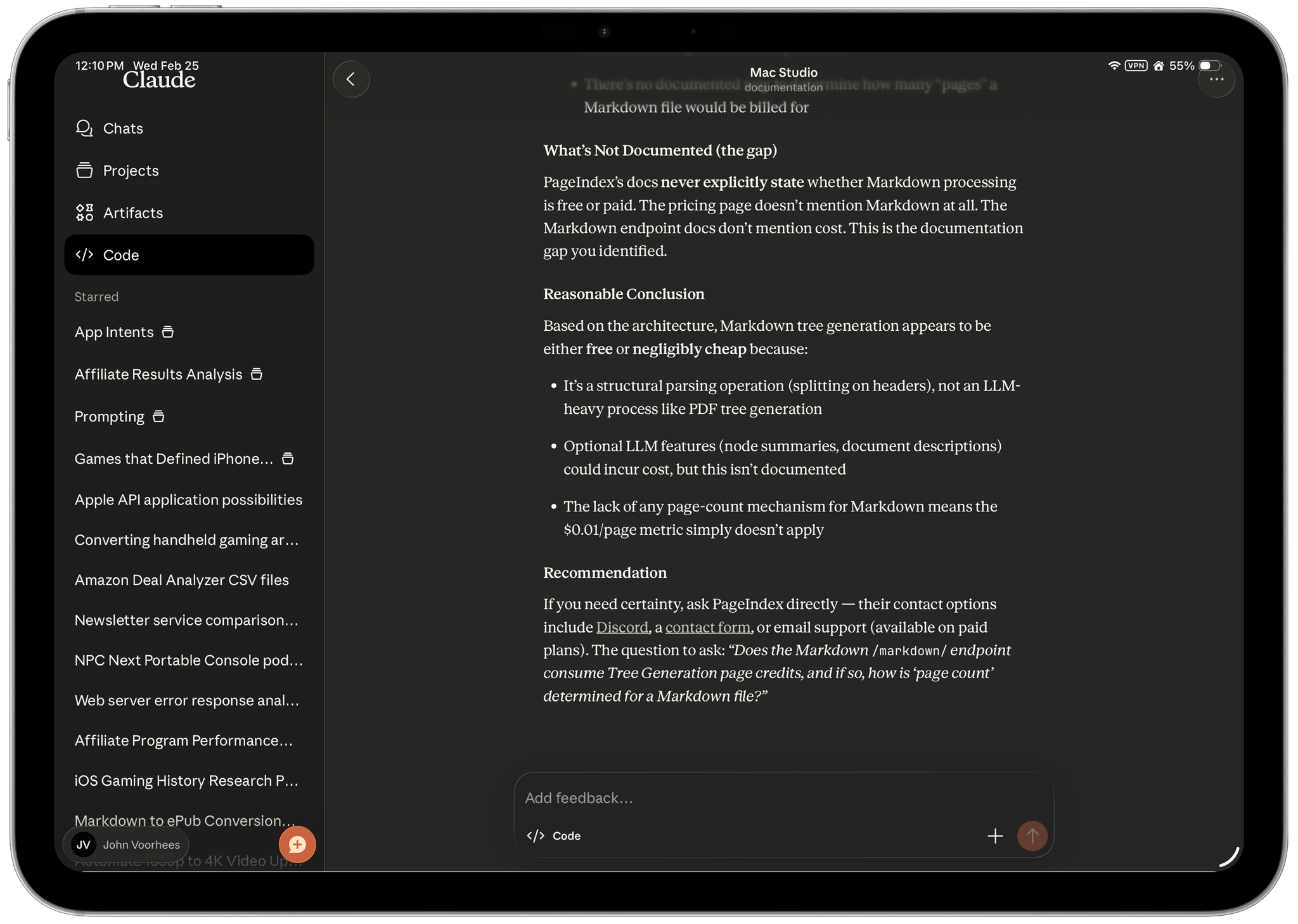
Because Remote Control relies on your Mac’s Terminal session, that means you need to keep the Terminal app open and running on your Mac with Remote Control enabled. If the session terminates on your Mac or you lose your network connection for more than 10 minutes, the Remote Control session ends, too. By the same token, though, you can open multiple Terminal windows or tabs on multiple Macs, each with Remote Control enabled and switch among them just like you would multiple chat sessions.
However, it’s worth keeping in mind that this is a research preview, and there are bugs. For example, I’ve had no problem connecting to multiple sessions on my Mac Studio that I can easily switch among on my iPad, iPhone, and MacBook Pro. For whatever reason, though, the same isn’t true for my Mac mini server. I can connect to it remotely using the URL that Remote Control generates for a session, but the sessions don’t persist in the Claude app’s session list. This is a known issue that hopefully will be fixed soon. Also, Remote Control is currently only available to paid users with a Max account, although Anthropic has said it will be extended to Pro account holders soon.
There will still be use cases for tools like tmux and MOSH when using Claude, especially for developers working on big projects with others. However, for someone like me who is working solo on multiple projects across multiple Macs and other devices, Remote Control is incredibly exciting because it’s so easy to set up and promises to be maintenance free.
I’ll have more on how to set up Remote Control for Club MacStories members in this week’s issue of MacStories Weekly this Friday, along with any additional tips and tricks I discover as I dig in deeper and use it more. If you’re not already a member, you can learn more about what the Club offers here.
