‘sodes Embodies Beauty and Minimalism in a Podcast Player

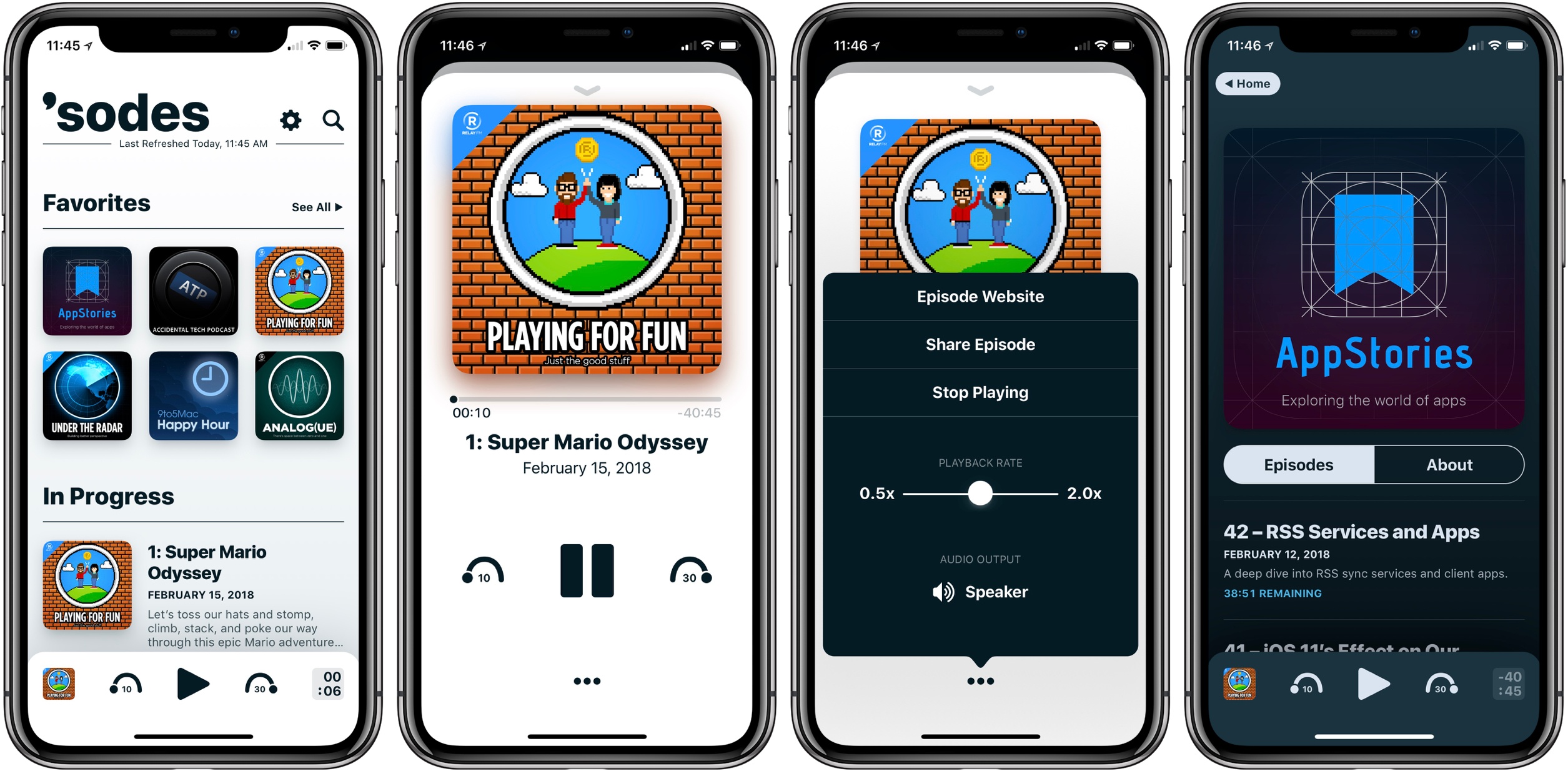
Jared Sinclair launched a new iPhone app today, ‘sodes. Short for ‘episodes,’ the app offers a simple, no-frills podcast listening experience.

Unsurprisingly considering Sinclair’s previous work, ‘sodes is a beautiful app. Perhaps my favorite designed area is the Now Playing view; after I first tried it, going back to another app’s Now Playing screen was painful. The app especially shines on the iPhone X’s full-width display. As was highlighted in Federico and John’s discussion on AppStories last year, an indie app’s little human touches can elicit such delight – and ‘sodes is a great example of that.

‘sodes was designed to be nearly feature-absent (at least to the user’s eye), so you won’t find things like chapter support, Smart Speed, playlists, or any such extras. You can adjust the duration of skips forward and back, there are multiple color themes, and playback speed can be set anywhere from 0.5x to 2x – but that’s about it. Mainly, the app gives you podcasts in a clean, minimal, delightful wrapper. If that’s enough for you, you might just love it.

‘sodes is available on the App Store.

Permalink

Connected, Episode 180: Our True Tiny Head Form

We have HomePod opinions, dreams about WWDC and an amazing new t-shirt.

On this week’s episode of Connected, we talk about our HomePod impressions and Apple’s plans for iOS and macOS this year. You can listen here.

As a side note, we’ve launched a new t-shirt design for Connected. You can find the t-shirt (in three colors) on Cotton Bureau.

I think this artwork (by the talented Chris Rowland) is amazing, and I’d love to see many of these t-shirts at WWDC later this year. You can get yours here.

Permalink

HomePod Leaving Residue on Some Wooden Furniture

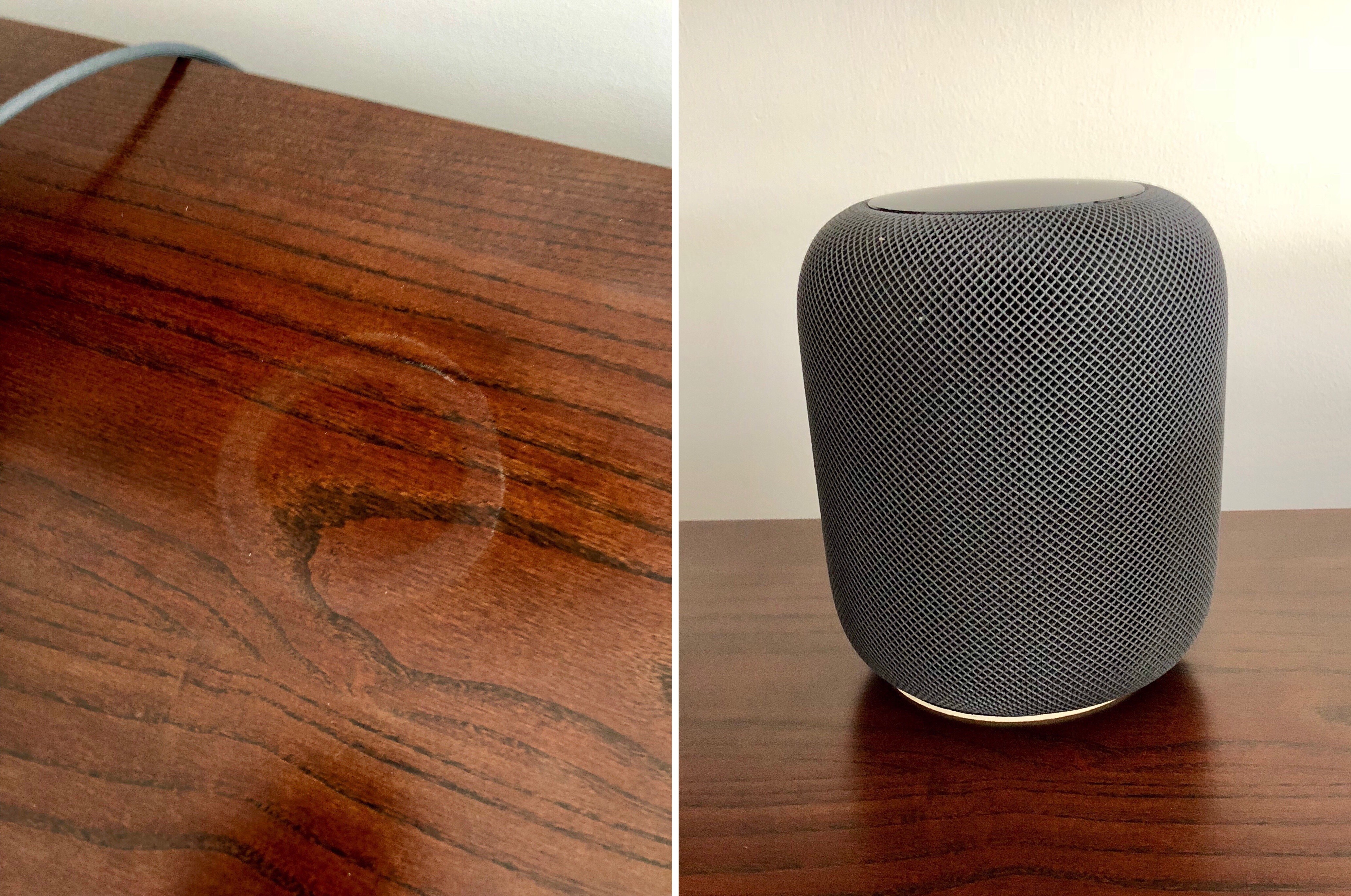
John Voorhees' HomePod ring; the device now sits on a coaster.

John Voorhees’ HomePod ring; the device now sits on a coaster.

Nearly a week after its launch, HomePod owners are discovering that in some cases, the device leaves a white ring in its place when stored on wood furniture. John Chase of The Wirecutter reports:

An unhappy discovery after we placed a HomePod on an oiled butcher-block countertop and later on a wooden side table was that it left a defined white ring in the surface. Other reviewers and owners (such as Pocket-lint, and folks on Twitter) have reported the same issue, which an Apple representative has confirmed. Apple says “the marks can improve over several days after the speaker is removed from the wood surface,” and if they don’t fade on their own, you can basically just go refinish the furniture—the exact advice Apple gave in an email to Wirecutter was to “try cleaning the surface with the manufacturer’s suggested oiling method.”…In other testing, we have seen no visible damage when using it on glass, granite countertop, nice MDF, polyurethane-sealed wood, and cheap IKEA bookcases.

Among the MacStories team, Federico and John have both encountered this issue, while I have not. Serenity Caldwell of iMore explains the inconsistency:

Not all whole-wood table finishes are alike: Certain wood oil treatments include drying agents that have organic compounds present in them — compounds that could potentially interact with the silicone in Apple’s base.

It appears that for those who will face this problem, it doesn’t take more than a couple days for the white ring to become at least faintly visible. If you’re not seeing anything after several days of HomePod use, it’s likely that your furniture will be fine, but if you’re concerned, using a coaster seems like the best low-budget fix at this point.

Update: Also per Serenity Caldwell, Apple has now put together an official support document, dubbed “Cleaning and taking care of HomePod.” It provides official details regarding HomePod and wooden surfaces:

It is not unusual for any speaker with a vibration-dampening silicone base to leave mild marks when placed on some wooden surfaces. The marks can be caused by oils diffusing between the silicone base and the table surface, and will often go away after several days when the speaker is removed from the wooden surface. If not, wiping the surface gently with a soft damp or dry cloth may remove the marks. If marks persist, clean the surface with the furniture manufacturer’s recommended cleaning process. If you’re concerned about this, we recommend placing your HomePod on a different surface.

The new document also addresses the matter of cleaning HomePod – only with a dry cloth, or, if necessary, a slightly damp one – and informs users to keep HomePod away from liquids and heat sources.

Permalink

FileBrowser for Business Gains New FTP Options, Native iXpand Drive Integration in Files App

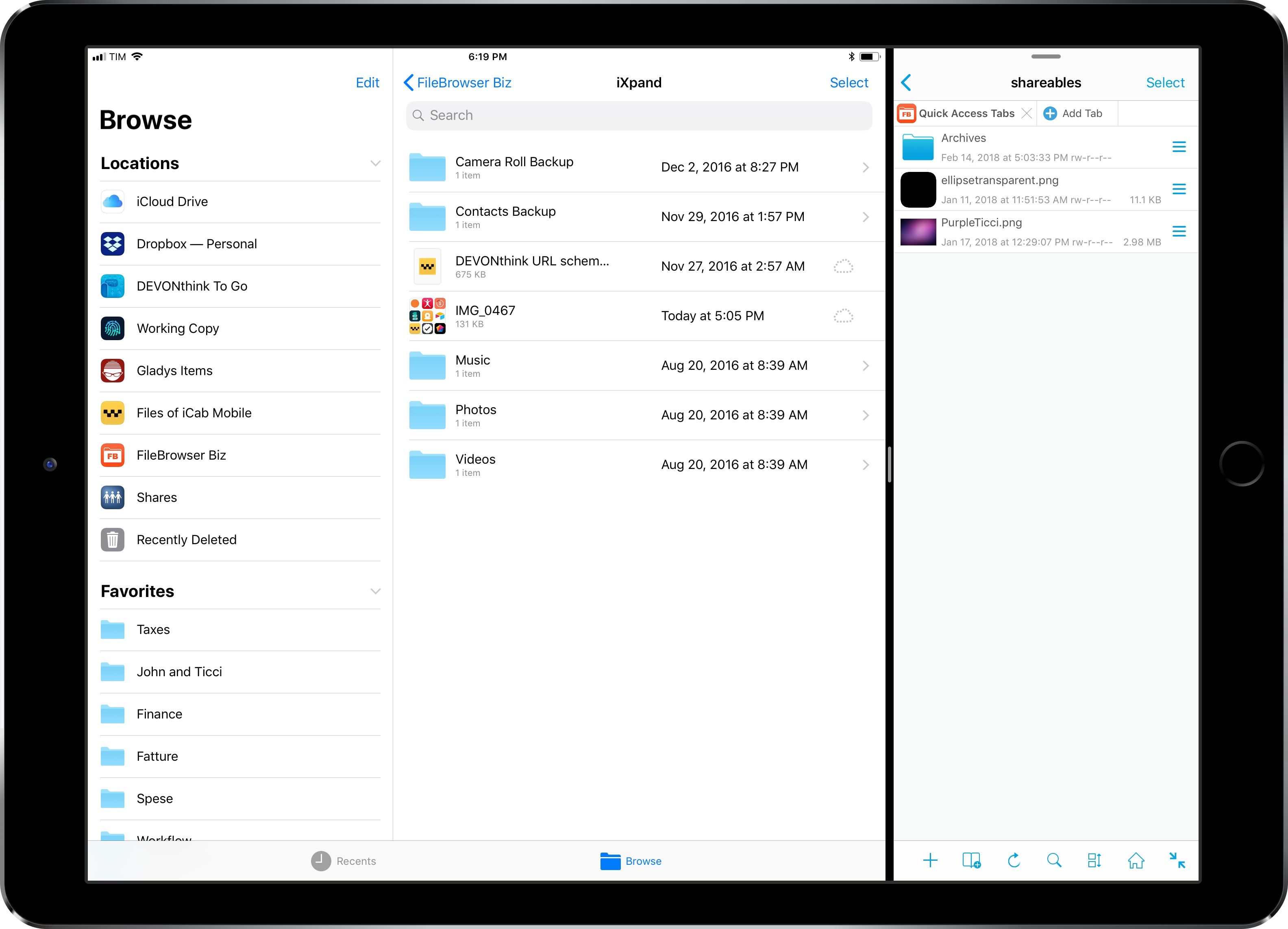
I first covered FileBrowser in an iPad Diaries column from January about finding a replacement for Transmit on iOS. As I noted in the story, FileBrowser didn’t have the prettiest interface (to be fair, I still have to find a file manager that looks as nice as Transmit), but it offered superior integration with iOS 11 features such as drag and drop and Files.

I wrote:

What FileBrowser gets right is support for iOS 11’s drag and drop and Files app. With drag and drop, you can import items into FileBrowser (and thus upload them to any configured location) as well as export files from a server you’re browsing in FileBrowser. The app supports multi-item drag and drop so you can pick up multiple files in a single drag session and drop them into another iPad app, and it correctly implements lazy delivery (asynchronous transfers) for large files. For instance, I was able to drag a .aif song (30 MB) and a .zip archive (160 MB) from FileBrowser and drop them into Gladys and, while it took a few seconds (particularly for the 160 MB file), it worked just fine; as the file was being copied after I let go of it, I could continue using Gladys as normal.

Something else I should have noted: the FileBrowser team is extremely receptive to criticism and new ideas. Over the past few weeks, I’ve been testing an updated version of FileBrowser (in the Business flavor) that addresses several limitations I covered last month.

Read more


OmniOutliner 3 for iOS Review

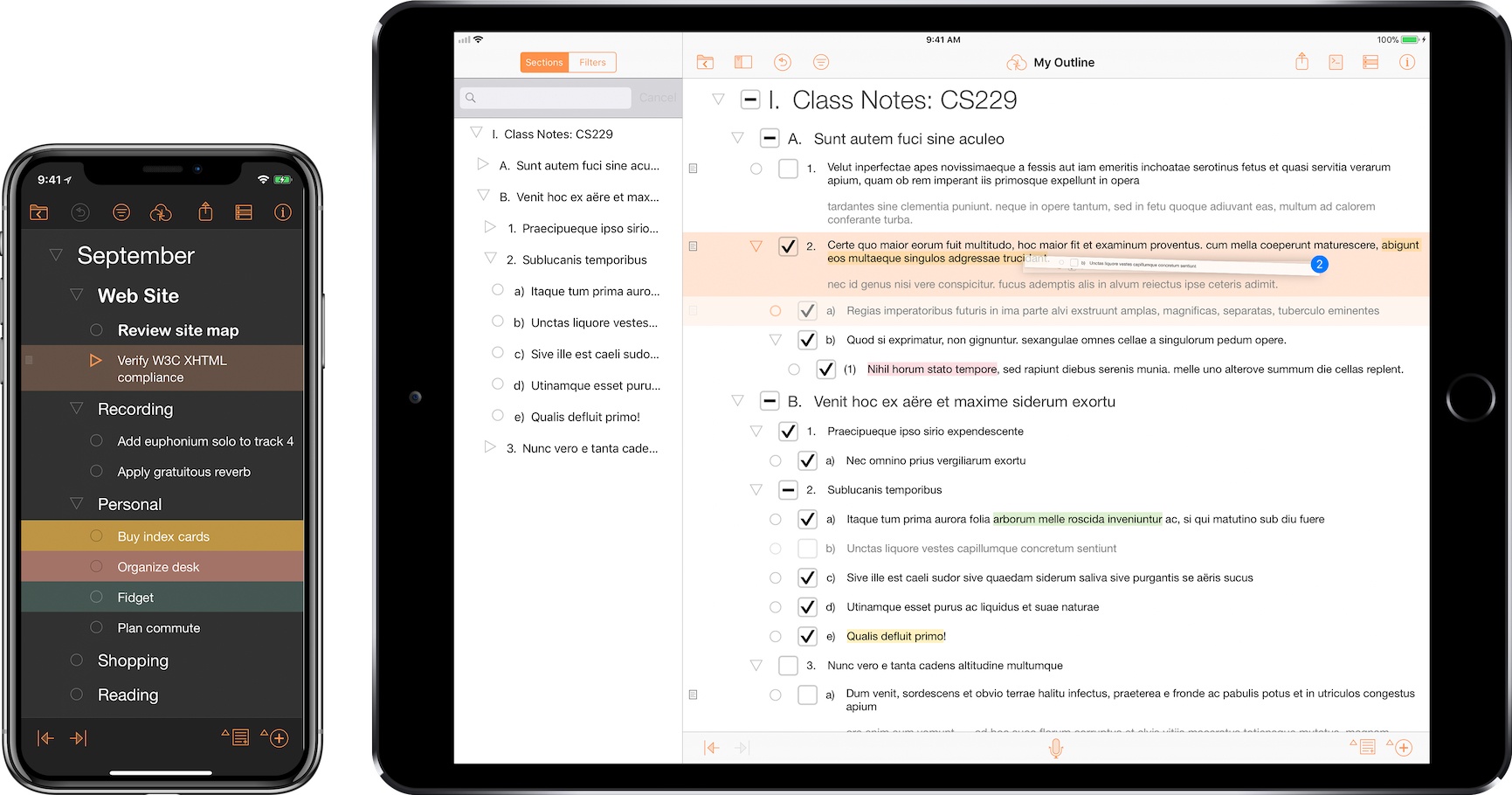
I think in outlines. When I was in law school, that’s how I was taught to break down legal issues and structure the enormous amount of information I needed to know to pass exams. Outlines became second nature – something I still use today to organize research, write longer articles, and organize projects.

I wish I had OmniOutliner when I was in law school. Those outlines grew as the semester wore on, adding complexity that made them harder to edit. Although the word processor I used could handle outlining, it wasn’t optimized for huge outlines the way OmniOutliner is.

Today, my outlining needs are much simpler. I’m not creating 100-page outlines. If an outline is more than a few pages long, it’s only because it’s full of detailed notes. More often than not, all I need is a quick indented list, with simple formatting, and the ability to reorder sections easily.

Perhaps the greatest strength of OmniOutliner 3 for iOS is that it can handle both scenarios. That’s because OmniOutliner 3 isn’t one app, it’s two: OmniOutliner Essentials and OmniOutliner Pro. Essentials includes all the tools you need for basic outlining, and Pro adds extensive customization options, section navigation, automation, and other features.

Read more


New Apps for 2018

You can download my wallpaper here.

The new year is always an opportunity for me to take some time off work and better understand how I use technology and, more importantly, what I want from the devices I write about. Historically, that meant I would take a short break over the holidays and come back to MacStories with a handful of recommendations for new apps I wanted to test throughout the year, from text editors to finance management utilities and health apps.

This time, the break lasted a little longer. Last year was a particularly stressful one for me, and I felt that I needed to take at least a couple of weeks off all my work projects to clear my mind and make a plan for the year ahead. That turned out to be a fantastic idea: not only was I able to finally relax (to the point where I was craving the website and feeling the urge to write again) – the extended break also allowed me to identify areas of my life that I wanted to act upon immediately and improve in 2018.

This is why, when Myke Hurley asked me on Analog(ue) which big project I was working on for the new year, my first answer was “myself”. My plan for 2018 is to take better care of myself – from multiple perspectives – so I can avoid the stress of 2017, feel more inspired, write more, and, ultimately, be happier. I don’t have a single big “work project” for 2018; my goal is to improve every aspect of my daily routine, in big and small ways, so everything I do can subsequently grow as well. Essentially, I need to fix the foundation before I can build on top of it again.

In addition to new habits (which I detailed in last month’s issue of the MacStories Monthly Log for Club members; you should subscribe if you haven’t yet), this effort involves new apps I’m using to help me along the way. I decided to wait a full month after I came back to work because I wanted to see which ones would actually stick around; what you’ll find below is a collection of apps I’m now using on my iPhone and iPad on a daily basis.

While this type of story isn’t new to longtime MacStories readers, I feel like the 2018 version is more personal and pragmatic. These aren’t advanced automation apps or utilities I’m just experimenting with for the mere sake of geekery; from mental health to time tracking, each of these apps is having a tangible, positive impact on my life that I’d like to highlight.

Read more


CARROT Weather 4.5 Brings Achievements, Alternate Icons, and More

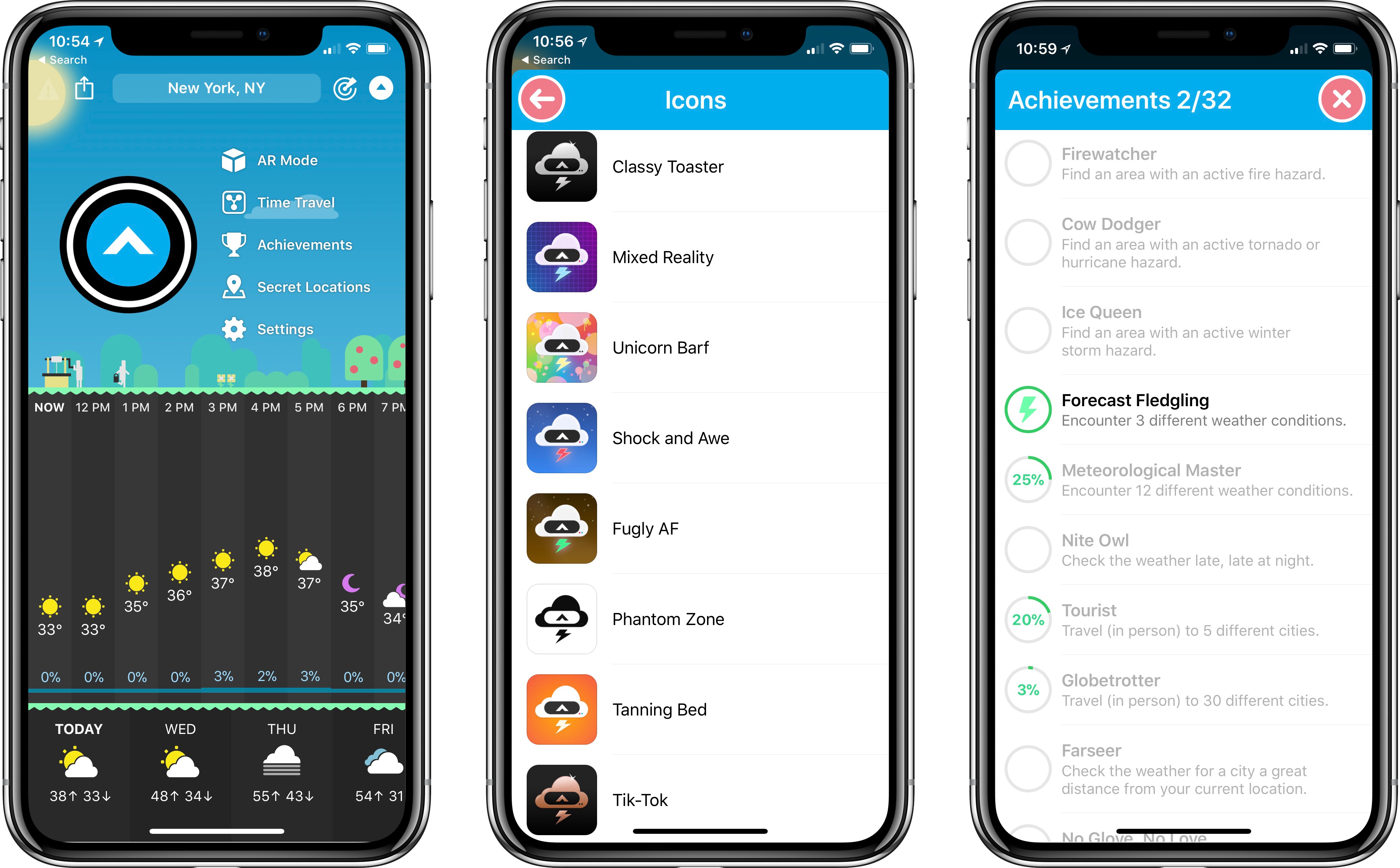
The latest update to CARROT Weather, a MacStories favorite among iOS weather apps, brings a variety of improvements big and small, with the most noteworthy designed to add extra fun to the app: achievements and alternate icons.

Achievements are an attempt to gamify your weather app experience. While with most apps that sentence would sound ridiculous, achievements fit well with the personality and character of CARROT Weather. Currently there are 32 achievements you can unlock, many of which have to do with weather events you experience, while some involve travel and other activities. All available achievements can be viewed from CARROT’s dropdown menu.

Alternate icons, like achievements, aren’t a necessary addition to a weather app, but they do add joy to the user experience. Developer Brian Mueller has put together a diverse, high-quality set of icons to choose from, ensuring you can make CARROT fit in well with your existing Home screen layout vibes.

Other changes worth noting in version 4.5 are that the Secret Locations feature has been removed from its previous home in the search box, instead getting its own dedicated place in the dropdown menu. This move is accompanied by a revamp of the map view for carrying out assigned missions. Also, the app’s main search box has had its autocomplete upgraded to work much faster and comprehensively, and you can reorder saved locations easily using drag and drop.

Today’s update isn’t a major one, but it does make a great weather app even better. Features like custom icons and achievements help boost CARROT Weather’s already extensive amount of character, endearing the app to users in a way few apps can. If you haven’t tried the app yet, I highly recommend it.

CARROT Weather is available on the App Store.


The Sweet Setup Launches ‘All the Things’ Video Course

Today The Sweet Setup launched ‘All the Things’, a video course primarily aimed at explaining how to get the most out of Things, the popular task manager for Mac and iOS.

Like they did for their Ulysses screencasts last year, the folks at The Sweet Setup have produced a series of videos covering Things with walkthroughs of its basic features, project organization, as well as more advanced options such as iPad drag & drop and workflows. The videos included in the $29 ‘All the Things’ Basic package are:

  • Walkthrough of Things on the Mac, iPad, and iPhone
  • Anatomy of a Task
  • All the ways to Capture
  • Anatomy of a Project
  • Anatomy of an Area
  • Cloud Sync & Backup
  • iPad drag & drop
  • AppleScripts & Workflows

In addition to the screencasts, the Basic package includes setup interviews with Things users who rely on the app to get work done. I was honored when Shawn asked me to participate in the course, and it was fun to answer his questions about my decision to switch to Things and how I use the app. You can find my interview here.

I’m a fan of The Sweet Setup’s screencast courses. I like Shawn’s style of demonstrating features and how they work in practice, and I think the Basic video package is a great deal at $29 if you’re looking for a way to get started with Things and learn how other people use it.

There’s more, though. In the Pro version of the ‘All the Things’ package, available at $39 for a limited time, you’ll also get access to Shawn’s productivity training videos that contain general tips that work for any task manager. So whether you use Todoist or OmniFocus or something else, videos such as ‘How to Schedule Your Day’ and ‘Weekly Planning & Reviewing’ will likely give you something you can apply to your own workflow. And if you just want these videos without the Things screencasts, that’s also an option at $35.

I watched nearly every video of the ‘All the Things’ Pro bundle over the past week, and – I don’t say this because I was interviewed for this series – I think $39 for the discounted Pro package is great value whether you want to learn Things or optimize the way you work. You can find all the details about ‘All the Things’ and purchase the course here.


AppStories, Episode 42 – RSS Services and Apps

The RSS sync service and reader app landscape makes it difficult to find the perfect combination of features for the way you read the news. On this week’s episode of AppStories, we sift through the many options and highlight what we look for in modern iOS and Mac RSS clients.

Sponsored by:

  • GoodNotes: Stunning digital ink.
  • Outcast: Download and play podcasts without your iPhone.
AppStories+ Deeper into the world of apps

AppStories Episode 42 - RSS Services and Apps

0:00
38:52

AppStories+ Deeper into the world of apps

Permalink