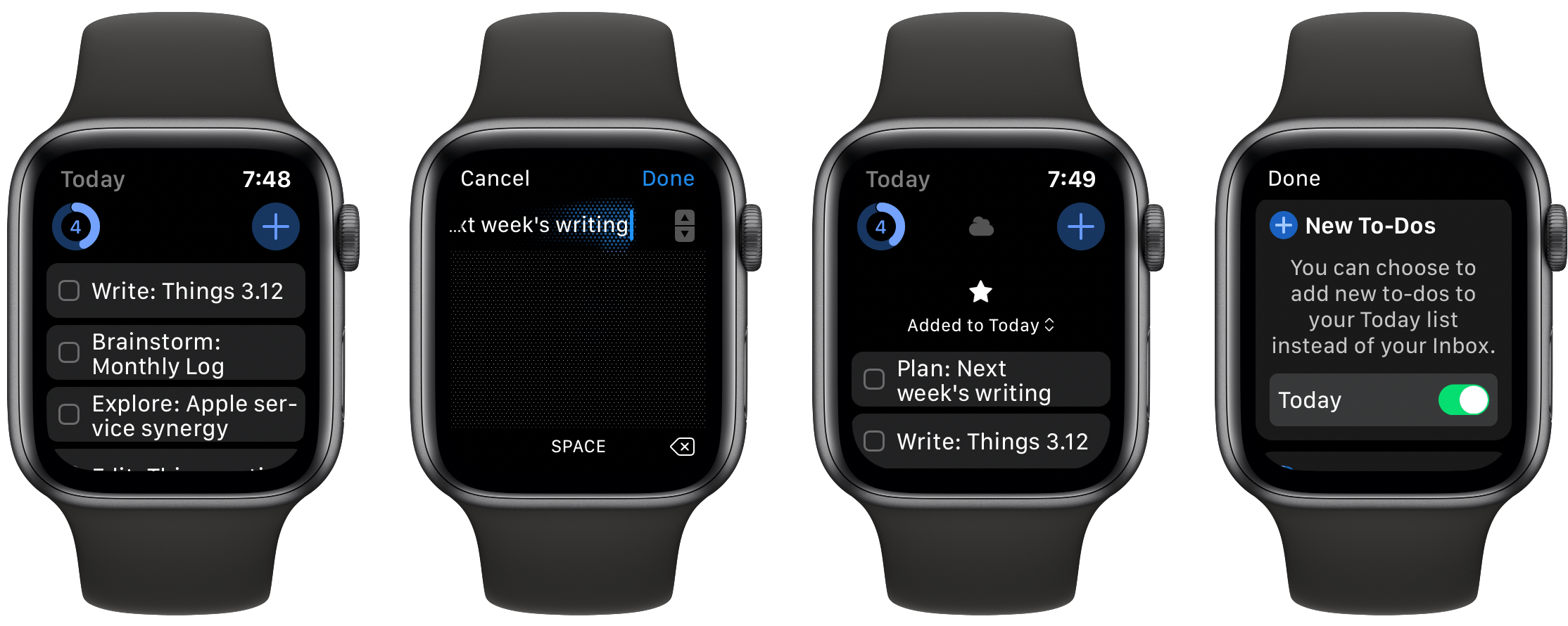
The Apple Watch has come a long way in five years, and apps are only starting to catch up. Many Watch apps received the majority of their development attention with the first or second versions of watchOS, before the days of LTE service, independence, and SwiftUI. Those early Watch apps were hamstrung by OS limitations, but in the last few years as the platform has evolved, most apps never adapted to what’s possible now.
Things 3.12, releasing today, exists for just that purpose: it addresses the task manager’s former Watch client shortcomings, making it a truly capable companion for Things on iPhone, iPad, and Mac.
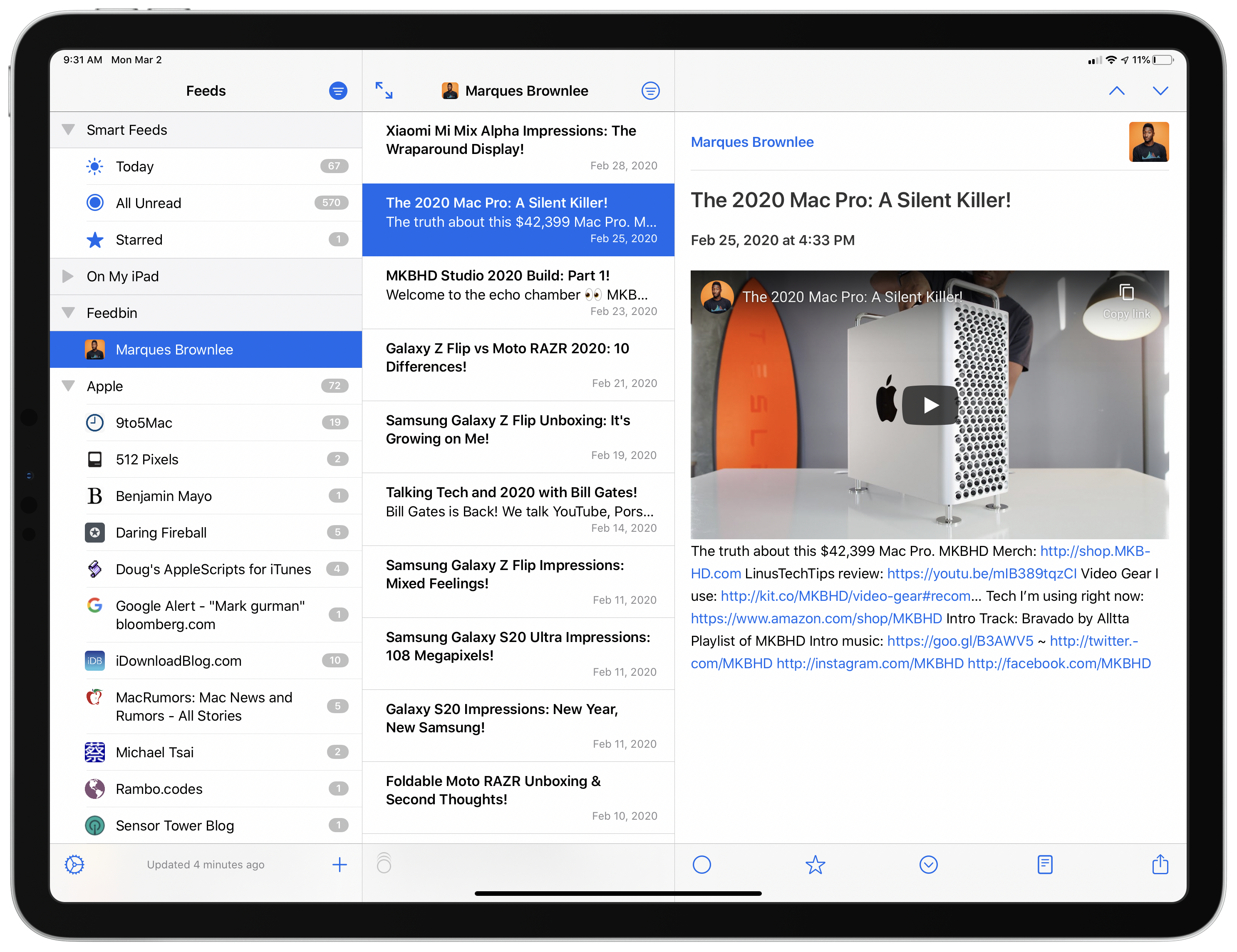
NetNewsWire, which was relaunched on the Mac last August, is now available on iOS and iPadOS. Like its Mac counterpart, the iOS and iPadOS version is built on a foundation of fast syncing and sensible, bug-free design. As with any 1.0 app, there are additional features and refinements I hope to see in future releases. Unlike most 1.0 releases, though, you won’t find lots of rough edges and bugs. NetNewsWire is ready to be your primary RSS client today.
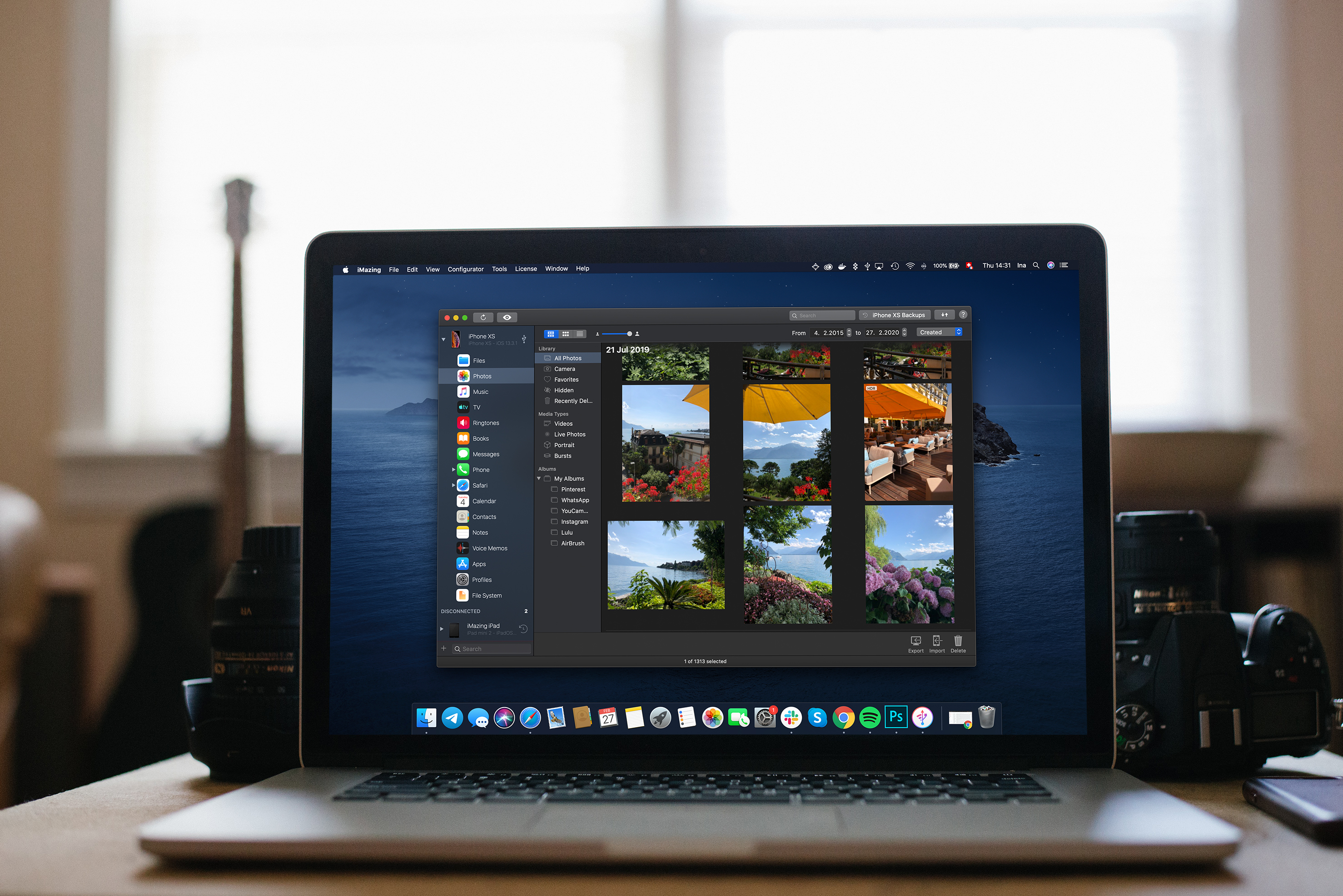
iMazing is the must-have backup and file acces tool for the Mac that provides unparalleled access to everything on your iOS devices. The app works over both WiFi and USB, allowing you to take control of your iOS data. With it, you can make Time Machine-style backups, easily transfer documents, media, and content, and dig into system files, access device and battery diagnostics, and a whole lot more.
With the recent release of version 2.11, iMazing has greatly expanded its photo support. Now, you can manage and transfer even the largest iPhone and iPad photo libraries quickly and seamlessly using your Mac.
Your photos and videos are all available in high-resolution and can even be viewed full-screen before importing them to your Mac. You can also browse extensive metadata about each image like its file name, size, and format, number of views, location, shutter speed, focal length, ISO, and more.
When you decide to export photos, you have a wide range of options and control over exactly what gets exported too. Combined with iMazing’s excellent backup features, the new photos features allow you to easily browse and recover items that have been removed from devices and iCloud.
Version 2.11 is a fantastic update to iMazing that provides the power and flexibility that pro users demand with the ease of use and flexible export features that casual users will love. The update is free to all iMazing 2 license holders, and if you aren’t already an iMazing user, you can download and try it for free.
From March 9-16, 2020 only, MacStories readers can purchase iMazing for 30% off. This is a terrific deal, so don’t wait. Download iMazing today, and take advantage of this deal and start managing and transferring your iPhone photos like a pro.
Our thanks to iMazing for sponsoring MacStories this week.
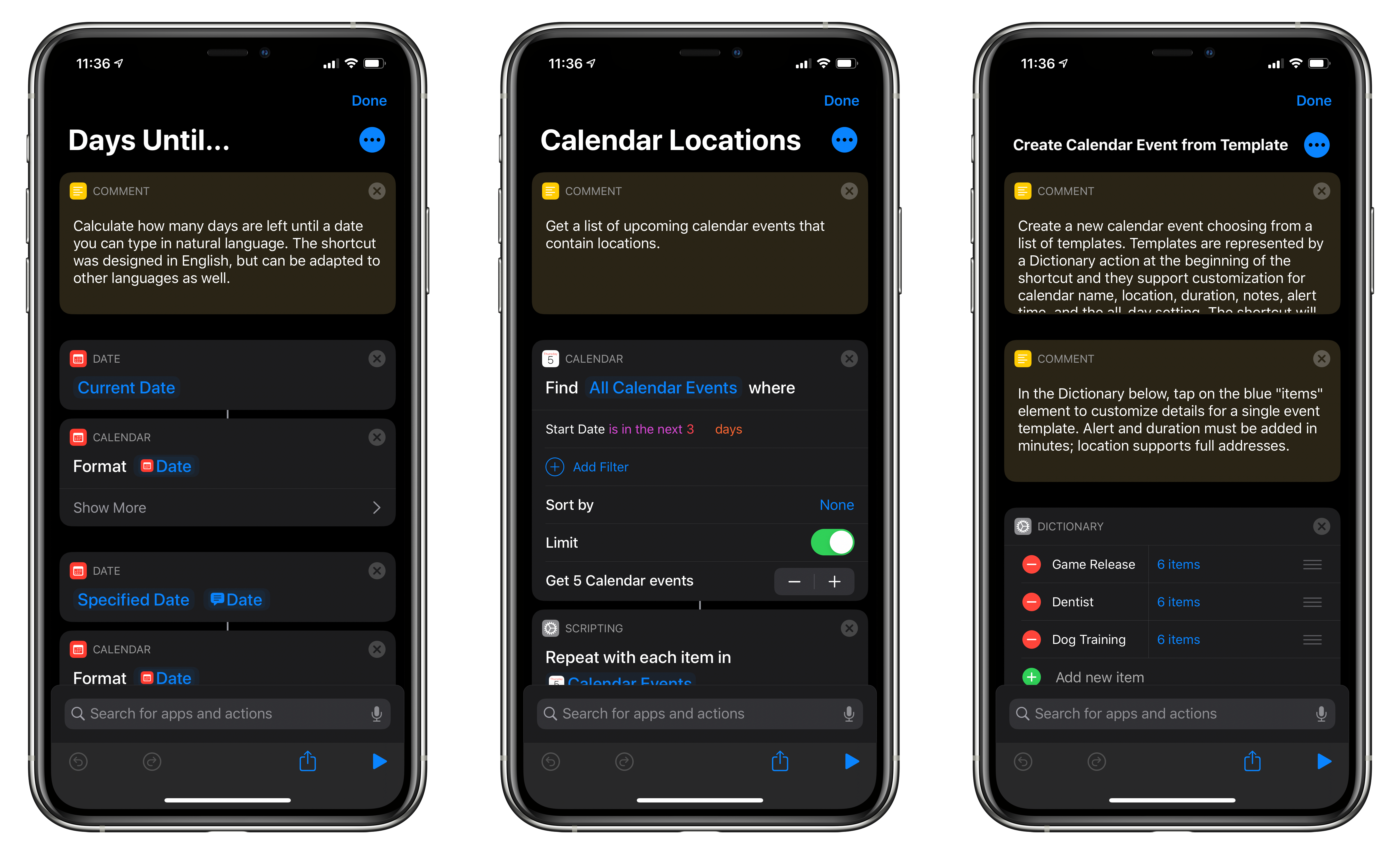
For this installment of Shortcuts Rewind, I’m going to focus on date and calendar actions. I’ll also touch on some of the Shortcuts actions that Apple Maps offers and explain dictionaries.
I wanted to cover date and calendar actions early in the Shortcuts Rewind series because they’re the sort of actions that come in handy over and over in a wide variety of shortcuts. Plus, date-based shortcuts are useful to lots of people. After all, everyone deals with schedules and meetings to some degree.
With Shortcuts, dates become modifiable building blocks that go hand-in-hand with events that the app allows you to decouple from your calendar app and recombine in new ways. It’s a powerful pairing that, along with an understanding of dictionaries, can be extended to other contexts over and over.
You can download each of the three shortcuts I cover at the end of each section of this story or by visiting the MacStories Shortcuts Archive, where you’ll find these and over 200 other shortcuts. Once you download one of the shortcuts, opening it on an iPad side-by-side with this walkthrough is a terrific way to learn how each works. Another technique that is effective is to rebuild each shortcut from scratch yourself, as you follow along below.
Inspired by a report that the iPad Pro’s Smart Keyboard will gain a trackpad this year, Federico and Ryan imagine what that would mean for the future of the iPad.
You can listen below (and find the show notes here), and don’t forget to send us questions using #AskAdapt and by tagging our Twitter account.
0:00 01:04:30
Adapt, Episode 20
AppStories+ Deeper into the world of apps
Sponsored by:
TextExpander, from Smile: Unlock your productivity with TextExpander. Get 20% off with your first year.
Sanebox: Clean up your inbox in minutes. Sign up for a two-week free trial and a $25 credit.
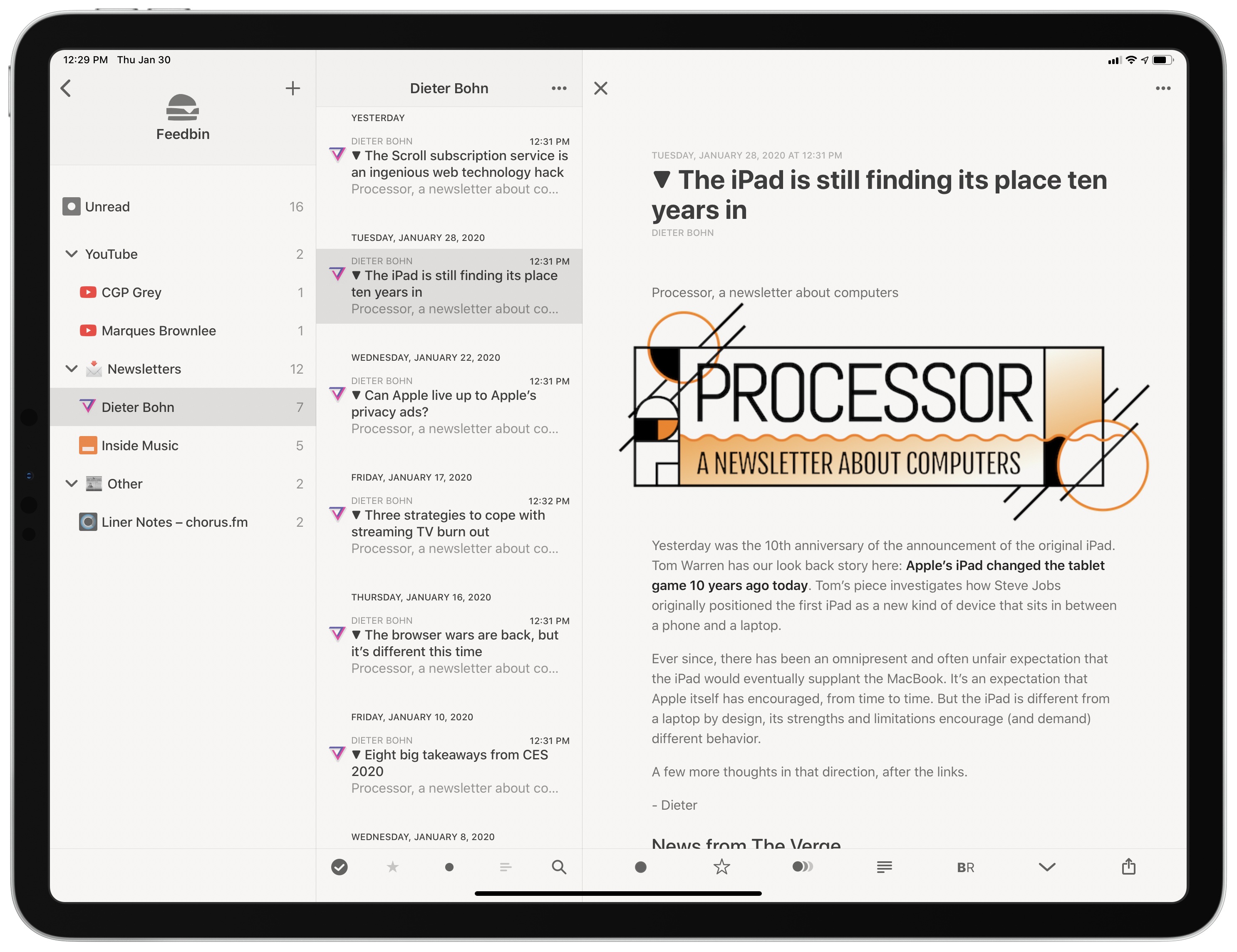
As I’ve mentioned in previous Club MacStories newsletters as well as my Must-Have Apps story, I used the holiday break as an opportunity to do some cleanup of various kinds of digital cruft on my devices. I reorganized apps on my Home screen; I deleted old shortcuts with LaunchCuts and installed custom icons for my frequently used ones; I fixed metadata for certain albums on my Sony Walkman (a process I want to write about on the site) and moved all my Pokémon links to Raindrop.io. When I was done with apps and links, I turned my attention to email – specifically, newsletters.
It should come as no surprise that I love newsletters. I (partially) make a living out of sending two of them on a regular basis! Obviously, I believe in the strength, convenience, and personal approach of the medium, especially because my favorite writers – whether Jason Tate from Chorus.fm or Jason Snell from Six Colors or Dieter Bohn from The Verge – all tend to have a casual, looser writing style in their newsletters that feels like they’re writing directly to me.
The problem: despite automatic filing of newsletters performed by SaneBox into a folder called ‘SaneNews’ in my Gmail account, I realized that I don’t really like reading newsletters in an email client. I don’t like spending time in an email client these days, period. For professional reasons, I receive a lot of email on a daily basis, so I find it hard to concentrate and read a longform newsletter in an app that is filled to the brim with messages and not exactly built around focused reading.
As I was thinking about ways to improve this (I considered using a second email app just for newsletters, for instance), I remembered that Feedbin, my RSS service of choice, offers the ability to give you a unique email address you can send newsletters to. Emails sent to your personal Feedbin email address will end up in the service’s queue alongside your other regular RSS subscriptions, and you can then choose to file the “source” behind a newsletter however you see fit – for example, by creating a folder in Feedbin called ‘Newsletters’. Feedbin has more details on this functionality here. Given how I’ve been trying to consolidate all my reading into Reeder by way of the app’s support for RSS and a read-later account, I thought it’d be interesting to try throwing newsletters at it as well.