
 MacStories Weekly: Issue 219
Highlights for iPhone and iPad: An Excellent Companion for Researchers
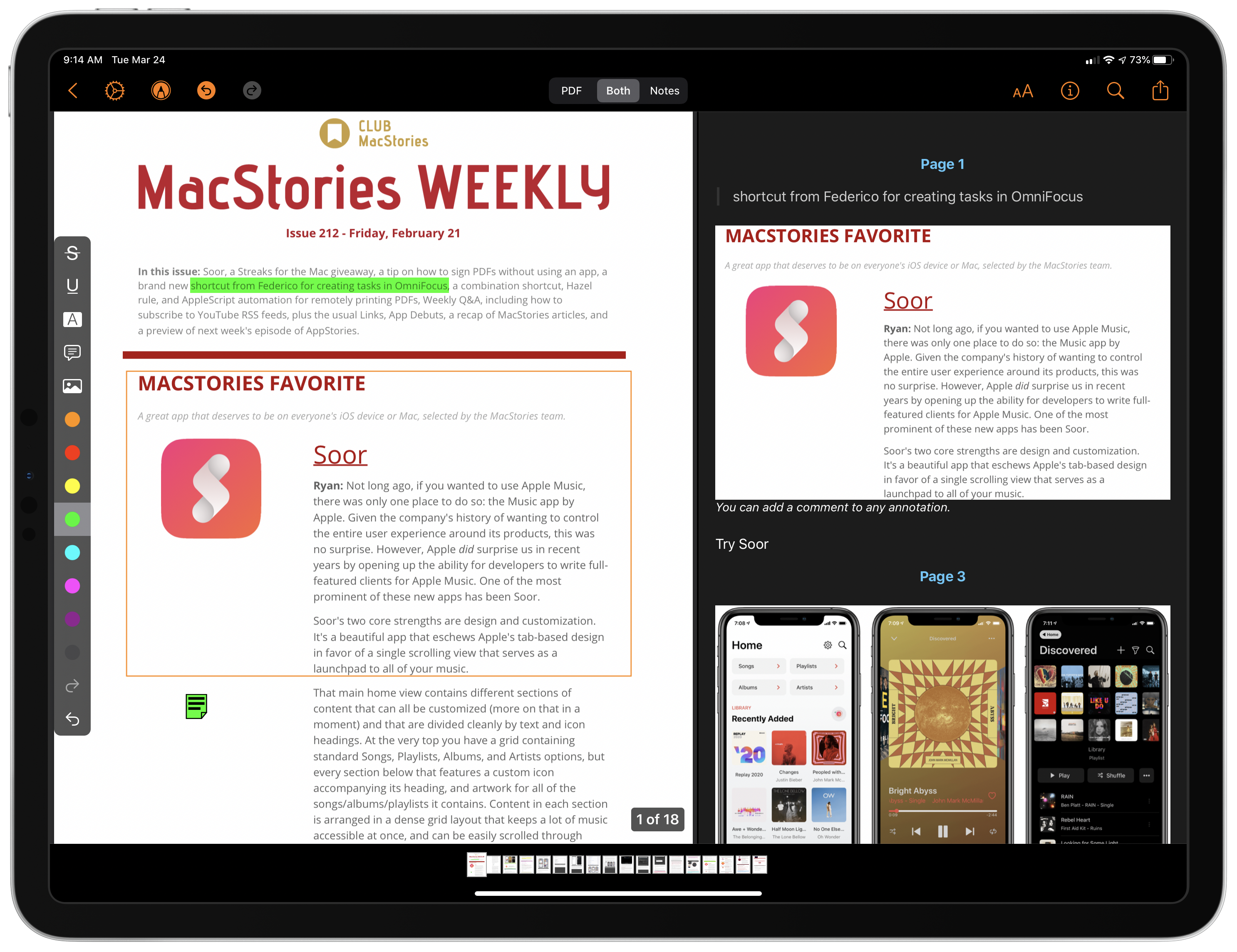
I wish I had Highlights for iOS and iPadOS when I was a lawyer. Back then, it wasn’t unusual for me to review PDFs of legal documents that were hundreds of pages long. Unfortunately, the digital tools I had for annotating those documents were primitive. So instead, I typically fell back on marking up hard copies with highlighters and adding notes in the margins.
Highlights is a PDF annotation app that’s been available on the Mac for a long time but is brand new on iOS and iPadOS. The app translates the analog process of marking up a PDF to the digital world very well by providing tools that demonstrate an understanding of the needs of students, researchers, and anyone who spends a lot of time with PDFs.
I don’t have the same PDF needs I once did, but as I’ve used Highlights the past couple of weeks, I’ve appreciated its flexibility and power, and I expect that anyone who works with lots of PDFs will too.
The Beauty of the Apple Watch’s Solar Dial Face→
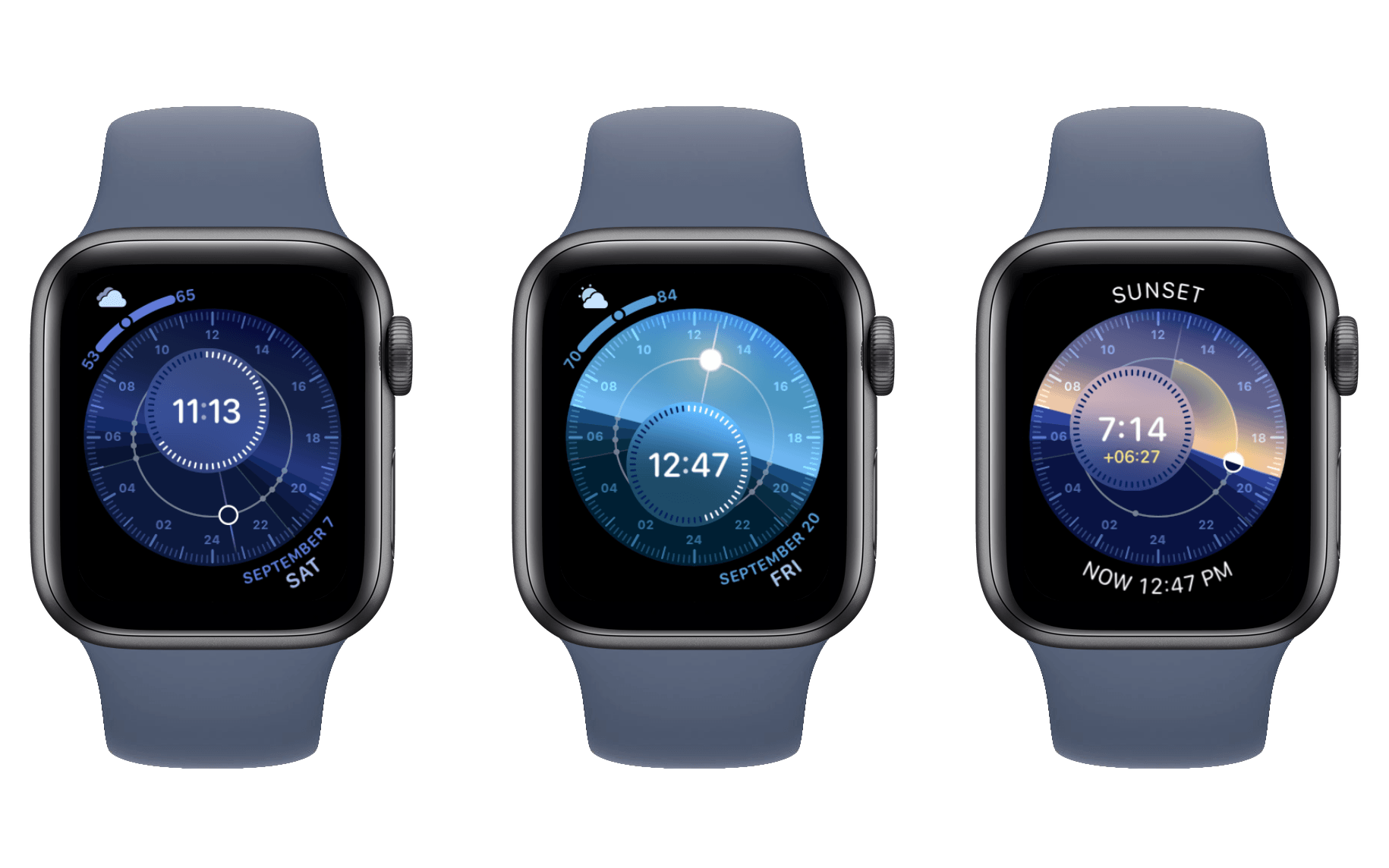
Jack Forster at Hodinkee has a wonderful deep-dive essay on the Solar Dial face on Apple Watch, which was added last year in watchOS 6:
Tapping the Solar Dial watch face will allow you to see whether it’s day, or night, or one of the various phases of twilight. You can also see how many hours of daylight there are. The color of the sky also changes depending on the time of day, and during the twilight hours, you get a very pretty transition from blue, to a deeper blue, to a lovely pale pink as the solar disk begins to sink below the horizon. You can rotate the crown to show you what time sunset takes place, as well as the various phases of twilight. You’ll also see, in yellow numbers in the sub-dial, how many hours it is from the current time to sunset, or other solar astronomical events.
[…]
I give the Apple Watch Solar Dial a lot of credit for taking the properties of the smartwatch and using them to create a very captivating experience. The luminosity of the display and its ability, as night falls or sunrise dawns, to display different colors, as well as the general composition of the dial, makes for something much richer and far more emotionally evocative than the mere delivery of information. And too, it gives us a chance to reflect on what darkness and light have meant, and continue to mean, culturally and historically. There is something irresistibly compelling about having a little model universe on your wrist.
It’s remarkable how much attention to detail Apple gave to this watch face, including the intricate nuances of the different phases of twilight. I’ve never used the Solar Dial face before, but Forster’s piece has changed that, and I’m eager to see how the face transforms throughout the remainder of today.
Connected, Episode 289: Let Me Remember My Opinion→
On this week’s episode of Connected:
This week, Myke talks about a sell on Cinema Displays, then the guys move on discuss Federico’s recent iPad article on modularity, the possibilities of widgets in iOS 14 and Stephen’s Mac Madness winner and picks.
You can listen below (and find the show notes here).





Sponsored by:
- Pingdom: Start monitoring your website performance and availability today, and get instant alerts when an outage occurs or a site transaction fails. Use offer code CONNECTED to get 30% off. Offer expires on January 31, 2021.
- Squarespace: Make your next move. Enter offer code CONNECTED at checkout to get 10% off your first purchase.
- Boll & Branch: The Softest Organic Sheets & Luxury Bedding. Save $50. Try them for 30 days in a risk free trial.
Watchsmith Review: Create Your Own Apple Watch Complications
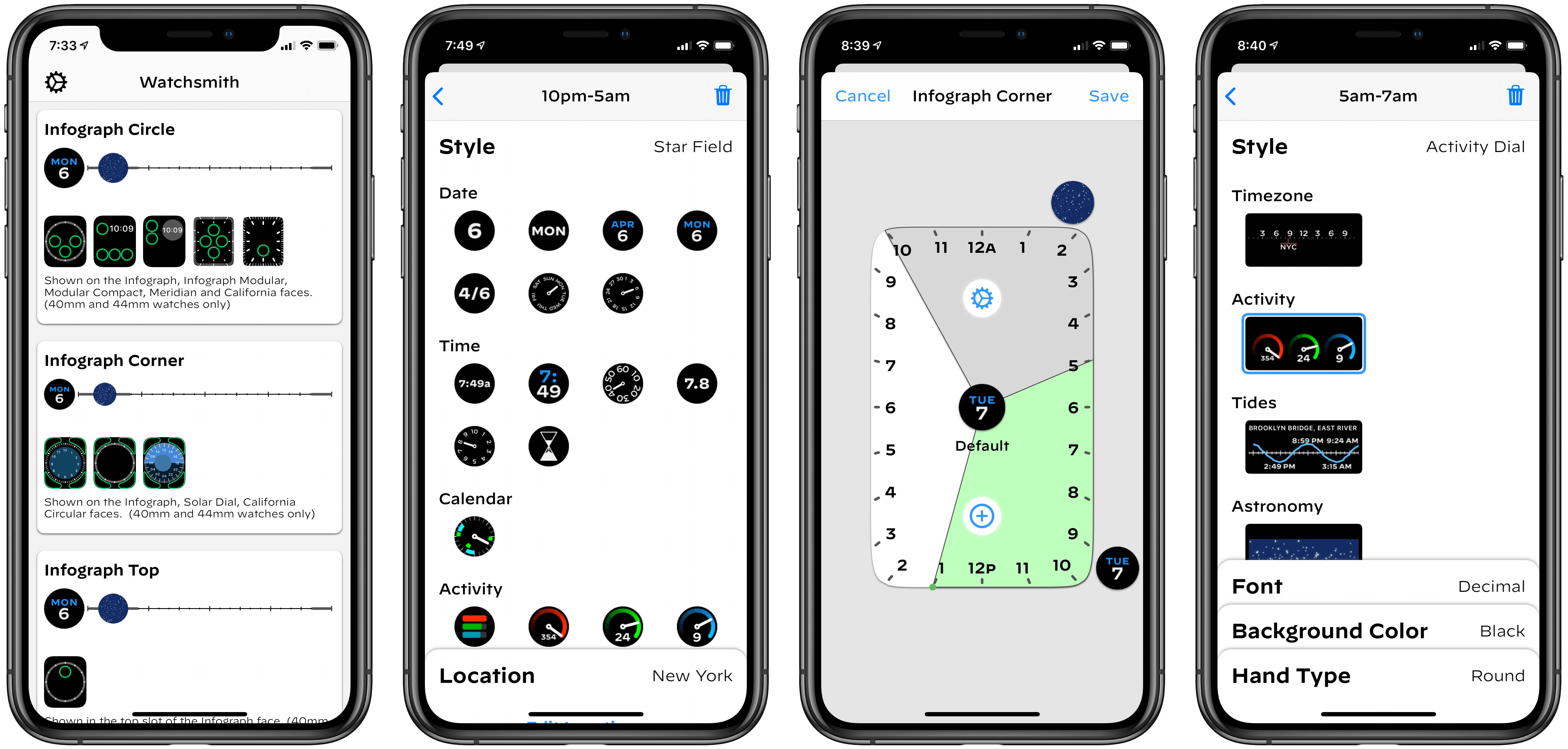
Watchsmith, the latest app from David Smith, was birthed from the inability to create third-party watch faces on the Apple Watch. As Smith has previously explained, while third-party faces may never be possible, several first-party faces already offer significant room for customization. The Infograph face, for example, contains eight different complication slots; if a rich array of third-party complications were available, you could build a highly customized watch face using the existing faces provided by Apple.
Watchsmith exists to provide that rich set of complications. The app offers 37 types of complications, each adaptable to different watch faces and complication slots, and all fully customizable so they can look exactly the way you prefer. Additionally, Watchsmith offers scheduling functionality to cause different complications to appear on your Watch at different times throughout the day.
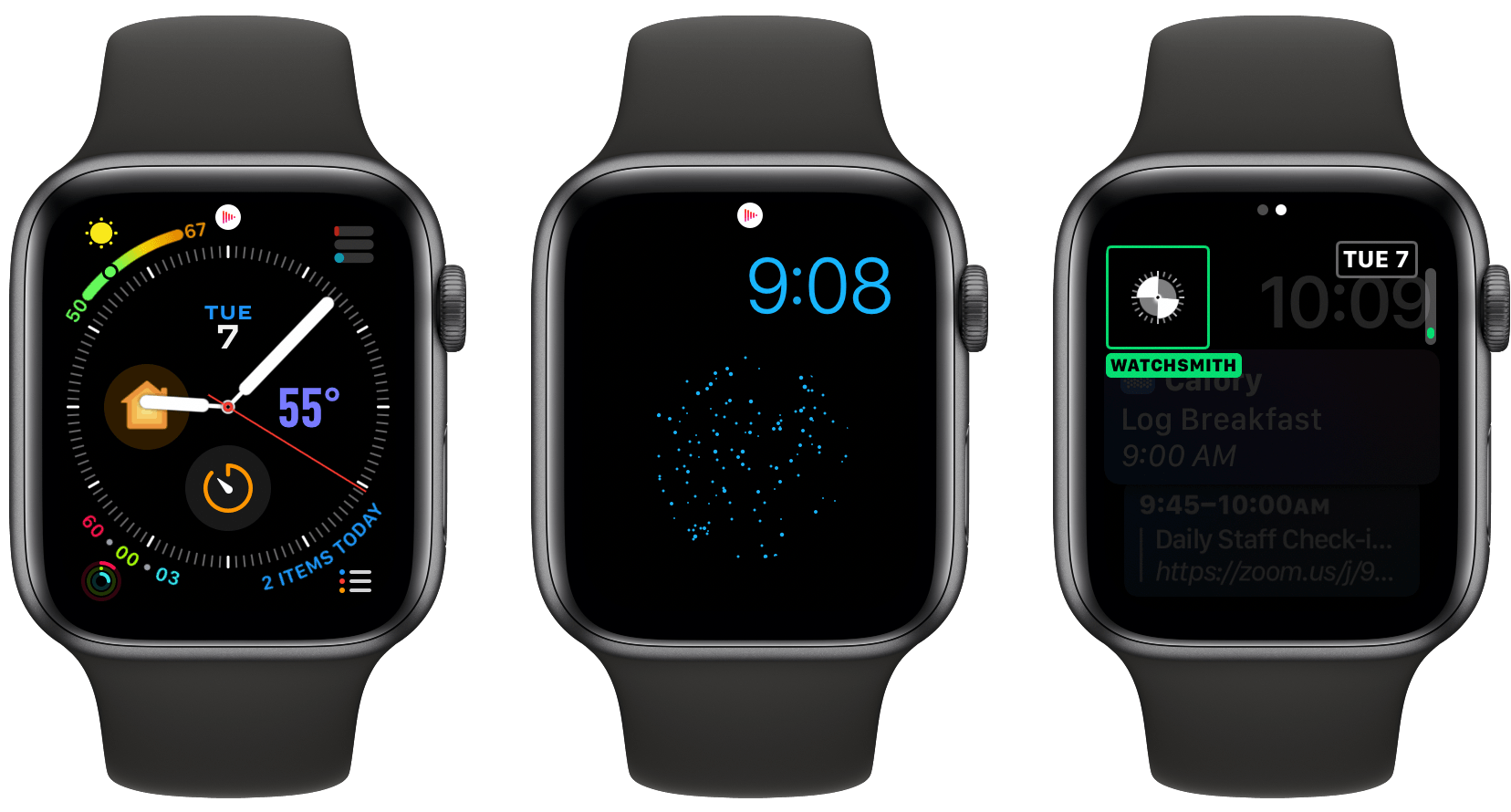
In the absence of third-party watch faces, Watchsmith offers the next best thing: third-party complications that are highly customizable and can be optimized to your daily schedule.
AppStories, Episode 157 – Research Tools→
This week on AppStories, we recap the MacStories’ iPad at 10 coverage and then compare notes on the research apps we use and approaches we take when working on a big project.
Sponsored by:
- Diarly – Modern Digital Diary. Enter here by April 10, 2020, for a chance to win one of fifteen copies of Diarly.
- Linode – Cloud Hosting and Linux Servers. Get a $20 credit.


Pixelmator Photo 1.2 Adds Cursor and Split View Support, ML Match Colors, and More
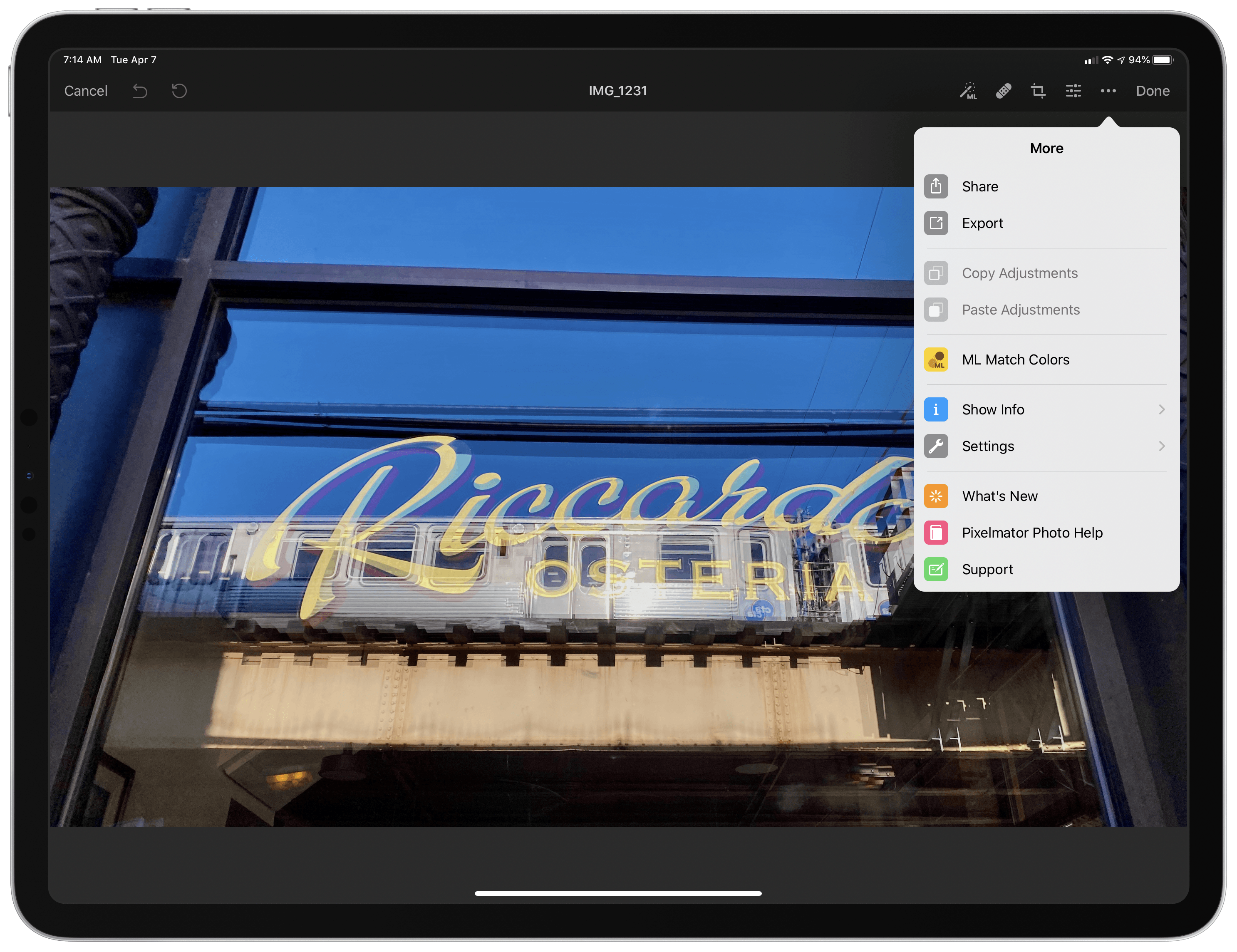
The Pixelmator team has released version 1.2 of Pixelmator Photo for the iPad with iPadOS cursor and Split View support and Pixelmator Pro’s ML Match Colors feature. The update also includes a new way to change the intensity of color and preset adjustments and a ‘Recents’ section for its filter tool.
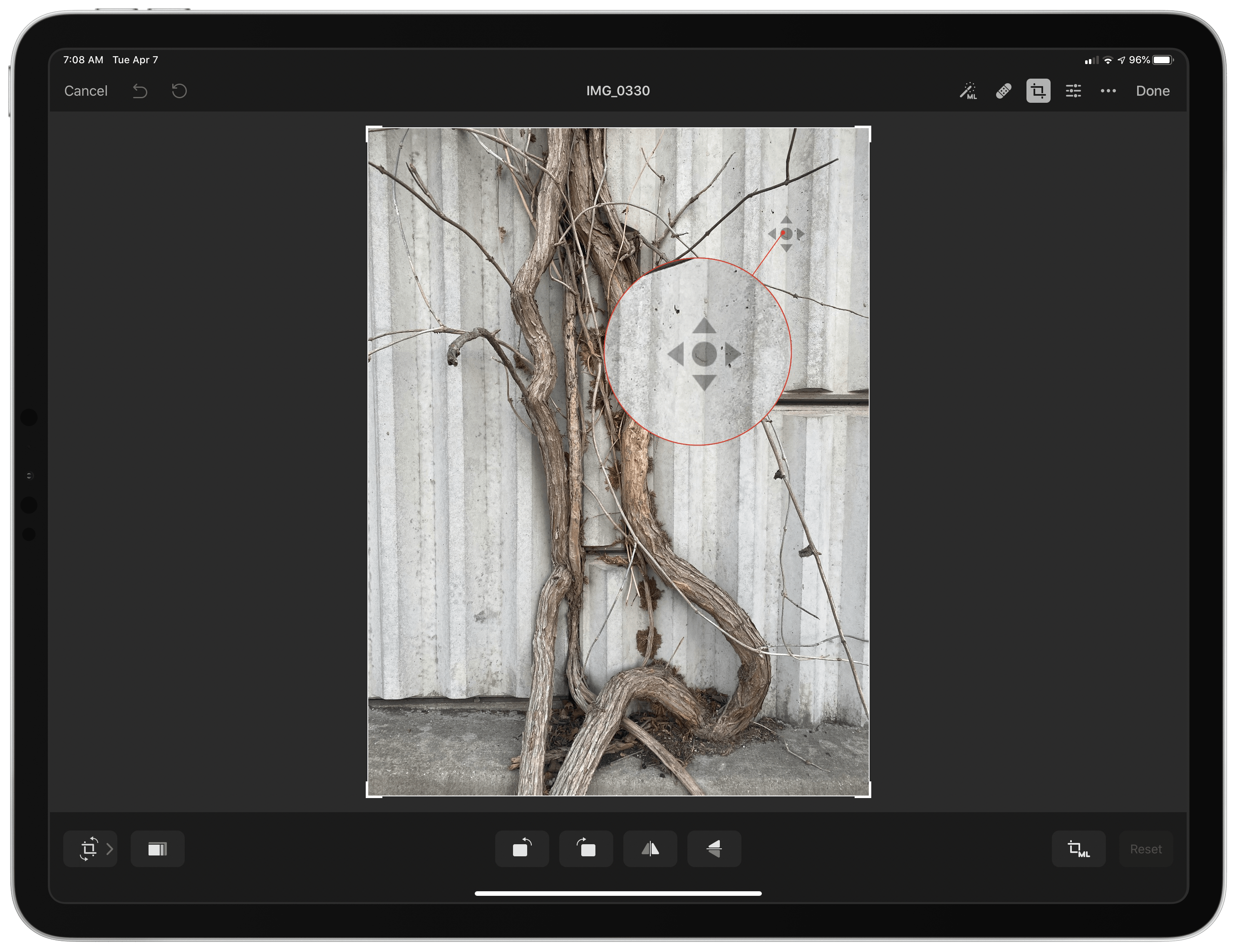
The addition of cursor control is a welcome enhancement to Pixelmator Photo, which already supported keyboard shortcuts. Now it’s possible to make edits to a photo with a combination of the keyboard and either a trackpad or mouse without reaching up to touch the screen. Combined with the addition of Split View, Pixelmator Photo is far more powerful when used in combination with another app than it was before.
For example, when I’m working on an article and want to touch up a photo, I often use Pixelmator Photo to touch up any photos I plan to use. Before the update, if I was doing that with my iPad Pro in a stand, I would usually remove the iPad and edit with it lying flat on a table because it was easier than reaching up repeatedly to navigate Pixelmator Photo’s UI.
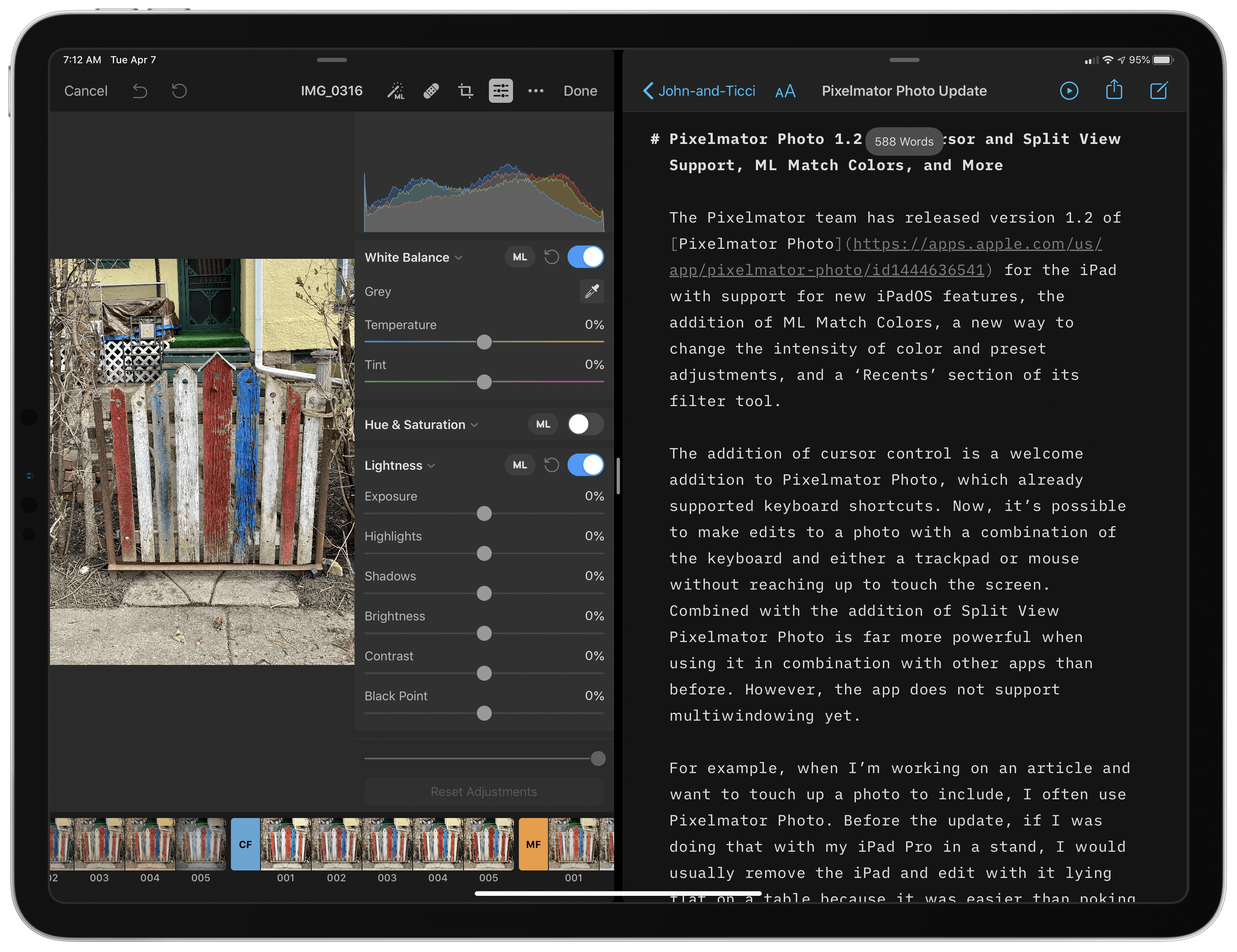
With cursor support, my iPad can remain in the stand while I edit. Better yet, with Split View, I can edit an image alongside the article I’m writing and use the app’s share sheet support to use a shortcut that uploads the final image to our CDN and returns a URL that I can paste into the story. The pairing eliminates the need to switch back and forth between Photos and my text editor, saving time. It’s worth noting that Pixelmator Photo does not support iPadOS’s multiwindowing feature, which I imagine could be valuable in some editing scenarios.
CleanMyMac X: Your Mac, as Good as New [Sponsor]
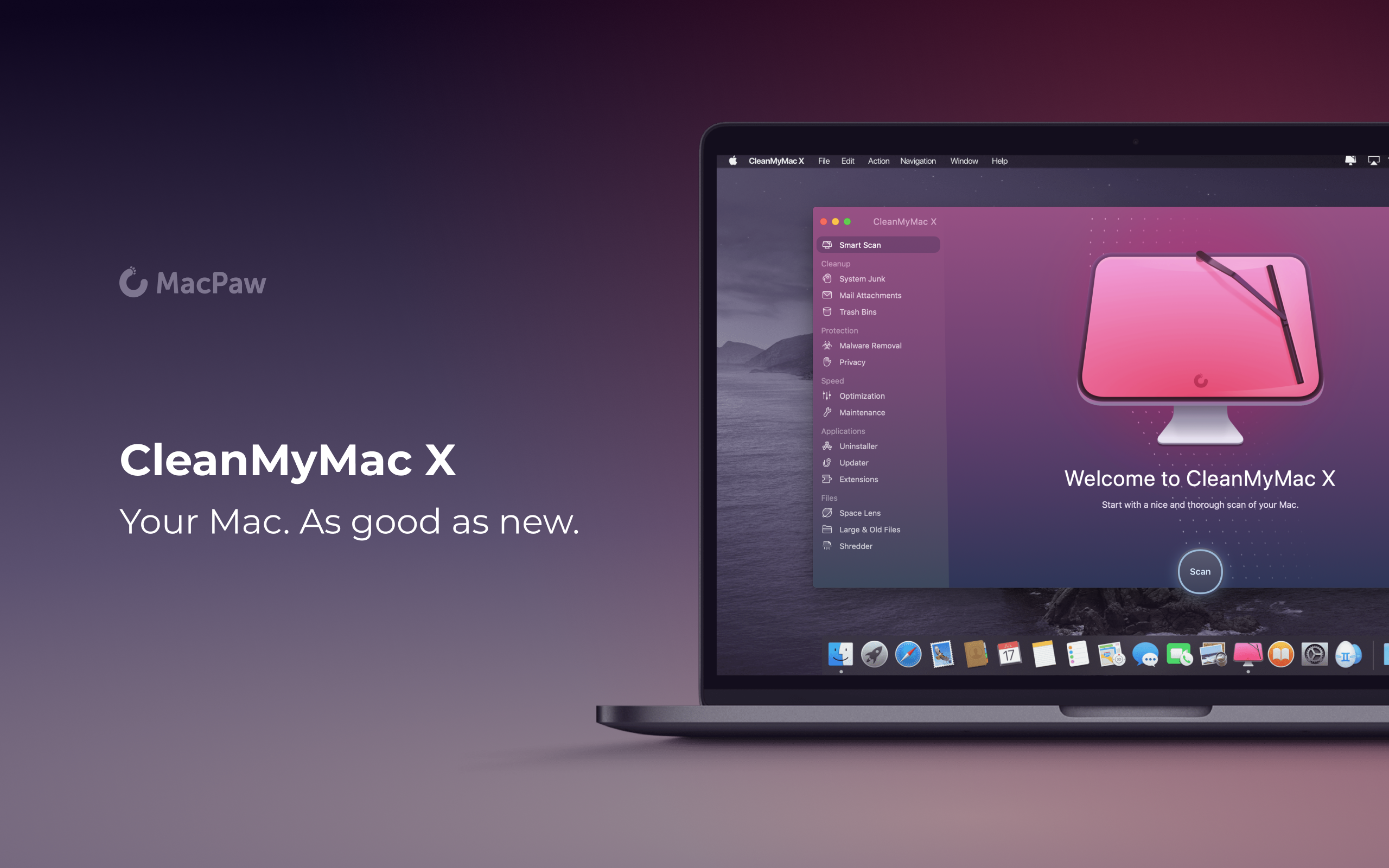
CleanMyMac X by MacPaw is your complete Mac maintenance solution. It’s the perfect way to do a little spring cleaning on your Mac. With an award-winning, beautiful design, CleanMyMac X frees up wasted storage space, protects against malware, optimizes your Mac’s performance, and a whole lot more.
It all starts with Smart Scan, the all-in-one center for analyzing, optimizing, and protecting your Mac. Here you’ll find features like System Junk removal module for finding unneeded system files that can be discarded, and Space Lens a visual and intuitive tool for cleaning up unwanted, large files. CleanMyMac also scans for malware, protecting your Mac against malicious third-party code and vulnerabilities. Better yet, the app’s Malware Monitor can scan for threats in the background, in real-time, catching and notifying you of malware before it takes hold. There’s an optimization section that can free up RAM and manage login items, launch agents, and memory-hungry apps too.
CleanMyMac X includes an app update module that scans your installed apps for available updates too. It’s a fantastic, centralized way to see all the apps on your Mac that have updates whether or not you bought them on the Mac App Store. When you want to uninstall an app, CleanMyMac X is there to help, deleting hidden files and any other cruft that an app would otherwise leave behind.
CleanMyMac X is a fantastic investment to get an older Mac running as good as new and to ensure that more modern Macs keep running smoothly and safely with enough storage to get your work done. The app is notarized by Apple, too, meaning you can download it with confidence.
So, don’t wait, check out CleanMyMac X today. There’s a free trial waiting to help you make your Mac as good as new, and until April 19, 2020, MacStories readers can purchase CleanMyMac X for 30% off, which is a fantastic deal.
Our thanks to CleanMyMac X for sponsoring MacStories this week.
The Future of the iPad

It’s been an eventful decade for the iPad. But what’s next?
This week’s iPad at 10 celebration has centered primarily on the past. We’ve explored the device’s influence in accessibility and education, heard developers’ stories, outlined some of the most impactful apps from the decade, considered one of the most overlooked iPad models, and more. But as the week closes out, we turn our attention from the past and present to what lies ahead.
For the longest time, the iPhone’s shadow loomed large over the iPad. The iPad Pro began to change that, iPadOS solidified that shift, and now the device is forging its own path as a modular computer.
There’s never been a more exciting time to use the iPad. Yet as far as the device has come, we remain optimistic that its best days are still ahead.
Before wrapping up this anniversary week, we have to consider the future of the iPad.