
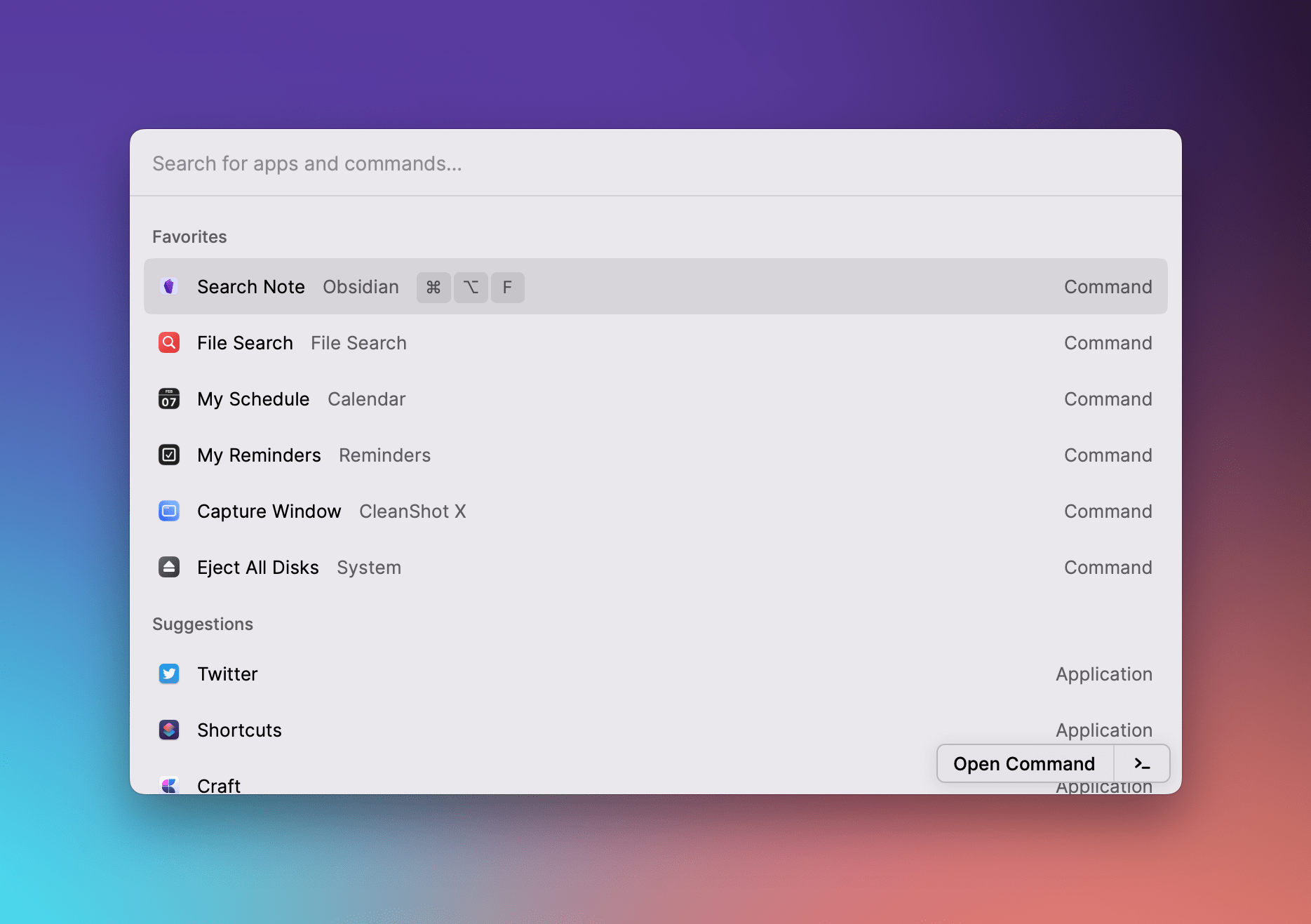
Keyboard-driven app launchers have been a staple of the Mac for a long time. Like a lot of people, my first exposure to these apps was via Quicksilver, an app that was popular in the early 2000s and is still available today. In the years since, I’ve switched between LaunchBar and Alfred, both of which...
Read more
 The Macintosh Desktop Experience: Raycast’s Modern Take on Launcher Apps
AppStories, Episode 261 – Shortcuts Code Injection and 10 Innovations Apple Should Adopt from Third-Party Apps→
This week on AppStories, Federico explains his experiments with injecting code into shortcuts before he and John cover ten innovations from third-party apps that they would like to see Apple adopt in its system apps and OSes.






](https://cdn.macstories.net/banneras-1629219199428.png)
On AppStories+, John updates Federico on his latest HomeKit experiments and Federico gives John automation homework.
Last Week, on Club MacStories: The Matrix Movies Town Hall, Shortcuts Code Injection, Scheduling and Remotely Triggering Shortcuts on the Mac, and a New App Discount
Because Club MacStories now encompasses more than just newsletters, we’ve created guide to the past week’s happenings along with a look at what’s coming up next:
AV Club Town Hall, The Matrix Movies
AV Club is a monthly event held in the Club MacStories+ Discord community. Club members vote on a movie, TV show, videogame, book, or music to enjoy as a group. It’s like a book club, but for all kinds of media.
This month, we rewatched the original Matrix movie trilogy and watched The Matrix Resurrections, which was released late last year. Then, on Wednesday, we held a live audio AV Club Town Hall on Discord hosted by Federico, John, and Alex, who were joined by two Club members to discuss the films and take questions from members who listened live.
If you’re a Club MacStories+ or Club Premier and missed the lively discussion, it’s available as a Club-only podcast that you can enjoy on the Club website or subscribe to from your the Club Podcasts page.
MacStories Weekly: Issue 308
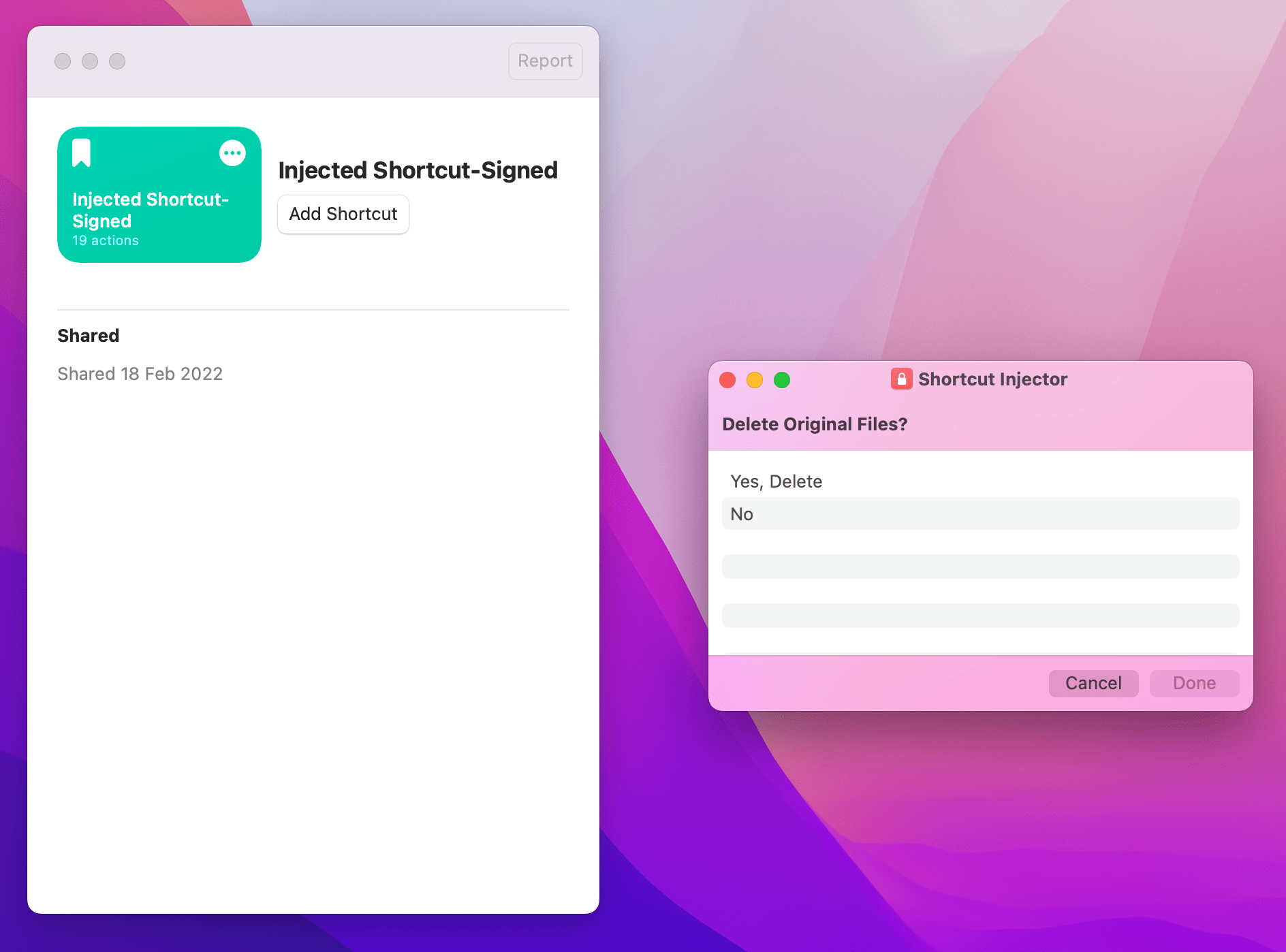
- Federico shared a proof of concept shortcut that can be used to modify shortcuts by injecting code into them. The shortcut automates the entire process including resigning the modified shortcut in the Terminal, and reimporting it into the Shortcuts app.
- John explained how to schedule and remotely trigger shortcuts on the Mac using built-in system apps.
- In the Club MacStories+ Discord Share Your Setup channel, a member shared an in-depth look at their email workflow and related automations, and in the Off-Topic channel, members shared their favorite sites and restaurants in Rome.
- Plus:
- App Debuts
- Highlights from the Club MacStories+ Discord
- Interesting links from around the web
- A sneak peek at what’s next on MacStories’ podcasts
- and more
New Club MacStories+ and Club Premier Discount
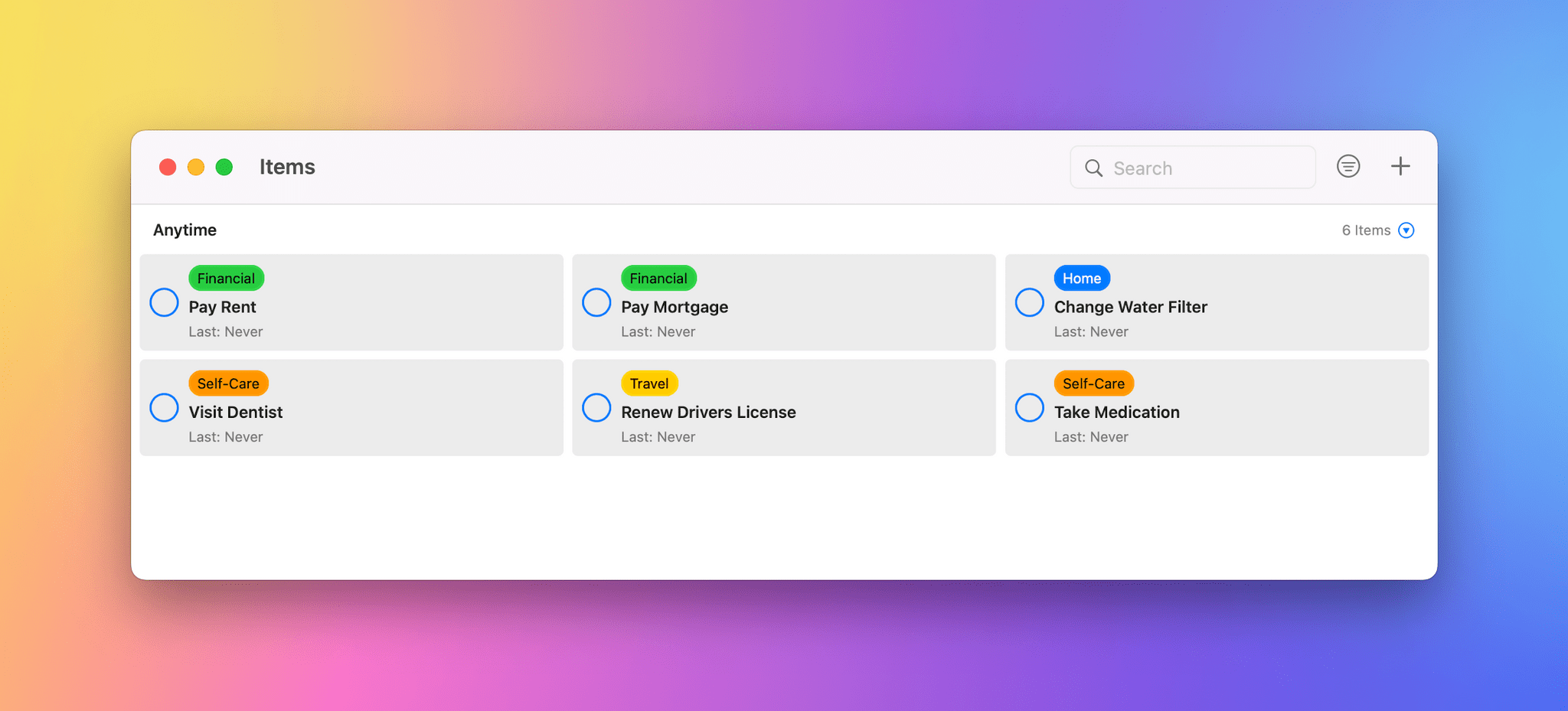
Recurrence is a task manager for the iPhone, iPad, and Mac to track the repeating tasks in your life. Perfect for chores, bill payment, and much more. Recurrence puts history at the forefront, allowing you to see when something was last done and accompanying notes.
Club MacStories+ and Club Premier members can try Recurrence for 3 months free by visiting the Club Discounts page.
Up Next
Next week on Club MacStories:
- An all-new episode of MacStories Unplugged, the monthly anything-goes Club podcast that’s a free-form discussion of apps and a behind-the-scenes look at what we’re doing at MacStories.
- A new installment of The Macintosh Desktop Experience, John’s Club MacStories+ and Club Premier column that explores new ways to get more out of your Mac, with a focus on the latest tools and technologies available to Mac users and how they fit in the context of the Mac’s rich history.
UpNote: A Clean and Powerful Note-Taking App Across Platforms [Sponsor]
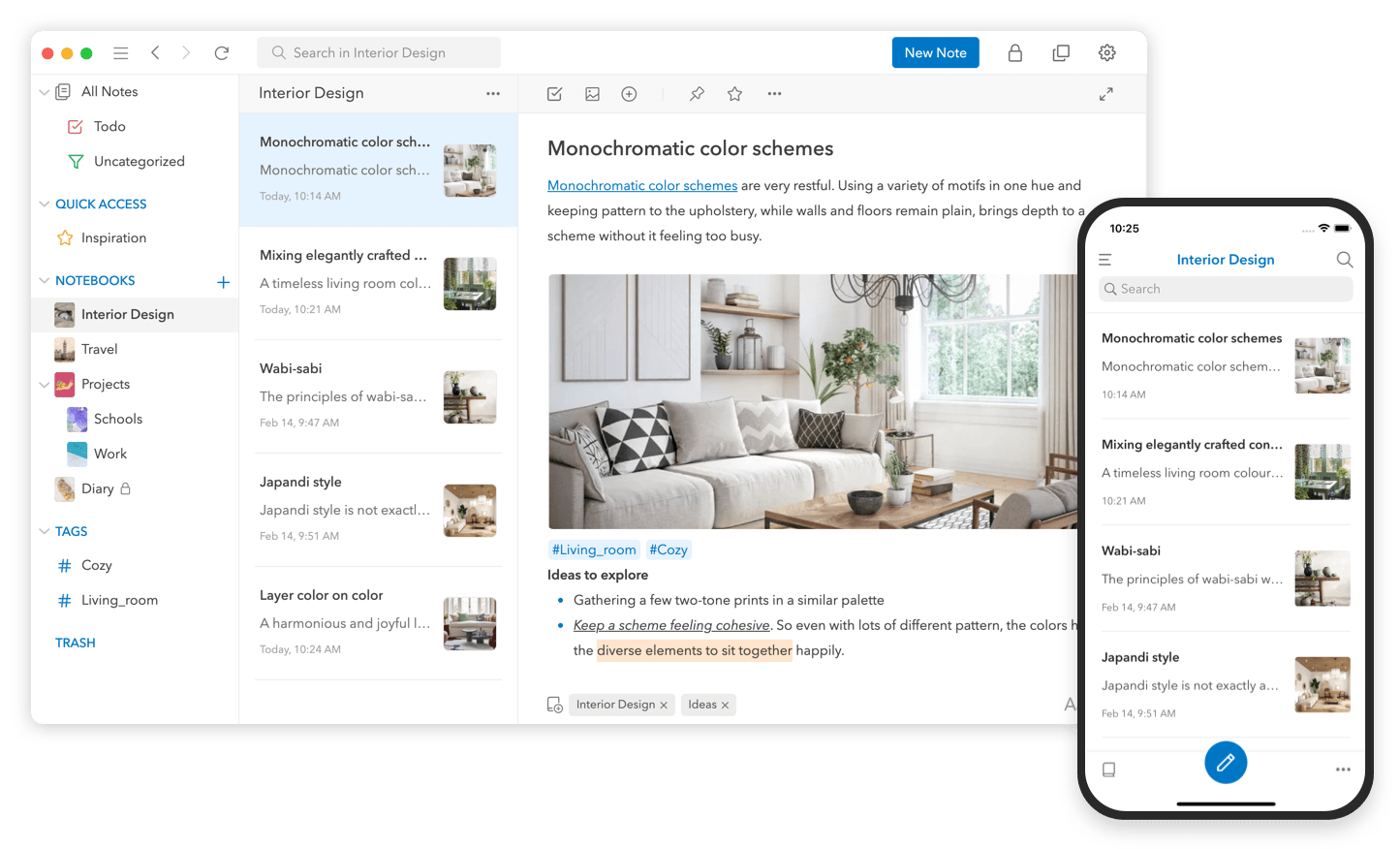
UpNote packs extraordinary power into a clean, delightful design that makes it a pleasure to take notes. Crafted to make focused note-taking effortless wherever you are, UpNote combines its beautiful, streamlined interface with powerful tools that use the latest technologies on every platform to deliver a superior experience.
The app works on iOS, Android, the Mac, and Windows, making it an excellent solution for anyone who needs access to their notes across multiple platforms thanks to the app’s fast, reliable sync. Plus, UpNote works however you want and wherever you are with themes, dark mode, a wide font selection, focus and typewriter modes, and the ability to work online and off.
Notes can be organized into notebooks and sub-notebooks too. Hashtags, note pinning, and bookmarking add even more ways to quickly access your notes. It’s a structure that’s supplemented by powerful search and sorting to make navigating even the largest collections of notes simple.
UpNote has all of your note-taking needs covered. Rich text formatting like tables, code blocks, attachments, images, bi-directional links, to-do lists, and more. Of course, the app supports Markdown syntax as well.
To handle your research needs, UpNote has a web clipper extension, so you can quickly save links and content as you browse the web. There’s even a great solution for longer notes: a table of contents feature that makes navigating long notes a breeze. The app can also be locked, which makes it perfect for journaling.
Switching to UpNote is easy, with powerful import functionality that can handle Evernote, Markdown, and other formats. The app handles backups automatically and includes a version history too. And, when you need to use your notes elsewhere, you can export them as Markdown text, HTML, or PDFs.
Now is the perfect time to try UpNote. The app includes subscription and lifetime upgrade options, and for a limited time, MacStories readers can purchase UpNote’s lifetime premium upgrade for 30% off. This is an amazing deal, so be sure to check it out today.
Our thanks to UpNote for sponsoring MacStories this week.
MacStories Weekly: Issue 308
MacStories Unwind: Only Murders in the Building, Lucifer on the Sofa, and Good Girls

This week, Federico recommends two TV shows, Only Murders in the Building and Good Girls, and John covers Spoon’s 10th studio album, Lucifer on the Sofa.
Federico’s Picks:
John’s Pick:
- Lucifer on the Sofa by Spoon
MacStories Unwind: It’s All About the Picks
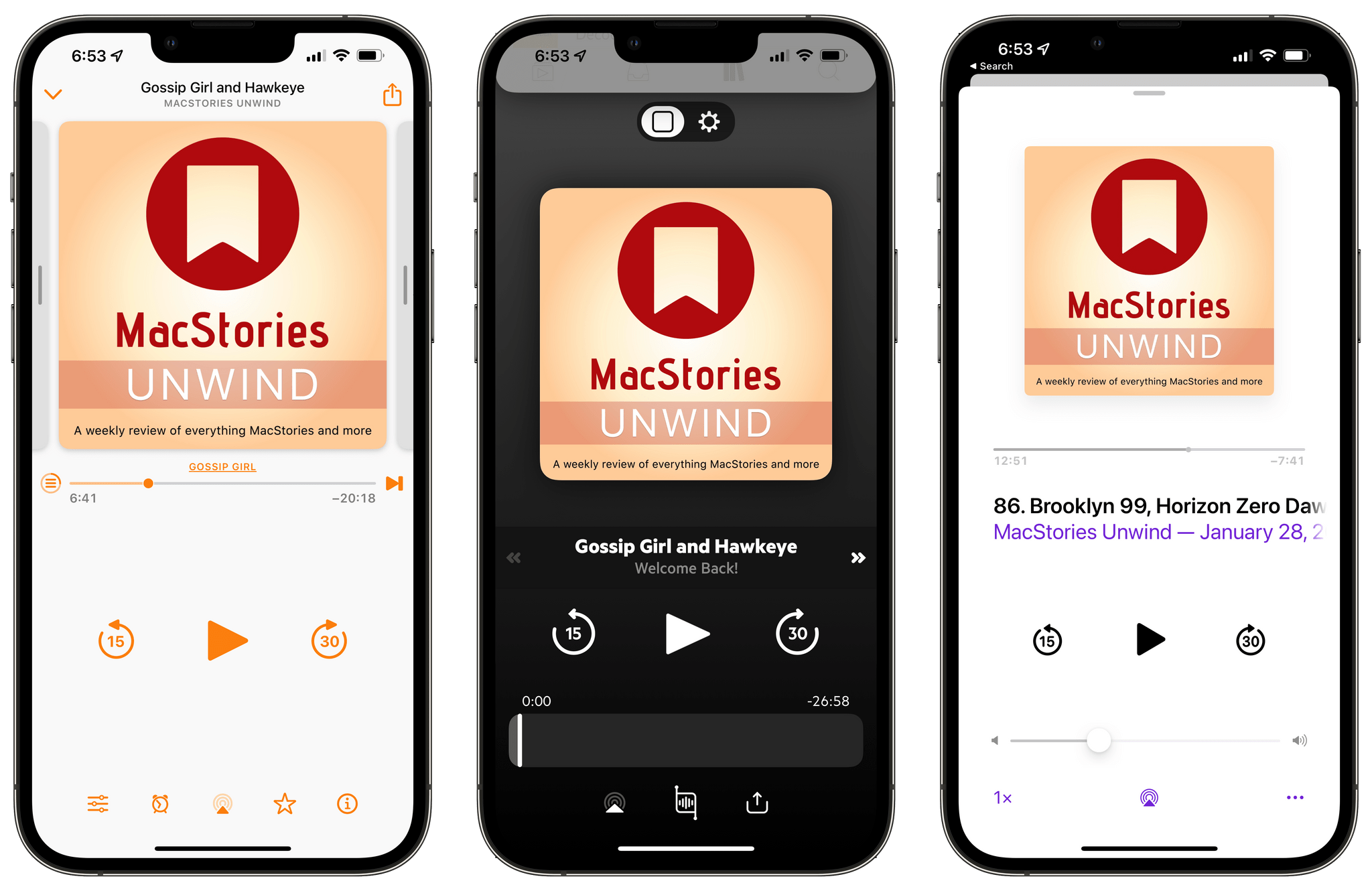
It’s hard to believe that we’re already closing in on the 100th episode of MacStories Unwind, part of an experiment that we launched in the spring of 2020, just as lockdowns were taking hold around the globe. Unwind grew organically from the music, movie, TV show, videogame, and other media recommendations Federico and I share with each other all the time. However, like many things we do, Unwind was also an experiment – two experiments, really.
First, Unwind was designed to test ways to better integrate MacStories, Club MacStories, and our podcasts by providing listeners with a recap of the week across everything we do. Second, the show served as a proof of concept for the Club MacStories+ A.V. Club, a sort of book club for all sorts of media that has become a pillar of our Club MacStories+ Discord community.
Unwind is nearly two years old now, and what we’ve learned is that our Unwind picks – the weekly segment where we recommend a wide range of media – has become the highlight of the show for many listeners. Unwind picks are our favorite part of the show too, allowing us to share our many interests outside of the tech world. So late last year, we began experimenting with a series on our favorite TV shows and movies, videogames, and music of 2021. We’ve taken the approach further this year, giving our Unwind picks room to breathe and eliminating the weekly recap from the show.
Obscura 3 Takes the App’s Design in a New Direction
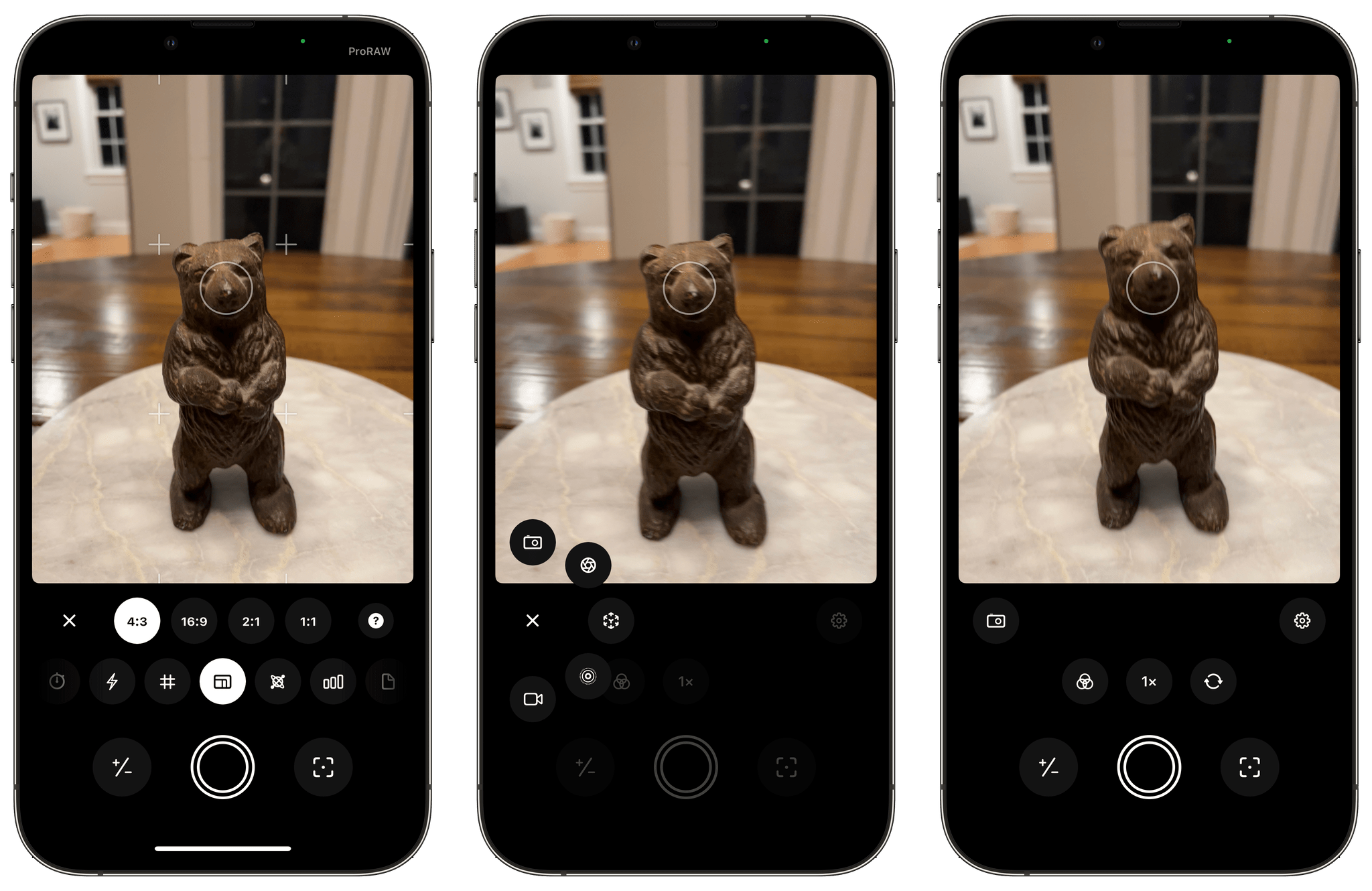
I’ve been following Ben McCarthy’s journey with Obscura since the app first launched in 2015, watching the app as it has evolved alongside changes to Apple’s camera hardware. Camera apps pose unique design challenges, especially for camera apps like Obscura, which has consistently aimed to deliver pro features that can be used one-handed on an iPhone. Those challenges have only continued to multiply since I wrote about Obscura 2 and its innovative Control Wheel.
With Obscura 3, which is a brand new app, McCarthy and the Obscura team have taken a new direction with the app’s design that’s better suited for the capabilities of Apple’s modern camera hardware. It’s a direction that remains true to the app’s historical design aesthetic and user experience while making changes that I expect will provide greater flexibility to quickly adapt to future camera innovations.
I’m going to focus on Obscura 3’s design because I haven’t tested every possible combination of features the app offers. It’s winter in the Chicago area and not the best time for photo walks. Still, I’ve spent enough time with the app to know that the new design works well, allowing users to step through its myriad of features with ease, so let’s take a closer look.
Steve Troughton-Smith on Mac Catalyst’s Shortcomings→
Steve Troughton-Smith has spent a lot of time with Mac Catalyst, developing Mac versions of Broadcasts and Pastel, as well as an extensive library of sample code for other developers. As Troughton-Smith explains in a post on his website, Mac Catalyst has come a long way since it first appeared as part of macOS Mojave. However, there remains plenty of room for improvement to allow a wider range of apps to feel at home on the Mac.
Troughton-Smith’s detailed list of problem areas include:
- Extensive problems with the document-based apps are supported
- Limitations in the way Preference windows are supported
- The lack of support for menu bar extras and apps
- The difficulty of working with Mac-style Table and Collection Views
- Issues with the extent and way toolbars, window controls, inspector panels, window dragging, scaling primitives, upgrade cycles, and backward compatibility are handled
As I read through Troughton-Smith’s detailed explanation of the issues, I immediately thought of many of the Mac apps I’ve tried in the past couple of years that would benefit if Apple implemented his suggestions.
Based on Troughton-Smith’s extensive list, you might expect that he’s pessimistic about Mac Catalyst’s future, which isn’t the case:
Mac Catalyst is in a great place; it has improved substantially every year since its introduction, and for most developers it is by far the best way to build great Mac-like Universal apps that run across iPhone, iPad and Mac. Its hybrid nature allows a developer to pick and choose which elements of UIKit, SwiftUI, and AppKit they need to achieve the experience they’re looking for, or combine them all for the best of both worlds. It clearly has a lot of traction inside Apple’s product teams, as it’s become the enabling technology for Messages, Maps, Podcasts, Find My, Playgrounds, Books, Voice Memos, Stocks, Home, and News. Paired with SwiftUI, it’s rapidly becoming the defacto standard for new Mac apps on the App Store, for better or for worse — all the more reason that the remaining rough edges be given priority.
I wholeheartedly agree with this assessment. Mac Catalyst has come a long way in a short time and has already become the default starting point for many developers, judging from the large number of Mac Catalyst apps developers have shared with me in the last year or so. However, as Troughton-Smith makes clear, there are still trouble spots that are preventing or slowing down Mac Catalyst’s adoption in important app categories, which is why a focus on Mac Catalyst is on my macOS wish list for WWDC again this year.