Snow Leopard To Get Basic iCloud Compatibility with 10.6.9

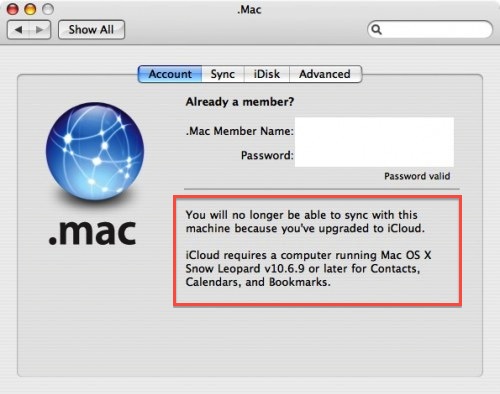
In a somewhat expected turn of events, a notice appeared on an old Mac running Tiger seems to confirm Apple will provide basic support for iCloud sync on Snow Leopard machines. As reported by MacRumors, a developer testing the MobileMe to iCloud transition with Tiger’s .Mac preference pane noticed a message about a 10.6.9 requirement for calendar, bookmark and contact sync.

You will no longer be able to sync with this machine because you’ve upgraded to iCloud.

iCloud requires a computer running Mac OS X Snow Leopard v10.6.9 or later for Contacts, Calendars, and Bookmarks.

Whilst Apple made no mention of Snow Leopard compatibility when detailing iCloud and the transition from MobileMe (actually indicating “some features of iCloud” will require iOS 5 and OS X Lion), it would certainly make sense to provide an additional 10.6 upgrade to ensure basic former MobileMe functionalities under the new iCloud brand. Apple has already started migrating MobileMe developer accounts to the new iCloud ecosystem, providing a desktop add-on for testing on the 10.7.2 developer seed. iCloud is expected to go public this Fall alongside the aforementioned 10.7.2 and iOS 5, whereas MobileMe will be officially discontinued on June 30, 2012.

Developer accounts that are being transitioned from MobileMe are automatically given free storage regardless of the previous subscription until next year, and considering Lion is still touted as an “upgrade to Snow Leopard” (which is required to purchase Lion from the Mac App Store) and that Snow Leopard is still available on Apple’s website, it would be an optimal solution to provide 10.6 users with one last software update to migrate from old MobileMe services to some new iCloud free offerings. There’s one caveat, however: assuming the MobileMe to iCloud transition goes as planned and Apple will really push 10.6.9 to enable iCloud sync, some old MobileMe features like syncing of Mac Dashboard widgets, keychains, Dock items, and System Preferences won’t be available on OS X anymore, as Apple explains here.



Quotebook: Save Your Favorite Quotes

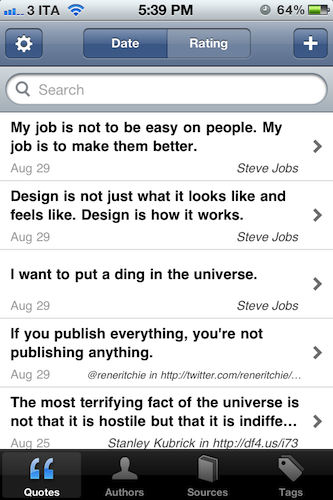
“I want to put a ding in the universe.”

“We will be as big as the Beatles, if not bigger.”

“Life is what happens to you while you’re busy making other plans.”

What do these three sentences have in common? First off, they’re all quotes – hit your favorite search engine to find out where they come from. But as far as the iPhone tech-savvy user is concerned, these quotes can be neatly organized in Quotebook, an iPhone app I’ve recently stumbled upon thanks to a friend’s recommendation.

Quotebook is a very simple and straightforward, albeit the goal it aspires to accomplish is perhaps greater than the average iPhone app’s underlying concept. Quotebook is a lovely and safe place for your quotes, regardless of their relationship with life, design, sports, achievements, love, or whatever you feel inspired by to save in a digital notebook. Personally, I’m that kind of tag junkie that keeps quotes and other digital memorabilia stored in his Evernote account – I can see, however, Quotebook’s appeal to someone who prefers to keep inspirational quotes in a separate place other than the default archiving system, be it Evernote or other solutions like Yojimbo.

Quotebook’s greatest strength is that it’s built for quotes, and nothing else. It doesn’t want or need to be a replacement for your notes and daily thoughts. The interface has been designed to make it easy to jot down a quote, and set correct attribution like author and source, or perhaps fiddle with ratings. The app goes one step further and makes it super-simple to import quotes found in your iPhone’s clipboard, and plays nicely with @author names, automatically opening a Twitter profile within a web view. That’s very nice of the developers – this got me started on saving some tweets I find inspiring. Quotes can be searched and filtered, shared on Twitter, Facebook and Tumblr, or browsed by author and tag using the buttons in the bottom toolbar. Pretty standard stuff for an iPhone app.

Quotebook, though, had me at the auto-suggest feature, which looks up on the Internet for incomplete quotes or attribution details. The app will give you its best recommendation for an incomplete quote you’ve inserted, guessing the author as well if an entry is found.

I like Quotebook. It’s simple. The latest version comes with a handy option to export and import notes (plain text is fully supported), and you can even find out more about an author or source using Wikipedia and Wikiquote. If you have an iPhone and you want to keep your quotes organized in a dedicated place, I strongly recommend Quotebook.


Macworld Lab Tests The 2011 BTO Mac mini

Macworld Lab Tests The 2011 BTO Mac mini

Macworld takes a look at a build-to-order (BTO) Mac mini with a 2.7GHz dual-core Core i7 processor, and 256 GB solid state drive. At $300 more than a standard 21.5-inch 2.5GHz Core i5 iMac (both machines come equipped with 4 GB of RAM), the maxed-out Mac mini was faster than the iMac at disk-intensive tests like file duplication, whereas performances on Apple’s recently updated small desktop box started to take a hit with graphic-intensive tasks such as playing Portal 2 or running Cinebench tests.

Not surprisingly, the BTO Mac mini with its SSD blazed past the iMac in disk-intensive tests such as the 2GB folder duplication (31 percent faster) and 4GB file unzip (42 percent faster). The BTO Mac mini also beat the iMac in our 4GB zip test (5 percent faster), our Pages import Word doc test (20 percent faster), and our Parallels WorldBench multitask test (4 percent faster).

Macworld concludes that the BTO Mac mini is a “pricey proposition” and the iMac is still faster at most tasks, though some users would prefer the Mac mini’s simple configuration in that they won’t end up with an additional screen, trackpad, and so forth.

Considering that you don’t get several important items with the Mac mini that you do get with the iMac—a keyboard, mouse/trackpad, display—the BTO Mac mini we tested is a pricey proposition. However, some people may not want a new display (or don’t like the iMac’s glass-covered displays) and new input devices, and the Mac mini’s small case is preferable than the Mac Pro’s bulky tower. For general use, the BTO Mac mini can keep up with the 21.5-inch 2.5GHz Core i5 iMac. But the iMac fares better with software that can take advantage of multiple cores or graphic-intensive tasks.

By getting rid of the optical drive and making room for an additional hard drive in the aluminum enclosure, Apple has turned the 2011 Mac mini into the most lightweight and configurable consumer-oriented Mac ever made. Check out Macworld’s full tests here.

Permalink

Watchlater 2.0 Improves Video Collection and Adds iPhone App

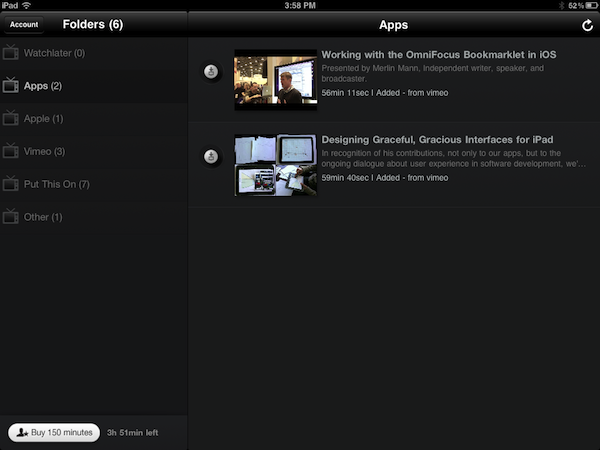
Back in March I reviewed Watchlater, an iPad app that I described as “an Instapaper for video” in the way it allowed users to save videos for later viewing using a simple browser bookmarklet. Whereas nothing has changed concept-wise since the original release, the much-improved version 2.0 of Watchlater addresses pretty much every issue I had with 1.0, adding support for more video providers, a better interface, as well as a redesigned web app and iPhone version.

First off, Watchlater slashed the price of in-app credits (used as “minutes” to cache offline videos) to $0.99 for 150 minutes, and $2.99 to have an additional 300 minutes to cache videos from Vimeo, TED, FunnyOrDie, and many others (you can check out the full list here). Unfortunately, as I noted in my first review, YouTube videos still can’t be saved offline due to copyright issues, however the developers have worked on improving the way these videos are loaded in a new window, so that YouTube’s mobile player scales gracefully both on the iPhone or iPad. This is also true for Vimeo material, and I’ve noticed a general trend towards polishing the overall UI which includes folder icons on iOS, and a completely revamped web app that turns your video queue into something” nice” to look at.

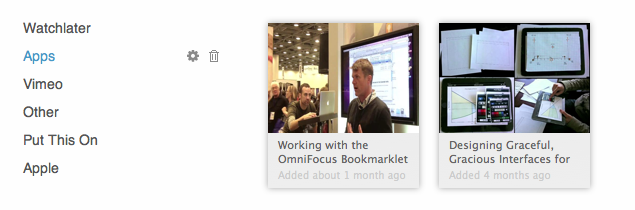
Videos from iOS devices can now be moved around folders, shared on Facebook and Twitter or forwarded to Safari, whilst the web app allows you to edit and manage folders, “search the web and add instantly”,  or switch from list to grid view.

Perhaps the biggest change in version 2.0, iPhone app aside, is the inclusion of Twitter, Facebook and Google Reader as sources for your videos. The new “connect & collect” feature lets you automatically build a video queue based on videos found in your Twitter and Facebook timelines or Google Reader feeds – whereas the “normal” Watchlater experience requires you to manually use a bookmarklet to “curate” videos you want to save for later, this new functionality will aggregate all videos related to your accounts, with the downside being that perhaps you don’t want any kind of video to show up in Watchlater. You can delete these videos, obviously, but it’d be nice to have filtering options to make sure that only some videos get forwarded to Watchlater. Speaking of the bookmarklet, it now works much better with videos embedded on web pages, and it supports more providers.

Watchlater is my favorite app to collect and organize videos I don’t have time to check out right away. You can get the app for free on the App Store, and unlock minutes through in-app purchases. Read more


Saver For iPhone Giveaway: 10 Copies Of The Delightful Expense Tracker

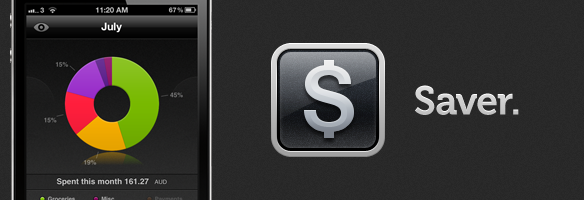
After a big bug-squashing and feature-adding update last week to Saver, the developers have decided to run another giveaway of their excellent expense-tracking app. I reviewed Saver for iPhone about two months ago where I raved about its excellent and loving design which made the usually dull task of expense tracking a more exciting and vibrant experience. The genius of Saver though is that unlike many other apps on the market, its design keeps things simple whilst still being powerful enough for what most users will need out of an expense-tracker.

The developers are running their own giveaway of Saver where they are giving away 3 copies of the app everyday from today till next Monday, but MacStories readers have another chance to win the app because they have been kind enough to give us 10 copies to give away! Make sure to read our full review of Saver, but jump the break for all the details on how to enter our giveaway of 10 copies of Saver.

Read more


Adobe Releases CreatePDF for iOS

Earlier today Adobe added another application to its iOS portfolio with the release of CreatePDF for iOS, a $9.99 universal app aimed at letting users easily create PDFs on their iPhones or iPads. According to Adobe, “CreatePDF brings the same high-quality PDF creation as Adobe Acrobat” to iOS devices, with PDF documents that look “exactly” like the original files they were generated from; the app uses Adobe’s online services for performance and quality, creating PDFs that preserve quality and accessibility standards with the inclusion of links, images, footnotes, and more.

The app supports the following formats:

  • MS Word (docx, doc), Excel(xlsx, xls), PowerPoint (pptx, ppt)
  • Adobe Illustrator (ai), Photoshop (psd) and InDesign (indd)
  • Images – JPEG, BMP, PNG, GIF, TIFF
  • RTF, Text and WordPerfect
  • OpenOffice and StarOffice documents

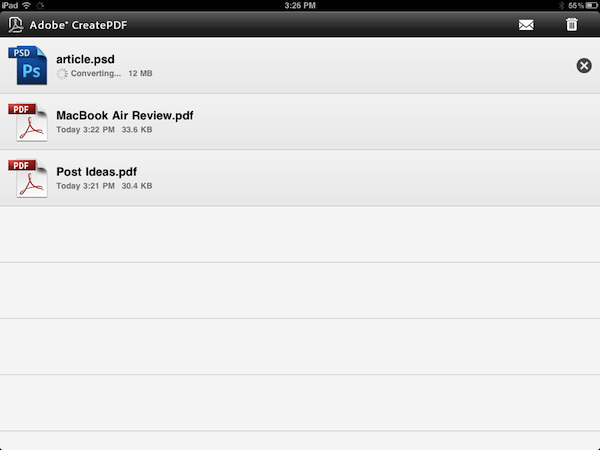
CreatePDF works through iOS’s default “Open In…” menu, which allows third party apps to communicate with each other by sending documents to other applications that support specific file types, such as PDF, .doc, or plain text. For instance, the feature was recently introduced in the Omni Group’s OmniOutliner, letting the app export outlines as plain text or OPML to other iOS software installed on device. CreatePDF registers as an app capable of opening (and converting) the file types listed above, and in my first tests it’s proven to be a fast and reliable solution to convert plain text documents, images and PSDs to the PDF format. From any app that supports sending files, you can choose CreatePDF from the “Open In…” menu, and wait for the app to finish the conversion process to PDF. For reference, the app took a few minutes to convert a 12 MB PSD to PDF, with good results. Similarly, a .docx document forwarded to me via email and sent from the iPad’s Mail app to CreatePDF took less than 30 seconds to become a PDF.

CreatePDF looks like a solid solution to convert files to PDFs, although I wouldn’t mind having more sharing options inside the app itself. Currently, CreatePDF can only “open in” other apps, send via email, or print. It’d be nice to have, say, direct Dropbox integration or more online exporting options in the future. The $9.99 price tag might be a little steep for the average iOS users, but quality of converted documents looked superior to me than other apps I tried in the past, and support for Illustrator, Photoshop and InDesign documents is also very welcome.

You can get CreatePDF at $9.99 on the App Store. Read more


Use Your iPad As A Digital Portfolio With The Excellent Foliozo

One of the iPad’s biggest strengths is the ease to which you can show various pictures, videos or websites to the people around you - its sleek form factor and large display makes it feel much more natural and personal than a laptop or desktop would. It is that inherit trait of the iPad that Apple is taking further advantage of with iOS 5 and its Photo Stream feature that lets you take pictures with your friends and family at the beach on your iPhone and then show those pictures on your iPad after a family dinner because Photo Stream effortlessly syncs photos between the two devices. Our own Federico recently wrote about how it removed the effort of manually syncing photos after he used the feature extensively on a recent summer holiday.

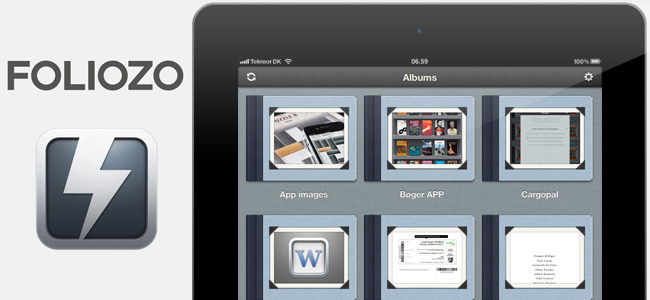
So we know the iPad is great (and will get better with Photo Stream in iOS 5) for sharing pictures and videos with our families and friends, but surely this experience could also translate into the professional realm. The true fact is that it does, with many firms already using the iPad as a portfolio to show concepts, photos and designs to clients and there are already a number of apps in the App Store that make this process easier. Today, however, I’m reviewing Foliozo which is a new entrant to the ‘digital portfolio’ app market, and one I think that stands above the pack.

Jump the break for the full review, screenshots and their promo video.

Read more


Apple Removes TV Rentals from iTunes - Customers “Overwhelmingly Prefer Buying TV Shows”

Apple Removes TV Rentals from iTunes - Customers “Overwhelmingly Prefer Buying TV Shows”

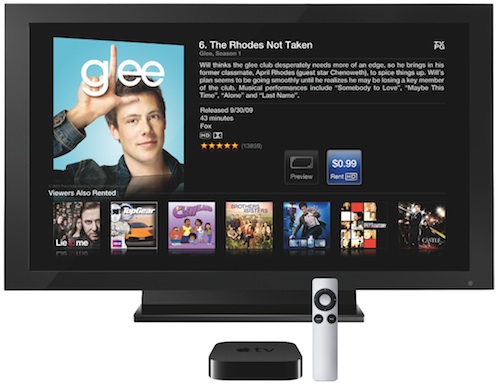
As first noted by AppleInsider, Apple has removed all options related to TV show rentals on iTunes, the Apple TV’s dedicated interface and its website, deleting a support document that detailed how users could rent episodes using credit in their iTunes accounts. .99-cent TV show rentals were unveiled last September as part of the Apple TV 2nd gen announcement, and touted as a big new feature from Apple with both ABC and Fox on board with their shows. Others, however, dismissed the initiative as a threat to the TV business model – prices were too low according to TV studios. TV shows could be rented from the iTunes Store and watched on a Mac or Windows PC, iPhone, iPad, iPod touch, or Apple TV. Users had 30 days to begin watching a TV show, and 48 hours to complete it.

Today, Apple confirmed to AllThingsD that, as customers prefer buying TV shows, they’ve canceled the rental program entirely. Instead, Apple is now recommending iTunes in the Cloud, an iCloud functionality already live for customers that allows for re-watching and streaming of any previously purchased content on any device. The option was introduced with the latest Apple TV software update.

iTunes customers have shown they overwhelmingly prefer buying TV shows,” Apple spokesman Tom Neumayr said. “iTunes in the Cloud lets customers download and watch their past TV purchases from their iOS devices, Apple TV, Mac or PC allowing them to enjoy their programming whenever and however they choose.

Apple is rumored to be working on a new technology to deliver video to televisions, but right now, the only option for purchasing, streaming and re-downloading TV shows remains iTunes in the Cloud.

Permalink