This Week's Sponsor:

Halide

Unlock Your iPhone Camera


Mac Utility Cocktail Gets Updated To Support Lion

A few days ago the popular Mac utility, Cocktail, received an update to add Lion compatibility. The new version 5 of Cocktail also adds new Automator actions, fixes bugs and sees improved documentation. If you are unfamiliar with Cocktail, it’s a utility that gives users the tools to clean, optimise and repair their Macs. There is a mix of maintenance tools, tweaks and power user options for everything from adjusting disk options to clearing various caches to customizing the look of OS X.

Jump the break for some screenshots of the new Lion version of Cocktail. You can also download a free demo of Cocktail (limited to using it 10 times) with lifetime licenses start from $19 for a single-user.

Read more


Parallels Desktop 7 For Mac Available This Week, Updated Parallels App For iOS

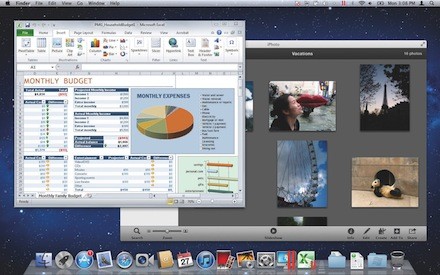
Earlier today Parallels Desktop 7 for Mac was unveiled, bringing more features and substantial speed improvements to the popular desktop virtualisation software. Headline features of the new version include greater Lion support such as Full Screen Mode and Mission Control, iSight/FaceTime Camera support and those speed improvements which include up to 60% faster resuming and 45% faster 3D graphics.

Mac Developers will now be able to emulate a copy of Lion in Parallels whilst on a Lion installation as per the new Lion license agreement. Installing Windows has also been simplified with a “Windows on Demand” service offering users the ability to instantly purchase and download Windows - particularly helpful for those with new Macs that no longer include DVD drives. Walt Mossberg reviewed the new Parallels on his Late-2010 MacBook Air and said it “ran Windows quickly and smoothly, and integrated well with some of Lion’s new features”.

Windows, and Windows programs, can be displayed in Lion’s new Launchpad feature, which mimics the main screen of an iPad. They also show up and behave like Mac programs in Lion’s new Mission Control feature, which shows all the programs running on the Mac in miniature. Windows programs can also run in Lion’s new full-screen mode.

Also revealed today was that the Parallels Mobile App is receiving a substantial update so that it can completely control a users Mac rather than just the virtualised environment as had been the case prior to this update. The app, available for the iPad, iPhone and iPod Touch, is on sale at a special introductory offer of $4.99 but the update is free to existing users.

Parallels Desktop 7 for Mac is available from today for those upgrading from Parallels 5 or 6 at a cost of $49.99 whilst it will be available generally on September 6th for $79.99. There is also a Student edition available for $39.99, a ‘Switch to Mac’ edition available for $99.99 (which comes with a number of Mac video tutorials) and there are also Enterprise volume licences available.

Jump the break for some promo videos of the new Parallels products.

[Via AllThingsD]

Read more


Apple Posts New iPad 2 Advert: “Learn”

Apple has today uploaded a new iPad advert to their YouTube Channel. Like previous iPad adverts, it has a central theme - in this case it is “Learn”, which is also the title of the advert. The entire advert is dedicated to showcasing some standout apps that help people learn. As usual there is nothing related to price or specification, just clips of people experiencing the iPad and the apps that make it great.  Some of those apps shown include the TED talks app, Chinagram, iBooks and GarageBand, but in total there are 10 that are shown.

Are you curious about new ideas, do you want to learn a new language, or just a new word? Maybe you want to know more about anatomy, or astronomy. You could master something new, or uncover a hidden talent. There’s never been a better time to learn.

Jump the break to see the advert for yourself and jump over to the Apple YouTube Channel to see more of the iPad adverts.
Read more


Tunesque: iTunes Search Made Easy From The Menubar

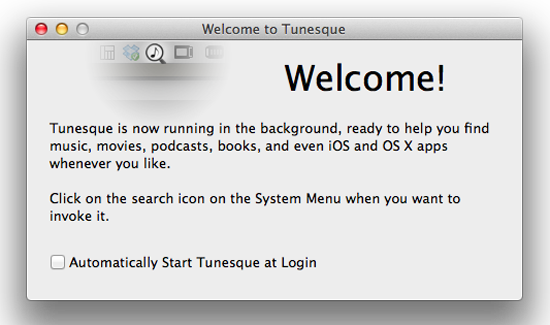
Many people claim searching any of Apple’s iTunes Stores is tedious, inane work. You have to launch an app, navigate to the search box and type for your result - and that’s only for searching one of Apple’s services at a time. Now imagine a ‘mythical’ Mac app that lets you search the Mac App Store and iTunes App Stores at the same time.

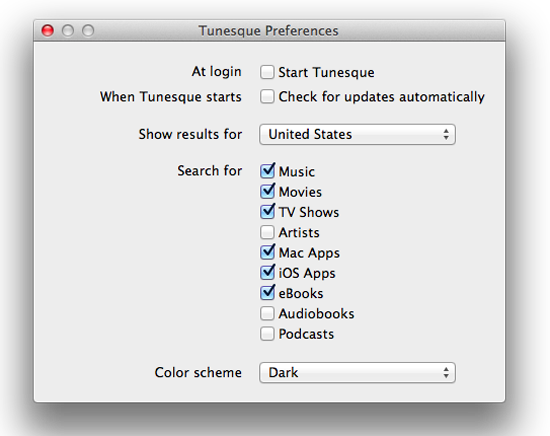
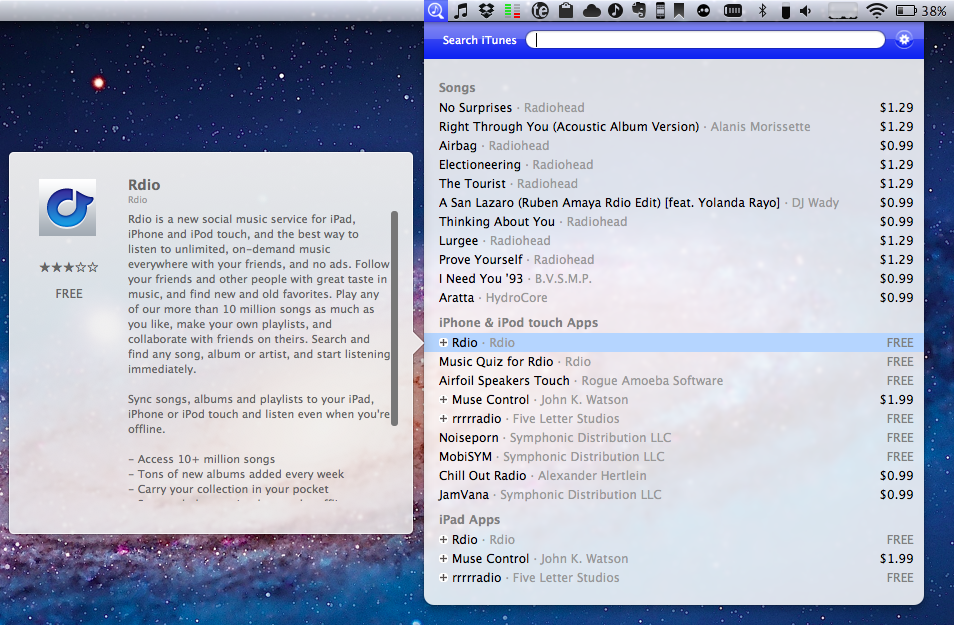
It’s no myth - enter Tunesque by AFK Studio. Tunesque lives in your Mac’s menubar: click the icon, and start typing to finds apps, music, movies, and books across all stores and “app stores” without having to manually launch them. If you feel Tunesque’s search is too broad, simply open the Preferences and define what categories you want to search for – you can check them all or just a few. Plus, the app works with your local iTunes Store, anywhere in the world, so you can select which international store you need and go.

Tunesque has 2 color schemes, light and dark, so you can pick the mood you’re in that day while you search for that new Pantera single. I prefer the light scheme as it matches the OS better, but some people may like the dark tone for added contrast. The app could be improved with a global hotkey in the prefs, though clicking the menubar icon is still faster that a traditional search method.

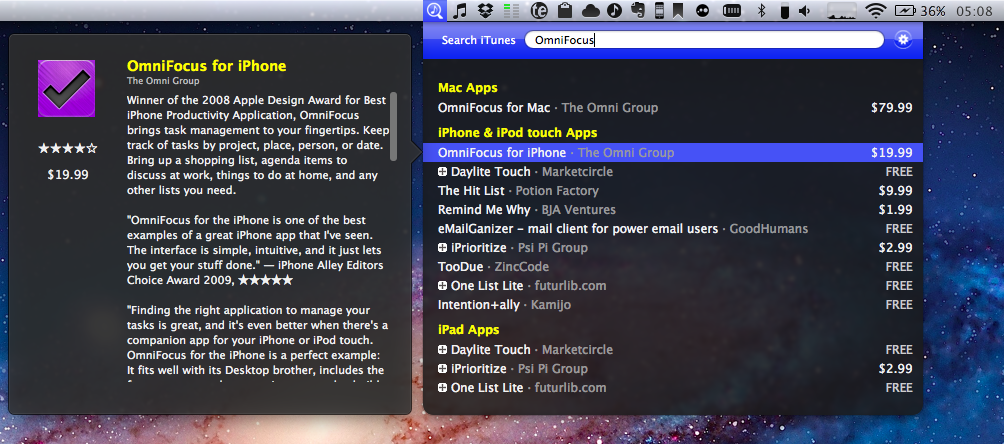
Once you enter a search term, let’s say OmniFocus, you can arrow down through the results (it even lists prices) and a hovercard will pop out to the side giving you the app’s description - this is a nice feature.

Tunesque is available from the app’s website and is a small download - only 811kb, with a smaller price - free. Please note that when you use Tunesque to find apps, Apple pays the developers a small commission via iTunes’ affiliate service but this doesn’t affect the price to the customer. A direct download for the app can be found here.

If you search the App Store and iTunes more frequently than browsing, Tunesque will be a great time saver.


Apple Releases iOS 5 Beta 7

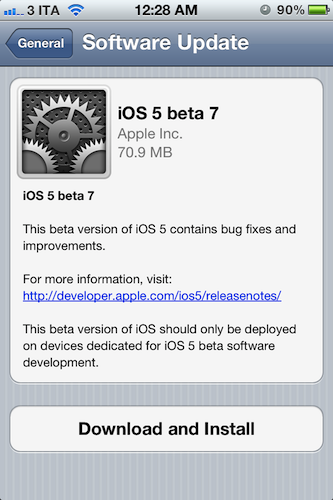
Apple has just pushed iOS 5 beta 7 to developers, releasing the new build through Software Update on iOS devices. At the moment of writing this, the iOS Dev Center still reports beta 6 as the latest version available. iOS 5 beta 6 was seeded on August 19, bringing several bug fixes and performances improvements to the next major version of iOS that’s expected to become publicly available this Fall.

iOS 5 comes with new features such as direct Twitter integration, PC-Free setup, iCloud support, and a new notification system. We will update this post with more information on the latest beta as it becomes available.

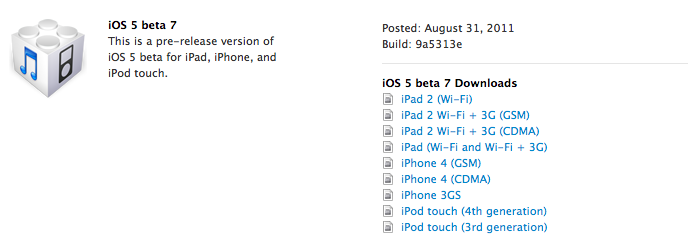
Update: iOS 5 beta 7 is now available on the Dev Center alongside a new Xcode Developer Preview, iTunes 10.5 beta, and Apple TV Software.


Another iPhone Prototype Lost In A Bar

As reported  by CNET, in a bizarre turn of events it appears Apple may have lost another unreleased iPhone model in a bar, this time at the Cava22 in San Francisco. According to the website, Apple never filed a police report based on such loss, likely from an employee field-testing the unit, although it ”sparked a scramble by Apple security” in an effort to recover it quickly. The device, CNET says, was lost in July. Rumors surrounding the next-generation iPhone date back to late 2010, although they have intensified lately as the company approaches the rumored October release date for the “iPhone 5”.

You may recall last year’s loss of an iPhone 4 prototype, which was lost by an Apple employee and sold to Gawker Media’s Gizmodo. Steve Jobs eventually joked on the incident, but Apple did intervene in a legal action against Gizmodo and the “seller” of the device, saying that unreleased prototypes are “priceless” in regards of the kind of information that gets out to competitors ahead of time.

This year’s lost iPhone. however, hasn’t showed up on the Internet yet, and it may have been sold on Craigslist for around $200.

Apple electronically traced the phone to a two-floor, single-family home in San Francisco’s Bernal Heights neighborhood, according to the source.

When San Francisco police and Apple’s investigators visited the house, they spoke with a man in his twenties who acknowledged being at Cava 22 on the night the device went missing. But he denied knowing anything about the phone. The man gave police permission to search the house, and they found nothing, the source said.

Apple usually goes to great lengths in order to protect its iPhone prototypes, using special cases to make these devices look like older models, as with last year’s lost iPhone 4 that was actually found inside a 3GS-like case. It’s not clear whether this year’s (allegedly) lost iPhone is the same version that will end up in consumers’ hands later this year, or if it’s an iPhone 4 prototype running a faster chip that was apparently sent to developers for testing months ago. CNET’s report doesn’t specify whether Apple ever got the phone back, and Craigslist didn’t respond to a request for comments, either.


Customize Your Mac’s “Paste and Match Style”

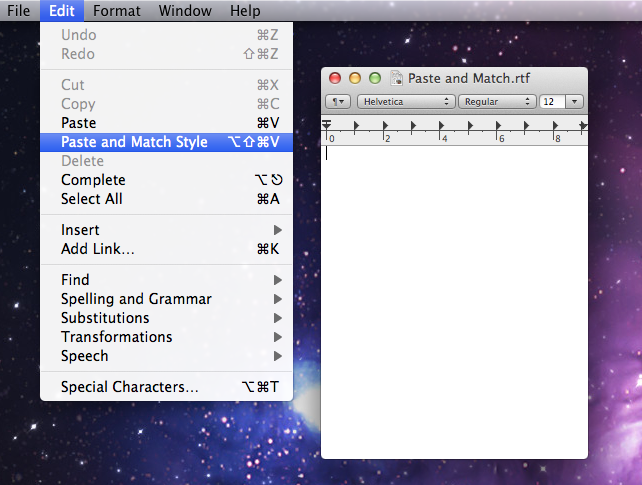
On the Mac, the paste function associated with the CMD + V keyboard shortcut has a well-known side effect: if you’re writing a document and you paste something from your clipboard, the document’s style won’t be automatically matched. Quite possibly a “feature” per Apple’s design choice, since I switched to the Mac I’ve always been annoyed by such “remember every style” behavior, and from the reaction I’ve seen on Twitter, it turns out quite a few people dislike when they end up with weird styles in their outlines or email messages as well.

But, you might argue, there is a way to paste and match style, and that’s represented by the ⌥⇧⌘V shortcut…which requires four fingers to execute, and it’s not always implemented in the same way in third party apps. Chrome, for instance, uses ⇧⌘V, and many other apps follow a similar trend to modify the default shortcut for Paste and Match Style.

In the past few days, I’ve come across some interesting solutions to unify Paste and Match Style with a simpler keyboard shortcut, and make it the default paste action on OS X if you never want to paste with “styles”. This can be particularly handy for writers, who often prefer a plain text environment or a styled one that’s, however, consistent throughout a document. Read more


App Journal, Episode 1: Writron, Tempus, BillMinder

App Journal is a new series aimed at showcasing apps we have enjoyed using on our iPhones, iPads, and Macs, but decided not to feature in a standalone, lengthy review here on MacStories. Sometimes, an app is so simple, so focused on one task that a full review in our typical format would be unnecessary. But at the same time, we felt like we needed a way to get the word out about these little gems, other than a quick tweet or footnote on #MacStoriesDeals.

Think of App Journal as a mix of classic reviews, weekly app recommendations, and a diary of our experiences with apps that still deserve a proper mention. Because after all, that’s what we love: talking about great software.

In Episode 1 of App Journal, I take a look at Writron for iPhone, Tempus and BillMinder. Stay tuned for new App Journal episodes in the next weeks.

Writron

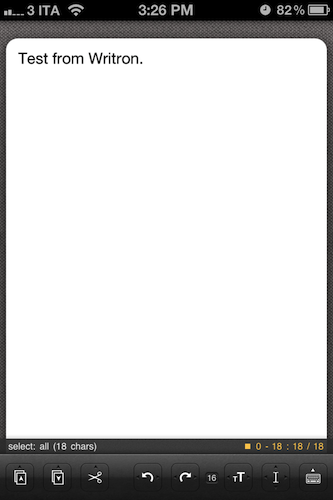
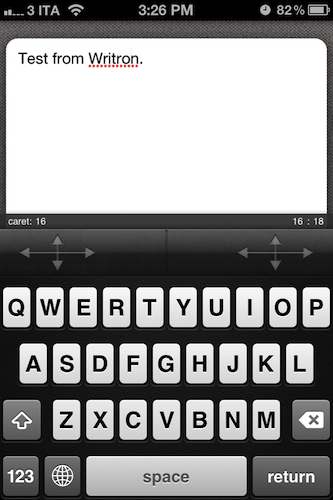
Writron is an app I found on the App Store last week and bought because of its simple, elegant icon and price tag. Admittedly, these are two factors that contribute to impulsive app-buying when iTunes credit is available, and curiosity takes over. Writron is a “text input tool” that can forward text to other apps and online services. That’s it. Once you’ve written some text using the app, you can tap & hold the sharing button to send it to Mail, Twitterrific, or other services supported with Mobile Safari such as Google, Evernote, Twitter, and Wikipedia. You can edit the “send to” menu to include options like Maps, Google Translate, Wikipanion, Wiktionary, and Twitter for iPhone. Additional templates will be added periodically and can be downloaded within the app.

Writron achieves two goals: it’s a text input tool with a heavy sharing component. And whilst sharing isn’t too dissimilar from what other apps like Note & Share offer, the writing experience is quite different. Writron comes with a toolbar between the keyboard and the text field; this toolbar has buttons to share, paste, cut, undo and redo, increase/decrease font size and move the iOS’ default cursor. Whereas tapping on these buttons triggers their basic functionality, Writron’s full potential is unlocked when you “tap, hold, and slide”. Here’s an example: tapping and holding the undo button will get you access to a scrollable timeline of words you typed, which you can control by sliding your finger across the toolbar itself. You don’t see a list of previously typed words and letters when you do so – instead, Writron directly manipulates text as you slide you finger back and forth through history, letting you know when you’re “out of undos and redos”. The same sliding concept applies to the “move cursor” action: you can tap on it to select a word, an entire sentence, or move to the beginning of your text, but it’s when you begin sliding that you’ll notice Writron can freely move the cursor between letters according to your finger’s movement. It’s seriously cool.

Writron may not revolutionize your workflow but it’s a neat little app that I’m sure will have its own passionate niche of aficionados. Writron is only $0.99 on the App Store. Read more