

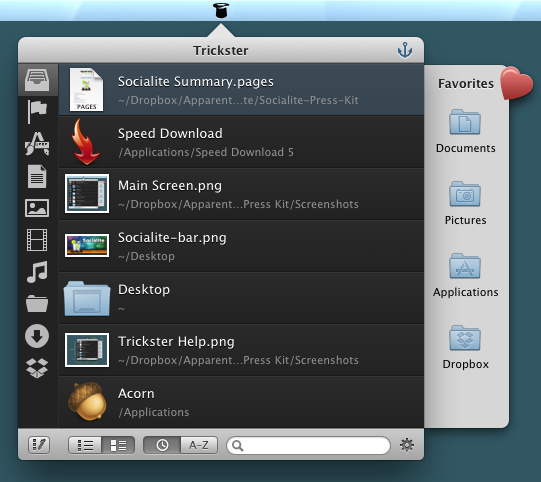
Remember Stacks? These days I keep my Dock hidden at the bottom of my display, with Stacks occasionally providing quick shortcuts to downloads and recent documents. My workflow is funny since I don’t quite want to work in full-screen mode in most applications, but I still want to have windows fill the display. This way I can still bring up my Twitter app without switching to another window, I can use a hot corner to temporarily hide windows as I access whatever mess is on my Desktop, and I can quickly bring up the Dock without swiping down twice. Too, I have the benefit of bringing up a Finder window when I need it — more often than not I’m accessing the Downloads folder from a stack for press kits, images, and files I grap from our work channel. Trickster, a rebranded Blast which I reviewed a couple years ago, fixes having to go through the motions of unhiding the Dock, opening my Downloads stack, then clicking the “more” button or on the file itself. Basically, Trickster is a quick-access panel for applications, documents, music, photos, and video that supplants Stacks and All My Files in the Finder.
Trickster Keeps Your Recent Files and Applications at your Fingertips
#MacStoriesDeals - Monday

Here are today’s @MacStoriesDeals on hardware, iOS, and Mac apps that are on sale for a limited time, so get them before they end!
Read more
Melo Simplifies Scrobbling to Last.FM
In times of paid music streaming services with more and more people using Spotify or rdio, the concept of last.fm seems outdated. Sharing music on a network not called Facebook, without having the ability of having music, friends and sharing options in a single, easy to use app has become less intriguing. But still, I consider the idea of last.fm a very striking one; always seeing the whole music archive of your friends provides a huge basis for discovering new music and artists, more than Spotify and its limited discovering options via friends and “apps” like the Domino Records showcasing. For actually listening to music, last.fm is still not the right choice. And this new menubar app called Melo for last.fm is not going to change that, but it simplifies the most basic feature of last.fm: archiving all played songs, called scrobbling.

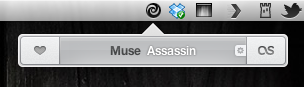
Melo is solely connected to iTunes and the devices connected to it (Apple TV, iPod, iPad etc.). Using it with other services like Spotify is still not possible. Every song you play in iTunes (or imported from the devices and is then synced back to the Mac) automatically gets scrobbled by Melo. Its interface only consists of a drop down window with a bright grey frame, displaying the name and artist of the currently playing track. Additionally, using the two big, nicely pictogrammed button left and right to the track information, you can love the current track (this way it is not just scrobbled, but also added to your favorite song list on last.fm), and reach out to your own profile, which is then opened in your browser for deeper investigation of its status.
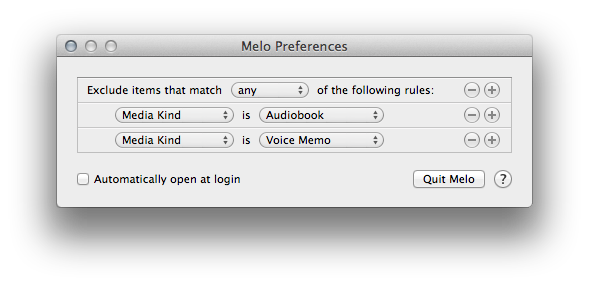
In the app’s Preferences, which are opened using the small button on the right side of the center area, you can exclude media from being scrobbled (presets include audio books and voice memos) using an Automator-like workflow; you can choose if the app should be automatically opened at start, and from here you can quit Melo, too. That’s it. Melo is not reinventing anything, it just eases up scrobbling with last.fm. It looks very nice, it’s intuitive, and it works flawlessly. If you dislike the native last.fm app, or are just using the scrobbling feature without being interested in any other feature of the service, Melo is for you. The only problem with the app is, its price may be a bit too steep for what it does. Melo can be purchased on the Mac App Store for $3.99
Fancy: A Social Network Curating Contemporary Product Design

Why exactly is creating new social networks still hip? In times where Facebook and Twitter are the central points in our social web life, new competitors seem to be doomed to fail the second they are unveiled. You need a huge, mind-blowing new idea with new UI features and ideas to be really unique and not seem to just copy and rename existing features like sharing options, like buttons, retweets, and followers. To be honest, I’ve never seen a product reaching this. And although it features great content and a quite elaborate iPad app environment, the network called Fancy (it’s been around since 2010, but still did not rise to real big prominence) is not an exception from that.
So why writing a post on Fancy, if it’s nothing new concerning UI and customer features? Because sometimes you don’t have to be unique in designing nice interfaces – you just let your content speak for you. On the interface side , Fancy follows the Facebook/Twitter concept of having friends, liking (here called “Fancying”) stuff, and saving it for later. But the service distinguishes itself via the content and the idea of combining the advantages of social networks with selling products to create a special mobile shopping experience.
May 2012 In Review

May was a huge month for new apps and app updates with everything from Spotify for iPad, Diet Coda and TouchArcade launching to Flipboard, Sparrow and Tweetbot seeing sweet updates - and that’s only scratching the surface, there was a lot more. As for news, we saw another Siri ad (this time with John Malkovich), confirmation of the Mac App Store sandboxing deadline of June 1st, WWDC Keynote announcement and Rovio had two big pieces of news. Finally, we had some great stories go up in May and Lukas keeps writing awesome app reviews in his Inspiring UIs series. So without further ado, jump the break and enjoy the recap of May and sorry we’re a few days late this month!
Airlines Increasing Fuel Efficiency By Adopting The iPad As An Entertainment Device→
Airlines Increasing Fuel Efficiency By Adopting The iPad As An Entertainment Device

Bloomberg reports today that startup airline Scoot Pte (their maiden flight is today) will save fuel and have increased profits by deploying the iPad as the passenger entertainment device. By cutting out old entertainment systems weighing more than two tons, they’ve saved fuel while still flying older airplanes and even expanding traditional seating capacity by 40 per cent. Increasing profit, the post-PC way.
The tablets helped the carrier cut 7 percent off the weight of planes obtained from parent Singapore Airlines Ltd. (SIA) even after a 40 percent increase in seating, Chief Executive Officer Campbell Wilson said. The savings will help Scoot, which makes its maiden flight today, cope with fuel prices that have jumped about 36 percent in two years.
Scoot Pte will rent the iPads for $17 a flight to economy-class passengers and offering them for free to those in business class. It follows moves by other airlines such as Jetstar, AirAsia and Qantas which have deployed the iPad in trials and small test runs since late last year.
Cutting costs and finding new sources of revenue will be key for Singapore-based Scoot as it seeks to make a profit flying older planes than other low-cost carriers and selling tickets as cheap as S$158 one-way to Sydney, a flight of more than seven hours. Singapore Air formed Scoot after budget operators led by Jetstar and AirAsia Bhd. won 26 percent of the city’s air-travel market.
By reducing fuel costs, parent company Singapore Airlines hopes that it can turn over a new leaf with Scoot after it tumbled 28 percent this year, exceeding the 14 percent decline for the Straits Times Index. It’s really crazy to think that something like the iPad can have such a huge impact on fuel efficiency of airplanes - today’s story is on top of the existing trend of airlines replacing flight manuals with iPads that Tim Cook gladly shared earlier this year.
Scoot plans to increase its fleet to as many as 14 777s by the middle of the decade. The carrier will be able to pare maintenance costs by working with its parent, Wilson said.
Favs for iPhone
I don’t normally begin articles with puns, but Favs has become one of my new favorite apps. Developed by Dirk Holtwick, Favs is “an app for your Internet favorites” – it collects items you’ve liked, starred, or marked as favorite on a variety of social networks and online services. In my review of the Mac version, I wrote:
Services like Instapaper and Pinboard empower you to “read later” and “bookmark” the things you like. Favs runs at a higher level, collecting favorites from other services that already enable you to save favorites. As I said, this kind of app is a web nerd’s dream come true for me.
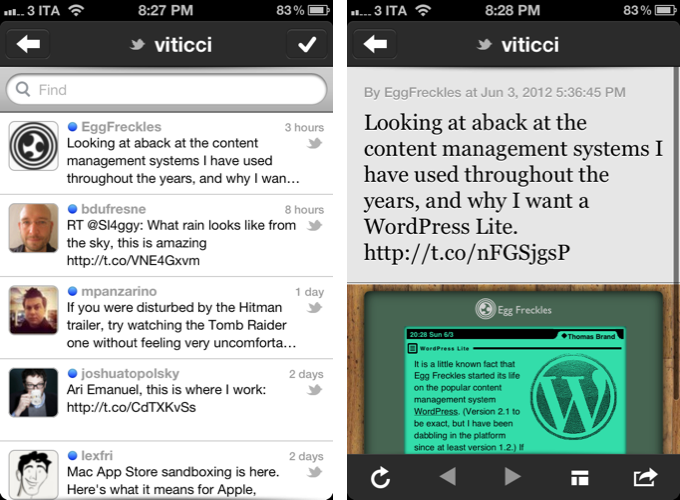
Released yesterday, Favs for iPhone is a $2.99 mobile companion that serves the same purpose of Favs for Mac – it offers a unified interface to browse favorite items from multiple sources. The main screen features three general tabs for All items, Inbox, and Archive. However, I never use Favs’ own read/unread indicators, because I don’t want to “feel the guilt” of having too many favorites in my accounts. For this reason, I am glad Favs for iPhone lets me hide unread counts from the Settings, which also reveal iCloud sync will be coming soon to keep account information synced across Mac and iOS devices. I very much prefer to browse favorites by their original source.
The main screen of Favs also reveals a custom “pull to refresh” implementation that uses two stars that need to be aligned to initiate a new sync session. This action will refresh all your sources and check for new favorite items (single sources can be refreshed as well).
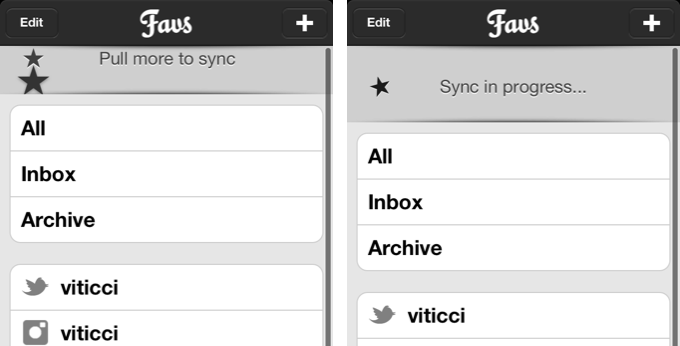
Like the Mac app, Favs for iPhone supports the following services:
- Delicious
- Dribbble
- Flattr
- Flickr
- GitHub
- Google Reader
- Instapaper
- Pinboard
- Readability
- StackOverflow
- Vimeo
- YouTube
- Zootool
Tapping on items containing links will open an embedded web view in the lower portion of the screen. An option to load the Readability version of an article is present, as well as buttons to email a URL, tweet it, copy it, or launch it in Safari.
The app’s performances are good, but not perfect. I found Favs to be slightly slowed down when scrolling through thousands of Twitter favorites, though I recognize I may be an edge case here. However, after the initial refresh, the app was quite smooth at switching between Twitter, Google Reader, Facebook, and the main view. The sync animation could use some further optimizations.
If you already use Favs on the Mac, there’s no question you’ll want to take a look at the iPhone version. Favs for iPhone has a clean design, works with a lot of services, and, overall, leverages the convenience of having all your Internet favorites always with you. Favs is $2.99 on the App Store.
Instapaper’s Background Update Locations→
Instapaper’s Background Update Locations
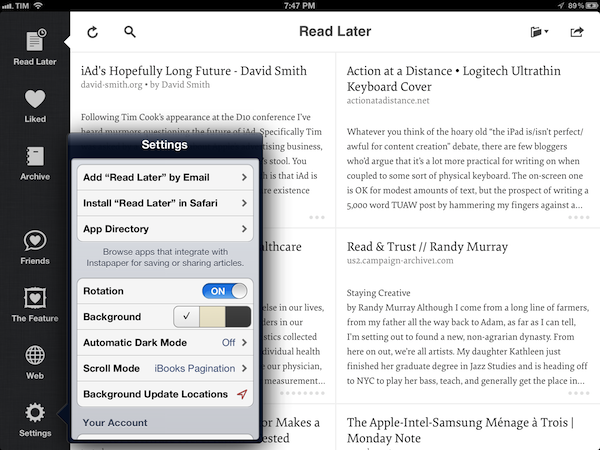
Last night, Instapaper was updated with a major new feature: Background Update Locations. Here’s how it works:
Now, with Background Update Locations, Instapaper can automatically download new articles whenever you enter or leave locations such as your home or workplace. Visit the Settings panel to set it up. (Requires an iPhone or 3G/4G-equipped iPad.)
I have been testing the feature this afternoon, and while I couldn’t get it to work initially, I think I have figured it out. Basically, Instapaper uses iOS geofencing to determine when you enter or leave a location (you can store up to 10 locations inside Instapaper). The geofencing, however, isn’t really precise, as granularity may vary, and it could be based on a combination of cell tower strength and triangulation. Having tried geofencing with Apple’s own Reminders, I can attest that location-based alerts were already problematic in my town; so my guess is that today, when I couldn’t get Instapaper to download items in the background, the issue was with geofencing in Viterbo – definitely not with Instapaper. I have noticed that some locations in my town just won’t fire off the geofence; I have no idea why this is happening, and I hope Apple fixes it in iOS 6 (perhaps through their new fancy mapping service).
Fortunately, Instapaper’s Background Update Locations are now working with the place I care about – my house. I was able to leave, drive around town, and then I found articles waiting in my list, already downloaded. It’s a really nice option to have, and I’m glad Marco was inspired by News.me to implement it.
Get Instapaper 4.2.2 from the App Store.
iOS 6 Mockups→
iOS 6 Mockups
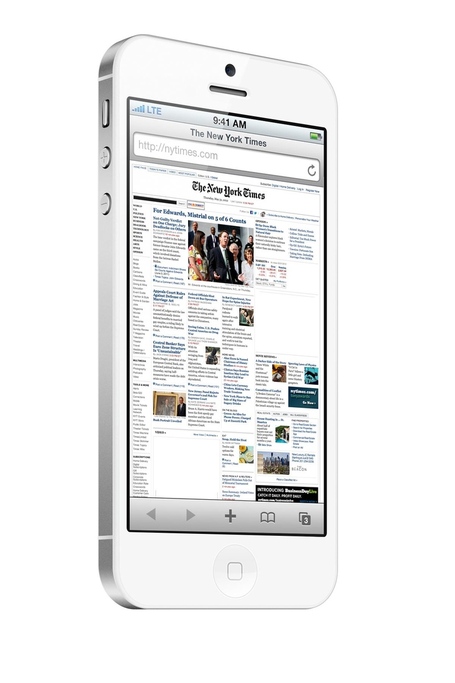
The Verge Forums member ”gizmosachin” created some nice mockups of iOS 6 and the next-generation iPhone based on recent rumors.
Well this week we saw the “composite” image of the new iOS 6 Maps app, the blurrycam photos of the new iPhone, and with the WWDC 2012 app it seems that iOS 6 will make most UI elements silver like their counterparts on the iPad. Thought I’d make some mockups of the new iPhone running Safari and the supposed new Maps app just for fun. I couldn’t find any high res C3 Tech images so I just used the OpenStreetMap maps that Apple currently uses in iPhoto.
According to speculation surrounding the next major version of iOS, Apple will switch to a “silver” theme – roughly the same that has been used on the iPad since iPhone OS 3.2. Marco Arment believes the iPhone UIKit widget styling (the stock blue element) is out of style. Cult of Mac thinks that the recently released WWDC app and iPhoto for iOS set the stage for silver coming to the iPhone soon.
In theory, apps that use stock UI items provided by Apple would work “out of the box” with an updated color scheme. However, developers who relied on custom icons, colors, and other patterns would still need to optimize their apps for the new UIKit – and that’s exactly why Apple “previews” new version of iOS at WWDC before their Fall release.
Composite mockups of iOS 6 Maps based on “leaked” screenshots of the software first surfaced last week. Check out more mockups at The Verge.