This Week's Sponsor:

BetterTouchTool

Now with a Powerful Launcher for Your Mac


Diet Coda 1.1

Diet Coda 1.1

Earlier today, Panic released a nice update to Diet Coda, its iPad version of popular web development app for the Mac, Coda. I’m not a web developer, but in my initial look at the app I appreciated the workflow it enabled to copy URLs for images uploaded to my web server.

Diet Coda, finally, allows me to copy the public URL for images uploaded to my FTP server. That’s a small feature, but you’d be surprised to know how many FTP iPad apps end up lacking it amidst dozens of other “power user options”. I wish Diet Coda would let me upload from the Camera Roll — hopefully that’s coming in a future update.

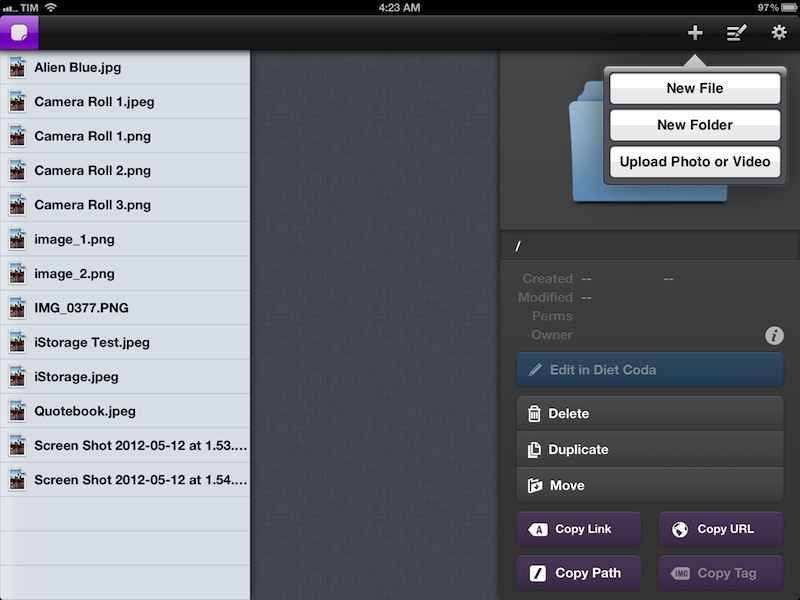
And in version 1.1, uploads have indeed been enabled. By tapping on a + button in the upper right corner of the UI, you can choose to upload photos or videos from your Camera Roll. Before uploading, you’ll be asked of you want to convert a .png file (such as an iOS screenshot) to .jpg, or if you want to keep it as it is. If you’ve been looking for a way to upload images from the iPad for, say, a mobile blogging workflow, this is the Diet Coda update to check out (too bad the app doesn’t support CDN providers such as Rackspace yet).

Also in this version, among other things, there’s an option to display folders on top, a toggle to show hidden files, a light theme, and code indentation as you type.

Diet Coda 1.1 is a substantial update that improves on many aspects of version 1.0. Check out the app at $19.99 on the App Store.
Permalink

Take Screenshots At 1x and 2x Resolutions Simultaneously On Retina Macs

Take Screenshots At 1x and 2x Resolutions Simultaneously On Retina Macs

If you have a new MacBook Pro with Retina display, you’ve likely stumbled upon the issue of sharing screenshots that are too large in size for friends or coworkers who don’t have a Retina Mac yet. Or, perhaps you’ve wanted to be able to take both 1x and 2x screenshots for, say, a blog post served to Retina and non-Retina devices.

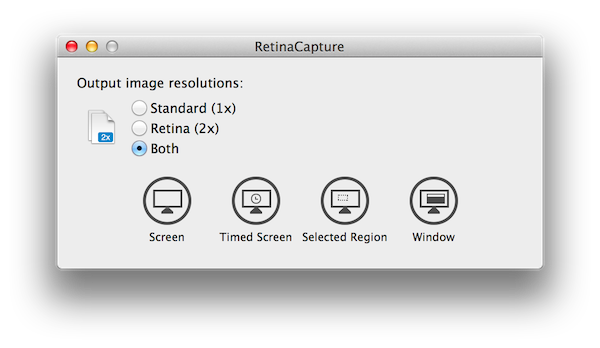
RetinaCapture is a new, free utility for Mountain Lion that does just that: it enables you to easily take crisp screenshots at both resolutions, at the same time. On a Retina Mac, just fire up the app, and choose whether you want your screenshot to be at 1x, 2x, or both. You can take a normal screenshot, timed screenshot, capture a window or a portion of the screen. Hit the button, and save your image. If you’re saving 1x and 2x files at the same time, the app will offer two naming schemes to name your images correctly. Either at 1x or 2x, screenshots will always be crisp and detailed.

RetinaCapture is available here for free. As a side note, if you’re not on a Retina Mac, you can test the app’s 2x mode by enabling HiDPI using Quartz Debug.

Permalink

The Reality Check Of Google’s New YouTube App

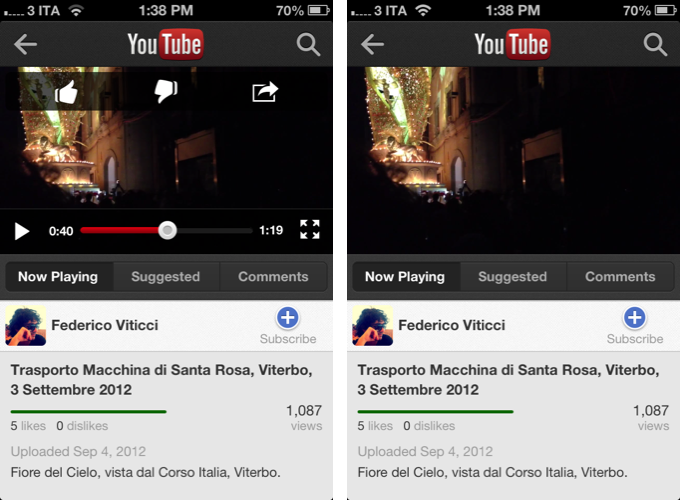
In an unsurprising move considering Apple’s upcoming iOS 6 update, Google released an official YouTube app for iPhone last night. Announced on the YouTube blog, the app is available for free on the App Store, and it runs natively on the iPhone; according to The New York Times, an iPad version is also in the works.

I have taken the YouTube app for a spin, and I was quite impressed with what Google accomplished in this first version. While not excellent in terms of performances, the key to this first release of YouTube for iOS is access.

One of the most controversial aspects of the former, pre-installed YouTube client for iOS was that, as Google started monetizing the YouTube platform with “official” videos from channels like VEVO, the pre-installed iOS client couldn’t display such videos due to a lack of agreement between Apple and Google in regards to ads shown to the users. On the standard desktop YouTube website, users could watch, say, music videos from official channels because the company embedded banners or pre-roll ads to monetize; on iOS devices, official videos were omitted from search results, and links to these videos would return the infamous “this video is not available on mobile” error message. As Google goes free from Apple’s restrictions with standalone apps, this is about to change. Read more


Interactive Fiction In The iOS Age: A Text-Based Love Story

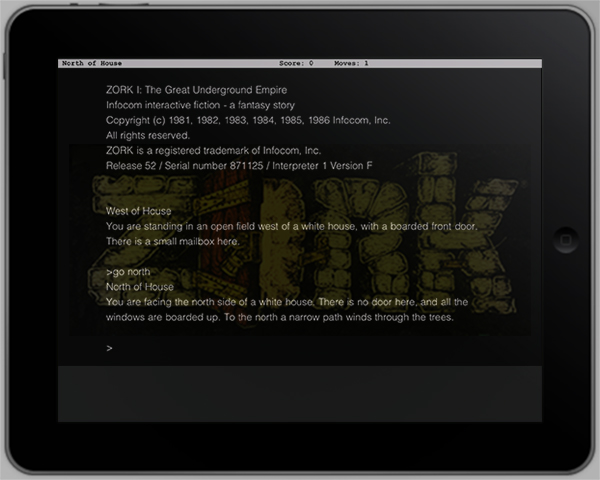
It all started with an episode of “The Big Bang Theory”. Protagonist Dr. Sheldon Cooper sits in front of his laptop, his face distorted by heavy concentration. He’s playing a game. Suddenly, he starts yelling at Leonard, his roommate: “It says there’s a troll!” Leonard answers: “Type ‘Hit troll with axe’”. Silence. “Oh yes that worked!”, Sheldon yells with a wide smile on his face. A few episodes later, the title of the game is revealed: ZORK.

At that point, I was curious. I googled the title, and just a few minutes later I was lost in the world of Interactive Fiction (hence abbreviated as IF) which is the official genre description of games commonly known as text-based adventure games.

After hours of research, I found out that although the first IF games were released in the early ’80s and quickly decreased in popularity due to the rise of graphics-based games in the middle-80s, the genre is not dead at all. IF has a vibrant and very active community of gamers, journalists, story writers, and modern implementations of any kind to emulate and play IF games on any imaginable platform. There are even modern development tools and languages available to write your own IF games.

In this post, I will discuss all these topics: the history of IF, the community and its current state, and how to play and develop IF — with a focus on IF and Apple’s operating systems – Mac OS X and iOS. The following paragraphs will be full of external links leading you to download resources, information wikis about IF, interesting essays and blog posts about the community, and all kinds of software you could use to play and write IF. Read more


Google Drive App with Document Editing Now Available

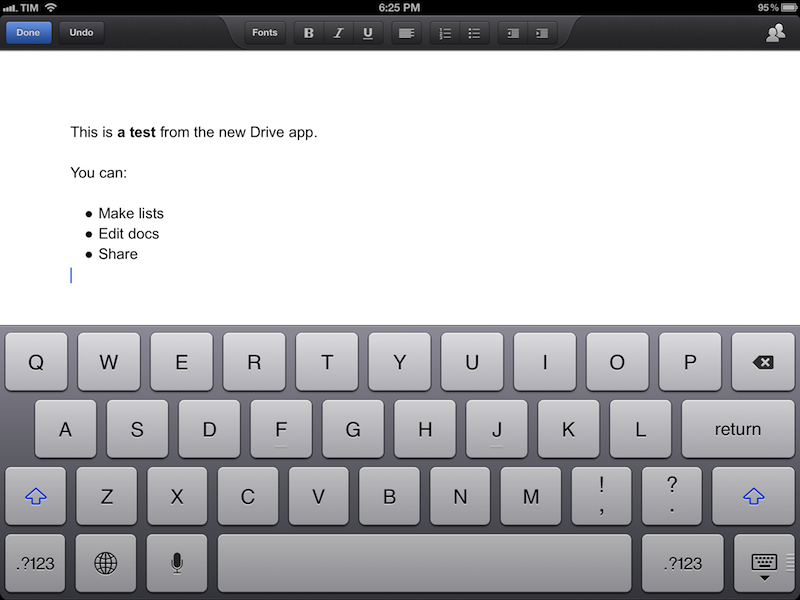
The official Google Drive app for iOS, available for free on the App Store, has been updated today to include support for editing documents directly on an iPhone or iPad. A major new feature of the app, users can now create new documents, edit them, format them, and share them with collaborators; the interface is reminiscent of Apple’s Pages word processor, with a formatting bar at the top to make text bold, italic, or underlined, insert lists, format paragraphs, and more.

In my tests, I have noticed the typing speed of the app’s cursor isn’t nearly as smooth as Apple’s Pages. Somehow, it feels like writing text inside a web view – there is a small delay between hitting a key and seeing a letter appear on screen – in spite Drive’s native nature. The aforementioned delay in typing is substantial enough to be noticed immediately and, I believe, could become an annoyance for many over time. However, it is quite impressive to see how Google managed to integrate live editing inside a document: if you’re collaborating with someone, you’ll see a green cursor appear on screen, typing words in real-time. You can also try this by opening the same document with your account on multiple devices and see what happens.

The formatting I applied on the iPhone and iPad correctly carried over to the web interface, which, obviously, still has more features, such as image uploading and easier link insertion. On iOS, you can’t paste images from, say, the Photos app onto Drive’s editing window; at least, however, Google implemented a font-picking menu with possibility to choose text and background color.

Also noteworthy in this update is the option to move files and delete them. Photos and videos can be uploaded directly from the iOS Camera roll (you can also create new ones with a Camera menu) and, if you use presentations, you should see richer animations and speaker notes (I haven’t been able to test this feature).

Overall, while not as fluid and responsive as Apple’s Pages, Drive’s document editing offers some solid online collaboration functionalities and decent formatting options. Personally, I don’t use Drive for file storage, so I was only interested in checking out the document editing aspect, and I didn’t came away disappointed by it. I wish that in a future update Google will figure out a way to integrate online editing while improving typing responsiveness, which isn’t that great right now.

You can get the app for free on the App Store. Read more


Behind The Scenes of “Sh*t Apple Fanatics Say”

Behind The Scenes of “Sh*t Apple Fanatics Say”

Ken Segall (author of Insanely Simple) has posted an article detailing the story behind ”Sh*t Apple Fanatics Say”, a viral video that ironically collects many of the things Apple fans typically say when “defending” the company and its (sometimes questionable) choices.

Produced by Scott Rose, Mac consultant and FileMaker Pro developer, the two videos of the series (Part 1, Part 2) have been viewed over 900,000 times on YouTube. Interestingly, the video started as a side project that should have been completed in a couple of days, but eventually the “team” behind it spent “one day of location scouting, one day of writing, 2.5 days of shooting and five days of editing”.

The pair wrote over 100 lines and recorded all of them at each location, and improvised as well. That resulted in over eight hours of video that had to be whittled down to just a few minutes.

Make sure to check out the full interview over at Ken Segall’s Observatory.

“Apple can totally survive with Tim Cook, as long as he keeps hiring great people like John Browett”. 

Permalink

OmniFocus Browser Bookmarklet and Safari 6

OmniFocus Browser Bookmarklet and Safari 6

Ever since upgrading to Safari 6 and Mountain Lion, I’ve noticed the OmniFocus bookmarklet I had installed stopped working properly. The OmniFocus bookmarklet is a handy addition to my workflow, in that it allows me to quickly save webpages I need to act upon at a later date, while preserving their title, link, and text selection. I often do this for linked posts that end up here on MacStories, or pages that I need to check out but that I’m not ready to bookmark yet (for that, I use Pinboard).

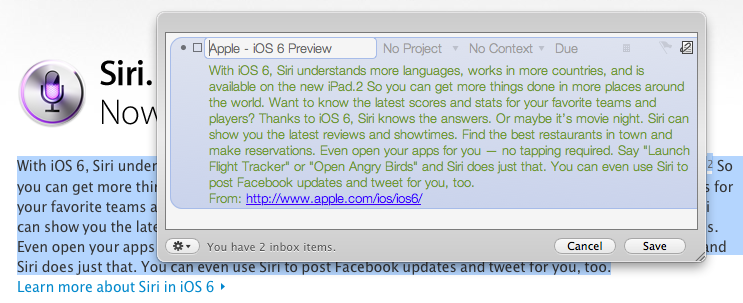
In theory, the OmniFocus bookmarklet should be capable of grabbing a webpage’s URL and selection (if any) as a note. However, of the two bookmarklets provided by The OmniGroup, none of them manages to successfully grab text selection on my machine running Safari 6 and OS X 10.8.1. So I set out to find a better bookmarklet, and I found this version by Alex Popescu that, besides working correctly, has also some nice integration with Gmail.

For Gmail, the bookmarklet creates a new task with the email title as the task title and a note with the current selection (if any), plus a from line in the form: From: email subject:(email subject) email_thread_url. For normal web pages, the bookmarklet creates a new task with the document title as the task title and a note with the current selection (if any), plus a from line in the form: From: page_url.

I tested this on Safari 6, and it works as advertised. The bookmarklet also works on iOS devices, albeit the iPhone’s Mobile Safari can’t send the current text selection from a page to OmniFocus.

Get the bookmarklet here.

Permalink

Yerba Buena Poster Created By Stretching App Icons, Download A Recreated Version As A Wallpaper

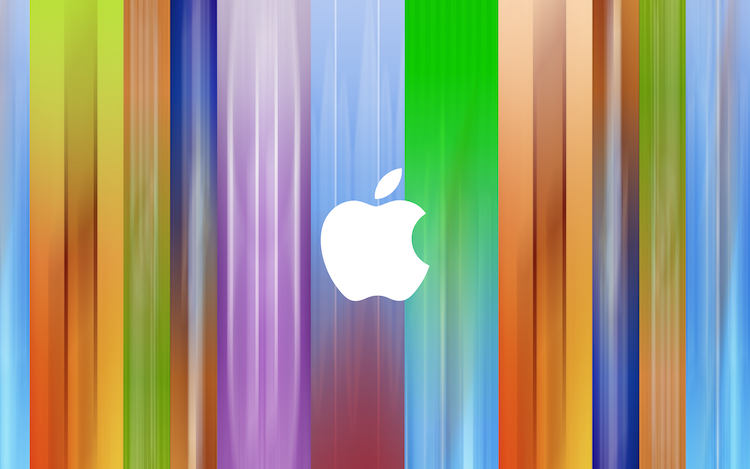
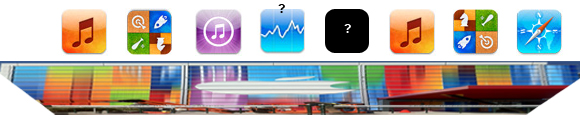
On Friday, workers put up the traditional event banners on the Yerba Buena building in which Apple is holding its special media event next Wednesday. You can have a look at the banners here, but as an eagle-eyed reader of MacRumors realised, it seems as if Apple made the poster by stretching various app icons vertically. Another one of MacRumor’s readers, roosternugget, put together a little graphic to indicate which apps were most likely used (see below). It’s pretty clever by Apple’s designers to stretch iPhone app icons vertically and use it as the event poster, given we expect the iPhone 5 itself to feature a vertically larger (or “stretched) display. If you recall, Apple also had fun with the media event invitation which subtly features a shadow with the number “5” coming down from the number 12.

With this knowledge, I decided to open Photoshop and do my best to recreate the event poster. Now it certainly isn’t a perfect recreation but I’ve done my best and it comes close to the banner featured in a photo below. I’ve created multiple versions with and without the Apple logo and for various screen resolutions so that you can use it as a wallpaper, including the following:

  • [16:10] 2880 x 1800 - aka. Retina MacBook Pro
  • [16:9] 2880 x 1620
  • [5:4] 1280 x 1024
  • iPhone 4/4S
  • iPhone 5
  • iPad (Retina)

Download the wallpapers (.zip archive)

Direct links for iOS devices:


App.net’s First Two iOS Clients: Rhino and Adian

Speaking of App.net, the developer community has been busy building iOS, Mac, and web clients for the service, which promises it’ll never try to purposefully harm or limit the third-party ecosystem. Of all the iOS and Mac clients currently in development (I’m testing a bunch of them, and good things are coming soon), two are currently available on the App Store: Rhino and Adian.

As John Gruber wrote in 2009, Twitter clients used to be a UI design playground for developers attracted to the service that was just about to become mainstream. The App.net clients available today sit in the middle ground of leveraging the conventions established by Tweetie, Twitterrific, and Tweetbot while working with a service that’s not nearly as popular as the Twitter of 2009, when third-party clients exploded in terms of popularity and usage.

Most of the App.net clients currently in development look and perform exactly like Twitter clients, but they are working with a platform with a much smaller scale, even by 2009 Twitter standards. This is perhaps indicative of the current status of App.net – a service that uses the foundation of Twitter while quickly adding its own unique features – and is undoubtedly helping with creating these clients (a smaller community means easier scaling and lots of feedback), but it also leaves a strange feeling of “seen that, done that”.

App.net clients will have to find their own identity just like App.net will have to grow into a different yet solid alternative to Twitter. Developers need time to figure this out. Read more