Some Brief Thoughts on Apple’s New EarPods

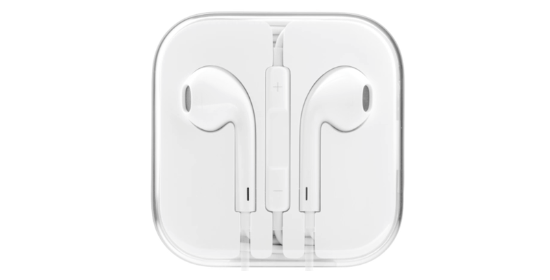
Apple's EarPods in their packaging

Apple’s EarPods in their packaging

They’re the most comfortable pair of earbuds I’ve owned. I feel like the EarPods were shaped just for my ears. The buttons on the remote are fatter and have a satisfying click. There’s some bass where there really wasn’t any before. Mids and highs sound balanced, even if detail found in more expensive in-ear headphones is lacking. Comparatively to Apple’s old buds they’re much better. Personally I think they look sharp — it’s like having two tiny spaceships dock with your aural receptors.

The EarPods’ design gives it a unique benefit over traditional earbuds: they block more outside noise and are similar to in-ear headphones in this manner, which provide complete noise isolation by the means of fitted plugs. My ears are small, and I’ve had consistently bad luck with in-ear headphones, the smallest plugs always being too large and uncomfortable. Plus, I’m not one who sits still — noise from brushing the headphone cable bothers me. With the exception of maybe the old stocky earbuds that came with the iPod video, Apple’s earbuds have been the most comfortable for me. The new EarPods don’t leave my ears sore after a few hours of wearing them while writing, doing chores, or whatever. A good in-ear pair of headphones (even a pair of $99 Shures from Best Buy) will likely be much more impressive sounding for discerning music lovers, but I’ll take comfort over the omg-my-ears-feel-stuffed-and-my-head-is-going-to-split-open feeling. Everyone’s ears are different (e.g. they fit loosely in Gabe’s ears.)

I’m not a fan of how Apple wraps their cable at the plug and (now at) each stem of the EarPods. The small gray sleeve wrapping around the rubber cable still feels thin and will eventually tear as they have with all my older Apple earbuds, whereas the latest Apple Dock Connector to USB Cables have thick textured end sleeves that feel tough and durable.

Apple’s EarPods are convenient, add extra thump to bass and drums in your music, and come bundled with a new iPhone 5, iPod touch, or iPod nano. Are they worth $29 by themselves? When my current pair wears out or if I lose them, I’ll buy a new pair (I haven’t worn anything else that’s as comfortable). Although you should probably listen to the technology savants from The Wirecutter if you want to save some money or equip yourself with better sounding buds. My choice simply comes down to comfort and having headphones for when I’m traveling, need my hands free during a private call, and for when I need to tune out or not disturb someone else from something.

iPhone 5: First Thoughts And Random Impressions


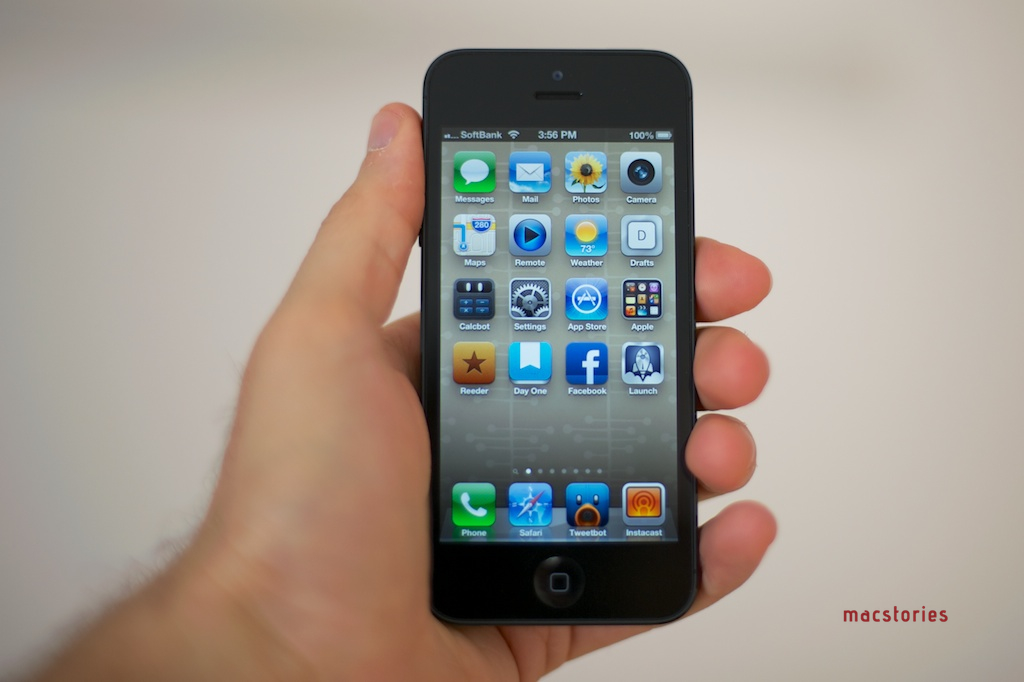
When you first pick up the iPhone 5, your hand immediately contours to the same grip it’s become accustomed to with your previous iPhone. This is no small achievement. Despite how much thinner, lighter, and taller the 5 is than any previous iPhone, it still feels unmistakably like an iPhone; simultaneously something brand new and, by this point, instinctually familiar. Read more


iPhone 5 Lines Around The World

As the iPhone 5 begins its international rollout, lines have begun forming at Apple retail stores in preparation of tomorrow’s launch.

The iPhone 5, announced at a media event on September 12, will go on sale tomorrow at 8 am in nine countries: US, Canada, UK, France, Germany, Australia, Japan, Hong Kong, and Singapore. The iPhone 5 is a major upgrade from the iPhone 4S: it features a taller, 4-inch screen, a faster processor, an improved camera, better audio, and a thinner, lighter design with an aluminum back and glass inlays. Apple launched online pre-orders for the device last Friday, and in the first 24 hours the iPhone 5 topped two million pre-orders.

As we’ve done for every recent Apple product launch, we’re collecting some of the best photos and videos of customers waiting in line at their Apple stores. We’ll be updating this post throughout the next 24 hours; come back later for the latest updates and photos from around the globe.

If you want to send us photos or videos from your local Apple store, send us an email at: tips at macstories.net

Read more


Apple: “The More People Use Maps, The Better It Will Get”

Apple: “The More People Use Maps, The Better It Will Get”

In a statement sent to AllThingsD, Apple said they are working hard to improve the customer experience with the new Maps of iOS 6. In particular, the company notes that “it’ll get better” with time and usage.

We launched this new map service knowing it is a major initiative and that we are just getting started with it. Maps is a cloud-based solution and the more people use it, the better it will get. We appreciate all of the customer feedback and are working hard to make the customer experience even better.

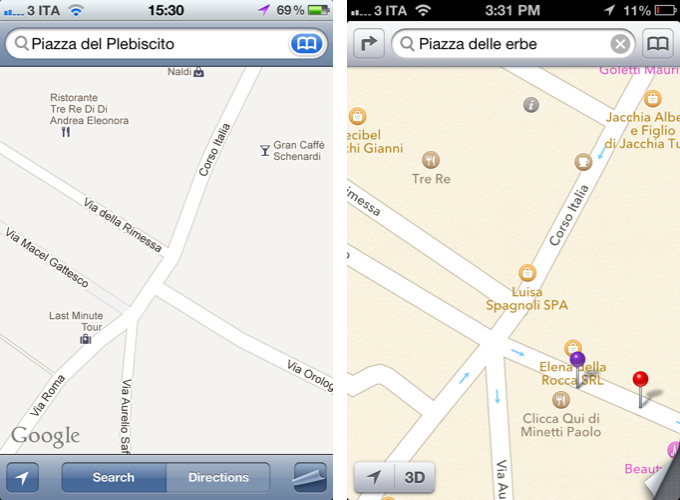
In my review of iOS 6 yesterday, I dedicated a section to Maps, comparing its features to those of iOS 5’s Google Maps product in Italy. Following yesterday’s launch, people have increasingly noticed that Maps, unlike Google Maps, is lacking in several areas like business listings, satellite views, Flyover accuracy, and more. Screenshots of Maps discrepancies with reality and plain-wrong data are all over the web.

In our Reading List in the sidebar (on the right), we’ve collected some of the best Maps-related articles from around the web.

There’s no denying that Maps will get better with time and usage. But unlike Siri, which Apple also said will get better with time, people have become dependent upon accurate maps for their livelihood. If I really had to nitpick, though, I, too, am curious to know how actually Apple plans to improve Maps without allowing customers to actively suggest other options.

Personally, I wonder how users who had (and will have) real-life issues like this would react to Apple’s statement.

Permalink

Start Using Passbook Now with the Target App

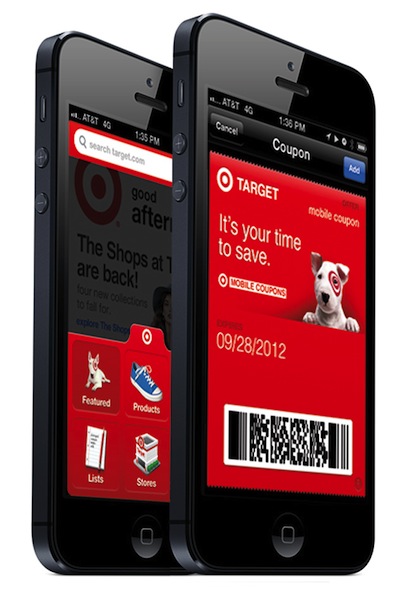
Passbook is one of the newest features of iOS: it’s brand new to iOS 6, and while many apps have yet to support it, there are a few that are working now. I have decided to take one of these apps for a spin to show you how Passbook really works.

The official Target app was updated yesterday to support Passbook, as announced by the company in a press release.

Now, many people know about Passbook, but when they first open it, the app simply redirects to a section on the App Store (when it’s working) without actually explaining how to fill this new digital wallet. Target has chosen to allow customers who receive Target Mobile Coupons to easily send, store, and access coupons in Passbook. Read more


Use Term.ly As A Dictionary Pop-Up on OS X

Use Term.ly As A Dictionary Pop-Up on OS X

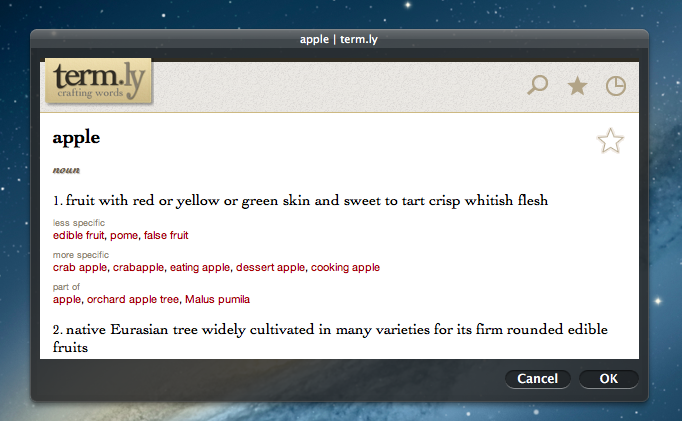
Earlier this week, Gabe of Macdrifter shared a great tip to use Term.ly, the dictionary service, as a pop-up to get definitions on OS X without opening the Term.ly website in the browser. His method requires building an Automator service that uses the “Website popup” action to display web contents inside a floating window, optionally using an iPhone resolution to get the mobile website.

I created an Automator service that allows me to select some text and then pop open the Term.ly definition as a small pop-over panel. I can then select a word in Term.ly and it will replace the selected word in my document and add the new term to my clipboard.

I like Term.ly because it’s easy to use, yet the content is focused and in-depth. For instance, the service will offer you “more specific” or “less specific” alternative words to choose from, and if it “understands” the word you’re passing along, say “tree”, it’ll also display options for “made of” (wood) and “member of” (forest). It’s really clever.

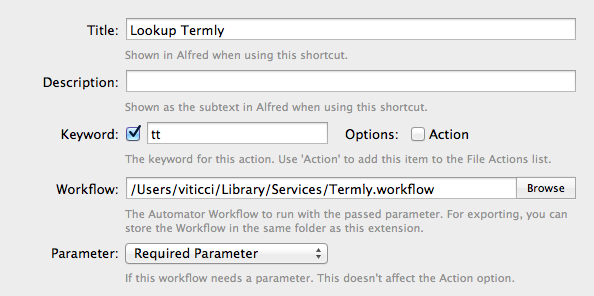
Gabe mentions it’s also possible to call the service using Launchbar. If you, like me, use Alfred instead, you can set up an extension that looks up words using Gabe’s workflow, as you can see in the screenshot above.

Term.ly is run by Agile Tortoise, which also happens to make two of my favorite iOS apps – Drafts and Terminology.

Permalink

iOS 6 Spotlight Concept

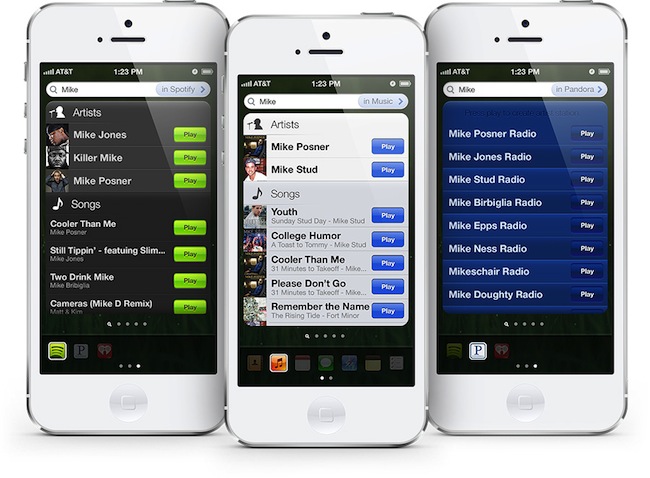
Last week, designer Cody Sanfilippo shared (via TUAW) an interesting concept of what Spotlight on iOS could be like. Drawing inspiration from Siri’s results, widgets, and some third-party apps that already enable similar functionalities, I find Cody’s concept worth of a deeper discussion. Particularly following the release of iOS 6 yesterday and the many refinements it brings to several areas of the OS, I think Spotlight is one of the stock functionalities that could use an overhaul in the future.

Cody’s proposed design essentially breaks down Spotlight by filters, and makes it play nicer with third-party apps and their content. It is aimed at reducing taps required to perform some actions such as calling a contact, or playing a song, and, overall, it takes some of the functionalities of Siri and translates them into a text-based input.

With this new system in place, you are capable of doing things a lot quicker. For example, tap phone numbers to call from Contact results. Tap their email addresses to email them. Tap “play” on a music result to play the song without ever entering the Music app. Check calendar events, or notes, or reminders instantly. You get all this information at a glance, without ever opening the applications. Of course, tapping the entry (the arrow in Contacts, entire clipping in Notes, etc) will bring you into that application.

In Cody’s vision, Spotlight could gain “filters” to display as buttons at the bottom. So rather than searching for a string of text across your entire operating system, you’d gain the option to refine your results by restricting them to a certain application, like Contacts. Looking for “Mike” in the current Spotlight, for instance, would bring up results from your Address Book, Music, Mail, Messages, and more. If you know you just want to view Mike’s contact card, though, you could enable a Contacts filter, and display a Siri-like card with phone number, Twitter username, and email addresses you can tap on.

Perhaps contacts aren’t the best way to illustrate how such concept could help users save time (though I’m a fan of Cody’s design idea for this). Say you want to play a song: with “Spotlight 2.0”, you could hit Play directly from a search result, saving you the time to open the Music app, view the playback screen, etc. Sanfilippo thought of various implementations for this concept for several built-in apps.

In my opinion, however, the really forward-thinking idea is the possible third-party app integration. You know how Spotlight can look at the contents of your Mail messages? Imagine if it’d be able to return songs from Rdio or Spotify, or tasks from OmniFocus without opening those apps.

That’s a very powerful concept, and one that is not too dissimilar from the Siri API many developers have been expecting since last year. Such an idea – a system that can “look into apps” for certain types of content it understands and returns as results – would probably require major changes by developers to their apps, although, as we’ve seen in the past week, developers who are truly committed to their apps will always update them with support for the latest technologies and devices.

If you’re interested in Cody Sanfilippo’s concept for a better Spotlight, I suggest you head over his website, where you can find a detailed explanation of his ideas, a UI breakdown, and some thoughts on the implications of a different Spotlight. If you’re interested in reading more on the subject, I also recommend this article by Rene Ritchie, which touched upon many similar points back in June.

You can check out the concept video below. Read more


Tube+ Is A Clean and Fast YouTube Client for iPhone

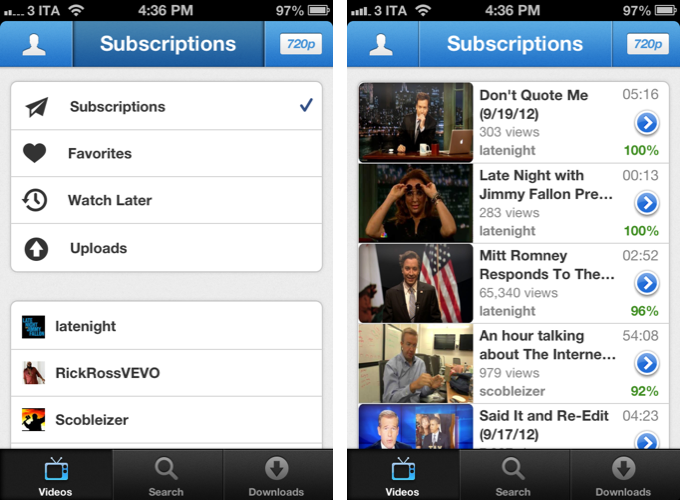
With Apple removing the built-in YouTube app from iOS 6 and Google releasing its own (pretty good) official app on the App Store, we should expect a renewed interest in third-party YouTube clients offering alternative features and designs. Tube+ is one of the first apps to hit with the “new wave” of YouTube clients, and I like it.

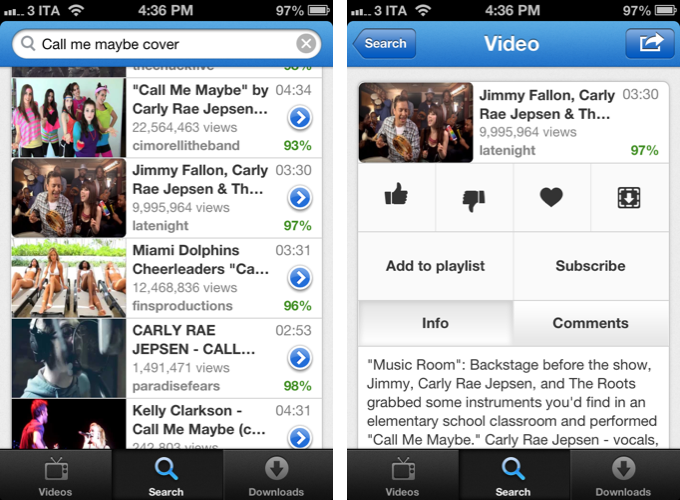
Developed by Chocomoko, Tube+ is simpler, both in terms of design and functionalities, than YouTube’s own app, or my favorite third-party client to date, FoxTube. You shouldn’t judge Tube+ by its streamlined appearance, however, as the app has access to some features and options that not even the official YouTube app has (for now). You can use Tube+ with or without a YouTube account; if you log in with your credentials, you’ll gain the possibility to check out your subscriptions, favorites, watch later videos. and uploads. If you don’t log in, you’ll still get access to regular search, Featured, Top Rated, Top Favorites, and Most Popular videos. To get the best experience, I obviously recommend logging into the service with your account.

The interface of Tube+ revolves around three tabs: Videos, Search, and Downloads. I’d like to focus on Downloads right away: unlike many other apps that had to remove a similar functionality, Tube+ (still?) allows you to download videos and keep them in a local cache so you can watch them offline. And the best part is, when you hit the download button on a video page, you’ll be asked to choose the “format you prefer” – you can download at 360p, 720p, 1080p, and all the in-between options YouTube provides. Tube+’s offline caching functionality is simple and effective, but you won’t be able to organize downloaded videos in local playlists or folders.

The main tab, Videos, is where you’ll spend most of your time. Here, you have various options to navigate around YouTube content using the top bar, which, similarly to Tweetbot, is actually made of buttons to change sections. The left button, a profile icon, is used to switch between public contents-only or your account; the button on the right lets you choose the default quality of YouTube videos you’ll stream, from 240p and up to 1080p with an “auto” option that loads videos depending on your Internet connection. Last, the main area of the top bar lets you switch between the aforementioned supported YouTube sections, your subscriptions, and videos you’ve liked or saved for later.

What I like about Tube+ is the control it gives me over the quality of videos I stream and download, but, more importantly, its speed and responsiveness. Tube+ is fast: sections load in a snap, video thumbnails load instantaneously when searching. There is a “load more” button to fetch more content from search, and the developers implemented the new iOS 6 pull-to-refresh mechanism to make it easy to check for updates or simply reload a page (note: Tube+ requires iOS 6). Alongside with notable performance, I appreciate the decisions behind the feature set of Tube+: again, it’s not as rich as YouTube or FoxTube, but you can still subscribe to channels and add videos to playlists, share videos with your friends, write comments, like, dislike, and mark a video as favorite.

There are some things I think Tube+ could do better. Firstly, I don’t like how, when sharing on Facebook or iMessage, the app uses its own short URL instead of regular YouTube links. This is particularly inconvenient for services that generate thumbnail previews only for YouTube URLs, like Twitter and Facebook. Second, I’d like to see an option to easily open an uploader’s video page – this is something that FoxTube still gets perfectly right in my opinion.

Overall, Tube+ offers a clean and fast experience – particularly if you use search a lot, you’re going to notice the speed of the app compared to Google’s official YouTube client. Tube+ doesn’t have the same amount of features YouTube and FoxTube have (for instance, there’s no separation of videos and channels in search results), but at $0.99 with offline caching, a good feature set and an elegant design, you should definitely consider Tube+.