View Mac App Store Links On iOS

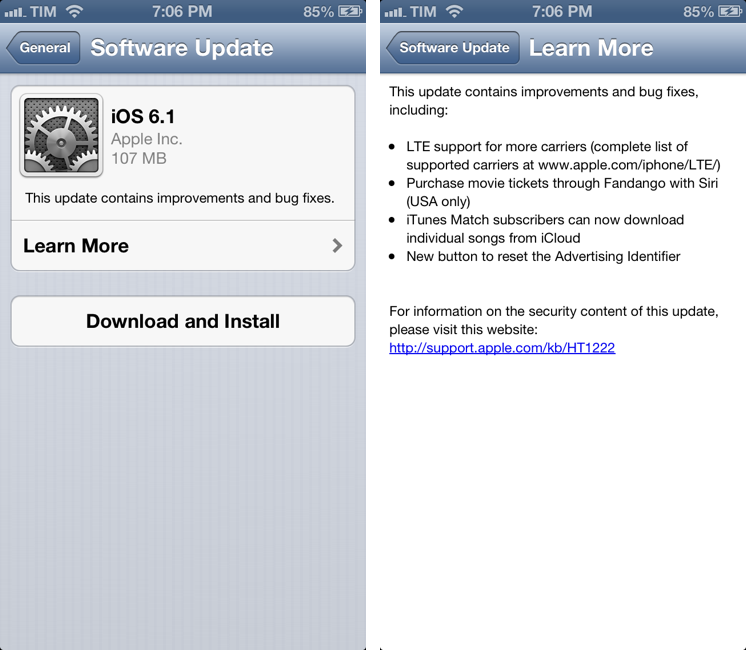
I don’t like how iOS devices can’t preview the contents of an iTunes link for a Mac App Store app (shown in the screenshot above on the left). While I (partially) understand the limitation from an infrastructure standpoint, I still think “incompatible” App Store pages should at least display text, screenshots, and a link back to the developer’s website without a Buy button.

There are solutions to preview a Mac App Store link on iOS. As far as browsers go, you can “Request Desktop Site” in Chrome for iOS and choose a different user agent in iCab Mobile (my two favorite third-party browsers). Chrome is my go-to browser these days, and I like how the feature is limited to single tabs, rather than the entire app.

Thanks to @AppleSpotlight, I’ve also found a non-browser app to achieve the same functionality and also a bit more. Desktop Apps lets you browse the Mac App Store from an iPhone or iPad (the app is Universal and free with ads). You can view the Top Free/Paid/Grossing apps, categories, and you can search for a specific app. You can open an app’s page, view screenshots, share a link via Email, Twitter, or Facebook (with native iOS integration), and even select text displayed as a description. Unfortunately, the app doesn’t fetch additional information like Developer Website, ratings and reviews, and there’s no URL scheme to easily turn itunes.apple.com links into URLs for the app (like Documents does for Safari).

Desktop Apps’ graphics aren’t entirely Retina-ready: the app is optimized for the iPhone 5, and two out of five tab bar icons are Retina-ready, but three of them aren’t – just like the icons of the Mac App Store apps. It’s a strange mix of fuzzy and crisp graphics. Desktop Apps has a $0.99 in-app purchase to remove ads; if you’re really into the idea of browsing the Mac App Store from iOS, go ahead and unlock it. Otherwise, I think you’ll be fine using the free version alongside Google Chrome.


Permalink


Apple Launches 128 GB Retina iPad

Apple Launches 128 GB Retina iPad

Apple announced today a new version of its 4th-generation Retina iPad with an increased capacity of 128 GB. Starting this Tuesday (February 5), the 128 GB iPad will be available in two colors (black and white) at $799 for the WiFi model and $929 for the WiFi + Cellular model.

Apple’s Phil Schiller was quoted in the press release:

With more than 120 million iPads sold, it’s clear that customers around the world love their iPads, and everyday they are finding more great reasons to work, learn and play on their iPads rather than their old PCs,” said Philip Schiller, Apple’s senior vice president of Worldwide Marketing. “With twice the storage capacity and an unparalleled selection of over 300,000 native iPad apps, enterprises, educators and artists have even more reasons to use iPad for all their business and personal needs.

In the same press release, Apple also included quotes from third-party developers such as AutoCAD. Apple included the same numbers they shared yesterday in regards to the App Store: more than 800,000 apps are available, with 300,000 made for the iPad. According to Apple, iPad “also supports the more than 5,000 newspapers and magazines offered in Newsstand, and the more than 1.5 million books available on the iBookstore” – the same numbers the company announced in October 2012 for the release of the iPad mini.

Permalink

Facebook 5.4

Facebook 5.4

The Facebook app for iOS was updated today to version 5.4, which includes the possibility to record and upload videos within the app, as well as sending voice recordings to friends.

The UI for sending voice recordings in private messages is interesting. You can tap the “+” button in a conversation to bring up a menu to attach a photo, snap a new one, send emoji, or create a voice recording. To create a recording, you have to “touch and hold” to talk; an audio file will be sent once you release the button, and it can be played inline in a conversation. It’s a very simple interaction. I don’t know if this is new in this version, but the “+” button rotates to an “x” when tapped – just like the “+” button in the OS X Dashboard used to rotate when clicked.

Because the file gets sent after the user lifts the finger off the screen, Facebook implemented its own way to cancel the action: you can swipe to the side while holding to cancel a recording in progress. Doing so will reveal a red “cancel bar” at the top of the screen as confirmation. Recordings can also be played inline on the Facebook website.

The improved Nearby tab is also well designed. With an embedded MapKit view, the Nearby section lets you check out “favorite places” in your area. Like Apple’s Maps app, Nearby has floating controls at the bottom to pinpoint your current location and hide/view a list of results. At the top, there’s a large button to bring up a search for places that includes categories like Coffee and Hotels, as well as your “History”. I like how moving the map around brings up delimiters to “Search This Area”.

Facebook 5.4 is available on the App Store.

Permalink


Nasturtium Player

Nasturtium Player

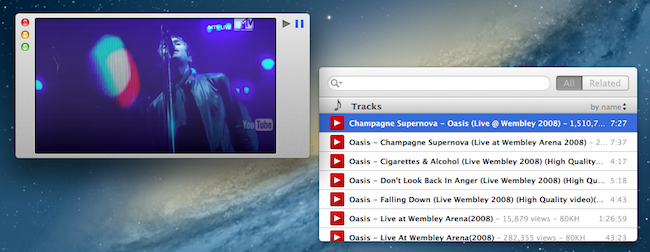
I first mentioned the public beta of Nasturtium Player back in November 2012. Nasturtium is an interesting take on an “iTunes mini player” mixed with a queuing system and a way to play videos from YouTube within a single interface. I wrote:

The concept of combining local music with YouTube videos resonates with my music workflow. While I tend to listen to music on Rdio, there are some older albums and songs that I need to keep locally either in iTunes or, most recently, Plex with PlexSync; similarly, there are YouTube videos of older demoes or live concerts of my favorite bands that I want to access every once in a while. I like how Nasturtium unifies search of local media and YouTube videos in a single interface.

Nasturtium has been out on the App Store for a few weeks now, and I like the improvements that went into the final version. There are keyboard shortcuts to control playback and playlists, and YouTube videos (while not resizable) now have preview thumbnails. Adding items to the queue is still as easy as hitting Enter, but you can also drag a song (from either iTunes or YouTube search results) into the main playlist interface, or use a “+” button. I particularly appreciate the possibility to collapse headers in search results to filter down results to Tracks or Albums (sorting options are also available).

As usual when trying new apps, it’s the care about small details that stands out to me. I like the thinking process that went into Nasturtium. The amount of minutes “remaining” in a playlist is available in the status bar at the bottom, but you can click it to show total minutes; similarly, while you can click the Play/Pause buttons to trigger playback, you can double-click the Play one to skip a track. As detailed in the app’s Help page, you can search by rating and genre as well simply by typing the information you need. I recommend reading more about the design process of the app here.

Nasturtium Player is $5 on the App Store.

Permalink

Apple Releases iOS 6.1 [Direct Links]

Apple has just released iOS 6.1. The software update, available in beta for the past few months, is available at the moment as over-the-air download. It should be available in iTunes soon.

iOS 6.1 brings LTE support for more carriers (as announced by Apple at the latest earnings call), possibility to purchase movie tickets in the US with Siri and Fandango, and a feature to download songs from iTunes Match individually using iCloud.

Apple details the updated list of LTE-compatible carriers here. According to a press release also posted by Apple, iOS 6.1 adds LTE capabilities to 36 iPhone carriers and 23 iPad carriers worldwide. Apple also shared more numbers:

To date, iOS users have uploaded over nine billion photos to Photo Stream, sent over 450 billion iMessages and received over four trillion notifications.

In the same press release, Apple has updated the statistics on the number of available App Store apps:

The revolutionary App Store offers more than 800,000 apps to iPhone, iPad and iPod touch users, with more than 300,000 native iPad apps. App Store customers have downloaded over 40 billion apps, and Apple has paid over seven billion dollars to its incredible developer community. Customers can choose from apps in 23 categories, including newspapers and magazines offered in Newsstand, games, business, news, sports, health & fitness and travel.

Earlier this month, Apple had announced that the App Store featured 775,000 apps with “more than 300,000 iPad apps”.

We will update this article with direct links to iOS 6.1 as soon as they’re available. Apple also released an update for the Apple TV, adding Bluetooth keyboard support, Up Next, and improvements to iTunes in the Cloud. Read more


Sponsor: Pixa

My thanks to Shiny Frog for sponsoring MacStories this week with Pixa.

Pixa is a Mac app to manage pictures that strips-away all the frivolous features: the need to manually add images to a library, and even some of the chores such as tagging images and sharing them. Pixa puts your library of images front and center in a clean and easy to use interface.

Pixa supports all the image formats you need: psd, ai, svg, jpg, png, Acorn, Sketch, and Pixelmator, among others. It comes with auto-tagging (for color, size, and web address information), and a feature called “Live Folders” that allows you to organize your images in Pixa without moving them from their original location in the Finder. I’m personally intrigued by the app’s support for OpenMeta tags and the tips the developers have been sharing on a dedicated Tumblr blog.

Find out more about Pixa here.


Evernote Image Extractor

Evernote Image Extractor

Nice AppleScript by Chris Sauve:

A recurring knock against Evernote has been its poor exportability. The best option for moving my library would have been to export the Evernote notes as HTML, but any images that were captured using Evernote’s web clipper come out with inscrutable names, each of which would have to be changed manually. So, I did what I have been doing lately: I built an Applescript.

Evernote is often criticized for its exporting options, but the app has been improved from this standpoint in the past major updates. For instance, I like how you can select multiple notes containing attachments and save them to a folder in the Finder. More importantly, I like how Evernote keeps supporting AppleScript and how they’re still introducing more scripting features (it happens rarely these days). Chris’ AppleScript is a great example: it offers a simple interface to pick a notebook containing notes with images, and it’ll export those images using the filename of their respective notes – not the name of the image files.

Go download it here.

Permalink