1Password 4.1

1Password 4.1

A new version of 1Password for iOS has been released on the App Store, and it contains several fixes and improvements, including some that I suggested in my initial review of the app. Aside from sync improvements and Display settings (I can now set Inconsolata as my password font), I particularly appreciate the possibility to double-tap on a tab on the iPad to go back to root view, and search in portrait mode on iPad. It is no longer needed to tap & hold on rows on item view to show the popup menu, and tapping a secure note shouldn’t bring up the keyboard anymore (as I mentioned in my review, I found that behavior confusing). If you have attachments in secure notes, they’ll now be shown as well in version 4.1.

My favorite feature of 1Password 4.1 is the new URL scheme. There are two types of 1Password URLs: one for search, and another to quickly open a website into 1Password’s built-in browser. The search URL is: onepassword://search/ followed by your search string. You can easily configure this with Launch Center Pro’s keyboard prompt to automatically bring up a search for an item in 1Password starting from Launch Center Pro. If you launch 1Password via URL scheme while it’s locked, 1Password will obviously ask you for the master password first, then proceed to visualize results that match your search.

The URL scheme for opening websites is far more useful for me. You can prepend “op” to a normal Safari URL (so it’ll look something like “ophttp://”) to open it directly into 1Password. For instance, typing ophttp://google.com in Safari will launch Google in 1Password’s browser. Therefore, I made a bookmarklet that you can click in Safari to open the current website in 1Password even faster; simply create a bookmarklet with this code:

javascript:window.location='op'+(window.location.href);

…And 1Password will launch the website you’re currently viewing. I tested the bookmarklet in Safari and Chrome for iOS; it has become a huge timesaver to quickly log into websites that I access on a frequent basis.

There are many other improvements in 1Password 4.1 that make the app faster, more stable, and that fix some of the graphical glitches that I mentioned in my review. There are some subtle additions as well, such as different colors for digits and symbols in the password field when a cell is selected. 1Password is one of my must-have iOS apps, and make sure to check out the new 4.1 version on the App Store.

Permalink

App Store Screenshot Changes

App Store Screenshot Changes

Earlier this week, Apple announced a change in iTunes Connect for developers: app screenshots will be “locked” to an approved app, and developers may only change them upon submitting a binary for an update to an existing app (or new app). This has quickly been summarized as a way to slow down a popular tactic for App Store scammers; on the other hand, it also affects legitimate developers, who will now have to more carefully select app screenshots.

Craig Grannel comments on the change:

Users can now look at an App Store grab and be sure that’s the app they’re going to get. This means they will be more likely to trust the system and more likely to use it. That leads to increased income. The compromise: you can’t change your App Store grabs approximately every six seconds

This is one of those changes with consequences that are clearly visible and direct for those who follow development and App Store news, but more nuanced and indirect for the general consumer. Developers will find the change annoying, because it has become common practice to “tweak” screenshots even after an app has been released to highlight different features and/or include text overlays with quotes from positive reviews, and so forth. Now screenshots will perhaps be treated more like app icons, which have to be chosen and studied carefully upon submitting an app. Developers now have less chances to “get screenshots wrong”, unless they want to submit an app update to fix them.

On the flip side, this is the kind of news that average users won’t care about. The billions of App Store downloads are made by people who have no clue about scamming strategies and who definitely don’t read Apple’s developer news. They trust Apple to provide a quality App Store experience, they don’t know about the inner workings of iTunes Connect. This screenshot policy won’t be directly noticed by consumers, but it will help Apple provide a better experience by crippling a common trick scammers used to sell one app for another.

What’s the solution? Enabling a “trusted developer” tier could be an idea. But then again, how does Apple determine “trusted developers”? By making them pay more, or by manually selecting companies they know and trust? And if the latter solution is feasible, how can a kid with a legitimate idea become “trusted” if he has no connections at Apple? Should there be a “request verification” process? And so on.

As the App Store grows bigger and older, dealing with thousands of sellers will become harder for Apple; sooner or later, they’ll have to face the fact that the current App Store infrastructure wasn’t built for a million apps. That is already true for search and curation. Trusting more and more developers is just another consequence of growth.

Permalink

Empty States

Empty States

Craig Dennis on area of app design that gets often overlooked:

Empty states are places in apps that have no content or data. They are empty. A blank page. Traditionally empty states are overlooked as most designers focus on how best to display lots of content or data. It’s common for empty states to be dealt with by developers as they are often caused by exceptions (such as no internet connection). They often write the copy and as a result it can be a little difficult to understand or it is left with the basic styles. Not the best combination. It should be logged as something that needs designing but that doesn’t always happen.

It gets even worse with apps that deal with errors through text that isn’t localized. In fact, I’d argue that proper localization is another aspect of the app economy that shouldn’t be underestimated anymore (as if it ever could be): with apps available in more than 150 countries, designing for the US market alone is a foolish assumption (unless, of course, an app’s only market is in the US – which is the case with many online services these days).

Empty states can be useful and provide context. Whether it’s a way to instruct users on how to get articles into a read-later app or a cute illustration with a link to How-To pages, empty states should find a balance between their lack of content and presenting on-screen guides.

Permalink

Tim Cook Meets With China Mobile Chairman, Discusses “Matters Of Cooperation”

Apple’s CEO, Tim Cook, today met with China Mobile’s Chairman, Xi Guohua, after earlier an earlier meeting this week with China’s Minister for Industry and Information Technology, Miao Wei. Today’s meeting with China Mobile is notable because the Chinese carrier is the world’s largest mobile phone operator with roughly 700 million subscribers and does not yet offer the iPhone to its customers.

China Mobile said in a statement that Tim Cook and Xi Guohua “discussed matters of cooperation” but declined to go into specifics due to a confidentiality agreement that was signed by both parties. Apple has been negotiating with China Mobile over carrying the iPhone since at least May last year, but the two have struggled to come to an agreement over the terms of revenue sharing.

Tuesday’s meeting with the Chinese Minister for Industry and Information Technology saw the two chat about innovation, China’s IT industry and the mobile industry. Yesterday, Tim Cook and Phil Schiller were spotted visiting an official Apple reseller in Beijing. Whilst today Tim Cook gave an in-depth interview to Sina Technology News where he said Apple expects China to soon become their largest market. In noting this, Cook also unsurprisingly revealed that Apple will be expanding its retail presence in China from 11 stores to more than 25 (no time frame is specified, but presumably in 2013).

[Sources: Reuters, AllThingsD, TUAW]


Pushpin for Pinboard

MacStories readers know that I’m a fan of Pinbook, a Pinboard client for iPhone and iPad. For the past two days, I’ve also been trying Pushpin, developed by Aurora Software, and I’m quite impressed with the feature set the app has reached at version 1.3. Pinbook and Pushpin are, ultimately, very different, and I believe their current versions can coexist on a Pinboard nerd’s iOS Home screen. Read more


Could Apple Be Moving To Twice-Yearly iPhone & iPad Releases?

Just over a month ago, Horace Dediu of Asymco penned an article entitled ‘Does S stand for Spring’ in which he hypothesised that perhaps Apple might be moving to a biannual (twice-yearly) release cycle for the iPhone and iPad. Over the past month I’ve gone back to read Dediu’s hypothesis as news articles and analyst opinions surfaced and I did some analysis of Apple myself. It’s got to the point that I really think Dediu’s hypothesis has got real potential to become reality. So I decided to take some time to present Dediu’s evidence in a slightly different way, elaborating on some of his evidence and hopefully add to the discussion. But if you haven’t read the Asymco article yet, I’d highly recommend you do so before proceeding:

‘Does S stand for Spring?’ - Asymco

Read more


Launch Chrome Bookmarklets With Keyboard Shortcuts

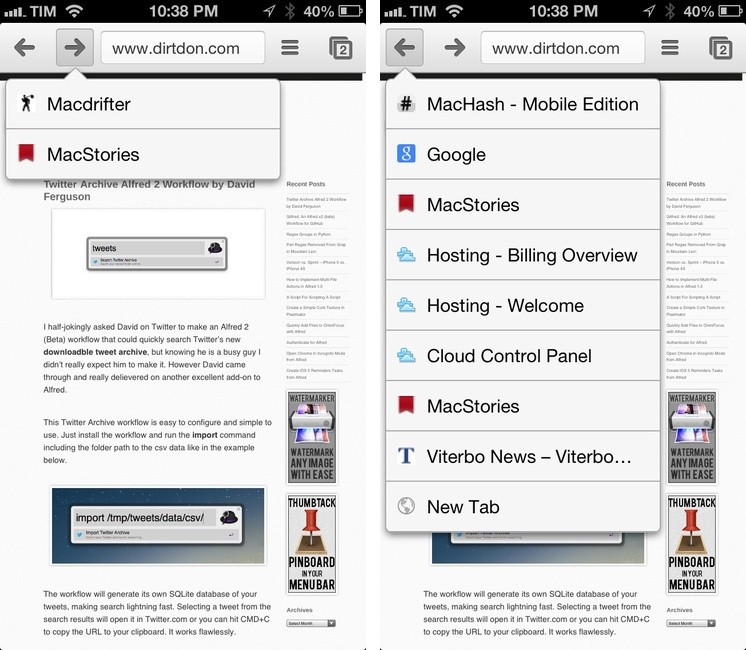
A few weeks ago I switched back from Safari to Google Chrome. I wanted to give Safari a fair chance, especially after the introduction of iCloud Tabs, but, alas, the browser never “clicked” for me the way Chrome did. Worse, using Safari on a daily basis for work-related tasks became an unsafe bet, as it was crashing too often, taking several minutes to sync my iCloud Tabs, or generally hanging for no apparent reason. I’m still figuring out the ins and outs of Chrome – particularly how to handle the lack of a “default browser” option on iOS – but, so far, Chrome is working better for me.

One thing I miss from Safari is the ability to launch bookmarks in the Bookmarks Bar with a simple CMD+1…9 keyboard shortcut. I use a lot of bookmarklets (which, by the way, Chrome syncs faster than Safari across devices), and I’m too used to hitting CMD+2 for OmniFocus and CMD+4 for Pinboard to give up the convenience of quick bookmarklet activation. Unfortunately, Chrome uses Safari’s CMD-based shortcuts for switching between open tabs.

The solution was laying in my dock the whole time. As cleverly shown by Patrick Welker, you can use a Keyboard Maestro macro to assign a keyboard shortcut to what is, essentially, Keyboard Maestro’s own GUI scripting, only done with a visual workflow. Make sure to read Patrick’s post to see how you can create a simple macro to “click” a bookmark in Google Chrome.

For the non-Keyboard Maestro users, a solution is to actually use AppleScript GUI scripting to simulate clicking a bookmark’s name. Using something like the script below, you can use any launcher that supports assigning a keyboard shortcut to an AppleScript to quickly launch a Google Chrome bookmark.

tell application "System Events"
    tell process "Google Chrome"
        click menu item "pin" of menu "Bookmarks" of menu bar 1
    end tell
end tell

The script could use an error-checking system to see if Chrome is the frontmost application, but I avoided adding it because I know I won’t use the shortcut anywhere else.

As for Chrome on iOS: because the browser forces you to type out bookmarklet names to launch them, my suggestion is to use a standard prefix so you’ll be able to launch them easily from the iOS keyboard. For instance, I prepend “xx” to my most used bookmarklets, so Chrome for iOS will filter the names right away.


Igor Cheban’s iPhone Paintings

Igor Cheban’s iPhone Paintings

Self-taught, 21 year-old artist Igor Cheban has posted on Reddit a gallery of his collection of iPhone paintings. Igor’s impressive work, available here, is the result of hours of work done primarily on an iPhone, with a few “paintings” created on the iPad (such as the “Wabbit” one in the link above). In the Reddit thread, which received hundreds of comments thanks to the exposure granted by Reddit’s homepage, Igor explains how he used award-winning iOS app Brushes to create the paintings (finger-painting with Brushes isn’t new to the Internet).

In particular, two comments stood out to me, as they epitomize the advantages and drawbacks of digital painting:

Very similar to digital painting on the computer. Although computer and real life painting allow you to control the flow of the lines by adding pressure which the phone is not capable of doing. So that’s something to consider. I do like the unlimited undos that digital painting offers so I would say that is the easier one.

when I’m working on a digital painting and I love the idea (for example “bird slayer”) then I feel just as excited as I would working on a physical painting… However, something wonderful about possessing a physical piece of artwork once finished. Unlike a digital file which could easily be reproduced, only one true original piece can exist.

Preservation of digital media, either in the form of text or images, is something I, and others, have been advocating for a long time. The topic resonates with iOS users: with apps that enable the most variegate kinds of creations, how do we ensure they can be stored and archived for future memory?

Make sure to check out the original Reddit thread and Igor’s profile on Instagram, where he uploaded more iPhone paintings and other sketches. He also posted a video on YouTube showing the techniques he uses with Brushes, mainly zooming in/out of the canvas to draw details and get the full picture. Brushes is Universal and free on the App Store.

Permalink

Mapping Apple’s International iPhone & iPad Rollouts

Apple has on three seperate occasions announced that the iPhone 5 will have the fastest international rollout of any iPhone ever - at the announcement keynote, during the Q4 earnings call, and in their press release announcing opening weekend sales of the iPhone 5 in China. The claim was, no doubt, meant to impress investors, press and the general public, but I was curious as to how fast it really was compared to previous iPhone rollouts. So I decided to track down the launch schedules of all the iPhones to date and then again with the iPad. In the end I found a few trends, some oddities and that Apple’s claim was (mostly) true.

iPhone 5 will be available in more than 100 countries by the end of December, making it the fastest iPhone rollout ever.

Read more