This Week's Sponsor:

Copilot Money

Copilot Money, The Best Money Tracker, Launches on the Web – Limited-Time: Get 26% Off + 2 Months Free


Posts in reviews

iTeleport Adds “Launch” VNC Voice Command for iPhone 4S

iTeleport, a popular VNC client for iOS that allows users to remotely connect to Windows PCs and Macs, has added a new feature in its latest update that lets iPhone 4S users launch applications just by using their voice. iTeleport, which I reviewed here, has always been a fine app to connect via VNC to OS X and Windows, and recently the app added full Lion support with authentication through the OS’ username and password. Unlike Screens by Edovia, another great VNC app for iOS and Mac, iTeleport doesn’t use its own online service to make computers available over the air, relying on Google logins instead (via Google Talk protocol).

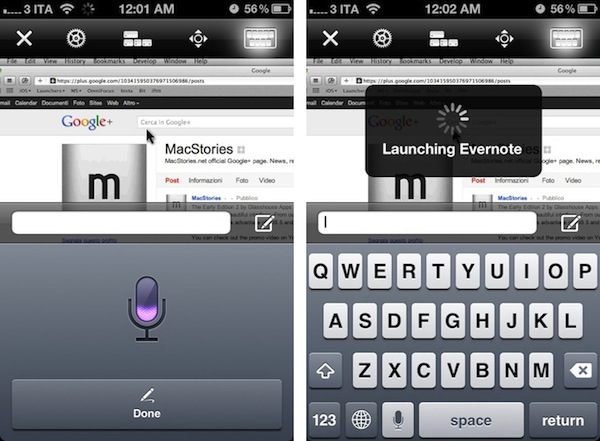
With version 5.2, iPhone 4S owners will be able to open Mac apps by saying “Launch” followed by an app’s name. Once connected to a Mac, the keyboard icon in the upper toolbar of iTeleport will display the standard iOS system keyboard with a compose box on top of it. And because the iPhone 4S comes with Siri and dictation, the keyboard will also have the dedicated microphone icon next to the spacebar. What happens with iTeleport is that if you say “Launch iTunes” through Siri’s dictation, the app won’t transcribe your command in the text box – it will directly launch the app as you can see in the screenshot above. The developers have apparently figured out a way to parse dictated commands directly inside the app to let it recognize installed applications, and launch them in seconds. In my tests, voice recognition in iTeleport has been as good as you’d expect from regular Siri, and app names such as Evernote, Google Chrome, iTunes and Sparrow were recognized instantly.

iTeleport was already a solid VNC app and this new feature will allow iPhone 4S users to save a few seconds when using a Mac remotely. iTeleport for iPhone and iPad can be downloaded on the App Store, and you’ll need the iTeleport Connect app to make your Mac available over the air.


App Journal, Episode 7: Muon, Flint, Sociable, CoinKeeper

App Journal is a new series aimed at showcasing apps we have enjoyed using on our iPhones, iPads, and Macs, but decided not to feature in a standalone, lengthy review here on MacStories. App Journal is a mix of classic reviews, weekly app recommendations, and a diary of our experiences with apps that still deserve a proper mention.

After the release of iOS 5, iCloud and the first wave of new apps that take advantage of Apple’s new OS and sync services, the App Store is quickly marching towards a holiday season that will be huge, both for hardware sales as well as app and game releases, software deals, and new retail features at Apple’s physical stores. While we wait for the craziness to begin later this month, we take a look at a cool music visualizer for the iPad, a finance app for the iPhone, a Campfire client and a utility to update your status on multiple social networks at once.

Sounds cool? Follow us for this week’s app collection after the break, and stay tuned for more App Journals in the next weeks.

Muon

I found out about Muon when I first saw an ad in our site’s sidebar. I don’t manage advertising on MacStories anymore, so the encounter was completely random, and the fact that the developers are advertising on our site didn’t influence my decision to mention their iPad app on the Journal. Just making things clear.

That said, Muon is a nice music visualizer for the iPad, kind of like iTunes’ own visualizer but with more effects and touch controls. The app can fetch songs from your existing Music library, and displays AirPlay-compatible controls as a translucent bar at the bottom. You can tap on a song’s name at any time to change artist or album or pick a playlist, but I don’t like the blue design of the music picker menu. Visual effects are obviously Muon’s main feature, and interestingly enough the app comes with settings to control the Audio, Drag and Mutate reactions of the Visualizer. You can tweak things like Orbital Speed, Life Span, Color Entropy and Zoom & Blur, and you’ll notice that modifying these parameters really changes what’s displayed on screen.

The developers claim Muon can move up to 500,000 particles on the iPad 2, with a complex visualization engine that makes effects evolve with the beat of you music and gradually form different shapes and patterns that you can capture as presets, or screenshots with the dedicated camera button. The app supports video-out and AirPlay Mirroring, as well as dual monitor setups and full-screen view on the iPad.

Overall, Muon comes with some fairly advanced control options but I simply prefer to keep it running and let it decide which effects to use according to the song that’s playing. Muon is $0.99 on the App Store for a limited time.

Flint

For our communication needs here at MacStories, we use 37signals’ Campfire. For those who are not familiar with the service, it’s a fantastic chat tool for teams that, among other things, allows you to upload files, manage chat transcripts for multiple rooms, and visualize media such as pictures and videos with inline previews. We use Campfire every day to quickly put out news, casually hang out, and assign articles to each other. There’s no doubt Campfire has become an essential tool for getting things done over here.

In the past months I’ve been testing Flint, a native Mac client for Campfire that’s available on the Mac App Store. It’s been hard for me to switch from the browser-based, pinned tab for Campfire, but Flint is simply fantastic. The interface is elegant, gets out of the way and nicely highlights conversations in a Campfire room. There are profile pictures for users, and a popover at the bottom lets you see all participants in a conversation. The app supports most of Campfire’s web functionalities (image previews, sounds, but no emoji), and more importantly it’s perfectly integrated with Growl on OS X.

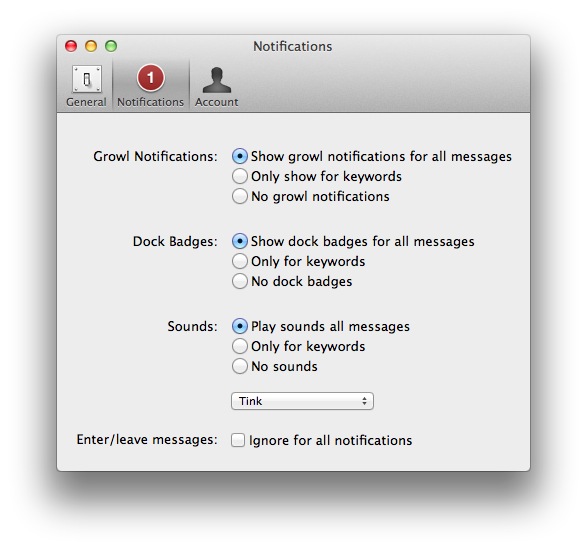
This is the main reason I use Flint – with Growl integration, I can take a look at what’s being said without opening the app and, from the Preferences, control the behavior of sounds, dock badges, keywords and enter/leave messages. In the past weeks, the developers have also released an update that improves the reliability and speed of the app from the first version – so if you gave it a try initially and went back to Campfire on the web, now it’s time to fire up the app again and see if things have improved for you.

I, for one, will keep using Flint to catch up with my team and get work done. If you’re serious about Campfire and have a Mac, Flint is $9.99 on the App Store. Read more


MacStories Product Review: Stem Innovation TimeCommand

You go through the same routine every morning right? Slap the snooze button a couple of times, roll out of bed, and turn on the blinding lamp sitting on your dresser. Good Morning! Well kids, there’s a clock in town that has pretty neat wake-up, sleep, and light dimming capabilities, while doubling as an iPhone, iPod, and iPad dock. The TimeCommand’s best qualities aren’t even time related — Sonic iQ technology (in other words: nice sounds) make this a snazzy bedroom or living room speaker when you’re rocking to your favorite tunes. Ready to integrate your iPhone and a light show into your daily routine? Let’s do this.

Read more


iCloud, Mobile Documents Sync and GoodReader

Last night we detailed how it’s possible to sync documents across multiple Macs configured with the same iCloud account through a hidden folder in Lion’s Library called Mobile Documents. As I explained in the article, this folder is actually the destination and sync location for iCloud-enabled apps, such as Instacast and iWork, that have been updated by developers to officially take advantage of iCloud’s Documents & Data. But as it turns out, Mobile Documents can be used for syncing files across Macs “manually” – just drop a file or folder in there, and it’ll show up on another Mac running the same iCloud account. So whilst Mobile Documents is “officially” used for App Store apps that work with iCloud, it can also come in handy as a native “drop box” powered by iCloud.

As many were quick to point out, syncing files between Macs is nice, but “real” syncing solutions like Dropbox come with mobile apps to make sure your documents and folders aren’t simply synced between desktop machines. Since Apple isn’t offering a new version of iDisk based on iCloud – and seems to be moving away from the concept of filesystem altogether – the method I described in the article was obviously meant for owners of multiple Macs – the Mobile Documents “hack” is cool, but it’s not supported by Apple.

On the App Store, however, that are several apps that over the years have tried to re-implement the filesystem on iOS by offering access to a plethora of online sources for your files, such as FTP servers, Google Docs, Dropbox and SugarSync. These “file management” apps like iFiles and iStorage aren’t integrated on a system level, but they work as “aggregators” for documents you may have already saved in the cloud, only they bring them together in a single location.

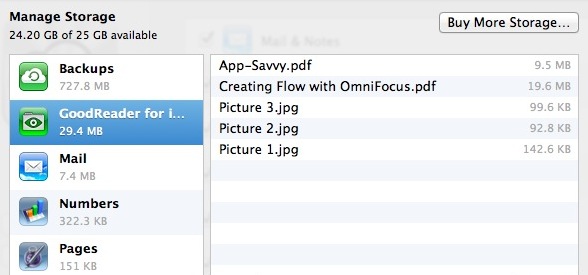
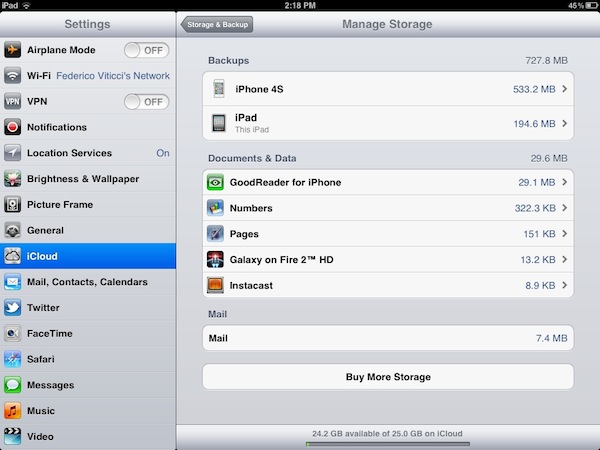
One of such apps is GoodReader, perhaps the most popular document reader & file manager ever landed on the App Store’s virtual shelves – GoodReader comes with hundreds of features and support for multiple online services, plus it’s also a decent PDF reader with annotation functionalities and an overall good preview engine. As I was playing around with the idea of having Mobile Documents work with an iOS app, I realized one of the latest GoodReader updates introduced full iOS 5 and iCloud compatibility, meaning the app can store its documents and data in iCloud, and will show up as iCloud-enabled app in your account (to check this, open Settings->iCloud->Storage & Backup->Manage Storage on iOS, or System Preferences->iCloud->Manage… on OS X Lion). And if an iCloud-enabled app with Documents & Data shows its contents on OS X under Mobile Documents, it means GoodReader should be capable of syncing its own filesystem back to the Mac.

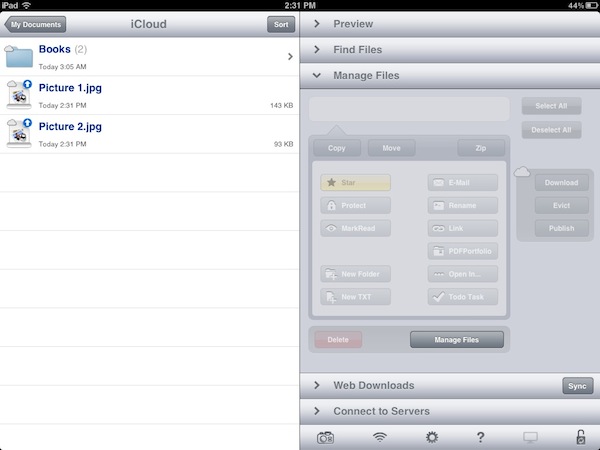
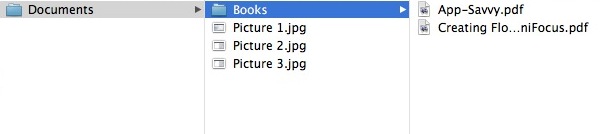
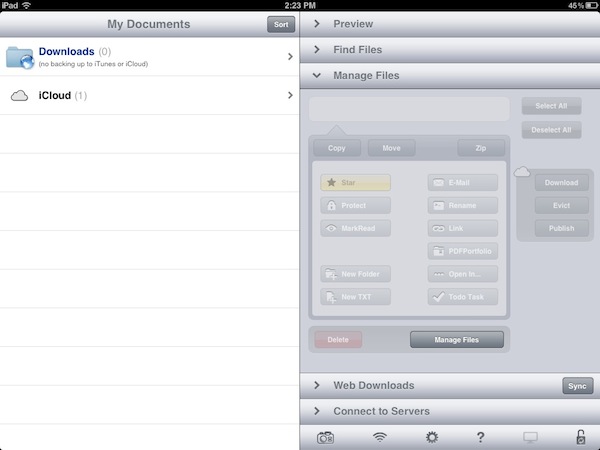
Indeed, you can use GoodReader to manage files and folders on iOS, and have them available on the Mac as well through iCloud and Mobile Documents. GoodReader will create its own folder inside Mobile Documents, and every change (new file, new folder) you’ll make on the iOS app will appear inside GoodReader’s “Documents” directory. Of course, you’ll have to use GoodReader’s “iCloud” folder to enjoy these syncing features; thanks to GoodReader’s file management features, you’ll be able to create folders and sub-folders, move documents around and delete them, create new text files, rename documents, and more. GoodReader has some pretty powerful features, and it’s nice to see the developers are supporting iCloud out of the box with a dedicated folder on the main “My Documents” page.

Thanks to GoodReader’s support for multiple online services, you’ll be able to, say, move files from Dropbox or Google Docs to iCloud directly from the iOS app.

In my tests, iCloud sync with GoodReader has been extremely fast and reliable. Documents imported on iOS would show up in seconds on the Mac’s Mobile Documents, and vice versa. I was able to move screenshots between my Mac, iPhone and iPad using Mobile Documents and GoodReader, but I also created folders, compressed files, imported PDFs and MP3 files. Because iCloud is based on push technology, files are pushed immediately to the cloud and downloaded on all configured clients, but I noticed that GoodReader for iOS, unlike the Mac’s Mobile Documents folder, doesn’t download a full document as soon as the data is “pushed” from iCloud. Try this: on your Mac, drag a medium-sized PDF into GoodReader’s iCloud folder. Notice how the PDF’s icon and name show up on GoodReader after your Mac has pushed the document to iCloud. But try to open the PDF from GoodReader, and you’ll see the app will require additional download time, as only the main information about the file has been pushed to iOS – if you want to read it, you’ll have to wait for the full download. I actually found this method pretty clever, as it gives me up-to-date file information in seconds, and allows me to download files when I need them. Overall, I’m impressed by iCloud and GoodReader working together to sync files across different iCloud clients.

Why should you care to have GoodReader syncing files that also happen to show up on your Mac? First off, it’s a cool trick. More importantly, iCloud’s push technology works well, and users (like me) may find it convenient to have an easy way to, say, import iOS screenshots on the desktop without using Photo Stream, while still relying on iCloud. Thanks to GoodReader’s support for audio and video, iWork and Office files, HTML archives and text files, you’ll be able to copy a variety of documents from your desktop onto iCloud, and have them synced back to iOS in seconds.

Check out how to sync files with Mobile Documents and iCloud here. GoodReader is available on the App Store for iPhone and iPad.


Recommended Read: “Talking to Siri” by Erica Sadun and Steven Sande

I got my iPhone 4S two weeks ago, and have been experimenting with Siri and my best American accent since then. In spite of the software still not supporting maps and directions in Italy (more countries, including Italy, will support Siri in 2012) and weather requests, I’m having my fun in playing around with Siri for things like messages, notes, emails and Wolfram Alpha questions (I thank Americans for giving me a reason to convert their units to the metric system). Siri makes for the perfect iPhone demo to non-iPhone users, but impressive presentations aside it’s actually a great tool to quickly “do stuff” that would require looking at your phone and manually interacting with apps otherwise. I can’t tell you how many times I’ve already asked Siri to send messages to my co-workers while I was driving, change songs, call my girlfriend, or create new calendar appointments.

A few days ago I was sent a link to “Talking to Siri: Learning the Language of Apple’s Intelligent Assistant” by TUAW’s Erica Sadun and Steven Sande. I’ve read the book using the Kindle app on my iOS devices and Amazon’s CloudReader on the web and, let me tell you, it’s a great book to learn more about Siri.

At first I was skeptical – why would I need a book when Siri is so intuitive? It turns out, Erica and Steve have put together an impressive collection of things Siri does that I didn’t know about, also explaining with a friendly and familiar style (if you’ve been reading TUAW, which I do) how you should ask things to Siri. The book is organized in sections, covering every system app that’s integrated with Siri as well as built-in tools such as Wolfram Alpha and Yelp. Erica and Steven have also included lots of screenshots and descriptions, so you’ll be able to immediately understand and see what they’re referring to in describing Siri. It’s an incredibly pleasant read for new iPhone 4S users, and a nice handbook to get started with Siri. Without spoiling much, let me just say that I’ve learned a lot about things you can ask Wolfram (built into Siri), how to keep adding new items to a note, sunrise and sunset times and recurring reminders.

“Talking to Siri” covers in great detail every possible combination of commands Siri supports, providing a comprehensive guide to know more about what Siri can do for you. You can buy the book on Amazon as Kindle edition.


Plex 2.0 for iOS Brings Revamped Remote Access, New Home Screen - Plex 0.9.5 “Laika” Released

Back in April I wrote about Plex 1.1, a new iOS version of the popular media manager for Mac and Windows (as well as other connected devices such as Roku) that brought a new design, better streaming of movies and TV shows with Direct Play and Direct Streaming, and many changes from the original application that was released a year ago in November 2010.

With a series of releases announced via various blog posts, the Plex team launched last night version 2.0 of Plex for iOS, another major revamp of the mobile client for iPhone and iPad that brings an improved home screen design (for the grid UI that was introduced in 1.1), new remote access, better subtitle management and over 150 bug fixes. As previewed last week, the Plex team figured one of the most requested functionalities for the desktop media server – a utility that finds media on your computer or local network and handles transcoding, metadata and streaming to Plex clients – was better access of personal media (movies, music, TV shows) over the Internet. In its previous versions, Plex was capable of making a computer or external hard drive available over the Internet via port forwarding, but setup was far from easy and seamless, and the lack of any online counterpart for over-the-air sharing made it impossible to build a platform on top of a local Plex installation. With myPlex, Plex brings “real” remote access to all your media, allowing the app to communicate with my.plexapp.com through a user account (which you can create for free), letting users not only access servers (like your iMac or Mac mini) remotely, but also to share specific sections of a library with other Plex users.

myPlex is a full-featured solution to access, share and save content for later. “Access” means all your connected Plex media servers will show up online, readily available to show your sections and library; I haven’t been able to personally test the remote access part of myPlex as my router doesn’t want to play nice with port mapping, but I can see how the redesigned preference panel will make for a more intuitive experience when making a computer available online. Moreover, the screencasts posted by the Plex team (available below), show how easily it’s possible to connect media servers to myPlex.

Sharing plays another big role on myPlex: whereas in previous iterations of Plex users could only share content with others by opening up their routers for external access, providing a friend with the required authentication system to access a Plex installation, myPlex makes it extremely easy to pick a folder (say a Music collection, or a TV series), enter an email address of another Plex user, and start sharing content online. Users can share an entire Plex library or just some sections, and obviously the system will take advantage of Direct Play and Direct Streaming between remote connected users and libraries whenever possible. myPlex is a simpler interface on top of the old (manual, URL-based) sharing process, and it’s deeply integrated with the updated iOS and Mac clients. Read more


Adobe Carousel Review: Sync & Edit Photos Anywhere

With the introduction of iOS 5 and iCloud, Apple enhanced the standard photo management experience on iOS devices and Macs with Photo Stream, a new cloud service that makes all your photos available anywhere at any time through iCloud. As I detailed in my iCloud overview, Photo Stream is a new “invisible” part to iCloud that lives inside the iOS’ Photos.app or iPhoto on the Mac, allowing the operating system to instantly push photos – whether they’re actual photos or screenshots taken on iOS – up to the cloud, and back to all your devices configured with Apple’s service. So when you’re taking a new photo on your iPhone, Photo Stream ensures the photo is also pushed to your iPad and Mac, so you won’t have to sync or manually transfer files when you’re home.

Photo Stream is a convenient solution because it’s easy to use and doesn’t require any configuration, but this very lack of options and adjustments has generated quite a debate in the past few weeks among users who would like to be able to control their Photo Stream to exclude certain kinds of images, or at least manually delete the ones that aren’t worth the cloud storage. Because Photo Stream has been built to be invisible and extremely simple, it doesn’t come with any preference to, say, diversify screenshots from regular photos, or delete photos you mistakenly took from your online stream. Photo Stream is simply an on/off switch for all or nothing, and whilst it has turned out to be an indispensable tool in my workflow for photos and iOS screenshots, others would like to have some kind of control over how photos are chosen and pushed to their devices. Read more


ReaddleDocs 3 Review: Powerful Document Viewer & File Manager For The iPad

ReaddleDocs 3, the latest version of the popular document viewer and file manager for the iPad was released a few days ago and it packs a bunch of new features and improvements. The app is a little odd in some ways, because at its core it is trying to recreate the file system on an iPad — something that Apple has tried its very best to stay away from with iOS. But in reality, if you’ve wanted to be productive on an iPad you’re inevitably going to need some sort of file system, because whilst iCloud is beginning to help with document and app sync, it isn’t all that helpful for syncing between apps.

As a result, I use a few other ‘cloud’ services to keep all my documents in sync and available everywhere. The primary one I use is SugarSync, but I also use Dropbox (primarily for collaboration) and occasionally Google Docs. This allows me to use any of the computers I have at home, where I will have all my documents ready and available - I can even edit them and see those edits synced across to the other computers where I could access that same file the next morning with all the edits included.

But how do I deal with documents on the iPad? It’s been a bit of a complicated issue since the iPad was first released, and initially I was just emailing any documents I needed on my iPad to myself and then opening that email up on the iPad - but this was messy, complicated and required advanced ‘knowledge’ to send that file before you could see it on the iPad. Eventually I realised I had to find a better way to solve this, and that’s where SugarSync and Dropbox come in. Both these services (and a multitude of others) slowly began to be supported by various apps for the iPad and iPhone, hooking straight into the services. This was a far better way to open files on the iPad - but the apps felt very rough around the edges.

In recent months I’ve been using iFiles on the iPad and iPhone, it’s been pretty great and it was certainly the best app I had used to date for viewing documents from my Dropbox folder and SugarSync services. Then about a month after I started using iFiles, I came across PDF Expert. Primarily I was using it for PDF annotation, but I noticed it was also a pretty great file viewer, particularly because it would also integrate right into Dropbox and SugarSync. So over the past few months I’ve been using PDF Expert for most of my document viewing needs and occasionally opening iFiles.

When looking at it simply, PDF Expert and ReaddleDocs 3 are nearly identical — they share very similar user interfaces and are close in functionality too. Where they differentiate is mainly in price (PDF Expert is nearly twice as much) and in annotation abilities (it is far better in PDF Expert). So before I go into too much detail, if you want to do a lot of PDF annotation on the iPad, PDF Expert is what you should purchase (even if you want to use it as a document viewer, because it is also good at that). In all other cases my recommendation is for ReaddleDocs 3, particularly if you want to do some file management - it is virtually identical and also has some annotation capabilities.

Jump the break to continue reading my review of ReaddleDocs 3.

Read more


Pixelmator 2.0 Now Available On The Mac App Store, Our First Impressions

Pixelmator 2.0, a big new version of the popular image editing application for the Mac, just hit the Mac App Store and is available for just $29.99 (as an introductory price) and is a free upgrade for those who have previously purchased a copy of Pixelmator from the Mac App Store. Pixelmator 2.0 is a significant update, with significant improvements, completely new features, a new look and full support for OS X Lion.

With tons of exciting new features and support for OS X Lion, this new version of Pixelmator is the easiest, most enjoyable way to experience the best of image editing. Pixelmator 2.0 gives everyone the tools they need to unlock their creativity and boost their productivity, all for just $29.99. - Saulius Dailide of the Pixelmator Team

The big new features in Pixelmator 2.0 make it a truly powerful image editor and for most people it should be more than sufficient for all their needs - likely making something like Photoshop overkill for what their requirements are. A big drawcard for many will be Pixelmator’s new drawing tools that make it easy to create, combine and edit vector shapes easily. A new ‘Shape Settings’ palette also makes it simple to adjust the shadow, stroke and fill of a vector shape. A new healing tool in Pixelmator 2.0 features content-aware fill technology so that it is easy to remove ‘objects’ from a photograph and make it appear as though it was never even there.

By choosing either the new Healing Tool or the selection tools, a user can select wrinkles, blemishes, image damage or any other details present in images, and with just one click let Pixelmator seamlessly fill the selected area with similar nearby image content.

Then there are the new retouching tools of smudge, sponge (desaturate), burn (darken), dodge (brighten) and red-eye. These tools are great for retouching and work as one would expect. Finally, there is an improved type tool that not only makes it easier to format your text, but now also features more advanced typography tools for those that want complete control over how their type looks.

Taking advantage of the new features that Apple added to OS X Lion, Pixelmator now supports the native Auto Save and Versioning available in Lion, allowing you to easily save multiple versions of a document you are working on, and compare those versions easily. Lion’s Full Screen feature is also built into Pixelmator so you can easily focus on your work without distraction and also take full advantage of your Mac’s screen real estate. The last thing to note is that Pixelmator 2.0 also follows Lion’s lead and supports a number of gestures, buttons, menus and the new ‘invisible’ scroll bars.

The look of Pixelmator has also been refined in 2.0, with a new ‘Tool Options’ bar and an ‘Info’ bar. Both sit discretely at the top of the window and both bars are contextual, changing depending on what tool you choose, giving you the appropriate information and settings depending on what tool you are using - so you never see useless information. The Tools palette is also more customisable now, allowing you to add, remove and even group any tools you want - letting you create a Tools palette that matches what your workflow requires.

There are a number of other new features, improvements and tweaks that are too numerous to go into. But speaking as an occasional user of Photoshop, Pixelmator 2.0 seems to have almost all the features I require for my image editing and it gives them to me at a fraction of the cost. If you’re like me, you might find Pixelmator a little jarring at first, with various tools and options located in different locations, but this soon disappears when you realise its an incredibly capable piece of software - that from my experience is actually a little more nimble at accomplishing various tasks (particularly when dealing with text).

Pixelmator 2.0 is available on the Mac App Store at an introductory price of $29.99 so be sure to grab a copy of it - at that price it’s an absolute steal. If you have previously purchased Pixelmator from the Mac App Store, its a free upgrade.