This Week's Sponsor:

Copilot Money

Copilot Money, The Best Money Tracker, Launches on the Web – Limited-Time: Get 26% Off + 2 Months Free


Posts in reviews

Quick Review: RankIt Checks On iOS & Mac App Store Charts

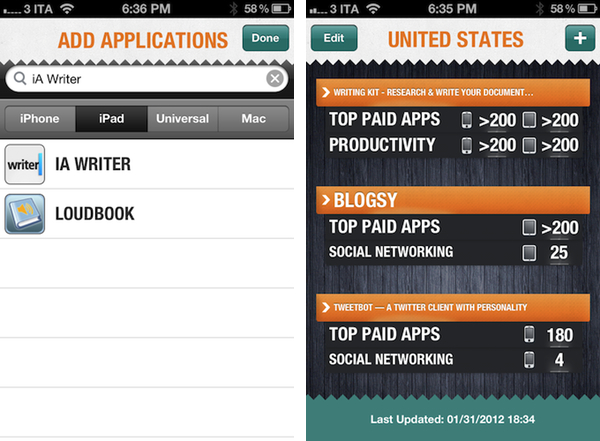
Developed by Steve Reynolds (Analytix, Clicky Touch), RankIt is a new iPhone app that allows you to check on iOS and Mac App Store charts for any app that’s currently available for sale. Whilst some iPhone apps have tried to bring the complexity of web-based App Store analytic tools to iOS in the past, RankIt focuses on simplicity in that it allows you to quickly enter as many apps to “monitor” as you want, and refresh at any time to see real-time rankings.

As you fire up RankIt for the first time, you’re asked to add an app from the App Store you’d like to check rankings for. You can choose between iPhone, iPad, Universal and Mac apps, and change from United States to 9 other markets with available charts. In Settings.app, you can further tweak RankIt to adjust the number of maximum ranks returned (from 50 up to 400), set a default country, and refresh on launch. Once you’ve entered an app to monitor, RankIt will quickly refresh its ranking to check on freshly updated charts. RankIt will display an app’s position in the Top Paid/Free charts, as well as its ranking in the category’s charts. Universal apps will show iPhone and iPad icons next to them; with one tap, you can open a single app view that displays rankings in multiple countries. You can refresh at any time, with RankIt taking only a few seconds to get updated charts from the App Store.

In spite of its simplicity, I believe RankIt can be a worthy addition to any iOS or Mac developer’s workflow. In fact, the app’s focus on “quick stats” might just be its biggest selling point when compared to more in-depth tools that can’t just be refreshed every 10 minutes, whereas RankIt seems to be meant exactly for this – quickly checking on the App Store’s charts. I’ll make sure to test RankIt again during one of the big app launches next week, and see how it handles updates in real-life usage scenarios.

RankIt is $1.99 on the App Store.


Witness Home Alarm System Gets AppleScript Support, Sneak Peek, Face Detection

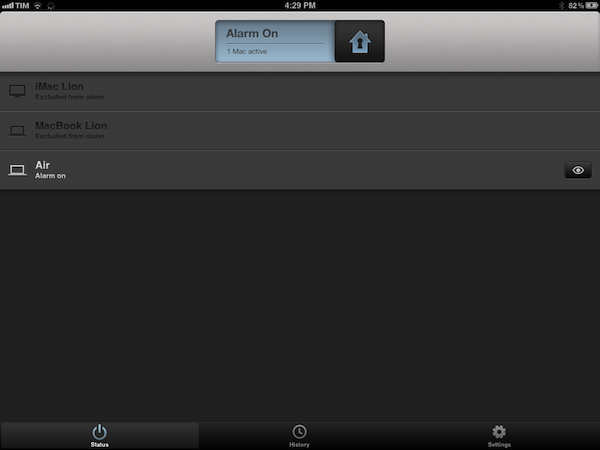
I’ve been a loyal and satisfied Witness customer since the app’s original release last year. Witness, developed by Orbicule (makers of Undercover and Macnification), is a Mac-based home surveillance system that uses your Mac’s built-in FaceTime/iSight camera to snap photos of whoever’s using your computer when you’re not there. This utility, in fact, securely communicates with a web service that’s connected to iOS apps (iPhone and iPad) that enables you to remotely lock your machine as you walk away from your house, and receive push notifications when the camera detects motion in front of your Mac’s screen. Witness sends push notifications, snaps photos and videos that are sent in real-time to your iOS devices (so you know instantly what’s going on), and can lock your computer using Lion’s standard login screen, or the app’s own lock dialog. You can read more about Witness in my review.

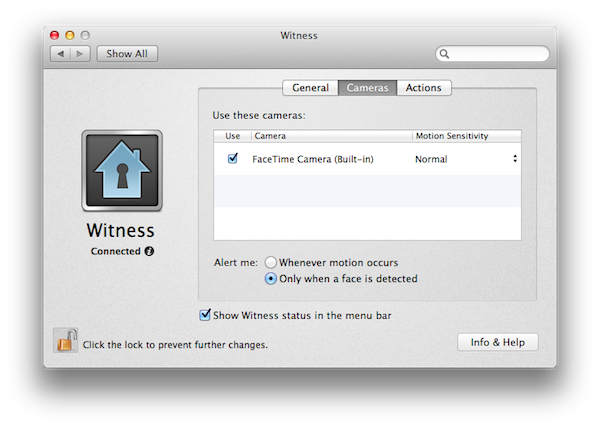
With Witness 2.0, released today, Orbicule has supercharged its home alarm system technology adding a series of functionalities that give more control to users away from their computers, and more issues to (possible) burglars looking to steal your Mac without being seen (or really, just people who want to mess around with your Mac without telling you). Aside from motion detection, which has been improved, Witness 2.0 comes with face detection, allowing you to be notified only when an actual person is sitting in front of your computer’s camera. There are settings to adjust motion sensitivity, and, overall, this feature can really come in handy if you have pets running around the house when you’re not there. I have tried this with my two dogs, and it worked remarkably well with motion sensitivity set to “Normal”: Witness didn’t detect anything with my dogs normally walking around, and I was only sent a notification when I held my dog right in front of the FaceTime camera. Similarly, Witness’ alarm didn’t fire off when I asked my girlfriend to simply walk around the living room, but I did get a notification as she approached my computer.

Next up: multiple cameras and sneak peek. Whereas Witness 1.0 allowed you to set up one camera (the built-in one) and watch images and videos sent after a successfully triggered alarm, Witness 2.0 lets you connect up to 3 cameras (USB or FireWire) and check upon your room from multiple angles. Combined with a new feature called Sneak Peek that lets you load an image from your camera at any time, Witness 2.0 offers a good combination of real-time capturing and multiple angles – I imagine this can be particularly useful for large rooms and office areas.

Last, Witness 2.0 has AppleScript support and auto-activation. You can ask Witness 2.0 to run an AppleScript when an alarm is activated, deactivated, or motion is detected, thus creating a whole new range of possibilities for remote automation. Someone’s using your Mac? Why don’t you tell iTunes to start playing this at the highest volume? Or perhaps open a totally creepy video in the default browser? With AppleScript support, you have endless possibilities for customization and it’s really up to you to find something that might be useful when executed automatically by the system. Even better, with Witness 2.0 you’re given the option to forget about activating your alarm as the iOS app now uses geo-location to see when you’re not near your Mac anymore, and activate the alarm for you. Obviously I still recommend manually activating alarms (especially if you’re working with multiple Macs in different locations) as geo-location can’t always be 100% reliable, but in my tests Witness managed to activate an alarm roughly 2 minutes after I left my house, so I’d say it worked fairly well.

With these new features and optimizations, I highly recommend existing Witness users to upgrade to version 2.o and check it out by themselves today. If you haven’t tried Witness yet, a single user license is available through Orbicule’s website at $39 with a student discount available.

Exclusive offer for MacStories readers: Using this link, you can purchase Witness 2 (single user license) with a 20% discount. The coupon code is directly applied, and it will be valid until February 6.


Quick Review: NewsFlash Aggregates The World’s Headlines

Even though I do most of news consumption in Instapaper, Twitter, and Zite these days, I still enjoy getting up to speed with “real news organizations” every once in a while. The majority of time that means getting to fire up some Italian website that delivers news (such as Ansa) or “big media” publications from the US, depending on what I’m looking for in that particular moment. Just as I was wondering why some sort of “Techmeme for Italy” doesn’t exist yet, an email dropped in my inbox pointing me at NewsFlash, a new universal app by Sollico, the same guys behind CurrencyPad for iOS.

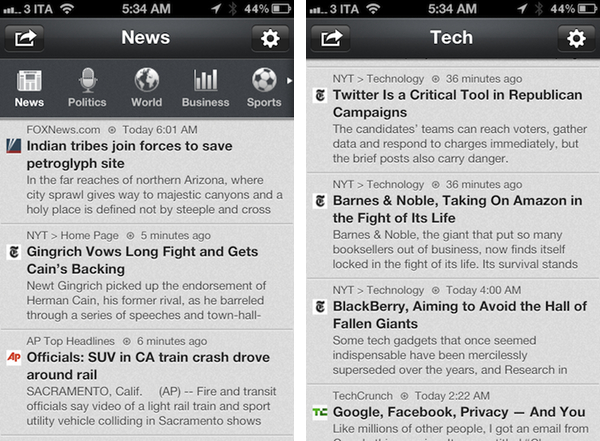
NewsFlash is basically an RSS aggregator for the major news sources in the world – that is, some sort of “Techmeme for Italy only” for more countries, with “big media” websites aggregated by default and no relevance algorithm in the backend. In Italy, you can have news from the likes of Il Corriere Della Sera or Ansa; in the U.S. you’ll both find Reuters and Msnbc alongside TechCrunch and MacRumors. The app, in fact, is organized in sections that range from News and Politics to Sports, Technology and Gossip, providing a way to quickly change the topic you’re looking and get the facts, or at least what’s been written, about the latest news. It’s like Techmeme meets MacHash meets Tech News Tube meets Google Reader, only in a clean, intuitive app for iPhone and iPad.

The app obviously allows you to share stories via Facebook, Twitter (iOS 5 integration is supported), email and text message. NewsFlash doesn’t always load a website’s mobile view when jumping to stories (and that can actually be a good thing), but it offers font size controls and options to block ads and links to third-parties. News can be updated with the typical pull-to-refresh gesture, whilst a top toolbar is used to switch between countries and sections through a single swipe. Currently, NewsFlash comes with support for the following countries: Italy, UK, US, Germany (both in Deutsche and English), Japan, France (both French and English) and Israeli. The app’s preferences allow you to hide certain sections and add custom feeds (you can add literally anything that supports RSS, turning NewsFlash into a simple RSS reader), adjust fonts and change the app’s background. I like how the app automatically looks at your device’s language and tries to load news from that country.

NewsFlash is free, but you can disable iAd with a $1.99 in-app purchase. Give it a try if you’ve been looking for a nice app that aggregates “general” news, whilst keeping your real RSS subscriptions in a standalone Google Reader app.


Crunch: Extract & Preview Resources of iOS Apps

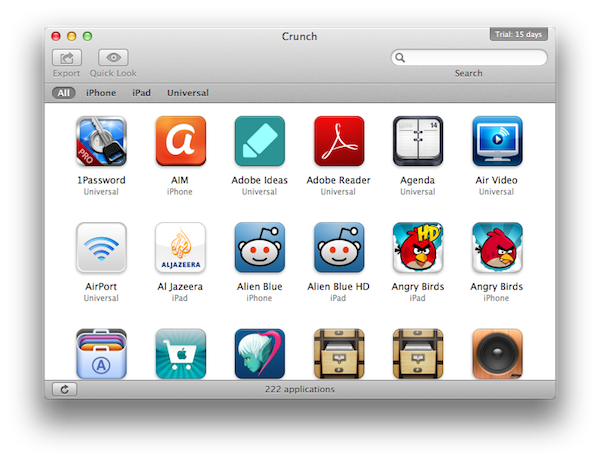
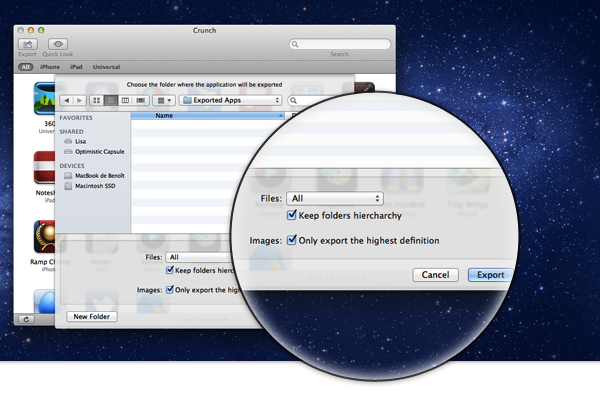
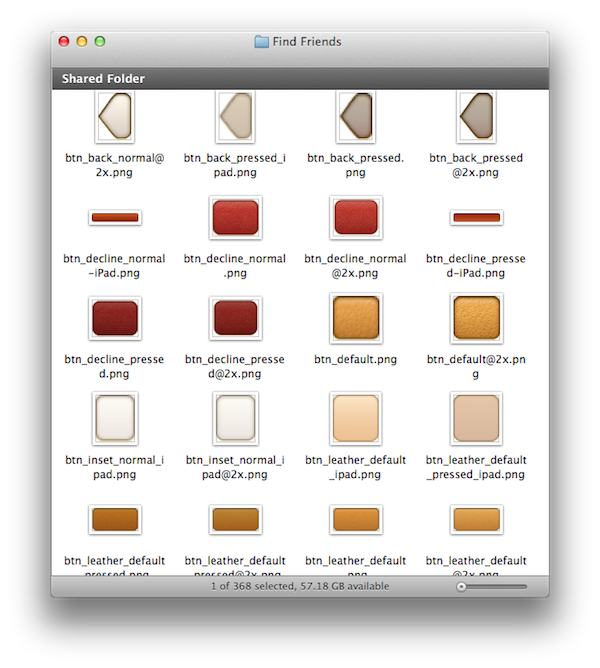
Those who design and develop for iOS know how useful it can be to take a peek inside an application’s resources and see how other developers and designers chose to structure an app. This can be done by locating an app’s .ipa file in the OS X Finder, select the “Show Package Contents” menu, and start exploring the contents of what would otherwise be a normally synced app on your iPhone or iPad. Folks who do this on a regular basis also know that, by default, OS X doesn’t “normalize” iOS .png images – application images are optimized so iOS can load them faster, but their format isn’t entirely compatible with the Mac’s Finder, Preview, or QuickLook. Crunch, a new app by Pragmatic Code, aims at solving this issue with .png images by providing a beautifully streamlined interface to take a look inside an app when needed.

Obviously, the contents of an application are subject to copyright, and upon first launch Crunch will warn you that you shouldn’t share or copy images from someone else. Taking a look, however, is not a crime, and Crunch absolutely delivers on its promise to enhance the way you can explore an app’s resources on your Mac. I believe any developer or designer who tries Crunch will never go back to old Finder hacks and scripts to extract and preview iOS resources.

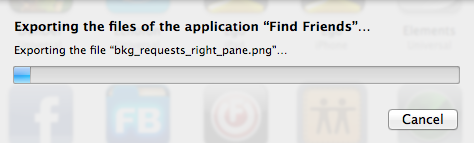
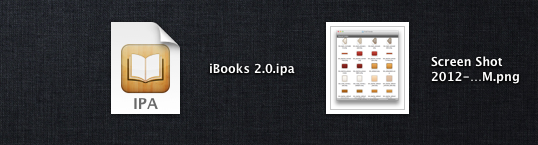
Crunch is capable of automatically detecting apps from your iTunes library and filtering them by platform – iPhone, iPad, or Universal. Crunch will also install a QuickLook plugin, so you’ll be able to see each app’s icon overlaying the standard .ipa file preview in the Finder and QuickLook windows. Once you’ve selected an app, you can hit Export, and Crunch will ask you where you’d like to save an app’s resources, and if you’d like to keep all files with their existing folder hierarchy, or only Retina-ready @2x image files. The latter option can be particularly useful to pinpoint images ready for the rumored iPad 3’s Retina Display found inside several Apple apps for iOS.

As I mentioned above, images will be normalized when exported – but you’ll need to have Xcode installed as Crunch uses a tool provided by Xcode to revert the optimization and make a .png Mac-ready.

Crunch does one thing very well, and I’m sure it can become an invaluable tool for anyone who designs and develops for iOS and wants to “know more” about apps and how they’re created, at least from a graphical standpoint. Crunch is only $9 via Pragmatic Code’s website.


Smile’s PDFpen for iPad Is A Powerful 1.0 Version

Released last night on the App Store at $9.99, PDFpen for iPad brings Smile’s popular PDF editing and annotating tool to iPad owners, sporting features that take advantage of the native functionalities offered by iOS 5, such as full iCloud integration.

I have played with PDFpen for a few hours, and I have to say I am impressed by the amount of polish and options that went into this first release. Whilst you obviously won’t find all the tools and menus from apps like Readdle’s PDF Expert in version 1.0 of PDFpen for iPad (PDF Expert reached version 3.2 yesterday), Smile’s latest app shows a promising future because of features it already comes with, such as iCloud storage across iOS and OS X or native Dropbox and Evernote integration via APIs.

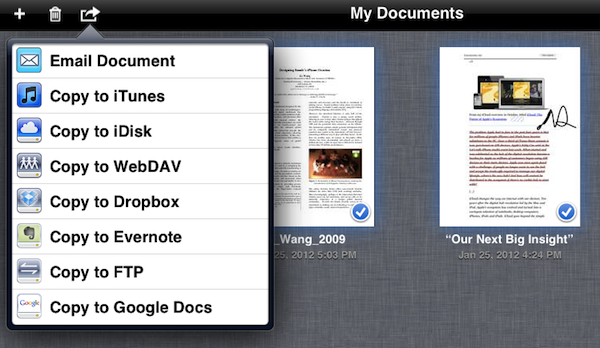
I’ll start with the exporting options. Unlike several PDF management apps, PDFpen doesn’t stop at offering a standard “Open In…” menu that simply forwards a local document to other installed iOS apps; the app does that, too( and quite cleverly I might add, as upon exporting PDFpen asks you if you want to save a “document” with annotations editable by other apps, or a flattened copy), but it also directly integrates with Dropbox, Evernote, iDisk, Google Docs, webDAV and FTP. If you choose to export PDFs to Dropbox or Evernote, PDFpen will let you log in and pick a destination folder – personally, I’d recommend storing regular PDF docs in Dropbox, and those that you want to OCR in Evernote, as the service provides great search functionalities for this.

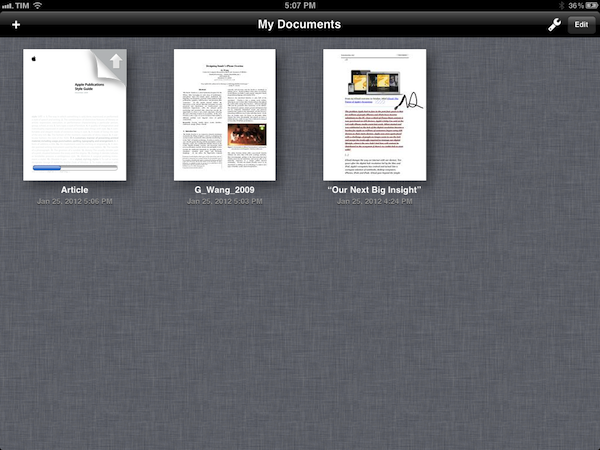
Sharing options can be accessed on a per-document basis from the upper toolbar’s sharing menu; alternatively, you can select multiple documents from the main screen and share them online (or locally, through WiFi Transfer and iTunes Copy). Overall, also considering PDFpen’s support for iCloud from day one, if you put strong emphasis on sharing options for your documents, I’d say you should strongly consider a PDFpen setup on your Mac and iOS devices.

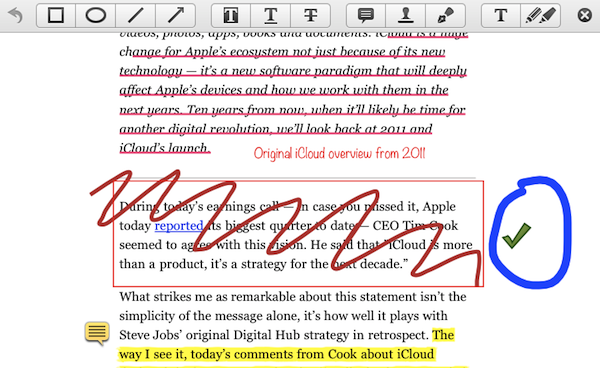
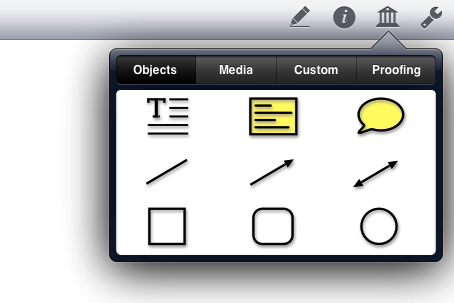
When it comes to editing a PDF, as I said earlier PDFpen doesn’t sport all the options of a popular competitor such as PDF Expert yet, but credit where credit’s due – Smile has been supporting PDFpen for years and I’m sure features will come over time. Plus, it’s not like the app is underpowered in this first release – PDF Expert simply offers more because it’s been around longer. As with the Mac version, PDFpen lets you annotate documents with notes (which you can export separately), various shapes and arrows, images from the iPad’s Camera Roll and your own text. Images can be freely moved and resized on screen, whilst text can be entered with the keyboard, or through direct touch input. As you can see from the screenshots, the app supports different types of highlights and colors, with a toolbar allowing you to modify colors and font sizes, among other things. Personally, I’d like the developers to reconsider the organization of the toolbar menus, as I’ve sometimes struggled to find a particular option because it was too buried inside a popover menu with multiple choices. Perhaps contextual menus or a taller toolbar could help in this regard.

Text can be manipulated, too, either through boxes you can move on screen, or by dragging your scribbles around. What’s cool about PDFpen is that it lets you tweak the opacity/fill color/width parameters of any shape, as well as re-arrange any element in the back/front of other annotations on screen. And, obviously, if you need to digitally sign PDFs, PDFpen will let you do that as well by letting you save any annotation as a template you can reuse later.

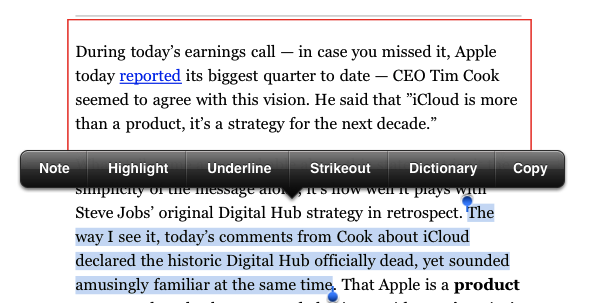
PDF Expert’s editing toolbar and popup menu (above) Vs. PDFpen (below).

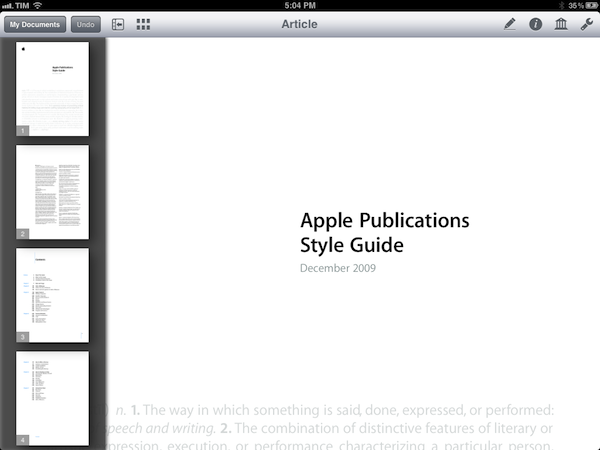
You may be wondering – how do PDFpen’s annotations compare to the competition? Pretty well, I’d say, except for some issues with compatibility across apps that, I assume, could also be due to different implementation techniques between developers. Highlights, notes and colors work fairly well, with colors and text styles accessible from a bottom toolbar or popover menus. What I’ve noticed is that PDF Expert is much more intuitive in editing annotations and highlights thanks to an enhanced iOS popup menu, whereas PDFpen can feel a little clunky in relying exclusively on the popover metaphor. Moreover, PDF Expert generally accepts any kind of PDF edited from other applications you throw at it, while I had PDFpen not properly recognizing highlights and shapes from some third-party PDF apps. Both solutions, however, exported PDFs (editable or flattened) to Preview and Acrobat just fine. I would say that PDFpen offers smoother animations and transitions (the sidebar with thumbnail previews is a personal favorite of mine) with an overall simpler approach to controls and annotations tools, whereas PDF Expert is obviously more mature because of its longer development cycle. I can’t comment on other apps, as PDF Expert is the only PDF editing app I’ve used regularly until today.

As far as my workflow is concerned, in spite of PDF Expert offering more features with an editing toolbar that I prefer, I think I’ll stick with PDFpen, for a couple of reasons. First is iCloud support, which I regard as a must-have these days for people serious about keeping the same set of documents always in sync between devices. Second, I like the idea of getting used to the same group of apps on my Mac and iOS devices – in case you don’t know, PDFpen is available on the Mac as well and it’s a really powerful app. PDF Expert doesn’t offer a Mac client, but it’s got an iPhone version; I, however, don’t read or edit PDFs on my iPhone. Last, PDFpen’s excellent export capabilities allow me to considerably streamline my iPad workflow when it comes to importing PDFs (from Dropbox, Papers, or PDF Converter), annotating them, and saving them for long-term storage either in Evernote or Dropbox. I’ve also recently bought a Doxie Go portable scanner from Amazon, and I can’t wait to test PDFpen with the Camera Connection Kit and direct Evernote uploads alongside Doxie’s software. This experiment will also prove how PDFpen can handle large libraries of files and how well the renaming/combining features can work when handling a lot of files.

At $9.99, PDFpen for iPad is a fantastic first version and I look forward to seeing what future updates will bring. Get the app here.


“Chrome Sync” for iOS Syncs Chrome Tabs, Bookmarks and History

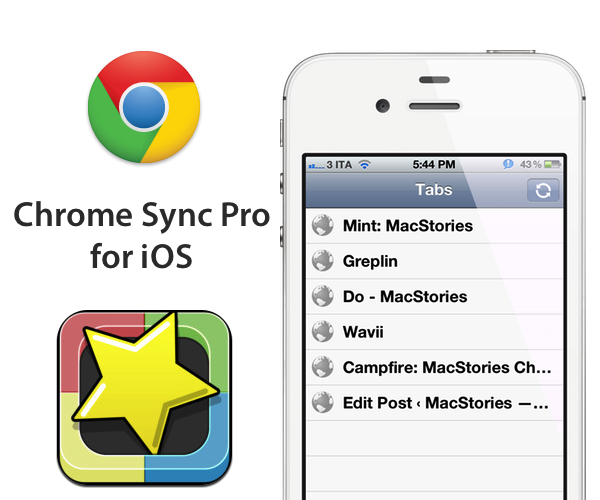
After using Google Chrome for more than two years, I still find it rather amusing that Google hasn’t released an iOS companion app to access your browser history, tabs and bookmarks on the go. Mozilla does this, third-parties have figured out a way to do this, yet Google doesn’t seem to think an iOS version of Google Chrome with, perhaps, a minimal set of functionalities would be necessary. Fortunately, a developer in the App Store has figured out a way to sync your Chrome session (that is, history, tabs and bookmarks) from the desktop to an app, aptly named Chrome Sync Pro.

Priced at $0.99, Chrome Sync Pro runs as a universal app on the iPhone and iPad (the latter doesn’t support landscape mode for some reason), and has three sections at the bottom to switch between your bookmarks, open tabs and history. When I first heard about Chrome Sync Pro my first concern was security – it turns out, the app gets your Chrome information through an extension that doesn’t communicate with third-party servers, but copies your browser’s data into a Google doc in your account. The data in Google Docs is encrypted in some sort of way, I believe, so that only Chrome Sync Pro for iOS can read it and display properly on your device. I’d like the developers to explain this process better, for sure, but I’m not deeply concerned about security and privacy as long as my Chrome data is passed along through OAuth to Google Docs.

On iOS, the app is very simple and functional. When you open it, it’ll refresh with the latest data from your Chrome browser and allow you to tap on links. Chrome Sync Pro supports different third-party iOS browsers instead of just Safari, although some personal favorites of mine like Grazing and iCab aren’t supported yet. There is a refresh button to update the sync results from your desktop computer, but I’ve found the extension to be stable and fast at syncing back tabs and history to Google Docs.

Chrome Sync Pro is a simple utility that could use a prettier interface and more third-party browser integration; for now, it gets the job done. If you’re looking for a way to make your Google Chrome data portable, Chrome Sync Pro is only $0.99 on the App Store.


QuickCal 3.1 Released with Improved Recognition Engine, iCloud Reminders, Autocomplete Feature

I love the start of a new year because it is a great time to revamp your productivity workflow. You can re-evaluate what tools you use and even buy new apps completely free of guilt. It is no secret that the cornerstone of any good system is the calendar but it can be difficult to force yourself to create calendar events on a regular basis. Well, the folks behind QuickCal have just released a great update to get you back in the routine of managing your calendar.

One major improvement in QuickCal 3.1 is the re-written recognition engine that the app uses to understand natural language input. QuickCal has no structured syntax for adding events and reminders which actually makes adding items extremely flexible. When typing in the event you no longer have to start with the event title, you actually have the option of starting with a time, duration, location, or title and QuickCal will almost always get it right. I have also noticed a dramatic improvement in QuickCal’s ability to correctly parse out event locations which is something I have had trouble with in previous versions. Regardless of the order in which you type out the information, QuickCal does an excellent job figuring out the details for you. Adding events to your calendar without worrying about correct syntax is incredibly powerful. The only way QuickCal could get any faster at creating calendar events is if it actually finished sentences for you.

oh, wait…

Have I mentioned their new autocomplete feature? Autocomplete does exactly what you expect it to do. As you are typing common words, QuickCal gives you suggestions of words it thinks you might be typing. To accept the autocompletion you can just hit the tab key and continue on typing. It will even pickup on your most frequently used words and auto-suggest them in the future. After only 3 or 4 reminders relating to my wife Leslie, QuickCal was finishing her name for me. It is awesome. In fact, I am finding it so useful that I am not sure how I had ever used QuickCal without this feature.

Perhaps the greatest improvement to QuickCal is its integration with iCloud Reminders. A reminder is now added to your default Reminders list and shows up in the iOS 5 Reminders app. If the reminder has a date or time then an alarm is also created. This alone is a neat feature but it wasn’t enough to pry me away from the Alfred extension I had created to quickly add simple iOS 5 Reminders. Although as I continued to use the new version of QuickCal, I realized that I could also add items to other lists by simply typing the name of the list. For example, my wife and I share a Groceries list. If I just start typing Gro… it suggests switching to my Groceries list so I can add an item to it. In true QuickCal fashion it does so very intuitively and without effort. It is a great feature that truly increases my dependency on QuickCal. The only drawback is still having to open iCal to trigger an iCloud sync. When CalDAV is supported and I no longer need that extra step, QuickCal will be my ideal iCal replacement.

Check out QuickCal 3.1 and all of its new features on the Mac App Store.


Review: Logitech Tablet Keyboard for iPad

As I mentioned in my post about new apps and tools for 2012, I’ve been playing around with a Logitech Tablet Keyboard for iPad, which is available at $69 through Logitech’s website or $59 on Amazon. The Tablet Keyboard connects to the iPad (or any iOS device) wirelessly over Bluetooth, comes with built-in batteries, a carrying case that can be turned into a stand for the iPad, and media keys that trigger some of the tablet’s functions such as audio controls and Spotlight. Here are my impressions so far.

Normally, I wouldn’t have much to say about a keyboard except for “it’s comfortable” or “I can’t type anything on this”. Fortunately, the Logitech keyboard for iPad fits into the former category, with a sturdy plastic design that feels “premium” when compared to other keyboards available on the market, a good keyboard layout, and a carrying case that’s not as premium as the device but certainly gets its job done. Below, the Italian layout of my Logitech Tablet Keyboard:

As you can see, the keyboard isn’t necessarily “standard” as it’s been designed to include iOS-specific keys like shortcuts for Spotlight search, Home button, volume controls, slideshows, media playback and screen lock/unlock controls. The basic layout is the one of a Mac keyboard, and the function keys can be activated by holding fn. Obviously, this isn’t as intuitive as simply reaching out to the screen with your finger to adjust volume, but if you’re going to work with your iPad using the keyboard, you’ll want to know it’s possible to do more than just type.

Which brings me to this: why would you want a physical keyboard for your iPad when the system one is more than acceptable? I don’t know about you, but I’ve been working mainly from my iPad in the past month, and I found a physical keyboard to be a must-have if you’re serious about getting real, regular writing done in a text editor or word processor. iOS’ multitouch keyboard is fine to fire off quick email replies and tweets (and iOS 5’s new split keyboard helps a lot for “general typing” in every day usage), but I still can’t give up on the allure of plastic QWERTY for long-form content and serious email time. Logitech’s iPad offering fits nicely in my workflow (and Tom Bihn Ristretto Bag): I can get it out of its case, turn it on, wait a few seconds for the iPad to connect (once paired, the Bluetooth connection process is very fast on iPad 2) and start writing. Read more


xScope 3: Measure. Inspect. Test.

Any designer will tell you how important image sizes and spacing are to their craft – graphics, the web, etc.. Measuring each element can take tedious time unless you have all the right tools. There are ‘measuring’ and ‘location’ tools out there, but none work better or have more bells and whistles than Iconfactory’s (and Artis Software) xScope. xScope 3.0 is out today and it brings over 70 new features to its already complete pixel toolkit.

xScope 3.0 (Mac 10.6 and higher) is a huge update to version 2.x with two components: a Mac side and an iOS side for the iPad, iPhone and iPod touch. If you feel a little bewildered at first with all these new features, be sure to use the useful in-app help, as it outlines everything and answers many questions. I’ll cover some of the great new highlights of version 3.0.

The most notable feature of xScope 3.0 is the Mirror tool. Remote viewing lets you easily view the contents of any Mac desktop window on your iPhone, iPad or iPod touch with the accompanying iOS app (via iTunes, Free). Once xScope for Mac is open, launch the iOS app and it will find your Mac over Wi-Fi and ask you to pair them together.

Once paired, the Pin & Lock tool lets you move the Mac window anywhere, always staying in focus on iOS. The iOS app has a chromeless UI: there’s no overlaid chrome to get in the way while you’re working. Multiple iOS devices can connect and view the same window on a single Mac, which is great for demos or meetings. Read more