The day the iPad was unveiled, the whole Apple community screamed that the device would change the way we look at arts and be the center of any kind of creation process in mankind’s mobile future. While this mainly came true for writing and visual arts (think of apps like iA writer or procreate), it still lacks when it comes to mobile music making. Due to the absence of multiple optical inputs like FireWire, the iPad is not suited to be the only mobile recording studio. After the first wave of electronic music software with the KORG line (iElectribe, iMS-20, iKaossilator etc.) as the most prominent example, new electronic music production environments got very rare. I was very excited, however, when I saw this new iPad drum machine on Beautiful Pixels called DM1 Drum Machine. The demo video of Fingerlab’s new product promised a decent, easy, but powerful workstation on the road for a very fair price, so I downloaded it.
And DM1 didn’t disappoint me. The DM1 was the very first drum machine software I ever bought for iOS devices; I tried iElectribe once on a friend’s iPad, but even that iconic (and expensive) app seemed more like a toy than a serious musical instrument to me. On the iPad, I am after professional software, something that encourages me to create awesome music. And because you cannot impress through the haptic feel of a synth on a flat screen, you need UI simplicity combined with a stunning feature set to get your product to the user. With the DM1, I finally found a music app that fulfills those needs.
In their demo video, Fingerlab shows a 3D animation of the DM1 as a Little Phatty-like workstation with several areas for its five different main features: a step sequencer, drum pads to manually enter beats, a mixer for each sequenced kit part, effects, and song information with structuring options. In the real app, those five features are available via the top selection bar right beside the three most basic selecting options to set the basis for a song – BPM, selected sound, and the currently played pattern, and a play button. In the following lines, I’ll firstly dive into each of these parts, and cover the visual arrangement, DM1’s production possibilities, and some features I’d wish for in future app updates to make the app even more pro-oriented.
Step Sequencer and Sounds
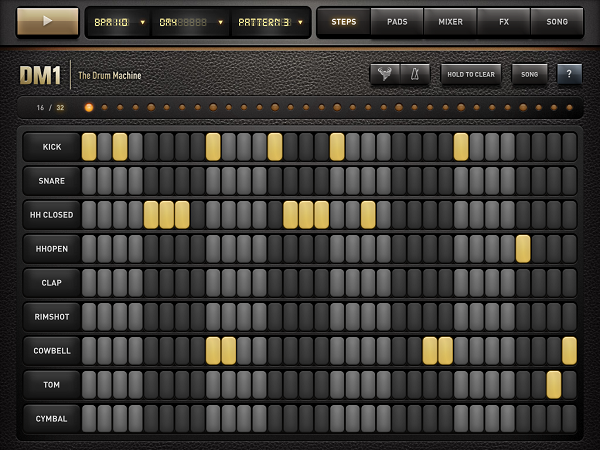
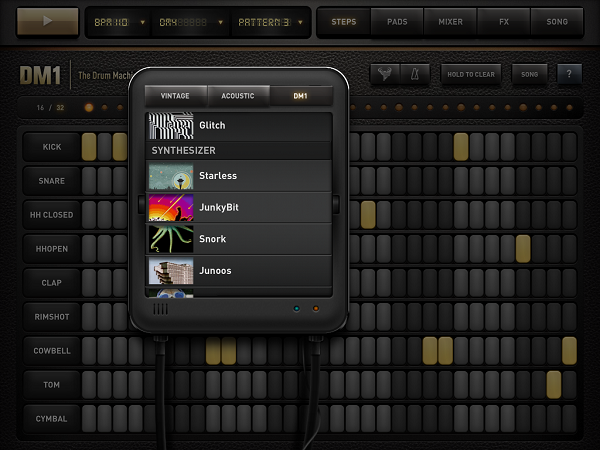
In terms of the provided variety of sounds, DM1 is the most professional effort I’ve seen to date. 19 classic drum kits (e.g. the iconic Roland machines TR-808 and TR-606), 19 acoustic sets from Ludwig drum kits to Cello sounds and Wurlitzer pianos, and 26 DM1-only kit including Bristol-styled beats and freaky synth sounds speak for themselves. In the 16/32-step sequencer, these sounds are divided into 9 kit parts: kick, snare, open and closed Hi-Hat, clap, rimshot, cowbell, tom, and cymbal. The sounds connected to these parts vary a lot, so it can occur (especially when using a synth sound) that the app plays melodic elements on the rimshot and cowbell steps.
This brings us to creating sequences with the step sequencer. In both 16 and 32 mode (which is twice as long, not twice as fast) tapping single steps works flawlessly; aiming and selecting is easy. The 4 bars are separated using different shades of grey, and they can also be easily identified using the LEDs on top, where each beginning bar is indicated with a bigger one.
Clearing steps is just as simple; you can even drag you finger around the whole screen and every step you swipe over is getting activated or de-activated, depending on what your first tap did. If this still is not fast enough for you, ou can also use the “hold to clear” button below the feature selection panel. This and the nearest three buttons (metronome, a very functional random rhythm creator, and the obligatory, very neatly implemented help menu) are also available over multiple screens.
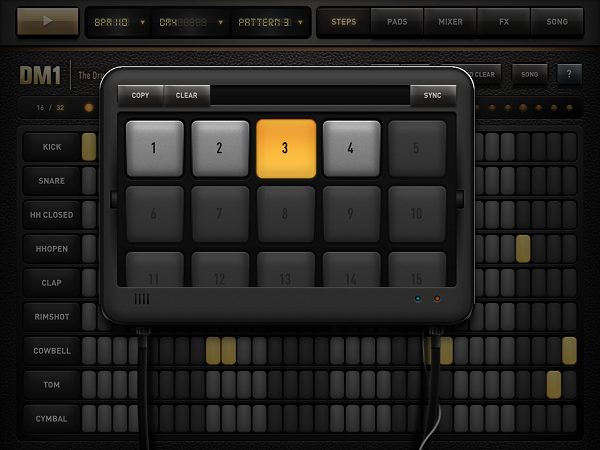
Any time you change a single step, it is automatically saved in the activated pattern. You can create up to 25 different patterns, which then can be arranged to a final piece in the “song” section (I’ll come to that later). If you want multiple patterns (which are built upon each other to create an evolving rhythm), you can also copy one pattern into another slot, add some elements to it, and the basic beat will still be the same.
Drumpads
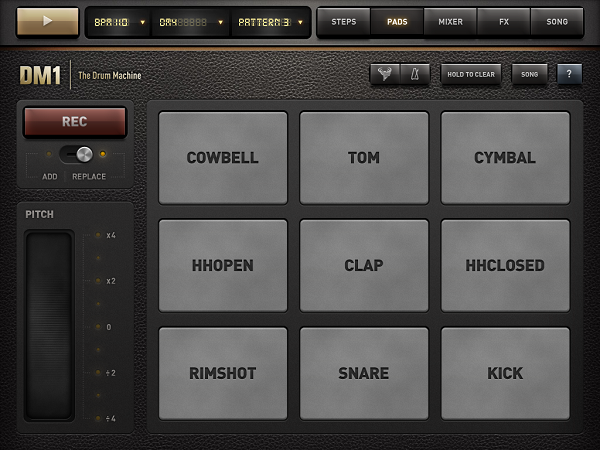
If you’re better at playing than imagining or experimenting with new rhythms using the sequencer (when you come from drumming for instance), you can use the drumpads combined with the integrated quantized recorder to teach the sequencer the rhythms you have in your head. The pads are really big and very responsive, even when double-tapping with two fingers to create a 16 step Hi-Hat beat.
Unfortunately, the app doesn’t play a bar solely with the metronome before a recording begins, so you have to wait four whole bars until you can input your beats properly. But the conversion into the single steps works perfectly and instantly. To make the recorded beats even more personal, there’s a large, functional pitch-shifting ribbon to customize the sequence further (this can also be applied after the four bars are recorded).
Mixing and Customizing Single Steps
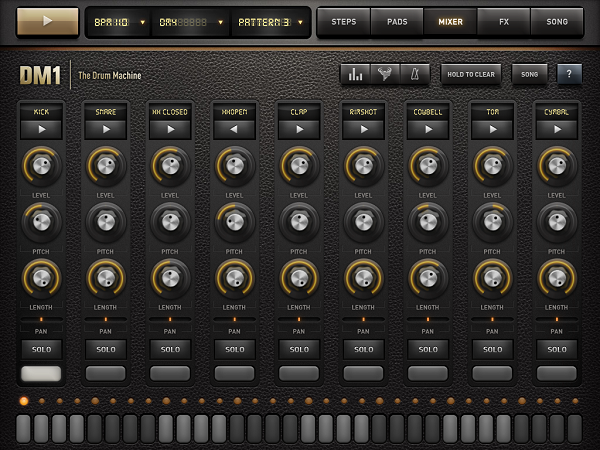
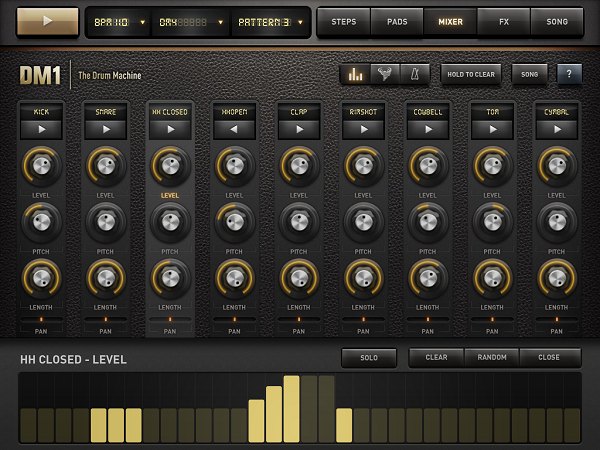
The third big feature is the most used out one, with which you can edit any part of the available kit anyhow you can imagine: the kit mixer. In a moog-styled layout you can customize every sound in level, pitch, and length to make it sounds just the way you want it. You can reverse the whole sound of a step by holding the play button, and pan the part to the right or left to create a stereo effect. Set the sound on solo mode and use the bottom bar to add or delete steps for a specific track. But the to me, the most powerful feature is the velocity leveler that you can bring up by tapping the diagram-like button in the nav bar. Although the upcoming vertical bars (of which lighter ones indicate active, changeable steps) are not perfectly responsive to sliding to change their level, you can create crescendos and decrescendos with one tap here, something I always use when I start a new project.
FX and Song Timeline
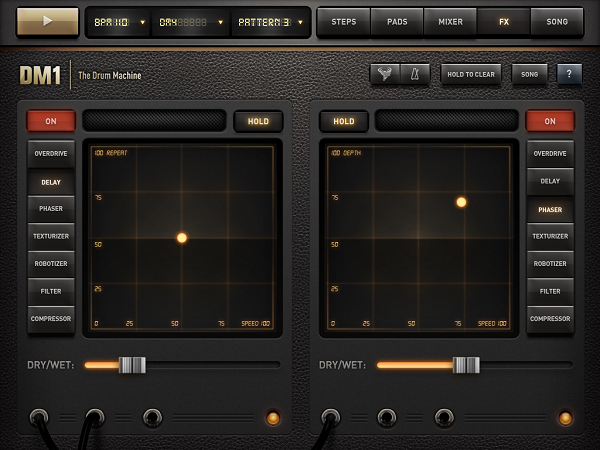
The fourth way to customize your sequences is the FX section. It’s powerful, but also pretty hard to handle properly. Here’s why: you can select an effect (overdrive, delay, phaser, etc.), set the dry/wet mix portion, tap the red “on” button, and the effect is immediately applied to your mix. Yet most of the time, you’ll then think: “This is destroying the whole thing”. The reason for that lies within the two-axis field which is used to set the two main parameters of the effects; for instance, when using the delay, these parameters are Repeat (y-axis) and Speed (x-axis) with respective values from 0 to 100. Unlike the velocity columns, this is very responsive. Every time you move the LED dot indicating the current setting just a little bit, the sound changes more or less completely. As you see, this offers both a huge amount of treasured sounds, but can be completely counterproductive.
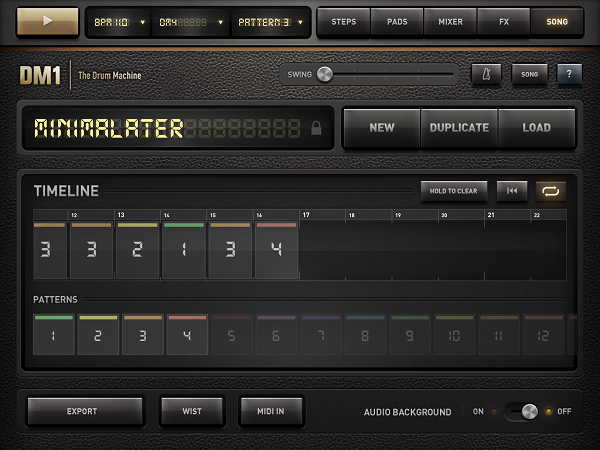
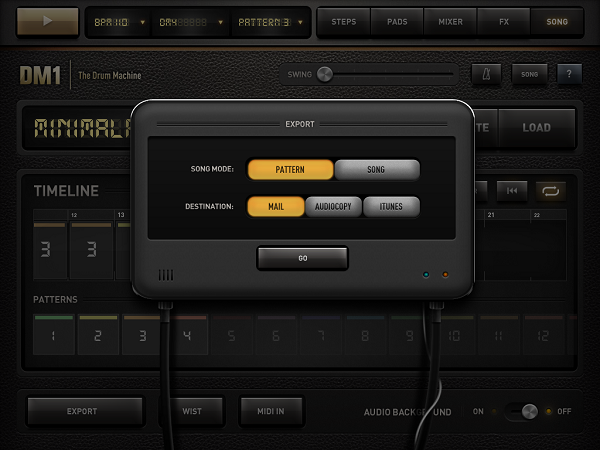
If you’re done creating, editing and customizing your sounds, tap the song panel to turn “just playing around with a drum machine app” into serious business. Here you can make an actual song out of your single beats; just drag and drop patterns into the timeline, and tap the play button to listen to your arrangement. If you like what you hear, you can export the song (or single patterns)as a .wav file to iTunes or send it via mail. You can even sync in via WIST to another device with the DM1 installed to have it on all of your devices or share your work with friends or colleagues.
Fingerlab also integrated AudioCopy to send the created beats to a variety of other music production apps like FourTrack or AirWrench. Other features in the song panel include MIDI Input (using auto or pre-selected channels to enable plug and play using a USB Camera Connection kit) and a swing option to play around with the overall song rhythm.
User Interface
The biggest issue I had with the app’s design was a really impudent one considering the immense feature set: the DM1 does not have Retina graphics. The features all worked great – my problem with the app was that it didn’t look nice. But this would need just an update, and considering the rest of the UI, I definitely excuse this lack.
I mentioned the 3D version of the machine the devs designed to visualize the feature set. This also makes the UI more understandable. Using the cool designed popups and the top navigation bars is easy after watching the demo video – don’t get me wrong, the app is very intuitive even if you don’t watch any demo, but it takes some time to find out how every feature works.
The leather background fits very well with the sepia tones the designers used for the buttons, text panels, and other controls. I disliked some buttons’ 3D look though, especially the square ones like the play button. Nevertheless, the UI design fits the needs of the feature set, making it understandable and flexible, and – what’s most important – it never privileges any feature to ensure that you will equally find and use all of them. Ultimately, this is the most intriguing aspect of the DM1: you always use every part of it and are thrown into a very clear but flexible workflow – which is optimized for mobile use, but still feels very professional and delivers great outputs.
Wish List
What follows now is something I normally avoid; I consider myself in a position to review and criticize existing features, but not suggest new ones. With music apps, though, it’s a little different. I use several desktop products including GarageBand and Ableton Live, and I always think about which features could be transferred to mobile apps while using them. DM1 offers many of such features, but some – even quite simple and obvious ones – are still missing in my opinion, and they could be easily added to make the app even more stunning.
First: better organization. If you like the app as much as I do, you will create many projects to dive into all those sounds and effects. And you’ll enjoy that for sure. What you won’t enjoy, however, is finding your favorite sounds and saved songs again. Both are displayed in one single list with dividers for categories which completely lack of folders, tags or anything. And especially the list of saved songs is designed way to small for the iPad’s large screen. A simple folder structure within this list could solve this problem, and having a separate list for your favorite sounds would also be pretty useful.
Secondly, I would like to remind developers of such professional software that iOS devices have multitouch. Please make use of it. It would’ve been both intuitive, very cool, and useful to use, say, two-finger swipe to switch between panels.
Last, but certainly not least, I imagined many possible extra features while using the DM1 to extend it up to the situation where you can have it it as your sole production platform, not just on the road, but also at home. In my opinion, the app doesn’t need not that much to reach that position. What it misses are basically just three things: 1) more options to create melodies like more synth kits (or maybe just indicating existing melodic steps better) to create whole songs with beat, basslines and hooks, 2) the creation of own drum kits on the go, and 3) the capability of applying different effects to different patterns. Currently, the two effects you set are applied to the whole song, whether you like it or not (they even cannot been disabled for single patterns). Some ideas in this direction would turn this drum machine into a full-featured workstation.
Wrap Up
I urge you to get DM1 Drum Machine for your iPad. If you’re into music and rhythm and whether you have experience in using sequencers or not, you will have a lot of fun with the app. It is flexible and offers an incredible amount of directions your sound can go. And, believe it or not, this whole package is available for just $4.99 in the App Store.