Posts in reviews

Vivaldi for iOS Is Not Delivering on Its Promise Just Yet

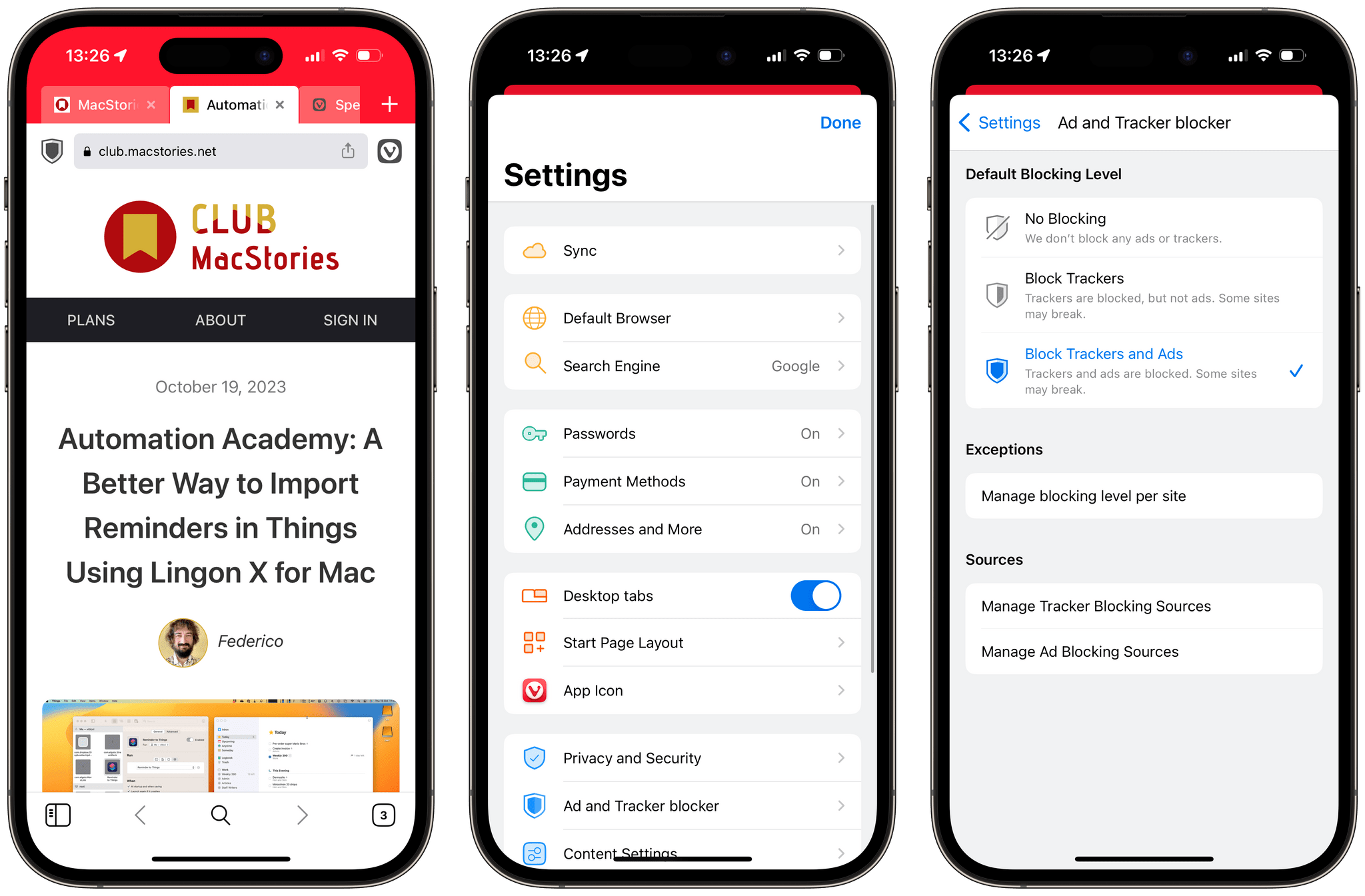
Third-party web browsers on iOS and iPadOS have been in a peculiar state for some time. While it has been possible since iOS 14 to set a third-party browser as the default for opening web links, Apple still doesn’t permit the use of third-party browser enginesat least for now. This means third-party web browsers on iOS are essentially limited to serving as custom user interfaces built on top of the Safari engine.

However, some web browsers thrive in this space. Vivaldi, like many other web browsers on the desktop, is built on top of the Chromium engine and has become a staple of highly-customizable desktop web browsers. With its recent expansion to iOS, I thought I would try using it for a week to see how much of its desktop promise survived the port to Apple’s platform.

Read more


Home+ 6.2 Adds a Battery Smart Section and Widget

Matthias Hochgatterer’s Home+ 6 for the iPhone, iPad, and Apple Watch is one of the most powerful HomeKit apps around, offering automation based on functionality exposed by Apple’s HomeKit framework that its own Home app doesn’t even use. The app also does a terrific job of surfacing sensor data that is buried deep in the Home app, like details about the air quality in your home if you have a sensor that monitors that.

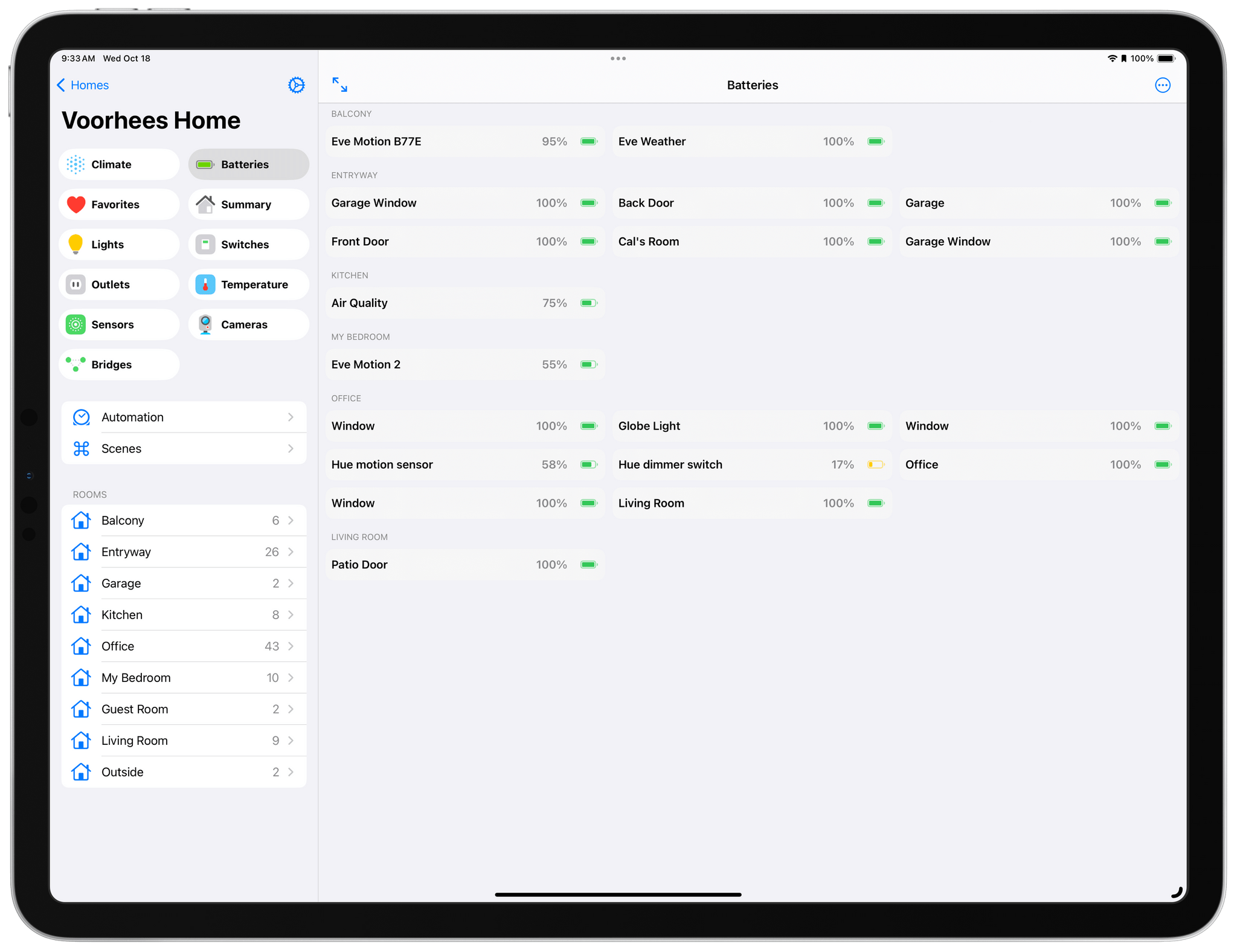
Home+ 6.2 includes a new Smart Group dedicated to battery health.

Home+ 6.2 includes a new Smart Group dedicated to battery health.

With version 6.2 of Home+, Hochgatterer has added a new section to the app that reports the remaining charge for any battery-operated HomeKit accessories, such as window and door sensors. The new section, which color codes its battery icons according to the remaining charge, is accompanied by a new set of small, medium, and large-sized widgets that can be customized to show all of your battery-operated devices or a subset picked by you. Like the smart section in the main app, the rings around each device icon are color-coded, making it easy to pick out any with low batteries.

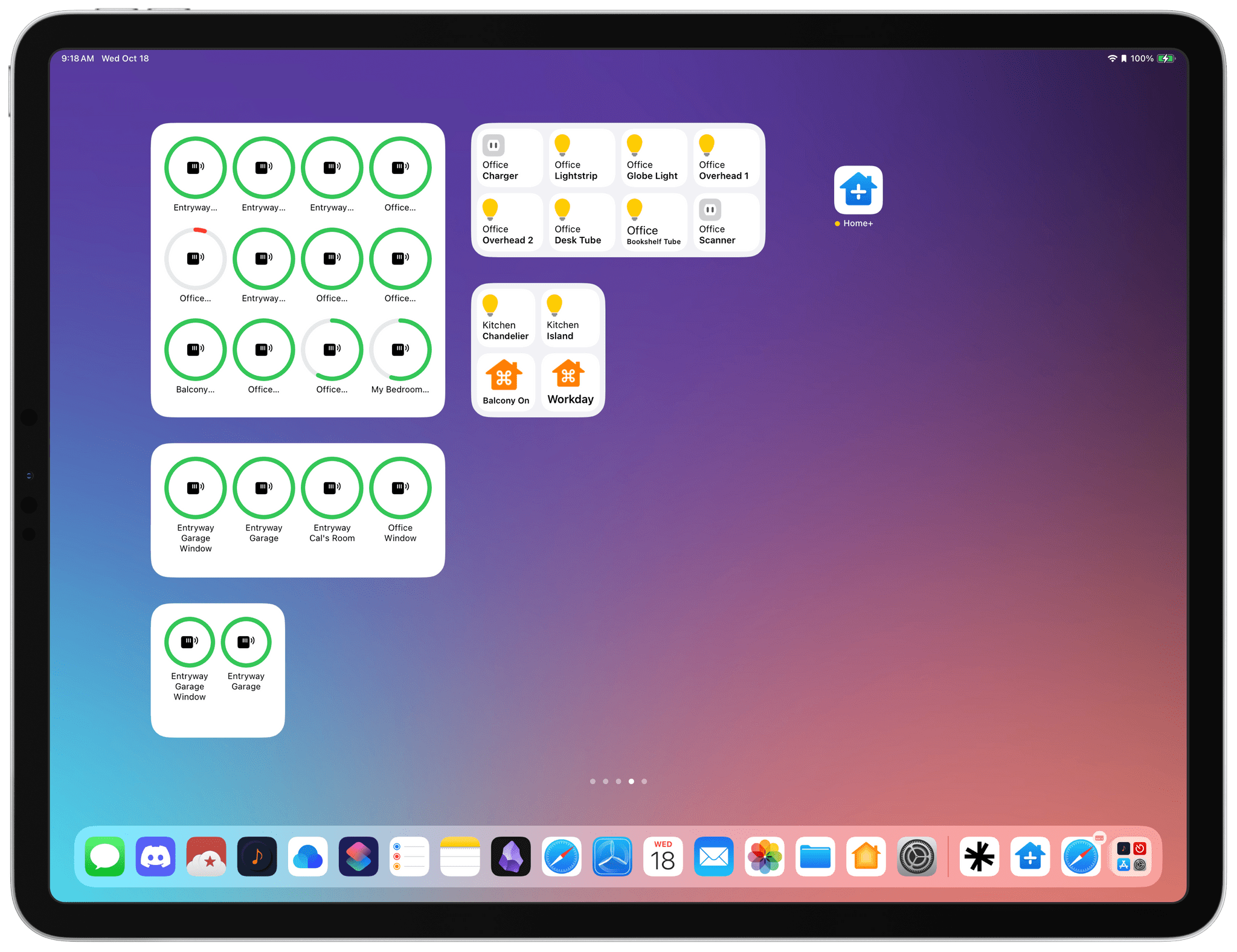
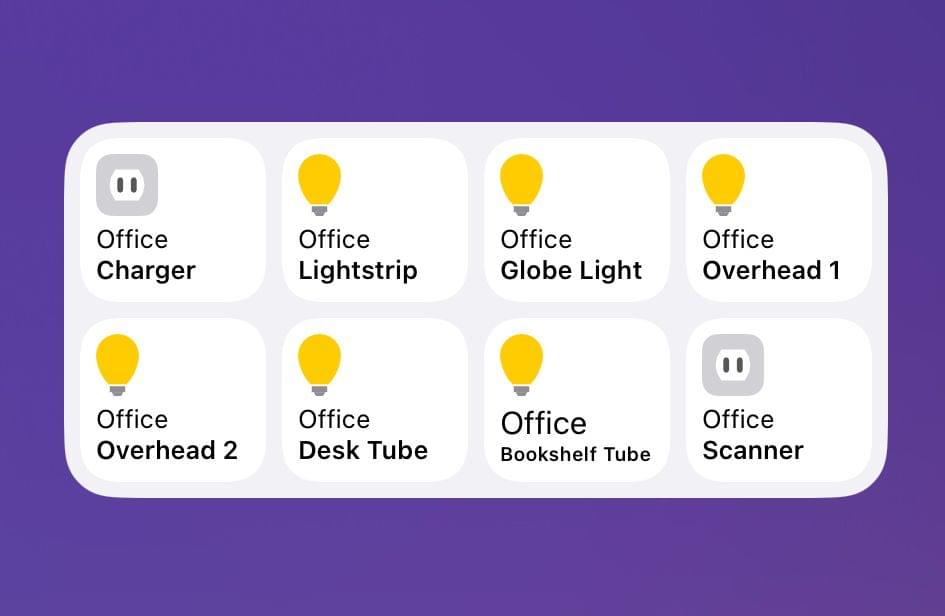
The accessories and scenes widget has added room identifiers.

The accessories and scenes widget has added room identifiers.

Home+ also offers device widgets that have added the name of the room to which they’re assigned, making it simple to tell accessories apart in the widget. However, the accessory and scene widgets are not compatible with iOS and iPadOS 17’s new interactivity. Tapping an accessory or scene will trigger it, but the Home+ app opens in the process. Having gotten used to iOS and iPadOS 17’s interactivity, I hope Home+ adds support for it in the future.

Version 6.2 is a small update for Home+, but one I appreciate all the same. Battery data is too buried in the Home app, and with Home+’s new widget and smart section, I now know I have a Hue dimmer switch that needs my attention. Plus, if you haven’t checked out Home+ in a while, it’s worth exploring its automation tools, which are some of the best available in any HomeKit-based app.

Home+ 6.2 is available on the App Store for $9.99, which is a 30% discount from its usual price.


Is Apple’s Translate App Still Getting Lost in Translation?

Apple first introduced the Translate app in iOS 14. Although it was a welcomed addition to the language translation space, I stopped using it a couple of months after its release. Many languages were still missing, its interface was lackluster at best, and I found that its French translations were not great. I would also still often rely on Google Translate to translate text in the real world using the iPhone camera — a feature that was initially missing from Apple’s app. This year, however, the Translate app received a substantial makeover and a handful of new features in iOS 17.

Let’s see how Translate fares in 2023.

Read more


Bartender 5 Is the Essential Menu Bar Upgrade for macOS Sonoma

The last time Bartender received a major update was back in 2021. Bartender 4 brought many new powerful features to help declutter the menu bar, particularly on the new MacBook models with a notch, which made menu bar real estate become even more valuable. Bartender 5 was officially released last month, and not only is it a fantastic maintenance update that brings support for macOS Sonoma – it’s also a release full of fun additions for all Mac users.

Read more


TV Remote: Control Your TV From Your Lock Screen, Home Screen, and Live Activities

Developers have come up with endlessly clever uses for interactive widgets. I love testing them all, but one type is beginning to stick more than others. It’s the widgets for apps that require quick interactions when you’re in the middle of something else. Turning off the lights in my home office when I’m finished working for the day, toggling work timers as I switch from task to task, and then checking off those tasks as I complete them are all perfect interactions for widgets that require minimal switching away from whatever I’m doing. Hopefully, that means fewer distractions and, in turn, a more productive day.

But not everything is about peak efficiency and checklists. Sometimes, you just want to relax, which widgets can help with, too. One of my favorite apps to help with that, which recently added interactive widget support, is TV Remote by Adam Foot. Foot’s app is one I already used with my LG C2 TV, but it’s the app’s new widgets that have graduated it to a regular part of my TV routine.

Read more


tvOS 17: The MacStories Review

Apple TV may have received its most surprising update release this year, and I’d argue that tvOS 17 is also Apple’s most impactful. With the launch of Apple TV+ and the expansion of Apple’s TV app to third-party devices, Apple TV the platform had gone through a bit of a confidence crisis. It was hard enough before to get developers and the wider Apple community to talk about its software, but now it had to compete for attention with the likes of Jennifer Anniston, Reese Witherspoon, and Ted Lasso.1

Attention then moved onto Apple’s next big platform reveal, a project so steeped in secrecy and excitement that when a tvOS engineering manager made a brief public change to their social media profile indicating they had moved on to work for the company’s AR/VR division, I began to wonder if Apple TV and tvOS would ever get their special moment to shine. That special moment would come exactly nineteen minutes before the debut of Apple Vision Pro, and while it may have been a fleeting moment quickly forgotten by the majority, it’s a moment in Apple TV’s story I’ve been thinking about ever since.

The introduction of FaceTime on Apple TV was more than just a feature announcement. It also represented a realignment in what mattered most for the platform and Apple’s customers and a shift away from a focus previously reserved for the needs of the wider entertainment industry.

FaceTime and Continuity Camera may be the headline acts in this year’s tvOS update, but they’re also supported by a cast of big changes elsewhere. They include a newly redesigned Control Center – Apple’s latest triumph in intuitive interaction – automatic profile switching, Find Siri Remote, third-party VPN support, Shared Spatial Audio, updates to Fitness and Music, enhancements to both audio and video presentations, and a small but meaningful update to the tvOS Home Screen.

After using tvOS 17 over the summer, I’m happy to impart that the new features are all positive additions, even though there remains work to be done. So, without further ado, in a MacStories return to tvOS reviews, let’s dive into tvOS 17.

Read more


  1. Played by the incomparable Jason Sudeikis. ↩︎

Photo Scout: An Excellent Photographer’s Companion for iPhone and iPad

Taking a great photo requires a lot of variables to fall into place. It’s amazing when this happens by happenstance, but what if you could stack the odds in your favor? That’s the question Photo Scout by Cascable answers.

Photo Scout, available for the iPhone and iPad, combines location data with weather conditions, date and time information, sunlight, and night sky variables to recommend when you should grab your camera or drone and head out for a photo shoot. The app can account for many variables, but what’s best about Photo Scout is that it makes managing them simple.

Read more


Hue Widgets’ Interactive Widgets Are the Easiest Way to Control Complex Hue Lighting Scenes

I’ve never been a big fan of the Philips Hue app. It has improved over time, and I appreciate its fine-grained control over my lights and its Shortcuts support, but the app has always felt a little clunky. That’s why I was happy when I discovered Hue Widgets over a year ago now. It’s a simple widget creation tool that lets you activate your Hue lights and scenes from your iPhone’s Home Screen, which is a much easier and nicer experience than using the Hue app. Better yet, with iOS 17, the app’s widgets are interactive, so lights and scenes can be triggered without ever opening the app.

Many Hue lights support features you can’t control from Apple’s Home app. For instance, many Hue lights can create animated and multi-color gradient lighting scenes that aren’t supported by HomeKit. These extended features can be accessed in the official Hue app, but it doesn’t have widgets, which is a faster and easier way to control your lighting and where Hue Widgets comes in.

Controlling lights and scenes from Home Widgets.

Controlling lights and scenes from Home Widgets.

The Hue Widgets app has two main tabs: a list of the rooms in your home, and an interface for creating widgets. The Home tab allows you to turn on an entire room or zone’s lights or control them individually, turning lights and scenes on and off and adjusting brightness levels, light temperatures, and colors. The official Hue app works similarly, but Hue Widgets’ interface is simpler and faster.

Building a widget.

Building a widget.

However, I’ve spent most of my time in the Widgets tab. Here, you can set up small, medium, or large widgets to control your Hue lights. The small version of the widget controls one light or scene, while the medium and large sizes control four and eight, respectively. After you pick the widget size you want, it appears in the Widget tab’s main interface. Then, tapping on each widget’s tiles walks you through picking a room and light or scene to control. Hue Widgets also lets you assign a color for each tile in your widget. It’s a quick and simple process but requires you to set up your lights and scenes in the Hue app first because Hue Widgets acts as a controller for the Hue app, not a replacement. When you’re satisfied with the widgets you’ve designed, return to your iPhone’s Home Screen to add one of the widgets you built, choosing the size you created in the app.

One thing I wish I could change in Hue Widgets is how it names widgets. Each is named automatically along the lines of ‘Small Widget #1’ and ‘Small Widget #2.’ If you create a lot of widgets, this isn’t ideal because it makes it hard to remember which widget is which. I’d prefer to assign more memorable names myself. I’d also love to see Hue Widgets on the iPad, where it could offer an extra-large widget.

Hue Widgets pairs nicely with Home Widget, which [I recently reviewed](https://www.macstories.net/reviews/home-widget-unlocks-homekit-device-control-that-apples-home-app-doesnt-offer/).

Hue Widgets pairs nicely with Home Widget, which I recently reviewed.

I was a fan of Hue Widgets before iOS 17, but having tried the interactive versions of its widgets, I can already tell I will be using them a lot more than before. Paired with the recent addition of Matter support for Hue hubs, which seems to have improved the responsiveness of my lighting, Hue Widgets has become a core part of my growing home automation setup.

Hue Widgets is available on the App Store for $1.99.