Posts in news

Apple Airs New iPhone 5 Commercial: “Music Every Day”

Following the “Photos Every Day” commercial first aired last month, Apple today posted a new iPhone 5 ad called “Music Every Day”. As the name suggests, it is a follow-up to the previous commercial, this time with a focus on music.

Music Every Day doesn’t show music apps – instead it puts the spotlight on people enjoying music with their iPhones and Apple’s distinctive white earbuds. The commercial includes a variety of everyday situations – from exercising and waiting in line to a DJ set and a group of friends listening to music in their car. It’s not about the playback feature itself, it’s about music as a life companion.

Apple only briefly shows the iOS Music app in the commercial. The spotlight, unlike the Photos commercial, isn’t strictly on the iPhone’s display itself – rather, it emphasizes how music can seamlessly fit in our lives thanks to a device that’s often carried in a pocket, put on a table or outside of the shower, or shared with friends. The protagonist of the ad isn’t the iPhone per se: it’s people relying on it to enjoy their music.

The iPhone qualities that Apple subtly implies (intuitiveness of the interface, sound quality, portability) are important, but secondary. The voiceover sums it up at the end: “Every day, more people enjoy their music on the iPhone than any other phone”. With an elegant juxtaposition, the ad fades to black.

Apple hasn’t uploaded the new commercial to its website yet, but you can watch the official YouTube version below.

Read more


Apple Confirms WWDC Keynote on June 10

As first reported by John Paczkowski at AllThingsD, Apple has confirmed its WWDC ‘13 keynote for June 10 in San Francisco. Speakers haven’t been revealed yet, but it wouldn’t be a surprise to see CEO Tim Cook kicking off the keynote, with other executives following up on news and announcements during the event.

WWDC ‘13 was announced on April 24. Running through June 14, the conference will allow Apple to show developers “the latest advances in software technologies and developer tools to help them create innovative new apps”; Apple has also confirmed new versions of iOS and OS X will be seeded to developers. WWDC will feature more than 100 technical sessions presented by over 1,000 Apple employees. As usual, there will be hands-on labs where developers will be able to seek advice from Apple engineers for “code-level assistance, insight into optimal development techniques and guidance”.

Tickets for WWDC ‘13 went on sale on April 25 and sold out in two minutes in a new record for the company. Full-time or part-time students over the age of 13 had the chance of winning one of 150 scholarships to attend this year’s WWDC. As in previous years, Apple will reward outstanding achievement and excellence for well designed and innovative apps with the Apple Design Awards.

We’ll update this post with more information about WWDC schedule and keynote as the story develops.


Auto Tag Songs in the Background with Shazam for the iPad

Shazam is one of those things that has always felt entirely magical. With a tap of a button, usually any song playing from a static filled speaker is correctly tagged, and sorted into a tab where you can revisit it on your accord at a later time. It’ll pluck songs out of the air in a noisy bar, identify what’s playing on TV, and even tell you whether MSTRKRFT’s remix of Monster Hospital is playing before the keynote starts. And Shazam is always in my pocket, ready to settle disputes on what band is actually playing and what the name of the song actually is.

There’s a social element to Shazam which I personally don’t find appealing. I don’t want to see what people are tagging locally, nor do I care about Facebook integration or top tracks. They’re discovery tools, but I don’t care about what you’re tagging from your radio station. Rdio’s Heavy Rotation provides the most intimate kind of feedback between friends as does Spotify with their social features. Shazam wants me to share, to gather demographic data and to get people really using their sharing tools, but what I’m hearing right now is really the only thing that’s relevant.

So the exploration features, the maps and the social sharing, I’m entirely disinterested in. I mean, locally, we’re all listening to the same radio stations or watching the same television shows in company anyway. I use Shazam as my own personal list of things I’ve heard and want to know more about. What I do care about is tagging — the blue spinning circle and thumping waveform, as well as the immediacy of the feedback it provides. Auto tagging is entirely about this.

Auto tagging is a core component of the new iPad app, reminiscent of something like Yahoo’s IntoNow. The iPad, with its big battery, can sit on your coffee table or beside your media center, sipping battery while listening to songs playing in the background from your favorite television shows. I’ve had Radium running in the background this morning, and Shazam quietly but quickly identified the music that was playing from a local radio station. It automates what previously required a button press, even if does raise an eyebrow concerning privacy at home. As you launch the app and turn on the feature, Shazam pops up an alert that says (and definitely not verbatim), “We aren’t listening to what you say! Just identifying the music :-D.” Yeah, but… And until you close the app, Shazam will continue listening in the background even when the iPad’s display is off.

Possibly trading personal privacy for this kind of convenience obviously depends on your own comfort level. The same people who find Chrome’s “Ok, Google” or the Xbox One’s voice features will probably find this feature unsettling. Keep in mind that Shazam does listen every few seconds in the background even when auto tagging is off to help it more quickly identify music that’s playing, and I imagine the company feels that the only time you’d turn on Shazam is when you’re actively wanting to figure out what’s playing. I’m personally ok with it — I can’t wait to try it during a YouTube concert live stream to see how it fares there. I’ll probably just end up using it when watching press events and keynotes.

Shazam is free to use, the company making money from advertisements and purchases made from tagged music. You can, however, pay a $6.99 IAP (or purchase a “pre-paid” version) to remove advertisements.

Download Shazam for the iPad here.


Evernote Launches Reminders

Evernote Reminders

Evernote Reminders

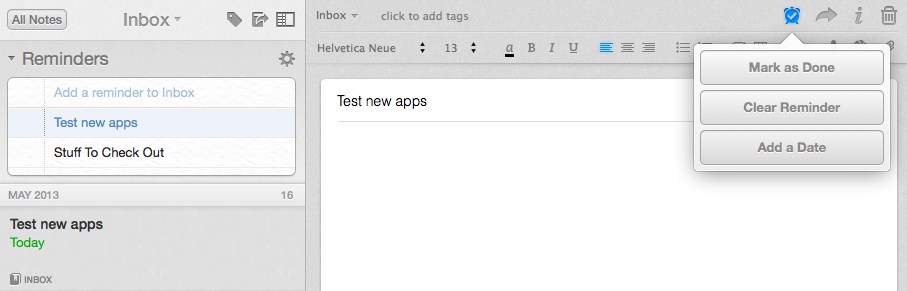
In the years I’ve spent using and recommending Evernote, I’ve always noticed a chasm between people who rely on the service to store reference material and notes, and those who want to also use Evernote as a “getting things done” system to keep track of their todos. The topic has been widely discussed on the Internet, with smart folks such as Sven Fechner and Fraser Speirs delving deeper into the subject of Evernote as a GTD system. Tutorials and eBooks have been published with tips on how to use tags and saved searches to turn Evernote into an app capable of equally handling documents, notes, and todos under a single, searchable archive. Clearly, there was a demand for a task management feature built right into Evernote.

Today, Evernote is releasing updates to its Mac and iOS clients to introduce a major new feature: native reminders. I have been testing the new versions of the app, and I believe reminders are a good addition that fit well with Evernote’s focus on remembering everything through a unified, polished interface. Read more


Chrome for iOS Getting Voice Search Soon

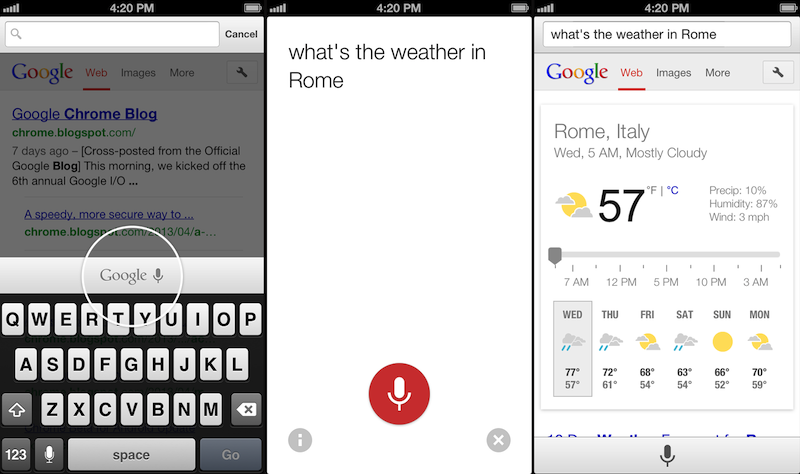
Following this morning’s rollout of the Voice Search for desktop, Google has also announced through the official Chrome blog that Chrome for iOS will receive the same feature “over the coming days”.

Voice Search, already available through the standalone Google Search app, will be activated in Google Chrome by tapping on a microphone button above the iOS keyboard:

Over the coming days, we’re rolling out an update for iPhone and iPad as well. You can now speak your searches into the omnibox. Touch the microphone, say your search query aloud and see your results (in some cases spoken back to you), all without typing a single letter.

Interestingly, the screenshot shown by Google displays the microphone button in the same additional keyboard row that’s currently occupied by buttons aimed at enabling users to more easily type URLs. Because Chrome for iOS, unlike Safari, uses a unified address bar for URLs and web searches, the extra keyboard buttons were necessary to let users quickly insert URL-related characters. It’s possible that Google will figure out a way to show both keyboard rows – the buttons and the new microphone – by letting users swipe horizontally above the keyboard.

Alongside performance improvements, Google also notes that “iOS apps can now give you the option to open links in Chrome and then return to the app with just one tap”. Assuming that Google is referring to the Chrome URL scheme with support for x-callback-url, that wouldn’t be new as it is already used by a variety of iOS apps (and as I showed today, users can play with it as well). However, Google has been quite vocal about its existing support for URL schemes lately, and it wouldn’t be surprising to see the company advertising the feature as new again.

Chrome for iOS, free on the App Store, was last updated in April.


Rdio for iOS Update Brings Label Search, Revamped Sidebar, New “Find People” Feature

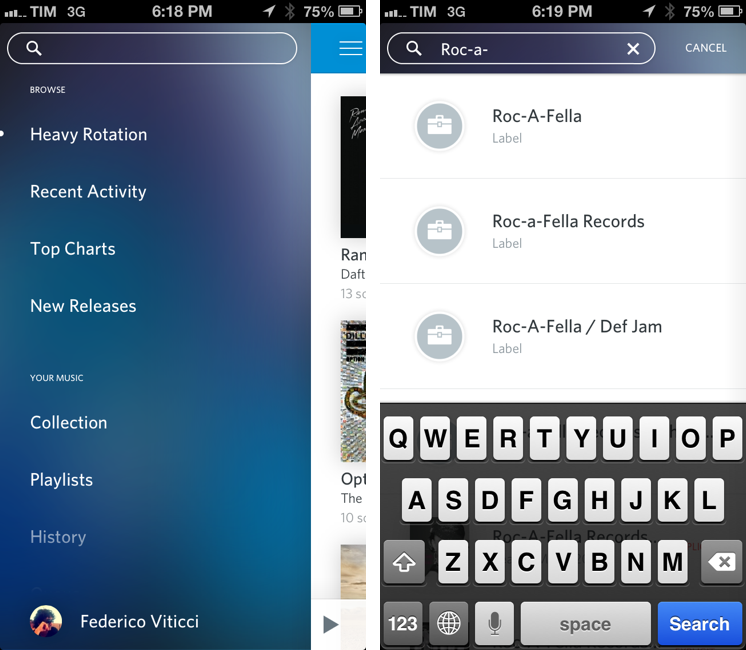
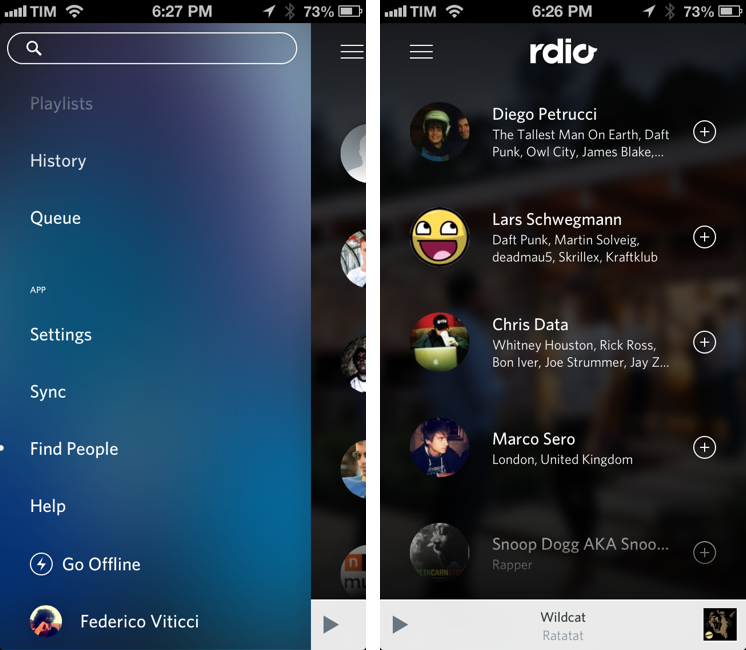
Rdio 2.2, released today for the iPhone and iPad, brings a series of important new features such as label search and improved user search, plus a revamped look for the slide-out navigation.

A feature highly requested by Rdio’s userbase, label search allows you to view top albums and artists of a specific label; if you want to see more artists or records, there are links to view a complete list – which, surprisingly, doesn’t support the tap & hold menu for quick actions that was introduced a few updates ago.

In the refreshed sidebar (also available on the iPad) a new Find People functionality allows you to find friends and artists you can follow by simply tapping on their profile pictures. It’s unclear how Rdio is determining user suggestions, but it’s likely that the service is looking into data provided by Twitter and Facebook accounts configured with it.

Today’s new version follows a series of updates that streamlined the app’s interface and enhanced its sharing capabilities. Rdio 2.2 is available on the App Store.


Apple Rolls Out Online Store Design Changes

Apple rolled out a series of design changes to its online Store overnight, bringing a cleaner, more subdued style for graphical elements and larger, image-centric spots for products and accessories.

The most notable change is the front page of the Store, which now eschews a sidebar to present a full-size view of products with varying sizes. The old design featured evenly-spaced thumbnails for Apple products and third-party accessories with two sidebars with additional navigation options and information; the new one employs larger images, retaining navigation for the main “Shop” sections at the top and in the footer. Interestingly, in the refreshed homepage launched today, the only image showing a Mac is the “Shop Mac” link at the top.

Design tweaks have also been rolled out in several other areas of the Store, such as the Accessories page. The old design relied on a main product list with small thumbnails and a sidebar containing clickable links on the left side; the new one takes a more visual approach with a landing page featuring larger tiles of products, a new sidebar on the right, and a larger grid for accessories in each category.

The Apple Store follows a series of recent design tweaks Apple brought to some of its products and services – notably, the company sent new iTunes promotional emails with a cleaner look and more focus on content yesterday.

For comparison purposes, we have captured screenshots of the old online Store design using the Internet Archive. You can view the full-size images by clicking the links below.

  • Online Store homepage: old/new

  • iPad Accessories page: old/new


Scanner Pro Gets Real-Time Border Detection

Readdle’s Scanner Pro has been my favorite iOS scanner app for over a year now:

…for the professional who runs a small business, or individuals who do scan documents, just not so many every day, I’d seriously suggest considering Scanner Pro on the new iPad. The device’s camera will give you decent images — especially with good lightning and background — and the app works with the services many are already using for document storage and archival.

I have been experimenting with different paperless systems (I still haven’t settled on a specific one), but Scanner Pro was and will remain at the core of my mobile scanning workflow. Every day when I get home, I fire up Readdle’s app on my iPhone/iPad, take the receipts and paper documents I’ve collected during the day, scan them using Scanner Pro, and send them to one of the services built into the app (such as personal favorites Evernote and Dropbox). With today’s 4.5 update, which I have been testing, Scanner Pro gets even faster and more intuitive thanks to real-time border detection.

It used to be that Scanner Pro let you take a photo and adjust borders for cropping a document by manually moving a series of controls around the area you wanted to scan. Scanner Pro did a decent job at guessing where it should place the borders, but they still needed tweaking most of the time. In version 4.5, the Readdle team has completely reworked the algorithm behind border detection to make it smarter and bringing it into the camera view as well.

When taking a picture of a document, Scanner Pro 4.5 will overlay borders directly on top of the object, with impressive results. In my tests (a screenshot of which you can see above) Scanner Pro capably recognized borders of paper documents against dark and light backgrounds, in both normal and low-light conditions. Because borders are detected in real time, you can move objects or place other items in the shot and view borders update within a fraction of a second without leaving the camera view. It’s incredibly cool – but, fortunately considering the app’s utilitarian goal, also efficient.

While Scanner Pro tries to automatically detect borders and offer its best take in the Save screen, you can still tap Back to adjust borders manually. This is a welcome option – the app now defaults to the Save screen after a picture has been taken and processed, but you still want to retain manual control in case the new border detection algorithm doesn’t work properly.

It’s not a replacement for full-featured hardware such as Fujitsu’s ScanSnap, but for people who, like me, don’t have exorbitant amounts of paper to digitize every day, Readdle’s Scanner Pro remains a reliable, powerful iOS scanner app with tons of useful options. The new automatic border detection is a simple feature – but a handy one that’s uniquely suited for the iOS camera.

Scanner Pro 4.5 is available on the App Store.


Keyboard Maestro 6.0 Adds Syncing, Browser Actions, Device Triggers, And More

Keyboard Maestro 6

Keyboard Maestro 6

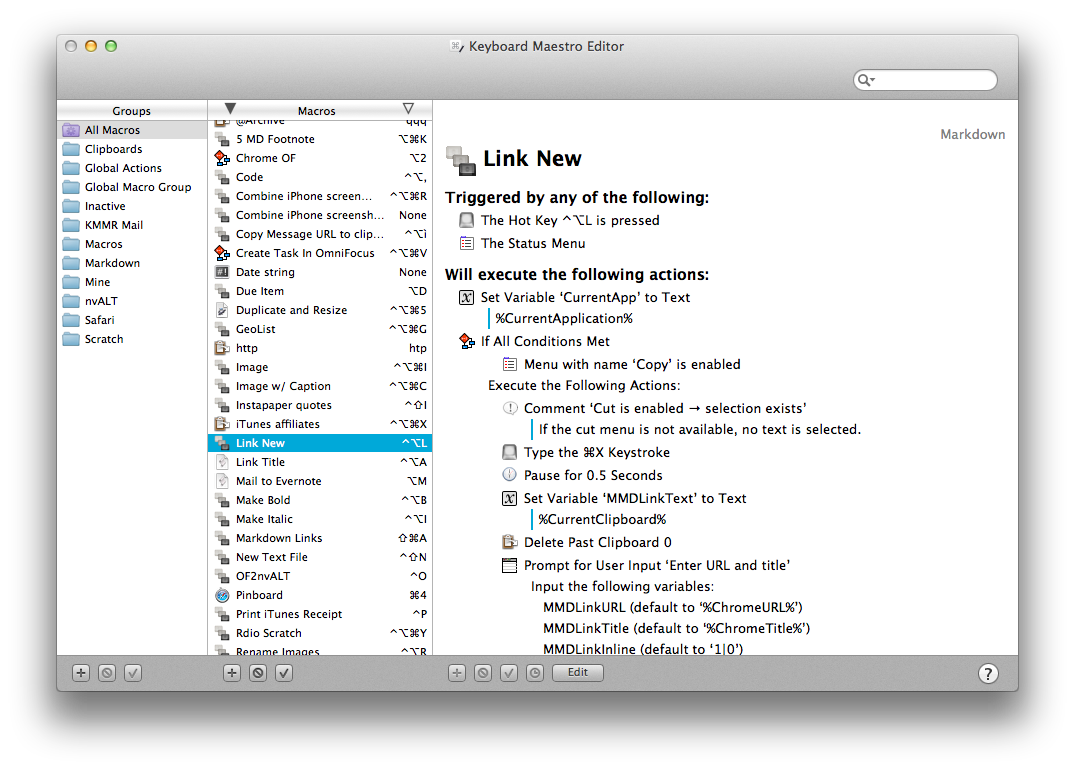
Long-time MacStories readers know how deep-seated Keyboard Maestro is in my OS X workflow. I use it every day, constantly, to automate my Mac to speed up writing, resize images, save PDFs, execute scripts, and more. Version 6.0 is out today and it brings over 100 new features. Unfortunately, I have only been playing with the app for a few hours, so an in-depth review will be published in the coming weeks.

Keyboard Maestro 6.0 retains the same interface and design principles of its predecessor while adding powerful new features that are exclusively built for Mountain Lion. For owners of multiple Macs, the good news is that Keyboard Maestro can now sync macros using Dropbox or any other sync service; in my initial tests, sync worked as advertised.

There are, of course, new triggers and actions to build macros that can automate (almost) any aspect of your Mac. You can now specify triggers for USB devices that are attached/detached to a computer, volumes, and wireless networks that your Mac connects to. This will be useful to build workflows (possibly to run at a specific time of the day) that handle backups or move files from one folder to another (the triggers can also be used as conditions in a macro). When you’re building a macro, you can now take advantage of a Macro Debugger that shows every action with completion status and breakpoints; this will come in handy to better understand why a macro isn’t working and, if so, how to fix it.

I’m personally excited to play around with the new actions for Safari and Google Chrome. As most of my workflows revolve around doing research in and grabbing text/URLs from a web browser, I have created dozens of macros that leverage AppleScript to store a webpage’s name and URL in variables to include in actions that output Markdown for my articles. With Keyboard Maestro’s new Safari and Chrome actions, you can eschew AppleScript entirely and let actions open and select tabs, get URLs and titles, submit and reset web forms, click links, wait until a browser has finished loading – while obviously accessing the same data as text tokens in your actions. On top of this, you can execute JavaScript in Safari and Chrome – which means activating bookmarklets from Keyboard Maestro with custom keyboard shortcuts is now easier than ever. I have already rewritten my actions for Markdown links to take advantage of the new browser actions; I have eliminated every instance of AppleScript, so there’s less manual saving to variables, the actions look more elegant, and I’m using built-in tokens.

There’s a lot of new stuff that I haven’t had time to properly test. You can now interact with styled text from Keyboard Maestro; you can write your own actions; there’s improved support for showing menus from installed apps (essentially enhanced GUI scripting); you can capture components of a regular expression by searching inside a variable or named clipboard – a power-user functionality that I am extremely curious to try with my regex to capture groups of Markdown inline links.

From what I’ve seen so far, Keyboard Maestro 6.0 doesn’t revolutionize the app but adds welcome (and needed) features such as syncing and browser actions while broadening its automation scope with intriguing new triggers, conditions, and actions. I look forward to seeing how I can update my macros to take advantage of the new functionalities introduced today.

Keyboard Maestro 6.0 is a paid upgrade. The app is available at $36, with an upgrade price of $25 for owners of the older version. A free trial of Keyboard Maestro 6.0 can be downloaded from Stairways Software’s website.