Posts in news

Apple Marks Earth Day with Donations, Daisy the Recycling Robot, and an Apple Watch Challenge

Apple has issued a press release announcing that from today through April 30th, the company will make a donation to Conservation International for each device turned in for recycling through Apple’s GiveBack program. The company also took the opportunity to introduce Daisy, its next-generation iPhone recycling robot.

Through Apple GiveBack, devices can be recycled in person at an Apple Store or using apple.com. In exchange for eligible devices, customers will receive in-store credit or an Apple gift card and Apple will donate to Conservation International, which:

…uses science, policy and partnerships to protect the natural world people rely on for food, fresh water and livelihood. Founded in 1987, the organization works in more than 30 countries on six continents to ensure a healthy, prosperous planet.

Apple introduced the world to its iPhone disassembly robot dubbed ‘Liam’ in 2016. According to Apple, its successor Daisy:

…is the most efficient way to reclaim more of the valuable materials stored in iPhone. Created through years of R&D, Daisy incorporates revolutionary technology based on Apple’s learnings from Liam, its first disassembly robot launched in 2016. Daisy is made from some of Liam’s parts and is capable of disassembling nine versions of iPhone and sorting their high-quality components for recycling. Daisy can take apart up to 200 iPhone devices per hour, removing and sorting components, so that Apple can recover materials that traditional recyclers can’t — and at a higher quality.

Apple’s press release includes a video showcasing Daisy in action too.

Finally, notifications are being sent to Apple Watch users today announcing an Earth Day fitness challenge. Users who complete a 30-minute workout this Sunday, April 22nd will earn a special badge in the Apple Watch and iOS Activities apps and iMessage stickers.
Dropbox iOS App Receives Drag and Drop Support, Fullscreen iPad Navigation

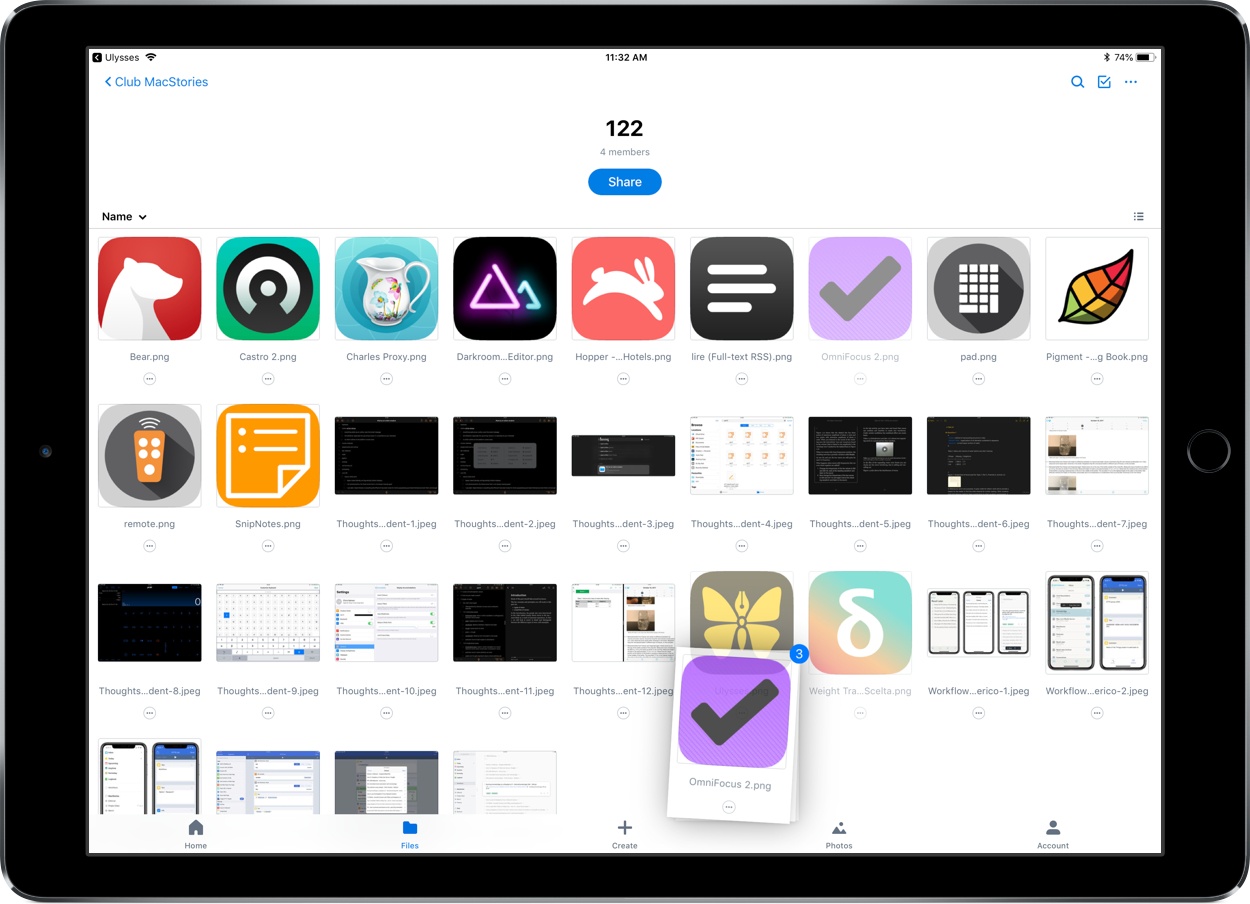
The latest version of Dropbox for iOS includes some nice improvements, the most noteworthy of which is drag and drop support.

Now if you need to add files to your Dropbox from another app, you can just pick them up and drop them right into the Dropbox app in exactly the folder you want. Equally exciting to me personally is that you can also use drag and drop for file management inside the app – just tap and hold on a file or folder and it will lift from its place, letting you drag it around and move it to other locations inside the app. I’ve always felt Dropbox’s method of moving files required too many taps, so drag and drop is a perfect solution for that. Also, I’m happy to report that file moving via drag and drop works on both iPad and iPhone.

Drag and drop capabilities have technically been available already for Dropbox users via managing your documents in Apple’s Files app, but if you need or simply prefer to use Dropbox’s own app, these are great features to have.

Another change in today’s update is that on the iPad, you can now close the file previewing pane to get a fullscreen browsing experience with your files – just hit the X in the upper left portion of the preview pane to get fullscreen navigation. I find that this feature is especially helpful when you’re using the grid view for files, but it could also be of benefit in list view if you have a lot of long file names that will no longer be truncated.

The app’s release notes also state that there is improved previewing and new text editing abilities for more than 120 file extensions, but the specifics of those extensions are unknown. I was hoping one of them would be Markdown (.md) files, but unfortunately those still can’t be edited in-app.

Despite the fact that Dropbox users can now do most document management inside the Files app, Dropbox continues to improve its app and make it a solid option for those who prefer not to use Files.


MacStadium: Hosting Solutions for Apple Mac Infrastructure [Sponsor]

MacStadium is the premier Mac hosting company that provides dedicated Mac hardware and private cloud services. They have multiple data centers where your hardware is secure, always available, and supported by a team of Mac experts.

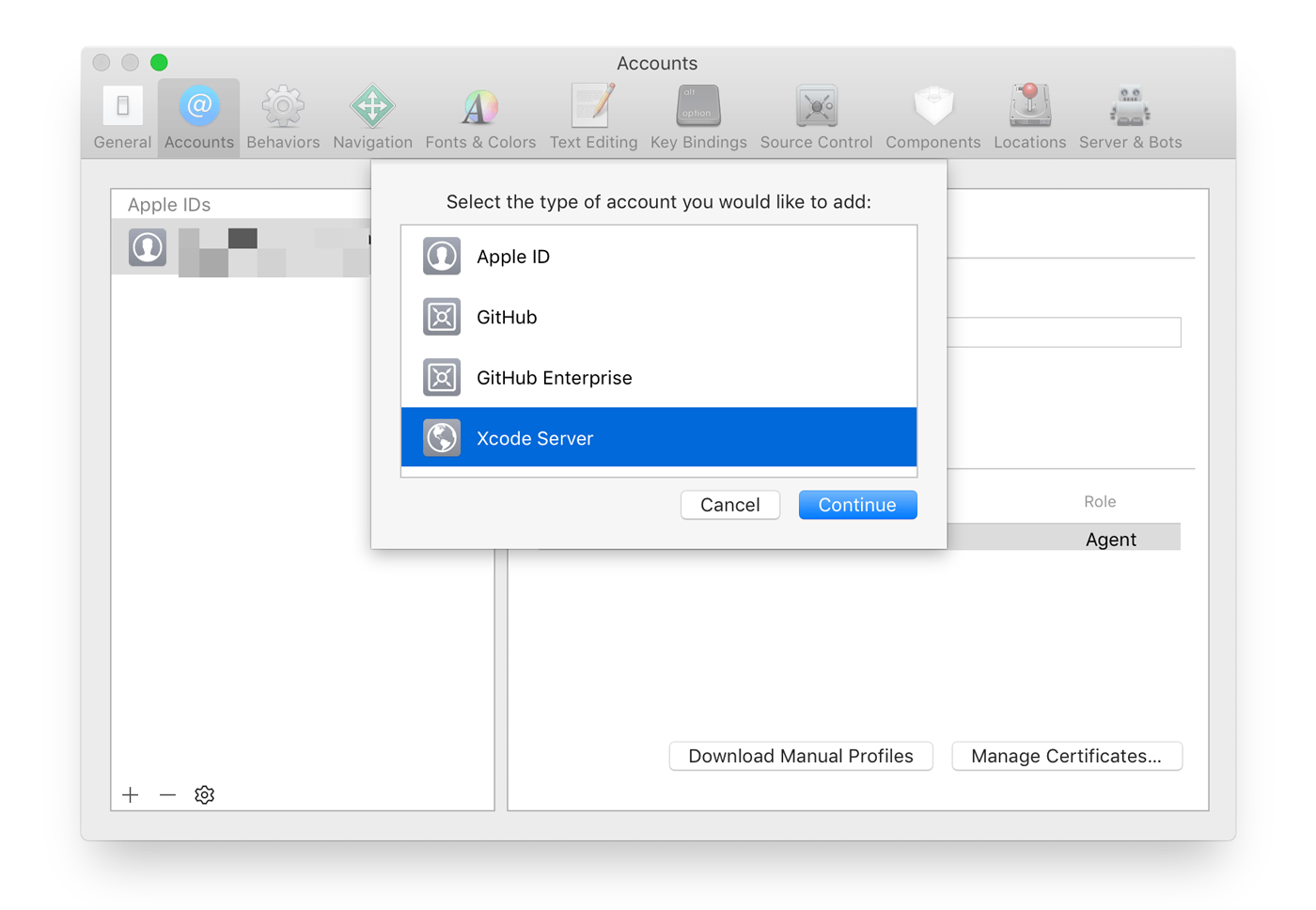
The ways you can use a Mac mini server are only limited by your imagination. For example, developers from small indie shops to some of the biggest companies in the world use MacStadium minis as build servers. With Xcode 9, it’s easy to set up an Xcode Server bot to handle your builds.

A Mac mini server is also a fantastic option for hosting a website. MacStories has run on a Mac mini at MacStadium for years, and it’s always been fast and reliable.

MacStadium’s servers work great with tools like Transmit, Sendy, Yourls, for storing files, sending email newsletters, and shortening URLs. You can even create a private Dropbox-like service with ownCloud and bill clients with tools like Pancake. Those are just a few of the possibilities available when you use a Mac mini server.

The folks at MacStadium are running a special promotion for MacStories readers who want to try a Mac mini server for themselves. You can trial a Mac mini server in their data center for a full month at no cost. Sign up to rent a Mac mini using coupon code “MACSTORIES,” and you’ll be all set.

You can check out the details here.

Our thanks to MacStadium for sponsoring MacStories this week.


The MacSparky iPhone Field Guide is Available Now

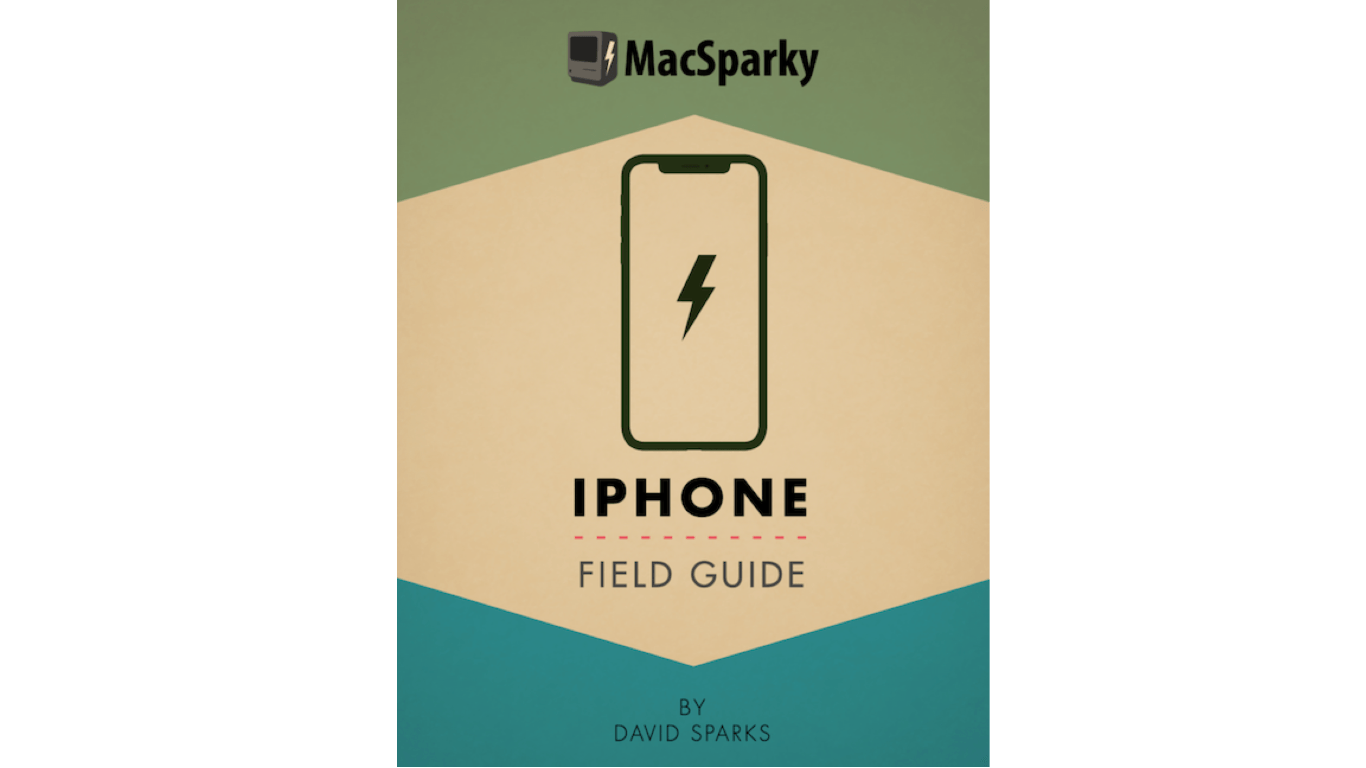
David Sparks has a knack for breaking down big topics and making them approachable with his series of MacSparky Field Guides. His latest book, the iPhone Field Guide, covers everything iPhone-related. The guide is Sparks’ most ambitious work yet, coming in at 450 pages with over 50 screencasts.

The raw numbers are only part of the story though. New iPhone owners will appreciate Sparks’ coverage of the basics and Apple’s stock apps, but there’s a lot here for more experienced iPhone users too. The book is full of short tutorials and app recommendations to help all users get more out of their iPhones. I especially like that many of the screencasts focus on third-party apps, which is a great way for readers to get a feel for them before deciding to download.

The iPhone Field Guide is a fantastic reference that I wouldn’t hesitate to recommend to anyone who wants to take their iPhone and iOS use to the next level. Skimming through the book, I found many MacStories favorites among the apps covered, and having them all available in a beautifully-designed, interactive iBook makes picking out new apps a pleasure.

The MacSparky iPhone Field Guide is available on the iBooks Store for an introductory price of $19.99, which will increase at a later date.


Apple Is Now Fully-Powered by Renewable Energy

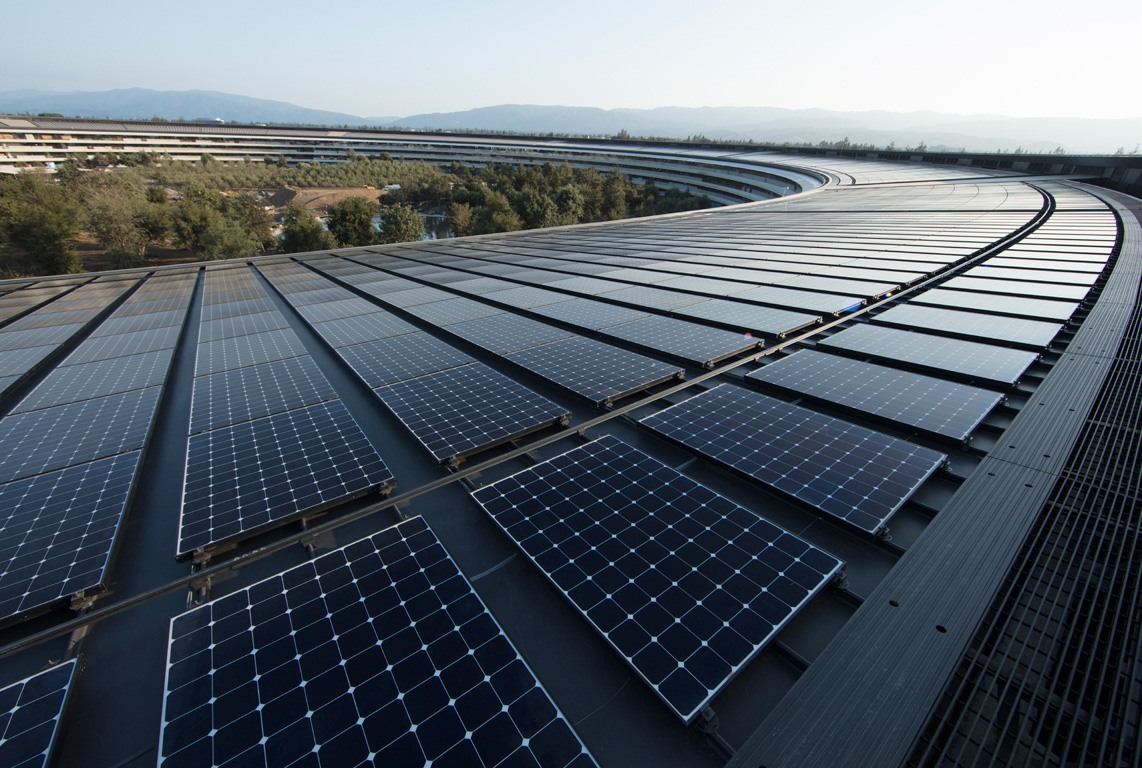
Apple announced today that its global facilities, which include retails store, offices, data centers, and co-located facilities in 43 countries are powered by 100 percent clean energy. Apple CEO Tim Cook said:

“We’re committed to leaving the world better than we found it. After years of hard work we’re proud to have reached this significant milestone,” said Tim Cook, Apple’s CEO. “We’re going to keep pushing the boundaries of what is possible with the materials in our products, the way we recycle them, our facilities and our work with suppliers to establish new creative and forward-looking sources of renewable energy because we know the future depends on it.”

The list of Apple’s renewable energy projects around the world is impressive, as are the aggregate numbers involved:

Apple currently has 25 operational renewable energy projects around the world, totaling 626 megawatts of generation capacity, with 286 megawatts of solar PV generation coming online in 2017, its most ever in one year. It also has 15 more projects in construction. Once built, over 1.4 gigawatts of clean renewable energy generation will be spread across 11 countries.

Apple also announced the names of nine additional manufacturing partners that have committed to powering their Apple production with 100 percent clean energy, which brings the total number to 23.

In addition to its press release, Apple’s Vice President of environment, policy, and social initiatives Lisa Jackson sat down with Fast Company for an interview:

According to Jackson, it would have been easy enough for Apple to trumpet its landmark achievement in renewable energy earlier. “If you look at our trajectory, for the last couple of years we’ve been close to 100%,” she says. “It’s just four percent more, but it’s four percent done the right way. So this announcement feels like a classic Apple product release. Like our products, we sweat the details, we have pretty strict standards, and we prefer to wait and meet our standards than to rush and make a claim.”

Fast Company’s feature is an in-depth look at Apple’s clean energy initiatives that excels at providing context and a sense of the scope of the effort. One such example is Apple’s enormous Nevada data center:

You have to see Apple’s Reno, Nevada, data center from the inside to truly understand how huge it is. It’s made up of five long white buildings sitting side by side on a dry scrubby landscape just off I-80, and the corridor that connects them through the middle is a quarter-mile long. On either side are big, dark rooms–more than 50 of them–filled with more than 200,000 identical servers, tiny lights winking in the dark from their front panels.

The Fast Company profile is worth reading in its entirety because it also dives deep into the role of Renewable Energy Certificates and suppliers in Apple’s clean energy projects. The article provides the substance behind Tim Cook’s press release statement, backing up the company’s renewable energy claims with a close look at every facet of the initiative.


iMovie for Mac Adds App Preview Creation for the iPhone X and Additional iPad Sizes

Developers can use iMovie for Mac to create the App Preview videos that you see in the App Store. It isn’t a new feature, but until version 10.1.9 was released today, the feature did not support the iPhone X or certain iPad sizes.

Other video editing apps can be used to create App Previews, but iMovie is convenient because it automatically configures export settings to meet the requirements of App Previews. The trouble is, releasing an update to support the iPhone X that was released five months ago is too late. To make the feature useful to Apple’s best developers who support new hardware as soon as it’s released, these sorts of updates should coincide the debut of new iOS devices.

Version 10.1.9 of iMovie also includes numerous bug fixes.


Microsoft Office and the Files App Finally Play Nice Together

Today Microsoft updated its Office suite for iOS, with Word, Excel, and PowerPoint all reaching version 2.12. Office updates rarely receive detailed release notes, and today was no exception, but user Teddy Svoronos discovered that the updates brought ‘Open In’ capabilities to the share sheet, which previously only enabled making a copy of an Office document. The ‘Copy to’ option has now been removed, replaced by the more convenient ‘Open in.’

After seeing Teddy’s tweet, I did a little playing around in the Files app and discovered that, while Excel and PowerPoint documents accessed in Files will load Quick Look previews and require tapping ‘Open in’ from the share sheet, the experience is even better with .docx files. Those Word-associated documents open directly in the Word app with just a single tap from the Files interface – no need to open the share sheet first.

It’s possible this disparity in behaviors between file types only exists because I view Word documents far more regularly than Excel or PowerPoint files. Perhaps heavy Excel or PowerPoint users will see a different behavior because the Files app has enough data to know which app you want to open certain file types in. It’s also possible, though, that the behavior I’ve seen is true for everyone, and Microsoft simply made a somewhat perplexing design decision.

In any case though, whether a Files document opens in its correct app with a single tap, or you use the share sheet and ‘Open in’ first, this is still a huge improvement for Office users. Previously any documents stored in Files would need to be accessed by going to either Word, Excel, or PowerPoint, tapping the ‘More’ button in the ‘Open’ menu, then locating the file from there. Now, iOS users can go straight to the Files app, locate the appropriate document, and open it directly with only a tap or two.

Update: One of the developers working on Office has confirmed my suspicions: the reason Word files open for me with a single tap while Excel and PowerPoint files do not is that I haven’t opened those files enough for iOS to know that I would prefer to bypass the share sheet.

In theory, a system where iOS knows what you want every time could be great, but in reality, I sure would like having the option to set default apps per document type.


Inko: A Collaborative Whiteboard for iPad, iPhone, and Apple TV [Sponsor]

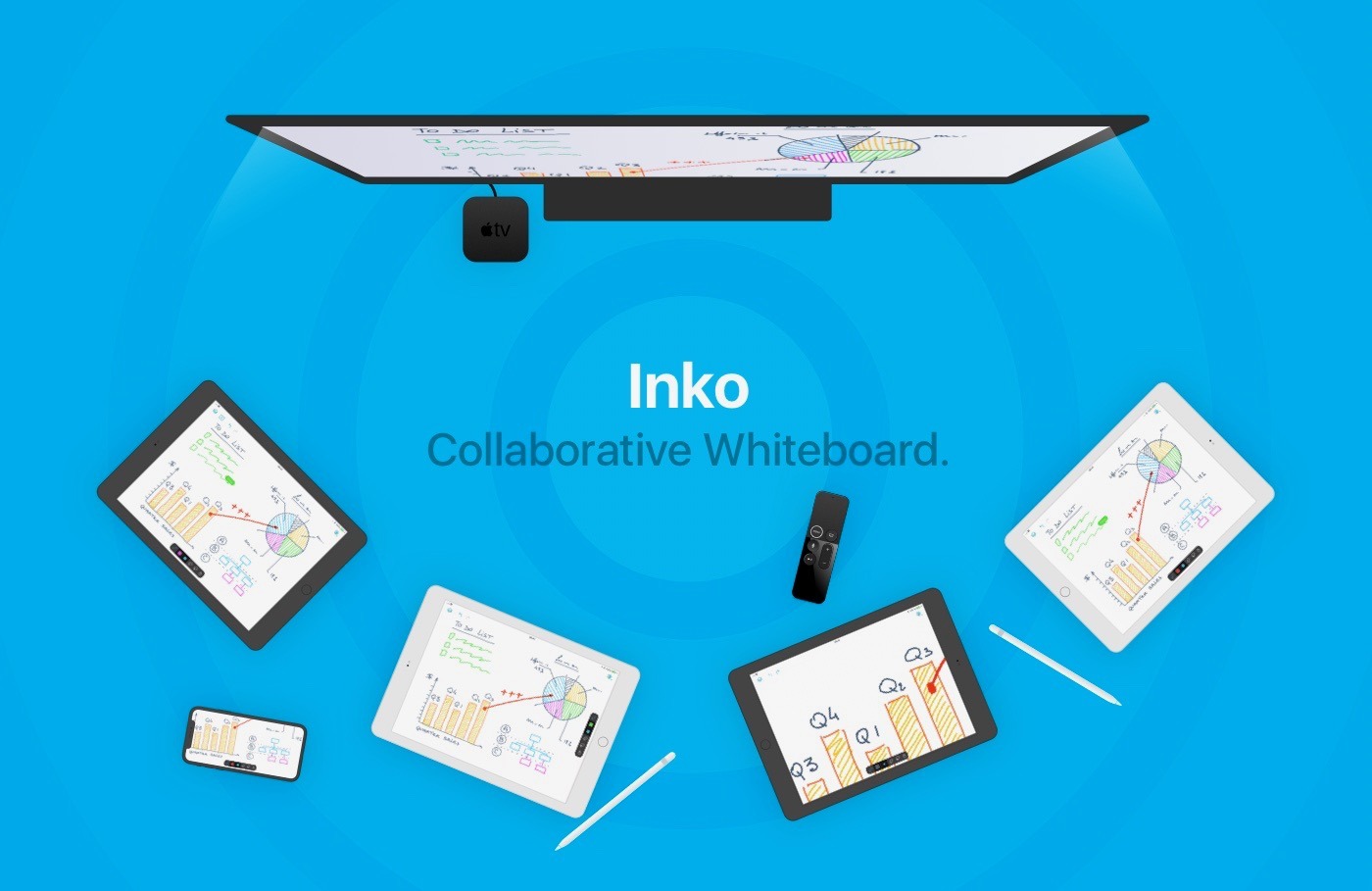
Inko is a collaborative whiteboard that lets several people draw together using multiple iPads or iPhones, and even interact on Apple TV. Ideal for teams of coworkers in a brainstorming session, for a creative classroom project, or for an interactive meeting between a graphic designer and their client.

Creating a group and starting to drawing together is easy. There’s no complex network setup, or even any network at all, thanks to nearby connectivity. With peer-to-peer connections, you can work wherever you are, be it in a bar or on the beach. Your drawings can also be displayed on the big screen, thanks to the free companion app for Apple TV. The app instantly connects and interacts with all devices in the room, making it a great alternative to those bulky and expensive interactive boards.

Even though Inko is both simple and intuitive, it’s also backed with sophisticated, advanced features like vibrant colors and beautiful pixel-free drawing display that stays sharp when zooming in. Inko also offers precise Apple Pencil support for an amazing lag-free, undo-capable, real-time drawing experience, as well as hi-res PDF exports to share with your group when you’re finished.

Inko’s Collaboration Pack is 20% OFF ($15.99 instead of $19.99) this week only. Hint: the discounted Collaboration Pack also entitles you to the introductory subscription price.

Our thanks to Inko for sponsoring MacStories this week.


Apple Announces iPhone 8 and 8 Plus (PRODUCT)RED Models

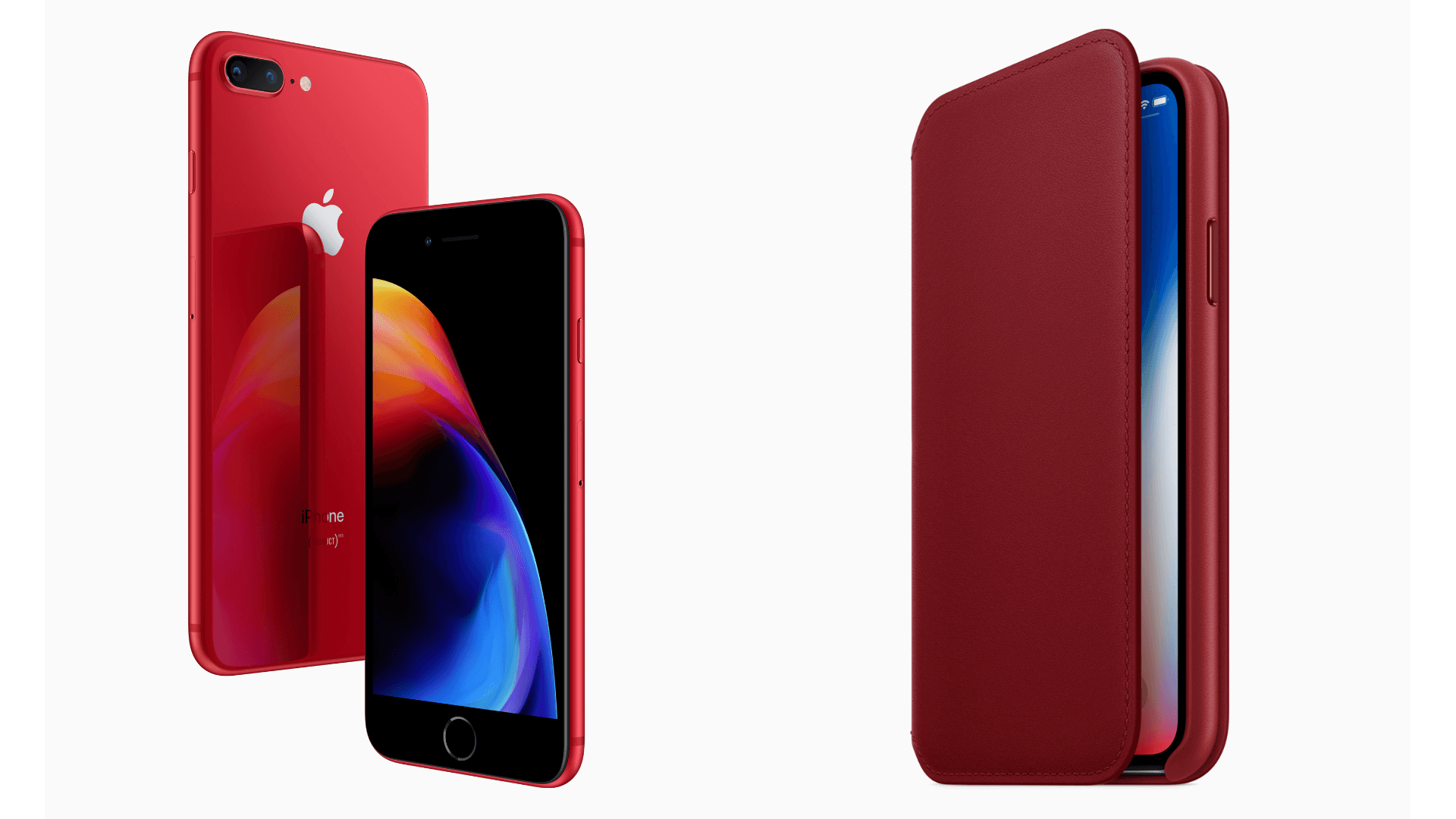
Today, Apple introduced a (PRODUCT)RED version of the iPhone 8 and 8 Plus. Following in the footsteps of last year’s (PRODUCT)RED iPhone 7 and 7 Plus, Apple has introduced a special edition of its latest iPhone 8 to benefit the charity (RED). A portion of the profits generated by the new iPhone will be donated to (RED) to help fight AIDS.

The new iPhones, which were leaked via an internal Virgin Mobile memorandum, have a red back like the iPhone 7 did, but this year, the bezel of the (PRODUCT)RED iPhone is black instead of white. The new phone comes in 64GB and 256GB storage configurations and goes on sale online tomorrow, April 10, 2018 starting at $699 and will be available in stores Friday. In addition, Apple will release a new PRODUCT(RED) Leather Folio tomorrow for $99.