Posts in iOS

iA Writer 4 Adds Markdown Content Blocks

A major update to iA Writer, the popular Markdown text editor for iOS and macOS, has been released earlier today. I didn’t have enough time to test the beta of version 4.0, but I’m intrigued by the idea of file transclusion – effectively, a way to structure documents with content blocks based on local file references.

From the blog post:

We’ve made a swath of improvements in iA Writer 4. The meat on the bone is this new file referencing syntax. Every file reference you insert adds a block of content to your document, be it an image, table, or plain text file. These content blocks can then be ordered, stacked and chained with ease.

We think this syntax is a natural extension to Markdown, and it would please us to see other apps use it too. We’re a bit nervous since it’s a deviation, but we’d still like to try it out and hope it finds friends. We’ve published an introductory spec on GitHub to get the ball rolling. Hopefully, content blocks based on file transclusion will become a thing beyond iA Writer. One day all Markdown editors may work like that, but, as IBM famously said, why wait?

You can reference text files, images, and even .csv files to include in the compiled text output as MultiMarkdown tables. I think this is a genius way to handle file embeds in longer documents, and it’s something I would consider for future longform projects. I’m not aware of any other Markdown text editor for iOS that implements a similar option. I’d also like to see iA go beyond local file callbacks (which only work with iCloud) and allow documents to be comprised of files stored in iOS document providers. iA Writer is one of the few text editors that fully support opening and editing files from external document providers, so extending that integration to content blocks would be the next logical step.

There’s a lot to like in iA Writer; I don’t think it’s appreciated enough by iOS power users. The aforementioned integration with iOS document providers is solid, there are several editing tools such as writing statistics and parts-of-speech highlights, plenty of output options, support for iCloud versions, and more. I hope that iA will consider adding more features to the app’s basic URL scheme in the future – one area where iA Writer is considerably behind alternatives such as Ulysses and 1Writer.

I’m going to play around with iA Writer for a while – I feel like the app deserves more attention, and I want to experiment with document providers and content blocks for MacStories reviews and our newsletters.


iThoughts 4.0 Adds Markdown Formatting

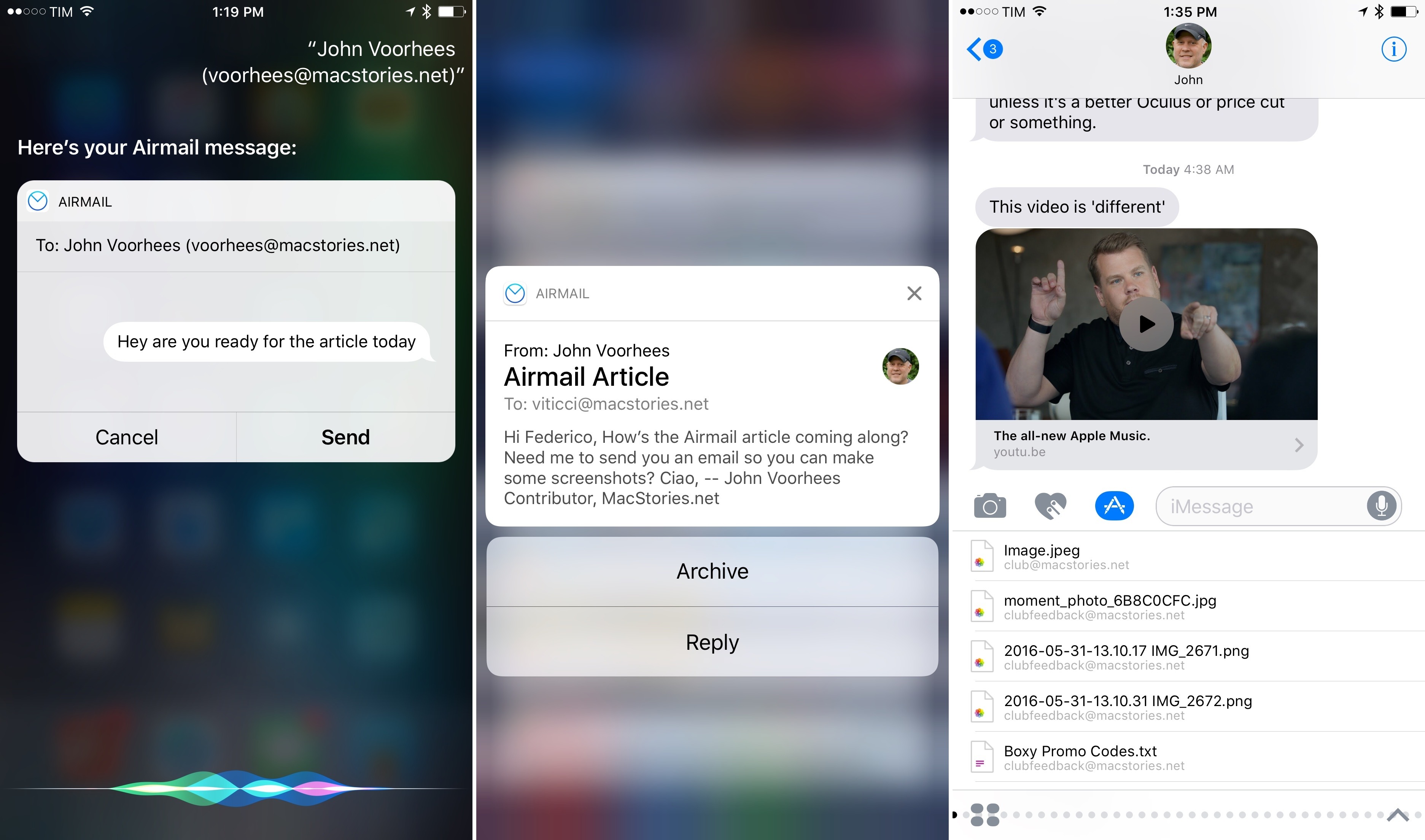
When I have to research and outline longform feature stories such as my iOS reviews, I use iThoughts. I wrote about my mind-mapping workflow in the Club MacStories newsletters before: essentially, iThoughts allows me to have finer controls over the way my mind maps look and how they work with external keyboards on the iPad.

I love the way I can structure a mind map in iThoughts to my needs, and several touches such as pasting images into nodes or quickly creating parallel or nested nodes speed up editing and collection of research material. Without iThoughts, my iOS 10 review wouldn’t have been possible.

Today, iThoughts developer Craig Scott launched version 4.0 of the app with native Markdown formatting. Markdown was already supported in the iThoughts URL scheme to create templates; now, you can format text inside individual notes with standard Markdown and iThoughts will display it as rich text when you’re done editing.

I took Markdown formatting for a spin today, and it’s exactly what I hoped it would be (for instance, I like how links are automatically converted after pasting them in a node). This is going to be extremely useful in June 2017, but I also think it’ll help me use iThoughts more regularly alongside my text editor.


Health Importer Makes It Easy to Move Health Data Between iPhones

I’m in a minority, but when I get a new iPhone every year, I like to start fresh without reinstalling from a backup. I talked about this before, but, essentially, with the vast majority of my favorite apps storing data in the cloud, starting with a clean installation of iOS is mostly a matter of redownloading and rearranging apps now. In the process, a fresh install of iOS allows me to re-evaluate which apps I actually use and which ones can go – something that helps me keep my devices lean and with plenty of storage available.1

There’s one aspect that bothers me every time I decide to install iOS without a backup, though: losing my Health data. In previous years, I was okay with backing up subsets of information to external web services such as Lifesum or the excellent Gyroscope: over time, however, the inability to look at my complete health history in Apple’s Health app has become a problem that made me reconsider my stance on not restoring from a backup every year.

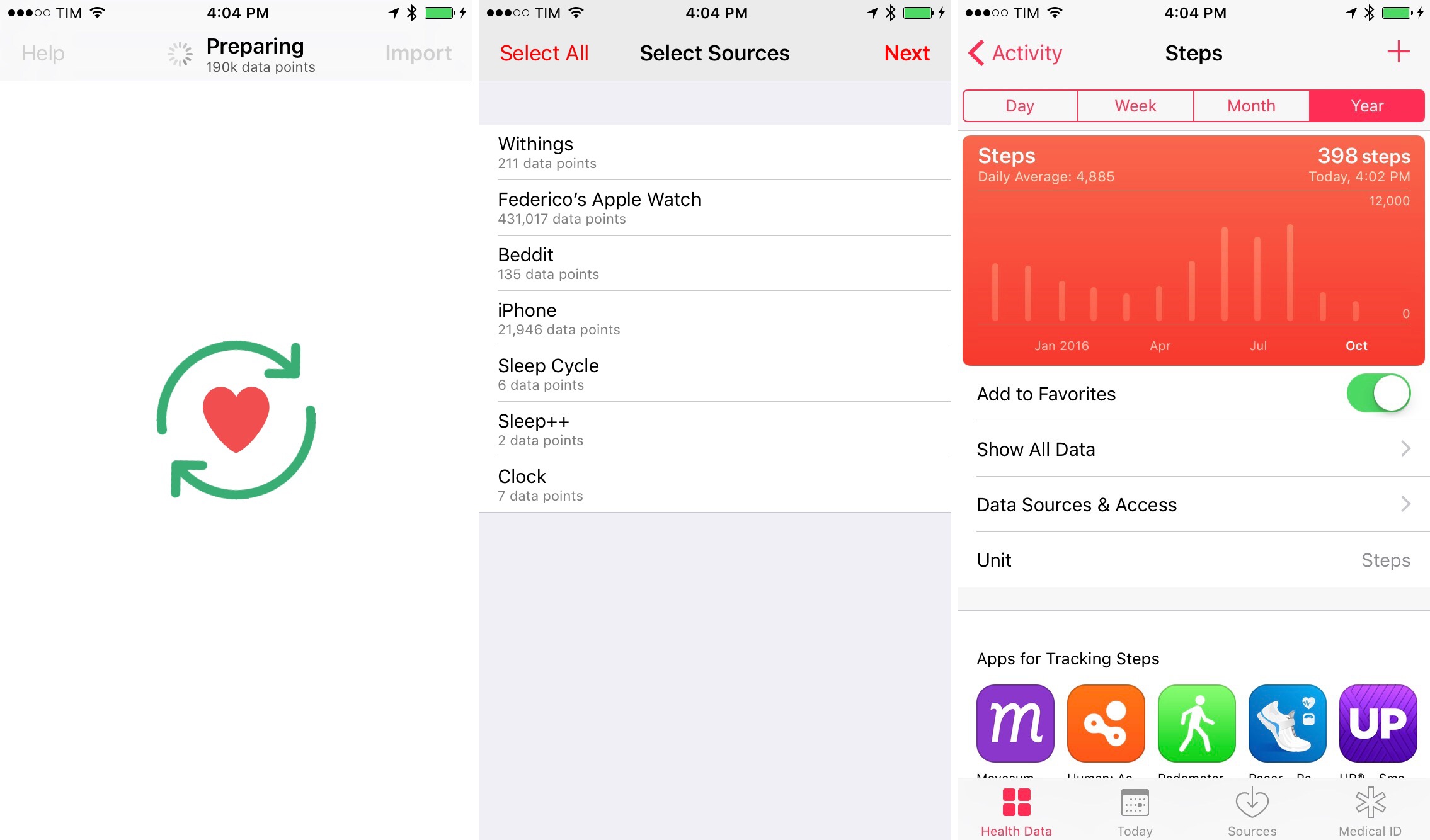
Fortunately, Dan Loewenherz has come up with a solution that will allow me to continue my no-restore strategy for the foreseeable future. Loewenherz created Health Importer, a simple $2.99 utility that does exactly what you’d expect: the app restores a backup of the Health database, keeping old entries with every data point logged from your iPhone, Apple Watch, or third-party apps.

Read more


CardioBot Provides Effortless Heart Rate, Sleep Tracking

About a month ago, developer Majid Jabrayilov slipped a gem into the App Store: CardioBot for iPhone and Apple Watch. It’s an informative yet minimalistic take on an activity and sleep tracker that gets you the right information within just a couple of taps.

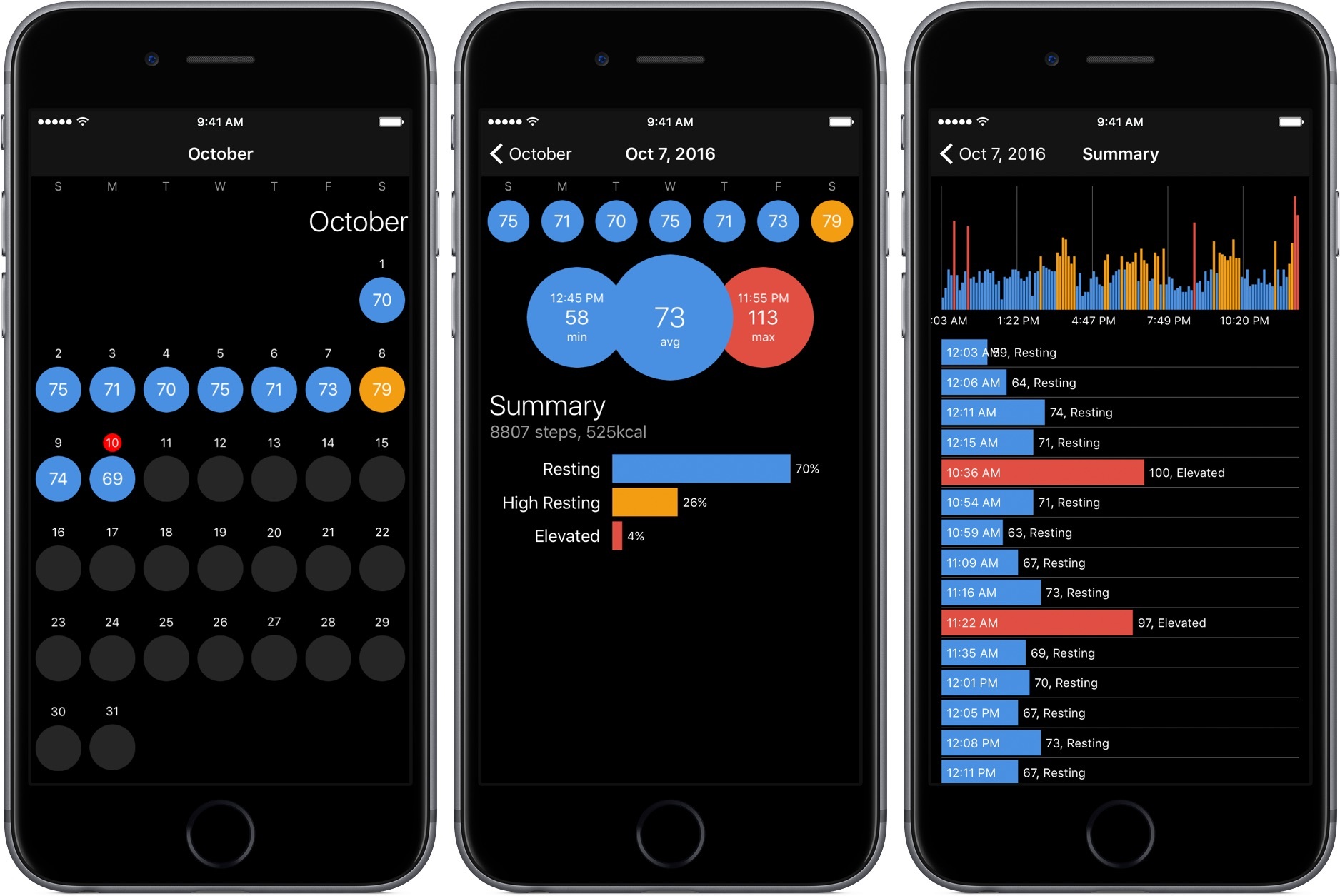
After granting CardioBot access to the Health app on the iPhone, you’ll get a colored calendar view against a dark background. Each day will be assigned a dot with a designated hue for a heart rate range: gray for low, blue for resting, orange for high resting, and red for elevated. Also present on each day is your average beats per minute.

You can dive into each day to see more detailed facts, like a percentage graph of your daily heart rate or the time of your minimum and maximum BPM. Tapping on the summary graph will display every reading your Apple Watch took throughout the day.

CardioBot also includes graphs for sleep tracking, which can be done while wearing the Apple Watch in bed, and workouts. Both break out data into different heart rate ranges, so you can get a better idea of how your body is performing.

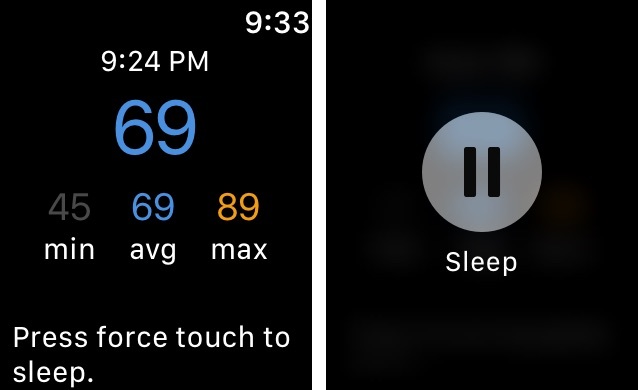
On the Apple Watch, you can get a quick glance at your last heart rate measurement and the minimum, average, and maximum measurements from the day. Press the screen to start a sleep measurement before bed – just don’t forget to stop it in the morning like I tend to do.

For the few days that I’ve had CardioBot installed, I’ve enjoyed the amount of information it gives me about my health. Setup is a breeze and it was great to see my data imported into the app without a hitch. Although other apps feel inclined to bombard you with information, CardioBot elects to present you with digestible figures and graphs, making this a tool that anyone can use without struggle.

At $1.99, CardioBot is an easy purchase for the quality you’re getting. You can pick it up on the App Store here.

Update: Through a combination of emails and tweets, I’ve been asked the differences between CardioBot and HeartWatch. When I reviewed HeartWatch back in February, it was in version 2 and looked noticeably similar to how CardioBot looks now. However, now that HeartWatch is in version 3, it has gained many features that have grown it from its 2.0 version. While CardioBot does look similar to HeartWatch’s previous product, I believe the two serve different markets today: HeartWatch for the pro health tracker and CardioBot for the rest. With that being said, I want to point out that they do look similar.


Shazam’s Interactive Notifications on iOS 10

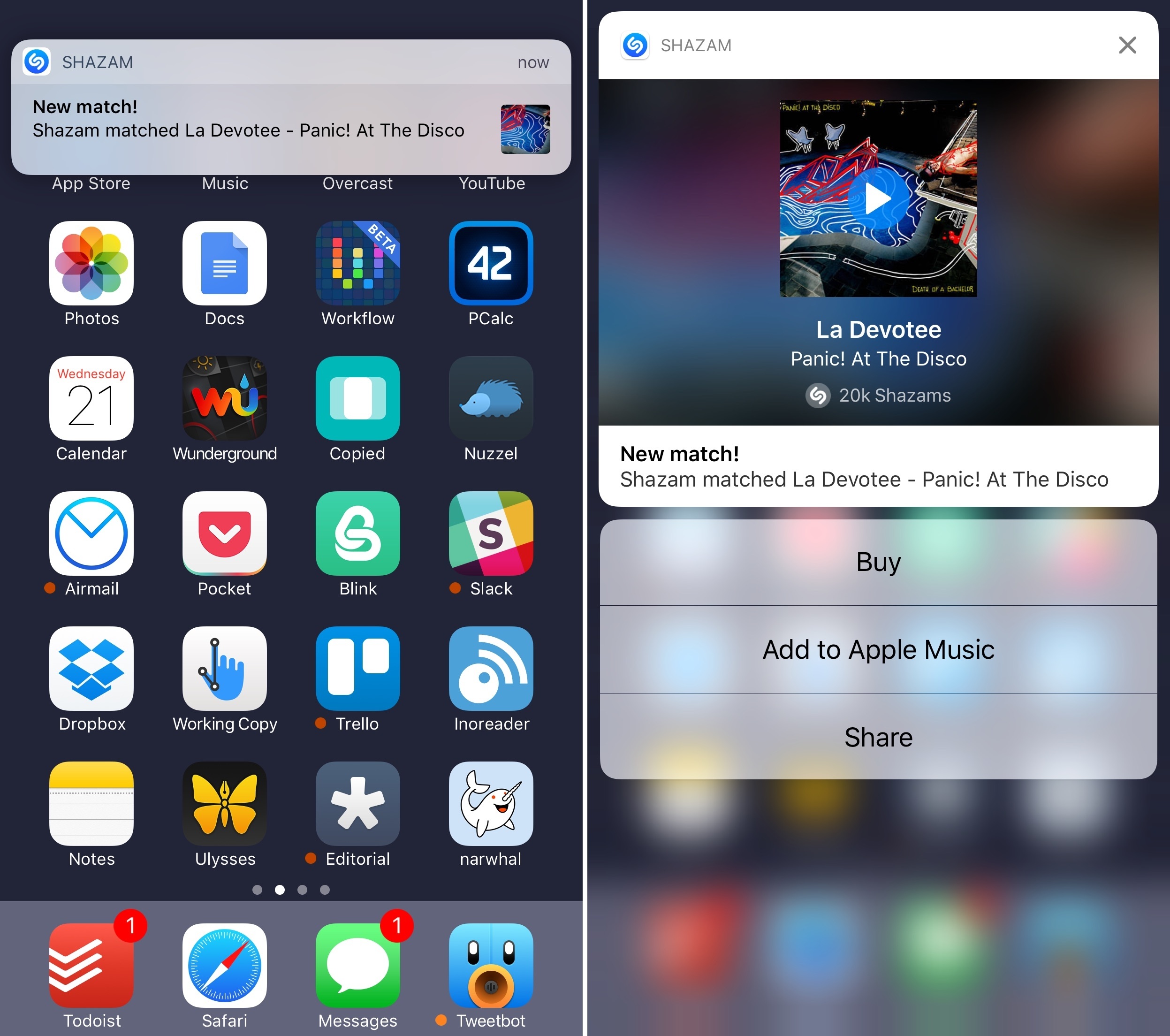
A rich Shazam notification in iOS 10. Also, a great song.

A rich Shazam notification in iOS 10. Also, a great song.

I was recently watching a movie with my girlfriend, and it had a great soundtrack. After scrubbing the video back to open Shazam on my iPhone for the third time, I remembered that Shazam offered an automatic tagging feature to let the app continuously listen in the background to recognize songs. Shazam’s auto-tagging isn’t meant to be active all the time, but we were home, with my iPhone charging next to me, and it seemed like a perfect time to try it.

To my surprise, Shazam started pushing tagged songs using iOS 10’s new notification framework. Their implementation is a great example of what developers can achieve with rich notifications: a notification can be expanded and you’ll be presented with a custom view showing the song’s title, artist, album artwork, and global number of Shazams by users. But that’s not all – you can also tap on the artwork to listen to a song’s preview inside the notification without opening the Shazam app. If you want to act on the notification, there are three quick actions (another change made possible by iOS 10) to buy the song, add it to a playlist on Apple Music, or share it.

Once I realized I could catch up on tagged songs from Notification Center, I left Shazam running and enjoyed the rest of the movie. At the end, I went through my notifications, listened to each audio snippet, and saved a few songs in my Apple Music playlists.

The final result would have been the same in iOS 9, but the experience wouldn’t have been as nice (or as fast) without rich notifications. I’m looking forward to more apps adopting similar notification features in the next few months.


Opening Any Apple Maps Place or Address on the Web

Yesterday, Benjamin Mayo reported that Apple published public webpages for “some landmarks and points of interest” listed in Maps:

Apple is now publishing public web pages for landmarks and POI in its Apple Maps database: here’s one such place. The website link shows details about the place such as location, name, telephone number and reviews. The design is identical to the cards in the iOS 10 Maps app.

When on an Apple platform, these URLs appear to act as deep links into the native Maps app. If viewing in Chrome or on a non-Apple device like Android, the fallback webpage is loaded. The purpose for these URLs is unclear, but it may possibly foreshadow a larger move by Apple to offer its own online mapping service to compete with Google Maps on the web.

I did a bit of digging, and I discovered that you can open any Apple Maps place or address in another web browser if you reformat the URL properly.

Read more


Tweetbot 4.5 Brings iOS 10 Updates, Profile Notes

Profile notes and slightly richer notifications in Tweetbot 4.5.

Profile notes and slightly richer notifications in Tweetbot 4.5.

Tapbots released Tweetbot 4.5 today with a few iOS 10 additions.

In the latest version, notifications are slightly richer: you won’t be able to preview entire conversation or DM threads in a notification, but at least the sender’s username and notification title will have a bold font for better visual separation. I would have liked to see even richer notifications with custom interfaces, and I also wonder if Tweetbot could use SiriKit’s messaging intents to send DMs. Perhaps Tapbots will consider deeper iOS 10 enhancements in the future.

Also new in this version, you can now add notes to user profiles. According to Tapbots, the feature is intended to add a brief note to remember why you followed someone; personally, I think it’s just as effective to remember why you don’t want to follow someone without blocking them. User notes are private, they sync with iCloud, and they can be accessed from the gear menu on a user’s profile.

Finally, Tweetbot 4.5 supports smoother scrolling thanks to iOS 10’s performance improvements in this area. It’s not always noticeable, but I’m glad Tapbots implemented this feature for iOS 10 devices.

Tweetbot 4.5 is available on the App Store.