Posts in reviews

Latest Evernote Updates Show A Promising Future

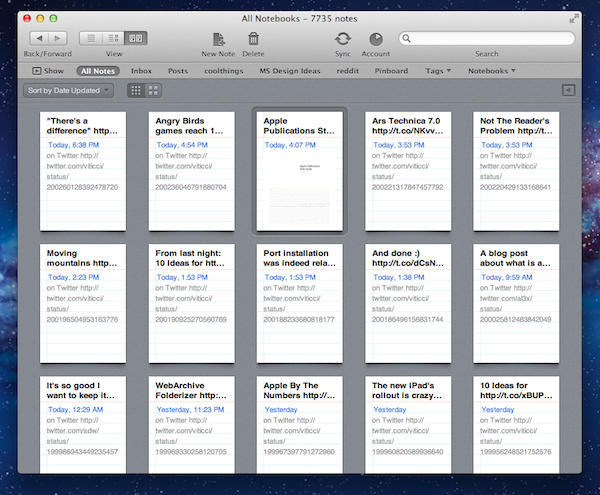
Yesterday, Evernote rolled out two major updates for its iOS and Mac apps. As a daily Evernote user who relies on the app to research posts, save PDFs, annotate images, and generally archive just about anything through IFTTT, I was pleased to see the improvements made in these versions are taking Evernote into a direction I like.

First, the iOS app. Focused on iOS 5 and the iPhone version, Evernote 4.2 brings a more accessible way of applying rich text and switching between editing and composing. Prior to version 4.2, users had to select text and hit a button in the top toolbar to bring up rich text editing – a process that was cumbersome and not as responsive and stable as one would expect from a top-notch iOS app. Evernote 4.2 abandons the separate text editing workflow and interface for a better, more integrated way of displaying text controls alongside the system’s keyboard. A new button will now let you easily switch between typing and editing, while retaining the same options that made Evernote a must-have among note-takers looking for rich text support. I like how selected text will remain selected if you switch between the keyboard and text formatting panel; surprisingly, however, Evernote still hasn’t managed to fit a Cancel button into the note editing screen. Read more


Instacast 2.0: Still the Best Podcatcher, with Pro Features

It’s not hard to talk about the latest and greatest features of Instacast 2.0 when the developer has dutifully written his own epic walkthrough of his app’s new features. Instead of having to decipher release notes and a summary of bullet point features, Martin Hering of Vemedio has already published an in-depth write-up of everything “version two” has to offer, which includes a couple pro-tips here and there for those who aren’t skimming paragraphs and looking for bolded words. The mini-manual will be a handy reference for getting adjusted to Instacast’s tap-and-hold friendly UI and advanced features.

With the features already explained in great detail, I don’t feel the need to recap everything Instacast 2.0 has to offer or explain how it works, but I do want to share some of my experiences with the app post-upgrade. There are lots of little changes that have been made and thus lots of little habits that had to be relearned. While some of the changes take some getting used to, others have been improved upon so well that I could not think of going back to an older Instacast. Upgraded player controls, playlists, and bookmarks add a new pro-layer of control without dampening the player’s aesthetic or user experience. Additional sharing features strive to strengthen online discussion around podcasts thanks to commenting and an HTML5 audio player.

Read more


Archive Blood Pressure Results Easily With Bloodnote

Nobody likes being ill, but thanks to software, nowadays we have a series of better options and tools to ease the process of logging our health. When it comes to heart attacks and related issues, obviously the first thing to measure is the blood pressure. It lays out the overall situation of our body and is a good measure to compare the health over time. Most people who need to check their blood pressure over a longer period of time use paper notebooks or little post-its for that — at some point this method is doomed to result in chaos. To ease up this process of archiving blood pressure results and to allow for easy comparisons, Peter Bajtala and Matt Ludzen developed Bloodnote for iPhone.

Bloodnote is designed as minimalist and simple as possible and does not need any big tutorial or explanation for its feature set. It saves your blood pressure results for later and you can fetch them again, whenever you like or need to. It features the standard division into systolic and diastolic pressure as well as the pulse frequency. You can flick through the past results and view them with a single tap. These are basically all features the app has to offer; they’re certainly useful, but when reviewing Bloodnote for a design series, it’s much more interesting to analyze how these features are embedded into the app’s UI.

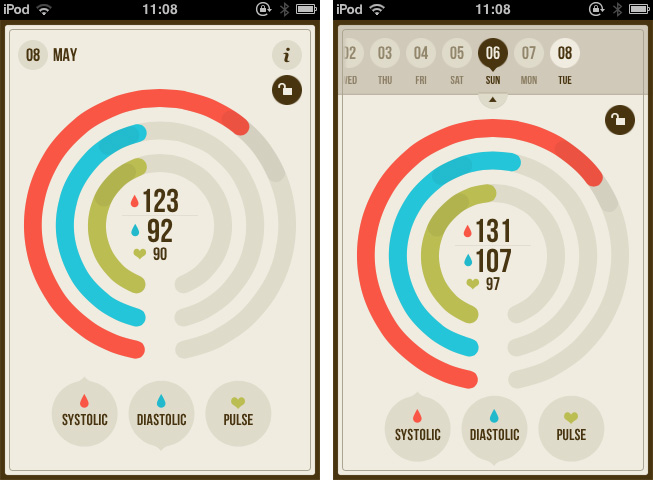
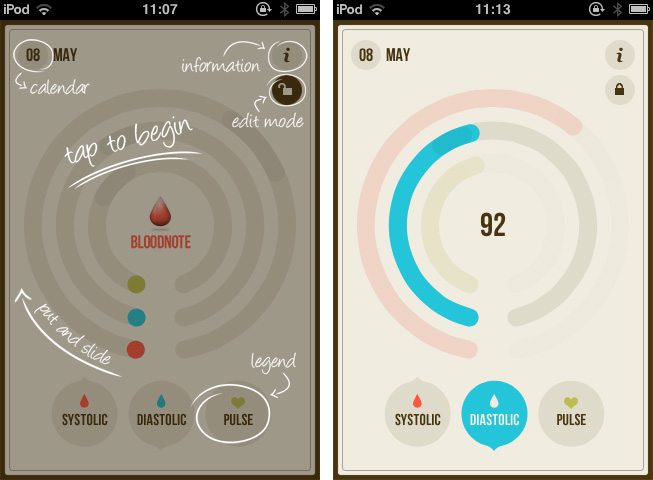
The three values are displayed using differently colored (red, blue and green), nearly full circles. The whole app is — besides the colored circles — designed in various shades of beige, and within the circle, a darker area is indicating optimal results as a benchmark. A legend at the bottom of the screen connects the color to their respective values (red for systolic, blue for diastolic pressure and green for pulse frequency). Tapping and holding one of them dims the colors of the other circles to focus on one specific value. To enter a new value, you just tap the respective circle, drag up or down until the indicator (which automatically pops up) shows the right value. The dragging interaction is sensitive and pretty smooth, and it’s very easy to get exactly your currently measured value. Tapping the date indicator at the top brings up a slide calendar to move to a specific date in the past and take a look at the respectively measured results.

Bloodnote is a really thought-out iPhone app. Its design just serves the functionality and makes it both simple and — if you can say that — fun to a certain extent as well. It makes recognizing the different values as well as changes over time very easy, and therefore is a very good and time-saving way to enter and archive blood pressure results. You can get Bloodnote for $1.99 on the App Store.


Review: TouchArcade for iPhone

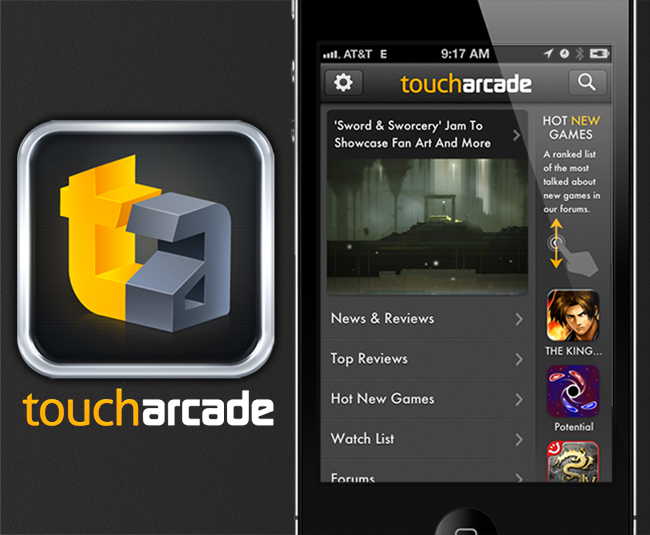
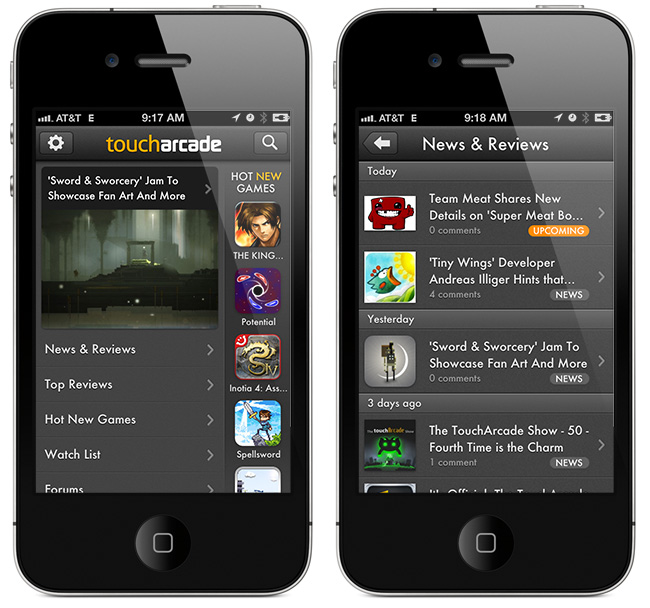
Part of Arnold Kim’s other sites, AppShopper and MacRumorsTouchArcade is one of my favorite weblogs: I  read it every day. Whether I’m reading about upcoming iOS games, news, or searching the forums, TouchArcade is simply one of the best resources for iOS gaming available. They’ve been around for 4 years, and for a website that’s a lifetime. I jumped when I was asked to help be part of the beta team for an iPhone version, and today, TouchArcade has released their very own iPhone app with the help of Flexibits and Bartelme Design.

When you first launch the TouchArcade app you will see a featured story on top along with a navigation list below for News & Reviews, Top Reviews, Hot New Games, Watch List, and Forums. On the right is a flickable list of their Hot New Games section with icon previews, and this is one of my favorite features of the app. If you’re looking for a great game to purchase this is the first place to look, and the list is constantly being updated too.

Read more


Invy Is An Iconic Date Planner For iPhone

What do you prefer when it comes to apps: functionality or ease of use? Most people would answer “a combination of both, a good compromise”. It might be true in many cases, but sometimes the balance between those two sides is not the right goal, and to meet a specific niche you need to move into more extreme directions. Invy, a new iPhone app by Bread & Pepper, helps you to set up meetings or dates and inviting friends, family or colleagues to them, and it’s a good example how such a hard decision can turn out pretty well.

Creating appointments and inviting other people to them is nothing new; it’s more or less integrated in any sophisticated calendar or even mail application. Because of this, often developers cannot focus on functionality while creating new apps in this area anymore; they either need to create a gorgeous design to convince users to buy their product, or they need to make one specific feature a must-have. Here lies the reason why I chose writing about Invy: it has got both.

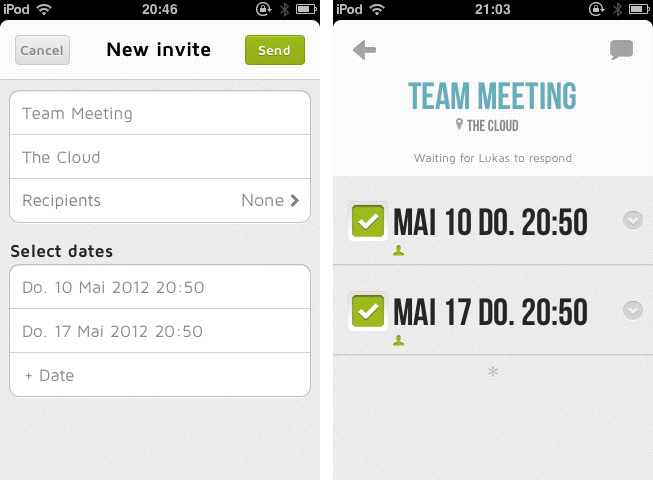
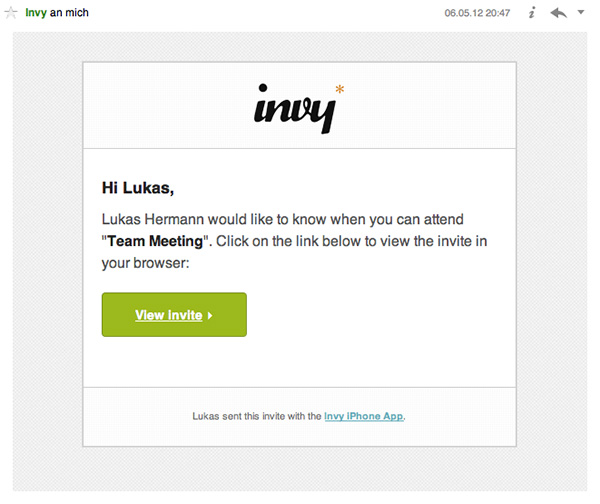
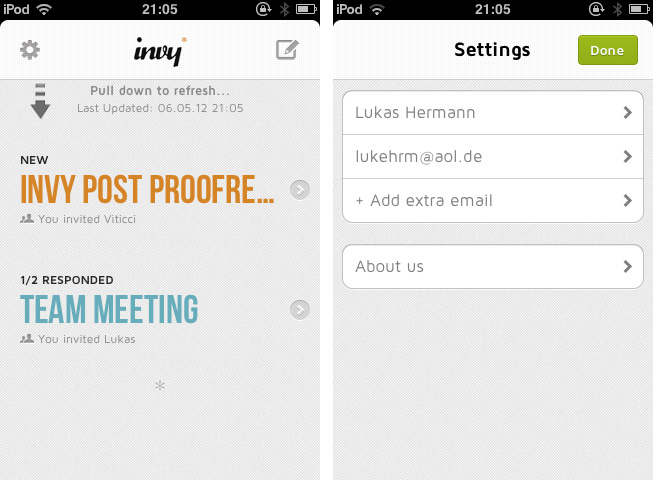
When firing up Invy for the first time, you’ll need to register your email address from which you’ll send out invites to other people. To create a new event, just tap the create button at the top, set the date’s description and location, invite recipients, set day and time and hit send. Within seconds, everyone you invited will get the same information in their inbox (emails are designed similarly to the app; see image below). Invitees can accept or refuse to participate: those who have Invy installed on their iPhone will be brought to the app, while everyone else can confirm the date via the Invy website.

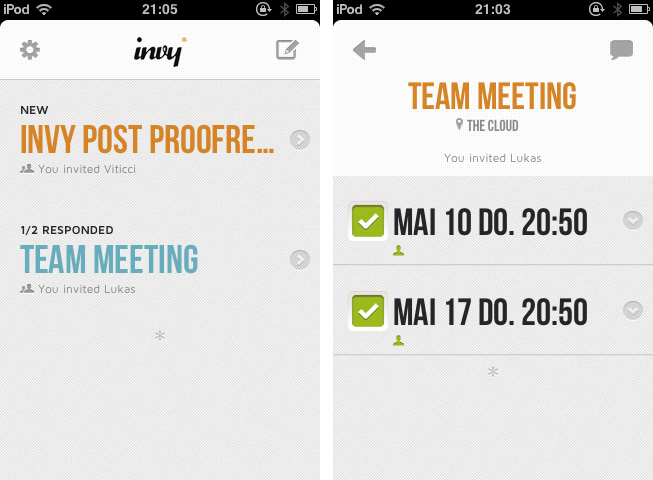
All your set dates are displayed in a very elaborately designed list view in the app’s main window. By tapping one of them you can investigate all the attached details and how many people already answered the invite. If you set up the date, you can modify and fix it, and Invy automatically saves the appointment in iCal — and thus on every device with iCloud sync. Invy is intuitive and serves exactly one need: setting appointments and dates easily, and with style.

Responsible for Invys good UX is its clean and bright design, which is centered around the use of big, colored sans-serif typography and white background to automatically focus on the most important information: the dates you set. The big date descriptions change their color when they go through the process of sent invites, answered invites and fixed dates moving from a light blue (just sent) to red (fixed and saved date). This doesn’t just look good, it also ensures a fast recognition of whether a date already is important to you or not.

So Invy is a great date planning app, but nothing more. It has a really focused feature set, and serves those features in a fast, easy and good-looking way. I recommend Invy as a way to plan dates within small groups of people, like in businesses or families, especially when all members have got an iPhone and are likely willed to pay $1.99 for Invy on the App Store.


Mirroring Multiple iOS Devices To A Mac: Comparing AirServer and Reflection

In my review of AirFoil Speakers Touch 3.0, I wrote about AirPlay:

Ever since developers started reverse-engineering the AirPlay protocol that Apple introduced with iOS 4.2 in November 2010, we have seen all kinds of possible implementations of Apple’s streaming technology being ported to a variety of devices, for multiple purposes and scenarios. From tools to turn Macs into AirPlay receivers for audio, video, iOS Mirroring sessions, then a combination of all them, to more or less Apple-approved “AirPlay audio receivers” sold in the App Store, then pulled, then released in Cydia, the past two years have surely been interesting for AirPlay.

The past few months have indeed seen a surge of AirPlay-compatible desktop utilities and apps that take advantage of Apple’s technology for audio and video streaming. From games enhanced with AirPlay to enable new controls and interactions, to several desktop utilities that are now connecting Macs and Apple TVs with AirPlay, there’s plenty of options out there to beam images and audio to devices running iOS or OS X.

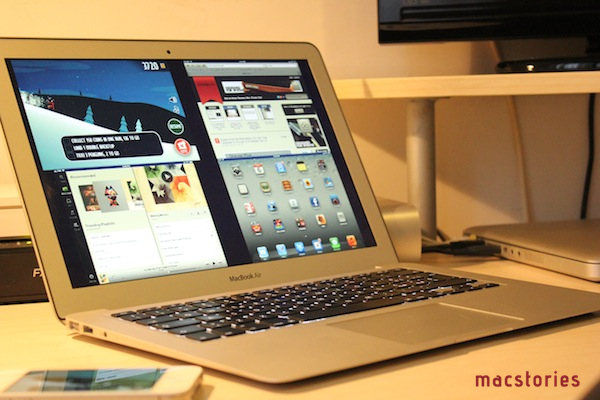
AirServer was one of the first applications to bring proper AirPlay support to the Mac, initially only with audio and video, then iOS 5 and Lion, and, around the time Reflection also came out, AirPlay Mirroring. Recently, the AirServer team made some major changes to the way AirServer handles AirPlay Mirroring (our overview) on OS X with multiple iOS devices, so I thought it’d be appropriate to give the app a second try. At the same time, I figured I hadn’t used Reflection much since it came out two months ago; I installed both the latest AirServer and Reflection on my iMac and MacBook Air, and tested multiple iOS devices with AirPlay Mirroring enabled at the same time. Read more


Slow Feeds Brings A Simple, Unique Innovation To RSS Apps

In the oft-abused Death of RSS debate, a common and universal truth is typically forgone: RSS is a standard, not a single entity, and as such its survival or presumed “death” should be related to the services that use it, not the standard itself.

The problem many people have with RSS is roughly the same others have with email: it’s not as real-time as Twitter, and if you don’t keep on tabs on it you can easily get overwhelmed by the onslaught of unread items demanding your constant attention. While in the past few years some amazing apps and technologies have leveraged RSS as a foundation to provide new experiences, little has been done to address the simple problem behind the possible frustration caused by RSS: that RSS can be useful for sites with fewer but focused items, but it can get annoying (like email) with hundreds of unread items. Is it possible to retain the usefulness of RSS, while ensuring its catch-all nature is relegated to a level that avoids frustration?

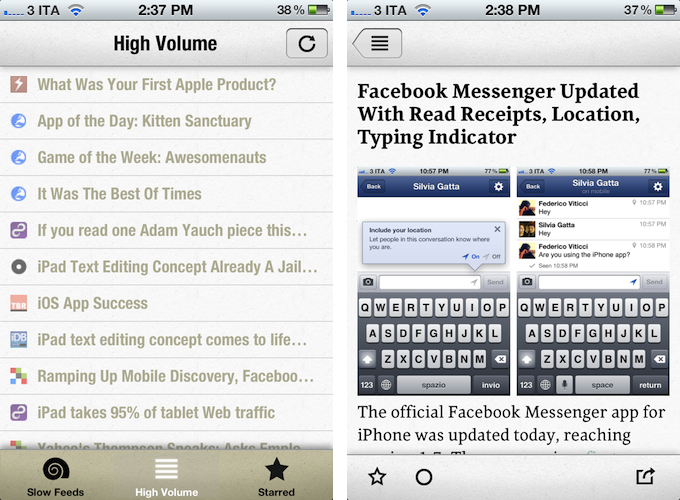
Slow Feeds by Stefan Pauwels is an iPhone app that does one thing well: it separates “slow” from high-volume feeds, and it lets you check out both within a single interface. It fixes a simple problem with a unique, yet totally obvious approach: it understands the convenience of RSS for either “low” and “high” volume websites, and doesn’t treat them equally.

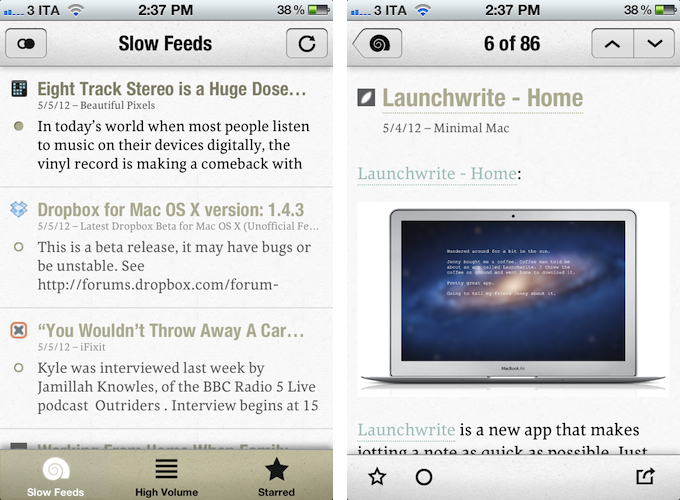
Once logged in with your Google Reader account, Slow Feeds (whose icon is very appropriate) will take a couple of minutes on first launch to “understand” which feeds are usually slow, which ones have many posts per day, then it will break them up into two categories: Slow Feeds and High Volume. A third tab in the bottom bar is also dedicated to Starred items.

The first tab, Slow Feeds, lets you switch between All or Unread items for sites with few content every day: for instance, this is where I can find things like the iFixit Blog, Minimal Mac, or Beautiful Pixels. These are sites that I am interested in, but that because of their low-volume nature could sometimes easily get lost in the plethora of unread items (ever wondered why these sites usually don’t publish on Apple keynote day?). The app has been very accurate at picking “slow feeds” for me, going back a few months to older items it knew I might have missed – indeed, thanks to Slow Feeds I rediscovered many articles that I had unintentionally ignored.

The High Volume tab, on the other hand, displays a list of all items from all sites that publish a lot of items every day. In here, I can find MacStories, MacRumors, Daring Fireball, The Loop, and all those other publications that are very active in terms of post frequency. The results have been accurate in here as well, but I think there are some things the app could do better. For one, when compared to “regular” RSS apps like Reeder or Mr. Reader, the High Volume tab is obviously lacking: there are no sorting options, no folders, and the list of items isn’t organized by date. Slow Feeds isn’t meant for this kind of consumption – the app’s purpose is to keep “slowly updated feeds from getting lost in the fast river of news” – but I think some more options wouldn’t hurt.

Similarly, it’d be nice to be able to manually specify feeds that are “low volume”. By default, Slow Feeds automatically calculates the frequency for each feed based on the number of items per feed and time interval, but a manual option could be useful for, say, those sites that don’t typically publish a lot items, but may have exceptions (such as several Apple blogs on a keynote day). Being one of the first releases of the app, I wasn’t expecting to find the same amount of configurable options and settings as in Mr. Reader, but nevertheless, I am looking forward to having more sharing features in the article reading view (which right now only supports Twitter, email, and Instapaper).

Slow Feeds won’t replace your daily RSS app (it doesn’t want to), yet at the same time, I believe it really has a chance of becoming an app many will use alongside their RSS client on a daily basis. Slow Feeds’ core concept is so clever, and so naturally implemented, I am now wondering why, in retrospective, others didn’t come up with it first.

Slow Feeds is $2.99 on the App Store.


Reading News With Hacker News ∗

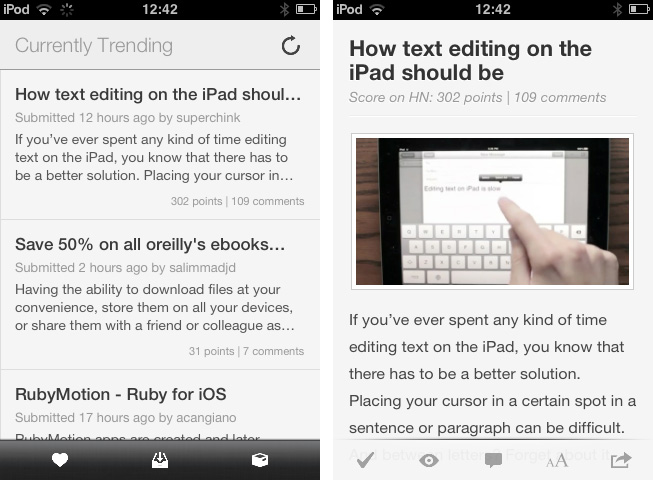
Hacker News from YCombinator is a reliable and very active source of information for all things geeky. Users collect noteworthy technology news articles from all over the web, comment and discuss on them, and vote to create a top list sorted by popularity. Following the trends of the community by joining the network or just regularly visiting the site and clicking through new articles is interesting for anyone who wants to know a bit more about the latest web technologies and how to help enhancing them, from entrepreneurs to developers. In my opinion though, the HN website is cluttered, and the typography is a mess. Maximilian Mackh solved many of these issues by recently publishing his iPhone client for Hacker News. Read more


Track 8 Brings The Metro Experience To An iPad Music Player

At what point do we cross the line that separates insipid clones from genuine inspiration, uncomfortable hybrids from interesting experiments? Track 8, a $1.99 music player by Ender Labs, tries to imagine what listening to music on the iPad would be like using Microsoft’s Metro UI experience.

Following the basic principles of Swiss graphic design, the Metro design language is focused on getting rid of “superfluous” design elements such as buttons and toolbars to turn the content – words, pictures, videos – into the user interface to manipulate on screen. Originally conceived on Windows Phone 7 and being updated as the foundation of the future Windows 8 OS, Metro has struck a chord with the design community thanks to its elegant approach to modern typography, dynamic layouts, and intrinsic originality compared to other mobile platforms. But does Metro make sense as an app running on iOS, the polar opposite of Microsoft’s studies in terms of UI design and experience?

Ender Labs isn’t afraid to say that they wanted to see how Metro would work on the iPad, without excuses. So while I’ll leave the task of determining whether this is right to someone else – I sure hope Microsoft doesn’t come knocking at Ender Labs’ door for any reason – I want to to focus on Track 8 the app for iPad you’d probably interested in checking out.

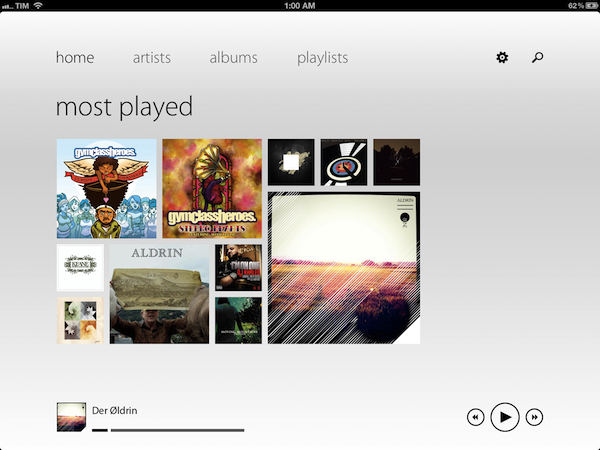
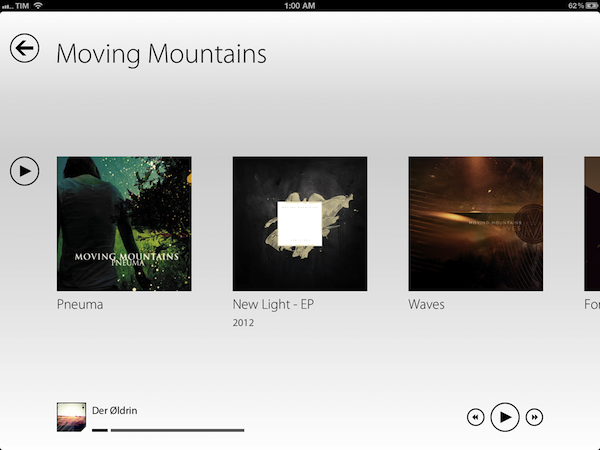
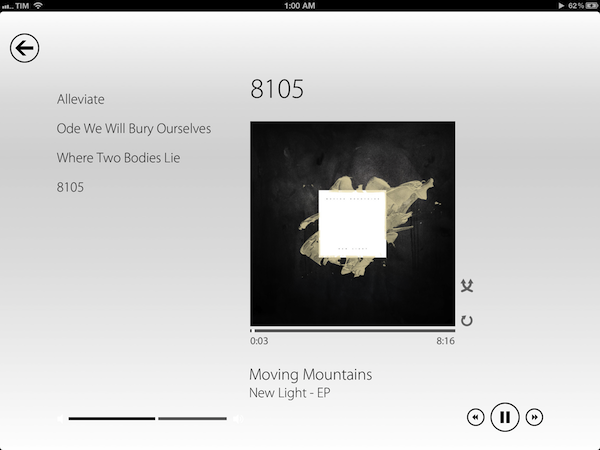
Fetching music directly from the native iOS music app, Track 8 displays four tabs (home, artists, albums, playlists) on a clean canvas that emphasizes typography, solid colors, and album artworks instead of icons, buttons, and scrollbars. In pure Metro fashion, the content becomes the interface you are manipulating: tapping on an album will advance a level “into” the content of that album, and tapping again on a song will bring up the now playing view with a larger cover art, and only some basic buttons to play, pause, shuffle, and repeat. Everything is kept as minimal as possible: the volume and progress controls are two simple flat, solid bars you can slide; to go back to a previous view, you tap on a large back button in the upper left corner that “snaps back” with a nice fading animation. To move horizontally between content, you swipe.

Track 8 comes with some appearance settings to customize the look of the Metro experience on iOS. The background color can be set to light or dark, and 10 additional options are provided to set the “accent color” for selected content and UI items. The app has some wallpapers (including linen), and you can also opt to display artist backgrounds, which are pulled from Last.fm and saved in the app’s local cache for when you won’t have an Internet connection. To keep the app in line with Metro’s elegant and uncluttered paradigm, I turned artist backgrounds off and chose a simple light wallpaper.

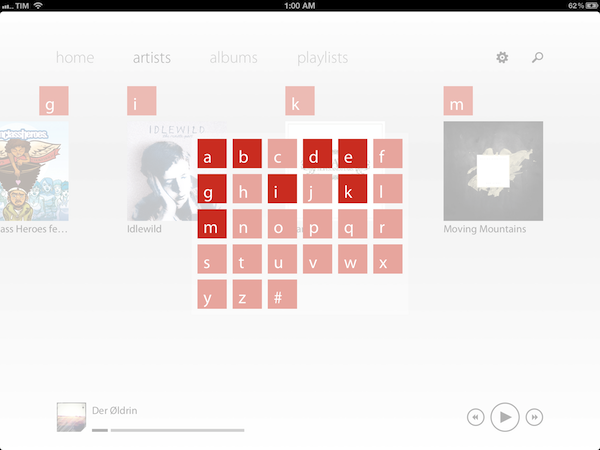
Track 8 works and it looks gorgeous, but it is undeniable that is an app that’s not meant to be on this platform. Not just for mere aesthetics – as an iPad app, Track 8 contradicts the very underlying principles of iOS interaction and navigation. The fact that tapping on sections at the top, for instance, gets you into a single level of interface is the antithesis of the iOS tab bar, which always allows you to switch with one tap between multiple, even nested sections. Or again, alphabetical lists: on iOS, letters are placed on the right side of a scrollable view, allowing you to quickly jump to a specific letter. With Track 8, artists and albums are grouped alphabetically, sorted horizontally in a grid, and tapping on a specific letter will display a popup grid to quickly jump to any other letter.

Track 8 doesn’t want to be an iOS app by design, and whilst this can be an advantage as long as loyalty to the Metro design language goes, it is also the app’s biggest shortcoming when it comes to expecting certain elements and patterns that are standards on iOS.

Track 8 won’t win an Apple Design Award. It won’t revolutionize the market of third-party music players for iPad, and it sure is an experiment that doesn’t aim at pushing the limits of iOS forward. But that’s not to say Track 8 doesn’t look great and work well on the iPad: if you’re a fan of Metro and would like to see that kind of experience in app that also happens to have a real functionality, Track 8 is your best option. You can get it at $1.99 on the App Store.