Federico Viticci

10934 posts on MacStories since April 2009

Federico is the founder and Editor-in-Chief of MacStories, where he writes about Apple with a focus on apps, developers, iPad, and iOS productivity. He founded MacStories in April 2009 and has been writing about Apple since. Federico is also the co-host of AppStories, a weekly podcast exploring the world of apps, Unwind, a fun exploration of media and more, and NPC: Next Portable Console, a show about portable gaming and the handheld revolution.

This Week's Sponsor:

Crickets

The first alarm app for families.


Evernote for Mac Updated with “Quick Note”

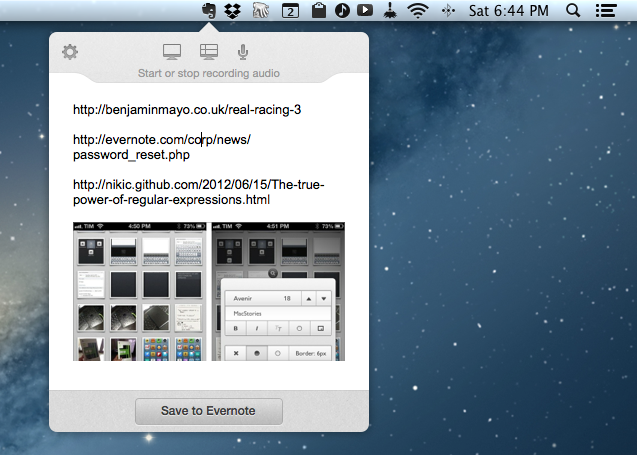
Alongside a notice to warn their users of a security breach, Evernote released today an update to their Mac app, which reaches version 5.0.6. For now, the update is only available for versions of Evernote downloaded outside of the Mac App Store.

According to the changelog, the update “addresses a security issue that requires you to reset your password”. It’s unclear how Evernote for Mac may have affected the security of passwords of the service, but Evernote says more details will be posted on their blog. Read more


Speeding Up OmniFocus Sync→

Speeding Up OmniFocus Sync

Some great tips by Sven Fechner on how you can speed OmniFocus sync. It involves archiving data on the Mac and resetting sync databases on your iOS devices:

The free OmniSync Server makes life a lot easier and keeps your OmniFocus world, well, in sync. If you use your own WebDAV server you have the same capabilities but without the awesome “Mail Drop” feature which allows you to email in your actions.

While the OmniSync Server is fairly reliable, it is not necessarily the fastest syncing solution on the planet. In particular when your database gets larger and more convoluted.

It’s the first time I’ve followed this procedure, and, indeed, my OmniFocus database has been slimmed down and it now takes 5-8 seconds less to sync on WiFi; the improvement is even more considerable on 3G.

I’ve used my own WebDAV server with OmniFocus for months, but the convenience (and simplicity) of the Mail Drop feature lured me back to Omni Sync Server. Mail Drop works amazingly well in conjunction with Drafts, allowing me to quickly send off a task to my OmniFocus inbox in the cloud. In moving to Omni Sync Server, I didn’t lose the ability to have the latest version of my OmniFocus database mirrored to a calendar: OmniFocus does, in fact, come with some great debug commands to change its default sync times.

As an aside, while looking forward to OmniFocus 2, The Omni Group has posted the first batch of videos from The Setup event in San Francisco a few weeks ago. You can watch them here.

Permalink

Batch Resize Images On iOS with Reduce

Reduce

Reduce

I deal with two types of images on my iOS devices: photos and screenshots.

For photos, I’ve long settled on a Dropbox-based workflow that takes care of automatically archiving and sorting photos for me. For screenshots, the story is a bit more complicated.

For months, I used OneEdit, an iPhone/iPad app to batch resize images from the Camera Roll; OneEdit comes with a lot of features, including presets, Dropbox sharing, and FTP uploads. The downside is that the app’s interface is clunky and convoluted, with seemingly no intention from the developer to update it. In spite of that, however, I kept using OneEdit to resize multiple screenshots at once, save them to the Camera Roll, fire up Diet Coda, and move them to our FTP server. When we decided to move 4 years of image uploads off the FTP and onto a CDN (alongside new uploads on a daily basis), I asked our Don Southard to create a Hazel script that would monitor Dropbox for screenshots and upload them to the CDN. This is what I’ve been using in combination with some Pythonista scripts that would resize screenshots for me.

My iOS screenshot workflow is faster thanks to Pythonista and the Hazel script running on the Mac mini, but I miss the possibility of having a single app capable of batch resizing and uploading images to Rackspace Cloud Files.1 The latest Pythonista update made things dramatically better with the Photos module, but I still can’t pick multiple photos at once (and, obviously, I still have to deal with Python).

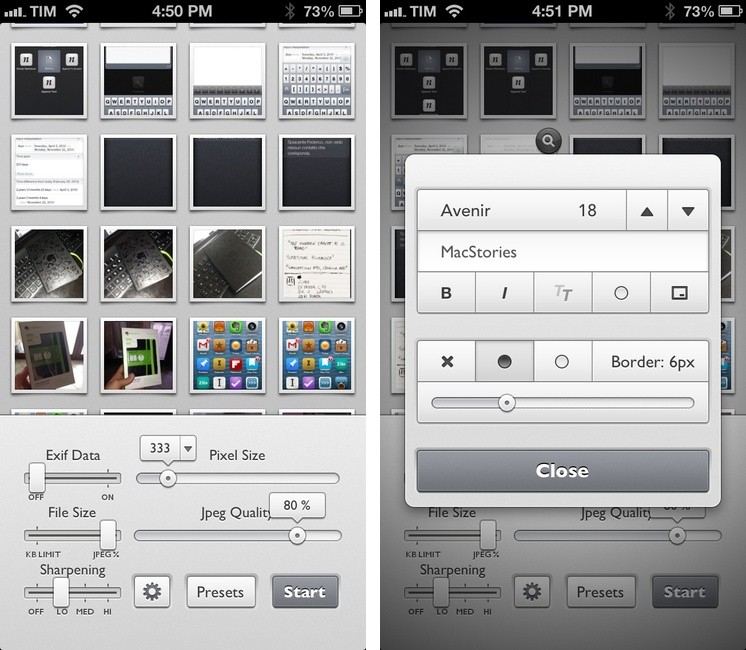
My “ideal” batch resizing photo app for iOS would excel in two different aspects: it would be Universal and have an elegant interface to pick multiple photos at once to batch resize them with presets; it would come with a plethora of sharing options built-in, including Cloud Files and SFTP support. Reduce is close to excellence when it comes to the first one.

Read more


Simple Japanese Emoticons with Kaomoji

At MacStories, we use iMessage on a daily basis as our team chat. Alongside the occasional meme, Twitter link, or article we need to check out, the Japanese emoticon is a common occurrence in our group thread. I’ve always wondered whether my fellow teammates learned to manually type out flipping tables and other emoticons – also known as kaomojis – while I was stuck using the good-looking, but obvious Apple default emoji. If you happen to live in a team chat of remote workers every day you know how much more successful an original GIF or meme can be.

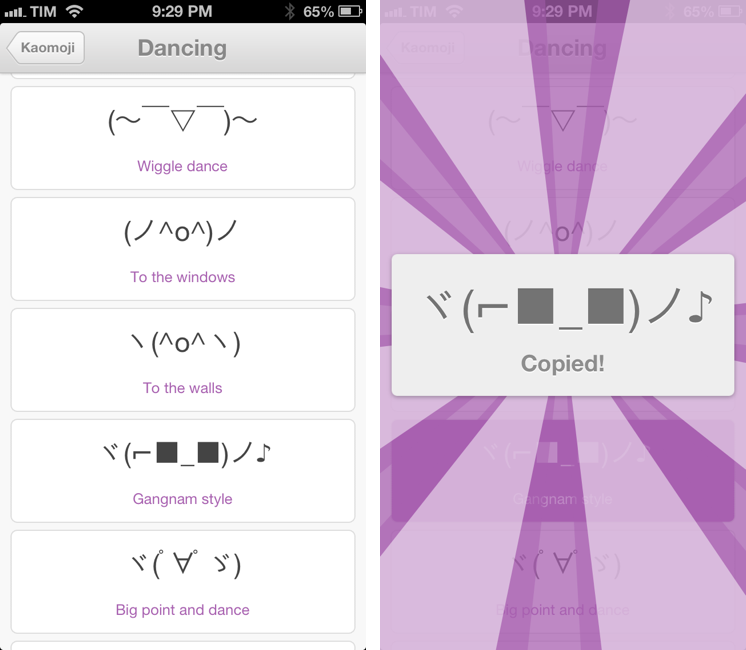
My quest towards iMessage emoticon domination is over with Kaomoji. A simple $0.99 iPhone app made by Richard Henry (product designer at Quora), Kaomoji contains 1,000 Japanese-style emoticons organized in 28 categories such as Happy, Sad, Evil, Love, Cats, Dogs, Dancing, and the game-changing Table Flip.

Kaomoji’s UI is clean and focused on the actual emoticons. Categories are color-coded, and tapping on one will open a dedicated page with properly colored highlights and fonts. It’s a nice touch. The app has only one feature: copy. Tapping on a kaomoji will bring up a manga-like success message showing a bigger version of the emoticon with the text “Copied”. Once copied, you can paste the text anywhere – be it iMessage, Twitter, Facebook, or any other app.

Kaomoji does one thing extremely well. I like the selection of emoticons, and if I had to nitpick I’d say it’d be nice to have built-in Twitter and Messages/Facebook actions to send text without leaving the app. I would also like to see an iPad version in the future.

Kaomoji is only $0.99 on the App Store.

Let’s also put the table back. ┬──┬◡ノ(° -°ノ)


Create and Share Evernote Notes With Pythonista On iOS

I use Evernote on a daily basis, but there’s no easy and quick way to create new notes and receive their shared URLs on iOS. While I tend to prefer plain text files, Evernote notes are quite useful when I need to share rich text (containing formatting and inline images) with someone else. Sharing via the official Evernote app takes too long[1], and I don’t like the UI of other Evernote clients.

Yesterday, Pythonista developer Ole Zorn posted an installer script for the Python Evernote SDK. By putting together all the necessary dependencies, he created an installer script that will create an “evernote-sdk” sub-folder in Pythonista 1.3; with that, you’ll be able to access the entire Evernote API to create and manage notes – all while taking advantage of the uniqe iOS-related features of Pythonista.

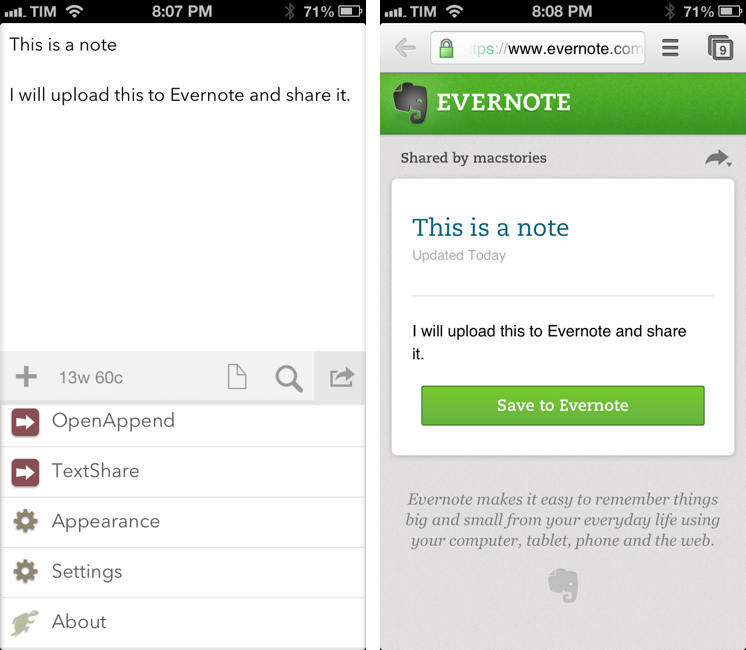
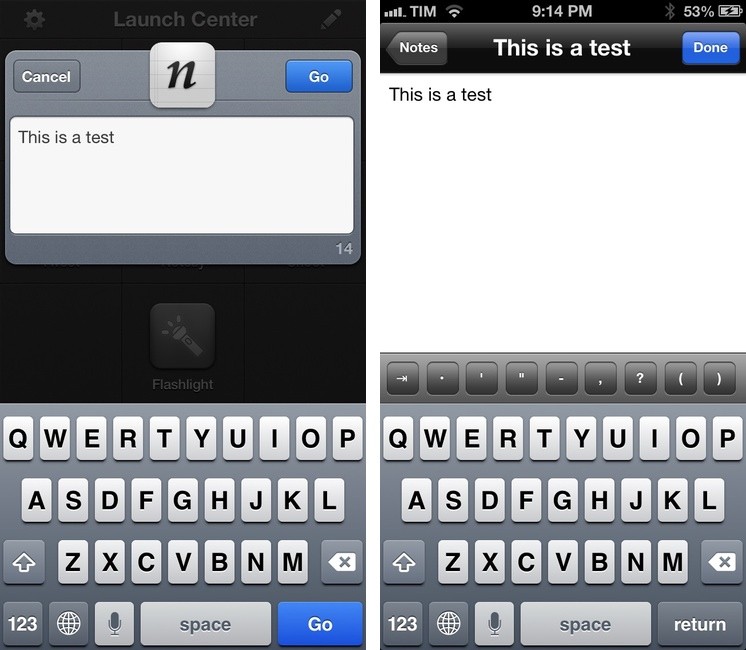
Inspired by Ole’s demoes and the snippets posted by Brett Kelly in the past weeks, I created a script that does exactly what I need: it lets me enter text to save it in an Evernote note that will be shared publicly. If triggered by an app like Drafts or Launch Center Pro, the script will take the text sent by those apps. If formatted in Markdown, the text will be converted to HTML before saving it to Evernote. Read more


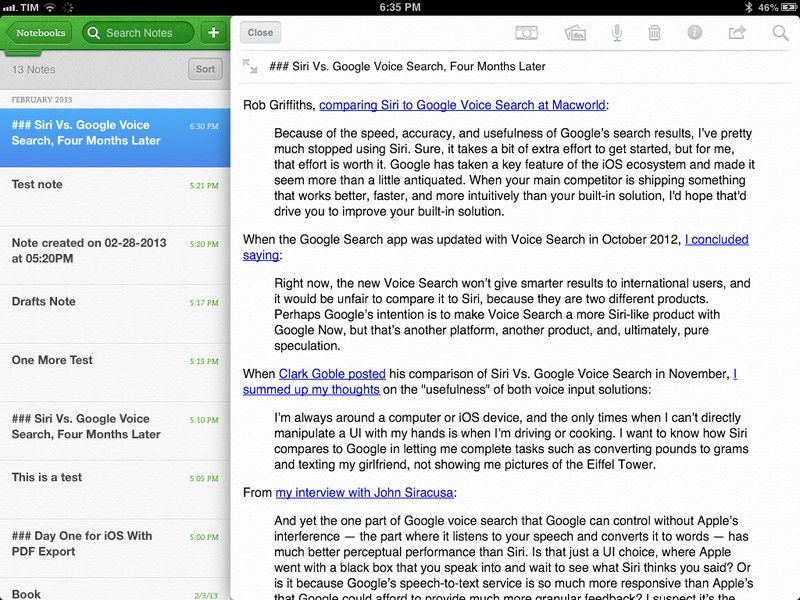
Evernote 5.2 Gets New Snippet View, PDF Viewer

Evernote52

Evernote52

Evernote for iOS has been updated today to version 5.2. I have been testing the update for the past weeks, and I believe it brings a number of very welcome improvements, especially for iPad owners.

In my original review of Evernote 5, I noted how the new app’s interface felt clunky to navigate in notebooks with a large number of notes, causing related slowdowns when scrolling a note list and, worse, crashes. Version 5.2 brings an all-new snippet view for iPad, which speeds up navigation considerably and works better than the old thumbnail-based navigation when dealing with multiple notes.

Read more


Day One for iOS With PDF Export→

Day One for iOS With PDF Export

DayOne

DayOne

Day One is my favorite journaling app for iOS and OS X. The app <a href=”https://www.macstories.net/news/apple-posts-mac-app-store-best-of-2012-list-day-one-is-app-of-the-year/” title=”Apple Posts “Best Of App Store 2012″ Lists”>was chosen as Mac app of the year by Apple, and for good reason: both on Macs and iOS devices, Day One is a finely crafted piece of software based on an even more powerful idea – archiving your memories. From my review:

Day One stands out because it’s not a tool, it’s a personal experience. I can tell you what Day One does, and I can write about the things I do with it. But I can’t tell you how you should use it.

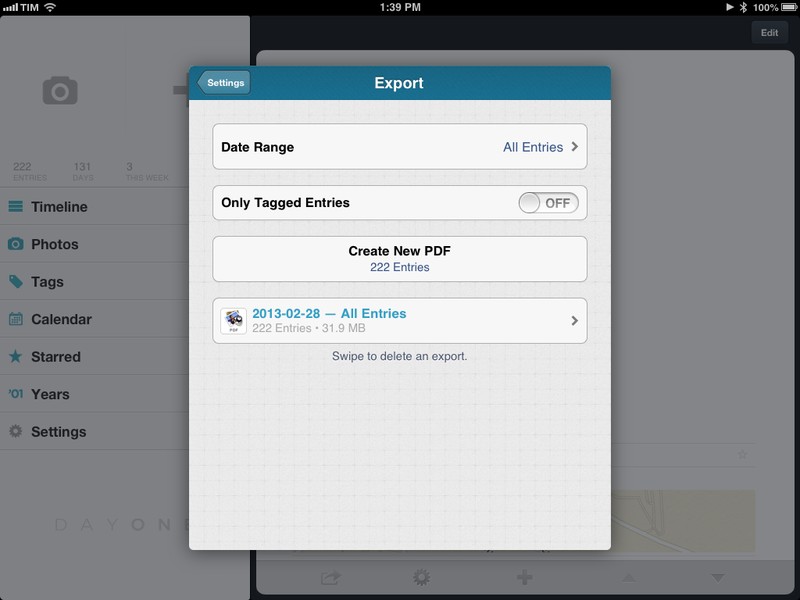
In November 2012, the app was updated with tags, search, and support for MultiMarkdown footnotes. Version 1.10, released today, brings a new option to export your entries as PDF. The update also contains fixes and other improvements such as a new reminder sound, historical weather data increased from 3 to 30 days (useful when adding old entries), and a new font option.

PDF export is interesting because it enables Day One users to get their journal entries out of the app and save them in a format that is more future-proof than Bloom’s own file format. Available in the Settings, you can export all entries at once, or filter specific ones by date range or tag. In my case, I filtered entries tagged with my dog’s name and emailed a beautifully formatted PDF full of photos to my friends. Exports are listed in the same menu and they can be deleted with a single swipe. Email exports can contain attachments up to 25 MB in size, but the app also comes with an “Open In…” menu to send PDFs to other apps like Dropbox and Google Drive (if installed).

I like the changes in Day One 1.10 and I keep recommending the app as, by far, the best journaling experience on iOS and OS X. Day One is available on the App Store.

Permalink


Siri Date Calculations and WolframAlpha→

Siri Date Calculations and WolframAlpha

SiriLOL

SiriLOL

Speaking of Siri, David Sparks posted a great overview of how you can perform date calculations with Siri. I didn’t know any of those tips, and I was surprised to find out they are based on WolframAlpha. I have been doing date calculations in WolframAlpha for years, and I didn’t even think about using Siri for that purpose.

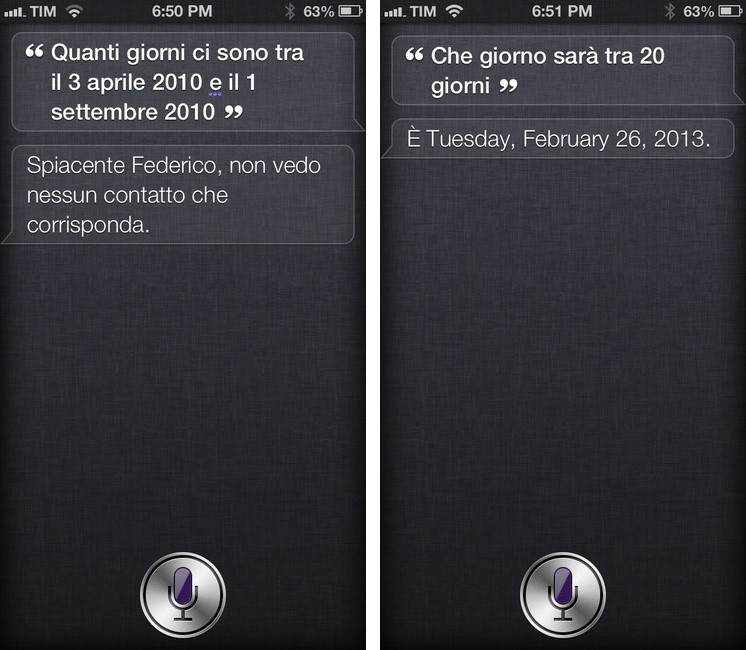
David’s post convinced me to do the same with Siri’s Italian sister. Unfortunately, but unsurprisingly, the results were disappointing. First, I asked Siri to calculate the days between April 3, 2010 and September 1, 2010. The query was parsed correctly, but Siri said she couldn’t find a contact in my Address Book.

For the second test, I asked which day it’ll be in 20 days from now, and Siri replied with the following mix of Italian and English:

E’ Tuesday, February 26, 2013

It basically told me that today is (“E’” in Italian) February 26th, completely ignoring my date query. Last, I asked which day it was 17 days ago, and this time Siri didn’t combine languages, but it replied with 17 days from now – March 15th, 2013.

I believe part of the culprit is that iOS 6 can still get confused if you use Siri in Italian but keep your device’s settings to English. Another example is how, with a device set to English and Siri in Italian, Maps navigation in iOS 6 still speaks Italian directions…in English. You can imagine how that sounds. But generally, it’s Siri’s own parsing engine that’s inferior to the “real” English Siri.

Like I said many times in the past, Siri has still a long way to go with the Italian language, and the software hasn’t improved much since I last checked in November 2012.

WolframYAY

WolframYAY

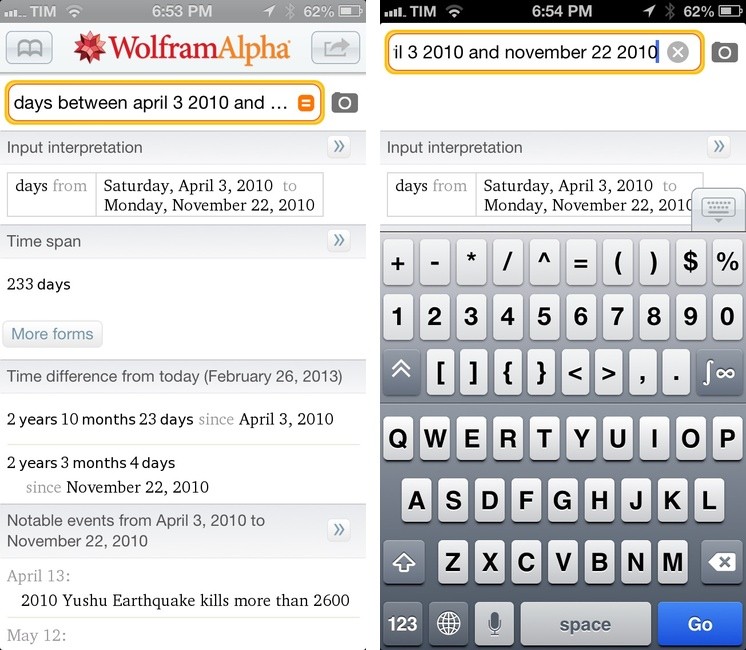
What I have been using for quick and reliable date calculations is WolframAlpha. On iOS, the company has a native Universal app that understands my queries just fine 99% of the time and that allows me to type characters faster with series of extra keyboard rows. It’s not pretty, but it is efficient and it also displays additional information related to your date query – such as date formats, events on a specific day, and time difference from today. I may not have the same date calculation skills of Dr. Drang, but WolframAlpha never disappointed me.

The WolframAlpha app is $2.99 on the App Store.

Permalink