Federico Viticci

10762 posts on MacStories since April 2009

Federico is the founder and Editor-in-Chief of MacStories, where he writes about Apple with a focus on apps, developers, iPad, and iOS productivity. He founded MacStories in April 2009 and has been writing about Apple since. Federico is also the co-host of AppStories, a weekly podcast exploring the world of apps, Unwind, a fun exploration of media and more, and NPC: Next Portable Console, a show about portable gaming and the handheld revolution.

TextTool: Text Manipulation On iOS

TextTool

TextTool

It used to be that, to do nerd stuff, you had to get a Mac or PC. As iOS progressed over the years, however, developers saw that users were spending a lot of time trying to do work on their iPhones and iPads, and started building utilities that packed powerful functionalities in what looked like “just an app”. We got Drafts and Launch Center Pro, calendar apps and password managers just as powerful as their desktop counterparts, and, of course, apps to script iOS and a text editor with its own workflow system. To sum up: iOS is still maturing, but there’s no shortage of nerdy apps and utilities at this point.

iOS is great for quick text entry thanks to the portability of an iPhone or iPad mini, but doing advanced text manipulation is a bit tricky unless you want to get dirty with Editorial and Python scripts. On the Mac, it’s easy to fire up Automator and create a workflow that takes a line of text and turns it Into Title Case or UPPERCASE; even going the extra mile and building services to take selected text and indent it or swap spaces with tabs takes a few minutes, but it’s doable with a basic knowledge of built-in OS X tools. On iOS? There’s no Automator (yet?), so, until today, if you wanted to do automated text transformations you’d have to get Editorial and Pythonista or use some of Launch Center Pro’s (limited) text filters.

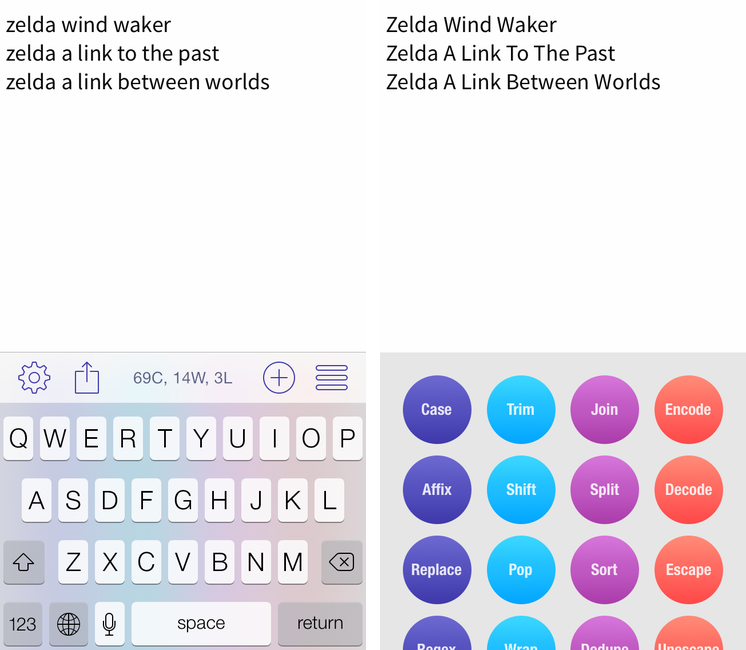
Craig Pearlman noticed this problem and built TextTool, a $4.99 Universal app that comes with 28 built-in text transformations that you can use inside the app’s text editor or chain to other iOS apps with URL schemes and workflows.

Read more


Leaving Google Chrome: Why I’ve Returned To Safari

Safari

Safari

I guess you could say that I was quite the fan of Google Chrome.

Before switching to Chrome last year, I didn’t have a “favorite” browser or “browser of choice”: I just kept jumping between Safari, Chrome, and Firefox, trying out all the features that the three major players had to offer on OS X. I’m pretty sure that, at one point, I even tried to go a full week with using Opera. My browser requirements have always been fairly standard (several open tabs; a lot of reading; sync with mobile devices), so I could afford to change browsers without having to worry about setting up a complex environment from scratch.[1]

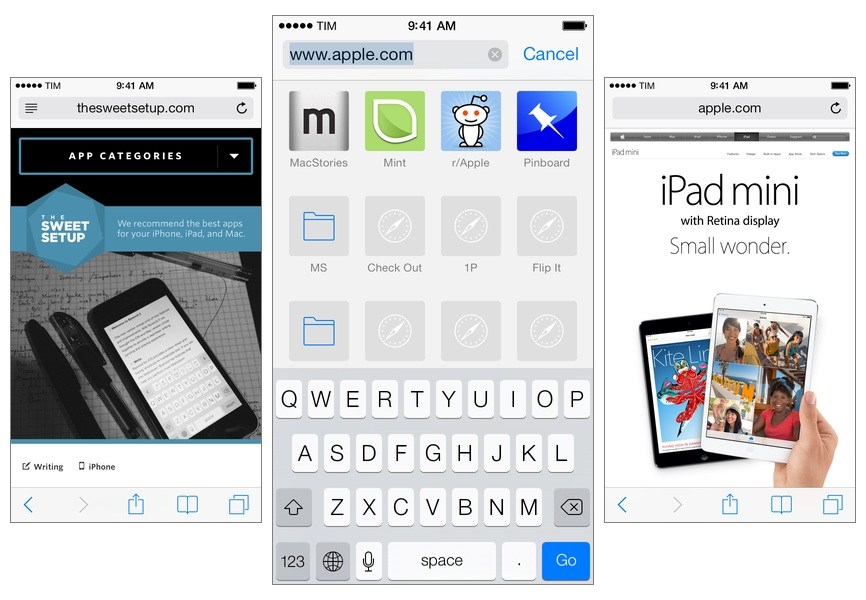
As I started using my iPad as my primary computer last year, I was growing increasingly annoyed with the state of iCloud sync in Safari and lack of major overhaul to a design that originally shipped with iPhone OS 1. I don’t frequently abandon systems that work for me due to stagnation, but iOS 6’s Safari exhibited a certain staleness on top of issues with bookmark and tab sync that, for me, were becoming an annoying problem. I liked Safari’s speed and native integrations with iOS, but it was prone to errors and boring.

On the other hand, Google Chrome for iOS was promising, familiar, and power user-friendly. I fell in love with Google’s support for x-callback-url, which I integrated in several workflows of mine as it allowed me to save time when switching between apps on my iPad; sync was nearly perfect; I praised Google’s superior implementation of voice dictation and feedback, although I noted how their Voice Search couldn’t exactly compete with Siri. Google kept pushing updates to Chrome for iOS, making it a capable browser for average and power users alike.

A few weeks after publishing my review of iOS 7, I decided to uninstall Chrome from all my devices and move back to Safari as my main and only browser on my iPhone, iPad, and two Macs.

I’m not looking back. I’m happy with the new Safari – so much, in fact, that I’m even considering Reading List as my “read later” service going forward.

Read more


First iOS 7 Game Controllers Now Available

As reported by The Verge, the first third-party iOS 7 game controllers are going on sale this week, although with mixed reviews by the press. Namely, PowerA has released the MOGA Ace Power ($100) and Logitech announced the PowerShell (Controller + Battery, shipping in December in the United States, priced at $99).

Both controllers take advantage of Apple’s new game controller API that was added in iOS 7, which allows hardware makers to create physical controllers that follow a specification provided by Apple, and that lets game developers easily add support for the controller framework once and expect their games to work with controllers by any company. However, Apple decided to make controllers optional in iOS 7 games (multi-touch is still required as primary input) and they didn’t launch or highlight a specific section of controller-ready games in the App Store, which led me to wonder about the potential of game controllers in the future.

Polygon’s Russ Frushtick tried the MOGA Ace Power, and he was not impressed:

It has a cheap, plastic feel and a rattle that makes it seem like the controller could shake apart at any moment. There’s also no wireless support, which means that you can only use devices that fit inside the controller’s expanding design (basically just newer iPod Touch and iPhones that support Apple’s lightning connector will work). There is a battery pack in the controller, so you can use it to charge your phone in a pinch, but it’s far from ideal for anything beyond that.

The MOGA Ace Power uses the “extended” controller option of Apple’s framework, which has support for dual analog sticks and shoulder buttons + triggers. Apparently, Apple asked PowerA to make sure iPhones and iPod touches could sit in the middle of the controller.

In his hands-on post, TouchArcade’s Eli Hodapp noted the potential of the MOGA Ace Power, its poor build quality, but also described the experience of playing first-person shooters on iOS:

Additionally, I’ve found myself actually enjoying playing first person shooters on my iPhone for the first time I can ever remember. All the frustration of having your thumbs all over the screen desperately trying to look and move while avoiding and/or hitting a plethora of virtual buttons just totally fades away. If you’re a huge fan of iOS first person shooters, consider one of these controllers an absolute must-have accessory.

Alas, it sounds like most game developers haven’t tested their games with the first iOS 7 controllers, resulting in interfaces that don’t disappear when a controller is connected (virtual buttons and sticks) or control schemes that don’t use all the provided buttons.

The Logitech PowerShell, on the other hand, uses the simple, SNES-like controller configuration with no dual analog sticks. SlashGear’s Chris Davies tried the PowerShell, although I’m not sure this justifies its premium price tag:

As you might hope for a hundred-dollar controller, the keys are sturdy and firm, with just the right sort of response under your fingertip. If you’ve tried a recent Logitech pad for PC, they’ll be very familiar.

On the official website, Logitech has posted a list of games that are compatible with the PowerShell (and presumably any other controller as well) and a product page with additional information and photos.

Based on initial reviews, it sounds like it’s too early to invest in an iOS 7 game controller: as expected, the first controllers work but they’re not great, and, more importantly, you won’t find many games with proper support for game controllers today. iOS 7 game controllers keep having enormous potential to enhance gaming on iOS; at the same time, though, we’ll have to wait and see if physical controllers are what iOS really needed to go beyond freemium games, ports, spin-offs, and the occasional gem.

Permalink


Podcasting On iOS

When I told some friends that I was “podcasting” on iOS, they assumed that all I was doing was recording myself on iOS and doing the post-production later on a Mac. Not so! In fact, we actually do the entire end-to-end audio production purely on iOS.

Fraser Speirs details his workflow for producing episodes of Out of School without a Mac. The fact that several episodes have been created using an iPhone and iPad with a portable podcasting setup is pretty incredible.

Also of note (towards the end): one of the benefits of the A7 processor.

Permalink

App Stagnation

Michael Lopp decided to move away from Things:

How can I trust that I’m using the state of the art in productivity systems when I’m using an application that took over two years to land sync I could easily use? What other innovations are they struggling to land in the application? Why hasn’t the artwork changed in forever? What is that smell? That smell is stagnation.

Daniel Jalkut responds:

He applauds the app for allowing him to do his work “frictionlessly.” How does a software developer achieve this level of performance? By first building a quality product and then working deliberately over months and years to address the minor issues that remain. Woodworking makes a reasonable analogy: after a chair has been carved and assembled the job is functionally complete. It’s a chair, you can sit in it. It’s done. But customers will gripe with good cause about its crudeness unless the hard work of detailing, sanding, and lacquering are carried out. Only then will it be considered finely crafted.

I’ve gone through a similar process several times in the past few years. Why change something that works? But, on the other hand, why avoid trying something that could be better?

Permalink

The Sweet Setup

When my friend Shawn told me about the project he was working on a few months ago, I was immediately excited by its potential and premise. The Sweet Setup, launched today, wants to recommend the best apps for iOS and OS X. Not the newest ones – the best ones.

Here’s how Shawn describes The Sweet Setup:

The Sweet Setup exists because I wanted a site that highlights the software that has proven to be the best, not necessarily the newest.

Here we will be recommending only the apps which are proven to be the best rather than new (I already write plenty about what’s new and cool over at shawnblanc.net and Tools & Toys). Additionally, by focusing on only the best, it means all the content on our site is relevant all the time. I didn’t want to post our articles in a reverse-chronological order that, by nature, would cause still-helpful reviews to be pushed out of view once new reviews get published.

I think that Shawn had the perfect idea at the right time. With over a million apps now available on the App Store, people need a “Wirecutter for apps” with recommendations thoroughly researched and written by people who test and use apps every day.

The Sweet Setup looks great, the initial line-up of recommendations is solid, and more will come in the next few weeks.

I’m honored to be part of Shawn’s new project from the start, too: what’s the best Markdown writing app for the iPhone? Here’s my answer.

Permalink

Convertrain: Model Railroad Converter

Before I started MacStories, I used to work at an eBay drop-off store where people could come to sell and buy things on eBay if they didn’t have the time or knowledge to do it on their own. There was this guy who came to visit twice a week to buy and sell railroad and train models – they were rare and expensive, and they required a lot of talking to potential bidders and sellers to ensure the quality of the model. I had heard of that hobby (known as model railroading), but the firsthand experience of selling and buying models allowed me to know more about the fervent community of rail transport modellers (and railfans in general, which include Pixar’s John Lasseter).

All of this to say that when I got an email from the developer of Convertrain, I knew what he was talking about. I remembered the days when I used to look up prices and photographs for my old customer and the time spent tracking down rarities on eBay. Convertrain is a handy converter for scale models that lets you set up notebooks for your models, add your own scale units, and export items to a variety of apps and services. It’s designed for iOS 7 and it integrates with the iPhone’s camera to add photos of your model railroads.

$1.99 on the App Store.

Permalink

Quick Math+

Last year, I reviewed Quick Math, a game that let you solve quick arithmetic tests using your handwriting on the iPhone’s screen. This year, developers Shiny Things have released Quick Math+, an expansion of the original concept that includes new game modes and avatars to unlock as you play the game.

The Quick Math series is a great example of education and fun combined on iOS, and the new game is every bit as challenging as the old one (the Memorize mode is especially tricky at Advanced, but you should try Extreme). Quick Math+ is a new (Universal) app available at $1.99 on the App Store.

Permalink