John
John
AppStories Episode 109 - Pick 2: Moment and MindNode
0:00
35:08
35:08
This week, Federico and John take a deep dive into two apps they’ve been using a lot lately, Moment Pro Camera and the recently-released MindNode 6.

 Pick 2: Moment and MindNode
 The European duo covers the latest in iPad keyboards (and DIY kickstands) before they consider the future of Mac automation and Shortcuts. At the end, Myke is sad about folding phones.
This week’s episode of Connected features, among other topics, a good discussion on the future of automation on macOS and the implications of Shortcuts coming to the Mac. You can listen here.
Sponsored by:
Thoughtful, well-researched analysis of the iOS document browser by Matej Bukovinski, one of the developers of PDF Viewer for iOS, which was among the first apps to support the feature back in 2017:
It’s been about a year and half since iOS 11 was released into the wild, and with it, the long-awaited system document browser. PDF Viewer was one of the first applications that truly went all in with this new component, and we did this by fully replacing our custom solution with it on devices that were upgraded to iOS 11. This move certainly got us a lot of attention and praise from power users, but it also caused a lot of frustration for others who were unlucky enough to stumble upon the bugs and limitations of this new component. From a developer’s point of view, it was a mixed bag as well. On one hand, it allowed us to stop developing our custom document browser, thereby saving ourselves a lot of valuable development time in the process. On the other hand, it forced us to make do with a system we did not own and couldn’t even “hack” around when there were problems.
PDF Viewer will drop support for iOS 10 shortly, which will get rid of the final remains of our custom document browser, so we thought it might be a good time to take a closer look at how its system replacement is doing and go over the good, the bad, and the ugly.
File management is one of the main sections of an in-depth iPad story I’m working on right now, and the document browser is a key functionality I’m going to describe in detail. Overall, I agree with Bukovinski’s take: the document browser has brought consistency and speed to a lot of document-based apps, and I’m happy to see fewer custom file managers in apps these days, but it could use more customization options for developers, and the reliability of third-party file provider extensions is still largely hit or miss.
Our New Mac mini Setups  Reader Setup: Federico Viticci
 My setup revolves around an UltraFine 4K display and a small BESTÅ BURS desk that we bought at IKEA last November. My girlfriend and I had two primary goals when we decided we wanted to renovate the corner of our bedroom which acts as my “home office”: due to obvious space constraints (we’re...
This week, in the absence of adult supervision, Myke and Federico discuss their new favorite time zone app and consider some recent iOS 13 rumors before Ticci talks about what arrived in his mailbox.
On this week’s Connected, in addition to CalZones and iPad keyboards, we talk about some recent iOS 13 rumors, including something I heard about mouse support on iPad a few months ago. You can listen here.
Sponsored by:
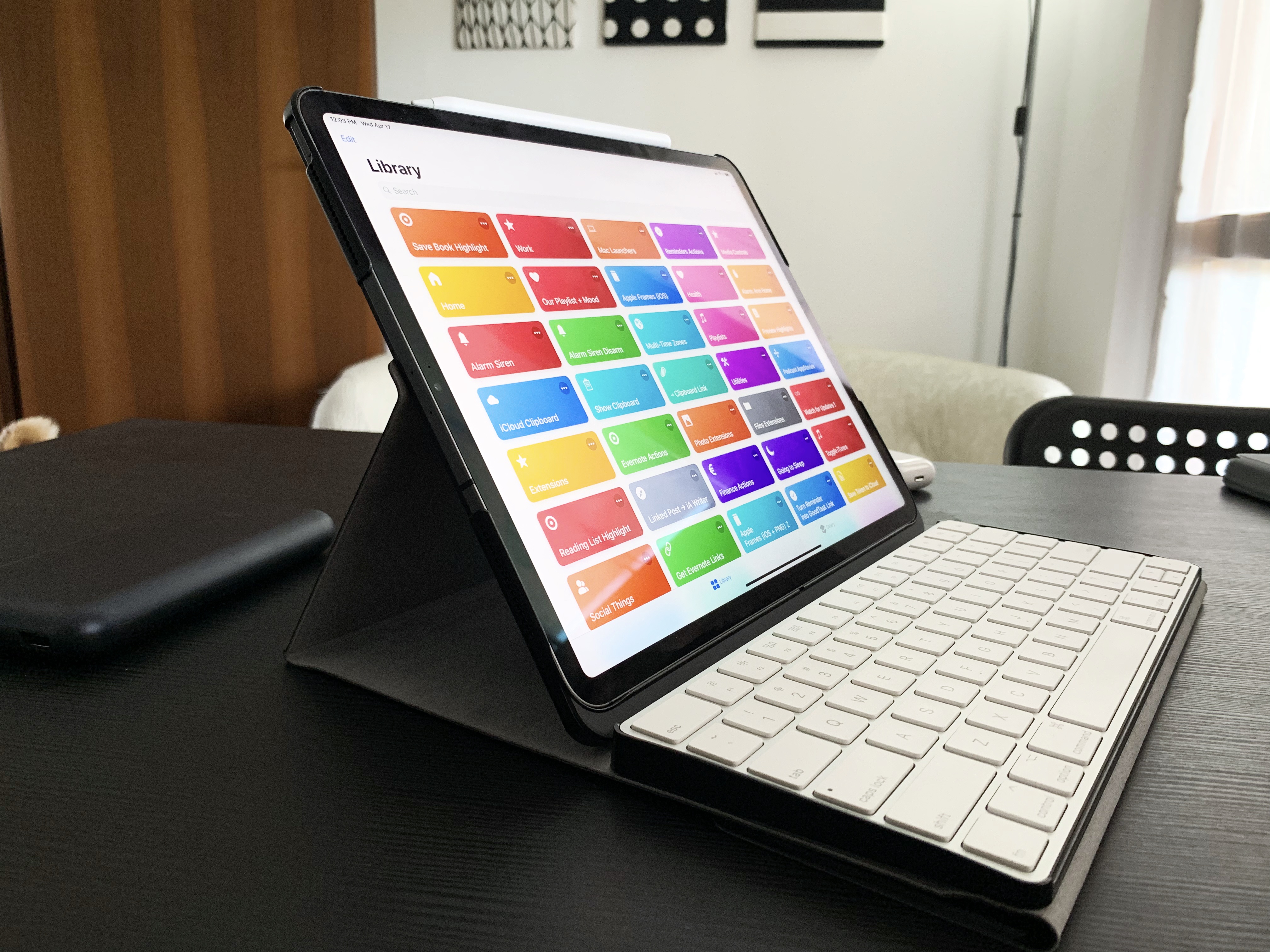
The Touchtype Pro is a clever new accessory created by Salman Sajid that aims to combine the iPad Pro with Apple’s Magic Keyboard using a flexible cover case and magnets. Sajid launched a campaign for the product earlier this month on Kickstarter, where you can check out more details about pricing and the design process of the Touchtype Pro. I was lucky enough to get my hands on an early production unit before the Kickstarter went live and I’ve been using the Touchtype Pro with my 2018 12.9” iPad Pro for the past few weeks. After sharing some first impressions on Connected, I wanted to post a few more thoughts here, along with some photos.
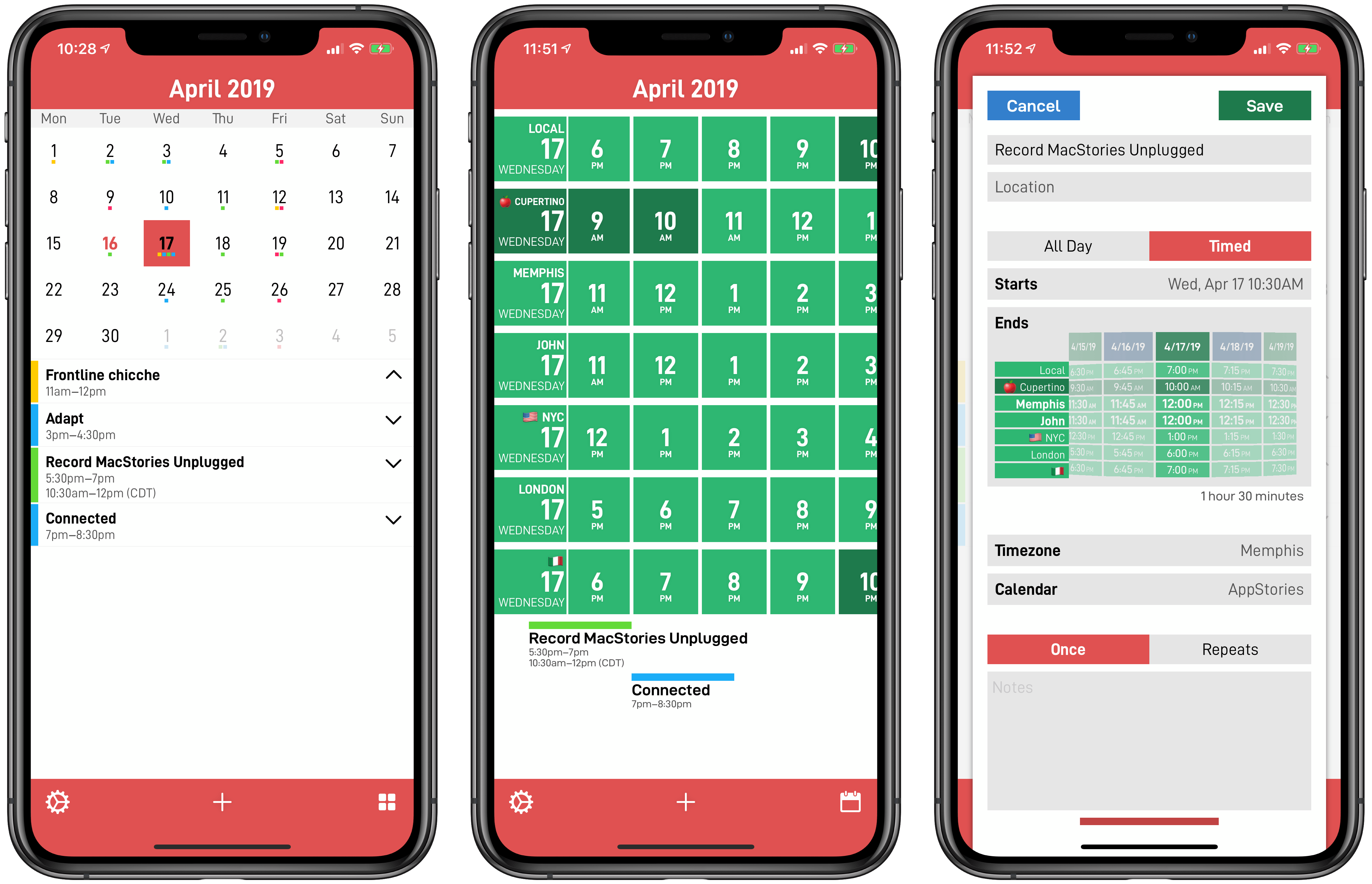
I’ve always struggled to find apps that understand how people work across multiple time zones. In the 10 years I’ve been writing MacStories, I’ve come across dozens of time zone conversion utilities (and I even created my own with Shortcuts), but as someone who works remotely with people all over the globe, I know there’s more to time zone management than just performing a quick conversion. Perhaps you’re planning a Skype call with three more people, each living in a different time zone; maybe you have to coordinate a product launch and need to know at a glance what “3 PM GMT” means for your customers in New York, San Francisco, Rome, and Sydney. CalZones, the latest app by _David Smith, is the first iOS app I’ve ever used that fundamentally gets how people work and schedule events across multiple time zones. It’s almost like CalZones was made specifically for me, and it’s an app that speaks directly to my heart.
CalZones, available today on the App Store as a Universal app, is based on a simple, ingenious concept that, to the best of my knowledge, has never been done on the App Store before: the app combines a time zone viewer with a calendar client, enabling you to compare times across multiple cities as well as view and create calendar events that display start/end times in multiple formats. By fusing time zone comparisons and calendar events into one product, Smith was able to create an app that is greater than the sum of its parts because it solves a problem that neither traditional world clocks nor calendar clients could fix before.
Interview: Ten Years of MacStories with Federico Viticci
This week, to mark MacStories’ 10th anniversary, John interviews Federico about how MacStories got started, what led to the MacStories that readers know today, and what’s in store for the site and other MacStories properties in the future.