Apple Updates Final Cut Pro X and Other Video Apps with Third-Party Extensions and More

Apple has updated Final Cut Pro X, Motion, and Compressor with several new features.

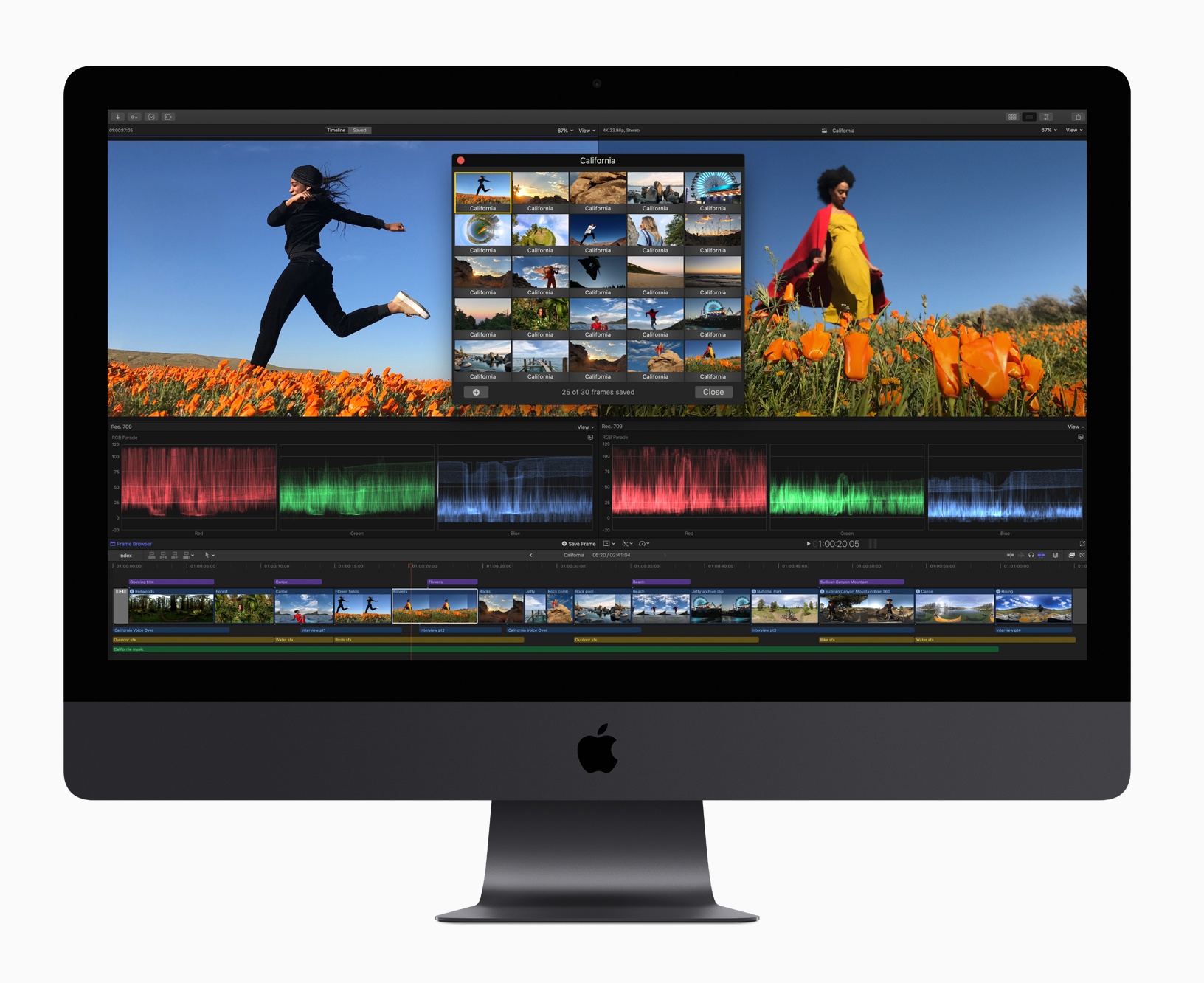
Headlining the update is Final Cut Pro X, which gained support for third-party extensions. The pro video editing app now includes built-in extensions from Frame.io, Shutterstock, and CatDV, which provide access to those apps and services from within Final Cut itself. The extensions, which match the interface of Final Cut are available from the Mac App Store as free downloads. Apple says it expects additional extensions to be made available in the future.

The Final Cut update includes other enhancements to the app too including:

  • Batch sharing of clips and projects
  • A new Comparison Viewer to allow editors to compare footage against a reference image during the color grading process
  • A customizable floating time code window that can display color-coded clip names, roles, project time codes, and other data
  • Video noise reduction for low-light footage
  • Closed captions in SRT format and formats compatible with a wide variety of video websites
  • Improved marquee selection

Motion and Compressor gained new features too. Motion, which is used for adding motion graphics to Final Cut Pro footage, has added the same color grading tools found in Final Cut. That means editors can use those same tools to adjust the colors of their titles and motion graphics. Motion also gained new comic effect and tiny planet filters.

Compressor, which is used for encoding video, has added a 64-bit engine for improved performance, while maintaining support for 32-bit codecs. Like Final Cut Pro, Compressor now supports SRT closed captioning too.

Final Cut Pro X, Motion, and Compressor are free updates for existing users that are available on the Mac App Store. New users can purchase Final Cut for $299.99, Motion for $49.99, and Compressor for $49.99.

A Look Back at the Original iPad mini

For the first several years of its existence, the iPad was defined by its 1024x768 9.7-inch screen.

The original iPad weighed in at 1.5 pounds, but with the iPad 2 shaved that down to just 1.3 pounds, thanks to advances in the technology inside its revised design.

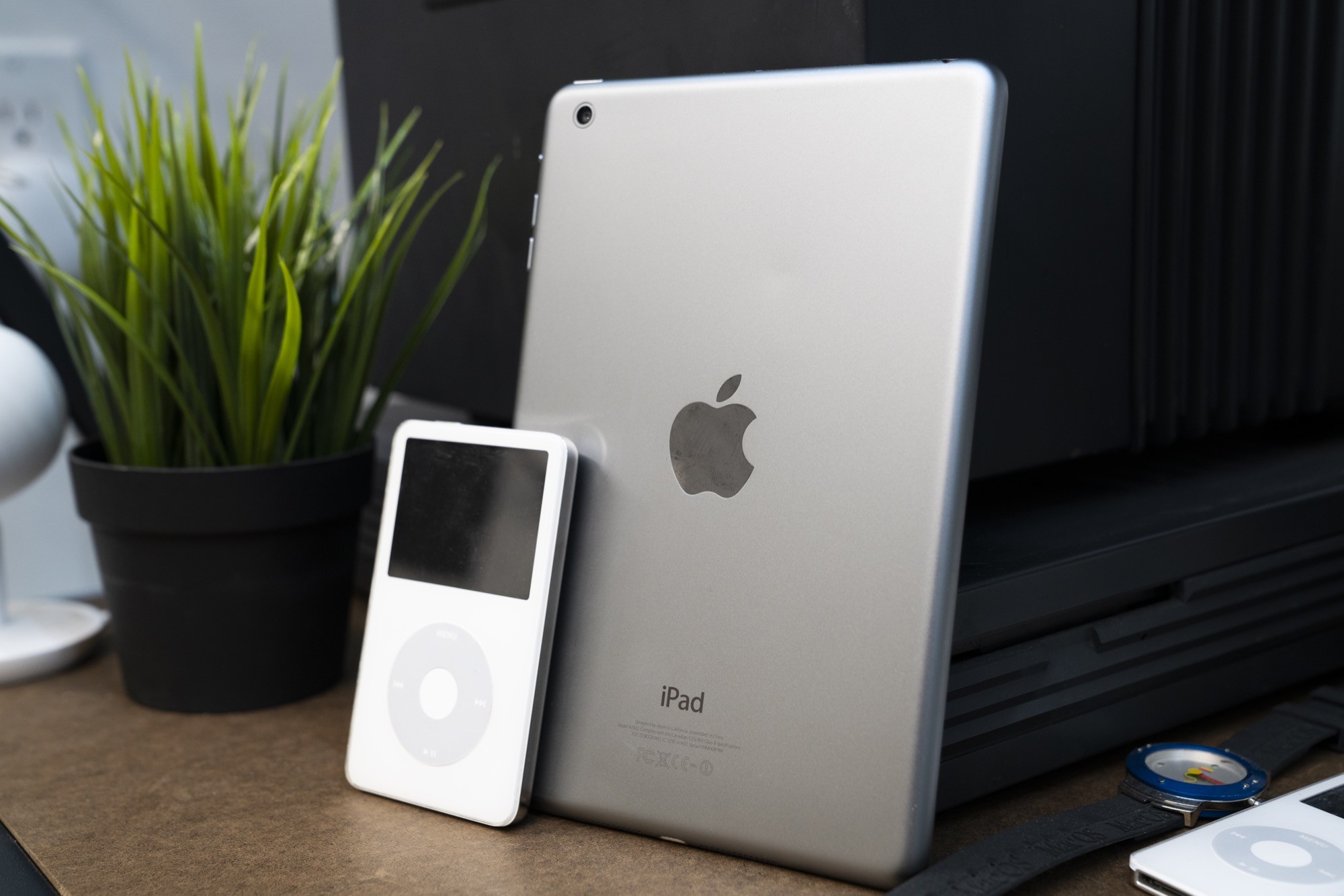
Despite the iPad becoming lighter and easier to hold, many people were clamoring for an even smaller iPad. In October 2012, Apple answered their call with the iPad mini.

Read more


Pocket Casts 7: A Host of Improvements Make the App Feel Brand New

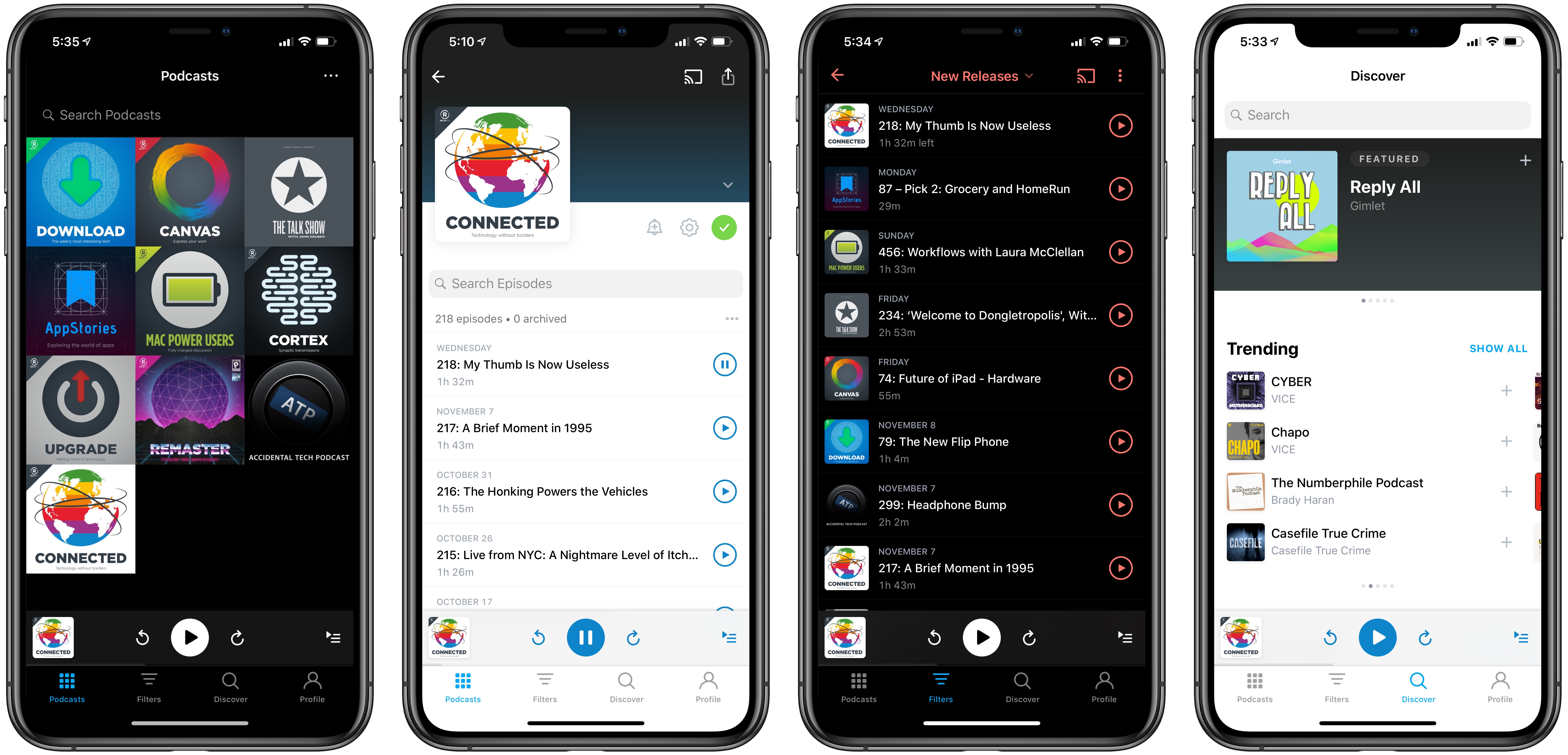
It’s been over two years since the last major version of Pocket Casts debuted. A lot has happened in the podcasting world since then, including Pocket Casts itself being acquired by a consortium of radio stations and podcast companies. The app has also faced strong competition from alternatives like Overcast and Castro. Pocket Casts remains one of the best third-party podcast clients on iOS, but it has started to show its age of late. Updates to the app over the last year have been fairly minor and unimpressive. In hindsight though, it’s easy to understand why: the app’s development team has been plugging away on a major new update that’s officially launched today.

Pocket Casts 7 makes the podcast client feel modern again. It introduces a new design alongside important features like Siri shortcuts and AirPlay 2 support, Up Next syncing, episode search, Listening History, and a lot more. If you haven’t given the app a try in a while, now is definitely the time to do so.

Read more


Penny Arcade’s Mike Krahulik on Drawing on the New iPad Pro

Mike Krahulik, writing on the Penny Arcade blog:

The previous Apple Pencil had a little lightning adapter where its eraser would be. This was covered by a tiny plastic cap about the size of a child’s tooth. In order to charge the pencil you removed this cap and plugged the pencil into the lightning port on the bottom of your iPad. This was dumb for a lot of reasons.

For one thing, it meant you could not charge your iPad while the pencil was charging. You also had to try not to lose this tiny little pencil cap. It also was an incredibly fragile connection that always felt like it was about to break. It also looked incredibly stupid. But now! The new Apple Pencil attaches to the side of your iPad thanks to the magic of magnets! This is also how it syncs and charges. I will be honest with you and admit that after using my old iPad for eight solid months every single day, I had no idea how to check the battery level of the pencil. I never knew it was low until it was time to charge the damn thing. Now when you snap your pencil onto the side of the iPad, a little bubble shows you the battery life. Brilliant! The Pencil itself also feels better in my hand and has a touch sensor on it. You can now double tap the pencil with your finger and this functionality can be customized.

The machine feels lightning fast now as well. I can’t believe some of the multitasking I’ve been able to pull off. I sent this pic to Kiko the other night because I was drawing in Clip Studio while I had a show running in a floating window off to the side.

Great reminder that professional work on iPads doesn’t necessarily mean typing or coding. I also discovered Clip Studio through his post, which looks like a powerful, desktop-class manga drawing app that’s already been updated for the 2018 iPad Pros. Make sure to check out Krahulik’s work on Instagram too.

Permalink

iPad Diaries: Typing on the iPad Pro with the Smart Keyboard Folio

iPad Diaries is a regular series about using the iPad as a primary computer. You can find more installments here and subscribe to the dedicated RSS feed.

I have a love/hate relationship with Apple’s Smart Keyboard for the iPad Pro.

On one hand, I’ve always been a fan of its small footprint and ability to almost become part of the device itself from both a hardware and software perspective. The Smart Keyboard snaps itself into place and attaches magnetically to the iPad Pro; it doesn’t require you to even think about charging it as the Smart Connector takes care of it; thanks to the trivial magic of magnets, the keyboard and cover stay attached to the iPad as you carry it in a bag, but can be easily disconnected at a moment’s notice should you need just the iPad’s screen. The software experience is equally intuitive and exquisitely Ive-esque: the Smart Keyboard requires no pairing because it eschews Bluetooth altogether, and it integrates with all the keyboard shortcuts supported by iOS and apps. In the latest iPad Pro, the Smart Keyboard is even Face ID-aware: you can double-tap the space bar to authenticate from the lock screen instead of extending your arm toward the screen to swipe up – a welcome enhancement for those who work with their iPad Pro constantly connected to a keyboard.

There’s plenty to appreciate about Apple’s Smart Keyboard – an accessory designed on the premise of integration between hardware and software, following the same core principles at the foundation of AirPods, Apple Pencil, and (even though some liked to make fun of their peculiar design) Smart Battery Cases. But since its debut in 2015, I’ve been saving a series of small complaints and bigger annoyances with the Smart Keyboard that I’d like to revisit now that Apple has shipped its evolution for the new iPad Pro – the Smart Keyboard Folio.

Read more


La Roche-Posay Debuts My Skin Track UV, a Solar-Powered UV, Pollution, Pollen, and Humidity Wearable

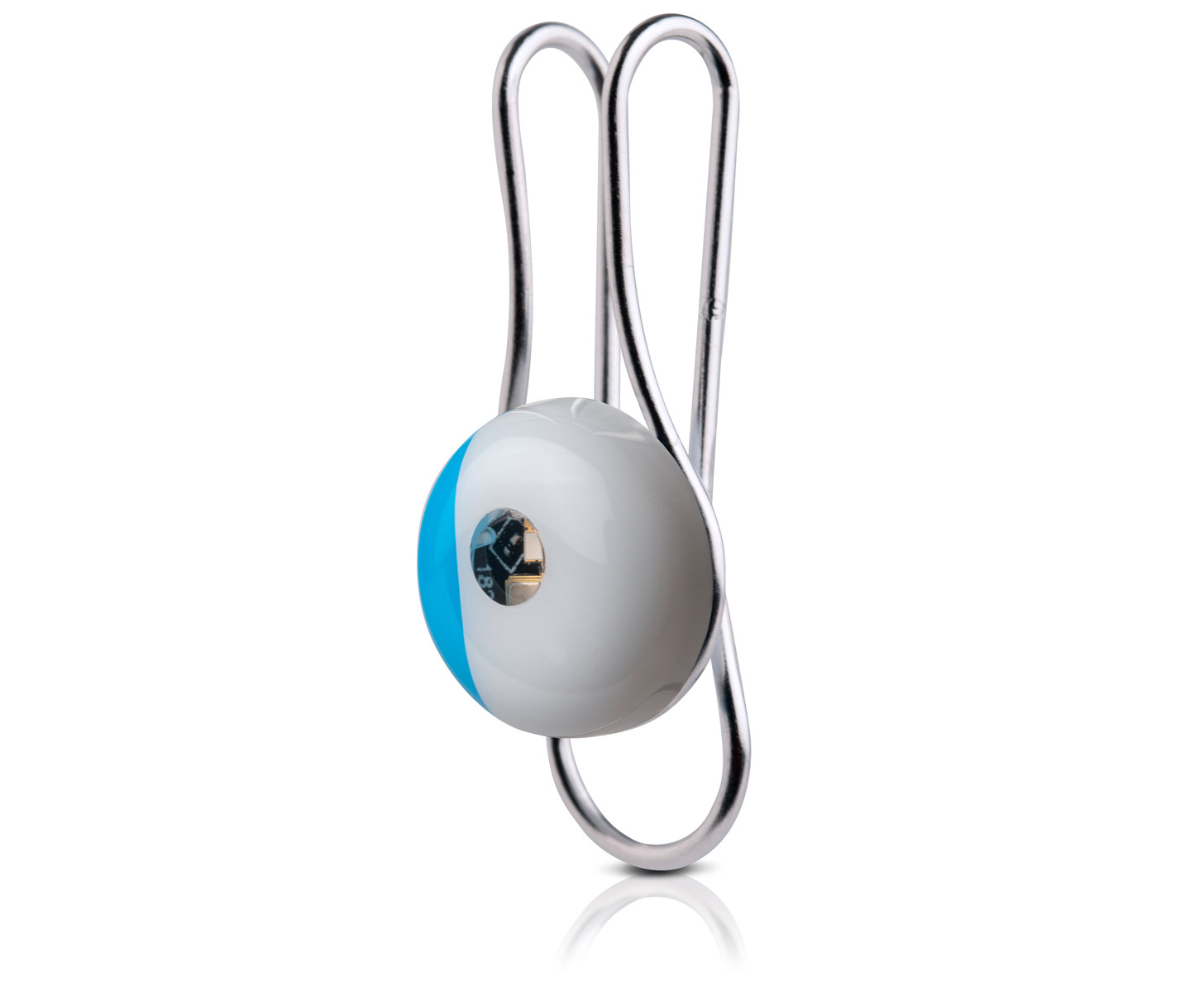
La Roche-Posay has introduced a new wearable device today called the My Skin Track UV. As the name suggests, the device tracks ultraviolet light (UVA and UVB) exposure, but there’s more to it than that.

The company says its new device also tracks pollution levels, pollen, and humidity. That’s a combination that should provide users with a much broader set of data about their environment as they move throughout the day. The device is tiny and water resistant too at just 12mm wide, 6mm high, 17.4 grams, and with an IP67 water resistance rating (the same as the iPhone X, iPhone 8, and 8 Plus).

Another nice touch is that the My Skin Track UV is solar powered so it doesn’t need to be recharged. Clip it to your clothing or something you carry with you every day and La Roche-Posay says the device will remain powered, collecting data.

La Roche-Posay’s website describes the technology behind the device:

The light emitting diode (LED) is used as a detector to capture UV light. This energy will be read by transferring data from the sensor to your phone using Near-Field Communication (NFC) technology. Based on your UV exposure and environmental factors, the app uses an intelligent algorithm backed by over 25 scientific studies to warn you when your environmental exposure is at a level recognized to contribute to your specific skin concern.

One downside of the device’s use of NFC is that it requires users to manually scan it periodically using the companion app to transfer the collected data to the iPhone. The app, which integrates with Apple’s Health app, also offers skin health recommendations.

The My Skin Track UV is available exclusively at select Apple Stores and apple.com for $59.95. We will have a complete hands-on review of the My Skin Track UV device on MacStories soon.


Front-End Web Development on an iPad Pro in 2018

Fascinating deep dive by Craig Morey on whether it’s possible for a front-end web developer to get their work on an iPad Pro in 2018.

It’s a highly technical read, and ultimately Morey doesn’t believe an iPad Pro is ready for this task yet, but it’s worth pointing out that many of the issues outlined by Morey are applicable to anyone who uses an iPad as their primary computer today. For instance, the problem with Files APIs, introduced in iOS 11 and still not widely adopted by third-party document-based apps:

I’ve already posted about the messy landscape of options for moving and accessing files in iOS. The only way apps should be doing it currently is with iOS 11 style file APIs, but many apps have either legacy file solutions, bespoke (ie, confusingly different — and differently-abled) file pickers or would rather pull you into their own cloud platform.
[…]
Apple need to evangelise the right way to do this before basic file management turns off the potential users before they get to the inspiring parts of iPad usage. But to really make it work, app developers need assistance to update older apps to the latest APIs. Many app devs spent huge amounts of time building custom solutions before any good options existed, only to see little in terms of revenue to encourage them to rewrite their app as new APIs came along. The iPad Pro marketplace needs to be turning a corner in terms of viability to bring these apps back into the modern iOS world.

Make sure to watch the videos in Morey’s piece – I love how he detailed every single step of the workflows he tried to build on his iPad Pro.

Permalink

Connected #217: A Brief Moment in 1995

Federico looks back on his PowerBook 165, Myke sends a tweet and Stephen goes for a drive with Siri. The three also have a conversation about working on the iPad Pro, and how people respond to it.

On last week’s episode of Connected, we shared our first impressions of the new iPad Pros. We’re going to go more in depth on the new devices this week, but in the meantime you can catch up here.

Sponsored by:

  • Squarespace: Make your next move. Enter offer code CONNECTED at checkout to get 10% off your first purchase.
  • Simple Contacts: Contact lens prescriptions from home: Use offer code CONNECTED20 for $20 off your first order of contact lenses
  • Luna Display: The only hardware solution that turns your iPad into a wireless display for your Mac. Use promo code CONNECTED at checkout for 10% off.
Permalink

Spotify Debuts on Apple Watch, Promising Advanced Features Still to Come

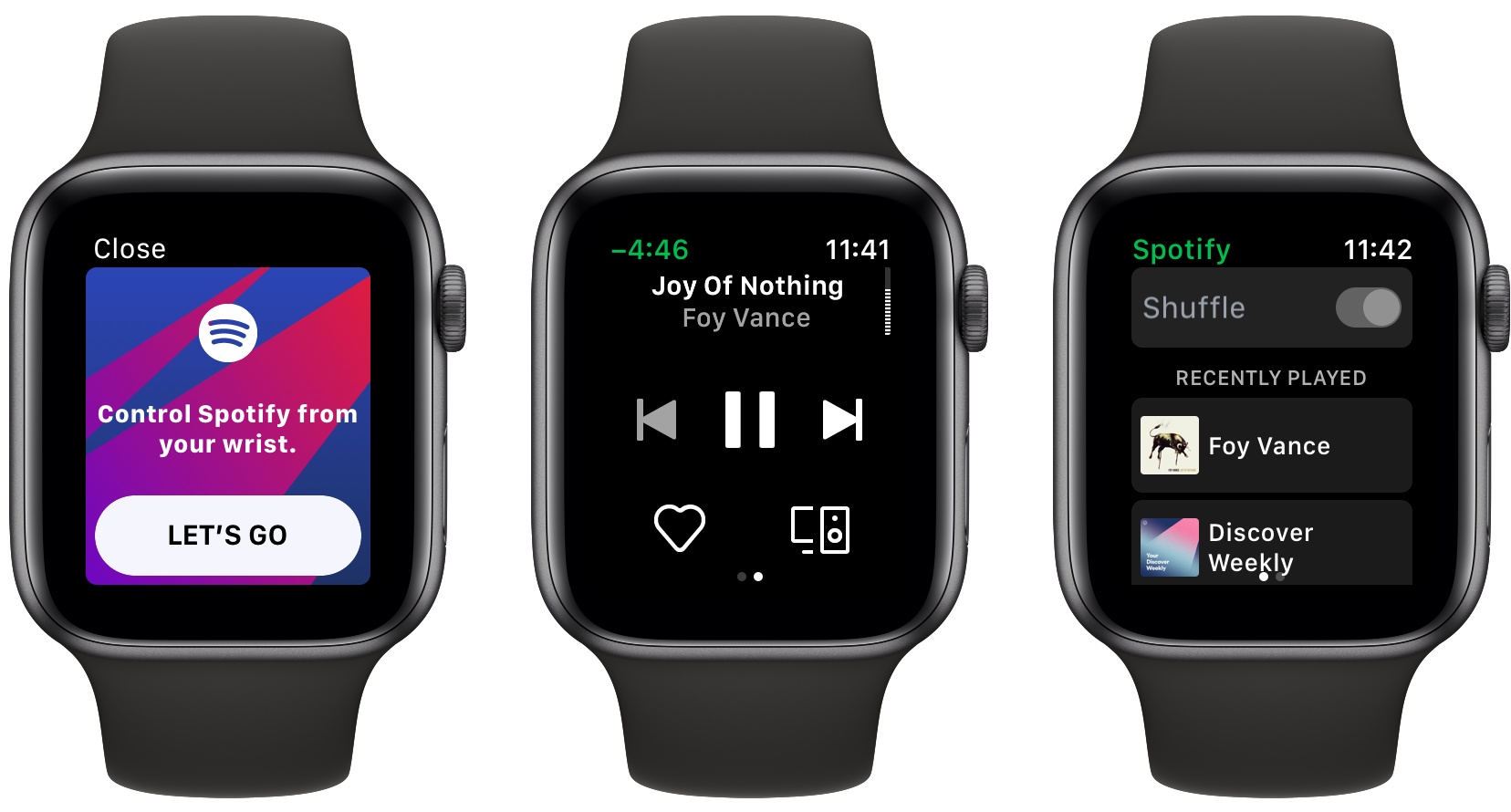
The latest version of Spotify for iOS has been released, and it includes the music player’s first Apple Watch app. The App Store release notes stress this is merely a “first version” of the Watch app, which is reassuring considering how limited the app is now.

Spotify’s Watch app currently serves as a way to start playback of recently played music, and control that playback via play/pause, skip, and volume controls. You can also choose a connected device to send music to, and like a song to add it to your collection. And that’s it.

As a 1.0, Spotify’s Watch app covers the basics well. I’m especially pleased that volume control via the Digital Crown is enabled here. Spotify has designed its own custom volume indicator, visualized as a vertical dotted line in the upper right corner of the screen, and it’s especially satisfying to see each area of the line fill in sync with the haptic clicks of the Series 4 Watch’s Digital Crown.

One strikingly disappointing oversight is that Spotify isn’t optimized for the new 40 and 44mm Series 4 displays, as you’ll notice in the framed images above. Launching two months after new devices debut, but without support for those devices, is not a good look. I’m hopeful we won’t have to wait long for that issue to be remedied, though. In its announcement post for the Watch app, Spotify candidly acknowledged that there’s plenty more work to be done to create the best Watch experience – “we have many exciting things coming up —including the ability to listen to your music and podcasts offline.” Surely support for modern Watch displays is one of those ‘exciting things.’