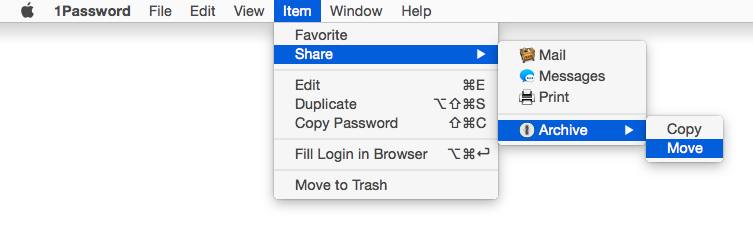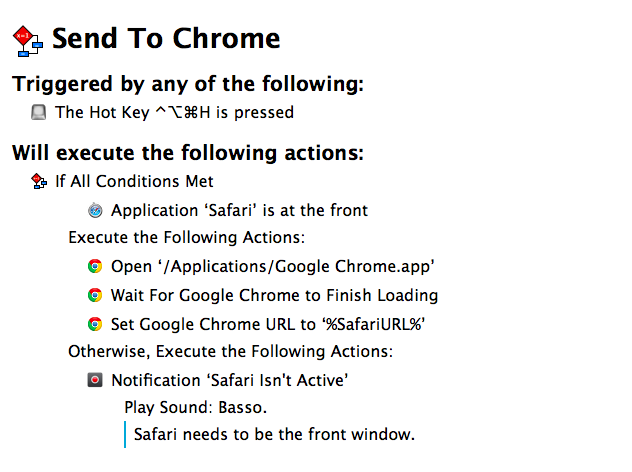
Patrick Welker goes all meta with a macro to save Keyboard Maestro macros as screenshots — a new feature of version 6.0.

Keyboard Maestro 6

Long-time MacStories readers know how deep-seated Keyboard Maestro is in my OS X workflow. I use it every day, constantly, to automate my Mac to speed up writing, resize images, save PDFs, execute scripts, and more. Version 6.0 is out today and it brings over 100 new features. Unfortunately, I have only been playing with the app for a few hours, so an in-depth review will be published in the coming weeks.

Keyboard Maestro 6.0 retains the same interface and design principles of its predecessor while adding powerful new features that are exclusively built for Mountain Lion. For owners of multiple Macs, the good news is that Keyboard Maestro can now sync macros using Dropbox or any other sync service; in my initial tests, sync worked as advertised.

There are, of course, new triggers and actions to build macros that can automate (almost) any aspect of your Mac. You can now specify triggers for USB devices that are attached/detached to a computer, volumes, and wireless networks that your Mac connects to. This will be useful to build workflows (possibly to run at a specific time of the day) that handle backups or move files from one folder to another (the triggers can also be used as conditions in a macro). When you’re building a macro, you can now take advantage of a Macro Debugger that shows every action with completion status and breakpoints; this will come in handy to better understand why a macro isn’t working and, if so, how to fix it.

I’m personally excited to play around with the new actions for Safari and Google Chrome. As most of my workflows revolve around doing research in and grabbing text/URLs from a web browser, I have created dozens of macros that leverage AppleScript to store a webpage’s name and URL in variables to include in actions that output Markdown for my articles. With Keyboard Maestro’s new Safari and Chrome actions, you can eschew AppleScript entirely and let actions open and select tabs, get URLs and titles, submit and reset web forms, click links, wait until a browser has finished loading – while obviously accessing the same data as text tokens in your actions. On top of this, you can execute JavaScript in Safari and Chrome – which means activating bookmarklets from Keyboard Maestro with custom keyboard shortcuts is now easier than ever. I have already rewritten my actions for Markdown links to take advantage of the new browser actions; I have eliminated every instance of AppleScript, so there’s less manual saving to variables, the actions look more elegant, and I’m using built-in tokens.

There’s a lot of new stuff that I haven’t had time to properly test. You can now interact with styled text from Keyboard Maestro; you can write your own actions; there’s improved support for showing menus from installed apps (essentially enhanced GUI scripting); you can capture components of a regular expression by searching inside a variable or named clipboard – a power-user functionality that I am extremely curious to try with my regex to capture groups of Markdown inline links.

From what I’ve seen so far, Keyboard Maestro 6.0 doesn’t revolutionize the app but adds welcome (and needed) features such as syncing and browser actions while broadening its automation scope with intriguing new triggers, conditions, and actions. I look forward to seeing how I can update my macros to take advantage of the new functionalities introduced today.

Keyboard Maestro 6.0 is a paid upgrade. The app is available at $36, with an upgrade price of $25 for owners of the older version. A free trial of Keyboard Maestro 6.0 can be downloaded from Stairways Software’s website.

A few weeks ago I switched back from Safari to Google Chrome. I wanted to give Safari a fair chance, especially after the introduction of iCloud Tabs, but, alas, the browser never “clicked” for me the way Chrome did. Worse, using Safari on a daily basis for work-related tasks became an unsafe bet, as it was crashing too often, taking several minutes to sync my iCloud Tabs, or generally hanging for no apparent reason. I’m still figuring out the ins and outs of Chrome — particularly how to handle the lack of a “default browser” option on iOS — but, so far, Chrome is working better for me.

One thing I miss from Safari is the ability to launch bookmarks in the Bookmarks Bar with a simple CMD+1…9 keyboard shortcut. I use a lot of bookmarklets (which, by the way, Chrome syncs faster than Safari across devices), and I’m too used to hitting CMD+2 for OmniFocus and CMD+4 for Pinboard to give up the convenience of quick bookmarklet activation. Unfortunately, Chrome uses Safari’s CMD-based shortcuts for switching between open tabs.

The solution was laying in my dock the whole time. As cleverly shown by Patrick Welker, you can use a Keyboard Maestro macro to assign a keyboard shortcut to what is, essentially, Keyboard Maestro’s own GUI scripting, only done with a visual workflow. Make sure to read Patrick’s post to see how you can create a simple macro to “click” a bookmark in Google Chrome.

For the non-Keyboard Maestro users, a solution is to actually use AppleScript GUI scripting to simulate clicking a bookmark’s name. Using something like the script below, you can use any launcher that supports assigning a keyboard shortcut to an AppleScript to quickly launch a Google Chrome bookmark.

tell application "System Events"
	tell process "Google Chrome"
		click menu item "pin" of menu "Bookmarks" of menu bar 1
	end tell
end tell

The script could use an error-checking system to see if Chrome is the frontmost application, but I avoided adding it because I know I won’t use the shortcut anywhere else.

As for Chrome on iOS: because the browser forces you to type out bookmarklet names to launch them, my suggestion is to use a standard prefix so you’ll be able to launch them easily from the iOS keyboard. For instance, I prepend “xx” to my most used bookmarklets, so Chrome for iOS will filter the names right away.

Andreas Zeitler’s Keyboard Maestro Macros Repo

A new collection of Keyboard Maestro macros by Andreas Zeitler:

Macros are meant to be imported “folder by folder”, rather than all at once. I’ve tried to make it more convenient for the user by putting all macros in a group labelled “Keyboard Maestro Macros Repo” before exporting. This way they are imported in a group of the same name, so that you can easier find them.

Note however: Some macros have very “commonly” used triggers like F1, ↑, or ↓. In these instances it is best to put the macros in a new group that is only available in one certain application, or a group that can be turned on and off by a separate shortcut. The window manipulation macros are an example of that. The triggers for moving a window by 1px in either direction is simply ↑, ↓, ←, and →. If not put in a new group you won’t be able to use these keys anymore.

Andreas is the creator of the Keyboard Maestro Markdown Library, which I use on a daily basis. In fact, I don’t think I could ever come back to using a Mac — or writing on my computer in general — without the Keyboard Maestro Markdown Library, which is now part of the repo available on GitHub.

I’m already a big fan of several macros Andreas included in this new collection. I particularly appreciate the ones related to Mail: there’s one to easily copy a message’s unique URL, and another one to print a message as PDF with a single keystroke.

Get them here.

Oct
22
2012

I communicate with my team through iMessage. We’ve tried many “communication services” over the years, yet, since last Fall, we’ve always come back to Apple’s solution. It’s not perfect for us, its reliability is far from 100%, but it works.

As we keep using iMessage every day, there’s one category of “media” we’re constantly sharing: Twitter URLs. We find some cool piece of information or news on Twitter, we share it with the team. Linking back to tweets has, in a way, become our favorite type of commentary for fun, news-hunting, and everything in between.

Twitter.com URLs, though, aren’t the best way to jump back to a tweet, especially when you’re on a mobile device. When you’re on a Mac, clicking on a Twitter link will open a new browser tab, which doesn’t really bother us as we’re used to opening background tabs on our computers. But on the iPhone and iPad, it can become annoying: there’s a limit of 8 Safari tabs on the iPhone, you get yanked out of Messages, and, most of the time, mobile.twitter.com URLs just don’t work. In our team chat, we’ve speculated the “Not Found” errors we’ve seen may be related to how Tweetbot generates Twitter URLs when you hit “Copy Link to Tweet”: instead of using status in the URL slug, it uses statuses, which seems to be the reason behind erroneous redirecting on mobile devices.

We’ve come to the conclusion that we want to be able to easily copy twitter.com URLs and turn them into links based on Tweetbot’s URL scheme. Using a simple tweetbot:// URL, you can use Twitter’s status ID – the same you receive when you copy a link – to open a single tweet directly in Tweetbot. And the best part is, the same URL scheme works consistently across Tweetbot for iOS and Tweetbot for Mac. As everyone on the MacStories team is already using Tweetbot, the solution seemed obvious – plus: no more browser tabs.

The problem was finding a way to convert twitter.com URLs easily, without having to remember complex combinations of keystrokes and commands. Furthermore, as I promised my team I’d come up with a way, I had to figure out a solution to do text conversion directly on iOS.

As a result, I’ve come up with an AppleScript, a Keyboard Maestro macro, and a simple Python script to transform Twitter URLs into their Tweetbot counterparts. (more…)

I save a lot of stuff into OmniFocus: bits of text, URLs, emails. I used to save favorite tweets into it, too. The app’s Quick Entry panel is so easy to invoke and so well-integrated with core parts of OS X  that, most of the time, I find myself clipping information that shouldn’t be into OmniFocus at all. However, I also find the process of manually going through that information beneficial to my workflow: it allows me to mentally and practically separate actionable items (tasks) from things to read and things to write (Instapaper material and my future articles, essentially).

I have created a simple AppleScript to send the selected OmniFocus task to a text file. The script is meant for how I use OmniFocus; hopefully you’ll find it useful as well. Feel free to modify it.

Typically, when I decide to go through my OmniFocus inbox, I find a lot of tasks that are actually ideas of things I want to do or write. Ideas don’t go into OmniFocus. Until those ideas become actionable items, I send them to a text file so I can elaborate on them and see if they can evolve. Like I said, most of the time those ideas are for new articles.

I store all my notes in a single Apps/ directory on my Dropbox. Based off the same AppleScript, I have created a Keyboard Maestro macro to create a new text file for each processed task; this is for ideas I know will turn out to be single, standalone articles. For ideas I’m not so sure about, I prefer to append them as text to an Ideas.txt file I keep in Dropbox as an “everything bucket” for inspiration. (more…)

Send Flagged Mail Messages To OmniFocus Automatically

Sven Fechner pointed today to an AppleScript published in late 2011 by Hunter Hillegas to send flagged Mail.app messages to OmniFocus’ inbox on the Mac.

In iOS 5, Apple added the ability to flag a message, just as you’ve been able to do on the desktop forever. I created an AppleScript that looks for flagged messages. When it finds them, it adds them to OmniFocus and links them back to Mail.app, just like the Services action does. It then also unflags the message, resetting the state back to normal. This script runs every five minutes.

In iOS 6′s Mail.app, it’s now even easier to mark a message as flagged. I have tried the script, and it works as advertised. I would modify it to include only the latest message of a thread in the task note, but I see the appeal of having an entire conversation saved in OmniFocus for reference.

Obviously, the script is best enjoyed if executed on a Mac that’s running all the time. In this way, you can set a message as flagged on iOS, wait a few seconds, and find it in OmniFocus right away.

Personally, I run my own OmniFocus sync (every minute) so that I always have up-to-date sync that I can control. To implement this script in my workflow, I just had to create a new Keyboard Maestro macro (pictured above) that runs the AppleScript every minute if I’m logged in. In the way the script is designed, flagged messages are processed, then set back to “unflagged” so they won’t be added again in the future (unless you flag them manually).

You can find the AppleScript here.

In May, in my coverage of Keyboard Maestro 5.3 I shared a macro to combine two iPhone screenshots in a single image through a keystroke:

For iPhone apps, I like to take two screenshots, place them side by side, and generate a single image. Until today, I had to manually drag the image out of Photo Stream (or use Scotty), resize them with Preview, create a new image in Acorn, drop the images in there, adjust their position, and save. I came to the point where the process took less than a minute, but still it required a manual and boring effort on my side. Enter Keyboard Maestro 5.3: I rename the images I need to use “1″ and “2″, respectively (“1″ goes on the left side); I tell Keyboard Maestro to run an Automator workflow to scale them; Keyboard Maestro creates a blank image in its clipboard, composites files 1 and 2 onto the image at a specific pixel position, and creates a new .png file on my desktop.

With the release of the iPhone 5, I updated the macro to include a version that would use the bigger resolution of the new device; however, the macro was still requiring two files named “1.png” and “2.png” to be available and selected in the Finder. While the process of manually renaming a file was allowing me to “control” the placement of the screenshots on the final image (1.png would end up on the left), I still received several requests to figure out a way to grab any image — not just those named “1″ and “2″–  from the Finder.

Gabe Weatherhead of Macdrifter came up with a way to allow for such workflow, and he allowed me to share the macro here on MacStories. (more…)

Keyboard Maestro 5.3

I love Keyboard Maestro. It is one of my most used OS X utilities — I use it every day, I rely on it to automate processes and tasks that would take repetitive and tedious clicks and selections otherwise, and my work is ultimately faster and more efficient because of it. I have covered Keyboard Maestro in the past on MacStories, and after using the app for over a year now, it still feels like I’m just getting started with it. Keyboard Maestro offers an infinite amount of possibilities, because it is capable of automating almost every aspect of OS X.

With today’s 5.3 update, Keyboard Maestro gets even more powerful, and adds support for one specific area that is going to dramatically speed-up my workflow once again: image manipulation. From the press release:

Version 5.3 adds a bunch of new Image manipulation actions, allowing you to create new images, flip, rotate, resize, and crop images, composite images, styled text and shapes onto images, display images, get the size of images, and even find the image on the screen. You can also capture the screen or a window to an image, or highlight a location on the screen.

Let alone the other improvements of version 5.3 (here’s the full changelog), let me quickly focus on the image capabilities of the app, as I have set up two new macros that are going to substantially enhance my screenshot-taking duties for the site. Firstly, the image above: taken with Keyboard Maestro, set it to a specific clipboard, modified with the addition of a pre-defined watermark, saved as .png and renamed with (previously copied to clipboard) front window’s file name. Execution time: 1 second.

Then, iPhone screenshots. For iPhone apps, I like to take two screenshots, place them side by side, and generate a single image. Until today, I had to manually drag the image out of Photo Stream (or use Scotty), resize them with Preview, create a new image in Acorn, drop the images in there, adjust their position, and save. I came to the point where the process took less than a minute, but still it required a manual and boring effort on my side. Enter Keyboard Maestro 5.3: I rename the images I need to use “1″ and “2″, respectively (“1″ goes on the left side); I tell Keyboard Maestro to run an Automator workflow to scale them; Keyboard Maestro creates a blank image in its clipboard, composites files 1 and 2 onto the image at a specific pixel position, and creates a new .png file on my desktop. Like this one. I don’t need to manually switch between apps anymore as everything’s automated, and takes 2 seconds, literally.

Keyboard Maestro has a lot to offer, but that’s up to you. Check out the app’s tour, full documentation, then buy it from Stairways Software for $36.

Update 9/30/2012: Here’s an updated version of the “Combine iPhone screenshots” macro for the new iPhone 5 resolution. (thanks, @PiratXMac)

Update 10/7/2012: A better version of the macro is now available here.